Social Icons - Follow Us

Connect Smartarget Social Icons - Follow Us with Webflow to display floating social media follow icons across your site.

Install app
View website
View lesson
A record settings
CNAME record settings
Social Icons - Follow Us

Social Icons - Follow Us drops a floating, multi-network follow widget onto any Webflow site, covering 10 platforms the built-in Facebook and Twitter elements can't reach, including Instagram, TikTok, LinkedIn, YouTube, WeChat, and Weibo. Pick your networks, set colors and positions for desktop and mobile, then deploy a single script.

It's built for e-commerce stores converting visitors into followers, agencies shipping client sites, creators growing audiences from portfolio traffic, and brands targeting international or Gen Z audiences.

How to integrate Social Icons - Follow Us with Webflow

What is Social Icons - Follow Us? Social Icons - Follow Us is a widget by Smartarget that displays floating social media follow icons on any website. It supports 10 platforms including Facebook, Instagram, Twitter/X, LinkedIn, Pinterest, YouTube, TikTok, WeChat, Weibo, and Snapchat. You configure it in the Smartarget dashboard, where you choose networks, set colors, write CTA text, and control position separately for desktop and mobile.
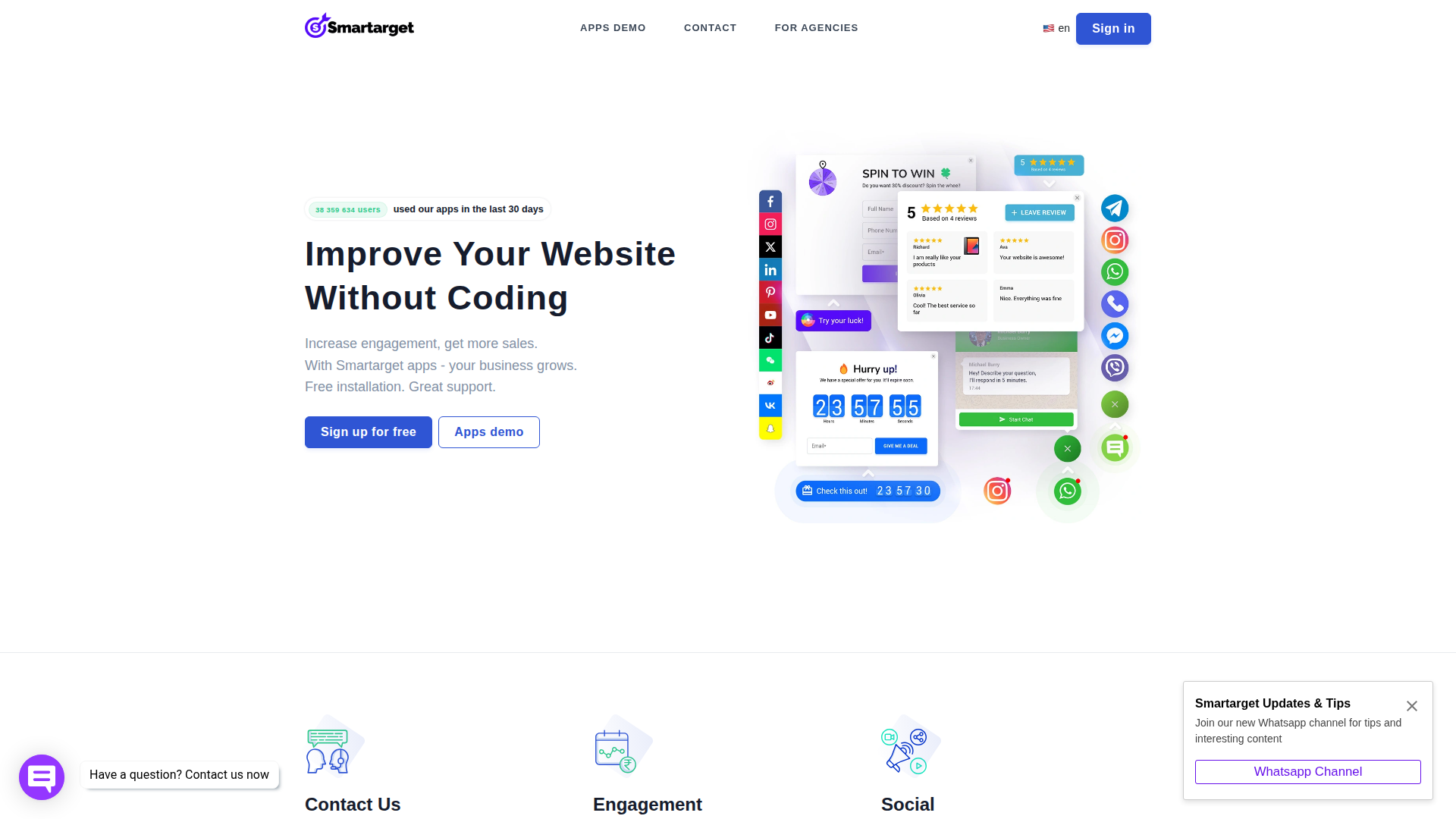
Reach for this widget when you need a visible, persistent follow prompt across your Webflow site without designing and coding custom social icon components. The floating format keeps the icons visible on every page while staying out of the main content flow. Setup takes a few minutes and doesn't require editing your layout or styles.

You can set up the Social Icons - Follow Us Webflow integration in 3 ways:

  • Install the Social Icons - Follow Us app from the Webflow Marketplace to inject the widget automatically without manual code placement.
  • Paste the Smartarget script into custom code in head and body tags or a Code Embed element for site-wide or page-specific control.
  • Use the Data API as an advanced Webflow-side automation option for managing custom code that contains Smartarget's script, though this isn't a standard Smartarget integration path and still requires server-side development.

Most implementations use either the Marketplace app or the manual code method. The API path mainly applies if you're a developer managing multiple sites or building deployment tooling.

Install the Social Icons - Follow Us app

The Social Icons - Follow Us app installs from the Webflow Marketplace and injects the Smartarget JavaScript into your site. You don't need to copy or paste any code manually. Use this method to run the widget across your entire site with the fewest manual steps. You need a paid site plan for custom code to function on your published domain.
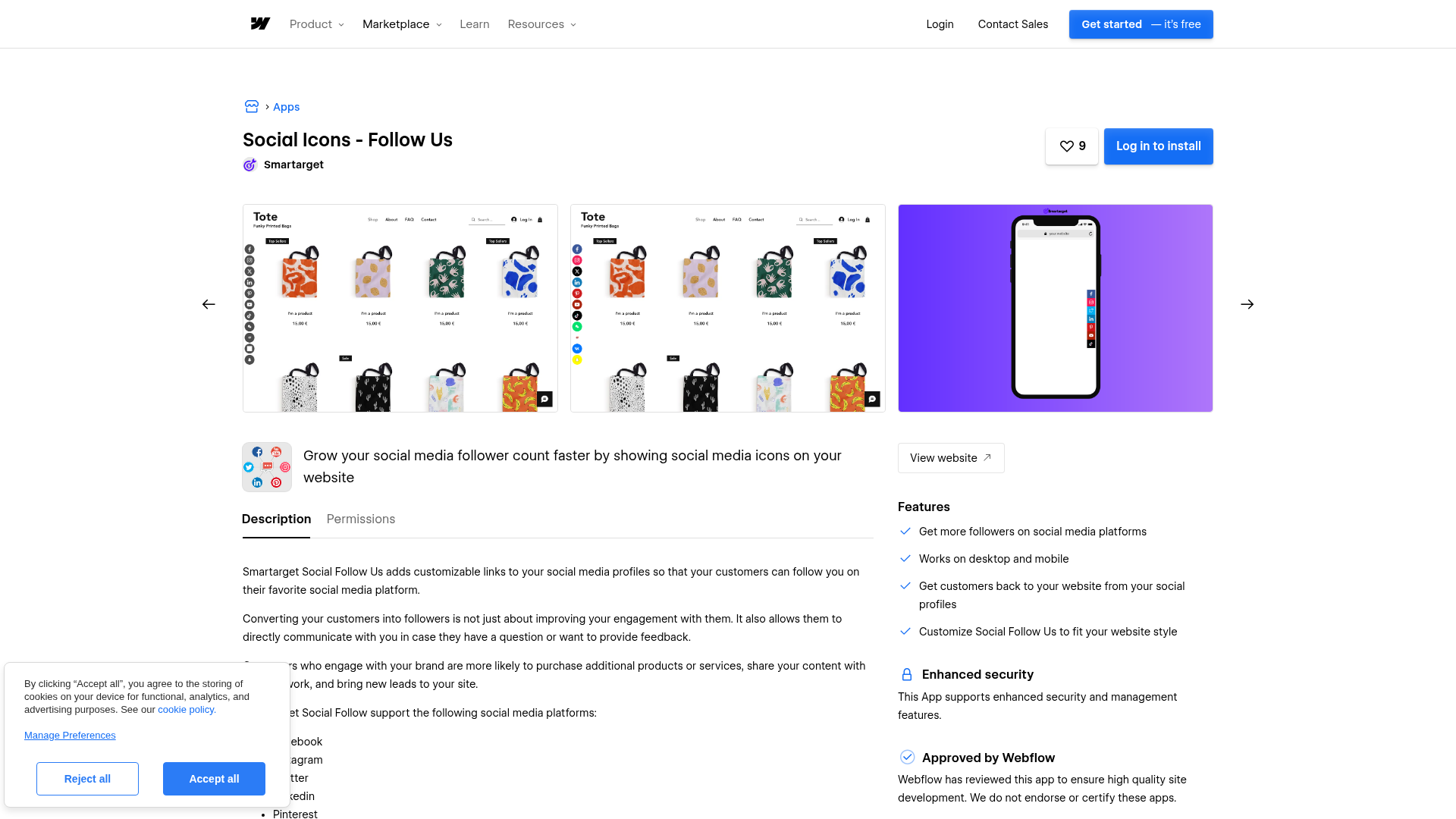
To set up the integration:

  1. Open the Social Icons - Follow Us Marketplace listing and install the app on your site.
  2. Sign up for a free account at app.smartarget.online. No credit card required.
  3. Configure the Follow Us widget in the Smartarget dashboard: select social networks, set colors, CTA text, icon style, and separate desktop and mobile positions.
  4. Publish your site. The widget appears on the live published domain.

The Marketplace app handles these capabilities:

  • Automatic JavaScript injection with no manual code placement
  • Support for 10 social networks in a single widget
  • Configurable colors, CTA text, hover animations, and icon styles
  • Separate positioning controls for desktop and mobile

Use this method when you want the fastest site-wide setup with the fewest manual steps.

Installing through the Marketplace grants Smartarget "Read and write custom code" and "Read site data and publishing" permissions on your site. If that level of access is a concern, use the manual custom code method instead.

Add Social Icons - Follow Us with custom code

Manual code embedding gives you the same widget functionality as the Marketplace app. You control exactly where the script lives, and you avoid granting Smartarget any API-level permissions on your site. You'll need a paid site plan (Basic, CMS, Business, or Ecommerce) or a paid Workspace plan, since custom code fields aren't available on free accounts.

All manual methods start with the same Smartarget dashboard setup:

  1. Sign up at app.smartarget.online.
  2. Configure your Follow Us widget (networks, colors, CTA text, positioning).
  3. Go to Integrations in the Smartarget dashboard and copy the generated JavaScript snippet.

Then choose the placement method that fits your needs.

Site-wide deployment with footer code

Use this approach to show the widget on every page. Placing the script in the footer avoids render-blocking during initial page load.

To add the script site-wide:

  1. Go to Site settings.
  2. Click the Custom Code tab.
  3. Paste the Smartarget <script> snippet into the Footer code section.
  4. Click Save changes.
  5. Publish your site.

The widget won't render in the Designer canvas. It appears only in preview mode and on the published live site, including the .webflow.io staging domain. Always verify on a published staging URL before going live.

Single-page deployment with page settings

Use this method when you want the widget on one specific page only.

To add the script to a single page:

  1. Open the target page.
  2. Open the Pages panel and click the gear icon on the target page.
  3. Scroll to the Custom Code section.
  4. Paste the snippet in the Before tag field.

  5. Save and publish.

The widget runs only on that page.

Positioned placement with a Code Embed element

If you need the widget at a specific visual location on the page rather than as a floating overlay, drop in a Code Embed element to place it directly in the canvas layout.

To embed at a specific position:

  1. Open the target page.
  2. Open the Add panel (the + icon).
  3. Drag a Code Embed element from the Components section onto the canvas.
  4. Paste the Smartarget JavaScript snippet into the code editor.
  5. Click Save & Close.
  6. Publish the site.

Don't include <html>, <body>, or <head> tags inside the Code Embed element. Only HTML, CSS in <style> tags, and JavaScript in <script> tags work here. The element has a 50,000-character limit, which is well above the size of a typical Smartarget snippet.

Build with the Webflow API

If you're a developer managing multiple sites or building deployment automation, the Data API is an advanced Webflow-side option for updating custom code that contains the Smartarget script. Smartarget itself offers no public API or programmatic access of its own, so this route is indirect and not required for normal setup.

For most teams, the Marketplace app or manual custom code is the better fit. The API path mainly applies when you already manage site code through internal tooling and want the Smartarget snippet included in that workflow.

Agencies can use this method to deploy the same widget configuration across a portfolio of client sites, and teams can use it in internal tooling that manages site code as part of a larger workflow. Smartarget configuration itself still happens in the dashboard rather than through an API.

What you can build with the Social Icons - Follow Us Webflow integration

Integrating Social Icons - Follow Us lets you convert site visitors into social followers across up to 10 platforms without building custom icon components or managing individual embed codes.

  • Multi-platform follow bar for e-commerce sites: Add a persistent follow widget to your storefront that links to Instagram, Facebook, TikTok, and other channels. Buyers who follow your brand see new product launches and promotions in their social feeds. This builds a direct channel to repeat customers outside of paid advertising.
  • International audience hub with regional networks: Display WeChat and Weibo icons alongside Western platforms for a brand serving both Asian and global markets. A single widget surfaces the right channels without building separate regional page layouts.
  • Gen Z engagement on portfolio and creator sites: Place TikTok and Snapchat follow icons on a portfolio or content site. Visitors browsing your work can follow you on the platforms where you publish short-form content, adding followers directly from visitors already browsing your work.
  • B2B LinkedIn growth from professional service pages: Add a floating LinkedIn follow icon to a consulting or SaaS marketing site. Professional visitors who already read your case studies or service pages follow your company page with one click.

If you need more control over multi-site deployments or custom injection workflows, the Data API path gives you that as an advanced Webflow-side automation option. Smartarget offers no public API or programmatic access of its own.

Frequently asked questions

  • Yes. Custom code is required for any Smartarget widget, and custom code fields are only available on paid Webflow site plans (Basic, CMS, Business, or Ecommerce) or paid Workspace plans. The "Free plan available" label on the Marketplace listing refers to Smartarget's own pricing, not the Webflow plan requirement. See the custom code documentation for details on which plans support custom code.

  • JavaScript-based widgets render only on the published live site, not in the Webflow canvas. This applies to all JavaScript embeds, not just Smartarget. To verify the widget, publish to your .webflow.io staging domain and check it there. The Code Embed documentation confirms this behavior.

  • Yes. Use page-level custom code (page settings, Before tag field) or place a Code Embed element on individual pages. For site-wide deployment, paste the script in Site settings > Custom Code > Footer code. The Smartarget Webflow setup guide walks through both options.

  • The free plan limits the widget to your homepage only after the 14-day trial period. It also shows "Powered by Smartarget" branding and limits customization options. If you need the widget on blog posts, portfolio pages, or any interior pages, Smartarget's PRO plan removes those restrictions. Check current plan details at smartarget.online.

  • Cached versions of the widget may persist after you save new settings. Append ?sm_no_cache=1 to your site URL (for example, yourdomain.com/?sm_no_cache=1) to bypass the cache and force the latest configuration to load. If the widget still does not appear, open browser DevTools and check the Console tab for JavaScript errors. For Smartarget-specific issues, contact support at support@smartarget.online. The Smartarget FAQ documents this cache-bypass parameter.

Social Icons - Follow Us
Joined in

Category

Social media

Description

Add a floating social follow widget to any Webflow site through the Smartarget app or a custom code snippet, supporting 10 social platforms with position and styling options.

Install app

This integration page is provided for informational and convenience purposes only.


Other Social media integrations

Other Social media integrations

Twitter

Twitter

Twitter allows you to embed a variety of widgets from single tweets to timelines and follow buttons.

Social media
Learn more
Tagembed: Social Media Aggregator

Tagembed: Social Media Aggregator

Collect, Customize and Embed Social media Feeds and Reviews on your website.

Social media
Learn more
Pinterest

Pinterest

Connect Pinterest's visual discovery platform with Webflow to create engaging websites with embedded boards, social sharing features, and automated content distribution. Share your visual content with Pinterest's 500+ million users while maintaining complete design control.

Social media
Learn more
LinkedIn

LinkedIn

Connect LinkedIn, a professional networking and advertising platform, with Webflow to install the Insight Tag for ad tracking, embed posts and follow buttons, and auto-publish CMS content to your company page.

Social media
Learn more
Instagram

Instagram

Social media
Learn more
Flockler

Flockler

Connect Flockler with Webflow using the native app plugin, direct embed codes, or the REST API for CMS synchronization.

Social media
Learn more
Facebook

Facebook

Connect Facebook to Webflow to track ad conversions, sync product catalogs, and add social features through a Marketplace app, native site settings, or direct API integration.

Social media
Learn more
EmbedSocial

EmbedSocial

Connect EmbedSocial with Webflow to add live social media feeds, review widgets, and shoppable UGC galleries that update automatically without republishing.

Social media
Learn more
EmbedAlbum (by EmbedSocial)

EmbedAlbum (by EmbedSocial)

Display dynamic photo albums from Facebook, Instagram, and other social platforms on your Webflow site. Create auto-updating galleries that showcase social proof, build trust, and keep content fresh without manual updates.

Social media
Learn more

Related integrations

No items found.

Get started for free

Try Webflow for as long as you like with our free Starter plan. Purchase a paid Site plan to publish, host, and unlock additional features.

Get started — it’s free