Social Icons - Follow Us
Connect Smartarget Social Icons - Follow Us with Webflow to display floating social media follow icons across your site.

Social Icons - Follow Us drops a floating, multi-network follow widget onto any Webflow site, covering 10 platforms the built-in Facebook and Twitter elements can't reach, including Instagram, TikTok, LinkedIn, YouTube, WeChat, and Weibo. Pick your networks, set colors and positions for desktop and mobile, then deploy a single script.
It's built for e-commerce stores converting visitors into followers, agencies shipping client sites, creators growing audiences from portfolio traffic, and brands targeting international or Gen Z audiences.
How to integrate Social Icons - Follow Us with Webflow
What is Social Icons - Follow Us? Social Icons - Follow Us is a widget by Smartarget that displays floating social media follow icons on any website. It supports 10 platforms including Facebook, Instagram, Twitter/X, LinkedIn, Pinterest, YouTube, TikTok, WeChat, Weibo, and Snapchat. You configure it in the Smartarget dashboard, where you choose networks, set colors, write CTA text, and control position separately for desktop and mobile.
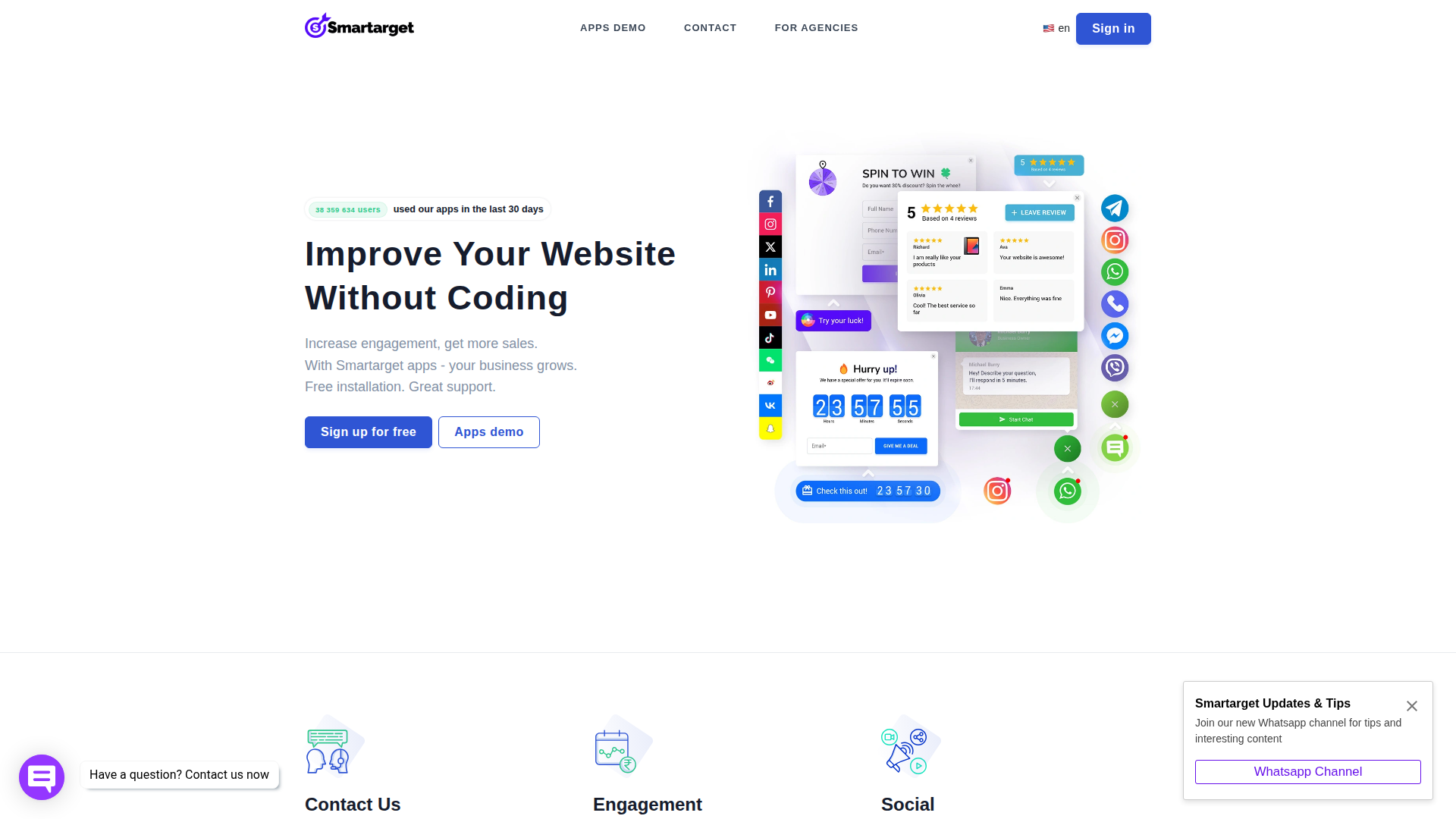
Reach for this widget when you need a visible, persistent follow prompt across your Webflow site without designing and coding custom social icon components. The floating format keeps the icons visible on every page while staying out of the main content flow. Setup takes a few minutes and doesn't require editing your layout or styles.
You can set up the Social Icons - Follow Us Webflow integration in 3 ways:
- Install the Social Icons - Follow Us app from the Webflow Marketplace to inject the widget automatically without manual code placement.
- Paste the Smartarget script into custom code in head and body tags or a Code Embed element for site-wide or page-specific control.
- Use the Data API as an advanced Webflow-side automation option for managing custom code that contains Smartarget's script, though this isn't a standard Smartarget integration path and still requires server-side development.
Most implementations use either the Marketplace app or the manual code method. The API path mainly applies if you're a developer managing multiple sites or building deployment tooling.
Install the Social Icons - Follow Us app
The Social Icons - Follow Us app installs from the Webflow Marketplace and injects the Smartarget JavaScript into your site. You don't need to copy or paste any code manually. Use this method to run the widget across your entire site with the fewest manual steps. You need a paid site plan for custom code to function on your published domain.
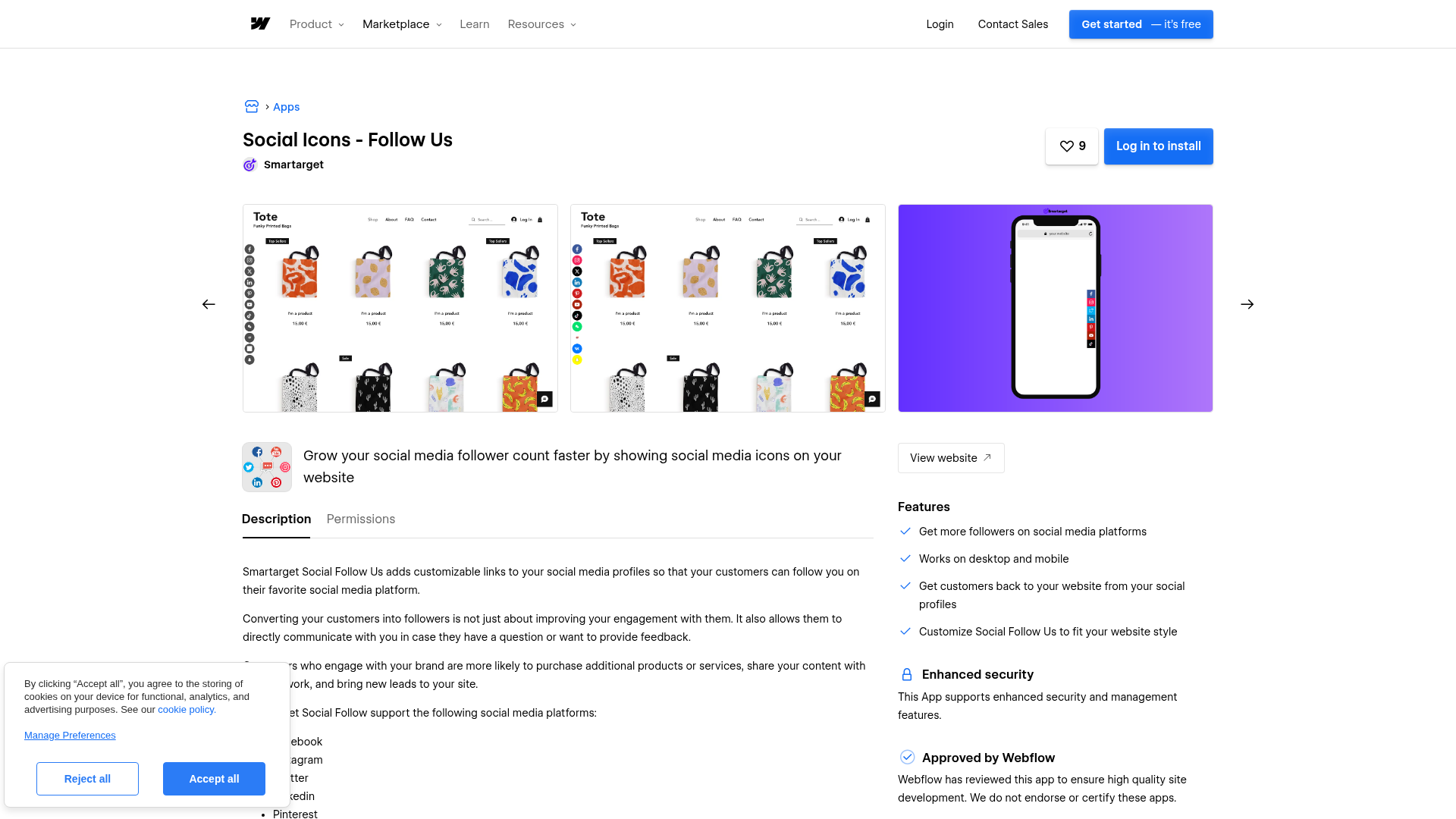
To set up the integration:
- Open the Social Icons - Follow Us Marketplace listing and install the app on your site.
- Sign up for a free account at app.smartarget.online. No credit card required.
- Configure the Follow Us widget in the Smartarget dashboard: select social networks, set colors, CTA text, icon style, and separate desktop and mobile positions.
- Publish your site. The widget appears on the live published domain.
The Marketplace app handles these capabilities:
- Automatic JavaScript injection with no manual code placement
- Support for 10 social networks in a single widget
- Configurable colors, CTA text, hover animations, and icon styles
- Separate positioning controls for desktop and mobile
Use this method when you want the fastest site-wide setup with the fewest manual steps.
Installing through the Marketplace grants Smartarget "Read and write custom code" and "Read site data and publishing" permissions on your site. If that level of access is a concern, use the manual custom code method instead.
Add Social Icons - Follow Us with custom code
Manual code embedding gives you the same widget functionality as the Marketplace app. You control exactly where the script lives, and you avoid granting Smartarget any API-level permissions on your site. You'll need a paid site plan (Basic, CMS, Business, or Ecommerce) or a paid Workspace plan, since custom code fields aren't available on free accounts.
All manual methods start with the same Smartarget dashboard setup:
- Sign up at app.smartarget.online.
- Configure your Follow Us widget (networks, colors, CTA text, positioning).
- Go to Integrations in the Smartarget dashboard and copy the generated JavaScript snippet.
Then choose the placement method that fits your needs.
Site-wide deployment with footer code
Use this approach to show the widget on every page. Placing the script in the footer avoids render-blocking during initial page load.
To add the script site-wide:
- Go to Site settings.
- Click the Custom Code tab.
- Paste the Smartarget
<script>snippet into the Footer code section. - Click Save changes.
- Publish your site.
The widget won't render in the Designer canvas. It appears only in preview mode and on the published live site, including the .webflow.io staging domain. Always verify on a published staging URL before going live.
Single-page deployment with page settings
Use this method when you want the widget on one specific page only.
To add the script to a single page:
- Open the target page.
- Open the Pages panel and click the gear icon on the target page.
- Scroll to the Custom Code section.
- Paste the snippet in the Before