






embedstories
Connect EmbedStories with Webflow to display auto-syncing Instagram Stories on any page of your site.

Instagram Stories disappear after 24 hours, and Webflow has no built-in way to pull them onto a page. Recreating story content as static images means constant manual work. The content goes stale the moment your team stops updating it.
EmbedStories closes that gap by pulling stories via the official Instagram API and rendering them in a widget that you paste into your Webflow site. New stories appear on the page automatically after you publish once. It adds moderation controls, shoppable Buy buttons, and five layout options, all configurable without touching the site again.
The integration fits e-commerce teams displaying new arrivals, agencies presenting behind-the-scenes project work, and marketers running event and UGC campaigns. Designers and creators use it to add live social content to portfolios. Multi-location brands run widgets across several Webflow sites from a single EmbedSocial account.
How to integrate EmbedStories with Webflow
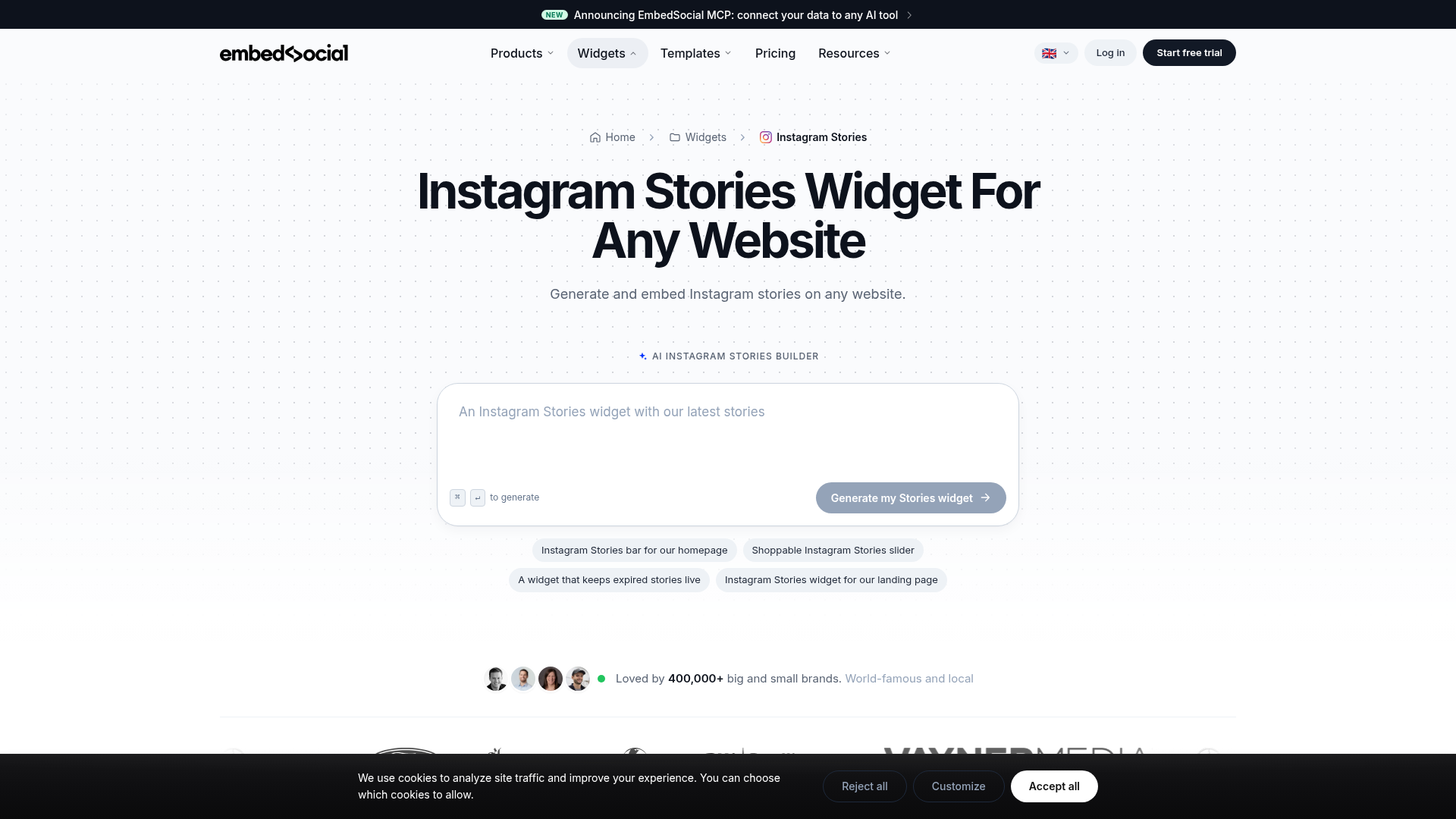
What is EmbedStories? EmbedStories is an Instagram Stories embed widget from EmbedSocial that generates and embeds Instagram stories on any website. It syncs content through the official Instagram API and supports five layout types, moderation, shoppable CTAs, and custom CSS. EmbedSocial reports that more than 400,000 brands use it.
Teams pair EmbedStories with Webflow to deliver live social content on a marketing site without a manual publishing workflow. The same pattern works for launch pages, event promotion pages, social proof pages, and other campaign pages.
For EmbedStories specifically, the Webflow integration works two ways. The embed code method places the Stories widget on any page without writing code, while the Webflow Data API paired with the EmbedSocial API gives you control over CMS sync and script deployment but requires server-side development. Most sites need only the embed code; use the APIs when you want automation or a permanent story archive.
Add the Stories widget with a Code Embed element
This is the only integration method EmbedSocial officially documents for Webflow, and it requires no programming. You generate the widget in the EmbedSocial dashboard, copy the snippet, and paste it into a Code Embed element. EmbedSocial publishes a Webflow-specific setup guide covering the full flow. You need an Instagram Business or Creator account connected to a Facebook Page, plus a Webflow site with custom code access.
Place the widget with a Code Embed element
This path puts the widget exactly where you want it in your page layout. The Code Embed element can sit anywhere in a design. It can also sit inside a rich text element.
To set up the integration:
- In EmbedSocial, go to Sources and click Add new source.
- Select Stories as the source type, choose your account, and click Next.
- Customize the widget layout and styling, then copy the embed code.
- In Webflow, open the Add panel and drag a Code Embed element where the widget should appear.
- Paste the EmbedSocial code into the element and save.
- Publish the site.
Once the snippet is live, the widget runs without further edits in Webflow:
- Auto-sync pulls new stories through the official Instagram API, so fresh content appears without republishing your site.
- Moderation lets you handpick which stories display on the published widget.
- The widget offers five layouts: Slider, Lightbox, Story List, AMP List, and Slider List.
- Shoppable Buy buttons send visitors to a checkout page.
- A custom CSS editor controls the widget's appearance.
The Code Embed element accepts up to 50,000 characters, far more than the snippet requires. Plan for one caveat: the widget stops displaying if your EmbedSocial subscription lapses, which EmbedSocial notes on its Webflow setup page.
Load the widget through page or site custom code
If you want the script to load site-wide or you prefer not to manage an element on the canvas, add the snippet through the site or page custom code fields instead. EmbedSocial does not document this path specifically, though it is technically equivalent to the Code Embed method.
To add the code:
- For site-wide loading, go to Site settings > Custom code and paste the snippet into Footer code.
- For a single page, open Page settings > Custom code and paste it into Before </body> tag.
- Save and publish the site.
Placing scripts before the closing </body> tag improves page load speed, and each custom code field supports up to 50,000 characters. Custom code requires a paid Site plan, or a paid Workspace plan to run it on a free Starter site, so this method carries the same plan requirement as the Code Embed element.
Build with the Webflow Data API and EmbedSocial API
Developers who want story content inside the Webflow CMS, or who deploy widgets across many sites, can work with both platforms' APIs. This path requires server-side development and an EmbedSocial Premium plan, since EmbedSocial offers its Social Media API on Premium plans. EmbedSocial's Social Media API is read-only and states "No streaming/webhooks at this time," so all event-driven logic must originate on the Webflow side or in your own service.
Three interfaces do the work between the two platforms. The EmbedSocial Social Media API provides read-only access to media URLs, captions, timestamps, source, account info, tags, and IDs. Webflow's Data API manages CMS collections, items, and custom code at the https://api.webflow.com/v2 base URL with Bearer token authentication. Webflow webhooks fire real-time events such as collection_item_created for downstream automation. Because EmbedSocial emits no webhooks, polling is the only viable sync mechanism between the two systems.
Sync story content into the Webflow CMS
Instagram Stories expire after 24 hours on Instagram, but writing them into the CMS creates a permanent, searchable archive you control. A backend service polls EmbedSocial's API and writes each story into a Webflow collection.
To implement the sync:
- Create a CMS collection with fields matching the story data EmbedSocial's API returns (media URLs, captions, timestamps, source, tags, and IDs), for example
id,caption,image_url,link,created_at, andcta_url. - Poll EmbedSocial's read-only API on a schedule using your API key from the Integrations section of the dashboard.
- Write new stories with
POST /v2/collections/{collection_id}/items, or use the bulk endpoint at/v2/collections/{collection_id}/items/bulkfor up to 100 items per request. - Publish items with
POST /v2/collections/{collection_id}/items/publishand bind the collection to a Collection List for display.
Each new item fires the collection_item_created webhook, which you can use for notifications or cache invalidation. A long-running archive accumulates items, so account for CMS capacity. Webflow's Premium plan includes up to 20,000 CMS items, and Enterprise offers custom higher limits.
Deploy the widget script with the Custom Code API
Agencies managing many client sites can install the EmbedSocial snippet programmatically instead of pasting it by hand. The Data API registers scripts and applies them across sites or pages.
To deploy the script:
- Register the snippet with
POST /v2/sites/{site_id}/registered_scripts/inlineusing the register inline script endpoint. Inline scripts are limited to 2,000 characters each, with a maximum of 800 registered scripts per site. - Apply it site-wide with
PUT /v2/sites/{site_id}/custom_codevia the site custom code endpoint. - Apply it to individual pages with
PUT /v2/pages/{page_id}/custom_codevia the page custom code endpoint.
This pattern pairs well with EmbedSocial's multi-site support, which lets you create widgets for multiple websites from one account.
What you can build with the EmbedStories Webflow integration
Integrating EmbedStories with Webflow lets you publish live Instagram Story content on your site without recreating it as static assets or republishing pages by hand.
- Shoppable product displays: An e-commerce storefront displays Instagram Stories of new arrivals with custom Buy buttons that send visitors straight to checkout and connect social discovery to purchase on the same page.
- Event coverage galleries: A conference landing page aggregates stories from multiple accounts during the event and gives visitors real-time attendee perspectives as the day unfolds.
- UGC testimonial walls: A brand curates user-generated stories as social proof, with moderation controls filtering what appears while auto-sync keeps the wall fresh.
- Agency portfolio updates: A creative agency publishes story-format project progress on client-facing pages and gives clients behind-the-scenes access without manual portfolio updates.
Use the API integration path when story content needs to live in the CMS as an archive or appear outside the standard widget. For a feed-based alternative to stories, see how to embed an Instagram feed on your Webflow site.
Frequently asked questions
No. EmbedStories and EmbedSocial have no native Webflow Marketplace app, so the integration works entirely through embed code. Generate the widget in the EmbedSocial dashboard, then paste the snippet into a Code Embed element. Setup takes a few minutes and needs no coding.
Yes. The Code Embed element and custom code fields require a paid Webflow Site plan, or a paid Workspace plan if you want to run custom code on a free Starter site. A Starter site with no paid plan cannot render the embed.
Yes. Once connected, the system pulls and automatically generates new stories from your Instagram account and updates them on your website, per EmbedSocial's help article. Note that "only stories from the last 24 hours will get generated into the platform" at first connection, and sync frequency depends on your plan. The Free plan syncs every 24 hours, which can miss stories that expire before the next sync, while paid plans sync every 30 minutes, per EmbedSocial's sources documentation.
No. Only Instagram Business or Creator accounts connected to a Facebook Page are supported. EmbedSocial's guidance states, "To ensure uninterrupted service on EmbedSocial, upgrade your Private Instagram account to a Business or Creator account," per its help article on Instagram API changes. Convert your account in Instagram's settings before connecting it to EmbedSocial.
Custom code does not render in preview by default. Click the Enable custom code toggle in the bottom-left corner of the preview interface, which renders the site on a
{shortName}.canvas.webflow.comsubdomain that closely mirrors the published site, per the preview mode documentation. The widget only goes fully live once you publish the site.
Description
Display auto-syncing Instagram Stories on your Webflow site by pasting an EmbedStories snippet into a Code Embed element, with an API-based CMS sync path for advanced setups.
This integration page is provided for informational and convenience purposes only.

Postblaster
Connect Postblaster, a LinkedIn automation tool, with Webflow to automatically generate and publish LinkedIn posts when you add new content to your CMS collections.

Flowstar SMI SSB
Add social media icons and share buttons to a Webflow site with Flowstar SMI SSB, a widget now included in Flowstar's Visual Widgets Toolkit app.

Social Icons - Follow Us
Connect Smartarget Social Icons - Follow Us with Webflow to display floating social media follow icons across your site.

Strava
Embed Strava routes and activity feeds on a Webflow site, and see what Strava's API Agreement allows before you build anything on the API.

TikTok
Use TikTok with Webflow to publish video content on your site, measure conversions, and keep website content aligned with your TikTok activity.
Tagembed
Add Tagembed social and review feeds to a Webflow site with a Code Embed element, or sync posts into the CMS through its API. Setup steps, current plan limits, and the performance tradeoffs.

Twitter (X)
Connect Twitter (X) with Webflow to embed live social feeds, automate post distribution, and control how pages appear when shared on X.

Twitter share buttons
Dynamically embed Twitter share buttons.
Connect Twitter (X), a platform for public conversation and real-time data, with Webflow to embed posts, timelines, and buttons or sync tweets to the CMS.
Related integrations
Get started for free
Try Webflow for as long as you like with our free Starter plan. Purchase a paid Site plan to publish, host, and unlock additional features.
