






Flockler social media feed plugin

A Webflow site has no built-in element that pulls live posts from social platforms. Teams that want social content on a page end up screenshotting posts and uploading them as static images, then repeating that work every week. The content goes stale the day a campaign ends.
Flockler removes that manual cycle. It collects account posts alongside hashtag and mention results into one feed, then generates a short snippet that drops into a Webflow page. Once the snippet is live, the feed refreshes itself with no further edits in Webflow.
This integration suits marketing teams adding social proof to a homepage and ecommerce managers building customer-photo galleries on product pages. Event organizers use it for live hashtag walls on registration pages. Agencies running multiple client sites and university social media teams use it at larger volume.
How to integrate Flockler social media feed plugin with Webflow
What is Flockler social media feed plugin? Flockler is a social media aggregator and user-generated content platform. It collects posts by account, hashtag, or mention, then renders them in one of four layouts: Wall, Grid, Carousel, or Slideshow. Moderation and rights management sit in the same dashboard.
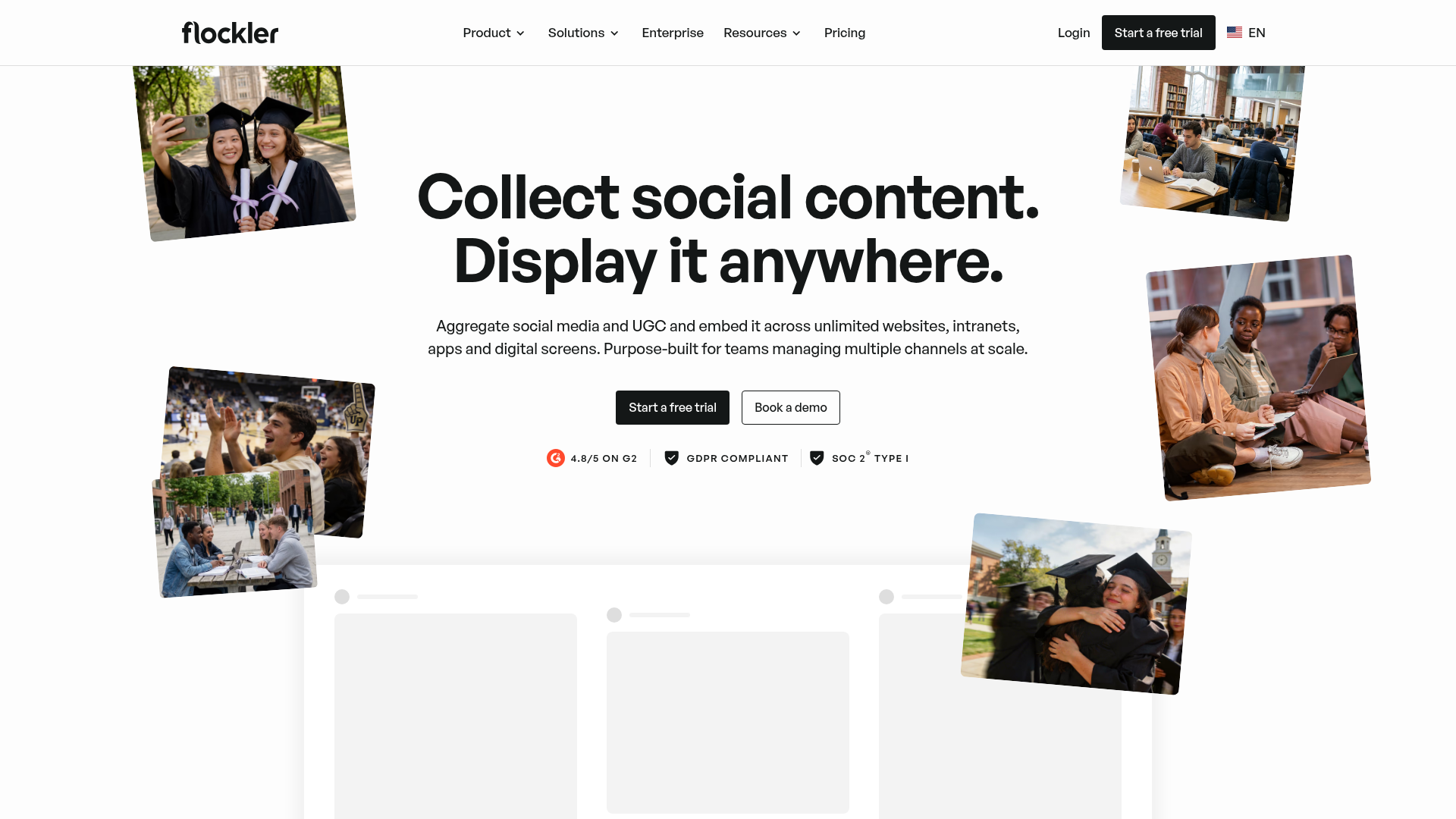
What Flockler can actually pull depends on the platform, because every network sets its own API permissions and changes them without much notice. Automated feeds cover twelve documented sources, and the account-type requirement per network matters more than the count:
- Instagram: Flockler collects public images and videos from any Instagram Business account plus hashtag results, so personal profiles are not available for automated feeds.
- Facebook and LinkedIn: Any public Facebook Page can be pulled in full, while LinkedIn is limited to posts from a Company Page you administer and mentions of it.
- X, Bluesky, and YouTube: All three support public posts by keyword, hashtag, or user, and YouTube also covers videos and shorts from any public channel or playlist.
- TikTok, Pinterest, and Google Reviews: Automated TikTok feeds cover your own account only, Pinterest pulls public pins from a user or a board, and Google Reviews covers locations you manage.
- RSS and manual selection: Blog and news content arrives over RSS, and you can add individual posts by hand from accounts you do not administer, including personal ones and X posts.
Check the account type before you promise a feed to a stakeholder, because admin rights and business-account requirements are where most setups stall.
Teams pair the two products when a site needs fresh social content without a publishing cycle. Flockler handles collection and moderation; Webflow handles page design and hosting. No Flockler app exists on the Webflow Marketplace, so the connection runs on embed code and, for custom builds, REST APIs.
The integration usually starts with the Code Embed element, which places a Flockler feed on a single page without writing code. Site-wide custom code and the iframe variant cover multi-page loading and setups that block JavaScript embeds. The Webflow Data API and Flockler Content API give you control over headless rendering and CMS sync, at the cost of server-side development. Most implementations stop at the Code Embed method, and the API path exists for CMS sync and multi-site rollouts.
Add a Flockler feed with the Code Embed element
Both products document this as the standard path: you build and style the feed inside Flockler, then paste one snippet into Webflow. The Code Embed element needs a paid Workspace plan or a site with an active Site plan, and Flockler needs a paid subscription once its trial ends.
To set up the integration:
- In Flockler, create automated feeds from your chosen sources in the Feeds section.
- Open Display, pick a layout, and copy the generated embed code.
- In Webflow, open the Add panel and drag a Code Embed element onto the canvas.
- Paste the Flockler code, save and close the code editor, then publish the site.
After setup you control the feed from Flockler's Display tab without touching Webflow again:
- Theme and post styling: Set theme colors and post colors, hide elements you do not want, and add call-to-action buttons, popup views, or infinite scroll.
- Custom CSS: Add custom CSS through the Flockler dashboard, and the change appears live on the published Webflow page.
- Filters and post count: Narrow a feed by tag or by source channel, and cap how many posts the layout loads at once.
- Automatic refresh: New posts appear on their own, so a published Webflow page keeps updating without a republish.
The canvas shows a placeholder rather than the live feed because the snippet contains <script> tags, and the feed renders in preview mode and on the published site. A Code Embed element holds up to 50,000 characters, and Flockler's standard snippet sits well under that limit.
Load Flockler through site-wide custom code or the iframe version
Two variations cover cases the inline element does not fit. You can load the Flockler script once for the whole site with head and body custom code, or switch to Flockler's iframe variant when a platform blocks script embeds.
Add the script in site settings
Use this path when the same feed appears across many pages, such as a footer social wall.
To add the script site-wide:
- Open Site settings > Custom code.
- Paste the Flockler snippet into the Footer code section. Scripts placed before the closing
</body>tag load after page content, which helps perceived load time. - Click Save changes and publish.
The script then loads on every page, including pages with no feed on them. When only one page needs it, use the per-page custom code fields in Page settings instead.
Use the iframe version
Flockler generates an iframe version of the embed for platforms that reject script embeds, SharePoint being the example it names. Iframes do not grow with their content, so you set the height yourself. Wall and Grid layouts expose a height option; Carousel does not need one.
To use the iframe variant:
- In Flockler, open Display and copy the iframe version of the embed code.
- Paste it into a Code Embed element in Webflow and set a fixed height.
For dynamic heights, the parent page can listen for the FlockerIframeResizeEvent postMessage event described in Flockler's embed reference. Flockler recommends the default JavaScript embed wherever the platform allows it.
Build with the Webflow Data API and Flockler APIs
The API path suits developers who need custom filtering, or who want social posts stored as CMS items rather than rendered by a third-party script. Flockler's Content API is available on its Premium and Agency plans only, and this route needs server-side development: a Code Embed element runs HTML, CSS, and client-side JavaScript, so any polling or write logic lives on your own infrastructure.
- Flockler Content API v2: The posts endpoint returns published posts as JSON from
https://api.flockler.app/v2/:siteUuid/posts, authenticated with anX-FL-API-Keyheader. - Webflow Data API v2: The Webflow API creates, updates, and publishes items in Webflow CMS collections, so a stored post behaves like any other Collection Item.
- Webflow webhooks: A webhook subscription can fire on
collection_item_created, and the same trigger list also coversform_submissionandsite_publish. - No Flockler webhooks: Flockler documents none of its own, so a sync into Webflow runs on scheduled polling of the posts endpoint rather than on push.
That polling cadence is the main design decision here, since it sets how quickly a new social post reaches the Webflow page.
Sync Flockler posts into the Webflow CMS
Storing posts as CMS items lets you mix social content with native design elements and render it through a Collection List. This is a custom developer pattern that you build yourself, and Flockler does not ship it.
To build the sync:
- Create an API key in Flockler under Settings > API Keys.
- Poll
GET https://api.flockler.app/v2/:siteUuid/postson a schedule. Filter withfilterByChannels[],filterByTags[], orfilterBySectionIds[], and setcountto a value between 1 and 100. - Map post fields such as
textPlain,images,sourceUrl, andpublishedAttofieldData, then send them toPOST https://api.webflow.com/v2/collections/{collection_id}/items/bulk, which creates up to 100 items per request under theCMS:writescope. - Publish with
POST https://api.webflow.com/v2/collections/{collection_id}/items/publish, then bind the fields in your Collection List.
The Content API returns published posts only, so anything sitting in Flockler's inbox or hidden by a moderator never reaches your collection.
Deploy embed code programmatically with the custom code API
Agencies rolling Flockler out across many client sites can register the snippet through the Data API instead of pasting it into every site by hand. These endpoints need an OAuth token with the custom_code:write scope.
To deploy the embed via API:
- Register the script as described in working with custom code. Inline scripts pass the JavaScript as
sourceCodeand cap at 10,000 characters; hosted scripts pass ahostedLocationURL with an integrity hash. - Apply it to one page with
POST https://api.webflow.com/v2/pages/{page_id}/custom_code, or to the whole site withPUT https://api.webflow.com/v2/sites/{site_id}/custom_code.
The site-level call replaces the full script list on each request, so send every script you want kept, not only the new one. For single-page-application behavior, Flockler also supports manual initialization: append ?autoload=false to the script URL, drop the async attribute, and call window.flcklr.Embeds.create() with the embed config once the DOM is ready.
What you can build with the Flockler Webflow integration
Pairing Flockler with Webflow lets you run live, moderated social content on any page without manual updates or a feed backend of your own.
These are the patterns that come up most often:
- Customer photo galleries: Pull an Instagram hashtag feed of customer photos, moderate what appears, and embed a Carousel on product pages as social proof.
- Event social walls: Embed a live hashtag Wall on a registration or landing page so attendee posts appear as they are posted. Messe Düsseldorf runs this pattern across 21 trade fairs in the past year, with more than 15 social walls at each event site.
- Campus and department feeds: Give each department a branded feed while moderation stays central. George Washington University runs Flockler across 35 departments, and reports a new branded feed going live in roughly 2 minutes.
- Sponsorship proof pages: Pull posts through the Content API and present them as campaign evidence. Trak.io took this route after building its own social platform apps first, where Meta's developer approval alone took six months.
See how to embed an Instagram feed on a Webflow site for the single-platform version of this build.
If the API path is where you are headed, connect the Webflow MCP server to your AI coding tool first. It creates collections and defines fields, and it reads and writes site- and page-level custom code, so most of the scaffolding is done before you write any sync logic.
Frequently asked questions
No. Flockler has no app on the Webflow Marketplace, so the integration runs on an embed workflow instead. You build the feed in Flockler, copy the generated snippet, and paste it into a Code Embed element or into a page's custom code fields.
Any embed containing
<script>tags shows a placeholder on the canvas rather than rendering. Switch on the Enable custom code toggle in preview mode to see the feed render, or publish to your webflow.io subdomain to test before going live.Yes, on both sides. The Code Embed element needs a paid Workspace plan or a site with an active Site plan. Flockler needs a paid subscription after its trial, and Content API access is limited to its Premium and Agency plans.
Yes, with no republish needed. Most feeds refresh automatically every 5 minutes, while X is limited to twice per day by that platform's API rules. Style and layout changes made in Flockler apply live wherever the snippet sits.
Yes. The embed code works on any Webflow page type, including CMS template pages, through a Code Embed element or page-level custom code. To store posts as CMS items instead, poll the Flockler Content API and send the results to Webflow's create item endpoint.
Description
Embed self-updating social media feeds from Instagram, Facebook, X, YouTube, and other sources on any Webflow page. The primary method is a copy-paste embed code placed in a Code Embed element.
This integration page is provided for informational and convenience purposes only.

Postblaster
Connect Postblaster, a LinkedIn automation tool, with Webflow to automatically generate and publish LinkedIn posts when you add new content to your CMS collections.

Flowstar SMI SSB
Add social media icons and share buttons to a Webflow site with Flowstar SMI SSB, a widget now included in Flowstar's Visual Widgets Toolkit app.

Social Icons - Follow Us
Connect Smartarget Social Icons - Follow Us with Webflow to display floating social media follow icons across your site.

Strava
Embed Strava routes and activity feeds on a Webflow site, and see what Strava's API Agreement allows before you build anything on the API.

TikTok
Use TikTok with Webflow to publish video content on your site, measure conversions, and keep website content aligned with your TikTok activity.
Tagembed
Add Tagembed social and review feeds to a Webflow site with a Code Embed element, or sync posts into the CMS through its API. Setup steps, current plan limits, and the performance tradeoffs.

Twitter (X)
Connect Twitter (X) with Webflow to embed live social feeds, automate post distribution, and control how pages appear when shared on X.

Twitter share buttons
Dynamically embed Twitter share buttons.
Connect Twitter (X), a platform for public conversation and real-time data, with Webflow to embed posts, timelines, and buttons or sync tweets to the CMS.
Related integrations
Get started for free
Try Webflow for as long as you like with our free Starter plan. Purchase a paid Site plan to publish, host, and unlock additional features.
