






EmbedSocial
Connect EmbedSocial with Webflow to add live social media feeds, review widgets, and shoppable UGC galleries that update automatically without republishing.

Webflow sites have no built-in way to pull in live social media feeds, aggregate customer reviews from Google or Facebook, or display user-generated content from Instagram or TikTok. Adding that kind of social proof typically means manual screenshots, static content that goes stale, or custom code that breaks when platform APIs change.
With EmbedSocial, you can connect social accounts and review platforms to a Webflow site through embeddable widgets that keep pulling in fresh content automatically. You configure the widget once in EmbedSocial's dashboard, paste an embed code into Webflow, and the content stays current without republishing. Reviews, social feeds, testimonials, and shoppable UGC galleries all work this way.
Marketing teams use this integration to add social proof to landing pages without manual content updates. Agencies managing multiple client sites can control review widgets across all of them from one EmbedSocial dashboard. E-commerce teams display shoppable UGC on product pages to turn customer content into a sales channel. Local businesses embed Google reviews on location-specific pages to build trust with nearby visitors.
How to integrate EmbedSocial with Webflow
What is EmbedSocial? EmbedSocial is a UGC and review management platform that collects, aggregates, and displays social media content and customer reviews as embeddable website widgets. It connects to Instagram, TikTok, Facebook, YouTube, Google, X, LinkedIn, and other platforms, with approved API integrations for Facebook, YouTube, TikTok, X, and Instagram. The platform offers around 130 widget templates covering social feeds, review displays, stories carousels, and shoppable galleries.
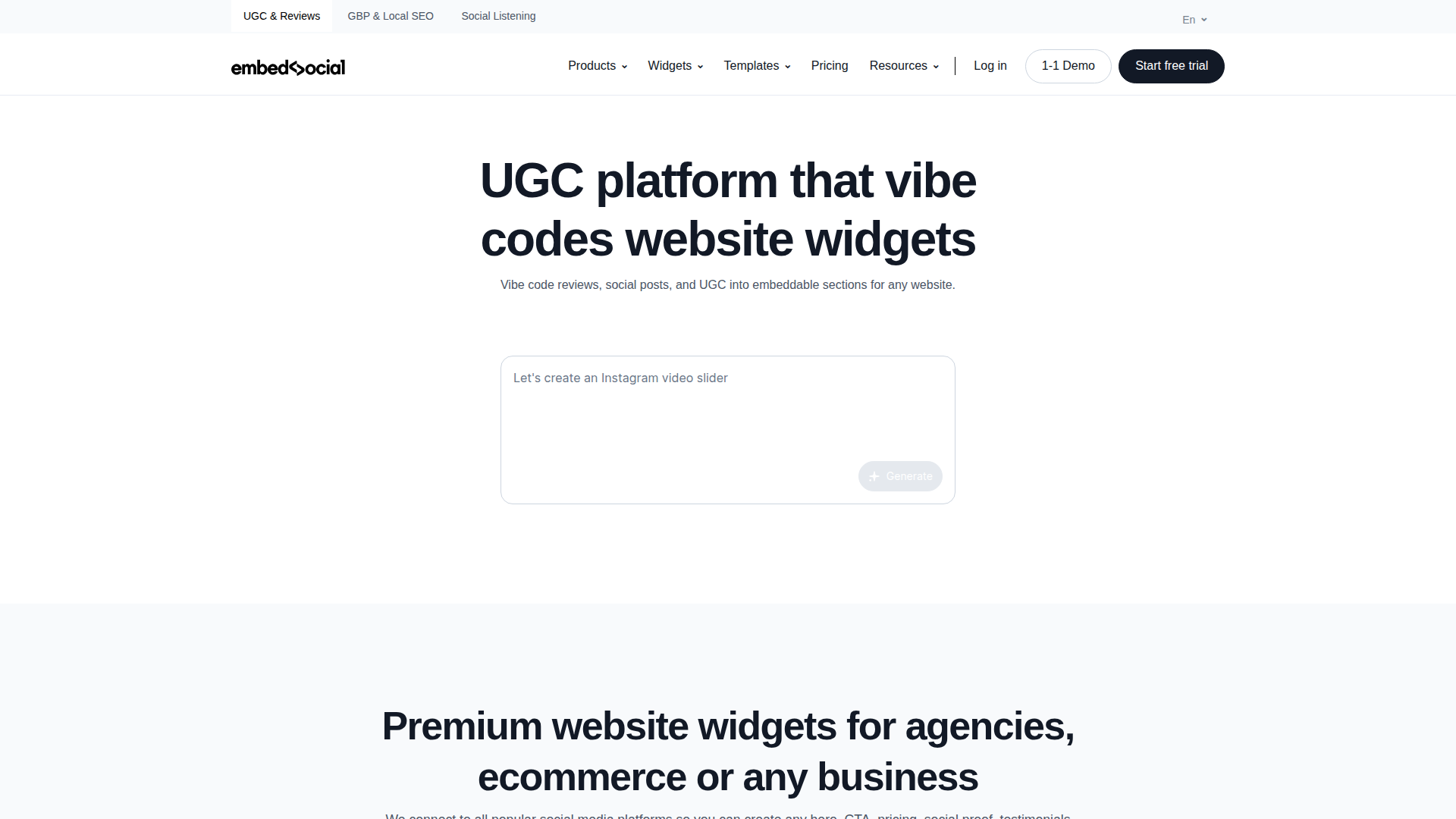
Teams use EmbedSocial with Webflow when they need live social content or review data on their site without building custom API connections to each platform. A restaurant chain might embed Google reviews on location landing pages, while a fashion brand might display a shoppable Instagram feed on a product page. The widget handles content syncing, layout, and responsive display independently of Webflow's publishing cycle.
The EmbedSocial-Webflow integration supports 2 approaches:
- Code Embed elements and custom code fields let you place EmbedSocial widgets on specific pages or site-wide without writing code.
- The Webflow and EmbedSocial APIs give you full control over syncing social content into Webflow CMS collections, but require server-side development.
Most implementations start with the embed code approach and add API-driven CMS sync only when searchable or filterable content is required.
Add EmbedSocial widgets with embed codes
EmbedSocial generates a JavaScript snippet or iframe code for each widget you create. You paste that code into Webflow using a Code Embed element or a custom code field in head and body tags. No Webflow Marketplace app is required. The widget loads from EmbedSocial's servers and updates automatically as new content arrives, so design or content changes in the EmbedSocial dashboard sync to your live Webflow site without re-embedding or republishing.
All embed methods require a paid Webflow site plan. Custom code is not supported on the free Starter plan. You also need an active EmbedSocial account with at least one configured widget.
[image placeholder]
Before using any of the Webflow-side methods below, get your embed code from EmbedSocial:
- Log in to your EmbedSocial dashboard and go to Widgets.
- Select the widget you want to embed.
- Open the Embed tab in the left-hand settings panel.
- Click Copy code to copy the JavaScript snippet or select the iframe option.
The embed code is the same regardless of which Webflow placement method you use. The three options below differ only in where the code goes and what scope it covers.
Place a widget in a specific page section
This is the recommended method when you want to control exactly where a widget appears on a page. It gives you a visible placeholder in Webflow so you can position the widget within your layout.
To add the widget with a Code Embed element:
- Open your site in Webflow and go to the target page.
- Click the + icon in the left sidebar to open the Add Elements panel.
- Under Components, drag a Code Embed element onto your canvas at the desired location.
- Paste the EmbedSocial embed code into the code editor that opens.
- Click Save & Close.
- Click Publish and check your live site URL.
After publishing, the widget will appear in the exact section where you placed the embed element.
Wrap the Code Embed element inside a Container or Section element for proper responsive behavior. The widget will not render in Webflow's canvas preview — it only displays on the published live site. EmbedSocial snippets are typically under 1,000 characters, well within the 50,000-character limit per Code Embed element.
Display a widget on every page
Use site-wide custom code injection when a widget should appear globally, such as a reviews badge in a shared footer or a social proof notification across the entire site.
To add the widget site-wide:
- Go to Site settings in Webflow.
- Click the Custom code tab.
- Paste the EmbedSocial code in the Footer code section.
- Click Save changes and publish your site.
This makes the widget script available across the whole site after you republish.
This method loads the script on every page. If you only need the widget on one or two pages, use the Code Embed element or page-level method instead to avoid unnecessary script loading.
Add a widget to a single page without a visual element
Page-level custom code injection places the widget on one specific page through the page settings rather than a canvas element. This is useful when you want a widget to load in the page body without adding a visible element to the layout.
To add the widget to a single page:
- Open the Pages panel in Webflow.
- Click the gear icon next to the target page to open page settings.
- Scroll to the Custom code section.
- Paste the EmbedSocial code in the Before tag field.
- Click Save and publish.
This keeps the embed limited to that page only.
You need to repeat this for each additional page. The widget will not appear in the Webflow canvas — only on the published site. After publishing, verify the widget on the live page.
Build with the Webflow and EmbedSocial APIs
For teams that need social content stored as native Webflow CMS items — searchable, filterable, and rendered as static HTML for SEO — the API path syncs EmbedSocial data directly into CMS collections. This approach requires server-side development, typically a serverless function (AWS Lambda, Vercel, or similar) running on a scheduled cron trigger. It also requires an EmbedSocial Premium plan for API access and a Webflow CMS or Business site plan for CMS item capacity.
The relevant APIs include:
- The EmbedSocial API returns normalized JSON for social feeds and reviews across all connected platforms. It is read-only and uses API key authentication. Full documentation is available after authenticating at Profile > Integrations in your EmbedSocial dashboard.
- Webflow's Data API v2 handles CMS collection and item management, site publishing, and webhook registration.
- Webflow webhooks fire on events like
form_submissionandcollection_item_created, useful for triggering downstream processes when CMS content changes.
These are the core Webflow-side and EmbedSocial-side interfaces involved in an API-based implementation.
EmbedSocial does not support webhooks — its API uses a pull-based polling model only. This means your integration must poll EmbedSocial on a schedule rather than receiving push notifications when new content arrives.
Sync reviews into a Webflow CMS collection
This pattern fetches reviews from EmbedSocial's API and writes them as CMS items in Webflow, making review content indexable by search engines and available for use in Collection Lists.
To implement review syncing:
- Create a CMS collection in Webflow with fields for reviewer name, rating, review text, date, and a source identifier.
- Deploy a serverless function that authenticates with both APIs — EmbedSocial API key and a Webflow Bearer token with
cms:writescope. - On each scheduled run, call EmbedSocial's reviews endpoint (verify the exact path in your dashboard under Profile > Integrations) and filter by date for new content.
- For each new review,
POSTtohttps://api.webflow.com/v2/collections/{collection_id}/itemswith the mapped field data. - Publish the new items by calling
POST /v2/collections/{collection_id}/items/publishwith the returned item IDs.
Keep in mind that the CMS plan supports 2,000 items and Business supports 20,000. Plan your collection structure around these limits if you are aggregating reviews from multiple locations or platforms. This gives you review content inside Webflow CMS rather than only in an embedded widget.
Auto-update social feed content in the CMS
For sites that need social posts as CMS items — for example, a portfolio page that displays Instagram content within Webflow's native layout system — you can poll EmbedSocial's Social Media API and sync posts into a collection.
To implement feed syncing:
- Set up a CMS collection with fields for post caption, image URL, source platform, external link, and post date.
- Schedule a serverless function to run at an interval matching your source and plan sync frequency.
- On each run, fetch posts from EmbedSocial's API and compare against existing Webflow CMS items by the EmbedSocial post
idfield. - Use
POSTfor new posts andPATCHfor updated content at the/v2/collections/{collection_id}/itemsendpoints. - Publish updated items and, if needed, trigger a site publish via
POST /v2/sites/{site_id}/publish.
For live-updating social feeds that do not need to be CMS-stored, the Code Embed approach from the previous section is simpler and requires no server-side code. The API path is specifically for cases where you need the content in Webflow's CMS for layout control, filtering, or SEO indexability.
What can you build with the EmbedSocial Webflow integration?
Integrating EmbedSocial with Webflow lets you display live social proof and UGC on any Webflow page without manual content updates or custom platform API connections.
- Google reviews on landing pages: Embed a review carousel or card stack widget on service pages, pricing pages, or hero sections so visitors see real customer feedback at the point of conversion. A restaurant chain could place location-filtered Google review widgets on each city-specific landing page.
- Shoppable Instagram galleries on product pages: Display product-tagged Instagram posts as a UGC gallery where visitors can click through to purchase. A fashion brand running Webflow Ecommerce could add a shoppable feed to each product category page, turning customer photos into a sales channel.
- Agency-managed review widgets across client sites: Manage widgets for multiple client Webflow sites from a single EmbedSocial dashboard. An agency with 15 or more connected sources can update review sources, swap widget layouts, and adjust moderation rules without touching any Webflow embed codes.
- SEO-indexed testimonial pages via CMS sync: Sync reviews from EmbedSocial into a Webflow CMS collection and render them as native HTML in a Collection List. A SaaS company could build a "Wall of Love" testimonials page where every review is crawlable by search engines, complete with structured data for rich snippets.
If you need more control over how review data maps to CMS fields or want to filter content programmatically before it reaches your site, the API integration path covers those cases with full flexibility.
Frequently asked questions
Yes. All EmbedSocial embed methods require custom code, which is only available on paid Webflow site plans (Basic and above). The free Starter plan does not support custom code in any form — Code Embed elements, site-wide custom code, and page-level custom code fields are all blocked. You also need an active EmbedSocial subscription, since widgets stop displaying if the subscription lapses.
EmbedSocial widgets only render on the published live site, not in Webflow's canvas. This is a standard limitation of Code Embed elements — Webflow shows a placeholder in the canvas but does not execute third-party JavaScript during editing. Publish your site to a staging subdomain or your custom domain to verify the widget displays correctly. If the widget still does not appear after publishing, check that the embed code was saved before publishing, your EmbedSocial subscription is active, and no cookie consent tool is blocking the script load. EmbedSocial's Webflow embed troubleshooting guide covers additional debugging steps.
Yes. Once the embed code is on your published Webflow page, widget content updates automatically based on the source and your EmbedSocial plan. For many sources, Premium refreshes about every 30 minutes and Pro about every 3 hours, while some sources such as Google Reviews may refresh every 15 minutes. Design changes made in the EmbedSocial editor also sync to the live site without re-embedding or republishing. See EmbedSocial's sync frequency documentation for platform-specific intervals.
EmbedSocial widgets load asynchronously, so the script does not block your main page content from rendering. According to Webflow's Instagram feed embedding guide, widget scripts typically add 50–100KB and load asynchronously; a well-optimized social feed should add less than 0.5 seconds to page load time per Google PageSpeed Insights. For widgets placed below the fold, add the attribute
data-lazyload="yes"to your embed code to defer loading until the widget scrolls into view. EmbedSocial's lazy loading documentation explains the setup.Yes, but API access requires an EmbedSocial Premium or Enterprise plan. The API is read-only and returns normalized JSON for reviews and social content. Full endpoint documentation is gated behind authentication — access it at Profile > Integrations in your EmbedSocial dashboard. On the Webflow side, you need a site plan that includes CMS (CMS plan supports 2,000 items, Business supports 20,000) and a Bearer token with
cms:writescope from the Webflow Data API v2. Since EmbedSocial does not support webhooks, you will need a scheduled serverless function to poll for new content and push it to Webflow's CMS endpoints.
Description
Display social media feeds, customer reviews, and UGC galleries on Webflow sites with auto-updating EmbedSocial widgets.
This integration page is provided for informational and convenience purposes only.

Postblaster
Connect Postblaster, a LinkedIn automation tool, with Webflow to automatically generate and publish LinkedIn posts when you add new content to your CMS collections.

Flowstar SMI SSB
Add social media icons and share buttons to a Webflow site with Flowstar SMI SSB, a widget now included in Flowstar's Visual Widgets Toolkit app.

Social Icons - Follow Us
Connect Smartarget Social Icons - Follow Us with Webflow to display floating social media follow icons across your site.

Strava
Embed Strava routes and activity feeds on a Webflow site, and see what Strava's API Agreement allows before you build anything on the API.

TikTok
Use TikTok with Webflow to publish video content on your site, measure conversions, and keep website content aligned with your TikTok activity.
Tagembed
Add Tagembed social and review feeds to a Webflow site with a Code Embed element, or sync posts into the CMS through its API. Setup steps, current plan limits, and the performance tradeoffs.

Twitter (X)
Connect Twitter (X) with Webflow to embed live social feeds, automate post distribution, and control how pages appear when shared on X.

Twitter share buttons
Dynamically embed Twitter share buttons.
Connect Twitter (X), a platform for public conversation and real-time data, with Webflow to embed posts, timelines, and buttons or sync tweets to the CMS.
Related integrations
Get started for free
Try Webflow for as long as you like with our free Starter plan. Purchase a paid Site plan to publish, host, and unlock additional features.
