




After every change you ship, someone asks if it worked. Your agent can now answer.
Plenty of agents can build a page. Few can tell you what happened after it went live. Now, with Webflow’s MCP server, the same agent that builds your site can measure it too, all within the roles and permissions your team has already set.
Ask it what you really want to know: How is your content resonating with your audience and their agents? Where are people spending time on your site, what’s working, and how are you showing up in answer engines? Ask your agent and get the answers from a single prompt, without leaving the conversation. The answers come straight from your agent reading page-level Analyze data, Optimize experiment results, and AEO Analytics.
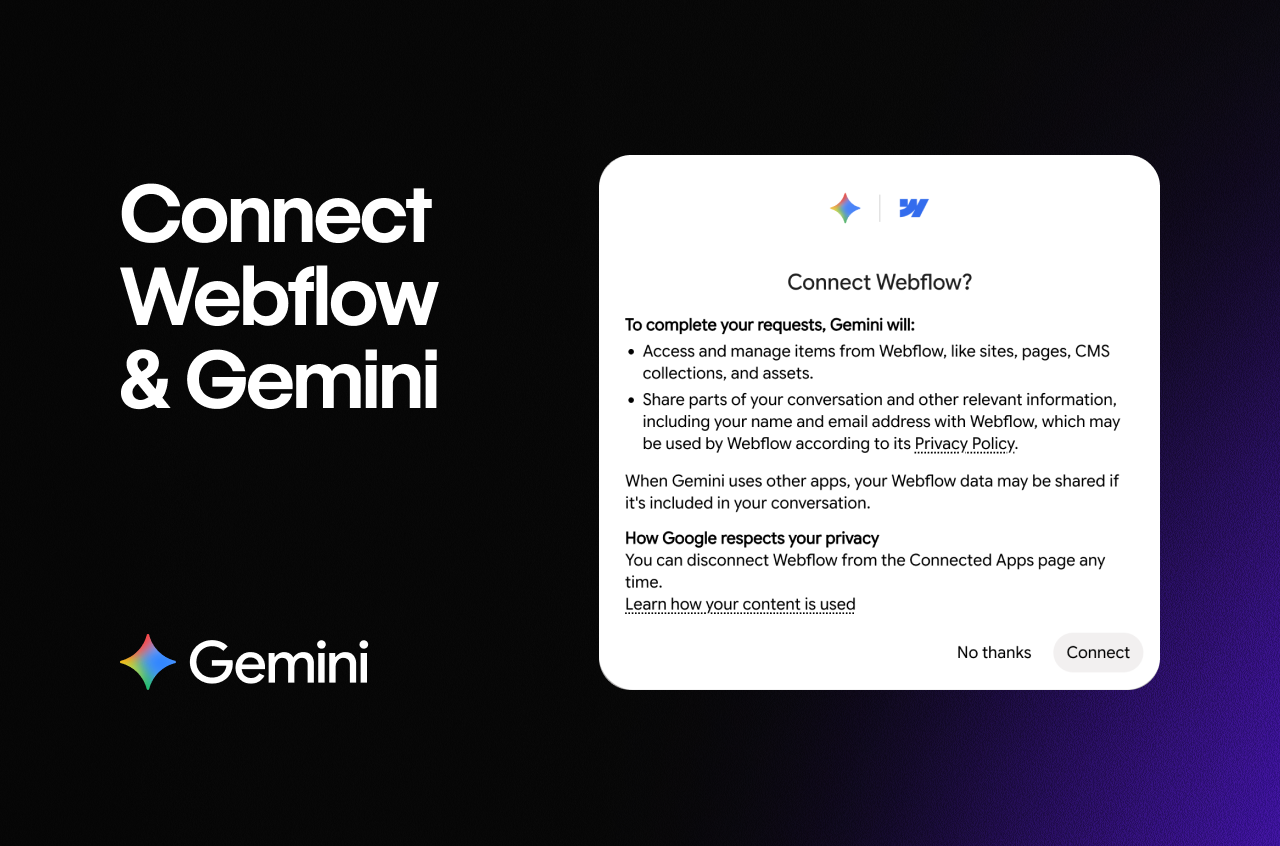
Plus, Google Gemini now connects to Webflow’s MCP server alongside Claude and ChatGPT, so you can work from the agent your team already uses.
Your agent can read data from Analyze, Optimize, and AEO Analytics, as long as you have access to them in Webflow. If you already have access to these tools, MCP access comes at no extra cost.
One question across traffic, experiments, and AI visibility
Say traffic to a landing page dropped this week. Ask your agent why and it will draw from Analyze for site traffic, Optimize for experiment results, and AEO Analytics for crawler activity, all from a single prompt.
Example prompt:
Which pages lost the most traffic this week compared to last? How are my live experiments performing? Which pages are AI crawlers requesting most?The agent lays the answers out in one response so you can see where they overlap. You go from a drop in traffic to what’s running, what’s winning, and what AI crawlers are reading.
Here’s what your agent can read from each one.
See where your audience spends time

Agents could already read site-level data from Webflow Analyze. Now they can go page by page, reading page-level traffic, goal data, and filtered queries. Ask how the homepage performed after last week’s headline change, or which landing pages produce goal completions and which only collect visits, while you’re still deciding what to do next.
Example prompt:
Compare traffic to my homepage this week and last week.Show goal completions by page for the last 30 days.You can find more prompts in the Analyze & Optimize section of the MCP Starter Kit.
Uncover what’s converting

Webflow Optimize is where you run A/B tests and experiments and deliver personalized experiences to different visitor segments. Your experiments keep running while you work on everything else. Agents can read your Optimize experiments and their results today, including which variation is winning, so you can check on an experiment and decide what to ship next without switching tabs. Creating and editing experiments through agents is in development.
Example prompt:
Has my homepage headline experiment reached statistical significance? Which variation is winning?You can find more prompts in the Analyze & Optimize section of the MCP Starter Kit.
Find out how you show up in answer engines

People ask answer engines the questions they used to type into a search box, and marketing teams want to know whether their site shows up in the answers. That's your AI visibility, meaning whether AI crawlers are reading your pages and what answer engines say about you. AEO Analytics shows you where you stand so you can decide what to improve. Crawler requests aren't citations, though. A crawler requesting a page doesn't mean an answer engine used it.
Agents can read two kinds of data. The first is crawler traffic, which covers the pages LLM crawlers request most, filterable by provider (OpenAI, Anthropic, and Perplexity, for example) and by crawler category. The second is your tracked prompts and how each answer engine responded to them. Together they show you which pages AI crawlers are reading and what answer engines say when they're asked the prompts you care about, so you know which pages to work on first.
Try it:
Which pages did AI crawlers request most last week?Which prompts am I tracking for my site?You can find more prompts in the AEO section of the MCP Starter Kit.
Permissions and access
Agents honor the roles and permissions your team already set in Webflow, so an agent can only see data that the person prompting it has access to. Team Administration extends this to access itself. It lets you invite people, change roles, and remove access to your workspace and sites from a script or an agent instead of the dashboard, through /v2/workspaces/:id/members and /v2/sites/:id/members. “Add a new teammate to these three sites with the same role” becomes one prompt instead of a series of clicks, and an agent can only change access your role allows. More in the changelog.
Get started
Connect Webflow to the AI agent your team already uses, using the Webflow MCP server overview, then ask it how your site is performing. Start with a page you care about, or paste the three-part question from earlier in this post and see traffic, experiments, and AI crawler activity in one response. The MCP Starter Kit has more prompts to try.
Building on top of this? The developer docs have the full tool reference. Missed the earlier announcement? Catch up here.