



Codex, an empty Webflow site, and a separate prompt for each job. Here's how far the Webflow MCP server got it.
The Webflow MCP server received an update. Your agent can now filter and sort your CMS data on custom fields, and merge and publish page branches. We already covered some of that in the announcement post.
But there are three things I'm really excited about and I think they're worth a special shoutout. Your agent can now animate your site with native Webflow Interactions, write its own agent guidelines for your site, and deploy and debug your Webflow Cloud apps.
Let me show you how these three features work in practice in this post. And if you'd rather watch than read, watch it in action below.
Creating animations is hard
I'm sure you have seen sites where everything moves on load and reveals itself as you scroll. If done right, these effects can be quite beautiful, but creating them is also hard work.
You have to set up triggers, fiddle with the animation timelines, define staggers, and tweak the easing curves. Good animations blend into the site and make it nicer to use.
And that's easier said than done. I learned years ago that animating things well takes a lot more than moving boxes around. If you want to learn more about how to create excellent animations, this guide provides plenty of tips and tricks.
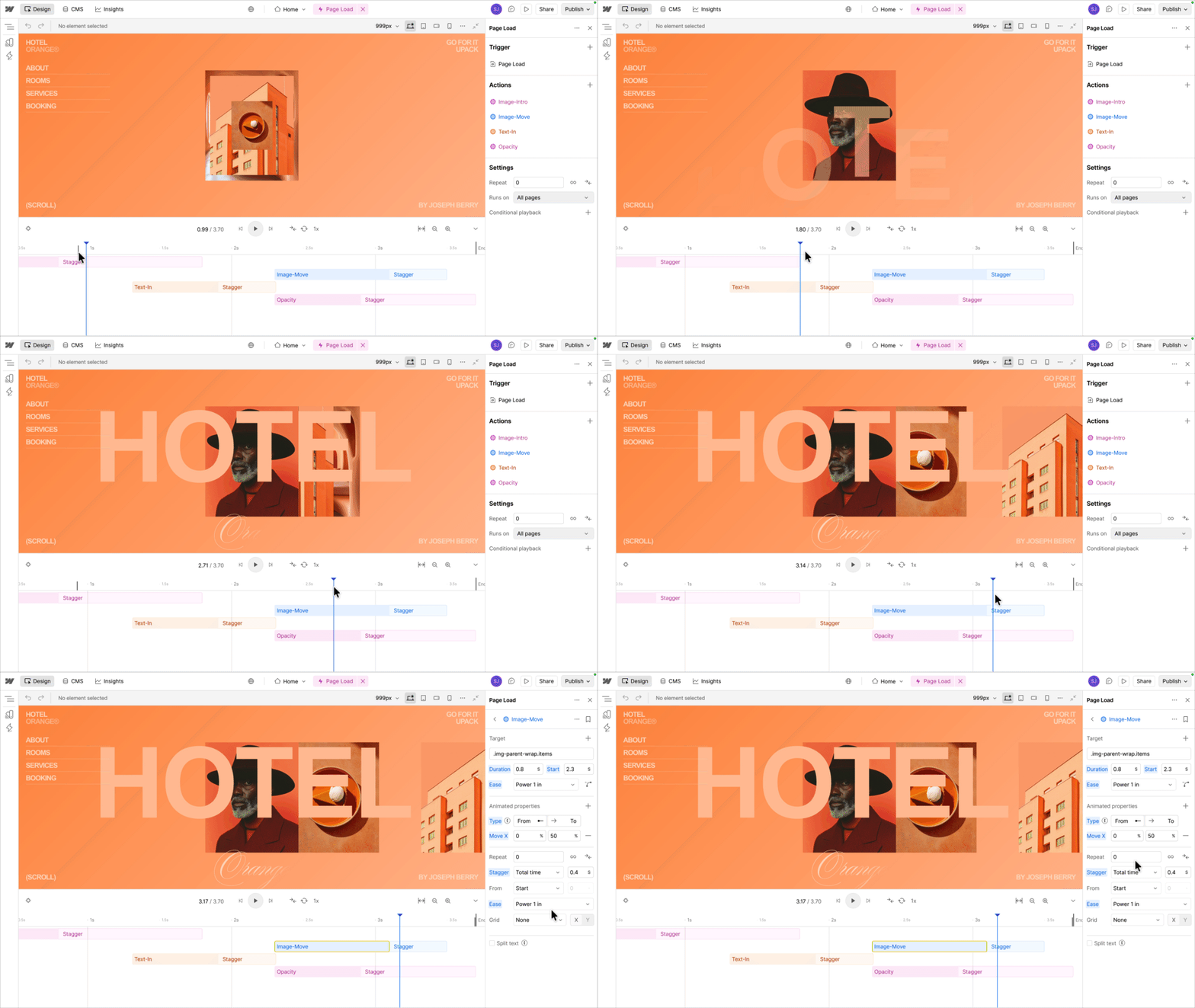
Until now, your agent could build your page's layout but it couldn't use the native Webflow animations. That changed!
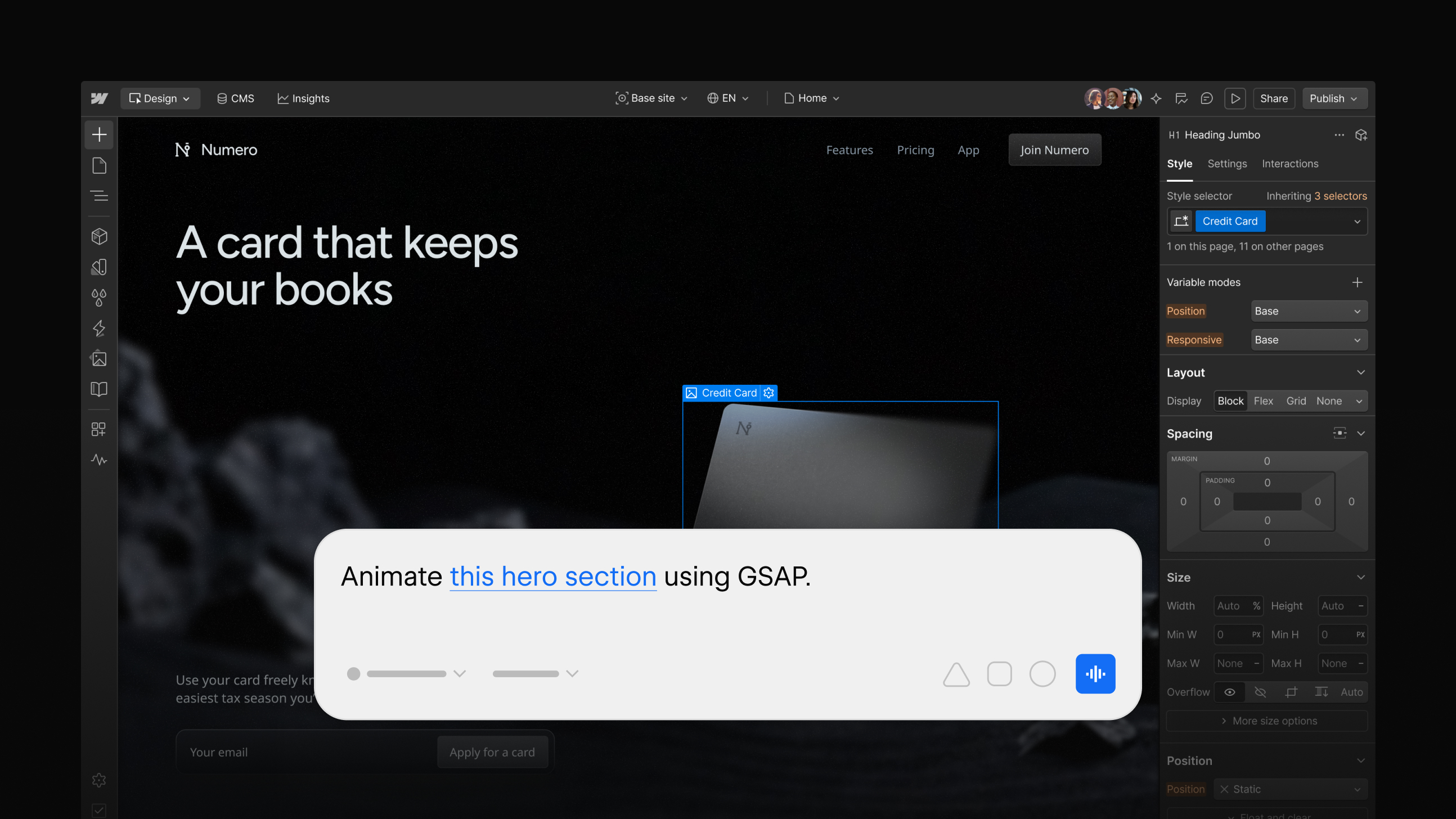
With the recent Webflow MCP updates, your agent can now create native Webflow Interactions, running GSAP under the hood.
Rebuilding GSAP demos
You might have heard that GSAP is part of Webflow, and the GSAP team has a whole showcase of demos. These demos are great for inspiration, but they'll require you to add custom code to your site.
That's where Webflow Interactions come in. Webflow Interactions cover a lot of common GSAP UI animations that include text splitting, scroll-triggered animation, and hover and cursor effects.
I picked three demos and asked my agent to rebuild them.
Not all GSAP features map one-to-one to Webflow Interaction properties and some examples won't work out of the box. We tested the ones below and they work well. If an animation needs more than Interactions offer or you run into issues, using GSAP in custom code is still the right tool.
A button that tilts with your cursor
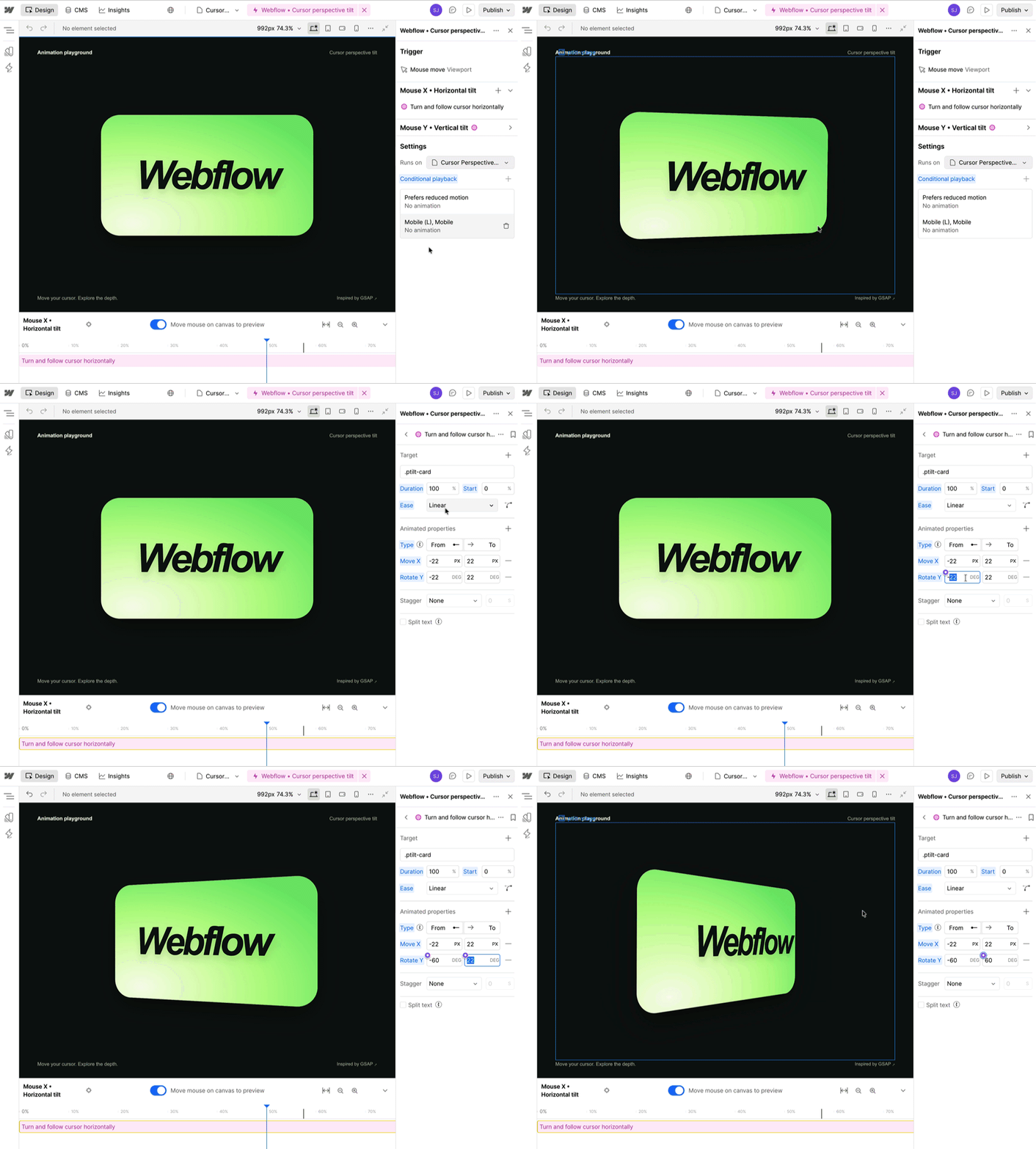
This GSAP demo includes a big button that tilts with your cursor to create a nice depth effect.

To let your agent build an effect like this, open Codex (any other agent will work, too). Make sure that the Webflow MCP server is connected via a plugin or connector. For Codex, the Webflow plugin will enable your agent to talk to your Webflow site via MCP.
Use a prompt like the following to create the animation:
Access my Webflow Animation demo site and create a new GSAP animation page based on this demo: https://demos.gsap.com/demo/cursor-driven-perspective-tilt/.

Use native, editable Webflow Interactions. The big button should say "Webflow" instead of GSAP and follow the mouse cursor to create a depth effect. The text should look like it sits on top of the button background.

Let me know when you're done and I'll verify it.
The prompt consists of three main parts:
The initial context tells the agent which site to work on and sets a goal by providing a demo URL.

Detailed instructions tell the agent to use native, editable Webflow Interactions, because you don't want it to set up custom code for things that are supported natively.

Manual verification prevents the agent from going into the deep rabbit holes of animation debugging. Modern agents and models are very eager to validate their own work, but whether an animation feels right is your call.
With this prompt, the agent will get to work and that's it! In my case, Codex created a new page that included the "Webflow button" that follows my mouse cursor.
There's no way I could have built this UI component in a couple of minutes like Codex did. And because the animation is based on native Webflow Interactions, it lives in the Interactions panel. I could check the mouse move trigger, inspect the animation timeline and tweak the animated properties.
Good animations need taste and judgment calls. That's why I recommend tweaking whatever your agent comes up with.
Text that builds up word by word
Next up from the GSAP demos were fancy text and line-break effects.
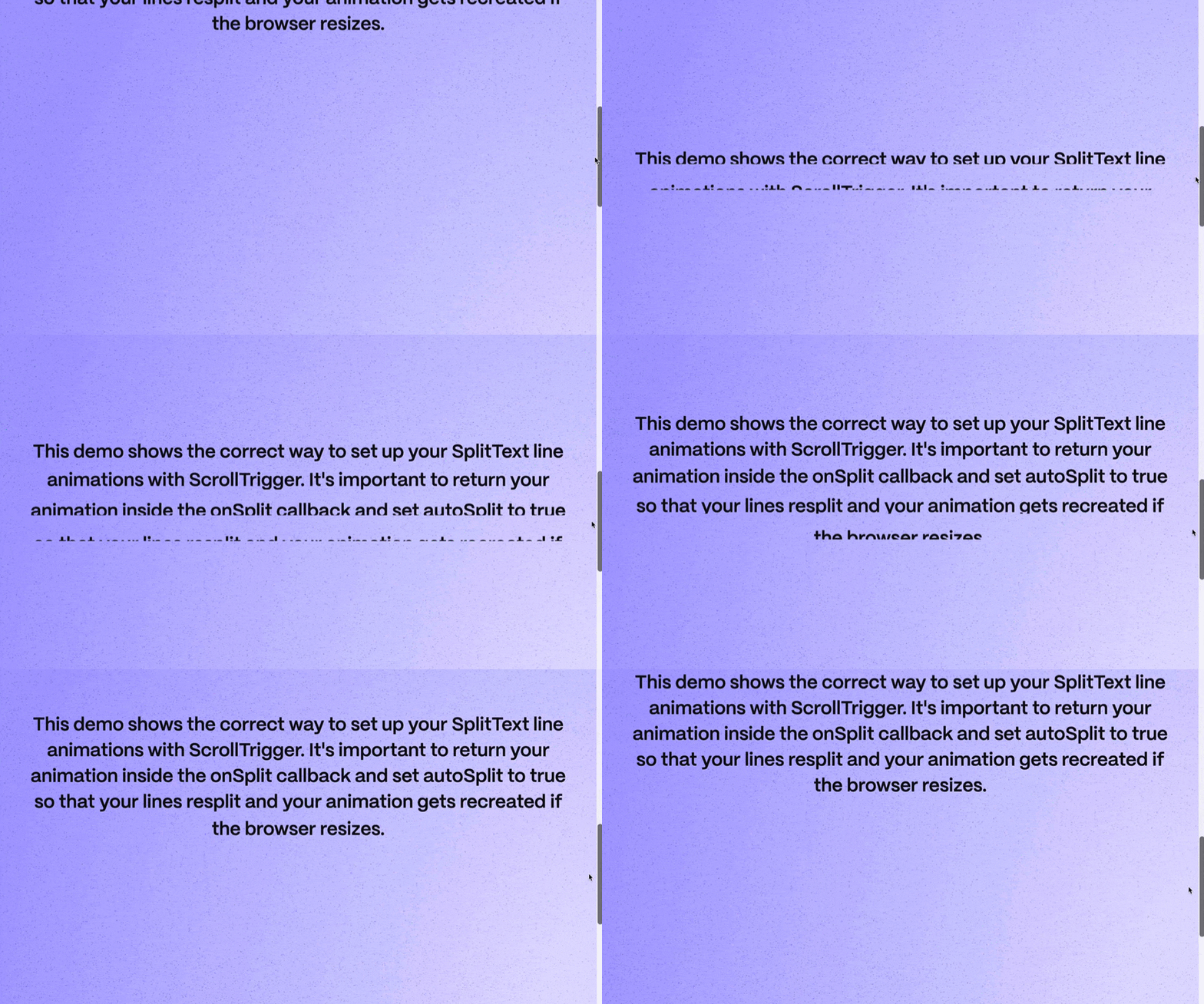
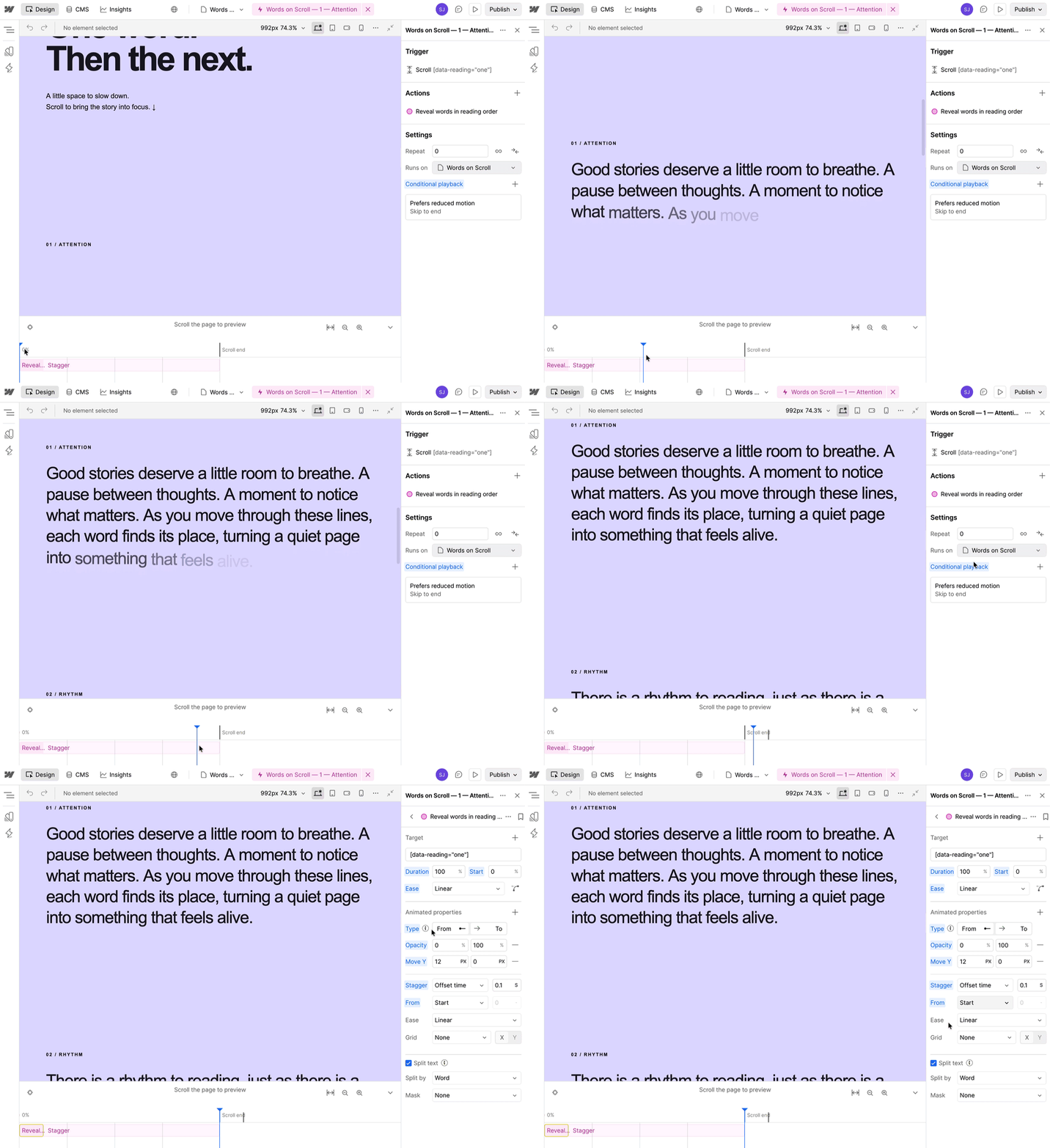
I asked for multiple paragraphs where the text builds up word by word as you scroll. The prompt followed the same structure as the previous example:
Access my Webflow Animation demo site and create a new GSAP animation page based on this demo: https://demos.gsap.com/demo/responsive-line-splits-on-scroll/.

Use native, editable Webflow Interactions and make it highlight multiple paragraphs in which each line fades in on scroll. Make every word appear one-by-one.

Let me know when you're done and I'll verify it.
Running this prompt took three and a half minutes, and it worked very well, too. Every line fades in as it scrolls into view, and the words follow one after another.
A sticky navigation that stays in sync with scroll-driven animations
For the third example, I wanted to see if more complex UI effects are possible, too.
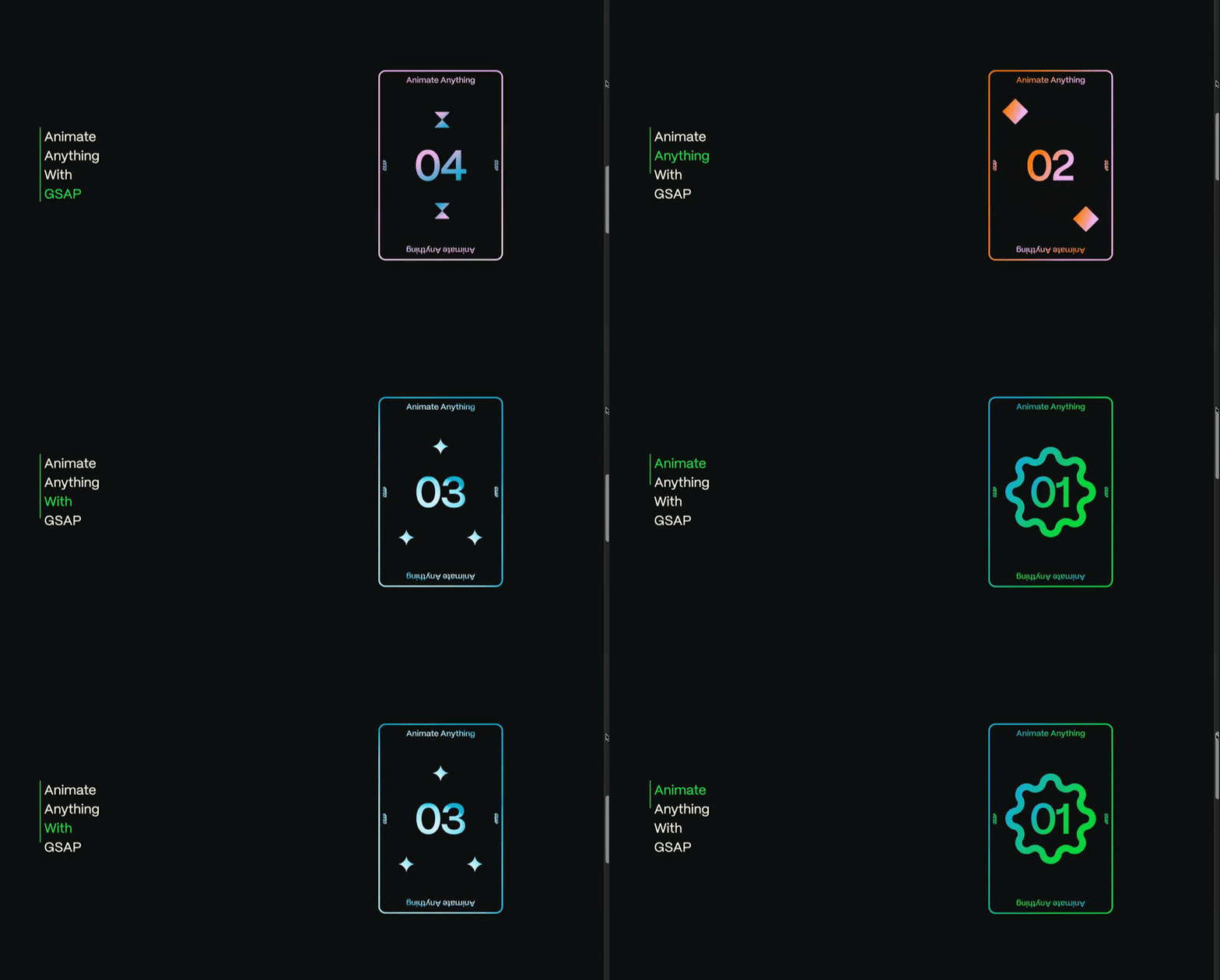
In the lateral pin indicator demo, the section pins while you scroll, a navigation menu on the left tracks your progress, and the image on the right swaps at exactly the right moment. All of that is tied to the scroll position and has to stay in sync.
Building this by hand would definitely take me quite a while. So here's the prompt I went with:
Access my Webflow Animation demo site and create a new GSAP animation page based on this demo: https://demos.gsap.com/demo/lateral-pin-indicator/.

Use native, editable Webflow Interactions. The page has a navigation on the left that's progressing on scroll and with it the right side image is changing. You can use placeholders for the right side.

Let me know when you're done and I'll verify it.
And the result was again pretty good!
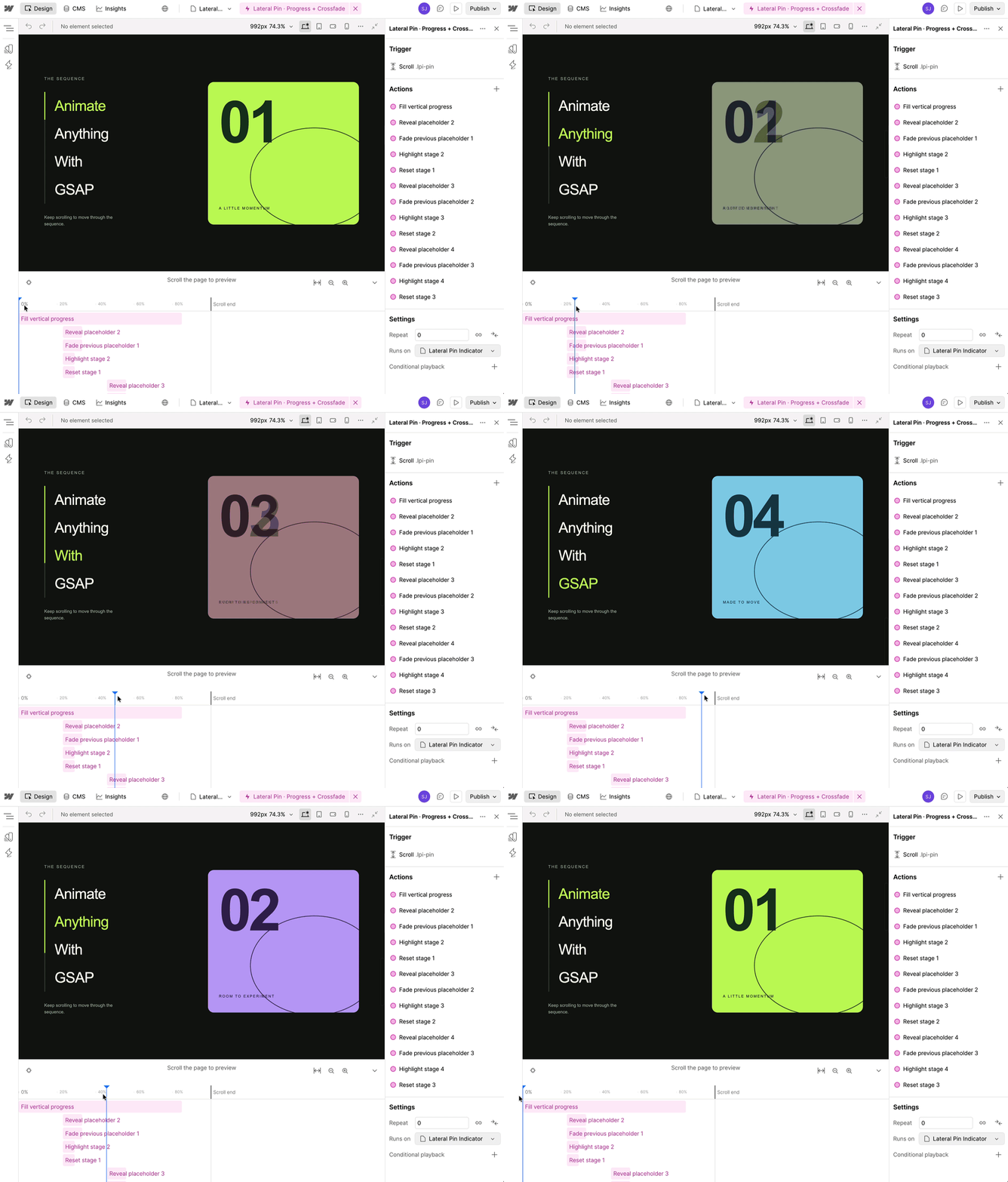
More than ten actions were set up in the Interactions panel and I'm not gonna lie, I was quite impressed by the result.
A note on the quality of the animation results
Agents and LLMs are still learning how to create animations, and the tooling to debug them isn't there yet.
I used OpenAI's GPT-6 Astra model to create the examples. It's one of the newest models at the time of writing (Oct 2026). Going with a cheaper or open-source model might lead to different results.
Let your agent write its own guidelines
Creating animations is one thing, but agents really shine when they help with operating Webflow sites at scale. Take this site as an example.

The site includes a clear color palette, a type scale, and a specific way to write headlines. It includes multiple pages that follow certain brand guidelines. I know all of that, but my agent doesn't. Every time I kick off a new conversation, it'll poke around and learn what it's dealing with.
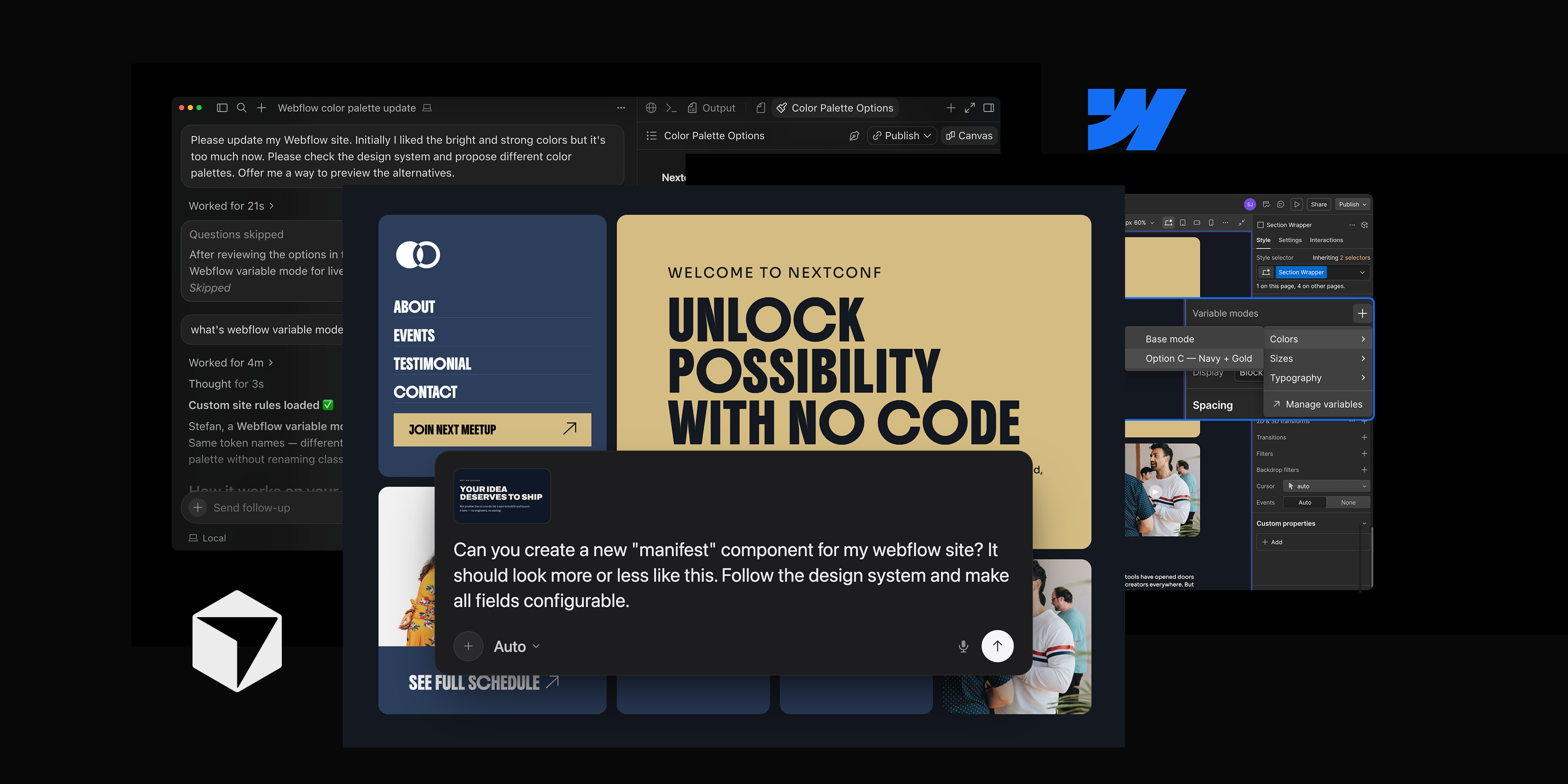
With MCP 2.0, we already introduced skills and rules, which are Markdown instructions that live on your Webflow site to give your agent a bit of extra context. Writing them from scratch is a lot of work, though, and now the Webflow MCP server helps your agent write them for you.
Access my Webflow site and generate style and design system guidelines for it. Save them as a draft, I want to review them before my agents use them. When you're done, give me a short summary of the most important rules.With this prompt, your agent calls new tools that analyze your site's colors, typography, components, copy, and brand. The MCP server does the discovery work and hands the result to your agent for review.
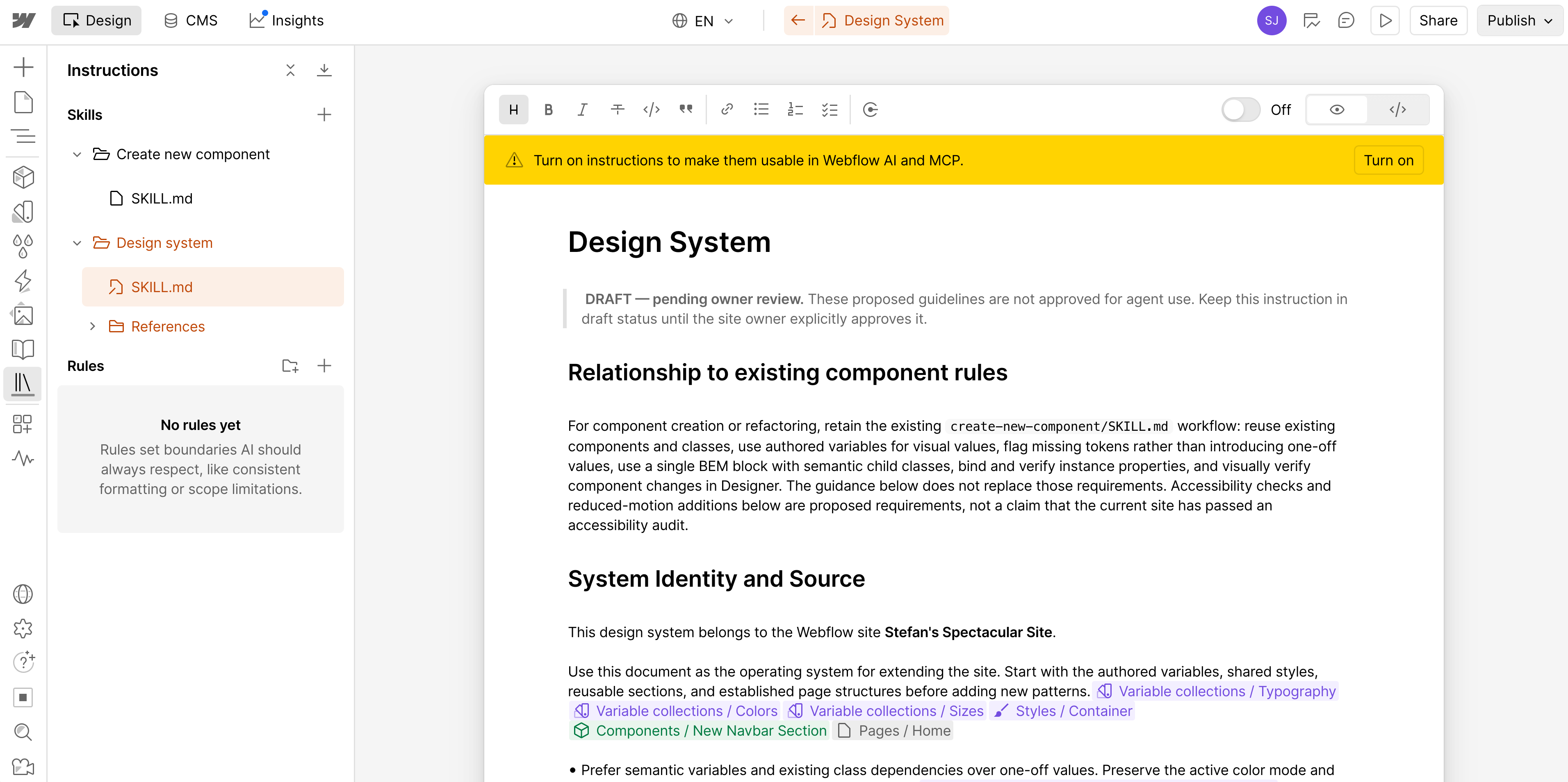
Once generated, you can review the new agent rules. And please don't take this lightly. Don't trust AI output blindly, and take ownership of the context you give your agents.
But once you're happy with your generated rules, enable the new skills, and from then on any agent working on this site picks up these guidelines.
The MCP server now provides tools to generate brand, asset, CMS and design system guidelines. I'm sure you and your agents will appreciate the extra context!
Deploy and debug Webflow Cloud apps
The last MCP feature that got me excited is for people building with Webflow Cloud. Webflow Cloud lets you ship full-stack apps within or next to your Webflow sites, and your agent can now talk to the infrastructure behind them.
If you want to make some changes to your cloud app and make your agent wait until the deployment is done, it's a single prompt:
This site is deployed as a cloud app (webflow-cloud-viewer). Can you change the background of the site and push and wait for the deploy to finish to check if things are okay?Note that in this example, the prompt includes the cloud app's name, and that Codex also has access to the project's source code (webflow-cloud-viewer).
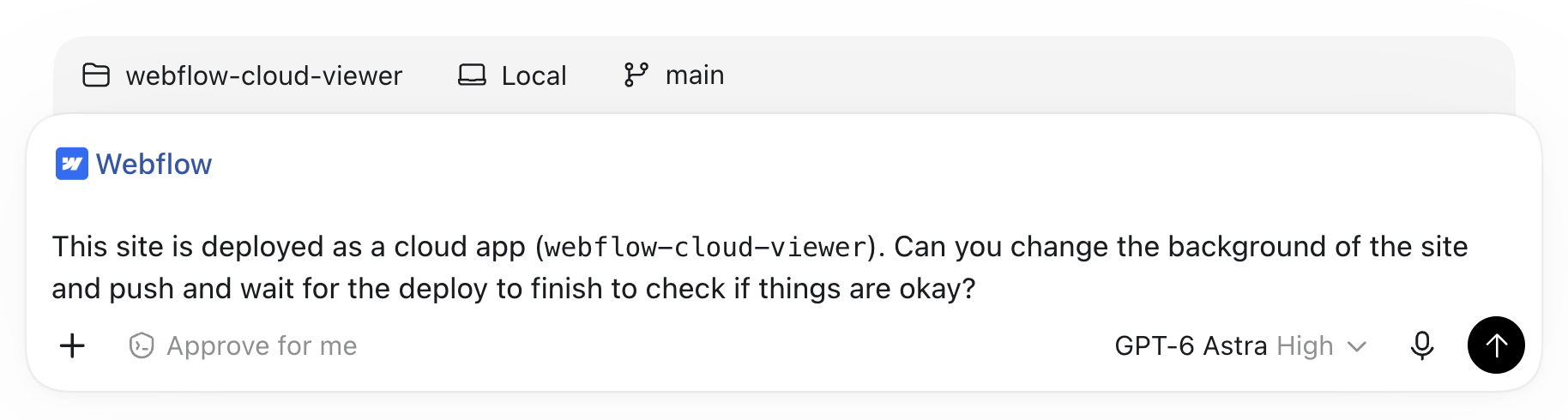
The previous examples were all "just" changing what's already stored in Webflow. With Webflow Cloud apps, the flow is closer to traditional code-first CI/CD approaches. You write code, you push and you wait for your application to be built.
With a short prompt like this, Codex will change the source code, run it, verify it, and push the result to GitHub. Then it will use Webflow MCP to wait for the new deployment to finish and check that things worked out.
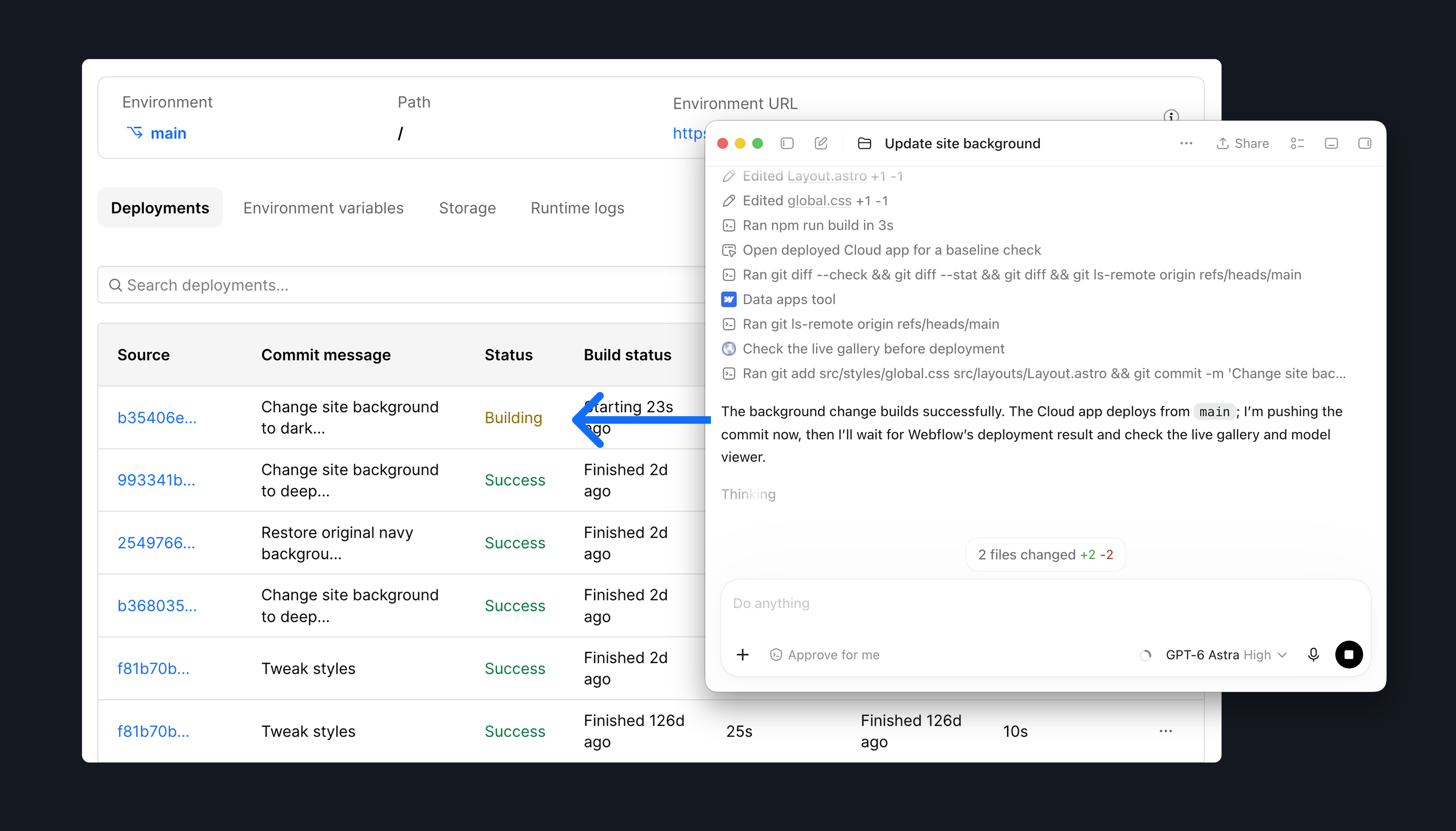
It's cool to see your agent do the work and then validate it in production.
And if a build fails, your agent can now read the build and runtime logs, fix the problem and deploy again. When you see this flow for the first time, it's quite magical.
It can also create new apps, map Git branches to environments, redeploy an earlier deployment to roll back, and list the custom domains your app runs on. Let us know if we missed anything here!
Try the new features yourself
All these new features are already live. If you have the Webflow MCP server connected to your agent, there's nothing to enable. Give them a try!
And if you haven't connected it yet, you'll find the setup instructions on developers.webflow.com and the full list of changes in the changelog. Have fun!