






Teamtailor
Publish Teamtailor job openings on your Webflow site with widgets or a CMS sync, connect the MCP servers on both sides, or build the sync yourself with the APIs.

Job openings live inside an applicant tracking system, and candidates find them on your marketing site. Nothing joins the two by default, so every new role means copying titles, descriptions, locations, and apply links across by hand. The listings go stale the moment a recruiter edits or closes a job in the ATS.
Teamtailor closes that gap from several directions. Recruiters keep publishing in Teamtailor, and the Webflow site picks the jobs up through an embedded widget, an automated CMS sync, or code you write against both APIs. Both products also run MCP servers, so an AI assistant can read the open roles on one side and build the matching content on the other, inside permissions you granted in advance.
This suits recruiting and talent acquisition teams who want the careers section to look like the rest of the marketing site instead of a hosted subdomain with someone else's design constraints. Marketing and web teams get design control the ATS career site editor cannot match, and agencies can ship a careers section as part of a client build without touching how the client recruits.
How to integrate Teamtailor with Webflow
What is Teamtailor? Teamtailor is an applicant tracking system and employer branding platform. It pairs candidate management with a career site builder, interview scheduling, and distribution to external job boards, and it exposes a JSON:API REST API covering jobs, candidates, and applications. It also runs a hosted MCP server that AI assistants can connect to.
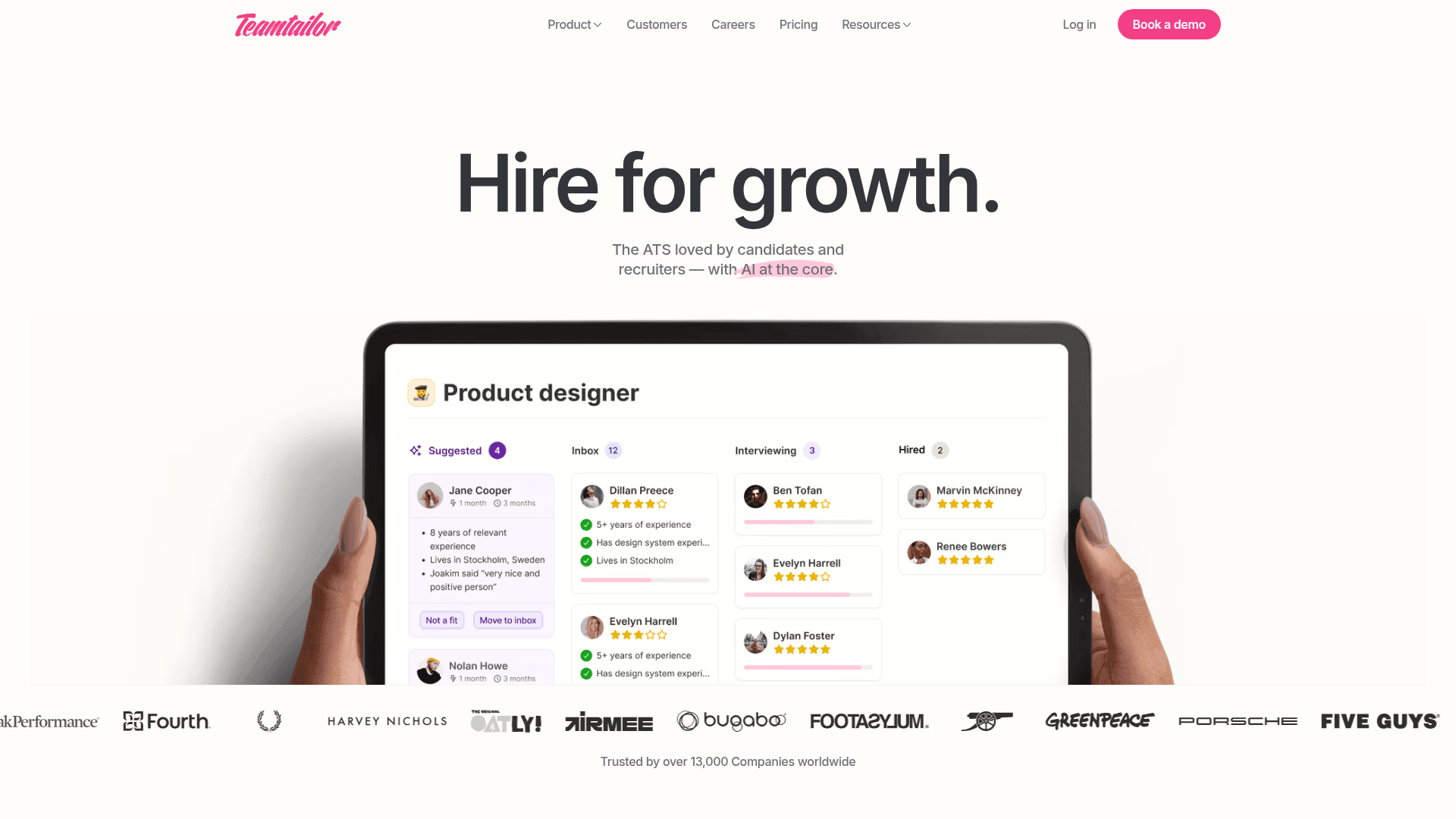
Teams pair Teamtailor with Webflow when the careers section has to meet the same design bar as the rest of the site, and Teamtailor says the same thing: its custom code guide tells you to consider hosting your careers page on your own website for full design and functionality control. Be clear about what that involves. The Webflow Apps Marketplace carries no Teamtailor app, and Webflow does not appear anywhere in Teamtailor's own integrations directory. No turnkey connector exists in either direction, so each route below is an embed, an automation platform, or code you host yourself.
The Teamtailor and Webflow connection supports four approaches:
- MCP servers on both sides let an AI assistant read Teamtailor data and build the matching Webflow content, under permissions you set per role.
- Teamtailor widgets and iframe embeds put a live job list and an application form on your pages with no server involved.
- Zapier and viaSocket automations sync jobs into the CMS and push form submissions back into Teamtailor without code.
- The Webflow and Teamtailor APIs give full control over job sync and application capture, and they need server-side development.
Most implementations combine two of these: an automated sync for the listings, plus an embed or a custom form for the application itself.
Wire up the MCP servers on both sides
This is the quickest way to get a jobs Collection designed and populated without writing a single API call. Two separate servers are involved and neither talks to the other, so your AI assistant is the piece in the middle.
The Webflow MCP server covers the Webflow half. It creates collections, defines fields, manages items with bulk updates, and publishes or unpublishes them, and it operates inside your existing Webflow permissions and roles. Per-site Agent Instructions shape how an agent works on a given site, and every change an agent makes is recorded in the site activity log. The MCP server is included on the free Starter Site plan, so this path costs nothing to try.
Teamtailor's MCP server covers the recruitment half, at https://mcp.teamtailor.com/mcp. A Company Admin activates it in the Add-on feature center and then configures it under Settings > Integrations > MCP. Authentication runs over OAuth, so the assistant signs in as a real Teamtailor user and never holds an API key. Each user role gets read, create and modify, or delete access, and every role starts at read only. An assistant can do only what the connected user's own permissions and that role setting both allow.
In practice you ask the assistant to read the open jobs from Teamtailor and mirror them into a Webflow Collection, which fits a first build or an audit of what has drifted since the last one. It is not a scheduled sync: nothing fires on its own when a recruiter closes a role, so pair it with one of the methods below once the listings need to stay current.
Add Teamtailor widgets and forms with Code Embed elements
Teamtailor generates embed scripts you paste into a Code Embed element, which is the fastest path and needs no server or automation subscription. Code Embed elements require a Core, Growth, Agency, or Freelancer Workspace plan, or a site with an active Site plan. Each element holds up to 50,000 characters and supports HTML, CSS in <style> tags, and JavaScript in <script> tags. Code wrapped in <style> or <iframe> tags previews on the canvas, while anything inside a <script> tag runs only on the published site.
Embed the job list widget
The job list widget renders your open positions on any Webflow page and links each one to its Teamtailor-hosted job ad. You choose how many jobs the generated script includes, and you filter that list by department, role, region, location, language, and remote status.
To embed the job list widget:
- In Teamtailor, go to Settings > Integrations > Widgets and configure your filters.
- Click Generate widget and copy the script.
- In Webflow, add a Code Embed element where the list should appear and paste the script in.
- Save and publish the site.
You can place several widgets on one page by adding extra <div> tags with unique data attributes, one list per department for example. Widgets inherit only limited styling from your site's CSS, so move to a CMS sync when the listing itself has to match your design system.
Embed the application form in an iframe
An iframe keeps candidates on your Webflow domain while Teamtailor processes the submission. The apply URL follows the pattern https://yourteamtailor.domain.com/jobs/[JOBID-JOBTITLE]/applications/new?iframe=true, and the ?iframe=true parameter is required. The Teamtailor API returns this URL pre-formatted in each job's careersite-job-apply-iframe-url attribute.
To embed an application form:
- Copy the job's apply URL, including the
?iframe=trueparameter. - Add a Code Embed element and place an
<iframe>pointing at that URL. - Include the helper script
<script src="https://scripts.teamtailor-cdn.com/widgets/production/apply.js"></script>, which resizes the frame to fit the form. - Publish and test the form on the live domain.
Search engines do not index iframe content effectively, so keep the job description in the page itself and reserve the iframe for the form. One constraint catches people out on the Teamtailor side: a custom domain has to be in place before any JavaScript will run on a Teamtailor career site.
Add the hiring widget and Career button
Two smaller widgets promote hiring across the whole site rather than on a single page. The hiring widget shows a badge or banner and is generated under Settings > Integrations > Widgets, while the Career button sends visitors to your career site and is generated under Settings > Recruitment > Widgets. Both scripts belong in the head and body tags fields of your site settings.
To add the hiring widget:
- In Teamtailor, generate the Hiring widget script from the Widgets screen.
- Paste it into Site settings > Custom code > Head code and save.
- Place the widget's
<span>element in a Code Embed element wherever the badge should appear. - Publish the site.
The Career button script belongs before the closing body tag instead, so paste that one into Site settings > Custom code > Footer code. Never wrap any embed in <html>, <head>, or <body> tags, which breaks the page layout.
Connect Teamtailor and Webflow with Zapier or viaSocket
Zapier runs a direct, bidirectional Teamtailor and Webflow connection, and Teamtailor documents the connection officially. This is the no-code route to a Jobs Collection that tracks your ATS. You map Teamtailor fields to Webflow CMS fields once, sending title to the item name, body to a Rich Text field, remote-status to an Option field, and the apply URL to a Link field. After that the Zap handles every change on its own.
Three prebuilt templates cover the common directions. The job sync template turns a Teamtailor job update into a created or updated live Webflow item. Candidate events get their own path through the candidate events template, and running the other way, the form submission template creates a Teamtailor candidate from a Webflow form submission.
viaSocket also connects the two, but only in one direction. It provides Teamtailor actions for creating and updating candidates, jobs, and notes, plus a candidate lookup. Teamtailor triggers are unavailable, so every viaSocket template starts from Webflow's New Form Submission trigger.
Jobs synced into the CMS render as native Webflow content that you can bind to a Collection List and style with the design control a widget cannot offer.
Build with the Webflow and Teamtailor APIs
A custom build gives you complete control over how jobs display and how applications flow, and it requires server-side development. Browsers block the cross-origin request, so CORS stops any direct call to the Teamtailor API from page JavaScript, and your API key has to stay off the client in any case. Host the request in a serverless function on Cloudflare Workers, AWS Lambda, Netlify Functions, or an equivalent runtime.
Generate a key under Settings > Integrations > API keys, which needs Company Admin access. Each key carries a Public, Internal, or Admin scope at read, write, or read and write level, and a key cannot be edited once created, only deleted. Every request needs an Authorization: Token token=abc123abc123 header and an X-Api-Version: 20240904 header. Teamtailor serves two regional base URLs, https://api.teamtailor.com for the EU and https://api.na.teamtailor.com for North America, and a key belongs to the region where you created it, so calling the other base URL fails authentication. Requests are capped at 50 every 10 seconds, and page[size] defaults to 10 with a maximum of 30.
Four interfaces cover the full integration:
- Teamtailor API: Jobs, candidate records, and job applications are all covered by endpoints that follow the JSON:API specification over standard REST.
- Webflow Data API: The Webflow Data API handles CMS collections and collection items, and v1 was deprecated on March 31, 2025.
- Teamtailor company webhooks: Registered company webhooks push job events to your endpoint as they happen.
- Webflow webhooks: Webflow webhooks fire on events such as
form_submissionandcollection_item_changed, with a limit of 75 registrations per trigger type per site.
Between them you can drive the sync in either direction and react to a change on either side without polling for it.
Sync jobs into a Webflow CMS Collection
This pattern fetches open roles from Teamtailor on a schedule and upserts them as CMS items. A Mirumee repository documents a production version that upserts and archives Webflow CMS items from a GitHub Action running every 10 minutes, and its own README warns that delivery can lag under load, which is a fair description of any cron-driven sync.
To build the sync:
- Create a Public read key in Teamtailor and fetch jobs with
GET https://api.teamtailor.com/v1/jobs?include=department,locations. - Map job attributes to Collection fields, sending
titleto the requirednamefield,bodyto Rich Text,remote-statusto an Option, andcareersite-job-apply-urlto a Link. - Create items with
POST https://api.webflow.com/v2/collections/{collection_id}/itemsusing a Bearer token with thecms:writescope. Each request accepts up to 100 items, and every item'sfieldDataneeds at leastnameandslug. - Publish staged items with
POST /v2/collections/{collection_id}/items/publish, then refresh the public cache withPOST /v2/sites/{site_id}/publish, which needs thesites:writescope and at least one ofcustomDomainsorpublishToWebflowSubdomainin the body.
Store the Teamtailor job ID in a dedicated CMS field so later runs can match, update, or archive the right items rather than creating duplicates.
Push job changes in real time with Teamtailor webhooks
Webhooks replace polling entirely. Teamtailor fires job.create, job.update, and job.destroy events as JSON payloads to any HTTPS endpoint, and a Company Admin activates company webhooks in the Add-on feature center first. Watch the human-status attribute on job.update to detect a role going live, because Teamtailor emits no job.published event.
To set up webhook-driven sync:
- Register your HTTPS receiver in Teamtailor for
job.create,job.update, andjob.destroy. - Verify each payload with the v2 HMAC-SHA256 signature in the
TT-Signatureheader, since the v1 signature is deprecated. - On
job.create, callPOST /v2/collections/{collection_id}/items/liveto create and publish in one step. - On
job.update, callPATCH /v2/collections/{collection_id}/items/live. - On
job.destroy, setisArchived: trueon the matching item or delete it.
Teamtailor's partner documentation states that failed deliveries are not retried, while its support article describes three retries. The two official sources contradict each other, so build idempotent handlers and keep a scheduled reconciliation run as a backstop rather than trusting either number.
What you can build with the Teamtailor Webflow integration
Integrating Teamtailor with Webflow lets you run live job listings and applications on your own site without rebuilding the careers page inside the ATS editor.
The combination supports four builds in particular:
- On-brand careers page with crawlable job pages: Sync openings into a Jobs Collection so every role gets its own Webflow page, and filter a Collection List by department so the page updates itself whenever a recruiter publishes or closes a job.
- Application capture on your own domain: Embed the Teamtailor apply form in an iframe on each job detail page, so candidates submit without leaving your site and Teamtailor still receives the application and any resume files.
- Talent pool intake from marketing pages: Route a work-with-us Webflow form through the Create Candidate action, so a visitor filling in the form on your about page lands in Teamtailor as a candidate automatically.
- Agent-assisted content upkeep: Point an AI assistant at both MCP servers to audit which live roles are missing from the site, then have it fix the Collection under the role permissions you configured, with every edit written to the site activity log.
Start with the Webflow CMS API if you are writing the sync yourself, or connect the Webflow MCP server first and let an agent build the Collection schema before you touch any code.
Frequently asked questions
No. Webflow's Apps Marketplace has no Teamtailor listing, and Teamtailor's own integrations directory does not name Webflow either. You connect the two with a Teamtailor widget, an automation platform, an AI assistant talking to both MCP servers, or code written against both APIs. The widget is the fastest start, and a CMS sync is the right answer when the listings need to be real pages on your own site.
Only if you sync them into the CMS. CMS items become individually crawlable Webflow pages with their own URLs and metadata. Iframe content is not indexed effectively, and the job list widget links out to Teamtailor-hosted job ads rather than to pages on your domain, so choose a CMS sync when the listings themselves need to rank.
No. Browsers block the cross-origin request, and putting a secret API key in client-side code exposes it to anyone who views source. Route the request through a serverless proxy instead. For a public job feed that needs no authentication at all, append
.rssto your career site jobs URL, which returns the first 100 jobs by default; the RSS feed guide covers pagination withoffsetandper_page.Only on a Premium Site plan, or on an Ecommerce Plus or Ecommerce Advanced plan, which support form file uploads of up to 10MB per file. On any other plan, embed the Teamtailor application form in an iframe so Teamtailor collects the files, or send candidates to the Teamtailor-hosted apply page.
Yes. Teamtailor supports subdomains through a CNAME record configured under Settings > Content > Domain and SSL, and the custom domain guide walks through the DNS records. Timefold runs this pattern: its marketing site is built in Webflow, its careers site sits on a Teamtailor subdomain at jobs.timefold.ai, and the two are joined by a Careers link in the site footer.
Description
Connecting Teamtailor with Webflow puts live job listings and application forms on your own domain through embeddable widgets, a Zapier CMS sync, or the MCP servers both products run; custom builds connect the Teamtailor and Webflow APIs.
This integration page is provided for informational and convenience purposes only.
Teamtailor
Connect Teamtailor, an applicant tracking system for recruitment and employer branding, with Webflow to embed live job listings using widgets, Zapier, or APIs.

Recruit CRM
Connect Recruit CRM with Webflow to publish open jobs on your site and send applications into recruiter pipelines.

Personio
Connect Personio with Webflow to publish live job listings on a branded careers page and send applications straight into the Personio recruiting pipeline.

Breezy HR
Connect Breezy HR with Webflow to publish positions on your own site and move every applicant into a tracked hiring pipeline.

Workable
Connect Workable with Webflow to display live job listings on your site and route applicants straight into your hiring pipeline.

Ashby
Connect Ashby, an all-in-one recruiting platform, with Webflow to display live job listings and accept applications directly on your careers page.

BambooHR
Connect BambooHR with Webflow to publish live job openings and keep team pages current from HR records.

Recruitee
Connect Recruitee, an applicant tracking system for hiring teams, with Webflow to display live job listings and route applicants using widgets, Zapier, or APIs.

Greenhouse
Connect Greenhouse with Webflow to display live job listings, accept applications, and sync recruitment data directly on your careers page.
Related integrations
Get started for free
Try Webflow for as long as you like with our free Starter plan. Purchase a paid Site plan to publish, host, and unlock additional features.
