






Ashby
Connect Ashby, an all-in-one recruiting platform, with Webflow to display live job listings and accept applications directly on your careers page.

Recruiting teams update job postings constantly, but those changes rarely make it to the company careers page without a manual handoff. Someone in talent acquisition publishes a role, then files a request for someone else to add it to the website. The result is a careers page that lags behind reality, with closed positions still visible and new openings missing for days.
Connecting Ashby with Webflow closes that gap. Ashby's job board embeds render live listings and application forms directly on any Webflow page, updating automatically as your recruiting team posts or closes roles. For teams that need full design control, Ashby's API feeds job data into Webflow CMS collections, turning each open position into a fully styled, search-indexable page on your domain.
This integration works well for talent acquisition managers who want careers pages that stay current without engineering tickets and for brand designers who need job listings to match site typography and layout. It also fits recruiting operations teams running campaign-specific landing pages with source attribution. Companies in SaaS and fintech, where Ashby's customer base is concentrated, will find this especially useful.
How to integrate Ashby with Webflow
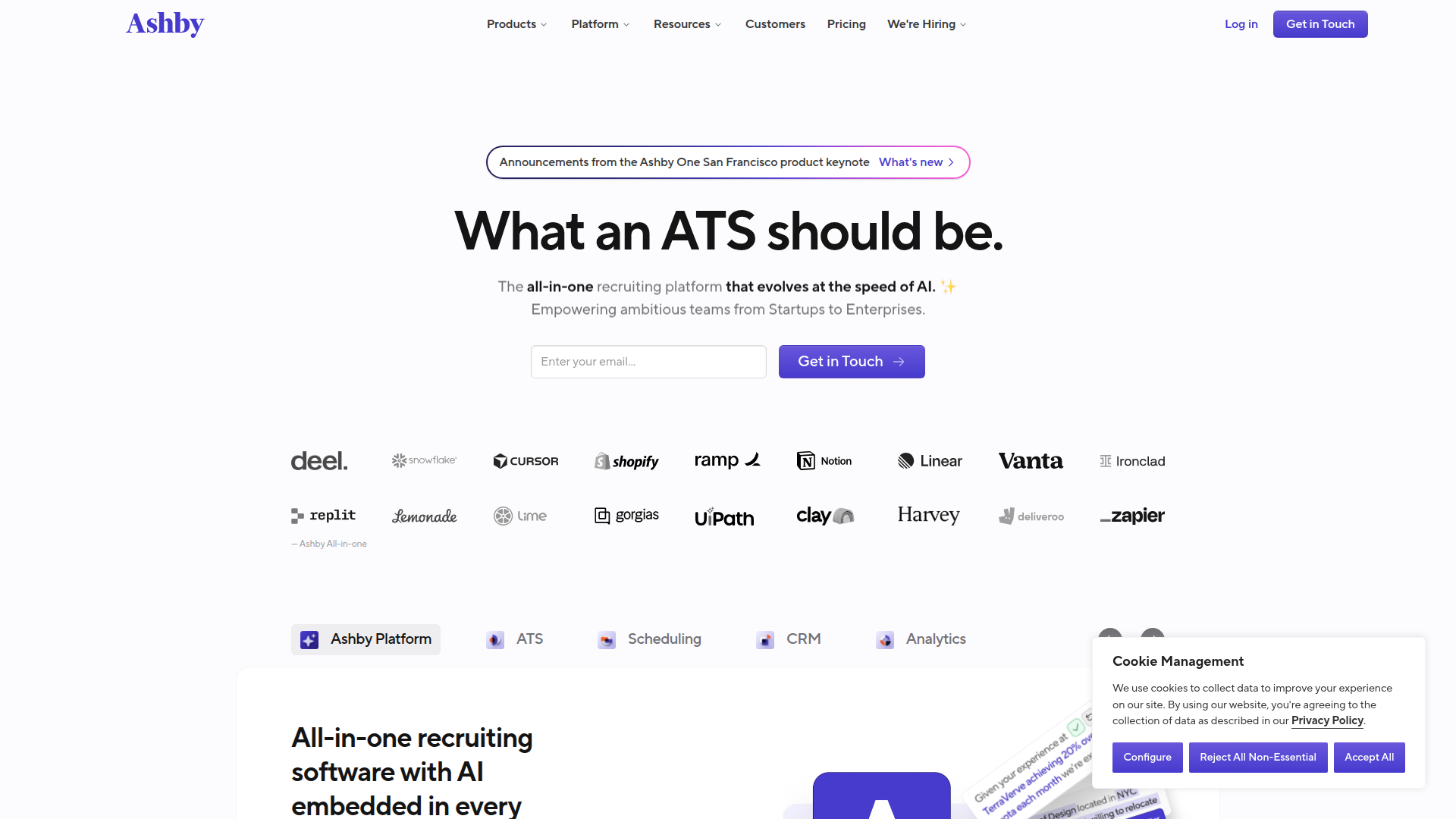
What is Ashby? Ashby is an all-in-one recruiting platform that combines an applicant tracking system, CRM and sourcing, scheduling, and hiring analytics in a single product. It is used by early-stage startups and enterprises with over 1,000 employees. Customers include Notion, Shopify, Ramp, Cursor, and Snowflake.
Teams typically pair Ashby with Webflow when they want a branded careers page that updates automatically based on what the recruiting team publishes in the ATS. Choose the method based on how much design control you need and whether you have developer resources available.
You can connect Ashby and Webflow in four ways:
- Ashby job board embeds render live listings and application forms on any Webflow page using a short script snippet, with no server-side code required.
- Zapier automation syncs Ashby job postings into Webflow CMS collections, creating and updating items as roles are published or closed.
- The Webflow Data API and Ashby APIs give you full control over job listing design, CMS data structure, and application form behavior, but require server-side development.
Most implementations start with the embed method and move to API-driven approaches as design and SEO requirements grow.
Embed Ashby's job board with Code Embed elements
Ashby provides a JavaScript snippet that renders a complete job board, including listings, department and location filters, and application forms, inside a container on your Webflow page. The embed runs within an Ashby-managed iframe, so job data updates automatically when your recruiting team publishes or closes positions. No server-side code is involved. You need Organization Admin access in Ashby to retrieve the embed code, and a paid Webflow site plan to use Code Embed elements. Ashby documents this method at their job board embed examples page.
To embed the full Ashby job board:
- In Ashby, go to Admin > Job Boards > Theme and enable the embedding option. Note your company slug from the URL format
jobs.ashbyhq.com/YOUR-COMPANY-SLUG. - Copy the embed code Ashby generates. It includes three required parts: a
<div id="ashby_embed">mount point, a script block settingwindow.__ashbyBaseJobBoardUrl, and the Ashby embed script with?version=2. - In Webflow, open your careers page and drag a Code Embed element from the Add panel (
+icon) to where you want the job board. - Double-click the Code Embed element to open the code editor. Paste the full Ashby embed code. Do not include
<html>,<body>, or<head>wrapper tags. - Click Save & Close, then publish your site. The embed only renders on the live published page, not in the Webflow canvas.
Use this embed code:
<div id="ashby_embed"></div>

<script>
  window.__ashbyBaseJobBoardUrl = "https://jobs.ashbyhq.com/YOUR-COMPANY-SLUG"
</script>

<script id="ashby-script" src="https://jobs.ashbyhq.com/YOUR-COMPANY-SLUG/embed?version=2"></script>
You can also place the Ashby <script> tags in your site-wide custom code footer instead. Go to Site Settings > Custom Code and paste the script tags in the Footer Code field. Then add only the <div id="ashby_embed"> and the window.__ashbyBaseJobBoardUrl script block via a Code Embed element on your careers page. This approach is useful if you want the Ashby script available across multiple pages.
Ashby's admin panel gives you branding controls before you write any CSS:
- Brand colors applied to buttons and links across all external Ashby pages
- Square logo, wordmark, and social media logos
- Filter toggles for department, location, location type, and employment type
- A "Show Location Address" toggle for street-level detail on postings
- Support for multiple employer brands, each with an independent visual identity
These settings cover the main visual and filtering options before you move into custom styling.
For deeper styling, upload a custom CSS file in Ashby admin or pass a customCssUrl parameter in the embed configuration. The CSS URL must be added to Ashby's allow list before it takes effect.
Embed a single application form
If you want to display the application form for one specific role rather than the full job board, Ashby supports an application-form-only embed mode. This is useful for dedicated role landing pages or recruiting campaign pages where the full listing board is unnecessary.
To get the job posting ID, go to Jobs > select the job > Job Postings > select the posting. The UUID appears in the posting's URL.
Use a window.__Ashby settings object instead of the simpler full-board script:
<div id="ashby_embed"></div>

<script>
  window.__Ashby = {
    settings: {
      ashbyBaseJobBoardUrl: "https://jobs.ashbyhq.com/YOUR-COMPANY-SLUG",
      displayMode: "application-form-only",
      jobPostingId: "YOUR-JOB-POSTING-UUID",
      autoLoad: true,
      autoScroll: false
    }
  }
</script>

<script id="ashby-script" src="https://jobs.ashbyhq.com/YOUR-COMPANY-SLUG/embed?version=2"></script>
You can call window.__Ashby.iFrame().load({ jobPostingId: "..." }) at any time to swap which posting the form displays. This lets you wire Webflow Interactions or button click events to load different role forms on the same page.
A direct link to your Ashby-hosted job board at jobs.ashbyhq.com/YOUR-COMPANY-SLUG is the simplest alternative to any embed. This takes about five minutes, requires no paid Webflow plan, and works from any button or text link. Candidates leave your site when they click it, though, and you get no SEO benefit or CSS control.
Connect Ashby and Webflow with Zapier
Zapier is the only confirmed automation platform with a direct Ashby-to-Webflow connection. Both platforms have full app coverage on Zapier, and pre-built templates exist for the most common job board sync workflows. This method syncs Ashby job data into Webflow CMS collections and gives you full design control over how listings appear on your site.
Zapier offers two pre-built templates for this pairing:
- Publish new Ashby job postings and create items in Webflow: triggers when a job posting goes live in Ashby, then creates a CMS item in a Webflow collection.
- Unpublish Ashby job postings and update items in Webflow: triggers when a posting is taken down, then updates the corresponding Webflow CMS item.
To set up a basic sync:
- Create a Webflow CMS collection for job listings with fields matching the data you want to display (title, department, location, employment type, job URL).
- In Zapier, start with the "Publish new Ashby job postings" template. Connect your Ashby and Webflow accounts.
- Map Ashby fields to your Webflow CMS collection fields. Set the Webflow action to Create Item targeting your job listings collection.
- Create a second Zap using the "Unpublish Ashby job postings" template. Map this to update or archive the corresponding CMS item when a role closes.
- Test both Zaps by publishing and unpublishing a test role in Ashby, then verify the CMS items appear correctly on your published Webflow site.
Ashby exposes additional triggers on Zapier that you can pair with Webflow actions:
- Candidate Hired in Ashby can update a "Position Filled" field on the corresponding Webflow CMS item.
- Job Created in Ashby can pre-create a draft Webflow CMS item before the posting goes live.
- Application Changed Stage in Ashby can update status fields on a Webflow CMS item visible to internal stakeholders.
These triggers make Zapier useful outside basic publish and unpublish automation.
Zapier's free plan polls for trigger events every 15 minutes. Paid plans offer faster polling intervals. For teams without developer resources, this is the most practical way to get Ashby job data into Webflow CMS with full design control.
Build with the Webflow and Ashby APIs
For complete control over job listing design, CMS data structure, and application submission handling, you can connect the Ashby and Webflow APIs through a server-side application. This approach produces fully styled, search-indexable CMS pages on your domain. It requires a developer to build and maintain the integration middleware.
Know one architectural constraint upfront: Ashby's API cannot be called from browser-side JavaScript. The API uses HTTP Basic Auth with long-lived API keys and does not support CORS. A server-side intermediary (Node.js, Cloudflare Worker, AWS Lambda, or similar) is mandatory. Code Embed elements and client-side scripts in Webflow cannot call Ashby endpoints directly.
This integration uses these APIs and webhooks:
- Ashby's API handles job posting data, application form schemas, and candidate submissions using an RPC-style format where most endpoints, including reads, use POST requests
- Webflow's Data API v2 handles CMS collection and item management, including bulk creation and live publishing
- Ashby webhooks fire events when job postings are published, unpublished, or updated
- Webflow webhooks fire outbound events for CMS changes and form submissions
Together, these APIs and webhooks let you keep Webflow job pages in sync with Ashby and maintain full control over presentation.
Ashby authenticates via HTTP Basic Auth with the API key as the username and an empty password field. Include the header Accept: application/json; version=1 with every request. Webflow authenticates via Bearer tokens obtained from Site Settings > Integrations or through OAuth for multi-site applications.
Sync job postings to Webflow CMS
A common API use case is populating a Webflow CMS collection with Ashby job data so each role renders as a fully designed, indexable page. You can then display those items in a Collection List and on CMS template pages.
You can pull this data from two Ashby sources. The public job posting feed requires no authentication:
GET https://boards.ashbyhq.com/api/posted-jobs/{organizationIdentifier}
This returns all published job postings with fields like title, teamName, departmentName, locationName, employmentType, and jobUrl. Append ?includeCompensation=true to get salary range data.
For more granular control, the authenticated jobPosting.list endpoint supports pagination, filtering by location or department, and incremental sync:
POST https://api.ashbyhq.com/jobPosting.list
Pass a syncToken from your last sync to receive only changed records. This avoids fetching the full list every time.
To write this data into Webflow CMS, call the Data API v2 item creation endpoint:
POST https://api.webflow.com/v2/collections/:collection_id/items/live
Using the /live path creates and immediately publishes items. Send a fieldData object with name, slug, and any custom fields matching your collection schema.
For initial bulk migrations, the bulk create endpoint handles up to 100 items per request:
POST https://api.webflow.com/v2/collections/:collection_id/items/bulk
Ashby recommends running incremental syncs at least once per day and full syncs at least once per week to keep sync tokens valid.
Listen for job changes with webhooks
Instead of polling on a schedule, register Ashby webhooks to react to job changes in real time. Ashby uses a one-event-per-subscription model, so you need separate webhook registrations for each event type.
To configure webhooks:
- In Ashby, go to Admin > Integrations > Webhooks and click New.
- Register three webhooks pointing to your middleware endpoint: one for
jobPostingPublish, one forjobPostingUnpublish, and one forjobPostingUpdate. - Set a Secret Token on each webhook. Ashby signs payloads with HMAC-SHA256 and sends the signature in the
Ashby-Signatureheader. - Your middleware receives the webhook, verifies the signature, extracts the job data from the
datafield, and calls the Webflow Data API to create, update, or unpublish the corresponding CMS item.
Every Ashby webhook payload includes a webhookActionId field that stays the same across retries and across related events. Use this for deduplication, since publishing a job triggers both jobPostingPublish and jobPostingUpdate.
Webflow cannot receive inbound webhooks directly. Your middleware must sit between Ashby and Webflow, translating webhook payloads into Data API calls.
Build custom application forms
Ashby's application form schema is dynamic, varying per job posting. Before building a custom form, retrieve the schema from jobPosting.info, which returns a surveyFormDefinitions array describing every field, type, and validation rule for that role's application.
Submit applications via:
POST https://api.ashbyhq.com/applicationForm.submit
Content-Type: multipart/form-data
Always check the success field in the response. If it returns false, display the validation errors to the candidate. Silently dropping failed submissions means lost applications. You can test error handling with the email [email protected], which simulates a validation failure.
Pass UTM data (utm_source, utm_campaign) in the submission payload for source attribution back to Ashby analytics.
What can you build with the Ashby Webflow integration?
Integrating Ashby with Webflow lets you run a careers page that stays current with your recruiting pipeline without manual content updates or engineering support.
- Auto-updating careers page: Embed Ashby's job board script on a Webflow careers page so listings appear and disappear as your recruiting team publishes or closes roles. Companies like Synthesia run this pattern, with each job linking back to Ashby for applications and
utm_sourceparameters tracking traffic from the careers page. - Branded, SEO-indexable job listings: Sync Ashby job data into Webflow CMS collections via API or Zapier, then design each listing as a fully styled CMS template page. Each role gets its own URL on your domain, generating server-rendered HTML that search engines can index. This replaces the iframe-based embed with crawlable pages that rank for role-specific search queries.
- Department-filtered job boards: Use Ashby's
departmentNameandlocationNamefields to create filtered Webflow pages for specific teams or offices. A/careers/engineeringpage shows only technical roles, while/careers/salesshows commercial positions. Recruiting teams can share targeted links in campaign emails or university outreach. - Campaign landing pages with source tracking: Build purpose-specific Webflow landing pages for job fairs, referral programs, or paid campaigns. Pass
utm_sourceandutm_campaignvalues through to Ashby'sapplicationForm.submitendpoint so recruiting analytics attribute every applicant to the correct channel.
If you need more control over custom form fields, application logic, or multi-brand job boards, the API integration path covers those cases with full flexibility.
Frequently asked questions
No. The Code Embed element you need to place Ashby's script on a Webflow page requires a paid Webflow Workspace or an active paid Site plan. The only method that works on a free plan is linking out to your Ashby-hosted job board at
jobs.ashbyhq.com/yourcompany, which sends candidates off your site. See the Code Embed documentation for plan requirements.No. JavaScript inside Code Embed elements does not execute in the Webflow canvas. The embed shows a placeholder while you work on the page. Publish your site and check the live page to see the rendered job board. Ashby's full job board embed page includes a live running example you can reference for expected output.
No. Ashby does not have an official app in the Webflow Apps Marketplace. The integration works through embed scripts, Zapier, or direct API calls.
The API-driven approach with Webflow CMS sync produces the best search indexing results. Each job posting becomes a server-rendered HTML page on your domain with its own URL, which search engines can crawl and index directly. The script embed renders inside an iframe via JavaScript, which search engines may not reliably index. Ashby's integration routes documentation covers all four methods and their tradeoffs.
Ashby's public job posting API returns compensation data when you append
?includeCompensation=trueto the request. Map these compensation fields to Webflow CMS collection fields to display salary ranges on your job listing pages automatically. This helps with pay transparency requirements for roles posted in jurisdictions that require public salary disclosure.
Description
Embed Ashby job boards and application forms on Webflow pages using script embeds, Zapier-based CMS sync, or API-driven custom builds.
This integration page is provided for informational and convenience purposes only.

Teamtailor
Connect Teamtailor, an applicant tracking system for recruitment and employer branding, with Webflow to embed live job listings using widgets, Zapier, or APIs.

Recruit CRM
Connect Recruit CRM with Webflow to publish open jobs on your site and send applications into recruiter pipelines.

Personio
Connect Personio with Webflow to publish live job listings on a branded careers page and send applications straight into the Personio recruiting pipeline.

Breezy HR
Connect Breezy HR with Webflow to publish positions on your own site and move every applicant into a tracked hiring pipeline.

Workable
Connect Workable with Webflow to display live job listings on your site and route applicants straight into your hiring pipeline.

BambooHR
Connect BambooHR with Webflow to publish live job openings and keep team pages current from HR records.
Teamtailor
Publish Teamtailor job openings on your Webflow site with widgets or a CMS sync, connect the MCP servers on both sides, or build the sync yourself with the APIs.

Recruitee
Connect Recruitee, an applicant tracking system for hiring teams, with Webflow to display live job listings and route applicants using widgets, Zapier, or APIs.

Greenhouse
Connect Greenhouse with Webflow to display live job listings, accept applications, and sync recruitment data directly on your careers page.
Related integrations
Get started for free
Try Webflow for as long as you like with our free Starter plan. Purchase a paid Site plan to publish, host, and unlock additional features.
