






Teamtailor
Connect Teamtailor, an applicant tracking system for recruitment and employer branding, with Webflow to embed live job listings using widgets, Zapier, or APIs.

Teamtailor is an applicant tracking system that handles job listings, application forms, and candidate relationships. Connecting it with Webflow lets you embed live job listings directly on your pages, or sync job data into the CMS for a fully custom-styled job board, so recruiters manage the pipeline in Teamtailor while your career pages stay inside your Webflow design system.
This integration fits marketing teams that own the employer brand, in-house recruiters who need listings to stay current without developer help, and agencies building career page components for clients.
How to integrate Teamtailor with Webflow
What is Teamtailor? Teamtailor is an applicant tracking system (ATS) and recruitment software for employer branding and candidate relationship management. It also supports recruitment marketing. It includes a drag-and-drop career site builder and embeddable job widgets. It also has a JSON:API-spec public API with company webhooks. Over 12,000 companies across 90+ countries use it.
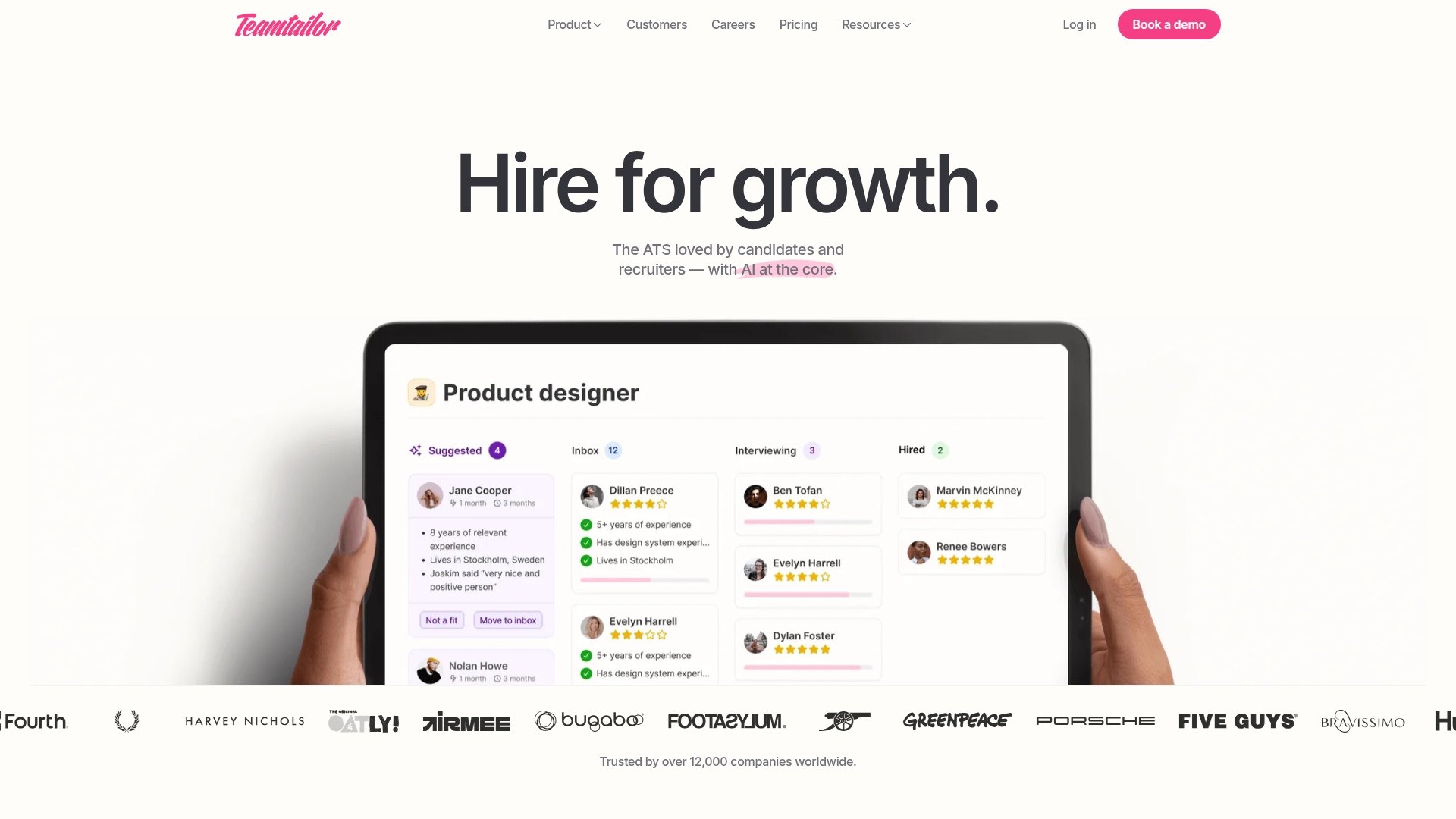
Teams reach for Webflow and Teamtailor together when the careers section needs to match the design standards of the rest of the marketing site. Widgets get job listings live in minutes, while CMS sync gives you complete control over how each listing renders. The method you choose depends on how much of the career page needs to live inside your Webflow design system.
The Teamtailor-Webflow integration supports four primary approaches:
- Teamtailor widgets put job listings on your Webflow pages without writing code.
- Iframe embeds place Teamtailor application forms on your Webflow pages.
- Zapier automation syncs Teamtailor job data into Webflow CMS Collections through pre-built templates.
- The Webflow Data API and Teamtailor APIs give you full control over custom job boards and application flows, but require server-side development.
Most implementations combine two or more of these methods depending on the complexity of the setup.
Add Teamtailor widgets with Code Embed elements
The fastest path uses Teamtailor's pre-built widgets pasted into Webflow through a Code Embed element. This method needs no code and no API keys. Teamtailor generates the widget script for you, and the Webflow integration page lists three widget types plus the iframe form option. Widget setup takes about 10 to 15 minutes. Keep in mind that Teamtailor widgets inherit limited styling from your site's CSS and don't give you full design control.
Choose the widget based on where candidates are in the journey. The Job List Widget displays filterable listings by department, location, language, and employment type. The Career Button Widget adds a floating call-to-action that drives traffic to your Teamtailor career site. Use the Hiring Widget when you want hiring status badges or banners showing open position counts.
Each option serves a different point in the candidate journey, so many sites use more than one.
Embed a job list widget
The Job List Widget shows live job postings on any Webflow page. Listings update automatically when recruiters post or unpublish roles. Multiple widgets on the same page work through separate <div> tags, and each listing links back to the Teamtailor career site.
To embed a job list widget:
- In Teamtailor, go to Settings > Integrations > Widgets and configure the widget.
- Copy the generated widget script.
- In Webflow, open the Add panel > Advanced and drag a Code Embed element onto the canvas.
- Paste the script into the code editor modal, then click Save and close.
- Publish the Webflow site.
Full configuration details live in the Teamtailor job list widget guide. The Code Embed element caps out at 50,000 characters and doesn't run server-side languages like PHP or Ruby.
Embed an application form via iframe
You can embed Teamtailor's application form directly on a Webflow page using an iframe. This keeps candidates on your site visually while they submit resumes through Teamtailor's interface. You need to include the ?iframe=true parameter for the form to render properly.
To embed an application form:
- Build the job application URL using the pattern
https://yourteamtailor.domain.com/jobs/[JOBID-JOBTITLE]/applications/new?iframe=true. - In Webflow, drag a Code Embed element onto the page.
- Add an
<iframe>tag pointing to that URL. - Save and publish.
The iframe method keeps candidate consent management inside Teamtailor, which matters for GDPR compliance. Search engines can't effectively index iframe content, so pick widget or CMS sync methods when you need SEO on the listing itself. Find setup instructions in the Teamtailor website integration guide.
Add global scripts through site settings
For scripts that load across every page, add them to the site head or footer instead of a per-page Code Embed. This works well for the Career Button Widget, which sits before the closing </body> tag.
To add a global script:
- Go to Site Settings > Custom Code.
- Paste the widget script into the Head Code or Footer Code field.
- See Custom code in head and body tags for placement details.
- Save and publish.
Global placement keeps a single script in one place instead of duplicating it across pages.
Connect with Zapier automation
Zapier is the officially endorsed automation partner for Teamtailor and offers pre-built templates for the Webflow connection. This path syncs job data into Webflow CMS Collections without writing code, so you get a fully custom-styled job board rendered through a Collection List. When a recruiter updates a job in Teamtailor, Zapier creates or updates the matching CMS item. The dedicated Teamtailor and Webflow Zapier page lists every trigger and action.
Zapier can move data in either direction. A Webflow New Form Submission can trigger Teamtailor Create Candidate, a Teamtailor Candidate Event can trigger Webflow Create Live Item, and a Teamtailor Update Job can trigger Webflow Create Item or Create Live Item.
Pre-built templates include Create new Teamtailor candidates from new Webflow form submissions and Create new Webflow items every time jobs are updated in Teamtailor. CMS plans hold up to 2,000 items and Business plans hold up to 10,000, so plan collection size against your job volume.
Build with Webflow and Teamtailor APIs
For full control over a custom job board or application flow, connect the Teamtailor and Webflow APIs through a server-side intermediary. This path suits developers who need listings that render entirely inside your Webflow design system with custom filtering and layouts. Direct browser calls to the Teamtailor API fail due to CORS, so you need a serverless function like AWS Lambda, Cloudflare Workers, or Netlify Functions to proxy requests. A Company Admin must generate the API key at Settings > Integrations > API keys.
Custom builds usually call the Teamtailor API for jobs, candidates, and job applications through the JSON:API spec. The Webflow Data API handles CMS collections and item creation, and webhooks trigger real-time events between systems.
Teamtailor uses an Authorization: Token token=<key> header, requires the X-Api-Version: 20240404 header, and enforces a 50 requests per 10 seconds limit. On the Webflow side, the Data API uses a Bearer token with the CMS:write scope for write operations.
Sync job listings to the Webflow CMS
To publish Teamtailor jobs as Webflow CMS items, fetch the jobs and push them into a collection through your serverless function. This gives you full design control over each listing.
To sync jobs:
- Fetch jobs with
GET https://api.teamtailor.com/v1/jobsusing the publicreadscope. It supports?include=department,locationsand?filter[status]=template. - Use the returned job data to populate the Webflow
fieldDataobject. - Create a staged CMS item with
POST https://api.webflow.com/v2/collections/{collection_id}/items. ThefieldDataobject requiresnameandslug. Bulk create supports up to 100 items per request. - Publish with
POST https://api.webflow.com/v2/collections/{collection_id}/items/publish, or create and publish in one call withPOST https://api.webflow.com/v2/collections/{collection_id}/items/live.
This pattern keeps listings styled entirely within Webflow while Teamtailor stays the source of truth.
Keep listings current with Teamtailor webhooks
To update the CMS in real time, configure a Teamtailor company webhook that points to your serverless endpoint. Register webhooks at partner.teamtailor.com/company_webhooks.
To wire up webhook sync:
- Register a webhook for
job.create,job.update, andjob.destroyevents pointing to your HTTPS endpoint. - Verify each request using the
TT-Signatureheader, which carries a Base64-encoded HMAC SHA-256 signature. Use the v2 signature version. - Map
job.createtoPOST .../items/liveandjob.updatetoPATCH .../items/{item_id}/live. - Map
job.destroytoDELETE .../items/live.
Teamtailor never retries a failed delivery. It logs and drops any non-2xx response, so build idempotency and retry logic into your receiving function.
What can you build with the Teamtailor Webflow integration?
Integrating Teamtailor with Webflow lets you run a branded, always-current careers section without sending candidates to a separate site.
- Drop the Job List Widget into a Webflow page so open roles appear with department, location, and employment-type filters. Listings update the moment recruiters publish or archive a job in Teamtailor.
- Embed the Teamtailor application form through an iframe on a job detail page. Candidates submit resumes through Teamtailor's native flow while staying visually on your site, which keeps GDPR consent handling inside Teamtailor.
- Sync Teamtailor jobs into a Webflow CMS Collection through Zapier or the API, then render them with a Collection List. You get complete design control over each card and detail page beyond what widget CSS allows.
- Connect a Webflow form submission to the Teamtailor Create Candidate action through Zapier. A talent-interest form on your homepage pushes new candidates straight into the ATS pipeline.
If you need more control over custom filtering and layout, or if you need real-time sync, the API integration path covers those cases with full flexibility.
Frequently asked questions
Four methods cover most needs: JavaScript widgets, iframe application form embeds, Zapier CMS sync, and direct API integration. Widgets are the fastest and require no code, while the API path gives full design control but needs server-side development.
Go to Teamtailor Settings > Integrations > Widgets, configure the widget, and copy the generated script. Then drag a Code Embed element onto your Webflow page from the Add panel > Advanced, paste the script, and publish. Keep in mind the Code Embed element has a 50,000-character limit.
Yes, through an iframe with the
?iframe=trueparameter appended to the job application URL. Candidates submit resumes through Teamtailor's interface while staying visually on your Webflow site. This method also keeps candidate consent management inside Teamtailor, which the Teamtailor website integration guide notes is required if you use the API to build a custom career site without widgets.Direct browser-to-Teamtailor API calls fail because of CORS restrictions. You need a server-side intermediary like AWS Lambda, Cloudflare Workers, or Netlify Functions to proxy requests and hold your API key securely. A Company Admin must generate the key at Settings > Integrations > API keys.
Configure a Teamtailor company webhook for
job.create,job.update, andjob.destroyevents and send those events to a serverless endpoint that calls the Webflow Data API. Teamtailor does not retry failed deliveries, so your endpoint needs its own retry logic. Register webhooks and review signature verification at the Teamtailor company webhooks docs.
Description
Teamtailor is an applicant tracking system for recruitment and employer branding. On a Webflow careers page, its job listings stay current as recruiters post.
This integration page is provided for informational and convenience purposes only.

Recruit CRM
Connect Recruit CRM with Webflow to publish open jobs on your site and send applications into recruiter pipelines.

Personio
Connect Personio with Webflow to publish live job listings on a branded careers page and send applications straight into the Personio recruiting pipeline.

Breezy HR
Connect Breezy HR with Webflow to publish positions on your own site and move every applicant into a tracked hiring pipeline.

Workable
Connect Workable with Webflow to display live job listings on your site and route applicants straight into your hiring pipeline.

Ashby
Connect Ashby, an all-in-one recruiting platform, with Webflow to display live job listings and accept applications directly on your careers page.

BambooHR
Connect BambooHR with Webflow to publish live job openings and keep team pages current from HR records.
Teamtailor
Publish Teamtailor job openings on your Webflow site with widgets or a CMS sync, connect the MCP servers on both sides, or build the sync yourself with the APIs.

Recruitee
Connect Recruitee, an applicant tracking system for hiring teams, with Webflow to display live job listings and route applicants using widgets, Zapier, or APIs.

Greenhouse
Connect Greenhouse with Webflow to display live job listings, accept applications, and sync recruitment data directly on your careers page.
Related integrations
Get started for free
Try Webflow for as long as you like with our free Starter plan. Purchase a paid Site plan to publish, host, and unlock additional features.
