






Luma
Connect Luma, an event hosting and ticketing platform, with Webflow to embed registration buttons, display calendar widgets, and sync event data to CMS collections automatically.
Running workshops, meetups, conferences, or recurring community events on a Webflow site usually means juggling a separate tool for registration, ticketing, and attendee communications, and manually keeping event details in sync.
Luma closes that gap. Connect it to Webflow to embed registration buttons and calendar widgets, sync event data into your CMS, and let visitors register on-page instead of jumping to a third-party domain.
How to integrate Luma with Webflow
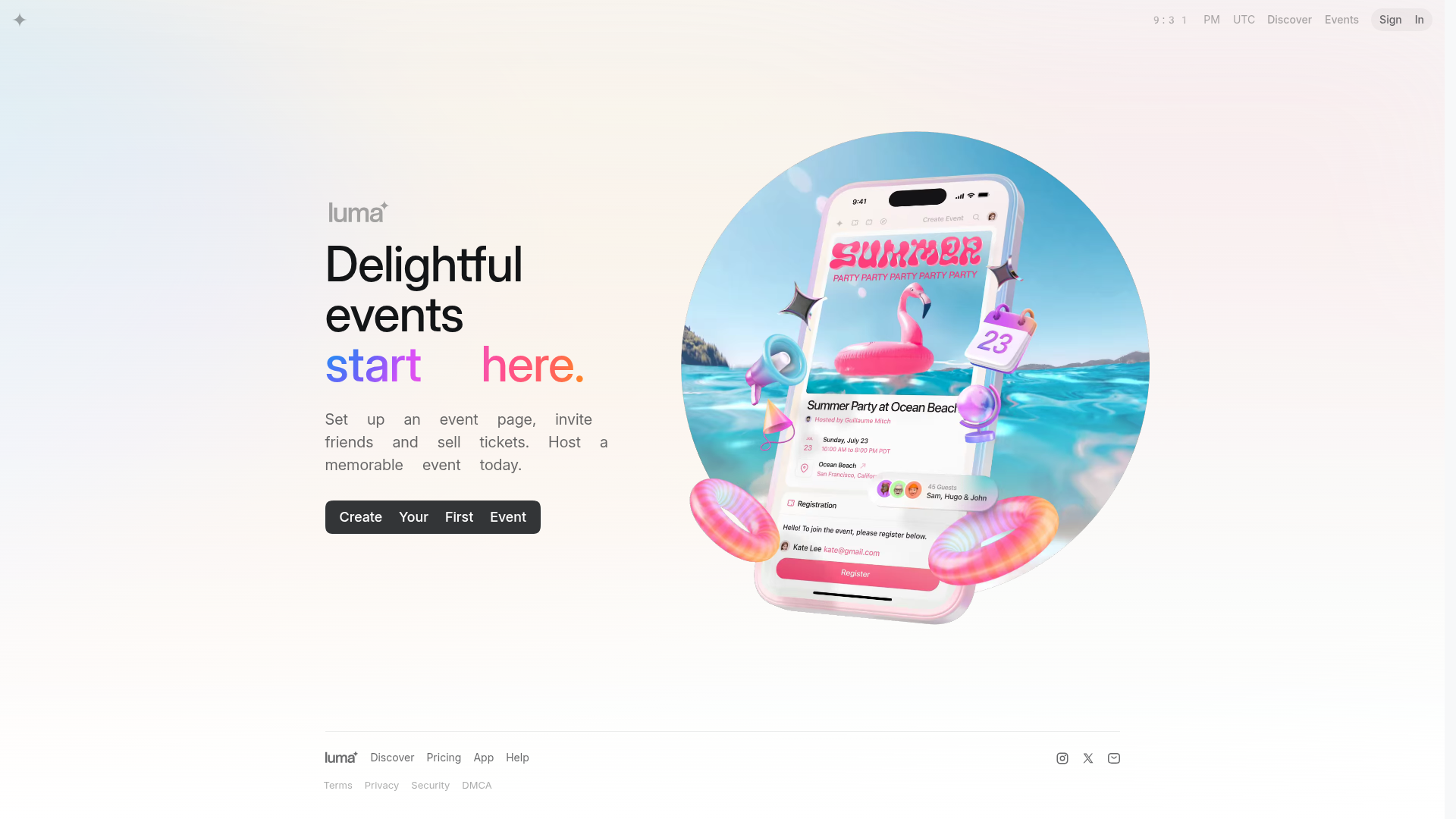
What is Luma? Luma is an event hosting and ticketing platform that supports in-person, virtual, and hybrid events with built-in registration, guest management, and communications. It includes visual themes for event pages, multiple ticket tiers, payment processing through Stripe, and a calendar subscription model that automatically notifies followers about upcoming events.
Teams use Luma with Webflow when they want branded event pages that match the rest of their site. Conference organizers sync session data to Webflow CMS collections so agendas update automatically. Community managers embed live calendar widgets that show upcoming events without any manual publishing. Marketers add registration buttons with pre-applied promo codes and UTM tracking to measure campaign performance.
You can connect Luma to Webflow in 2 ways:
- Luma embed codes let you add registration buttons, inline event pages, and calendar widgets to any Webflow page without writing application code.
- The Webflow Data API and Luma API let you send data both ways between event records and CMS collections, but require server-side development.
Most setups start with embeds and add API sync only when they need more automation or custom event logic.
Add Luma embeds with Code Embed elements
You can add three Luma embed types to a Webflow page: a checkout button that opens a registration overlay, an inline event page that renders directly in your layout, and a calendar widget that displays upcoming events from a Luma calendar. This approach works on every Luma plan, including the free tier. Generate the embed code from your Luma embed documentation, then paste it into Webflow using a Code Embed element. You don't need an API key or a Luma Plus subscription.
To add a Luma registration button to a Webflow page:
- In Luma, open your event's Manage page, go to the More tab, and find Embed Registration Button. Copy the code snippet.
- In Webflow, open the target page and drag a Code Embed element from the Add panel onto your canvas.
- Double-click the Code Embed element to open the code editor, paste the Luma snippet, and click Save & Close.
- Publish your site to test. Custom code does not execute in the canvas preview.
The embed code includes two required attributes on the button or anchor element:
data-luma-action="checkout"identifies the element as a Luma registration triggerdata-luma-event-id="evt-YOUR-EVENT-ID"specifies which event's checkout to open
You can also add optional attributes for marketing campaigns:
data-luma-coupon="CODE"pre-applies a discount code when checkout opensdata-luma-utm-source="source"tags registrations with a UTM source for tracking in Luma's event insights
To fully customize the button's appearance, remove class="luma-checkout--button" from the element and apply your own CSS classes instead. You can't style the registration overlay itself from Webflow — customize its appearance using Luma's built-in event editor and theme options.
Load the Luma script globally for multi-page use
If you use Luma registration buttons on more than one page, load the script once site-wide instead of duplicating it in every Code Embed element. Per Luma's implementation examples, include the <script> tag only once when using multiple checkout buttons.
To load the Luma script globally:
- Go to Site settings and click the Custom code tab.
- Paste the following into the Footer code field:
<script id="luma-checkout" src="https://embed.lu.ma/checkout-button.js"></script>
- Click Save changes and publish your site.
With the script loaded globally, each Code Embed element on individual pages only needs the button markup with data-luma-action and data-luma-event-id attributes. For more on this pattern, see the custom code in head and body tags guide.
Use CMS fields to generate dynamic registration buttons
For sites with many events, you can store Luma event IDs in Webflow CMS collection fields and bind them dynamically to Code Embed elements on your CMS template page. The dynamic bindings in code embeds feature replaces CMS field references with actual values when the page loads.
To set this up:
- Add a plain text field called "Luma Event ID" to your Events CMS collection.
- Populate each CMS item with the corresponding Luma event ID (prefixed with
evt-). - On your Events CMS template page, add a Code Embed element inside the Collection List or template area.
- In the Code Embed editor, reference the CMS field using the dynamic binding syntax for the
data-luma-event-idattribute.
This pattern generates a unique registration button for every event in your collection without creating individual static pages. Keep in mind that CMS item limits vary by plan, so plan your collection structure accordingly.
Embed limitations to know
Apple Pay does not work inside Luma embeds. If Apple Pay matters for your checkout flow, link directly to your Luma event page instead of using the embed. Do not place Luma embeds inside a Form element, since this creates invalid nested HTML forms and produces unpredictable behavior. Luma's checkout widget manages its own form submission internally.
Build with the Webflow and Luma APIs
For full bidirectional sync between Luma events and Webflow CMS content, you can connect both APIs through a middleware server. This approach lets you create events from Webflow CMS items, sync guest registrations into CMS collections in real time, propagate event cancellations to your live site, and build custom setups that neither embeds nor simple page-level setups can handle. You'll need server-side development skills and a Luma Plus subscription for API access.
These APIs and services matter here:
- The Luma API handles event CRUD, guest management, ticketing, coupons, and webhook registration at
https://public-api.luma.com - The Data API handles CMS collections and form submissions at
https://api.webflow.com - Webhooks trigger real-time events like
form_submissionandcollection_item_createdbetween systems
Both APIs use JSON and require authentication headers. Luma uses x-luma-api-key; the Data API uses Authorization: Bearer <token>.
Sync Luma events to Webflow CMS
A common API use case is pushing Luma event data into a Webflow CMS collection so events appear as native CMS items on your site. You can run this as a scheduled job (polling) or react to events in real time using Luma webhooks.
To sync events using webhooks:
- Register a webhook with Luma by calling
POST /webhook/createwith theevent.createdtrigger type pointed at your middleware URL. - When your middleware receives a webhook payload, transform the event data to match your CMS collection's
fieldDataschema. - Call
POST /v2/collections/{collection_id}/items/liveon the Data API to create a published CMS item immediately.
Store the Luma event_id (prefixed with evt-) in a dedicated CMS reference field for deduplication. When processing event.updated webhooks, query your collection for the matching event ID, then use PATCH /v2/collections/{collection_id}/items/{item_id}/live to update the existing item.
CMS items created via the standard POST /v2/collections/{collection_id}/items endpoint are staged (draft) by default. To make them visible on your live site, call POST /v2/collections/{collection_id}/items/publish separately. Using the /items/live endpoint bypasses this staging step and publishes immediately.
Register guests from Webflow forms
You can connect Webflow form submissions directly to Luma's guest management, adding form submitters as event guests automatically.
To set this up:
- Register a webhook by calling
POST /v2/sites/{site_id}/webhookswithtriggerType: "form_submission"and, if needed, afilterfor your specificformElementId. - When your middleware receives the form payload, extract the guest name and email from the
fieldDataobject. - Call
POST /v1/guest/add-guestson the Luma API to add the submitter as a guest. - Optionally call
POST /v1/event/send-invitesto trigger a Luma confirmation email to the new guest.
This workflow turns a form submission into a direct handoff to Luma's guest system.
Use the filter field on form_submission webhooks to target a specific form, so only submissions from your event registration form trigger the workflow. In the currently documented Luma API, update operations use POST rather than PATCH, so account for that when building your API client.
What you can build with the Luma Webflow integration
Integrating Luma with Webflow lets you run event registration, ticketing, and attendee management on your Webflow site instead of redirecting visitors to separate standalone registration pages.
- Auto-updating community calendar pages: Embed a Luma calendar widget on your Webflow site that displays all upcoming events with real-time attendance counts. New events appear automatically as they are created in Luma, with no manual page updates required.
- Conference sites with CMS-driven agendas: Use API-based sync to push Luma events into Webflow CMS collections, then display speakers, sessions, and schedules as native CMS-powered pages. When you update a session in Luma, the corresponding Webflow page updates on its own.
- Multi-event series with per-event registration: Store Luma event IDs in CMS collection fields and generate unique registration buttons on each CMS template page. Organizations running 20+ events per year get individual registration pages without building each one from scratch.
- Campaign-tracked registration landing pages: Embed Luma checkout buttons with pre-applied coupon codes and UTM source tags on Webflow landing pages. Marketers can track which channels drive registrations and offer partner-specific discounts, all within Luma's event insights dashboard.
If you need more control over bidirectional data sync or custom guest management setups, the API integration path covers those cases.
Frequently asked questions
The Code Embed element and custom code on the live site require a paid Workspace or an active Site plan. On the free Starter plan, the embed appears as a placeholder in the canvas but does not render on the published live site.
Luma's embed codes work on all Luma plans, including the free tier. Luma Plus is only required for API access and webhook functionality. The Luma integrations page lists which features require a Plus subscription.
Custom code does not execute in Webflow's canvas preview. Luma embeds appear as placeholder blocks while you are editing. You must publish your site (or use the staging
.webflow.iodomain) to test the registration button and overlay. Webflow's custom code documentation explains this preview limitation.You can fully style the trigger button by removing
class="luma-checkout--button"and applying your own CSS classes. The registration overlay that appears when a visitor clicks the button cannot be styled from Webflow. Change the overlay's appearance using Luma's event editor, which includes visual themes. If you need the overlay to match your brand colors, select a Luma theme that aligns with your Webflow site's design.CMS items created via
POST /v2/collections/{collection_id}/itemsare staged (draft) by default and are not visible to site visitors. You need to make a separatePOST /v2/collections/{collection_id}/items/publishcall to publish them. To skip the staging step entirely, use the/items/liveendpoint instead.
Description
Luma adds event registration and calendar displays to Webflow through embed codes pasted into Code Embed elements — no API key required
This integration page is provided for informational and convenience purposes only.

Events Management Website With Booking & Appointment Feature
Recreate the Events Booking showcase site in Webflow with a single-page layout, anchor navigation, service cards, and a consultation request form, plus when to add a real scheduling tool.

Zoom
Connect Zoom with Webflow to register webinar attendees from site forms, embed Zoom Scheduler booking pages, and publish sessions and recordings to the CMS.
Ticket Tailor
Connect Ticket Tailor with Webflow to sell tickets directly on your site, with no redirect to an external checkout.
LiveStorm
Connect LiveStorm with Webflow to automate registrations, embed webinar rooms, and sync attendee data.
Humanitix
Connect Humanitix, a B-Corp certified event ticketing platform that donates booking fee profits to charity, with Webflow to sell tickets through embedded widgets on your site.
Luma
Connect Luma, an event hosting and ticketing platform, with Webflow to embed registration buttons, display calendar widgets, and sync event data to CMS collections automatically.

Happyning Events
Connect Happyning Events with Webflow to publish Riviera event listings and capture guest inquiries on your own site.

Eventbrite
Connect Eventbrite, an event management and ticketing platform, with Webflow to embed on-site checkout, display event calendars, and sync event data to CMS collections automatically.

Enrollsy
Connect Enrollsy with Webflow to take program enrollments and payments on your own pages through embedded forms and program listings.
Related integrations
Get started for free
Try Webflow for as long as you like with our free Starter plan. Purchase a paid Site plan to publish, host, and unlock additional features.
