






HighLevel
Connect HighLevel, an all-in-one CRM and marketing automation platform, with Webflow to embed forms, chat widgets, and booking calendars while routing leads into pipelines and follow-up sequences.

Pair a polished marketing site with a CRM that picks up the moment a visitor hits submit. HighLevel handles contact storage, pipeline management, booking calendars, and follow-up sequences, while your site stays focused on design, hosting, and content.
This setup fits agencies running multiple client sites, freelancers layering CRM services onto their builds, and service businesses, real estate teams, coaches, and SaaS marketers who depend on fast lead follow-up and appointment booking.
How to integrate HighLevel with Webflow
HighLevel is an all-in-one CRM and marketing automation platform built for agencies and service businesses. It combines contact management, sales pipelines, appointment scheduling, multi-channel messaging (SMS, email, WhatsApp, voice), reputation management, and workflow automation in a single dashboard. Agencies can white-label the platform and resell it to clients under their own brand.
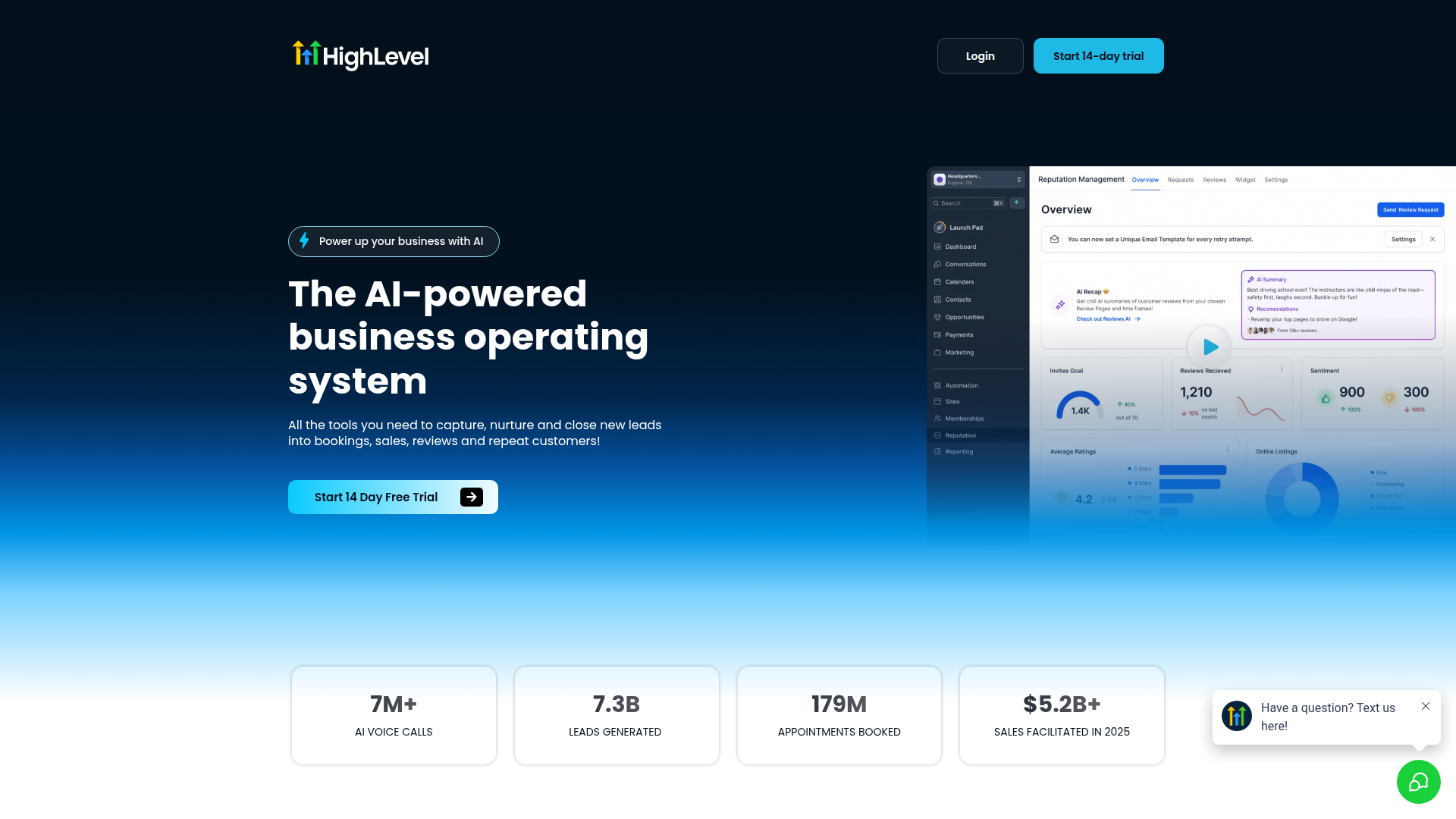
Pair HighLevel with your site when you need a professional website with full CRM and automation behind it. Your site handles design and publishing, while HighLevel handles CRM pipelines and automated messaging. Running both platforms together gives each tool the job it handles best.
You can connect HighLevel to your site in four ways:
- Code Embed elements and custom code in head and body tags let you place HighLevel forms, chat widgets, booking calendars, and review widgets directly on your pages without writing application code.
- The External Tracking script and Inbound Webhook trigger capture native form submissions and route them into HighLevel's CRM and workflows.
- Zapier, Make, and n8n connect site events to HighLevel actions through pre-built automation flows.
- The Data API v2 and HighLevel APIs give you full control over bidirectional data sync, CMS updates, and custom booking flows, but you'll need server-side development.
Most implementations combine two or more of these methods depending on the complexity of the setup. That mix often starts with embeds or native form capture, then expands into automation or API work as requirements grow.
Add HighLevel components with Code Embed elements
You can embed HighLevel forms, chat widgets, booking calendars, review widgets, surveys, and quizzes directly on your pages. Configure each component inside HighLevel, which generates a JavaScript snippet or iframe code. Paste that code into your site using one of two placement options: site-wide custom code in head and body tags for components that should appear on every page, or a Code Embed element for page-specific placement. You'll need a paid Site plan or a qualifying Workspace (Core, Growth, Agency, or Freelancer) to use custom code and Code Embed elements.
The setup process is mostly the same across component types:
- Open the component in HighLevel and locate the embed or share option.
- Copy the generated code snippet.
- Paste it into your site using site-wide custom code for floating or global components, or a Code Embed element for inline, page-specific components.
- Publish your site.
HighLevel form embed codes stay static after placement. If you change a form's layout, trigger settings, or deactivation rules in HighLevel, regenerate and replace the embed code on your site. Review widgets are the exception, as changes made in HighLevel's widget builder update automatically on your site.
Embed HighLevel forms
HighLevel forms support four layout types: inline (embedded in page content), popup (modal window), polite slide-in (slides from the side), and sticky sidebar (stays visible on scroll). Each layout includes trigger options like scroll percentage and timed delay, plus deactivation rules that control how many times the form appears.
To embed a HighLevel form:
- In HighLevel, go to Sites > Forms and select or create a form.
- Click Integrate in the top right.
- Choose your layout type and configure trigger and deactivation settings.
- Click Copy Embed Code.
- Drag a Code Embed element to the target location on your page, paste the code, and click Save & Close.
- For site-wide popups or slide-ins, paste the code into Site Settings > Custom Code > Footer Code instead.
- Publish your site.
Forms embedded via iframe render inside HighLevel's container. You can style the iframe wrapper (margins, padding, background) on your page, but you cannot style the form fields or buttons inside the iframe. If you need full design control over the form, keep using native form elements and route submissions to HighLevel through the External Tracking script, webhooks, or an automation platform.
Add a chat widget
HighLevel has several chat widget types: All-In-One Chat, SMS/Email Chat, Live Chat, Facebook Chat, Instagram Chat, WhatsApp Chat, and Voice AI Chat. Deploy each as a floating widget (visible on every page) or embed it inline at a specific location.
To add a floating chat widget site-wide:
- In HighLevel, go to Sites > Chat Widget and create or select a widget.
- Configure the style, chat window, and channel options.
- Click Get Code in the top right and copy the script.
- Go to Site Settings > Custom Code > Footer Code, paste the script, and save.
- Publish your site.
For inline placement on a specific page, set the widget placement to Embedded / Inline in the HighLevel Style tab before copying the code. Then paste it into a Code Embed element at the exact position where the widget should appear.
Avoid embedding multiple chat widgets on a single page, as this causes UX and tracking conflicts. To reduce page load impact, enable Load on user interaction under Chat Window > Additional Options in HighLevel. This defers widget loading until the visitor scrolls, clicks, or touches the page, or after approximately 8 seconds if no interaction occurs.
Embed a booking calendar
HighLevel calendars use a purpose-built iframe embed code designed for external sites. This method is officially supported and works on your pages.
To embed a booking calendar:
- In HighLevel, go to Calendars > Calendar Settings.
- Click the three-dot icon (⋯) on the calendar you want to embed and select Share.
- In the modal, select the Embed Code tab and click Copy.
- Drag a Code Embed element to your booking page, paste the iframe code, and click Save & Close.
- Publish your site.
If extra HTML or unrelated text appears around the calendar, paste the embed code into a plain text editor first to confirm only the expected <iframe> or <script> tag is present. Check for missing opening or closing brackets before re-pasting.
HighLevel funnel and website pages cannot be embedded via iframe due to HighLevel's security headers. Calendar embeds are the exception because they use a dedicated embed format.
Add review widgets, surveys, quizzes, and other components
Review widgets, surveys, quizzes, and other HighLevel components use the same copy-and-paste embed workflow. Each generates a code snippet in HighLevel that you place in a Code Embed element on your page.
To embed each component type:
- For review widgets, go to the Reputation module in HighLevel, open the widget builder, navigate to the Settings tab, and click Copy Code. Review widget updates made in HighLevel apply automatically without replacing the embed code.
- For surveys, go to Sites > Surveys, open the survey, click Integrate, and copy the embed code.
- For quizzes, go to Sites > Quizzes, open the quiz, click Integrate > Embed, and copy the iframe code.
- For gift card checkout, go to Payments > Gift Cards, locate the card, click Sell, and copy the embed code.
- For call tracking number pools, copy the "Normal Snippet Code" from Number Pool Info in HighLevel and paste it into Site Settings > Custom Code > Footer Code. This displays different phone numbers based on traffic source for campaign attribution.
For page-specific placement, paste the code into a Code Embed element. For global deployment, use site-wide custom code and then publish your site.
Capture native form submissions in HighLevel
If you want to keep using native form elements and preserve full design control, two methods let you route those submissions into HighLevel without an automation platform in between.
Install the External Tracking script
HighLevel's External Tracking script scans your pages for forms rendered directly in the DOM and automatically captures submissions into HighLevel's CRM. It maps form fields to contact properties, creates or updates contact records, and captures UTM parameters, page URLs, and session data for attribution. You don't need Zapier, webhooks, or manual field mapping.
To install the External Tracking script:
- In HighLevel, go to Settings > External Tracking and click Copy Script. The script contains a tracking ID unique to your account.
- Go to Site Settings > Custom Code > Footer Code, paste the script, and click Save Changes.
- Publish your site and submit a test form entry to confirm data appears in HighLevel.
After installation, two HighLevel workflow triggers become available: Page View Trigger (fires when a visitor loads any page containing the script) and Form Submission Trigger (fires when a detected form is submitted). Both support filters for domain, page path, external form name, and UTM parameters.
The tracking script has specific requirements. Forms must use valid HTML elements with name attributes, and an email field should be present. Forms embedded via iframes, popup widgets without real form elements, and third-party scripts that do not expose form inputs are not supported. If you embed a HighLevel form via iframe on a page, the tracking script will not capture it because the HighLevel form already submits directly to HighLevel's CRM.
Route form submissions with the Inbound Webhook trigger
Send form data directly to a HighLevel workflow using the Inbound Webhook trigger, with no middleware or automation platform needed. This approach works well when you want a specific form to kick off a defined HighLevel workflow, such as creating a contact and enrolling them in a nurture sequence.
To connect a form to a HighLevel workflow:
- In HighLevel, go to Automation > Workflows and create a new workflow.
- Add the Inbound Webhook trigger. HighLevel generates a unique webhook URL. Copy it.
- Build the remaining workflow steps (field mapping, contact creation, pipeline assignment, follow-up actions).
- Go to Site Settings > Integrations > Webhooks and click Add Webhook.
- Select Form Submission as the trigger type and paste the HighLevel webhook URL.
- Copy the unique secret key that appears (shown only once). Store it securely and click Hide key forever to confirm.
- Publish your site and submit a test form entry.
The Inbound Webhook trigger is labeled as a Premium trigger in HighLevel. Verify your plan includes access before building around this method.
Connect with Zapier, Make, or n8n
Automation platforms add more control when you need conditional logic, data transformation, or multi-step workflows between your site and HighLevel. Three platforms support a direct connection: Zapier, Make, and n8n. HighLevel appears under different names on each platform: "LeadConnector" on Zapier, "GoHighLevel" on Make, and "HighLevel" on n8n. Searching the wrong name returns no results.
Zapier is the quickest option, with four pre-built templates for common workflows:
- Form submission triggers contact creation or update in LeadConnector
- Form submission triggers opportunity creation in LeadConnector
- Order triggers opportunity creation in LeadConnector
- LeadConnector pipeline stage change triggers CMS item creation on your site
These templates make Zapier the fastest path when your workflow already matches one of those patterns.
Make has 40 Webflow modules and 62 HighLevel modules but no pre-built templates. It's a better fit when you need conditional routing, data transformation, or multi-step approval workflows. Authentication on Make requires creating an app in the HighLevel Marketplace and connecting via GoHighLevel Location OAuth 2.0.
Common Make flows include Get a Form Submission to GoHighLevel Create an Opportunity, Get a Form Submission to GoHighLevel Create a Task, and GoHighLevel pipeline event to Create an Item. Make is more flexible than Zapier when the workflow needs branching logic or multiple downstream actions.
n8n is a strong option for teams that want node-based automation with more control over hosting and custom requests. Common n8n flows include Item: Create to HighLevel contact create or update, Item: Update to HighLevel opportunity update, and HighLevel pipeline changes to Item: Update. As a self-hostable platform, n8n also supports HTTP Request nodes for API endpoints not covered by the native nodes.
To set up a basic Zapier automation:
- Create a new Zap with Webflow as the trigger app and "New Form Submission" as the trigger event.
- Authenticate your Webflow account and select the site and form.
- Add LeadConnector as the action app and choose "Create/Update Contact" as the action event.
- Authenticate your HighLevel account and map form fields to HighLevel contact fields.
- Test and activate the Zap.
If your main goal is sending leads into HighLevel without custom middleware, this is usually the easiest place to start.
Build with the Webflow and HighLevel APIs
For full control over bidirectional data sync, custom booking interfaces, and CMS content driven by CRM events, the APIs provide direct access to both platforms. This path requires server-side development and a middleware layer (Node.js server, serverless function, or integration platform) because site webhooks deliver payloads in a format you'll need to remap to HighLevel's API request structure.
Both platforms offer documented REST APIs:
- The HighLevel API v2 handles contacts, opportunities, calendars, conversations, workflows, and reputation data. All v2 endpoints use the base URL
https://services.leadconnectorhq.comand require a Bearer token plus theVersion: 2021-07-28header. HighLevel API v1 reached end-of-support on December 31, 2025, so target v2 for all new integrations. - The Data API v2 handles CMS collections, form submissions, and site operations. All v2 endpoints use the base URL
https://api.webflow.com/v2/. - Webhooks fire real-time events for form submissions, CMS item changes, and site publishes.
Direct browser-side calls to the HighLevel API from your pages aren't a reliable production pattern because of CORS and security constraints. Route API calls through serverless functions (Cloudflare Workers, Vercel Edge Functions, AWS Lambda) or other middleware instead.
Push form submissions to HighLevel contacts
A common API integration pattern sends form submissions to HighLevel contacts. A webhook fires on form submission, your middleware maps the fields, and a HighLevel API call creates the contact record.
To implement this flow:
- Register a webhook for form submissions by calling
POST /v2/sites/{site_id}/webhookswithtriggerType: "form_submission"and your middleware URL. You can register up to 75 webhooks per trigger type per site. - When the form payload arrives, your middleware extracts fields from
payload.dataand maps them to HighLevel contact fields. - Call
POST https://services.leadconnectorhq.com/contacts/with the mapped data. ThelocationIdfield is required. For upsert behavior, callPOST /contacts/searchfirst to check for an existing contact. - Optionally call
POST /contacts/:contactId/tagsfor source attribution orPOST /conversations/messagesfor an automated follow-up SMS or email.
The form submission webhook payload includes form name, site ID, submitted field data, timestamp, and form ID. Every delivery includes x-webflow-timestamp and x-webflow-signature headers for verification. Together, those pieces give you the standard building blocks for reliable lead capture into HighLevel.
Sync HighLevel CRM data to the CMS
When a contact reaches a specific pipeline stage or receives a tag update in HighLevel, you can automatically create or update a CMS item. This keeps a Collection List like a team directory, testimonials page, or deal tracker current without manual edits.
To implement this flow:
- In HighLevel, create a workflow triggered by the relevant event (pipeline stage change, tag update, or contact creation). Add a Webhook action step that POSTs to your middleware URL.
- Your middleware receives the HighLevel payload and maps fields to your CMS collection schema. For example, map
firstNameandlastNameto Plain Text fields,emailto an Email field, anddateAddedto a Date/Time field. - Call
POST /v2/collections/{collection_id}/items/liveto create and publish a CMS item immediately, orPATCH /v2/collections/{collection_id}/items/{item_id}/liveto update an existing one.
Monitor CMS item counts before bulk writes. The Basic and CMS plans support up to 10,000 items and the Business plan supports up to 20,000 items across all collections. The site publish endpoint enforces a hard limit of one successful publish per minute, so batch your staged item publishes accordingly. These limits matter most when CRM activity is driving frequent CMS updates.
Build a custom booking flow
If you want a fully custom scheduling interface that matches your site design, use the HighLevel Calendars API.
To implement a custom booking widget:
- Call
GET /calendars/{calendarId}/free-slotsto fetch available time slots. Display these in your UI via client-side JavaScript calling your middleware. - When a visitor selects a time, call
POST /contacts/to create or look up the contact record. - Call
POST /calendars/events/appointmentswith thecontactId,calendarId,startTime,endTime, andlocationIdto create the booking. - Optionally call
POST /conversations/messagesto send a booking confirmation via SMS or email.
This approach takes the most development effort but gives you complete control over the booking interface. The HighLevel calendar iframe embed covered earlier is a faster alternative if you don't need a custom design.
What can you build with the HighLevel Webflow integration?
Integrating HighLevel with your site lets you turn a static marketing site into an automated lead capture and follow-up system without rebuilding in HighLevel's page builder.
- Automated lead-to-pipeline routing: A visitor submits a contact form on your service page. HighLevel creates a contact record, applies a "New Lead" tag, assigns the lead to a sales pipeline stage, sends an immediate SMS, and enrolls the contact in a 30-day email nurture sequence. No manual data entry between the form submission and the first follow-up message.
- Embedded appointment booking with follow-up sequences: A coaching or consulting business embeds a HighLevel booking calendar on a "Work With Me" page. When a visitor books a discovery call, HighLevel creates the contact, sends a confirmation email, delivers an SMS reminder 24 hours before the appointment, and creates a task for the assigned team member.
- Agency white-label client sites: A digital marketing agency builds client websites for design quality, then connects each site to a HighLevel white-label sub-account. Embedded chat widgets, forms, and tracking scripts feed every lead into the client's branded CRM dashboard. The agency manages all client accounts from a single HighLevel agency view.
- CRM-driven content directories: A real estate team maintains a site with a "Featured Properties" collection. When an opportunity reaches the "Active Listing" pipeline stage in HighLevel, a middleware script creates a new CMS item with the property details, agent name, and listing status. The Collection List on the site updates automatically after publish.
You can start with a simple setup and expand into more custom workflows over time.
If you need more control over custom booking interfaces, bidirectional CMS sync, or multi-step data transformation, the API integration path covers those cases with full control.
Frequently asked questions
No, currently there is no HighLevel app in the Webflow Apps Marketplace. All integration methods require manual configuration using embed codes, automation platforms, the External Tracking script, or custom API development.
You need a paid Webflow Site plan (Basic or higher) or a qualifying Workspace plan (Core, Growth, Agency, or Freelancer). The free Starter plan does not support custom code or the Code Embed element. Every HighLevel component, whether a form, chat widget, calendar, or tracking script, requires either site-wide custom code injection or a Code Embed element on the page.
No. HighLevel's security headers block iframe embedding of funnel and website pages. Calendar embeds are the exception because they use a purpose-built embed format specifically designed for external sites. For other HighLevel components, use the JavaScript embed codes for forms, chat widgets, surveys, and quizzes rather than attempting to iframe full pages.
Adding HighLevel JavaScript embeds introduces some load overhead. To minimize impact, paste HighLevel scripts into Site Settings > Custom Code > Footer Code so they load after main page content. For chat widgets, enable Load on user interaction in HighLevel's Chat Window settings to defer loading until the visitor interacts with the page.
The choice depends on whether you prioritize tracking or design control. A HighLevel form embedded via JavaScript submits data directly to HighLevel's CRM with zero extra configuration, but you cannot style the form fields or buttons inside an iframe.
A native Webflow form gives you full design control and can be routed to HighLevel through the External Tracking script (for DOM-rendered forms with
nameattributes), the Inbound Webhook trigger, or an automation platform.Start with the External Tracking script if you want the simplest path that preserves Webflow's form styling. Native Webflow forms are the better default when brand-consistent styling matters most.
Description
HighLevel adds CRM pipelines, booking calendars, chat widgets, and automated follow-up to Webflow through Code Embed elements, the External Tracking script for native form capture, or Zapier and the HighLevel API for custom workflows.
This integration page is provided for informational and convenience purposes only.

Bigin
Connect Bigin with Webflow to turn form submissions and ecommerce orders into CRM contacts and deals, then schedule follow-up tasks automatically.

Hype
Connect Hype (formerly Pico) with Webflow to embed creator lead capture pages and route contact and payment data into your site.

Attio
Connect Attio, a CRM for go-to-market teams, with Webflow to turn form submissions into CRM records with enriched contact data, pipeline stage assignments, and automated follow-up tasks.

Salesforce
Connect Salesforce's powerful CRM capabilities with Webflow to streamline lead capture, automate customer data synchronization, and create personalized web experiences. Transform your website into a revenue-generating engine with seamless form-to-CRM workflows and real-time data integration.

Pipedrive
Use the integration method that fits your setup to route Webflow form submissions into Pipedrive automatically.

HubSpot
Connect HubSpot's powerful CRM and marketing automation platform with Webflow to create personalized web experiences, automate lead capture, and unify your marketing data. Streamline workflows while maintaining complete design control over your website.

HubSpot via Vimkit
Connect HubSpot to Webflow with Vimkit's free form connector, and see where Webflow's native HubSpot app is the better route.
Related integrations
Get started for free
Try Webflow for as long as you like with our free Starter plan. Purchase a paid Site plan to publish, host, and unlock additional features.
