






HubSpot
Connect HubSpot's powerful CRM and marketing automation platform with Webflow to create personalized web experiences, automate lead capture, and unify your marketing data. Streamline workflows while maintaining complete design control over your website.

Webflow handles design and publishing well. What it does not do is tell you which leads are worth following up on, fire an email sequence when someone downloads a resource, or remember that the same person visited your pricing page three times before filling out your contact form. That is the gap HubSpot fills.
When you connect HubSpot and Webflow, your Webflow site becomes the front end of a full marketing system — one where every form submission, page view, and chat interaction flows into a CRM that can act on it automatically.
This integration is most useful for marketing and growth teams that need to run campaigns, qualify leads, and track attribution without involving developers in every change.
How to integrate HubSpot with Webflow
What is HubSpot? HubSpot is a customer platform that combines CRM, marketing automation, sales tools, and customer service in a single system. It helps teams attract visitors, convert leads, and manage customer relationships through email campaigns, analytics, live chat, and workflow automation.

Marketing and growth teams use HubSpot and Webflow together when they need more than basic form submissions — specifically when they want to route leads into CRM pipelines, trigger automated follow-up sequences, personalize content based on contact properties, or track visitor behavior across the full customer journey.
The HubSpot-Webflow integration supports three approaches:
- The HubSpot app handles form embedding, asset management, site tracking, and chatbot deployment without writing code.
- Code Embed elements let you add specific HubSpot components, like the tracking script, embedded forms, or meeting schedulers, to individual pages or site-wide.
- The Webflow and HubSpot APIs give you full control over data flow, real-time sync, and visitor personalization, but require server-side development.
Most implementations combine two or more of these methods depending on the complexity of the marketing setup.
Install the HubSpot app
The HubSpot app in the Webflow Apps Marketplace connects your site to HubSpot without writing any custom code. It is approved by Webflow and covers the most common marketing use cases:
- Embedding HubSpot forms
- Mapping Webflow form submissions to HubSpot
- Deploying chatbots
- Adding HubSpot assets to your pages
- Enabling site-wide tracking
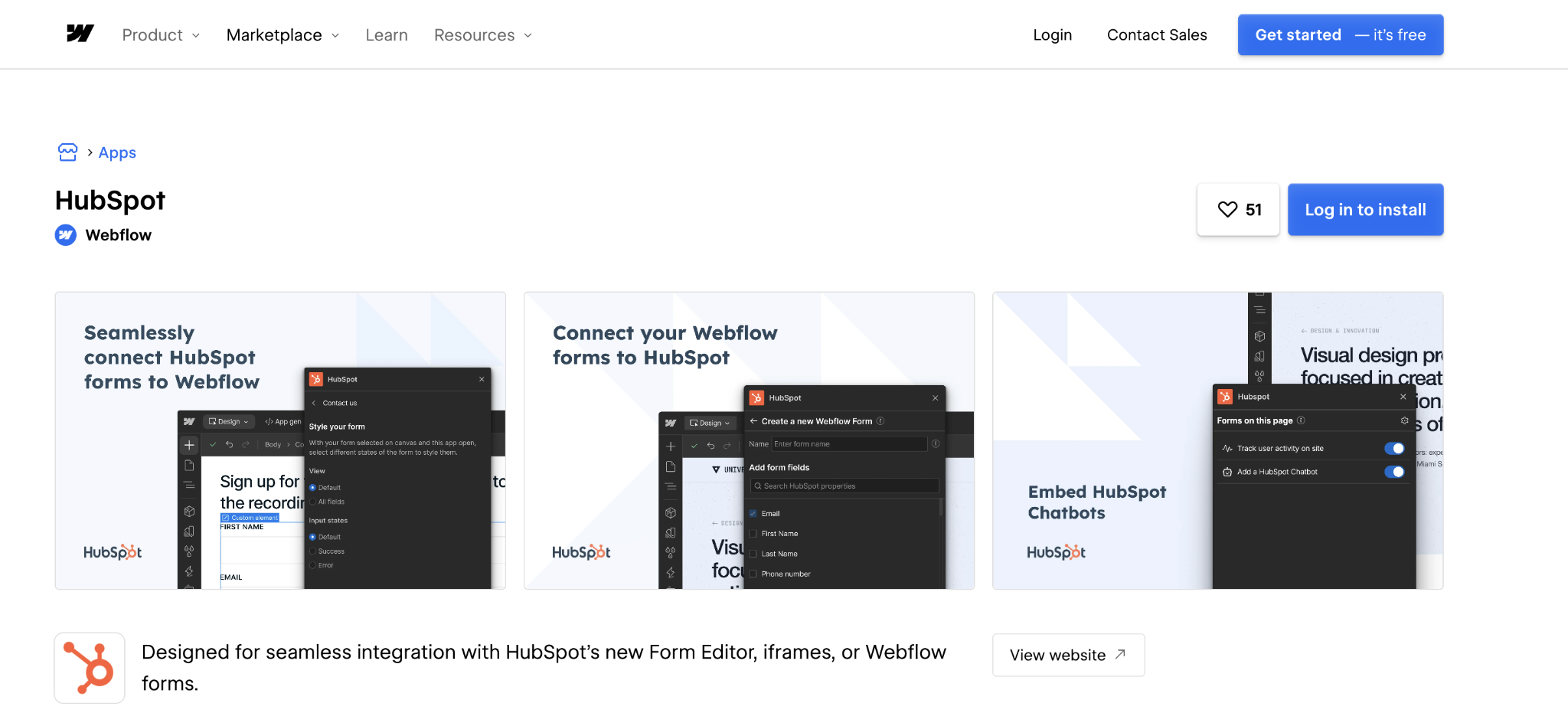
To set up the integration:
- Go to the Webflow Apps Marketplace and install the HubSpot app on your site
- Authorize the app by connecting your HubSpot account
- Launch the app from Webflow to access forms, assets, chatflows, and tracking settings
Once installed, the app gives you access to three ways to connect forms:
- You can embed a HubSpot form directly — style it using HubSpot's style editor, and updates in HubSpot reflect on your live site automatically.
- You can map an existing Webflow form to HubSpot so submissions route directly to your CRM without having to rebuild the form.
- You can connect native Webflow forms using HubSpot's non-HubSpot forms feature, which captures submissions through the tracking code.
The app also serves as a bridge between HubSpot's file library and Webflow, letting you search for and insert approved marketing assets without leaving Webflow.
However, access to the new form editor compatibility and embed styling features requires a HubSpot Marketing Professional or Enterprise plan. Basic form mapping and tracking are included in lower-tier plans.
These are the core capabilities the app covers:
- Style HubSpot forms visually in Webflow, with updates to the HubSpot form automatically reflected on the live site
- Map Webflow form fields to HubSpot contact properties without custom code
- Deploy HubSpot chatbots and chatflows on your site through the app
- Add HubSpot file library assets directly to Webflow pages
- Enable site-wide tracking for page views, form submissions, and user sessions
Most teams install the app first and reach for Code Embed elements only when they need something the app does not cover.
Add HubSpot components with Code Embed elements
Code Embed elements let you add HubSpot components, including the tracking script, embedded forms, chatbots, and meeting schedulers, to specific pages or site-wide. Use this approach when you need a component that the app does not support, or when you want granular control over where each piece loads.
Add the HubSpot tracking script
Adding the HubSpot tracking script enables analytics and form capture across your site. Once installed, it monitors page views, form submissions, and user journeys, providing HubSpot with visibility into visitor behavior.
However, HubSpot tracking uses cookies to identify visitors. Make sure your site includes appropriate cookie consent notices and privacy policy updates to comply with GDPR, CCPA, and other applicable privacy regulations.
To install the HubSpot tracking script:
- Copy your tracking code from HubSpot: Settings > Tracking & Analytics
- In Webflow, go to Site Settings > Custom Code
- Paste the script into the Head Code section
- Publish your site to activate tracking
Once the tracking script is live, you can enable "Capture non-HubSpot forms" in HubSpot to automatically collect submissions from Webflow forms. This method captures submissions without field mapping — all submitted data maps to single-line text properties in HubSpot.
One account can connect up to 10,000 unique non-HubSpot forms before hitting the platform limit.
Embed HubSpot forms as HTML
Embedding HubSpot forms as HTML gives you access to forms with conditional logic, progressive profiling, and multi-step layouts that may not render correctly through the app's visual editor.
To embed a HubSpot form using a Code Embed element:
- In HubSpot, go to Marketing > Forms and open your form
- Click Embed and copy the provided HTML code
- In Webflow, add a Code Embed element to your page
- Paste the HubSpot embed code and style the container using Webflow
This works best for forms with conditional logic, progressive profiling, or multi-step layouts that the app's visual editor does not fully support.
Deploy chatbots and meeting schedulers
Deploying chatbots and meeting schedulers follows the same pattern. Chatbots load site-wide when you add the chatflow script to your site footer; targeting rules and trigger conditions are managed inside HubSpot.
To add a HubSpot chatbot:
- Build your chatflow in HubSpot: Conversations > Chatflows
- Copy the embed code from chatflow settings
- In Webflow, add the script to Site Settings > Custom Code > Footer Code
- Control chat appearance and triggers from HubSpot
Meeting schedulers embed directly into pages using HubSpot's calendar widget code, letting visitors book appointments that sync to HubSpot CRM automatically.
Build with the Webflow and HubSpot APIs
Direct integration using the Webflow API and HubSpot's APIs lets you build bi-directional data sync, visitor personalization, and custom workflows that go beyond what the app covers. This approach requires server-side development but gives you full control over how the two platforms exchange data.
Both platforms provide documented APIs for this kind of integration:
- HubSpot's CRM API manages contacts, deals, and custom objects
- Webflow's Data API handles CMS collections and form submissions
- Webflow webhooks trigger real-time events between systems
Both APIs are well-documented and actively maintained, so the integration surface is stable. However, this path requires a developer to build and maintain the server-side layer that sits between them.
Implement bi-directional data sync
Configure webhooks in Webflow to fire on form submissions, process the data in a server-side function, and write to HubSpot contacts via the Contacts API. You can also sync data back to Webflow CMS to display personalized content or update member profiles.
To implement basic data sync:
- Configure webhooks in Webflow using POST /sites/{site_id}/webhooks with triggerType set to form_submission
- Process the webhook payload in your serverless function, transforming Webflow's JSON structure to match HubSpot's contact properties
- Create or update contacts in HubSpot using POST /crm/v3/objects/contacts via the Contacts API, matching on email address
- Write data back to Webflow using PATCH /collections/{collection_id}/items/{item_id} to update CMS records for personalized content display
HubSpot's API rate limits for private apps are 190 requests per 10-second window for Professional and Enterprise accounts. Build in exponential backoff for 429 errors and use batch operations where possible to stay within this ceiling.
Build visitor identification and personalization
HubSpot's tracking cookies identify known contacts visiting your site. You can fetch contact properties via the API and modify Webflow page content dynamically based on those properties — showing different messaging to visitors by industry, lifecycle stage, or previous interactions.
To implement personalization:
- Identify visitors using HubSpot tracking cookies to match sessions with known contact records
- Fetch contact properties via GET /crm/v3/objects/contacts/{contactId}, including fields like industry or lifecyclestage
- Modify Webflow page content dynamically using JavaScript based on the returned contact attributes
- Send engagement events back to HubSpot for reporting and workflow triggers
This approach requires careful handling of cookie consent requirements, as visitor identification depends on the HubSpot tracking script running in the visitor's browser.
What can you build with the HubSpot Webflow integration?
Integrating HubSpot with Webflow lets you connect your Webflow site to a full CRM and marketing automation stack without rebuilding your forms, design, or publishing workflow.
Here are a few things you can build with this integration:
- Lead capture with CRM routing: Connect contact forms on a Webflow site to HubSpot pipelines, routing submissions to the right deal stage or owner based on form field values without manual intervention.
- Progressive profiling forms: Use HubSpot's smart forms within Webflow pages to ask different questions on each visit based on what HubSpot already knows about the contact, building richer profiles over time without lengthening a single form.
- Automated post-conversion sequences: Trigger HubSpot email workflows when a visitor submits a form on a Webflow landing page, sending onboarding sequences, content downloads, or follow-up emails without any manual steps after setup.
- Personalized content experiences: Build Webflow pages that fetch HubSpot contact properties on load and surface different messaging, CTAs, or content blocks depending on the visitor's industry, lifecycle stage, or previous interactions.
If you need more control over how data flows between the two platforms, for example, syncing CMS content bidirectionally or triggering workflows based on page activity, the API integration path covers those cases with full flexibility.
Frequently asked questions
Enable form mapping through the HubSpot app in your Webflow project settings. After authentication, select your Webflow Forms and map each field to the corresponding HubSpot contact properties. For forms not supported by the app, install HubSpot's tracking code and enable "Capture non-HubSpot forms" in your portal settings, though this method lacks field mapping control and has a limit of 10,000 forms.
Yes, the HubSpot app provides native styling within Webflow's Designer. For embedded forms, apply custom CSS to override HubSpot's default styles, targeting form classes like .hs-form and .hs-input. The app method offers superior design control as forms render as Webflow elements rather than iframes, eliminating cross-origin styling limitations.
Add HubSpot's tracking code to your site-wide header via Site Settings>Custom Code. This automatically captures page views, session data, and UTM parameters. For deeper insights, implement custom behavioral events using HubSpot's Events API to track specific interactions like video plays or scroll depth.
Common causes include domain verification issues, JavaScript conflicts, or CAPTCHA blocking. Ensure your Webflow domain appears in HubSpot's tracking settings under "Additional Site Domains." Check the browser console for errors preventing form submission. If using CAPTCHA, note that HubSpot forms may silently fail when CAPTCHA is enabled — consider alternative spam prevention methods.
Description
HubSpot is an AI-powered customer platform that combines CRM, marketing automation, sales tools, and customer service in one integrated system. It serves over 248,000 customers globally, enabling businesses to attract visitors, convert leads, close customers, and delight them with personalized experiences across the entire customer journey.
This integration page is provided for informational and convenience purposes only.

jobber
Connect Jobber with Webflow to capture service leads on your site and route them straight into scheduling and quoting workflows.

Odoo
Connect Odoo with Webflow so website activity moves into your back-office workflows.

Recruit CRM
Connect RecruitCRM's applicant tracking system with Webflow through automation platforms like Zapier or Make.

HighLevel
Connect HighLevel, an all-in-one CRM and marketing automation platform, with Webflow to embed forms, chat widgets, and booking calendars while routing leads into pipelines and follow-up sequences.

LeadConnector
Connect LeadConnector, a white-label CRM and marketing automation platform, with Webflow so form submissions and booking calendars feed automated workflows.

Microsoft Dynamics CRM
Connect Microsoft Dynamics CRM with Webflow to turn form submissions into Dynamics 365 leads within seconds of the click.

HoneyBook
Connect HoneyBook with Webflow to capture leads on your site and route them into a client pipeline that handles proposals, contracts, scheduling, and payments.

Bitrix24
Connect Bitrix24, a CRM and workspace platform, with Webflow to turn form submissions, chat, and callbacks into CRM leads and deals.

Copper CRM
Related integrations
Get started for free
Try Webflow for as long as you like with our free Starter plan. Purchase a paid Site plan to publish, host, and unlock additional features.
