






Connect Facebook to Webflow to track ad conversions, sync product catalogs, and add social features through a Marketplace app, native site settings, or direct API integration.

If you run Facebook or Instagram ads for a Webflow site, you need conversion data flowing back to Meta. Browser-only pixel tracking has degraded since iOS 14+ privacy changes, and Webflow sites don't run server-side code on their own, so patching the data gap requires either a third-party app or a middleware layer. This guide covers how to connect Facebook with Webflow at whatever depth your project needs, from a no-code Marketplace app to custom API workflows that handle authentication, content publishing, and analytics.
How to integrate Facebook with Webflow
What is Facebook? Facebook is a social networking and advertising platform operated by Meta Platforms. It provides business tools, including Facebook Ads Manager for paid campaigns, Meta Pixel for conversion tracking, Facebook Login for authentication, and Messenger for customer communication. Its Graph API gives programmatic access to advertising, commerce, and social features.
Facebook connects to Webflow through three independent methods: the Pixelflow Marketplace app for server-side conversion tracking and multi-pixel support without writing code; native site settings and Code Embed elements for Meta Pixel tracking, product catalog sync, and social plugin embeds; and the Facebook Graph API with Webflow webhooks for custom authentication flows, automated content publishing, and analytics dashboards. Most sites combine the first two methods. The API route requires developer resources and server-side infrastructure.
Install Pixelflow for server-side conversion tracking
Pixelflow is a Webflow Marketplace app that adds Meta's Conversions API (CAPI) alongside the standard Meta Pixel. It sends conversion events from the server side, bypassing ad blockers and iOS tracking restrictions that cause data loss with browser-only pixel setups.
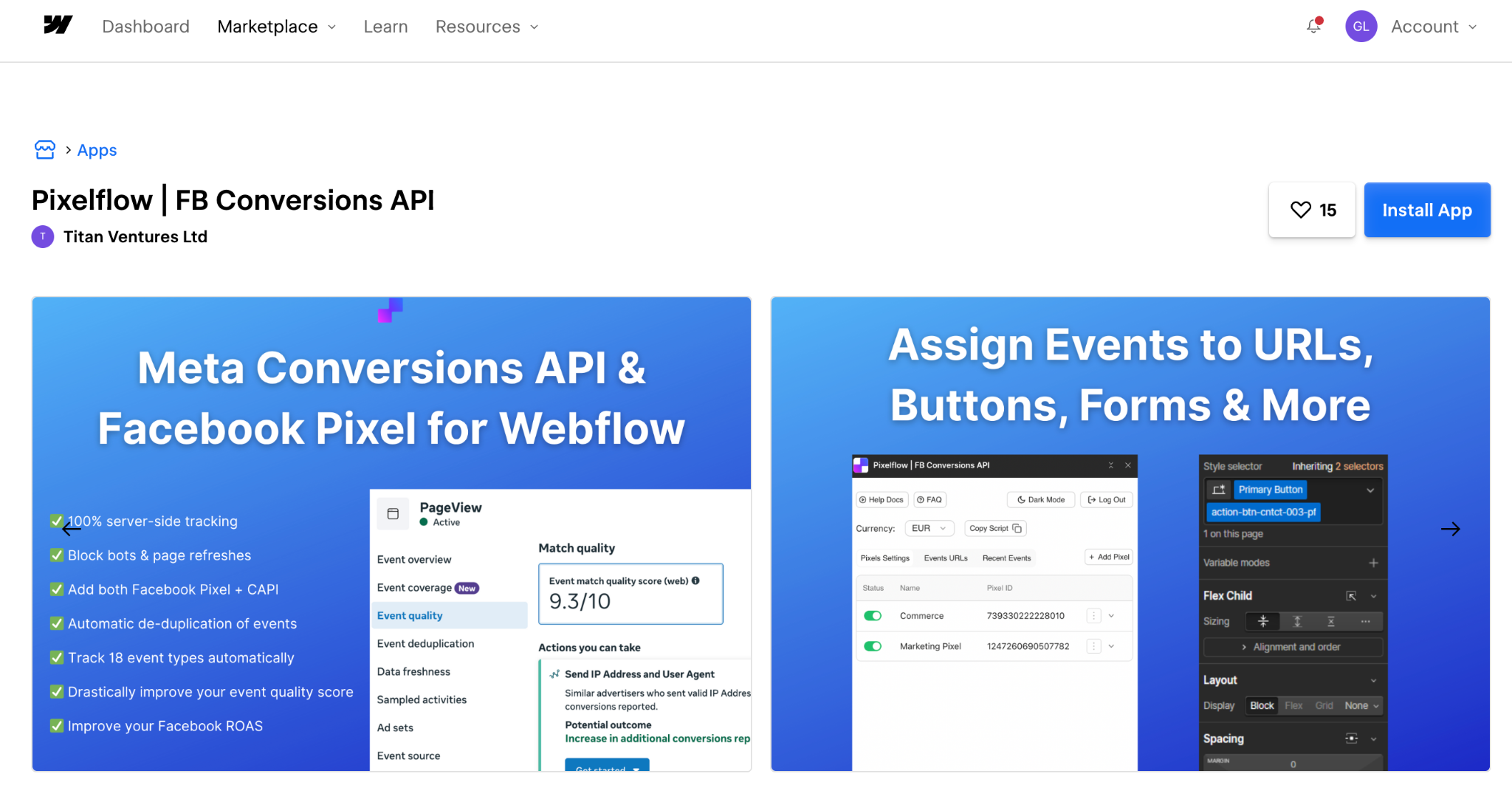
To set up the integration:
- Install Pixelflow from the Webflow Apps Marketplace
- Connect your Meta Pixel ID and Conversions API access token in the Pixelflow dashboard
- Tag elements or page URLs with the events you want to track (purchases, leads, page views)
- Publish your site and verify events in Meta Events Manager
Pixelflow handles event deduplication automatically, so conversions sent by both the pixel and the API are not double-counted. It also supports multiple pixels, which is useful if you manage separate ad accounts or need a backup pixel for continuity.
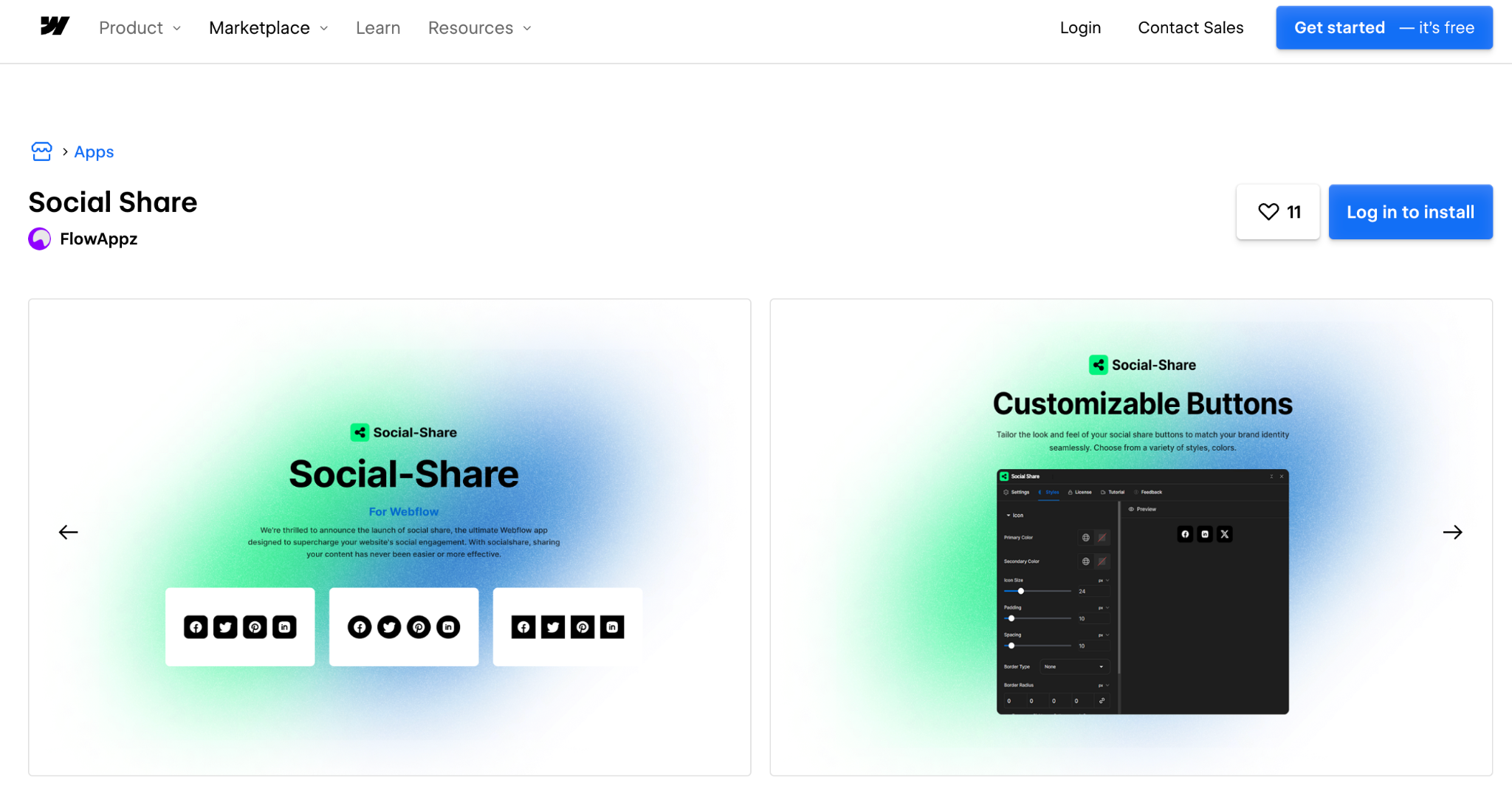
Two other Marketplace apps cover related Facebook use cases. Memberstack supports Facebook Login on Webflow sites: you configure a Facebook Developer App, add your credentials in Memberstack's dashboard, then add a login button with the data-ms-auth-provider="facebook" attribute. Memberstack handles the OAuth flow and token management. The Social Share app adds customizable sharing buttons for Facebook and other platforms, with no code required.
For sites that only need conversion tracking and social features, these apps cover the common cases without custom development.
Add Meta Pixel and social embeds through Webflow settings
Webflow has a built-in Meta Pixel integration that works without any app or custom code. Go to Site settings > Apps & Integrations > Meta Pixel and enter your Pixel ID. This automatically tracks page views and, if you use Webflow Ecommerce, also tracks ecommerce events like product views, add-to-cart actions, and purchases.
For GDPR compliance, toggle "Delay for cookie consent" to YES. This pauses pixel loading until visitors accept cookies through your consent banner. You need to implement a cookie consent banner separately and trigger consent programmatically. Webflow does not include one by default.
Webflow Ecommerce generates a product data feed URL that syncs to Facebook Catalog Manager for dynamic product ads on Facebook and Instagram. Find this under Settings > Ecommerce > Integrations > Facebook. Copy the data feed URL, then paste it into Facebook Business Manager when creating a product catalog data source. The feed syncs product titles, descriptions, prices, and images, but does not include inventory counts. It can be used for dynamic ad campaigns but not to create a Facebook Shop.
To embed Facebook's Page Plugin on your site, use a Code Embed element. Get the embed code from Facebook's developer tools, paste the Facebook JavaScript SDK snippet into your site's custom code in the head tag, then add the plugin-specific code in a Code Embed element where you want it to appear on the page. The Page Plugin displays your Facebook page feed, events, or messaging prompt directly on your Webflow site.
These approaches cover most marketing and ecommerce use cases. Use the API method below only when you need custom authentication, automated publishing, or bidirectional data sync.
Build custom integrations with the Facebook Graph API
Direct API integrations with Facebook require a middleware layer between your Webflow site and Facebook's servers. Webflow generates static sites that cannot securely store API credentials or handle server-to-server requests. You need serverless functions (AWS Lambda, Netlify Functions, Cloudflare Workers) or an external backend to mediate.
The Facebook Graph API is the foundation for all programmatic Facebook integrations. The Webflow API handles CMS and webhook operations on the Webflow side. Common use cases on Webflow sites include custom authentication, automated content publishing, and analytics workflows.
To build a custom Facebook Login flow:
- Set up a Facebook Developer App with OAuth redirect URLs and domain verification
- Create a serverless endpoint to exchange authorization codes for access tokens via the /oauth/access_token endpoint
- Map user profile data to Webflow CMS collections using the Graph API User endpoint to store names, emails, and profile attributes
- Handle session persistence and token refresh on your middleware layer
For automated social publishing, configure Webflow webhooks to fire when CMS items are created or updated, route those events to a serverless function, and use the Pages API /feed endpoint to publish posts to your Facebook Page. This creates a content pipeline where new Webflow CMS entries automatically generate Facebook posts.
For analytics, the Marketing API Insights endpoint provides campaign performance data (cost per acquisition, return on ad spend, audience demographics), and the Custom Audiences API lets you build retargeting lists based on Webflow user behavior like page views, form submissions, or purchase events.
All of these patterns follow the same architecture: Webflow fires a webhook or client-side event, your middleware handles the Facebook API call, and results are either stored in Webflow CMS or displayed on the frontend. Facebook enforces rate limits of roughly 200 calls per user per hour at the app level, with separate Business Use Case limits for Marketing API calls. Monitor the X-App-Usage header in responses to implement backoff logic before hitting the cap.
What you can build with the Facebook Webflow integration
Connecting Facebook with Webflow gives you conversion tracking, product catalog sync, and audience targeting across your site and ad campaigns. The right method depends on how much custom logic your project requires.
Here are a few things you can build:
- Ecommerce stores with dynamic retargeting: Sync your Webflow product catalog to Facebook Catalog Manager and run dynamic product ads that show visitors the specific items they browsed or added to cart, with server-side tracking through Pixelflow to maintain attribution accuracy across iOS and ad-blocked browsers.
- Membership sites with social login: Use Memberstack to add Facebook Login to your Webflow site, letting visitors sign in with their existing Facebook account while automatically creating member profiles in Webflow CMS for gated content areas.
- Lead generation sites with full-funnel tracking: Combine Meta Pixel page view tracking with Conversions API form submission events to give Facebook's ad algorithm complete conversion data, improving ad delivery optimization and reducing cost per lead.
- Content hubs with automated social publishing: Configure Webflow webhooks to fire when new CMS items are published, route the data through a serverless function, and post to your Facebook Page automatically, keeping your social presence in sync with your editorial calendar without manual cross-posting.
The first two builds work with Marketplace apps and no custom code. The latter two require serverless functions or an external backend. Start with the simplest setup that covers your tracking and publishing needs before adding API complexity.
Frequently asked questions
Navigate to Site settings > Apps & Integrations > Meta Pixel and enter your Pixel ID. This automatically tracks page views and e-commerce events. For GDPR compliance, enable "Delay for Cookie Consent" which pauses pixel loading until visitors accept tracking through your cookie consent banner.
Yes, use Webflow's native product catalog integration under Ecommerce Settings > Integrations. This generates a data feed URL that syncs to Facebook Catalog Manager, enabling dynamic product ads that automatically update with inventory changes, pricing adjustments, and new products without manual intervention.
iOS 14+ privacy updates restrict browser-based pixel tracking, causing 40-60% data loss for attribution. The Conversions API sends events directly from servers to Facebook, bypassing browser restrictions. Use Pixelflow for plug-and-play implementation or build custom serverless functions using the dataset events endpoint.
Facebook enforces hierarchical rate limits: 200 calls per user per hour for app-level requests, and page-specific limits based on engagement (4,800 calls per engaged user per 24 hours). Business Use Case limits apply to Marketing API calls. Monitor X-App-Usage and X-Business-Use-Case-Usage headers in responses to implement dynamic backoff strategies and avoid throttling.
Enable Webflow's "Delay for Cookie Consent" in Pixel settings to prevent tracking before user consent. Implement a proper cookie consent banner using GDPR-compliant templates. For API integrations, use Facebook's Limited Data Use parameters to respect user privacy preferences and avoid processing personal data without explicit consent.
Description
Facebook is a global social networking platform and advertising ecosystem operated by Meta Platforms. Beyond connecting over 3 billion users, Facebook offers comprehensive business tools including precision advertising through Facebook Ads Manager, conversion tracking via Meta Pixel, social authentication through Facebook Login, commerce capabilities via Facebook Shops, and cross-platform messaging through Messenger API.
This integration page is provided for informational and convenience purposes only.

Tagembed social-media aggregator
Connect Tagembed with Webflow to display auto-updating social feeds and reviews alongside UGC galleries on any page.

Connect Pinterest with Webflow to turn site content into Pins and show Pinterest boards on your pages.

Connect LinkedIn, a professional networking and advertising platform, with Webflow to install the Insight Tag for ad tracking, embed posts and follow buttons, and auto-publish CMS content to your company page.


Flockler social media feed plugin

EmbedSocial
Connect EmbedSocial with Webflow to add live social media feeds, review widgets, and shoppable UGC galleries that update automatically without republishing.

embedstories
Connect EmbedStories with Webflow to display auto-syncing Instagram Stories on any page of your site.

Elfsight YouTube Video Gallery
Connect Elfsight YouTube Video Gallery with Webflow to show a whole YouTube channel or playlist as one self-refreshing gallery, instead of embedding each video by hand.
embedalbum
Related integrations
Get started for free
Try Webflow for as long as you like with our free Starter plan. Purchase a paid Site plan to publish, host, and unlock additional features.
