






Cookiebot
Use Cookiebot with Webflow to collect visitor consent, control when cookies load, and support compliance with GDPR, CCPA, and similar privacy regulations on your published site.

Use Cookiebot with Webflow to collect visitor consent, control when cookies load, and support compliance with GDPR, CCPA, and similar privacy regulations on your published site.
There's no built-in cookie consent management system. Sites that use third-party analytics, ad pixels, or embedded media set cookies that require visitor consent under GDPR, CCPA, and similar laws. Without a consent mechanism, those cookies fire on page load and put site owners at legal risk.
Cookiebot fills that gap by scanning a Webflow site for cookies, blocking non-essential ones until a visitor consents, and displaying a configurable consent banner. It also generates a cookie declaration that auto-updates after each scan, so privacy policy pages stay current without manual edits. Google Consent Mode v2 support helps keep GA4 and Google Ads data collection aligned with each visitor's consent choices.
Site owners serving visitors in the EU, California, or other regulated jurisdictions often need this setup. Agencies managing multiple client sites benefit from centralized cookie management across domains. Marketing teams running Google Ads in the EU or EEA often need a Google-certified CMP, and Cookiebot can be used to meet that requirement when configured correctly.
How to integrate Cookiebot with Webflow
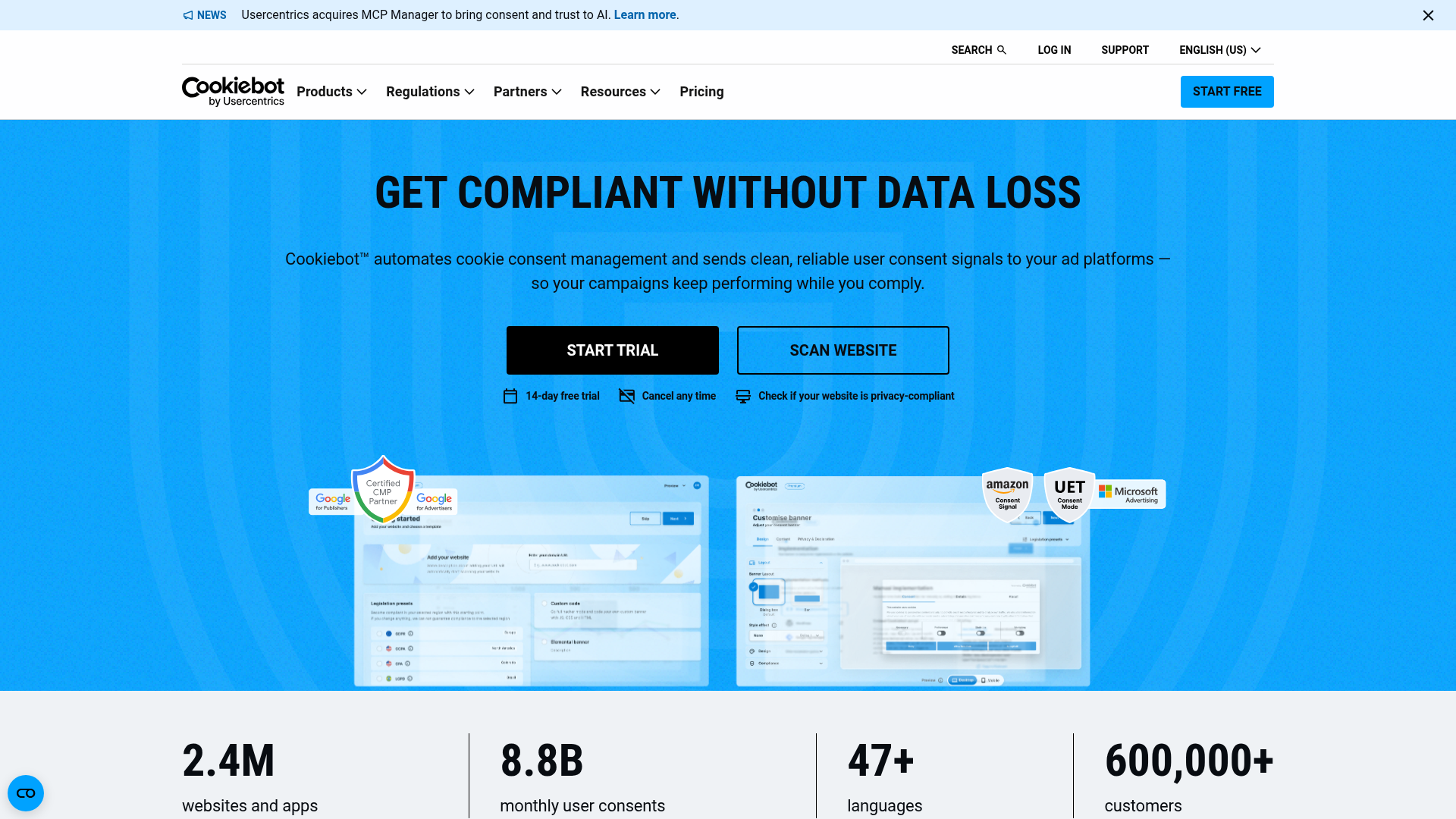
What is Cookiebot? Cookiebot CMP is a cookie consent management platform by Usercentrics A/S. It scans websites to detect cookies and tracking technologies, blocks non-essential cookies until visitors give explicit consent, and generates an auto-updating cookie declaration. Cookiebot is a Google-certified CMP that supports GDPR, CCPA, LGPD, and 16+ privacy regulations.
Sites that embed analytics tags, retargeting pixels, or third-party video players need a consent layer that fires before those scripts load. Teams typically add Cookiebot early in a project's launch cycle, right after connecting a custom domain and before going live with marketing campaigns.
There are 3 approaches to the Cookiebot-Webflow integration:
- Custom code injection handles the banner script and cookie declaration without additional tools.
- Google Tag Manager gives you tighter script execution order, which matters for sites with multiple tracking tags.
- The Cookiebot JavaScript API and the Data API let you build custom consent workflows and programmatic deployments, but require development work.
Most implementations combine two of these methods. A common pattern is GTM for the banner and a Code Embed element for the cookie declaration page.
Add the Cookiebot banner script with custom code
Paste the banner script into your site's custom code in head and body tags settings. This method works for sites with straightforward tracking setups where you do not need granular control over script execution order. You need a Cookiebot account with your domain registered and a paid Webflow plan (Basic or higher) to access the custom code fields.
To set up the Cookiebot banner via custom code:
- Sign up at Cookiebot and add your Webflow domain. Allow up to 24 hours for the initial cookie scan to complete.
- In Cookiebot Manager, go to Settings > Your scripts and copy the banner script. Your CBID (Domain Group ID) appears on this screen in UUID format.
- Open the Webflow Dashboard, select your site, and go to Site settings.
- Click the Custom Code tab and paste the banner script as the very first item in the Head Code field.
- Click Save Changes, then publish your site.
The banner script looks like this:
<script
  id="Cookiebot"
  src="https://consent.cookiebot.com/uc.js"
  data-cbid="YOUR-CBID-HERE"
  type="text/javascript"
  data-blockingmode="auto">
</script>
Replace YOUR-CBID-HERE with your actual CBID from Settings > Your scripts.
Custom code is placed at the end of the <head> tag, so some scripts may execute before Cookiebot initializes. For most standard sites, placing the Cookiebot script as the very first item in the Head Code field is sufficient. If you experience issues with cookies firing before consent, the Google Tag Manager method in the next section gives you tighter ordering.
Add a cookie declaration page with a Code Embed element
Cookiebot generates an auto-updating list of all cookies detected on your site. You can embed this declaration on a privacy policy or cookie policy page so visitors can review exactly what your site tracks.
To add the cookie declaration:
- Open your cookie policy or privacy policy page.
- From the Add panel, add a Code Embed element at the position where you want the declaration to appear.
- Paste the Cookie Declaration script into the code field:
<script
  id="CookieDeclaration"
  src="https://consent.cookiebot.com/YOUR-CBID-HERE/cd.js"
  type="text/javascript"
  async>
</script>
- Click Save & Close, then publish your site.
The declaration updates automatically after each scan, so new cookies appear without manual edits.
Classify cookies after the first scan
After Cookiebot completes its initial scan, navigate to Cookies in Cookiebot Manager. Assign a short purpose description to any unclassified cookies. This step is required because all unclassified non-necessary cookies remain blocked until they are categorized into one of four groups: Necessary, Preferences, Statistics, or Marketing.
Deploy Cookiebot through Google Tag Manager
Google Tag Manager gives you tighter script execution order, which solves the <head> placement limitation. This is the officially recommended method in Cookiebot's Webflow installation guide. Use Google Tag Manager on sites running multiple tracking scripts or requiring strict pre-consent blocking of all tags. Sites serving Google Ads in the EU or EEA also benefit from this path because it simplifies Google Consent Mode v2 configuration.
To set up Cookiebot with GTM on a Webflow site:
- In Google Tag Manager, go to Tags > New > Tag Configuration.
- Search the Community Template Gallery for "Cookiebot CMP" and select it.
- Enter your Domain Group ID (CBID) from Cookiebot Manager Settings > Your scripts.
- Set the trigger to Consent Initialization – All Pages.
- Check the box to enable Google Consent Mode within the tag configuration.
- Apply consent checks to all other tags (analytics, ad pixels) in your GTM container.
- Submit and publish your GTM container.
- In the Webflow Designer, scroll to the Advanced section of the left-hand menu and click the Embed button. Paste your GTM container snippet there.
Use this GTM container snippet format:
<!-- Google Tag Manager -->
<script>(function(w,d,s,l,i){w[l]=w[l]||[];w[l].push({'gtm.start':
new Date().getTime(),event:'gtm.js'});var f=d.getElementsByTagName(s)[0],
j=d.createElement(s),dl=l!='dataLayer'?'&l='+l:'';j.async=true;j.src=
'https://www.googletagmanager.com/gtm.js?id='+i+dl;f.parentNode.insertBefore(j,f);
})(window,document,'script','dataLayer','GTM-XXXXXX');</script>
<!-- End Google Tag Manager -->
Replace GTM-XXXXXX with your GTM Container ID.
GTM alone does not make tags consent-aware. You must follow Cookiebot's GTM deployment instructions to configure consent checks on each tag in your container.
Configure Google Consent Mode v2
Google's January 2024 mandate requires all websites serving Google Ads in the EU, EEA, or UK through AdSense, Ad Manager, or AdMob to use a Google-certified CMP. Cookiebot is a Google-certified CMP and can be used to meet this requirement when implemented correctly, while also passing consent signals directly to Google tags.
Set up Consent Mode v2 with the GTM method as follows:
- In GTM, go to Admin > Container Settings > Additional Settings and check Enable Consent Overview.
- In the Cookiebot CMP tag configuration, enable Google Consent Mode and set all default states to
denied. - Set the trigger to Consent Initialization – All Pages (this must fire before any other tags).
- In Cookiebot Manager, navigate to Settings and enable Google Consent Mode.
- Use Google Tag Assistant to verify that default consent fires before GTM or gtag.js and that consent updates fire after the visitor interacts with the banner.
For sites not using GTM, add the default consent state script directly under Site settings > Custom Code > Head Code, placed before the Cookiebot banner script:
<script>
  window.dataLayer = window.dataLayer || [];
  function gtag() { dataLayer.push(arguments); }

  gtag('consent', 'default', {
    'ad_storage': 'denied',
    'ad_user_data': 'denied',
    'ad_personalization': 'denied',
    'analytics_storage': 'denied'
  });
</script>
The default consent state must be set synchronously, before any tags or other code uses or updates consent.
Handle auto-blocking conflicts with Webflow interactions
Cookiebot's data-blockingmode="auto" attribute can interfere with native scripts, including Interactions (IX2) and page transitions. Multiple community reports document layout breakage when auto-blocking is active.
Switch to manual blocking mode when this happens. Change the type attribute on individual tracking scripts from text/javascript to text/plain and add a data-cookieconsent attribute:
<script type="text/plain" data-cookieconsent="statistics">
  // your tracking code here
</script>
Valid data-cookieconsent values are "preferences", "statistics", and "marketing". Cookiebot changes the type back to text/javascript only when the visitor consents to that category. This manual blocking approach is the recommended alternative for Webflow sites experiencing auto-blocking issues.
Build with the Webflow and Cookiebot APIs
For agencies deploying Cookiebot across many Webflow sites or teams building custom consent-dependent features, the API path provides programmatic access. This approach requires JavaScript development knowledge and familiarity with REST API calls.
This setup can use three APIs:
- The Cookiebot JavaScript API has consent state properties, seven browser events, six callback functions, and methods for conditional script loading on all plans.
- The Data API handles programmatic script registration and deployment across sites and pages.
- The Browser API has consent management methods for Webflow Analyze and Optimize.
Together, these APIs cover conditional script loading, programmatic deployment, and consent-aware tracking behavior.
The Cookiebot REST API for cookie scan data and consent statistics is available only on enterprise-tier plans (Usercentrics Advanced). The JavaScript API, however, is available on all plans including Free.
Load scripts conditionally based on consent
The Cookiebot JavaScript API exposes per-category consent state through the Cookiebot.consent object. You can use browser events to fire specific scripts only after a visitor grants consent.
To conditionally load marketing scripts:
- Add the following code in a Code Embed element or in your site's footer custom code:
window.addEventListener('CookiebotOnAccept', function() {
  if (Cookiebot.consent.marketing) {
    // Initialize Facebook Pixel, Google Ads tag, etc.
  }
  if (Cookiebot.consent.statistics) {
    // Initialize analytics scripts
  }
});
- The
CookiebotOnAcceptevent fires both on initial consent and on every subsequent page load for returning visitors who already consented. No additional page-load checks are needed.
This pattern is only necessary when data-blockingmode="auto" is not set and scripts are not already marked with data-cookieconsent attributes. If auto-blocking is active, Cookiebot handles activation automatically.
Deploy Cookiebot programmatically with the Data API
Agencies managing Cookiebot across multiple Webflow sites can skip manual copy-paste by using the custom code API endpoints.
Deploy Cookiebot programmatically with these steps:
- Register Cookiebot's
uc.jsas a hosted script viaPOST /v2/sites/{site_id}/registered_scripts/hosted. - Apply the script to site or pages via
PUT /v2/pages/{page_id}/custom_code. - Publish the site via
POST /v2/sites/{site_id}/publish.
These endpoints require a Webflow App with OAuth tokens and the following scopes: sites:read, sites:write, pages:read, pages:write, custom_code:read, custom_code:write. Standard site tokens or Workspace tokens cannot access these endpoints. Each PUT request must include all scripts the app manages on that page, because omitting a script removes it.
Bridge consent to Webflow Analyze and Optimize
Sites using Webflow Analyze or Optimize can connect Cookiebot's consent decisions to the built-in tracking consent methods.
Add the following script in a Code Embed element on your site:
wf.ready(function() {
  window.addEventListener('CookiebotOnAccept', function() {
    if (Cookiebot.consent.statistics) {
      wf.allowUserTracking();
    }
  }, false);

  window.addEventListener('CookiebotOnDecline', function() {
    wf.denyUserTracking();
  }, false);
});
The wf.allowUserTracking() and wf.denyUserTracking() methods apply only to Webflow Analyze and Optimize. They have no effect on other tracking tools.
This pattern appears in the consent management reference.
What can you build with the Cookiebot Webflow integration?
Integrating Cookiebot with Webflow lets you run a privacy-compliant website without building the consent layer from scratch.
- GDPR-compliant marketing sites: Deploy a consent banner that auto-detects visitor location and shows region-appropriate options. EU visitors see a full opt-in banner while US visitors see a simpler notice. Geo-targeting adjusts automatically across 16+ supported regulations.
- Google Ads-ready landing pages: Use a Google-certified CMP for serving ads in the EU and EEA. Cookiebot can pass consent signals to GA4 and Google Ads through Consent Mode v2 when configured correctly, so conversion tracking stays aligned with visitor consent choices.
- Auto-updating cookie policy pages: Embed the Cookie Declaration script on a privacy policy page. After each monthly scan, the declaration updates with any new cookies detected, so legal teams do not need to manually audit and rewrite policy text.
- Multi-language consent for international sites: Cookiebot supports 47+ languages with automatic detection based on visitor location. A single Webflow site serving visitors in France, Germany, and Brazil displays the consent banner in the correct language without conditional logic or duplicate pages.
If you need more precise consent-dependent script behavior or multi-site deployment, the API integration path covers those cases.
Frequently asked questions
No, Cookiebot currently doesn't have an app in Webflow. Unlike its WordPress plugin or Wix app, Cookiebot requires manual integration on Webflow sites. You add the banner script through custom code injection or Google Tag Manager.
Both methods are officially supported. The direct script method is faster to set up and works well for sites with simple tracking configurations. Google Tag Manager is the better choice if you already route third-party scripts through GTM, need precise control over execution order, or experience auto-blocking conflicts with Webflow Interactions. Cookiebot's Webflow installation guide documents both paths with step-by-step instructions.
Cookiebot's
data-blockingmode="auto"attribute can interfere with Webflow's native scripts, including Interactions (IX2) and page transitions. This happens because Cookiebot needs to be the very first script in the<head>, and Webflow cannot fully guarantee that position. Switch to manual blocking mode by settingtype="text/plain"and addingdata-cookieconsentattributes to individual tracking scripts instead of relying on auto-blocking.Yes. According to Cookiebot's pricing page,
example.com,it.example.com, anduk.example.comcount as three separate domains, each requiring its own subscription. Path-based multilingual setups likeexample.com/enandexample.com/frcount as a single domain.Open your published site in an incognito browser window. The consent banner should appear on first load. Open your browser's developer tools (F12, then the Network tab) and reload the page before accepting consent. Analytics and marketing pixels should not appear in network requests. Accept all cookies, reload, and confirm that previously blocked scripts now fire.
Note that the banner will not display in Webflow's canvas preview because the script requires the live domain registered in your Cookiebot account.
Description
Add Cookiebot's consent banner and cookie declaration to Webflow sites through custom code injection or Google Tag Manager for automated cookie blocking and compliance.
This integration page is provided for informational and convenience purposes only.

iubenda
Connect iubenda, a privacy compliance platform, with Webflow to add cookie consent banners, generate privacy and cookie policies, log form-based consent records, and support Google Consent Mode v2 across jurisdictions.

EasyCookie
Connect EasyCookie with Webflow to add GDPR-compliant cookie consent and Google Consent Mode v2 to your site.

CookieScript
Connect Cookie-Script with Webflow to display consent banners, block cookies until consent is given, and maintain GDPR and CCPA compliance records.

Osano Cookie Consent
Connect Osano Cookie Consent, a consent management platform, with Webflow to enforce cookie compliance, block non-essential scripts before consent, and display geo-targeted banners across 50+ countries.

Securiti Cookie Consent
Connect Securiti Cookie Consent, a consent management platform, with Webflow to display geo-targeted cookie banners, block tracking scripts before consent, and maintain GDPR, CCPA, and IAB TCF v2.0 compliance.
Related integrations
Get started for free
Try Webflow for as long as you like with our free Starter plan. Purchase a paid Site plan to publish, host, and unlock additional features.
