






EasyCookie
Connect EasyCookie with Webflow to add GDPR-compliant cookie consent and Google Consent Mode v2 to your site.

Webflow sites don't include a built-in cookie consent manager. If you have EU visitors, you need a consent banner, blocked non-essential cookies, and consent signals passed to Google Analytics and ad tags.
EasyCookie handles all of this through a script tag in your custom code settings. It works for site owners, freelancers, and agencies on EU-facing projects, with support for Google Consent Mode v2 and script blocking via GTM or data attributes.
How to integrate EasyCookie with Webflow
What is EasyCookie? EasyCookie is a GDPR cookie consent management platform that automatically scans websites for cookies and displays a consent banner you can configure. It works with Google Consent Mode v2, which lets Google services use modeled conversion data when users decline tracking cookies. The platform gives you 130+ language options with automatic language recognition and supports multiple domains from a single account.
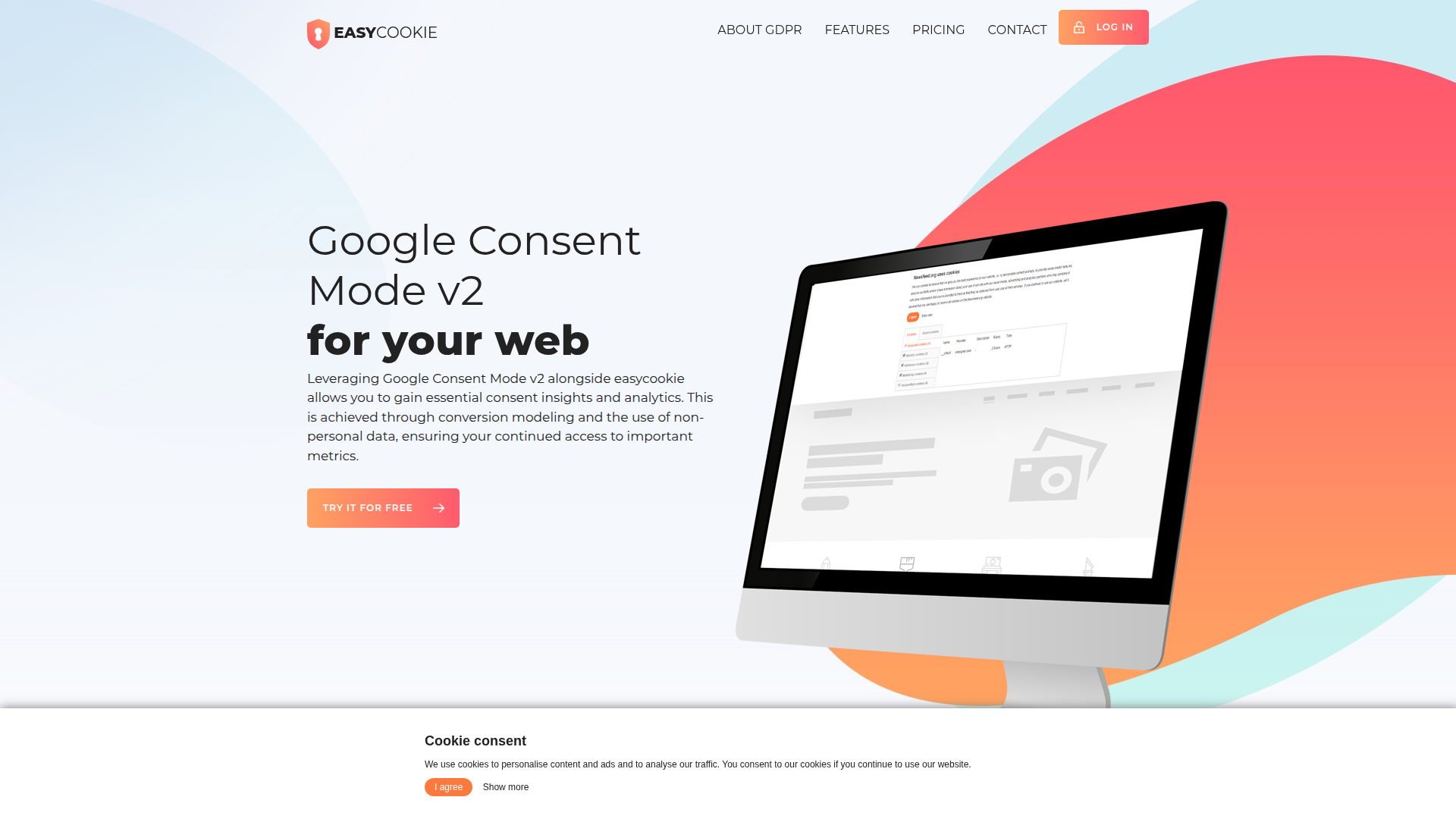
Add EasyCookie to your Webflow site when you need to meet GDPR requirements without building custom consent logic. Paste a script tag into your site settings, then configure how tracking scripts respond to user consent choices through GTM or manual data attributes.
The EasyCookie integration includes 3 approaches:
- Custom code injection places the EasyCookie consent banner site-wide through the custom code in head and body tags settings.
- Script blocking via GTM or data attributes controls when analytics and advertising scripts fire based on user consent choices.
- The Data API and Custom Code API let Apps using OAuth tokens programmatically register scripts and deploy them across sites as a Webflow-side deployment option.
Most implementations combine custom code injection with one of the script blocking methods, since the consent banner alone won't block tracking scripts.
Add the EasyCookie consent banner with custom code
You add the EasyCookie consent banner to your site by pasting a script tag into your site settings. This script displays the consent UI on every page, handles consent storage in a cookie named EasyCookieConsent (1-year expiry), and sends consent signals to Google Consent Mode v2. Configure the banner's text, layout, colors, and consent categories inside the EasyCookie configurator before copying the generated script. You need a paid site plan because the free Starter plan doesn't support custom code injection.
[image placeholder]
To set up the consent banner:
- Register at app.easycookie.io/register and open the EasyCookie configurator.
- Configure your banner settings: choose a layout (Banner, Modal, or Popup), set button labels and banner text, pick a color scheme, and select consent categories.
- Click Copy embed, then Copy script to copy the generated script tag.
- Open Site Settings and click the Custom Code tab.
- Paste the EasyCookie script into the Head Code field. Place it before any GA4 or GTM script tags already in that field.
- Click Save Changes, then publish your site.
If you're using Google Consent Mode v2, paste the GCM default state snippet before the EasyCookie script in the Head Code field:
<!-- GCM v2 default state, place first -->
<script>
  window.dataLayer = window.dataLayer || [];
  function gtag(){dataLayer.push(arguments);}
  gtag('consent', 'default', {
    'ad_storage': 'denied',
    'analytics_storage': 'denied',
    'ad_user_data': 'denied',
    'ad_personalization': 'denied',
    'wait_for_update': 500
  });
</script>

<!-- EasyCookie embed script, paste here -->

<!-- GA4 / GTM scripts, place after -->
The consent banner won't appear in preview mode. Scripts injected through custom code only execute on published sites. Test on your yoursite.webflow.io staging subdomain after publishing, or turn on the Run custom code in Preview toggle under Site Settings > Custom Code to preview on the {shortName}.canvas.webflow.com domain.
Installing the banner script alone won't block tracking scripts from firing. The script only renders the consent UI and stores user preferences. You'll need to configure script blocking separately, covered in the next section.
Block tracking scripts until consent is granted
The EasyCookie consent banner displays the UI and records user choices, but tracking scripts will still fire on page load unless you configure explicit blocking. You have two methods: Google Tag Manager triggers (recommended for most users) and manual data attributes on individual script tags. You can also listen for consent events in JavaScript when you're working with dynamically loaded scripts like Facebook Pixel.
Configure script blocking with Google Tag Manager
GTM is the recommended approach for managing consent-based script blocking without editing individual script tags. All tag blocking logic lives inside GTM, so you only need the GTM container snippet in the Head Code field for ongoing tag management, alongside the EasyCookie embed script that displays the consent banner. This keeps ongoing tag management out of your site entirely.
To configure GTM consent triggers:
- In the GTM dashboard, create a DOM Ready trigger that fires on all DOM readiness events.
- Create a second trigger: a Custom Event trigger listening for the
ConsentUpdateevent. - Open your GA4 or Google Ads tag in GTM's Tags section.
- Remove the tag's default initialization trigger.
- Assign both new triggers (DOM Ready and ConsentUpdate) to the tag.
- Under Advanced Settings > Consent Settings, turn on Require additional consent and select
analytics_storagefor GA4 tags. For advertising tags, also addad_storageandpersonalization_storage.
EasyCookie sets consent state to "denied" by default, then updates it to "granted" after users accept. GTM reads these consent signals automatically through Consent Mode v2.
Block static scripts with data attributes
For scripts you've added directly in custom code fields or in Code Embed elements, you can block execution by changing the type attribute and adding an EasyCookie data attribute. EasyCookie includes four consent categories, three of which use data attributes:
data-easycookie-analyticsfor analytical scriptsdata-easycookie-advertisingfor advertising scriptsdata-easycookie-functionalfor functional scripts
To block a static script until consent is granted:
- Change the script's
typeattribute fromtext/javascripttotext/plain. - Add the appropriate
data-easycookie-*attribute to the script tag.
<script type="text/plain" data-easycookie-analytics src="analytics.js"></script>
<script type="text/plain" data-easycookie-advertising src="ads.js"></script>
When a user grants consent for that category, EasyCookie automatically switches the type back to text/javascript and the script executes. The "Absolutely Necessary" category is always active and doesn't need an attribute.
Handle dynamic scripts with JavaScript consent events
Some scripts, like Facebook Pixel, load dynamically and you can't block them with the type="text/plain" method. For these, EasyCookie fires a DOM event called easycookieUpdateConsent that carries boolean values for each consent category.
To listen for consent changes and conditionally activate a script:
- Add an event listener for
easycookieUpdateConsentin your Head Code or in a Code Embed element. - Check the relevant
e.detailproperty and initialize or revoke the script accordingly.
document.addEventListener('easycookieUpdateConsent', function(e) {
  if (e.detail.ad) {
    fbq('consent', 'grant');
  } else {
    fbq('consent', 'revoke');
  }
});
The event's detail object includes six boolean properties: ad, aduser, adpersonalization, analytics, personalization, and security. Full documentation for this event lives on the easy.tools consent scripts page.
The GTM approach is generally simpler for non-technical users because you don't have to edit individual script tags. Use data attributes and consent events when you need direct control over specific scripts outside of GTM.
Build with developer APIs
If you're handling script deployment across multiple sites programmatically, the Custom Code API gives you endpoints to register scripts, apply them site-wide or per page, and publish changes without touching the Designer or Site Settings. Use it to place third-party scripts such as EasyCookie at scale. You'll need an App with OAuth authentication and the custom_code:read and custom_code:write scopes.
The relevant APIs include:
- The Custom Code API handles script registration and application at the site and page level.
- The Sites API retrieves site IDs and custom domains, and triggers publishing.
- The Pages API lists pages for page-level script overrides.
- Webhooks can trigger notifications on the
site_publishevent to confirm deployments.
Together these APIs handle script registration, deployment, and publishing for programmatic script rollouts.
Only Apps using OAuth tokens can access the Custom Code API. Site tokens and workspace tokens don't have access to these endpoints.
Register and deploy a consent script via API
This approach registers an externally hosted script resource, applies it to the site header, and publishes the changes.
To deploy a consent script programmatically:
- Call
GET /v2/siteswith thesites:readscope to retrieve the targetsite_id. - Register the hosted script through the Custom Code API for the target site.
- Apply the registered script site-wide with
PUT /v2/sites/{site_id}/custom_code, setting thelocationto"header"so it loads in the<head>tag. - For page-specific overrides, use
PUT /v2/pages/{page_id}/custom_code. This replaces all existing page-level scripts, so include every intended script in the request body. - Retrieve custom domain IDs with
GET /v2/sites/{site_id}/custom_domains, then publish withPOST /v2/sites/{site_id}/publish.
This sequence is most useful when you need to handle script deployment across many sites without opening Site Settings for each one.
What can you build with the EasyCookie Webflow integration?
Integrating EasyCookie with your Webflow site lets you add cookie consent management and GDPR compliance without building custom consent logic or handling script blocking manually.
- GDPR-compliant EU landing pages: Launch marketing pages that automatically detect cookies, display a localized consent banner in the visitor's language (from 130+ supported language options), and block analytics scripts until opt-in. A SaaS company running localized campaigns across Germany, France, and Spain can deploy one EasyCookie configuration that adapts per visitor.
- Analytics-preserving consent flows: Configure Google Consent Mode v2 so GA4 keeps modeling conversions when users decline tracking cookies. An e-commerce brand running Google Ads to EU audiences keeps campaign attribution data through cookieless pings and modeled reporting instead of losing visibility entirely.
- Multi-client agency compliance: Manage cookie consent banners for multiple client sites from a single EasyCookie account. A design agency maintaining 15 client sites can configure, deploy, and update consent banners across all domains without separate tool subscriptions for each project.
- Custom consent preference pages: Add a Code Embed element to a privacy policy or cookie settings page with a consent preferences button that lets returning visitors change their choices. A professional services firm can give visitors detailed control over analytical, functional, and advertising consent categories on a dedicated page.
If you need more control over deploying consent scripts across many sites or want to automate script registration after content changes, the API route covers those cases.
Frequently asked questions
Yes. All EasyCookie integration methods rely on Webflow's custom code injection, which is unavailable on the free Starter plan. You need a paid Webflow site plan to paste the EasyCookie script into your custom code settings. This applies regardless of which EasyCookie pricing tier you choose, including the free EasyCookie plan.
No. The embed script displays the consent banner and stores user preferences, but it does not prevent tracking scripts from firing. You must separately configure script blocking through Google Tag Manager consent triggers or by adding
data-easycookie-*attributes to individual script tags. Without this step, analytics and advertising scripts will load before consent is granted. The Webflow EasyCookie integration page documents both blocking methods.No. The banner does not render in Webflow's canvas preview because custom code only executes on published sites. You can test by publishing to your
yoursite.webflow.iostaging subdomain first. Alternatively, enable the Run custom code in Preview toggle under Site Settings > Custom Code to render custom scripts on the{shortName}.canvas.webflow.compreview domain. Webflow's documentation on supporting external resources in previews covers this feature in detail.EasyCookie covers GDPR and Google Consent Mode v2. It does not mention CCPA, LGPD, ePrivacy Directive, or IAB TCF on its website. If your Webflow site serves US audiences that require CCPA opt-out mechanisms or needs IAB TCF certification, evaluate whether EasyCookie's coverage meets your requirements before committing.
Publish your site and open it in an incognito browser window to clear any prior consent state. Open Chrome DevTools, go to the Network tab, and reload the page without accepting the consent banner. Filter requests by third-party domains. Analytics and advertising scripts should not appear in the network requests before consent is granted. Accept cookies, reload the page, and confirm that those scripts now load. The Webflow EasyCookie integration page is the most complete public technical reference for the full setup and testing process.
Description
EasyCookie adds GDPR cookie consent and Google Consent Mode v2 to Webflow sites through a script tag in your custom code settings.
This integration page is provided for informational and convenience purposes only.

Consent Pro by Finsweet
Connect Consent Pro with Webflow to manage cookie consent and privacy compliance directly inside your Webflow project.

Axeptio
Connect Axeptio, a consent management platform, with Webflow to add customizable cookie consent banners and block tracking scripts until visitors opt in.

DataGrail Consent
Connect DataGrail Consent with Webflow to manage cookie consent and stay compliant with GDPR, CCPA, and other privacy regulations.
Clawdia AI
Generate legal documents like privacy policies, terms of service, and client contracts without hiring a lawyer for every template. Clawdia AI provides contract drafting, document generation, and legal guidance specifically for US-based small and medium-sized businesses. Set up your Clawdia AI and Webflow integration by installing the Clawdia AI app from the Webflow Marketplace. This link-based integration opens Clawdia's external dashboard where you generate documents, export them as PDFs, and upload them to Webflow CMS Collections or static pages.
Flowstar Age Verification
Connect Flowstar Age Verification with Webflow to add age verification gates to sites for alcohol, cannabis, tobacco, or adult content.

Osano Cookie Consent
Implement GDPR and CCPA-compliant cookie consent on your Webflow site with Osano's powerful consent management platform, enabling automatic cookie blocking, customizable consent banners, and comprehensive compliance reporting without coding.

Iubenda Privacy & Cookie Policy
Automate privacy compliance for your Webflow site with Iubenda's comprehensive privacy and cookie policy solutions. Generate GDPR, CCPA, and LGPD-compliant policies, display customizable cookie banners, and manage user consent — all without complex coding.

Openli (formerly Legal Monster)
Connect Openli (formerly Legal Monster) with Webflow to hold back tagged tracking scripts until visitors consent and keep an audit trail of each consent.

iubenda
Related integrations
Get started for free
Try Webflow for as long as you like with our free Starter plan. Purchase a paid Site plan to publish, host, and unlock additional features.
