






Securiti Cookie Consent
Connect Securiti Cookie Consent, a consent management platform, with Webflow to display geo-targeted cookie banners, block tracking scripts before consent, and maintain GDPR, CCPA, and IAB TCF v2.0 compliance.

Webflow doesn't ship with a consent management tool. So if your site runs analytics, ad pixels, or any third-party tracking, you need something extra to handle visitor consent before those scripts fire.
Skip it, and you're opening the door to GDPR, CCPA, and other privacy issues you really don't want on your plate.
That's where Securiti Cookie Consent comes in. It scans your site for cookies, organizes them into categories, and displays a branded consent banner to your visitors.
Better yet, it tailors the banner to each visitor's location. EU visitors see a GDPR opt-in, California visitors see a CCPA opt-out, all handled from a single setup.
This one's for you if you're an agency managing multiple client sites, a marketer running Google Ads or Meta Pixel campaigns in the EU, a privacy officer who needs clean consent records, or a founder launching across multiple regions.
How to integrate Securiti Cookie Consent with Webflow
What is Securiti Cookie Consent? Securiti Cookie Consent is a consent management platform (CMP) that scans websites for cookies, automatically categorizes detected trackers, and displays customizable consent banners to visitors. It supports GDPR, CCPA/CPRA, LGPD, ePrivacy Directive, and IAB TCF v2.0 compliance within a single deployment. Securiti is Google-certified for Consent Mode v2, which is required for sites running Google Ads targeting EEA users.
Teams connect Securiti with Webflow when they need to block tracking scripts before visitor consent, maintain compliance across multiple privacy regulations, or preserve Google Ads conversion tracking in regions that require a certified CMP. The integration works by placing a Securiti-generated script in your Webflow site's custom code in head and body tags, after which all banner configuration, cookie scanning, and consent management happens inside the Securiti dashboard with no further Webflow code changes.
The Securiti Cookie Consent-Webflow integration supports 3 approaches:
- Custom code in site settings handles site-wide banner deployment without writing application code.
- Code Embed elements and Google Tag Manager let you place the consent script on specific pages or manage it through an existing tag management workflow.
- The Webflow Data API and Securiti APIs give you full control over programmatic script deployment and consent event handling, but require server-side or client-side development.
Most implementations use the site settings custom code method for full-site coverage, adding GTM or the consent event listener for more advanced script management.
Add Securiti Cookie Consent via site settings custom code
Placing the Securiti script in your site settings applies the consent banner to every page automatically. Before adding the code to Webflow, you need to create a Securiti account, scan your site, configure your banner, and retrieve your embed code. A paid Webflow site plan is required to use custom code in head and body tags.
To set up the integration:
- Register for a Securiti account at securiti.ai/products/cookie-consent/ and enter your Webflow site's published URL to start a scan.
- Review the auto-categorized cookies in the Securiti dashboard. Categories include essential, functional, analytics, and marketing.
- Configure your banner's visual styling, placement (modal, banner, or slide-in), consent duration, and language variants.
- Click Publish in the upper right corner of the Securiti dashboard.
- Go to the Consent Code tab to copy both the CSS
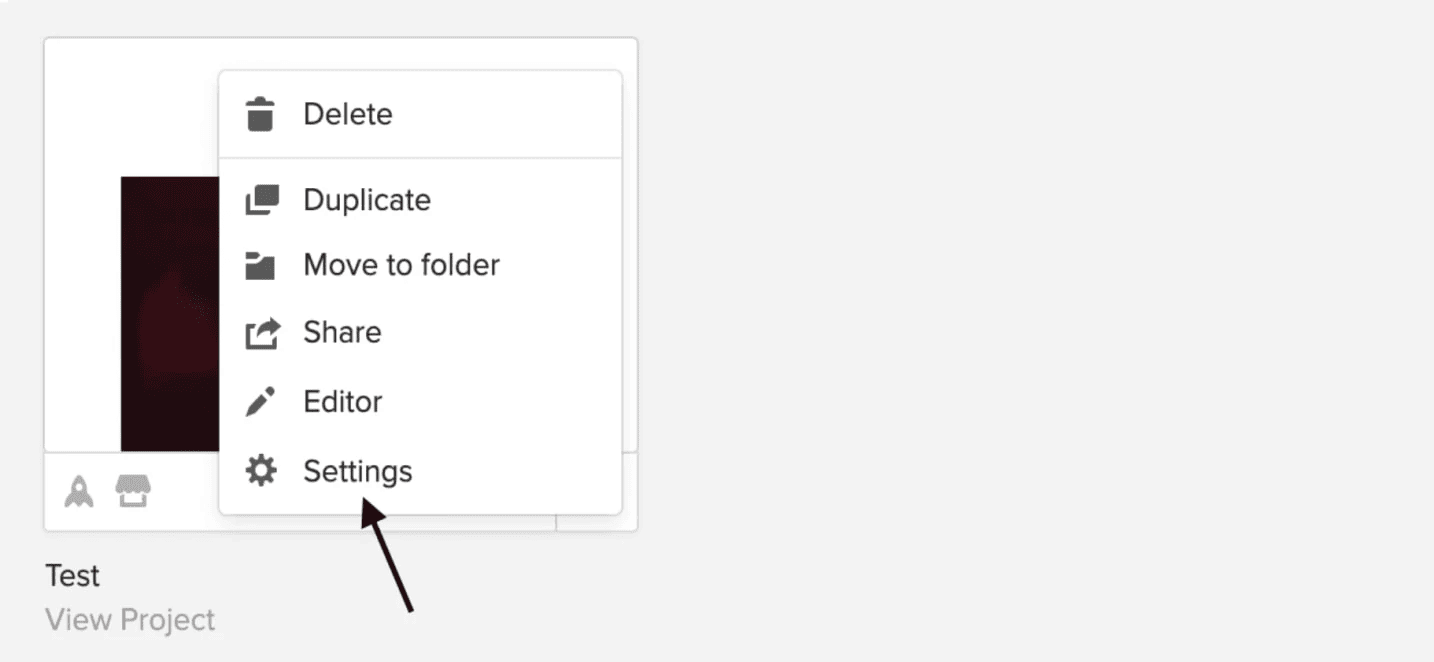
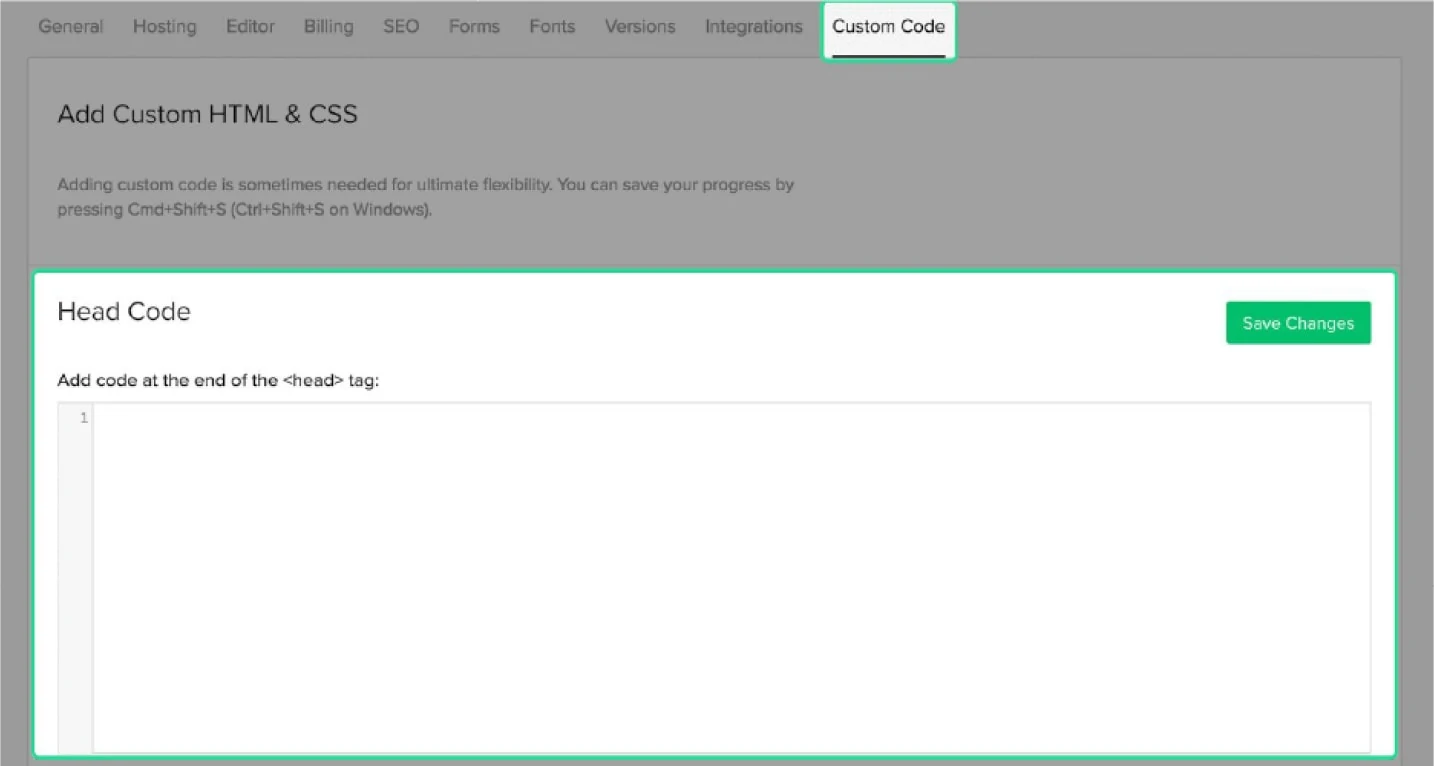
<link>tag and the JavaScript<script>tag. - In dashboard.webflow.com, open your project and click Settings (the gear icon on the project tile), then click the Custom Code tab.
- Paste both Securiti code snippets into the Head Code section. Do not include
<html>,<body>, or<head>wrapper tags. - Click Save Changes, then Publish your site.
The site-wide custom code method provides these capabilities:
- Consent banner appears on every page without per-page configuration
- Auto-blocking intercepts cookie-setting attempts from Google Analytics, Facebook Pixel, HubSpot, and other services before consent
- Securiti re-scans automatically when new cookies are detected, so no code changes are needed when you add new integrations
- All ongoing banner and compliance changes are managed in the Securiti dashboard
Custom code does not execute in preview mode. Test the consent banner on your published site by visiting your production domain and verifying that tracking scripts are blocked before consent and unblocked after consent is granted.
Add Securiti components with Code Embed elements or Google Tag Manager
If you need the consent banner on specific pages only, or if you manage tracking scripts through Google Tag Manager, these two methods offer alternatives to the site-wide approach.
Place the script with a Code Embed element
A Code Embed element lets you add the Securiti script to individual pages rather than site-wide. This is uncommon for consent banners since regulations typically require consent collection on every page, but it can be useful for testing on a single page before rolling out site-wide.
To add the Securiti script via Code Embed:
- Open your site in Webflow and click the Add panel (
+icon in the left toolbar). - Scroll to Components and find Code Embed.
- Drag the Code Embed element onto your canvas.
- Double-click the element to open the code editor and paste your Securiti script.
- Click Save and close, then publish your site.
Code Embed elements have a 50,000-character limit each and only execute on the published site. For site-wide consent coverage, the site settings custom code method is the better choice.
Deploy through Google Tag Manager
Sites already using GTM can load the Securiti banner through a Custom HTML tag instead of Webflow's custom code sections. This approach lets you update Securiti settings in GTM without republishing your Webflow site. Securiti explicitly supports GTM deployment.
To add Securiti via GTM:
- If GTM is not yet installed on your Webflow site, paste the GTM container snippet into Site Settings > Custom Code > Head Code, or use Webflow's Google Tag Manager integration for a code-free setup.
- Log into tagmanager.google.com and select your container.
- Click New Tag, select Custom HTML as the tag type, and paste your Securiti banner JS snippet.
- Set the trigger to All Pages.
- Name the tag (for example, "Securiti Cookie Consent"), then click Save > Submit > Publish.
This method is most useful when GTM already manages the rest of your analytics and advertising stack.
One consideration with GTM deployment: scripts added through Webflow's native Integrations panel load independently and may execute before the CMP initializes. For strict blocking of all tracking scripts, route analytics and advertising tags through GTM rather than Webflow's Integrations panel. Place the Securiti script as the first item in your Head Code section so it initializes before other tracking tags.
Build with the Webflow and Securiti APIs
For teams that need to programmatically deploy consent scripts across multiple Webflow sites, or react to consent decisions with custom client-side logic, the API approach provides full flexibility. This path requires development resources and familiarity with REST APIs and client-side JavaScript.
The available APIs cover different parts of the integration:
- Webflow Data API custom code endpoints handle applying registered scripts to sites or individual pages programmatically
- Webflow's Sites API handles publishing sites after script changes
- Securiti's client-side
postMessageevent system handles consent decision data in the browser - Securiti's REST API may support consent record retrieval and management, but documentation requires authenticated access
In practice, most Webflow teams only need the browser event system or Webflow's custom code endpoints.
Deploy the Securiti script with Webflow Data API custom code endpoints
Webflow's Data API v2 includes endpoints for managing custom code on sites and pages. This is useful for agencies deploying Securiti across many client sites without manual dashboard work.
To deploy the script programmatically:
- Register the Securiti script as a custom code resource using Webflow's custom code registration workflow, with the
custom_code:writescope. - Apply the registered script to a site or specific pages using the Upsert Custom Code endpoint (
PUT /v2/pages/{pageId}/custom-code). - Publish the site using the Publish Site endpoint (
POST /v2/sites/{siteId}/publish). - Verify the script is applied by calling the List Custom Code Blocks endpoint (
GET /v2/sites/{siteId}/custom-code).
This workflow is best suited to repeatable multi-site deployments rather than one-off installs.
All Webflow API calls require Bearer token authentication. Scripts must be registered before they can be applied, with a maximum of 800 registered scripts per site.
Listen for consent decisions with the postMessage event
Securiti's consent banner communicates visitor decisions through the browser's window.postMessage API. You can use this to conditionally load scripts based on which cookie categories a visitor accepted.
To implement consent-aware script loading, add this code to your site's Head Code section in Site Settings > Custom Code:
<script>
window.addEventListener('message', function (ev) {
  if (ev.data.message === 'consent_given') {
    ev.data.consentStatuses && Object.keys(ev.data.consentStatuses).forEach(function (category) {
      if (ev.data.consentStatuses[category]) {
        if (category === 'Analytics') {
          // dynamically inject analytics script
        }
        if (category === 'Advertising') {
          // dynamically inject advertising pixel
        }
      }
    });
  }
});
</script>
The consent_given event fires when a visitor submits a consent decision. The consentStatuses object contains category names as keys (such as "Analytics" or "Advertising") with boolean values indicating acceptance. For GTM users, the official Securiti GTM integration provides a version of this script that pushes userPrefUpdate events to the GTM dataLayer.
This event listener is useful when you want custom script behavior after the visitor has made a choice.
What you can build with the Securiti Cookie Consent Webflow integration
Integrating Securiti Cookie Consent with Webflow lets you deploy regulation-compliant consent management across your site without building custom consent infrastructure or manually auditing cookies.
- Multi-region marketing site with geo-targeted consent: Build a Webflow site that serves an opt-in GDPR banner to EU visitors and a CCPA opt-out notice to California visitors automatically, using Securiti's reverse IP detection within a single script deployment.
- Google Ads-compliant landing pages: Create ad landing pages on Webflow that maintain Google Consent Mode v2 compliance for EEA/UK visitors, preserving conversion modeling and remarketing capabilities through Securiti's Google-certified CMP status.
- Branded privacy center with DSR intake: Add a Securiti-hosted data subject request form to a Webflow privacy policy page using an iframe embed (
privacy-central.securiti.ai/#/dsr/{your-account-uuid}), giving visitors a way to submit access or deletion requests alongside the cookie consent banner. - Agency-managed consent across client sites: Use Webflow's custom code endpoints to programmatically deploy the Securiti script across multiple client sites, then manage all banner styling, cookie categories, and compliance rules from the Securiti dashboard without touching Webflow again.
If you need more control over consent event handling or multi-site deployment automation, the API integration path covers those cases with full flexibility.
Frequently asked questions
No. Webflow does not include a native consent management tool. Any Webflow site using analytics, advertising pixels, or third-party tracking needs an external CMP. Securiti is listed in Webflow's integrations directory as a cookie consent solution that works with Webflow through custom code injection.
Yes. Adding the Securiti script requires access to custom code in head and body tags, which is only available on paid Webflow site plans. Free Starter plans cannot use custom code. The Securiti script goes in the Head Code section of your site settings, and changes only take effect after publishing.
No. Webflow's native interactions, scroll animations, hover effects, and click triggers are powered by Webflow's own JavaScript runtime. These do not set tracking cookies and are not classified as non-essential scripts. Securiti only blocks third-party tracking tools like Google Analytics, Meta Pixel, LinkedIn Insight Tag, and HubSpot tracking code until a visitor grants consent.
Yes. Securiti uses reverse IP detection to serve region-appropriate consent experiences from a single script installation. EU visitors see an opt-in GDPR banner, California visitors see a CCPA opt-out notice, and visitors from other jurisdictions see the appropriate local requirement. Configuration for all regions happens inside the Securiti dashboard, not in Webflow.
Yes. Securiti is Google-certified for Consent Mode v2, which became mandatory in March 2024 for sites running Google Ads targeting EEA users. Without a certified CMP, remarketing and conversion tracking capabilities may be restricted. For Webflow sites using Google Ads or GA4, place the Securiti script as the first item in your Head Code section so consent signals initialize before Google tags load. The Securiti GTM integration guide covers the specific setup for sites using Google Tag Manager.
Description
Securiti Cookie Consent adds a compliant consent banner to Webflow through a single script in site settings. Auto-blocks tracking scripts before consent, adapts to each visitor's privacy regulation, and requires no code changes for ongoing compliance updates.
This integration page is provided for informational and convenience purposes only.

Consent Pro by Finsweet
Connect Consent Pro with Webflow to manage cookie consent and privacy compliance directly inside your Webflow project.

Axeptio
Connect Axeptio, a consent management platform, with Webflow to add customizable cookie consent banners and block tracking scripts until visitors opt in.

DataGrail Consent
Connect DataGrail Consent with Webflow to manage cookie consent and stay compliant with GDPR, CCPA, and other privacy regulations.
Clawdia AI
Generate legal documents like privacy policies, terms of service, and client contracts without hiring a lawyer for every template. Clawdia AI provides contract drafting, document generation, and legal guidance specifically for US-based small and medium-sized businesses. Set up your Clawdia AI and Webflow integration by installing the Clawdia AI app from the Webflow Marketplace. This link-based integration opens Clawdia's external dashboard where you generate documents, export them as PDFs, and upload them to Webflow CMS Collections or static pages.
Flowstar Age Verification
Connect Flowstar Age Verification with Webflow to add age verification gates to sites for alcohol, cannabis, tobacco, or adult content.

Osano Cookie Consent
Implement GDPR and CCPA-compliant cookie consent on your Webflow site with Osano's powerful consent management platform, enabling automatic cookie blocking, customizable consent banners, and comprehensive compliance reporting without coding.

Iubenda Privacy & Cookie Policy
Automate privacy compliance for your Webflow site with Iubenda's comprehensive privacy and cookie policy solutions. Generate GDPR, CCPA, and LGPD-compliant policies, display customizable cookie banners, and manage user consent — all without complex coding.

Openli (formerly Legal Monster)
Connect Openli (formerly Legal Monster) with Webflow to hold back tagged tracking scripts until visitors consent and keep an audit trail of each consent.

iubenda
Related integrations
Get started for free
Try Webflow for as long as you like with our free Starter plan. Purchase a paid Site plan to publish, host, and unlock additional features.
