






Enhancement
Designer
Pan and zoom for pages
Pan and zoom now work for pages the way they do in every modern design tool. Move across large pages, inspect details up close, and reset to the default view in one click.
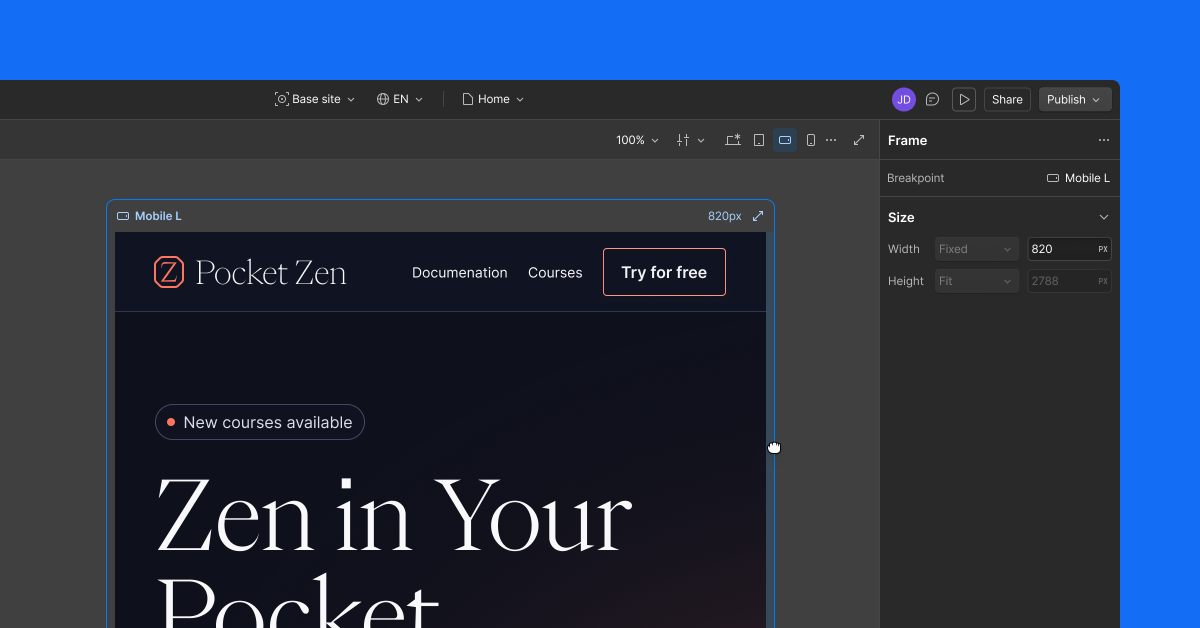
Pan and zoom now work for pages the way they do in every modern design tool. Move across large pages, inspect details up close, and reset to the default view in one click.
Getting started
The canvas scrolls top to bottom by default, the way it always has. Click the new icon on the canvas bar to enable pan, zoom, and frame width resize. Click again to return to scrolling.

Pan
Hold spacebar and drag, use middle-mouse drag, or scroll with two fingers on a trackpad. The cursor changes to a grab / grabbing state so the mode is always visible.
Zoom
Cmd/Ctrl + scroll or pinch to zoom. Or use the zoom dropdown at the top of the canvas to jump to 50%, 100%, or 200%. Selection, editing, and rendering stay reliable at every zoom level.
Resize the frame width
Drag the frame edge to resize. Frame height resize isn't in this release.
Same gestures across canvases
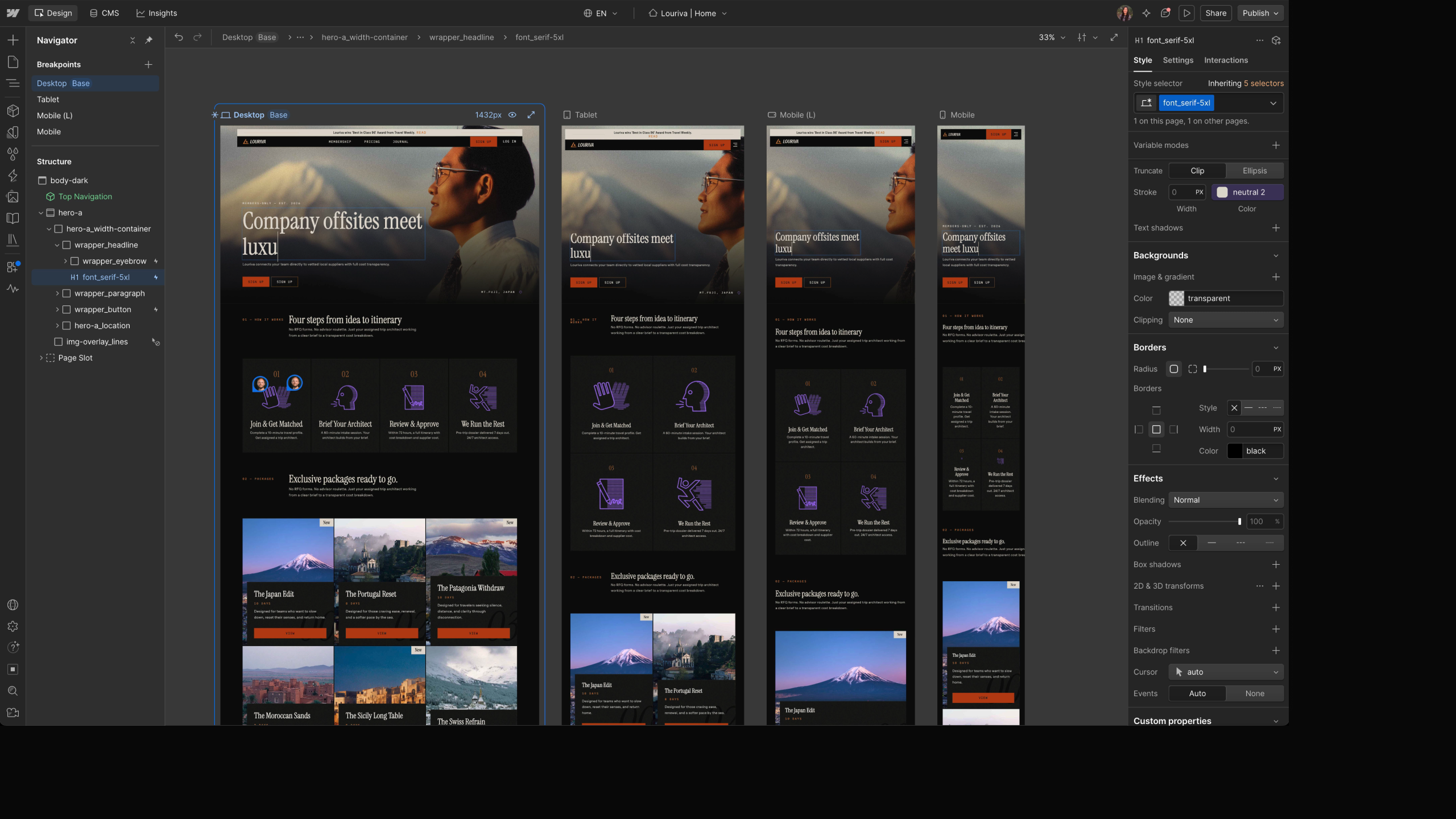
Pan and zoom work the same way on the page canvas and the component canvas.
Why we built this
Pan and zoom is the foundation for a more modern canvas in Webflow.
Available across Design, Build and Edit modes. Not available in Preview or Comment modes.
Related updates
.png)
.png)




















Get started for free
Try Webflow for as long as you like with our free Starter plan. Purchase a paid Site plan to publish, host, and unlock additional features.
Try Webflow for as long as you like with our free Starter plan. Purchase a paid Site plan to publish, host, and unlock additional features.