






Zuko
Connect Zuko, a form analytics platform, with Webflow to track where visitors abandon your forms and increase completion rates.

Native form submissions tell you who finished, but not who quit on the phone number field or got stuck on a dropdown. Zuko closes that gap by recording every field interaction on your Webflow forms, surfacing exactly when, where, and why visitors abandon them.
Connect Zuko to your site for field-level drop-off data, completion rates over time, and individual session paths. Install it with a no-code app or tracking script. It's ideal for CRO specialists, agencies running analytics across client sites, and growth marketers optimizing lead gen and demo request forms.
How to integrate Zuko with Webflow
What is Zuko? Zuko is a form analytics and session replay platform that shows product and UX teams how visitors interact with online forms and checkouts. Optimization teams use it to analyze field-level metrics like abandonment points and time-on-field. It also tracks field returns, then surfaces the data in overview stats and funnel reports, plus summaries of when, where, and why visitors abandon forms. Zuko is GDPR compliant and transmits no PII, with a tracking script around 6 KB served from an AWS CDN.
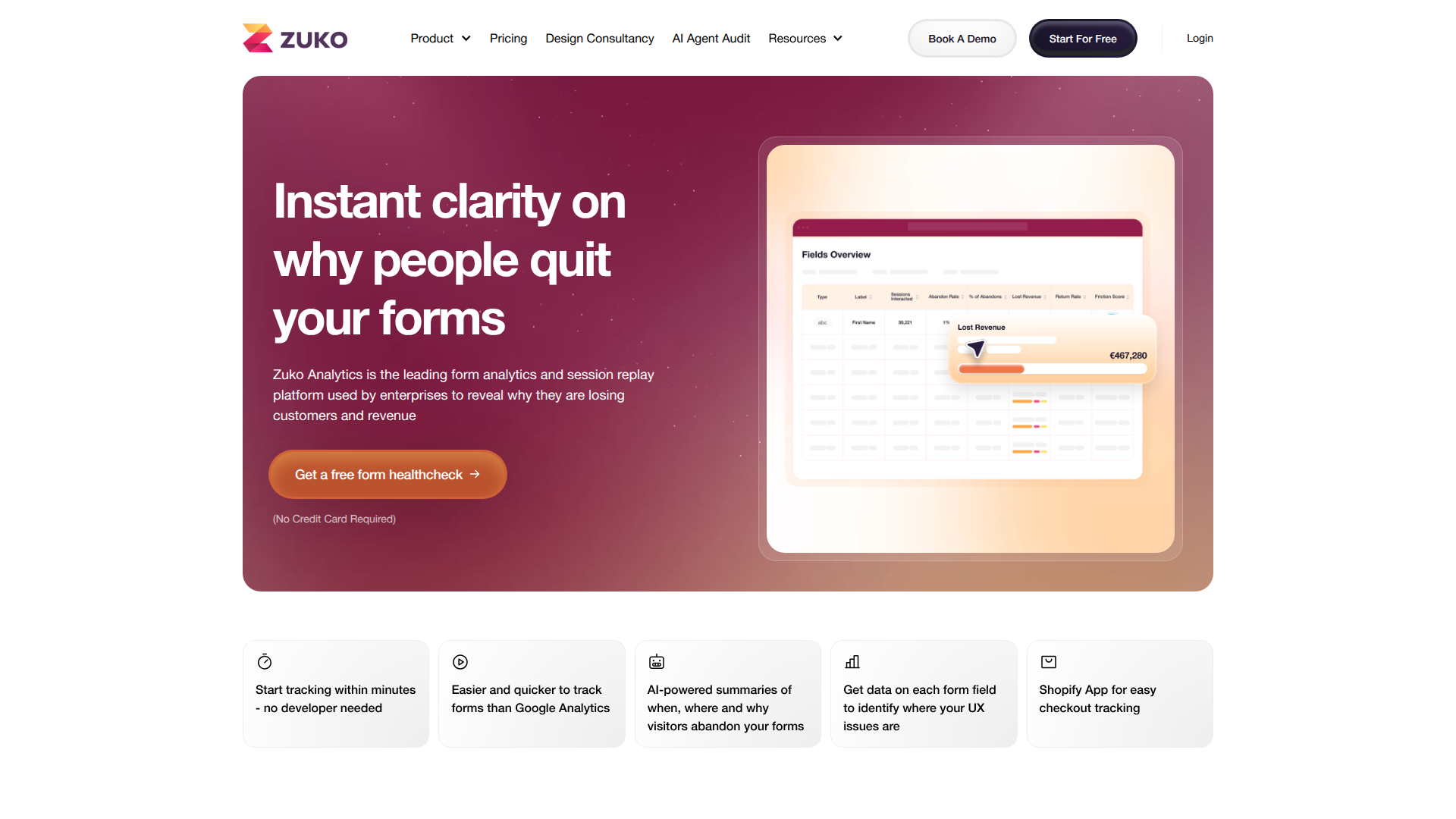
Reach for Zuko alongside your Webflow forms when submissions stall and the native submission data cannot explain why. A lead gen form might get plenty of visits but few completions. Zuko shows which field drives the drop-off so you can fix it in the Designer and measure the result.
Choose the setup path based on how much control you need:
- The Zuko Webflow app installs tracking on your forms without writing code.
- Custom tracking scripts let you place Zuko's Activity and Completion codes through the custom code fields or Google Tag Manager.
- The Data API and Zuko Sessions API give you full control over correlating submission and session data, but require server-side development.
Most implementations use the app for setup, then add the API path only when you need custom dashboards or CMS syncs.
Install the Zuko Webflow app
The Zuko Form Analytics app is the no-code path and the right choice for most site owners. You pick a form element on the canvas, enter a Form ID from your Zuko account, and tracking starts. You do not edit scripts or manage a GTM container. You do not need a developer. The app is reviewed for the Marketplace and maintained by Zuko Analytics.
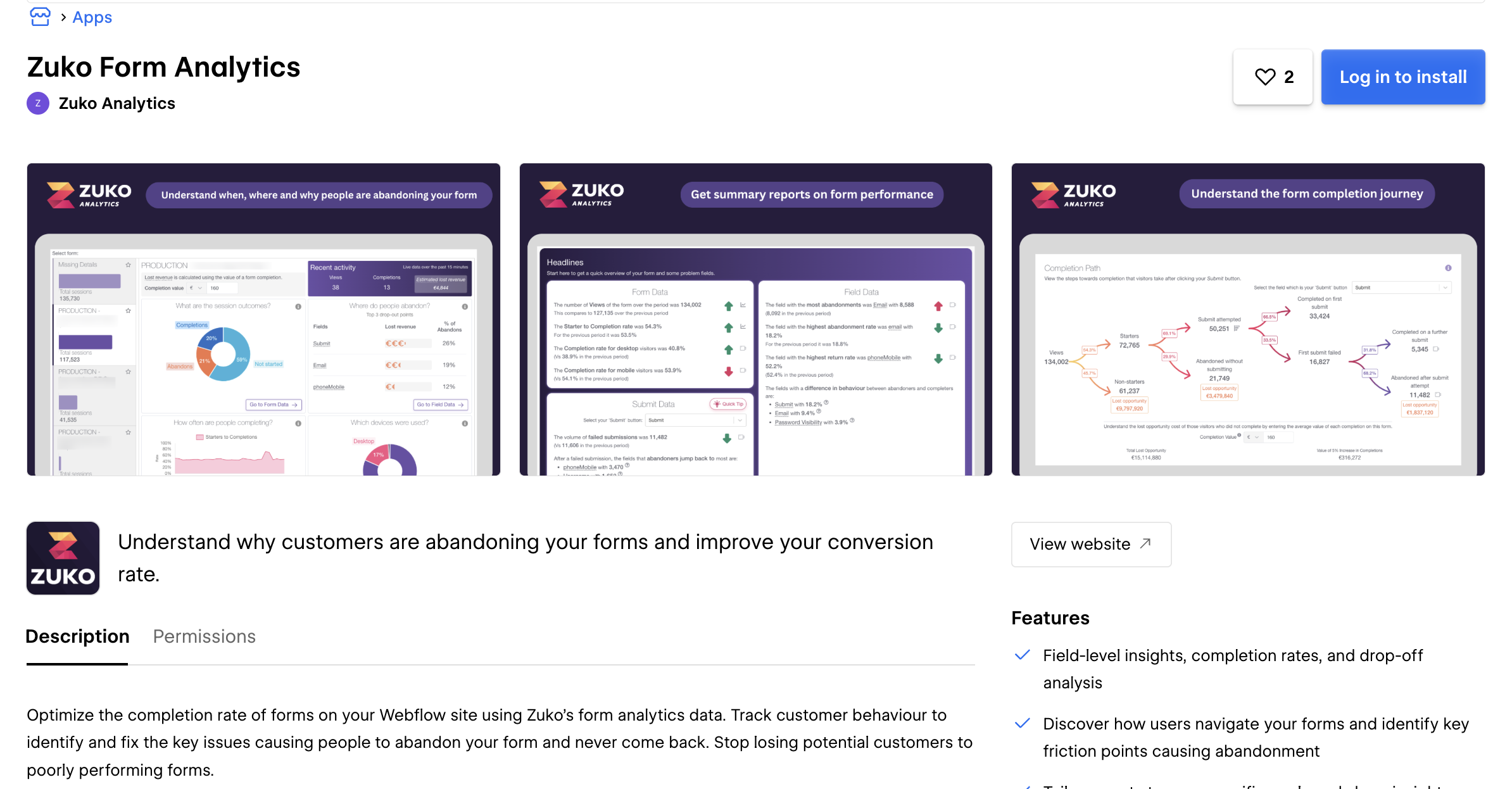
To set up the integration:
- Search for the Zuko app in the Marketplace and launch it.
- Click the form element you want to track. Select the parent form element.
- Enter your Form ID from your Zuko account's Edit Form section.
- Click the blue button to finish.
To get the Form ID, sign up or log in to Zuko, add your form, create a form label, save, then copy the Form ID from Edit Form. Once you install the app, the integration gives you:
- Field-level insights showing which fields visitors abandon
- Completion rates and drop-off analysis over any time period
- No-code access to Zuko reports from your forms
Do not add the tracking code again through any other method after installing the app. A second installation double-counts every session. Start with a free Zuko account to test on your forms and upgrade later for access to all features and reports.
Add Zuko tracking with custom code
Use the custom code method when you want manual control over how and when Zuko's tracking fires, or when you already manage scripts through Google Tag Manager. This path uses two snippets. The Activity code tracks all field interactions and fires when the form becomes visible. The Completion code tracks successful submissions and fires when you consider the form submitted. You need a paid plan for this method, since free and Starter sites cannot use custom code.
Paste scripts into Webflow custom code fields
Add Zuko's two tracking scripts directly to your site through the Custom code in head and body tags fields. Site-wide placement covers every page, while per-page placement targets a single form.
To add tracking site-wide:
- Go to Site settings > Custom code tab.
- Paste the Activity code into the Head code section.
- Add the Completion code where it fires on successful submission, then save changes.
To add tracking to a single page, open Page settings > Custom code and use the Inside <head> tag or Before </body> tag fields. For an inline option, add a Code Embed element to the canvas, paste your code, then save and close. Custom code effects appear in preview mode only after you publish the site.
Install through Google Tag Manager
Google Tag Manager works as a client-side alternative when you manage tags outside the Designer. Zuko supports GTM installation with two Custom HTML tags, one for the Activity code and one for the Completion code. Follow Zuko's GTM setup guide for the trigger configuration.
To install via GTM:
- Create a Custom HTML tag for the Activity code, set to fire when the form becomes visible.
- Create a second Custom HTML tag for the Completion code, set to fire on successful submission.
- Publish the GTM container.
For forms hidden until a button click, fire the Activity code when the form becomes visible. Page-load firing records views that never happened.
Build with Webflow and Zuko APIs
Take the API path when you need to correlate submission records with Zuko session behavior or sync analytics into the CMS. It requires server-side development. Zuko's API is read-only and pull-based, so every workflow follows the same shape. A Webflow event triggers your service, which then queries Zuko for matching session data.
The available APIs handle different parts of the flow:
- The Zuko Sessions API handles read-only export of session and form data via
GET https://egress.api.zuko.io/sessions - The Data API handles form submissions and CMS collections
- Webhooks trigger real-time events using the
form_submissiontrigger type
Authenticate Zuko requests with the X-Api-Key header. Note that Zuko emits no webhooks of its own, so you cannot push data out of Zuko.
Trigger a Zuko session pull on form submission
This pattern queries Zuko reactively each time a form is submitted. You register a webhook, validate incoming events, then pull the matching session from Zuko.
To implement this:
- Register a webhook with
POST https://api.webflow.com/v2/sites/{site_id}/webhooks, using theform_submissiontrigger and afiltertargeting the form name. You need thesites:writescope. - On webhook receipt, validate the request using the
x-webflow-signatureandx-webflow-timestampheaders. - Query the Zuko Sessions API at
GET https://egress.api.zuko.io/sessionswith the matchingform_uuidand atime[from]/time[to]range drawn from the webhook'ssubmittedAtvalue.
You can register up to 75 webhooks per trigger type per site, which is enough for most form analytics setups.
Sync Zuko data into Webflow CMS
Since Zuko has no outbound webhooks, syncing analytics into the CMS requires a scheduled polling job. Your service pulls from Zuko on a timer and writes the results into a CMS collection. Keep in mind that CMS item limits vary by plan. The CMS plan allows 2,000 items and the Business plan allows 10,000, so plan your retention window against your collection's item capacity.
To implement this:
- Poll Zuko with
GET https://egress.api.zuko.io/sessions, passing theform_uuid, a time window, and anyinclude[]flags you need. - Write a staged item with
POST https://api.webflow.com/v2/collections/{collection_id}/items, or publish immediately withPOST https://api.webflow.com/v2/collections/{collection_id}/items/live. - Update existing records with
PATCH https://api.webflow.com/v2/collections/{collection_id}/items/{item_id}/live.
You can then render the synced metrics on your site from the collection and display Zuko data inside your pages.
What can you build with the Zuko Webflow integration?
Integrating Zuko with Webflow lets you find and fix form friction without guessing which field drives abandonment.
- Field-level abandonment maps: Track exactly which input causes drop-off on a lead gen form. Beyond Clicks Insurance removed one problematic field and raised submissions from 26.96% to 32.16%, a 19% conversion uplift.
- Multi-step funnel reports: Measure progression and abandonment between stages of a multi-step form. Single-URL flows track as one form, while separate pages chain tracking codes across each step using the multi-step form guide.
- Segmented form analysis: Filter completion data by device, browser, or custom attributes like A/B test variant. Pull mobile-only sessions with
filters[deviceType]=mobileto compare how a checkout form performs across devices. - CMS-backed analytics dashboards: Poll the Zuko Sessions API and write daily completion metrics into a CMS collection. You can then display those metrics on your site to show stakeholders form performance without leaving the page.
If you need more control over correlating raw session data with submission records, the API integration path covers those cases with full flexibility.
Frequently asked questions
You can install Zuko through the no-code Webflow app or by adding tracking code manually. The app is the recommended path for most users and needs no developer. The manual route places Zuko's Activity and Completion scripts through Webflow's custom code fields or Google Tag Manager. Zuko's Webflow install guide walks through both. Whichever you choose, do not combine them, since double installation double-counts sessions.
It depends on the installation method. The custom code method requires a paid Webflow plan; the app documentation does not state that requirement. Free and Starter Webflow sites cannot use custom code, so the manual script and GTM routes require an active Site plan or a Core, Growth, Agency, or Freelancer Workspace. The custom code documentation covers the plan eligibility details.
Fire the Activity code when the form becomes visible. If a form stays hidden until a button click, page-load firing records views that never happened and skews your metrics. The installation knowledge base explains the visibility timing for hidden and revealed forms.
Webflow does not always reflect a form field's
Namesetting in submission data, so Zuko may mislabel fields. The fix is a custom attribute. Select the form input element in Webflow, open the element settings panel, and add a custom attribute withName = data-nameandValueset to your field name, then publish. This community thread documents the workaround.
Description
Track field-level drop-off on Webflow forms using Zuko's no-code app or custom tracking scripts. See exactly which fields cause abandonment and where visitors quit.
This integration page is provided for informational and convenience purposes only.

Adblock Detector
Connecting Adblock Detector with Webflow lets you identify visitors using ad blockers, measure adoption rates, and display alternative content.
Void Analytics
Connect Void Analytics, a privacy-focused analytics tool, with Webflow to track page views and visitor behavior without cookies or personal data collection.
Census
Connect Census, a reverse ETL platform, with Webflow to sync data from your cloud warehouse directly to CMS collections and automate content updates.

Mixpanel
Connect Mixpanel with Webflow to turn site interactions into funnel analysis and attribution reports; session replays add behavioral context.
Yoast SEO
Yoast SEO is a WordPress-only plugin and cannot run on Webflow, but you can replicate its core functionality through Webflow's native SEO tools, third-party marketplace apps, and custom code.

Google Ads
Connect Google Ads, Google's advertising platform, with Webflow to create Performance Max campaigns, install conversion tracking, and report on ad performance without leaving Webflow.

Google Reviews
Connect Google Customer Reviews, a Merchant Center ratings program, with Webflow to display verified store ratings and post-purchase survey opt-ins on your e-commerce pages.
BigQuery
Connect BigQuery, Google Cloud's serverless data warehouse, with Webflow to stream form submissions and orders for SQL analysis using automation or the APIs.

WooRank
Connect WooRank with Webflow to score pages for SEO issues and fix the flagged settings before rankings move.
Related integrations
Get started for free
Try Webflow for as long as you like with our free Starter plan. Purchase a paid Site plan to publish, host, and unlock additional features.
