






Wix
Connect Wix, a website building platform with built-in business tools, with Webflow to embed Wix Bookings pages, sync Wix Stores products to CMS collections, and route form submissions to Wix CRM.

Pair pixel-perfect design and a flexible CMS with Wix's backend for bookings, ecommerce, and CRM. Embed Wix Bookings pages in an iFrame, sync Wix Stores products into the Webflow CMS, and route form submissions to Wix Contacts through automation.
This fits agencies juggling both platforms, service businesses that want more design control over Wix Bookings, and ecommerce operators running Wix Stores behind a marketing site. If you're building custom middleware for bidirectional sync, documented API patterns for both platforms are below.
How to integrate Wix with Webflow
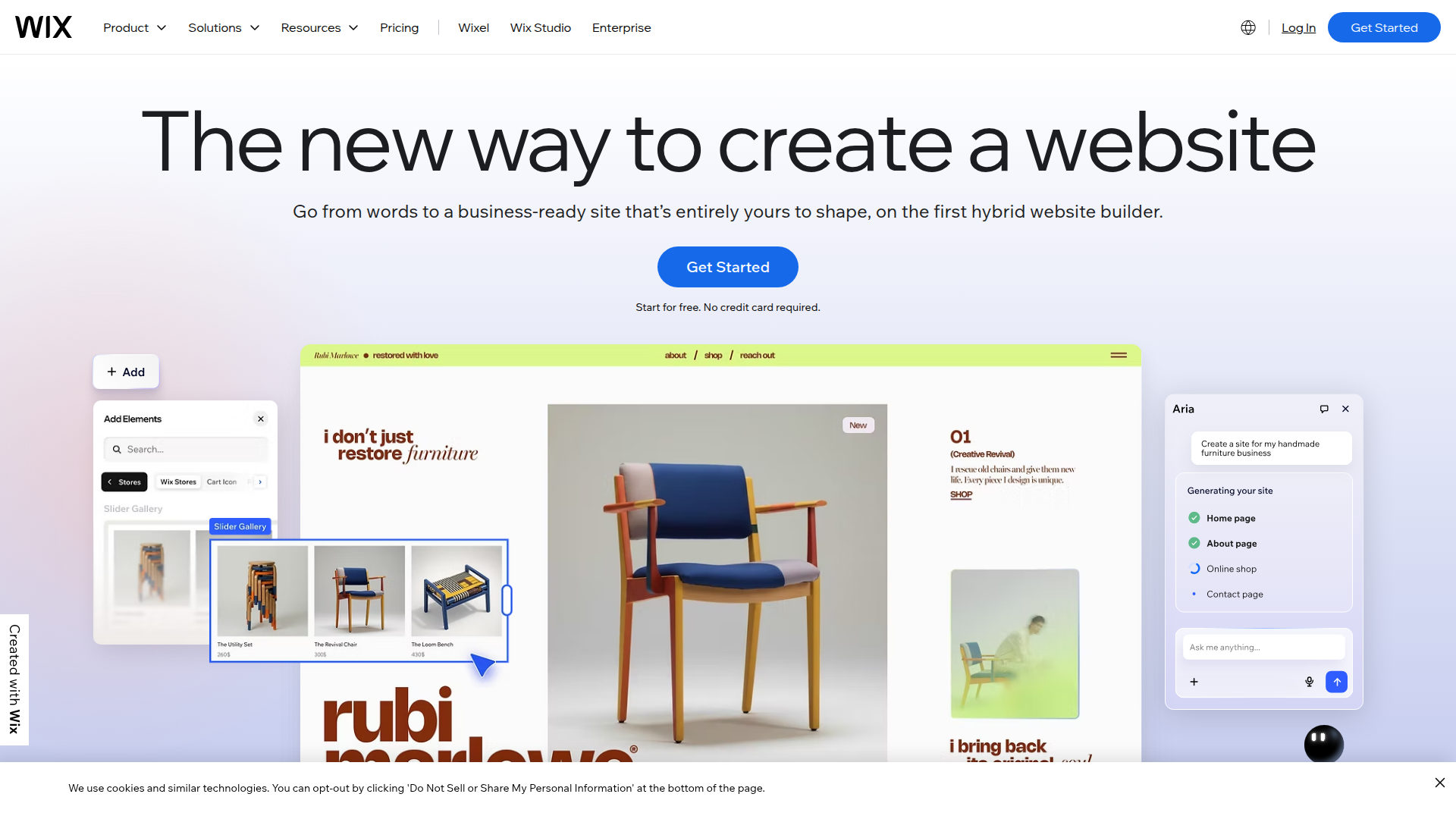
What is Wix? Wix is a website building platform that combines design tools with business solutions, including ecommerce, online bookings, CRM, blog publishing, and event management. It has three product surfaces: Wix for individuals and small businesses, Wix Studio for agencies and freelancers, and Wix Enterprise for large-scale deployments. Wix also offers a headless architecture that makes its backend services available as standalone REST APIs consumable by any external front end.
You'd combine the two platforms when you want visual design and CMS capabilities for the front end while retaining Wix's operational tools for bookings, payments, inventory, or contact management. This combination is common during phased migrations, where both platforms run simultaneously, and in setups where Wix handles transaction processing that isn't offered natively here.
You can connect Wix and Webflow in three ways:
- Code Embed elements and custom code injection let you embed Wix booking pages, pay link widgets, and other content directly into your pages without a backend.
- Zapier automations route data between Wix triggers and actions for CMS items, orders, and form submissions.
- The Webflow and Wix REST APIs give you direct control over bidirectional data sync, custom booking flows, and CMS management, but require server-side development.
Most implementations combine two or more of these methods depending on the complexity of the setup.
Embed Wix content with Code Embed elements
No Wix app exists in the Marketplace, and no native integration connects the two platforms directly. You can bring Wix functionality into a page through Code Embed elements and custom code in head and body tags. These methods work for embedding Wix Bookings pages in an iFrame, adding Wix Pay Link widgets, and injecting page-specific or site-wide scripts. To use any custom code method, you need a paid site plan, or a Core, Growth, Agency, or Freelancer Workspace plan.
Before choosing an embed method, note what Wix actually provides for external embedding. Wix Pay Links is the only Wix feature with an officially documented HTML embed code for external sites. Wix Bookings, Forms, Events, and Smart Chat do not generate standalone embed scripts. You can load Wix Bookings pages in an iFrame using the page URL, but Wix's security headers may block iFrame rendering on standard plans.
Embed a Wix page with an iFrame
Embed a Wix Bookings page or Wix Store page inside a defined content area on your page. The Wix page loads inside an iFrame element, and the Wix session and checkout flow remain intact.
To embed a Wix page:
- Confirm your Wix site is published, live, and the target page is publicly accessible (not password-protected).
- Copy the full HTTPS URL of the Wix page from your browser's address bar. HTTP URLs will not display per Wix's embed requirements.
- Click the Add Elements (+) icon on the left panel.
- Drag a Code Embed element (
</>) onto your canvas. - Double-click the Code Embed element to open the code editor.
- Paste the following, replacing the URL with your Wix page URL:
<iframe
  src="https://yourdomain.wixsite.com/yoursite/booking"
  width="100%"
  height="800px"
  frameborder="0"
  style="border:none; overflow:hidden;">
</iframe>
- Click Save & Close, then publish your site.
Code Embed elements only render on the published live site, not in the Designer preview. iFrame-embedded content is not responsive even if the source page is, and search engines do not index iFrame content as part of the host page. Test on your published site, because Wix security headers may block iFrame rendering on some plans. Always test on the live site before launch.
Add a Wix Pay Link widget
Wix Pay Links generate an HTML embed code you can paste directly into a Code Embed element. This is the only Wix feature with a confirmed external embed output.
To add a Wix Pay Link:
- In your Wix Dashboard, go to Pay Links.
- Create a new Pay Link or open an existing one.
- Click Share, then select HTML embed.
- Copy the generated HTML code.
- Add a Code Embed element to your page.
- Double-click to open the code editor, paste the Wix-generated code, and click Save & Close.
- Publish your site.
A Pay Link widget renders a payment button or form on your page, with the transaction processed through Wix's PCI DSS Level 1 certified payment environment. This is the simplest Wix embed option documented for external sites.
Inject custom code site-wide or per page
For scripts that should load on every page, like a third-party chat widget, use site-wide custom code injection. For page-specific embeds, like a booking widget on your /book-now page only, use page-level injection.
To add site-wide code:
- Open Site Settings by clicking the gear icon.
- Click the Custom Code tab.
- Paste your script in the Footer Code section.
- Click Save Changes, then publish your site.
To add page-specific code:
- In the Pages panel, click the gear icon next to the target page name.
- Scroll to the Custom Code section.
- Paste your code in the Before
</body>tag field. - Click Save, then publish.
Each code section supports up to 50,000 characters. Note that Wix Chat has been deprecated and replaced by Wix Smart Chat, which does not have a documented external embed script. For chat functionality, use standalone tools like Tidio, Crisp, or Intercom that provide JavaScript embed snippets. In practice, custom code injection works best for tools that already provide external snippets.
Use dynamic CMS URLs in Code Embed elements
When multiple CMS items each need their own Wix Bookings URL, for example different service providers with separate Wix booking pages, you can pull the URL dynamically from a CMS field.
To set up dynamic embeds:
- Create a CMS collection with a URL field (for example,
wix_booking_url) for each item's Wix page URL. - On the collection template page, add a Code Embed element.
- In the code editor, place your cursor inside the
src=""attribute of an iFrame tag. - Click the purple dot to open the connect menu.
- Choose your CMS URL field (
wix_booking_url). - Click Save & Close, then publish.
The correct URL is injected per Collection List item at publish time. The Code Embed must be on a collection page or inside a Collection List for this to work, per the dynamic embed documentation. Use this setup when each CMS item points to a different Wix destination.
Connect Wix and Webflow with Zapier
No direct native integration exists between the two platforms. Automation platforms route data between them when specific events fire. Zapier is the most accessible option, with two pre-built Wix-to-Webflow templates and actions for creating or updating CMS items.
These tools handle data routing only. They cannot render Wix UI elements inside your pages, and they do not support sub-second sync latency. Use them for CMS item creation, contact syncing, and order tracking rather than visual embedding.
Zapier connects Wix events to actions such as:
- Create Item, Create Live Item, Update Item, Update Live Item
- Fulfill Order, Update Order
- Find Item, Find Live Item
- API Request (Beta)
Zapier is the main no-code path for moving data from Wix into your site without custom middleware.
To set up a Zapier automation:
- Go to zapier.com and click Create Zap.
- Set the trigger app to Wix and choose an event (for example, New Form Submission).
- Authenticate your Wix account.
- Set the action app to Webflow and choose an action (for example, Create CMS Item).
- Authenticate your account and select the target site and collection.
- Map the Wix form fields to the corresponding CMS fields.
- Test the Zap and activate it.
Use this method for event-based sync without custom middleware.
Build with the Webflow and Wix APIs
For use cases that exceed what automation templates support, such as bidirectional CMS sync, custom booking interfaces, or real-time product catalog mirroring, the REST APIs for both platforms give you direct control. This path requires server-side development. Wix API keys placed in client-side code are publicly visible in browser source, so route all authenticated API calls through a server-side proxy (Cloudflare Workers, Vercel Edge Functions, or AWS Lambda).
Use these APIs for the main parts of the integration:
- Wix Stores API is for product catalog reads, inventory management, and order processing
- Wix Bookings API is for service listings, availability queries, and booking creation
- Wix Contacts API is for CRM contact creation and management
- Wix Data Items API is for reads and writes to Wix CMS collections
- The Data API is for CMS collections and form submissions
- Webhooks trigger real-time events between systems
These APIs cover the main backend services involved in most Wix-Webflow builds.
All Wix endpoints use the base URL https://www.wixapis.com with Bearer token authentication. The Data API uses https://api.webflow.com/v2/ with a site token or OAuth 2.0. Your middleware server authenticates with both platforms independently, receives events via webhooks, transforms data between schemas, and writes to the target platform.
Sync Wix products to the Webflow CMS
Wix is rolling out Catalog V3, and each site supports either V1 or V3 (not both). Your middleware should detect the catalog version first to avoid silent failures.
To implement product sync:
- Call the Wix Catalog Versioning endpoint to detect the active version:
GET https://www.wixapis.com/stores/catalog-versioning/v1/catalog-version
Authorization: Bearer <ACCESS_TOKEN>
- Query products from Wix using the correct version. For V3:
POST https://www.wixapis.com/stores/v3/products/query
Authorization: Bearer <ACCESS_TOKEN>
Content-Type: application/json

{
  "query": {
    "paging": { "limit": 100, "offset": 0 }
  }
}
- Write each product to your CMS as a live item:
POST https://api.webflow.com/v2/collections/{collection_id}/items/live
Authorization: Bearer <WEBFLOW_TOKEN>
Content-Type: application/json

{
  "isDraft": false,
  "isArchived": false,
  "fieldData": {
    "name": "Product Name",
    "slug": "product-slug",
    "product-price": 49.99
  }
}
- Register a Wix webhook for product updates pointing to your middleware's callback URL. When a product changes in Wix, your middleware receives the event and patches the corresponding CMS item.
Map Wix fields to your CMS fields in middleware: product.name to fieldData.name, product.slug to fieldData.slug, product.priceData to a number field, and product.media[0].url to an image field. Store the Wix product.id in a text field for deduplication. The bulk update limit is 100 items per request, so batch large catalogs accordingly. In Catalog V3, inventory is managed separately through the /stores/v3/inventory-items endpoints. This keeps product display aligned with Wix as the system of record.
Route Webflow form submissions to Wix CRM
When a visitor submits a form on your site, a webhook can send that data to your middleware, which then creates a contact in Wix CRM.
To implement form-to-CRM sync:
- Create a webhook for form submissions:
POST https://api.webflow.com/v2/sites/{site_id}/webhooks
Authorization: Bearer <WEBFLOW_TOKEN>

{
  "triggerType": "form_submission",
  "url": "https://your-middleware.com/webhooks/webflow-form"
}
- In your middleware, parse the incoming webhook payload and extract form field values (name, email, phone).
- Create a Wix CRM contact using the Contacts V4 API:
POST https://www.wixapis.com/contacts/v4/contacts
Authorization: Bearer <WIX_API_KEY>

{
  "info": {
    "name": { "first": "Jane", "last": "Smith" },
    "emails": { "items": [{ "tag": "MAIN", "email": "jane@example.com" }] },
    "phones": { "items": [{ "tag": "MAIN", "phone": "555-987-6543" }] }
  }
}
The info object must include at least one of email, phone, or name. By default, Wix rejects duplicate emails. Set allowDuplicates: true if you want to create contacts regardless. Form submissions are stored independently of webhook delivery, so you can use the Forms API as a fallback to retrieve any submissions missed during webhook downtime. Use this fallback to move lead data into Wix CRM.
Build a custom Wix Bookings interface
Instead of embedding a Wix Bookings page in an iFrame, you can build a fully custom scheduling UI on your site that talks to Wix Bookings through the API.
To implement a custom booking flow:
- Query available services from Wix:
GET https://www.wixapis.com/bookings/v2/services
Authorization: Bearer <ACCESS_TOKEN>
- Check availability for a selected service:
POST https://www.wixapis.com/bookings/v2/availability/query
Authorization: Bearer <ACCESS_TOKEN>
- Create a booking using an OAuth visitor token (Wix Headless requires only a client ID for this flow):
POST https://www.wixapis.com/bookings/v2/bookings
Authorization: Bearer <VISITOR_OAUTH_TOKEN>

{
  "booking": {
    "selectedPaymentOption": "ONLINE",
    "bookedEntity": {
      "slot": {
        "serviceId": "service-id",
        "startDate": "2026-06-01T10:00:00.000Z"
      }
    }
  }
}
Check the response for booking.doubleBooked: true, which indicates a scheduling conflict. Set skipBusinessConfirmation: true in the request body if you want bookings to auto-confirm without manual review. This approach gives you full control over the scheduling UI and avoids the iFrame reliability issues with Wix's security headers.
Implement bidirectional CMS sync
Syncing content in both directions between Wix CMS and your collections requires change-origin tracking to prevent infinite update loops. When your middleware writes to your CMS in response to a Wix change, the webhook fires for that same change. Without origin tracking, the middleware processes it again and writes back to Wix. That creates an endless cycle.
To prevent this, tag each write with its source:
// Mark that this Webflow change came from our Wix sync
SYNC_ORIGINS.add(`webflow:${itemId}`);

// In Webflow webhook handler, skip if we initiated it
if (SYNC_ORIGINS.has(`webflow:${itemId}`)) {
  SYNC_ORIGINS.delete(`webflow:${itemId}`);
  return res.status(200).json({ skipped: 'sync-origin' });
}
For read-heavy operations, use the Content Delivery API (api-cdn.webflow.com) instead of the standard API. Cached CDN responses do not count against your API limits. On the Wix side, use the Data Items API at /wix-data/v2/items/query and /wix-data/v2/items for reads and writes. The Wix Data Items API requires that the site's code editor is enabled, or API calls will return errors. Origin tracking keeps a two-way sync stable over time.
What can you build with the Wix Webflow integration?
Integrating Wix lets you keep operational services on Wix while handling the brand experience here, without rebuilding functionality that already works.
- Service booking pages with custom design: Embed a Wix Bookings page on a service page using a URL-based iFrame through a Code Embed element (note: Wix security headers may block this, so always test on the published live site), or build a fully custom scheduling UI that queries the Wix Bookings API for availability and creates bookings through your middleware. A fitness studio could display class schedules and accept reservations on their site while Wix handles instructor calendars and payment processing.
- Product catalog sync for brand showcase sites: Mirror your Wix Stores product catalog into CMS items using API middleware or Zapier automations. A consumer goods brand could manage inventory and transactions in Wix Stores while displaying products with custom layouts, animations, and editorial content on their marketing site.
- Lead capture with CRM routing: Route form submissions to Wix Contacts through a Zapier Zap or webhook-based middleware. An agency could run parallel sites on both platforms for different clients and funnel all leads into a single Wix CRM pipeline, with automated labeling based on which form the visitor completed.
- Cross-platform content publishing: Sync blog posts or content items from Wix CMS to your CMS collections using the Data Items API and the Data API. A media company could let editorial teams publish through Wix's familiar interface while the front-end renders through your CMS templates with full design control.
The front end can stay customer-facing while Wix continues to run operations behind the scenes.
If you need more control over real-time data sync, custom checkout flows, or complex multi-service booking logic, the API integration path covers those cases.
Frequently asked questions
Yes, through iFrame embeds in Code Embed elements, but with significant constraints. Wix Pay Links is the only Wix feature with an officially documented HTML embed code for external sites. Wix Bookings pages can be loaded via iFrame using the page URL, but standard Wix plans cannot configure X-Frame-Options or CSP headers, which means Wix's security settings may block the embed. Always test on your published Webflow site, since Code Embed elements do not render in the Webflow preview. Wix Forms, Events, and Smart Chat do not provide external embed codes.
iFrame-embedded content is not indexed as part of the host page. Product descriptions, blog posts, or booking details loaded in an iFrame from Wix will not contribute to your Webflow page's search signals. Per Wix's own documentation, Google Analytics and search engines may not work properly with embedded Wix sites. If SEO visibility of that content matters, sync it into Webflow CMS items through the API or Zapier instead of embedding it.
No. No Wix app or Wix-built integration exists in the Webflow Apps directory. The two platforms are direct competitors with separate ecosystems. All integrations between Wix and Webflow are indirect, using Code Embed elements, automation platforms like Zapier, or custom API middleware.
Not securely. Webflow has no native server-side execution environment, so any Wix API key placed in a Code Embed element or custom code block is publicly visible in the browser source. All authenticated Wix API calls from a Webflow site must route through a server-side proxy, such as a Cloudflare Worker, Vercel Edge Function, or AWS Lambda function, that holds the API key and forwards requests to
https://www.wixapis.com. For simpler data routing that does not require custom code, use Zapier's Wix and Webflow integration instead. This keeps credentials off the client side.Webflow publishes an official migration guide for the process. Store products can be exported from Wix for import into Webflow, but blog posts cannot be exported directly from Wix. The migration guide frames the process as a complete platform transition. If you need to keep Wix services running during migration, for example Wix Bookings while you rebuild the front end, use the embed or API methods described above to maintain functionality on both platforms simultaneously.
Description
Wix adds bookings, e-commerce, and CRM capabilities to Webflow through iframe embeds via Code Embed elements, Zapier for data routing, or the Wix REST APIs for bidirectional product sync and custom booking flows.
This integration page is provided for informational and convenience purposes only.

Vault Vision User Authentication
Connect Vault Vision with Webflow to add passwordless login, social sign-in, and per-page access control to any Webflow site without backend code.
Integrately
Connect Integrately with Webflow to automate form submissions, CMS updates, and e-commerce orders across 1,500+ apps without writing code.
ScheduleFlow
Connect ScheduleFlow with Webflow to publish sites and CMS collections at a set date and time. Install the OAuth app, choose your sites, and set a schedule.
Auth0
Connect Auth0, an identity and access management platform, with Webflow to add login, signup, and content gating to static sites through the SPA SDK, Lock widget, automation platforms, or direct API integration.
Neon
Connect Neon, a serverless Postgres database, with Webflow to store, query, and sync relational data that exceeds what the Webflow CMS supports natively.

Relay.app
Connect Relay.app with Webflow to automate form routing, CMS publishing, and order fulfillment with human-in-the-loop approval steps.
Sass
Write and compile Sass directly in Webflow with live preview, code autocompletion, and minified CSS output using the free Sass app.

Publish Pilot
Connect Publish Pilot with Webflow to automate [CMS item publishing](https://help.webflow.com/hc/en-us/articles/33961307099027-Intro-to-the-Webflow-CMS), draft or archive actions, timed element changes, and full-site publishes.
Pipedream
Connect Pipedream, a developer-facing workflow automation platform, with Webflow to automate CMS updates and route e-commerce orders through event-driven workflows, with Node.js or Python available in any step when the pre-built actions run out.
Related integrations
Get started for free
Try Webflow for as long as you like with our free Starter plan. Purchase a paid Site plan to publish, host, and unlock additional features.
