






ScheduleFlow
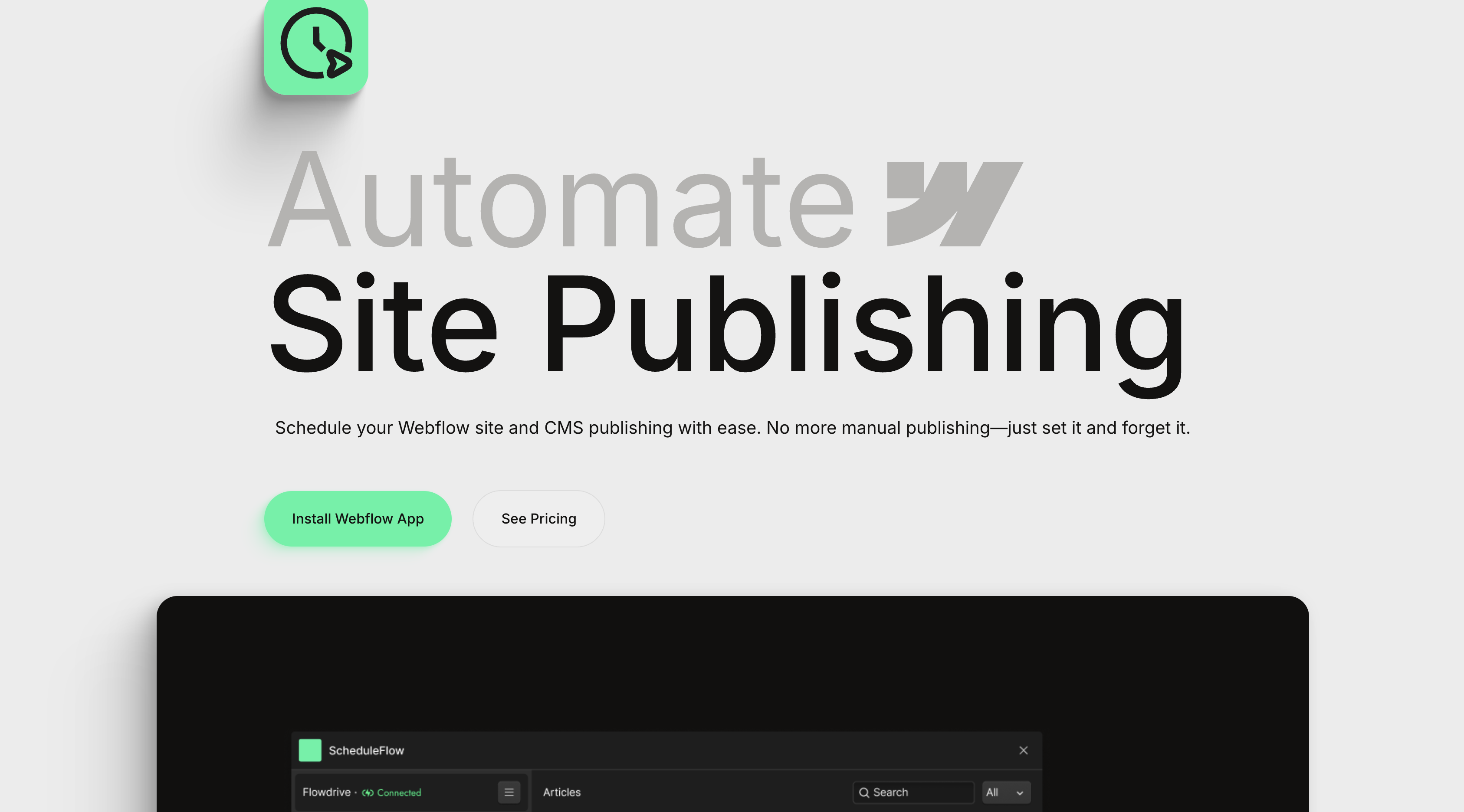
Connect ScheduleFlow with Webflow to publish sites and CMS collections at a set date and time. Install the OAuth app, choose your sites, and set a schedule.

Without a scheduler or a custom API workflow, publishing commonly depends on someone clicking Publish. That click happens when someone is available, not when the content should go live. Off-hours posts inherit that constraint, as do timed launches and maintenance across multiple client sites. ScheduleFlow takes the click off a person's calendar.
Connect ScheduleFlow to Webflow, and you set a date and time for each site or CMS publish. The app authorizes through OAuth, then calls the publish API on your behalf when the time comes. It handles full-site publishes and CMS item publishes across multiple sites from one account.
Webflow designers and agencies use it to keep client sites current without babysitting publish buttons. Content creators and bloggers queue posts, landing pages, and CMS updates ahead of time. Marketers plan product launches and promotions, including seasonal updates, without last-minute publishing. Anyone managing a Webflow site who is tired of manual publishing fits the same profile.
How to integrate ScheduleFlow with Webflow
What is ScheduleFlow? ScheduleFlow is a Webflow app that schedules site and CMS collection publishing in advance. Its Marketplace listing names Manuel Ogomigo, a Webflow Partner and the maker of Flowdrive, as the builder. It installs from the Webflow Apps Marketplace as an OAuth app with read and write access to CMS and site data, including publishing.
Teams pair the two when the moment a change goes live matters as much as the change itself. Editors finish drafts in Webflow on their own schedule and set the go-live time separately in ScheduleFlow. The app runs entirely on the backend, so it adds no front-end load to published pages. Publishing queues for several client sites sit in one account instead of several browser tabs.
The integration supports two approaches. The ScheduleFlow app handles scheduled site and CMS publishing from its own UI without writing code, while the Webflow Data API gives you control over staging content and reacting to publish events, at the cost of server-side development. Most sites need only the app; developers add the API path when publishing has to plug into a wider pipeline.
Install the ScheduleFlow app
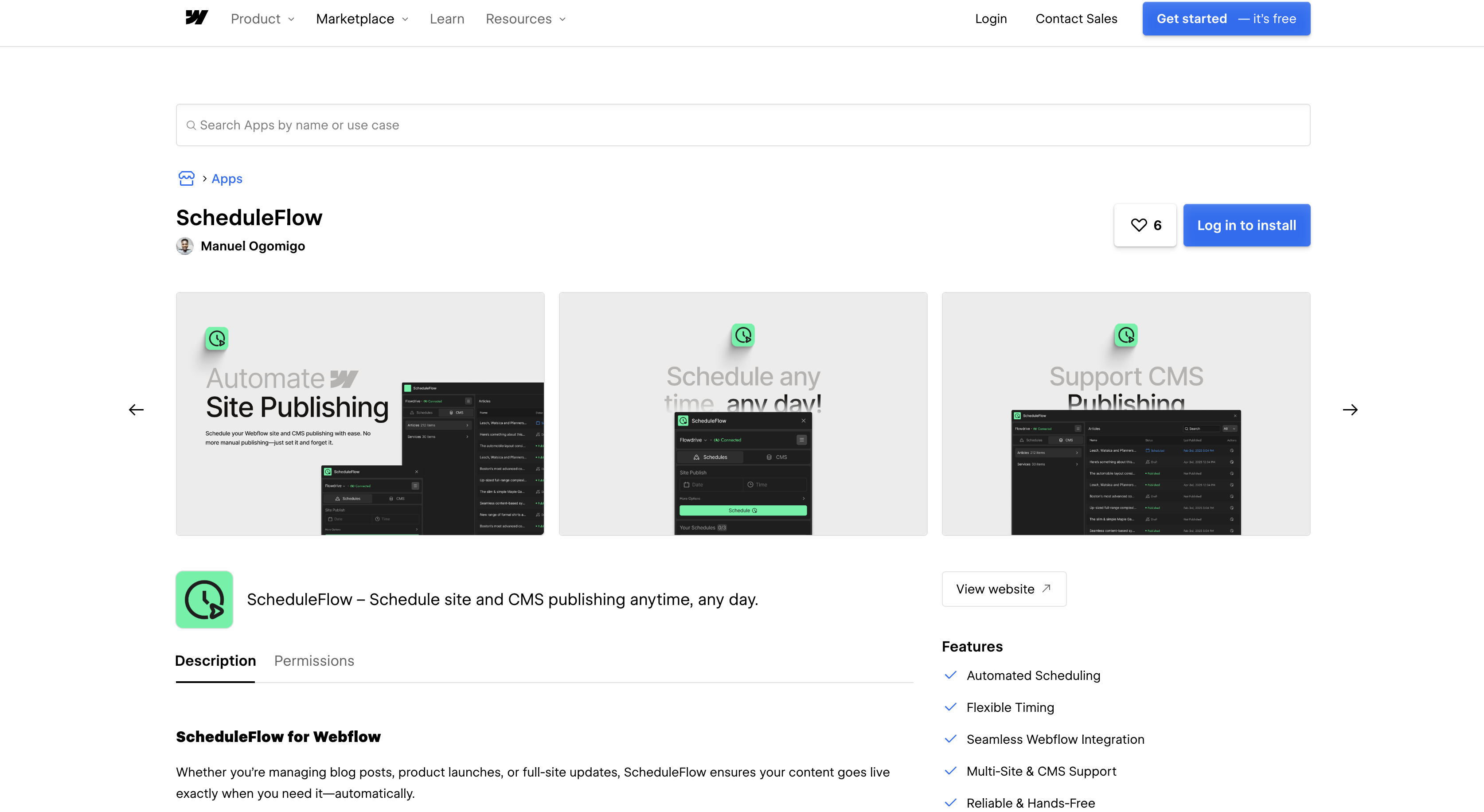
The ScheduleFlow app is the only way to connect ScheduleFlow to Webflow. It installs through the Webflow Apps Marketplace with an OAuth authorization. You need a Webflow account with at least one site you are allowed to authorize. The listing carries an Enhanced Security badge and sits in the Utilities and Automation categories. Designers and marketers can run the setup without a developer, as can agency staff.
To set up the integration:
- Open the ScheduleFlow site and click Install Webflow App.
- Log in and authorize the requested OAuth permissions.
- Select the sites you want to connect and configure your publishing schedules.
The authorization screen requests eight scopes:
- CMS data:
cms:readandcms:writelet the app read your collections and create, update or delete items in them. - Site data and publishing:
sites:readandsites:writecover reading site details and triggering the publish itself. - Site configuration:
site_config:readandsite_config:writecover settings such as custom code and redirects. - Site activity:
site_activity:readexposes the site activity log. - Authorized user:
authorized_user:readidentifies the person who granted access.
Write access to CMS items and to site configuration is broad, so connect only the sites you want the app to manage. Once a site is connected, you set a date and time and the app triggers the publish automatically.
Build with the Webflow Data API
Developers use Webflow's Data API v2 to stage content and fire publishes from their own systems, and Webflow webhooks let those systems react when a scheduled publish lands. ScheduleFlow publishes no public API, documents no outbound webhooks, and has no listing in Zapier's app directory. The base URL is https://api.webflow.com/v2, and every request carries a Bearer token in the Authorization header. API v1 was deprecated on March 31, 2025, so build against v2 only. Keep tokens on a server. A Code Embed element runs HTML and CSS alongside browser-side JavaScript and cannot run server-side languages.
Four surfaces are available on this path:
- Webflow Data API: the CMS endpoints list and read CMS collections, and the sites endpoints handle site publishing.
- Webflow webhooks: Webflow webhooks push events to your endpoint, with 14 trigger types including
site_publishandcollection_item_published. - Webflow MCP server: Webflow's MCP server exposes the same ground to an AI client, with
create_collection_itemsstaging drafts andpublish_sitepushing them live. - ScheduleFlow: its OAuth app calls the publish endpoint on your behalf, and there is no ScheduleFlow developer API through which a third party can reach that call.
Plan to own the debugging on this path, because Webflow support leaves custom code and third-party integrations to the people who built them.
Stage CMS items for a ScheduleFlow-timed publish
Create items as staged drafts through the API, then let ScheduleFlow publish the collection at the scheduled time. This fits content that originates outside Webflow, in an internal tool or a migration script, but still needs a human-chosen go-live moment.
To stage items:
- List the site's collections with
GET https://api.webflow.com/v2/sites/{site_id}/collections, then fetch field definitions withGET https://api.webflow.com/v2/collections/{collection_id}. - Create staged items with
POST https://api.webflow.com/v2/collections/{collection_id}/items, orPOST https://api.webflow.com/v2/collections/{collection_id}/items/bulkfor up to 100 items per request. Both need thecms:writescope. - Revise with
PATCH https://api.webflow.com/v2/collections/{collection_id}/items, up to 100 items per request, until the content is final. - In ScheduleFlow, schedule a CMS publish for that collection at the go-live time.
A minimal create request needs only fieldData.name and fieldData.slug:
{
  "fieldData": {
    "name": "Spring launch recap",
    "slug": "spring-launch-recap"
  }
}
Items remain staged until ScheduleFlow or another manual/API publishing action publishes them. If you need to publish a batch without ScheduleFlow, POST https://api.webflow.com/v2/collections/{collection_id}/items/publish accepts an itemIds list, or items[].id with optional items[].cmsLocaleIds.
React to scheduled publishes with Webflow webhooks
Use a Webflow webhook if another system needs a publish event. The site_publish and collection_item_published trigger types call your endpoint when content goes live. ScheduleFlow does not document outbound webhooks. Your handler can then purge a CDN cache or kick off a build in another system.
To register a webhook:
- Call
POST https://api.webflow.com/v2/sites/{site_id}/webhookswith thesites:writescope, the trigger type, and your endpoint URL. - Confirm registration with
GET https://api.webflow.com/v2/sites/{site_id}/webhooks, which needssites:read. - Return a success response promptly; a failed call is retried 3 times at 10-minute intervals.
- Remove stale endpoints with
DELETE https://api.webflow.com/v2/webhooks/{webhook_id}.
Each site allows up to 75 webhooks per trigger type, and webhooks created through site settings with a site token after April 14, 2025 each have their own secret key. If you would rather own the timer as well, POST https://api.webflow.com/v2/sites/{site_id}/publish with sites:write is the publish API ScheduleFlow calls on your behalf. That endpoint queues one successful publish per minute, so a burst of sites publishes in sequence rather than all at once.
What you can build with the ScheduleFlow Webflow integration
Integrating ScheduleFlow with Webflow lets you publish sites and CMS collections at a chosen date and time without someone standing by to click Publish.
- Off-hours editorial calendar: Queue blog posts and case studies, along with landing pages, to publish at 6 AM on weekdays. The morning post is live before the writer is awake.
- Embargo-timed launch pages: Stage a product launch page and schedule a full-site publish for the exact embargo minute. The publish fires even if no one is at their computer when it does.
- Multi-client publishing from one account: A marketing agency managing ten client blogs can batch-schedule a week of posts in one session, then return to design work.
- Seasonal and promotional pages: Schedule a Black Friday or seasonal promotion page to publish at a precise time. The promotion goes live without depending on someone being online at launch.
Use the Data API to stage content before a publish and Webflow webhooks to react after it lands. For the staging half, start with the Webflow CMS API guide.
Frequently asked questions
No. ScheduleFlow authorizes over OAuth and calls the publish API from its own backend, so visitors' browsers never load ScheduleFlow code. Every scope it requests is a Data API scope, and none of them place a script on a published page. You add no Code Embed element and paste nothing into head and body tags.
Both. ScheduleFlow requests the
cms:read,cms:write,sites:readandsites:writescopes at install, which cover CMS item writes and site publishing alike. Create and edit the collections themselves from the CMS tab in Webflow; the Manage CMS Collections guide walks through that.No. ScheduleFlow is a content-publishing scheduler and does not appear in the Marketplace's scheduling category. For visitor-facing appointment booking on a Webflow site, browse the Marketplace Scheduling category, which lists apps such as FlowBookings and Bookla. ScheduleFlow has no booking pages or visitor-facing widgets and stores no availability data.
ScheduleFlow runs no docs site or help center:
/docs,/helpand/apion its domain all return 404, and the Marketplace listing gives a support email rather than a support URL. The listing itself holds the feature list and the full permission set, and the Webflow Data API reference covers the developer path.ScheduleFlow installs at Workspace access level, so you revoke it from the Workspace, not from one site. Open the Account dropdown, choose the Workspace, go to Workspace settings, Integrations tab, Authorized applications, then click Revoke next to the App. That removes its access for every site in that Workspace.
Description
Schedule Webflow site and CMS collection publishes for a future date and time through the ScheduleFlow Marketplace app. Authorize once with OAuth, set a schedule, and ScheduleFlow calls the publish API for you.
This integration page is provided for informational and convenience purposes only.

Google Docs
Connect Google Docs with Webflow to embed live documents, sync content to CMS Collections, or build custom API publishing pipelines.

Zapier
Connect Zapier with Webflow to automate form routing, CMS updates, and ecommerce order processing across 7,000+ apps.

Airtable
Connect Airtable with Webflow to publish base records as CMS items and route form submissions back into Airtable.

Pipe dream
Connect Pipedream with Webflow to turn form submissions and CMS changes into automated workflows across thousands of connected apps. Orders can trigger workflows too.

Smartarget Contact Us
Connect Smartarget Contact Us with Webflow to add a floating multi-channel contact widget that lets visitors reach you on WhatsApp, Telegram, email, and 12+ messaging platforms.
CMS Bridge
Connect CMS Bridge with Webflow to sync Airtable records to your CMS collections with record-level control over content states and publishing.
Osmo SVG Import
Connect Osmo SVG Import with Webflow to add fully editable SVG elements to your site without character limits or manual code editing.
Telegram Chat - Contact Us
Connect Telegram Chat - Contact Us to your Webflow site to add a floating Telegram chat widget that lets visitors message you directly from any page.
Form Fields Pro
Connect Form Fields Pro with Webflow to add advanced input types, including searchable selects, date pickers, number range pickers, and file uploaders, to native Webflow forms.
Related integrations
Get started for free
Try Webflow for as long as you like with our free Starter plan. Purchase a paid Site plan to publish, host, and unlock additional features.
