






Webflow Templates from Creative Market
Connect Webflow Templates from Creative Market with Webflow to turn a purchased template ZIP into a live, editable Webflow site.

A template purchased on Creative Market arrives as a ZIP download outside your Webflow dashboard. Creative Market provides no app in the Webflow App Marketplace or automatic import. Getting from a purchased file to an editable site takes a manual handoff that neither platform documents end to end.
The handoff is short once you know where to look. Sellers use clone links and Webflow project files; some provide redemption codes that install the design in your Workspace in a few clicks. From there, the site behaves like any other Webflow project, with full access to the Webflow CMS, custom code, and the Data API.
Creative Market's category page speaks to Webflow designers and freelancers building business sites. Freelancers reach for templates to deliver client work on tight budgets and timelines, and in-house marketers use them to launch campaign pages without booking developer time. Licensing is the catch: a premium template covers one site, so a second client project means a second purchase.
How to integrate Webflow Templates from Creative Market with Webflow
What are Webflow Templates from Creative Market? Creative Market is a third-party marketplace where independent designers sell Webflow templates, separate from the official Webflow Template Marketplace. Its Webflow templates category listed 608 products in August 2026, ranging from single landing pages to CMS-driven multi-page sites. Every purchase is delivered as a ZIP archive containing the seller's installation artifacts and documentation.
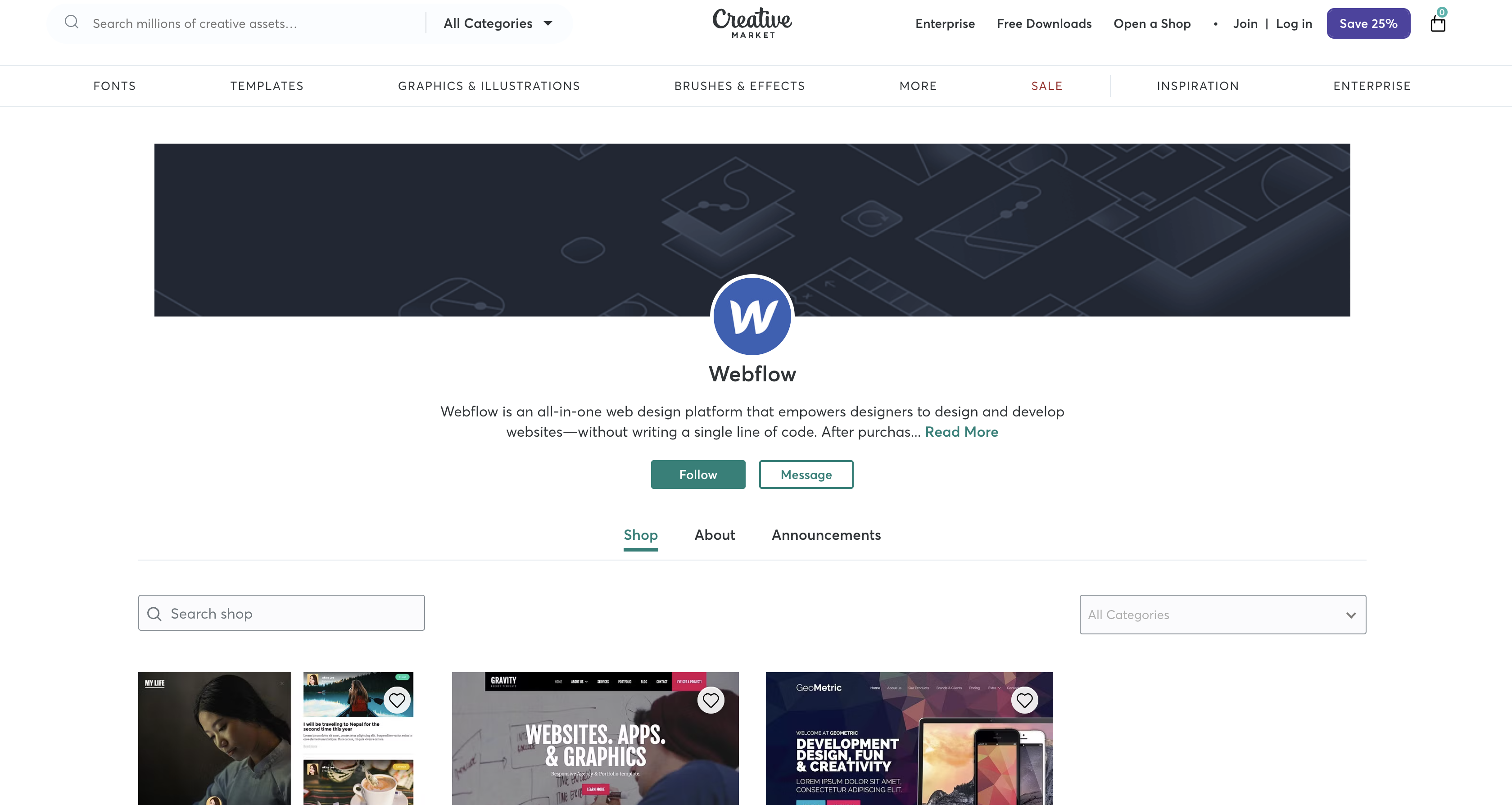
Teams reach for these templates when the timeline beats custom design work. Listings include the Gravity agency template, Taskco for SaaS startups, Goma for restaurants, and Mycad for architecture studios. Some, such as Gravity, include CMS Collections for blogs, work, and team pages, so the real work after installation is loading your own content.
The Creative Market-Webflow integration supports these approaches:
- The clone or redeem path uses the clone link or redemption code inside the ZIP to install the template in your Workspace without writing code.
- The CSV import and Code Embed path loads your own content into the template's Collections and adds the third-party widgets a template does not ship with.
- The Webflow Data API path gives programmatic control over the template's CMS content, forms, and publishing, and it needs server-side development.
Most implementations combine two or more of these methods depending on the complexity of the setup.
Clone or redeem the template in your Workspace
This is the primary integration path, and it is manual. Buy the template, then open your Creative Market Purchases page. Click the download icon (↓) next to the item. You can also click Download Now on the product page while logged in. Creative Market does not email download links, so every download runs through the confirmation page or your account. What you find inside the ZIP depends on the seller:
- A direct clone link: the Mycad architecture template ships one next to a Figma UI kit, so the site lands in your Workspace in a single step.
- A Webflow project file: Optune lists a Webflow project file ready to clone or publish alongside its Framer and Figma sources.
- A redemption on Webflow: Webflow-branded listings such as Gravity are redeemed on webflow.com after purchase rather than cloned from a link.
- Seller documentation: most archives add setup instructions, and some add companion Figma files you can edit alongside the build.
No universal delivery format exists across listings, so use the Preview the Files link at the bottom of each listing to check the contents before buying.
Use the clone link
The clone flow copies the full template site into your Workspace as a new, editable site.
To clone a purchased template:
- Unzip the download and open the seller's documentation to find the clone URL.
- Click Clone in Webflow from the clone link.
- Choose the Workspace.
- Click Create site, name the site, then click Create site again.
If a listing mentions code components, ask the seller before buying: sites that use them cannot be cloned.
Redeem a Webflow-branded template
Webflow-branded templates sold through the Webflow shop on Creative Market work differently. The Gravity listing states the template "can be redeemed for free on Webflow after purchase." Its redemption instructions still point at a retired help article, so start the redeemed template from your Webflow dashboard instead.
To create the site:
- Go to your dashboard and click New site.
- Choose Template, then check Purchased.
- Hover over the template and click Select.
- Name your site and click Create site.
A free Starter Workspace is enough to start customizing either way; publishing constraints come later, at the domain and page-count level.
Import CMS content and add Code Embed elements
A cloned template arrives with its structure; you add your content. Templates may include CMS Collection structures displayed through Collection list elements, but you have to add the content yourself. Two low-code tools inside Webflow cover most of the setup work. CSV import loads content in bulk, either linking and updating matching items or adding every row as a new item, and a Code Embed element adds third-party widgets the template does not include.
Import content with a CSV file
CSV import is the fastest way to move an existing blog, portfolio, or product list into the Collections of a cloned template.
To import a CSV:
- Open the CMS panel, choose the Collection, and click Import.
- Drag in your CSV file. The limit is 4 MB.
- Confirm whether the first row is a header.
- Choose Link and update matching items or Import all as new items.
- Map CSV columns to Collection fields and click Import.
Stay in Webflow until every item finishes importing, and note that updating items through CSV import does not apply to Ecommerce items.
Add third-party widgets with Code Embed
Code Embed elements accept HTML and CSS inside <style> tags. They also accept JavaScript inside <script> tags, up to 50,000 characters per element. Server-side languages such as PHP, Python, and Ruby do not run. You need an active Site plan or a Core, Growth, Agency, or Freelancer Workspace.
To add a widget:
- Drag a Code Embed element onto the template page.
- Paste the widget's HTML,
<style>, or<script>code. - Publish the site to make the embedded code live.
For site-wide scripts such as analytics, add the snippet once under Site settings > Custom code using custom code in head and body tags instead of repeating an embed on every page.
Build with the Webflow Data API
The programmatic side of this integration lives entirely in Webflow because Creative Market publishes no public API or webhooks. A site built from a Creative Market template is a standard Webflow site with full access to the Data API v2 at https://api.webflow.com. Authenticate with a site token for single-site work. For multi-site integrations, build a Data Client App with OAuth. This path requires server-side development.
Template-built sites can use Data API v2 endpoints for CMS writes and external data delivery:
- Bulk item creation: the bulk item endpoint stages up to 100 items per request, which suits large content migrations.
- Event delivery: Webflow webhooks push form submissions and CMS events to your backend as signed HTTPS POSTs.
- Cached reads: the content delivery endpoints at
api-cdn.webflow.comserve read-only CMS data, and cached responses do not count against your plan's rate limits. - Schema changes: the Create Collection Field endpoint adds one field at a time to a template's Collection, so settle the schema before a large import.
The two walkthroughs below cover the migration and the form routing that template-built sites need most.
Bulk-load content into template Collections
When a CSV is too small or too manual, the API moves large content sets into a template's Collections directly. Your token needs the CMS:write scope for every write call.
To bulk-load content:
- Call
GET /v2/sites/{site_id}/collectionsto find the target Collection ID. - Call
GET /v2/collections/{collection_id}and map your source columns to the schema'sfieldDatakeys. - Chunk rows into batches of 100 or fewer and send each batch to
POST /v2/collections/{collection_id}/items/bulk. The endpoint returns HTTP 202. - After review, publish with
POST /v2/collections/{collection_id}/items/publishand anitemIdsarray. The response returnspublishedItemIdsanderrorsarrays.
Items created through the staged endpoints always start as drafts. Setting isDraft=true on a live item does not unpublish it, so the item stays visible until you publish the change: call DELETE /v2/collections/{collection_id}/items/{item_id}/live when you actually want it off the site, as the CMS publishing guide describes. Bulk field creation is unsupported, so either add fields one call at a time or declare them all when you create the Collection.
Route template form submissions to your backend
Most templates have contact or lead forms. Webhooks push each submission to a CRM or any HTTPS endpoint the moment it lands.
To set up form routing:
- Register a webhook with
POST /v2/sites/{site_id}/webhooksand this body:{ "triggerType": "form_submission", "url": "https://your-backend.example.com/webflow/forms" } - Verify each request by computing a SHA-256 HMAC over
timestamp + ":" + JSON.stringify(request_body)and comparing it to thex-webflow-signatureheader. Reject requests older than 5 minutes. - Map the
payload.datafields to your CRM schema and forward the record.
The filter parameter only works with form_submission events. Webflow retries a failed delivery three times at ten minute intervals, and a site accepts 75 registrations per trigger type. The forms documentation flags one gotcha: if you set a custom form action on a template form, Webflow does not store the submissions, so the webhook route preserves your data trail.
What you can build with the Webflow Templates from Creative Market Webflow integration
Integrating Webflow Templates from Creative Market with Webflow lets you launch finished, responsive sites without weeks of layout and interaction work.
- Agency and studio sites: the Gravity CMS Agency template carries CMS-backed pages for services, work, team members, and blog posts, so you clone it, swap the content, and hand the client a site they can edit themselves.
- SaaS marketing sites: Taskco targets technology startups, software platforms, and growing IT companies, while GrowthFlow covers software product launches, app landing pages, and lead generation campaigns.
- Restaurant and hospitality sites: Goma is built for sushi bars, fine dining, fusion kitchens, and boutique food concepts, with sections for menus, reservations, chef highlights, and events.
- Architecture and studio portfolios: Mycad pairs its Webflow template with a Figma UI kit and drives colors, spacing, and typography from Webflow Variables, so a rebrand is a variable change rather than a redesign.
For large migrations, drive the Data API instead of the CSV importer. Start with our CMS API guide, then script the load against your template's Collection schema.
Frequently asked questions
Unzip the download, open the seller's documentation, and use the clone link or redemption code inside. Downloads come from the confirmation page after checkout or from your Purchases page at any time. No download links arrive by email, per the Purchasing FAQ. Guest checkout allows a single download from the confirmation page, so create an account with the same purchase email to keep access. Then run the clone link to bring the template into your Workspace.
No. Creative Market's Extended Commercial License FAQ states "The Licensed Asset may be used in a single website, application, or video game," and each additional site requires a separate license. The Webflow templates overview applies the same single-use rule to marketplace templates, so agencies should budget one license per client project. Duplicating a site built from a premium template for another project also means buying the license again. Creative Market's v2 license terms name a Standard and an Extended License, while checkout and the support articles sell Personal, Commercial, and Extended Commercial tiers, so check which framework your receipt names before reusing a design.
You can build and customize the template on a free Starter Workspace. You need a paid Site plan to publish to a custom domain, per the Site plan guide. A template with more than two pages also needs a paid Site plan or paid Workspace plan, per the templates overview. Basic Site plans exclude the CMS, so a template built on CMS Collections needs a Premium Site plan. Code Embed elements carry their own requirement: an active Site plan, or a Core, Growth, Agency, or Freelancer Workspace.
The Creative Market-to-Webflow handoff is manual. Checked in August 2026, neither Zapier nor Make publishes a Creative Market app, and Creative Market's own help center returns nothing for API or webhooks. Its one buyer-side automation is a Dropbox sync for downloads, which never touches Webflow. Once you have the clone link, your interaction with Creative Market ends. After installation, you can use the Make modules for Webflow and the Zapier connector like on any other Webflow site, with Webflow triggers such as a new Webflow form submission and Webflow actions such as creating or updating a Webflow CMS item.
Yes. Follow the site transfer guide by opening Site settings, clicking the Transfer icon, choosing the destination Workspace, entering the recipient's email, and clicking Transfer. Styles, pages, assets, CMS Collections and items, and Ecommerce data all move with the site. Sites with active paid Site plans can only be transferred from Freelancer or Agency Workspace plans, and the destination cannot be an Enterprise Workspace. Using the same template for a different client afterward requires a new license purchase.
Description
Purchase a Webflow template on Creative Market, download the ZIP, then clone or redeem it in your Webflow Workspace. Fill its CMS Collections through CSV import or the Data API and publish.
This integration page is provided for informational and convenience purposes only.

Visual Sitemap
Add Visual Sitemap to Webflow to generate styled HTML sitemap pages directly on your canvas — no code required.

htflow
Connect htflow, an AI-powered website builder that generates HTML and CSS, with Webflow to import production-ready layouts via the app or Code Embed elements.

ThemeForest
Bring purchased ThemeForest graphics, fonts, and scripts into a Webflow site, and sync Envato purchase and sales data into CMS collections.

Relume

Haze
Connect Haze's customizable technology template with Webflow to rapidly build professional websites with pre-built components, responsive design, and full CMS capabilities.
ThemeForest
Connect ThemeForest, a web template marketplace by Envato, with Webflow to clone professionally designed templates directly into your dashboard as fully editable sites with pre-built layouts, CMS structures, and components.

Responsive Webflow CMS Templates
Explore HTML5 responsive templates powered by the Webflow CMS for your business, portfolio, or blog.
Responsive Ecommerce Website Templates
Get responsive ecommerce templates and customize them visually. Launch with Webflow Hosting.
Premium Webflow Templates
Buy premium HTML5 responsive website templates, then customize them in Webflow without code.
Related integrations
Get started for free
Try Webflow for as long as you like with our free Starter plan. Purchase a paid Site plan to publish, host, and unlock additional features.
