






htflow
Connect htflow, an AI-powered website builder that generates HTML and CSS, with Webflow to import production-ready layouts via the app or Code Embed elements.

htflow turns a plain-English prompt into production-ready HTML and CSS, with design tokens resolved to real values. Paste the output directly onto your canvas and go from prompt to editable layout in minutes—no cleanup pass required.
That speed matters because the Designer gives you visual control over the final output but won't scaffold the first draft for you. This integration fits freelancers shipping client sites faster, agencies scaling across platforms, founders launching without a dev team, and technical marketers testing layouts before committing to a direction in the Designer.
How to integrate htflow with Webflow
What is htflow? htflow is an AI-powered website builder that generates, refines, and exports production-ready websites. It outputs clean, semantic HTML and CSS with design tokens resolved on export, which is why the code imports cleanly. It also includes a built-in CMS, a visual and code editor, and an MCP server for connecting AI IDEs.

Teams reach for htflow when they need a first draft fast but still want the Designer to own the final page. htflow generates the layout, you paste it onto your canvas, then you edit, connect the CMS, and publish. This keeps the AI scaffolding step separate from the production environment where brand, QA, and hosting live.
Choose the handoff method that matches the amount of control you need. The htflow app imports generated components onto your canvas without writing code. Code Embed and custom code fields let you place htflow HTML, CSS, and JavaScript directly on the canvas or in page settings. For CMS collections and form submissions, the Data API gives you full control but requires server-side development.
Most implementations combine two or more of these methods depending on the complexity of the setup.
Install the htflow app
The htflow app imports AI-generated code onto your canvas as native, editable components. This third-party app has been reviewed and approved through the Marketplace, though approval isn't an endorsement or certification of third-party apps. The app cuts component-import steps so you skip the manual copy step for supported layouts. You still need a paid site plan to use custom code and embeds.
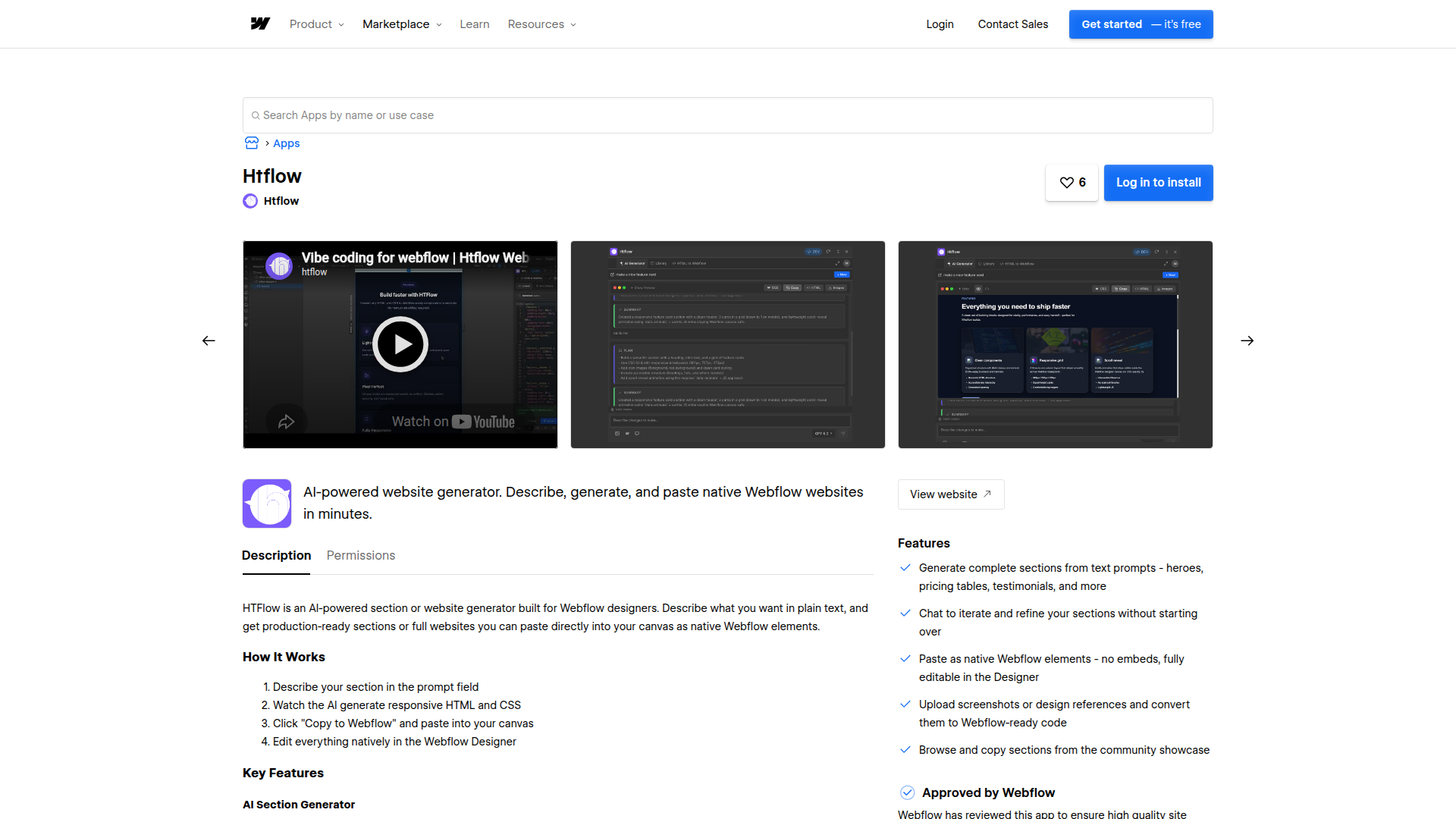
To set up the integration:
- Open the htflow listing in the Marketplace and install the app to your site.
- Generate a section or page in htflow using a plain-English prompt, then import the generated components onto your canvas through the app.
The app imports htflow HTML and CSS as native elements. You can also refine generated sections before import using the htflow settings panel and export repeatable page patterns for reuse across a project.
htflow creates single classes but only adds the first class in combo class combinations, a constraint of the Designer API. You add remaining combo classes manually. If your project relies on a mature design system with extensive combo classing, plan for that manual step.
Add htflow components with Code Embed elements
When you prefer not to use the app, paste htflow output directly onto your canvas. This method works for HTML, CSS, and JavaScript, and it gives you exact control over where code lands. Use it for one-off sections or when you want to keep the import fully manual.
Paste HTML and CSS into a Code Embed element
The Code Embed element accepts HTML and CSS in <style> tags directly on the canvas. Each embed block supports up to 50,000 characters. Code Embed doesn't support server-side languages like PHP, Python, Ruby, and Perl.
To add generated markup:
- Generate and refine your section in htflow.
- Copy the HTML and CSS output.
- Add a Code Embed element from the Add panel to your canvas.
- Paste the output into the embed element and save.
For most single sections the 50,000 character limit is comfortable, but split large full-page exports across multiple embeds if you approach the cap.
Place JavaScript in custom code fields
htflow keeps JavaScript separate from HTML and CSS. Add it through custom code in the head and body tags or a dedicated Code Embed with <script> tags. Page-level head and body fields each support 50,000 characters.
To add generated JavaScript:
- Copy the JavaScript htflow produces for your section.
- Open the page settings and paste it into the head or before-body code field, or add a separate Code Embed with
<script>tags. Then publish and test.
Test JavaScript behavior on your published site rather than in htflow. htflow's production server intentionally disables JavaScript to preserve the original HTML structure, so scripts won't run in htflow's production preview mode.
Build with the Data API
htflow doesn't call the Data API directly, so the htflow-to-Designer handoff stays copy-paste or app-based. For programmatic work like CMS content sync or form processing, use the Data API alongside your pasted htflow layouts. This path requires server-side development and an external environment to run your logic.
The Data API handles CMS collections and form submissions. Webhooks trigger real-time events like collection_item_created and form_submission. The htflow MCP server connects htflow to AI IDEs for agent-assisted generation.
htflow doesn't publish a human-readable REST endpoint list. Inspect the OpenAPI spec at https://docs.htflow.com/api-reference/openapi.json directly if you need htflow endpoints.
Sync CMS content through the Data API
Once your htflow layout is on the canvas and bound to a Collection List, you can populate and update items programmatically. CMS operations split between staged endpoints for draft work and /live endpoints for published data. Publish staged changes to make them visible.
To sync content:
- Call
GET /v2/sitesto identify the target site ID. - Create a collection with
POST /v2/sites/{site_id}/collections. - Add draft items with
POST /v2/collections/{collection_id}/items. - Push staged items live with
POST /v2/collections/{collection_id}/items/publish.
The Data API caps inline scripts at 2,000 characters and allows up to 800 registered scripts per site. Use webhooks instead of polling to stay under rate limits.
Generate sites from an AI IDE with the MCP server
The htflow MCP server connects htflow to AI IDEs and agents like Cursor, VS Code, Windsurf, Claude Code, and ChatGPT. You issue natural-language prompts from your editor, and htflow generates the site. MCP server access is free on all htflow plans.
To use the MCP path:
- Connect to the htflow MCP server at
https://mcp.htflow.com/mcpfrom a supported IDE. - Prompt htflow to build a layout, such as a SaaS landing page with hero, features, and pricing, then export the result through copy-paste or the app.
This path suits developers who already work in an AI IDE and want generation without leaving their editor.
What can you build with the htflow integration?
Integrating htflow lets you generate full page layouts with AI without hand-coding the initial scaffolding.
- Landing pages: Generate a landing page with hero and feature sections from one prompt, then paste selected sections onto your canvas for content and CMS binding.
- Portfolio sites: Build gallery layouts and contact forms in htflow, then import them as editable components for a client-ready portfolio.
- SaaS marketing pages: Draft dashboard interfaces and pricing tables quickly, then refine spacing and typography in the Designer before launch.
- Blog layouts: Generate article templates, navigation menus, and content grids, then connect them to a CMS Collection List for CMS-driven posts.
If you need more control over CMS content sync or form handling, the API integration path covers those cases with full flexibility.
Frequently asked questions
You can copy htflow's generated HTML and CSS and paste it directly into Webflow with Cmd+V or Ctrl+V. The htflow app is optional and reduces component-import steps, while manual paste works without it.
Yes. Webflow's free Starter plan does not support custom code embedding, so a paid site plan is required to use the Code Embed element or custom code fields. Each Code Embed block and each head or body field supports up to 50,000 characters.
htflow's production server intentionally disables JavaScript to preserve the original HTML structure. Test JavaScript behavior in Webflow after pasting it into your page settings or a Code Embed with
<script>tags. The htflow extension docs explain the two placement options for scripts.The htflow-to-Webflow handoff is copy-paste, app-based, or MCP-based only. htflow has no direct automation-platform connector for Webflow.
Elements the app added stay on your site. Any custom code the app added is removed on the next site publish.
Description
htflow is an AI-powered website builder that generates HTML and CSS. On a Webflow canvas, its exports drop in as editable, native components ready to style.
This integration page is provided for informational and convenience purposes only.

Visual Sitemap
Add Visual Sitemap to Webflow to generate styled HTML sitemap pages directly on your canvas — no code required.

ThemeForest
Bring purchased ThemeForest graphics, fonts, and scripts into a Webflow site, and sync Envato purchase and sales data into CMS collections.

Relume

Haze
Connect Haze's customizable technology template with Webflow to rapidly build professional websites with pre-built components, responsive design, and full CMS capabilities.
ThemeForest
Connect ThemeForest, a web template marketplace by Envato, with Webflow to clone professionally designed templates directly into your dashboard as fully editable sites with pre-built layouts, CMS structures, and components.

Webflow Templates from Creative Market
Connect Webflow Templates from Creative Market with Webflow to turn a purchased template ZIP into a live, editable Webflow site.

Responsive Webflow CMS Templates
Explore HTML5 responsive templates powered by the Webflow CMS for your business, portfolio, or blog.
Responsive Ecommerce Website Templates
Get responsive ecommerce templates and customize them visually. Launch with Webflow Hosting.
Premium Webflow Templates
Buy premium HTML5 responsive website templates, then customize them in Webflow without code.
Related integrations
Get started for free
Try Webflow for as long as you like with our free Starter plan. Purchase a paid Site plan to publish, host, and unlock additional features.
