






Webflow handles layout, styling, and hosting, but it does not generate sitemaps, wireframes, or pre-built page structures from a project brief. Designers starting a new site still plan page hierarchy, select section layouts, and configure a style guide manually. That pre-build planning phase adds hours to every project.
Relume fills that gap by generating complete sitemaps and wireframes with AI. It then exports them directly into Webflow as native elements. The Relume Site Builder Import app creates all pages, sections, and copy in a single import. A library of 1,500+ responsive components gives teams tested layouts they can paste into any Webflow project. All components use Client-First — a standardized CSS class naming system by Finsweet that keeps structure consistent across projects.
This integration is built for Webflow agencies delivering multi-page client sites. It also serves freelance designers who need to move from brief to build faster. In-house marketing teams managing their own web properties benefit as well. It fits anywhere the bottleneck sits between project scoping and production-ready pages in Webflow.
How to integrate Relume with Webflow
What is Relume? Relume is an AI design tool that generates sitemaps, wireframes, style guides, and page copy from text prompts, then exports them to Webflow, Figma, or React. Its Webflow component library includes 1,500+ responsive sections built with the Client-First CSS naming convention by Finsweet.

Teams use Relume and Webflow together when they need to go from a project brief to a structured, buildable Webflow project in minutes instead of days. The typical sequence starts with an AI-generated sitemap. It moves through wireframing with real components and AI-written copy. It ends with a direct import into Webflow where designers apply visual styling and customization. Agencies running parallel client projects benefit from consistent component structures and class naming across builds.
The Relume-Webflow integration supports three methods:
- The Relume Site Builder Import app handles full-project imports — sitemaps, pages, and sections — without writing code.
- Copy-and-paste methods let you add individual components through the Chrome Extension or the Relume Webflow Library.
- The Webflow Data API gives you full control over CMS content and site data in Relume-built projects, but requires server-side development.
Most implementations combine two or more of these methods depending on the complexity of the setup.
Install the Relume Site Builder Import app
The Relume Site Builder Import app is the most complete integration method. It imports an entire AI-generated wireframe — all pages, sections, copy, and global components — from Relume's Site Builder into a Webflow project. This is the fastest path for full-site builds where the structure has already been planned and approved in Relume. The app is approved by Webflow with 5,000+ installs and does not require a paid Webflow plan.
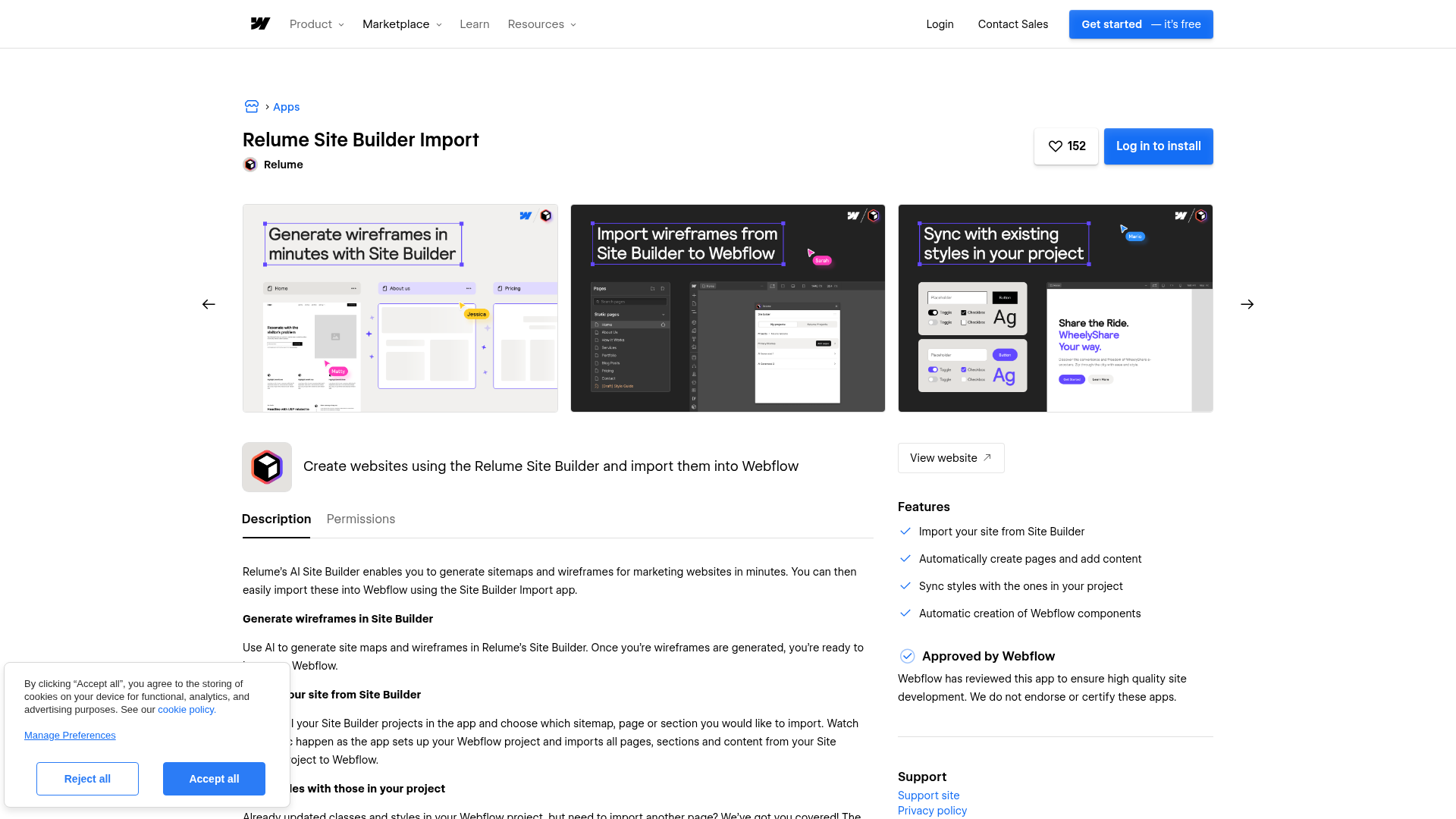
The app handles several things that manual copy-paste cannot:
- Import a full sitemap, individual pages, or individual sections from a Relume Site Builder project
- Automatically create Webflow components from global sections in Site Builder
- Sync imported classes with existing styles in the Webflow project so new content matches what is already built
- Reuse existing Webflow global components when matching names are found
To set up the integration:
- Open the App Marketplace panel within Webflow and search for "Relume."
- Install the app and launch it from the panel.
- Click the login button inside the app — this redirects to relume.io to authenticate your Relume account.
- Locate the project to import from the list. If a project does not appear, verify you are logged into the correct Relume account.
- Choose an import scope — full sitemap, individual page, or individual section.
Once complete, you can review the imported structure in Webflow before moving on to styling and customization.
One important prerequisite applies to all Relume-to-Webflow workflows. Before importing, clone the Relume Style Guide for Webflow as your project starting point. This cloneable project contains all Client-First classes that Relume components depend on. Duplicate it fresh for every new project to get the latest version. For projects created before March 2025, set the export version manually. Go to Main menu (top left) > Preferences > Webflow Export and select Relume Style Guide v2 to avoid variable compatibility issues.
Add Relume components with copy and paste
When you need to add individual sections to an existing Relume-based project — or want more control over which components go where — copy-and-paste methods work without the Webflow App. Three paths are available depending on where you prefer to browse and copy components.
Use the Chrome Extension
The Relume Chrome Extension embeds a component library panel directly inside Webflow. You browse, search, and copy components from a sidebar panel without switching browser tabs.
To set up the Chrome Extension:
- Visit relume.io/chrome-extension and click Add to Chrome.
- Install from the Chrome Web Store.
- Open any Webflow project — the Relume panel appears in the interface.
- Browse components, UI elements, or page templates from the panel.
- Click to copy a component, then paste it onto the Webflow canvas with Cmd+V (Mac) or Ctrl+V (Windows).
The extension panel includes tabs for recently used components, saved favorites, and personal component libraries accessible across projects. An SVG Icon Converter converts Figma SVG files into Webflow-compatible format on paste. Class Sync — available on paid Relume plans — prevents class duplication. It syncs same-name classes with existing project styles instead of creating duplicates.
The Relume Chrome Extension is a Chrome-only workflow. For browser-based copy-paste, the Relume Webflow Library supports Chrome, Firefox, and Edge. Safari is not supported for copy-paste workflows.
Copy from the Relume Webflow Library
The Relume Webflow Library offers the same 1,500+ components through a browser-based interface at relume.io. This method works without installing the Chrome Extension. It provides more filtering and search options for finding specific component types.
To copy components from the library:
- Open relume.io/components in Chrome, Firefox, or Edge. Safari is not supported.
- Browse or search for a component using filters.
- Click the Copy button on the component card.
- Switch to your open Webflow project.
- Paste with Cmd+V or Ctrl+V.
This method works on the Relume Free plan with access to 30 components. Paid plans open the full library of 1,500+ components.
Copy sections from the Relume Site Builder
You can also copy individual sections directly from a Relume Site Builder project. This is a lighter alternative to the full app import when you only need one or two sections from a wireframe. Navigate to any section within your Site Builder project and use the Copy to Webflow action, then paste into Webflow.
All copy-and-paste methods share one architectural constraint. Once a component is pasted into Webflow, it becomes a standard Webflow element with no ongoing connection to Relume. Updates to Relume's component library do not affect previously imported components. To incorporate updated component versions, re-import and re-paste the sections, then republish through Webflow.
Extend Relume-built sites with the Webflow Data API
Relume handles the design structure — pages, layouts, and components. For teams that need to programmatically manage CMS content, trigger actions on publish events, or build custom backend workflows around a Relume-built site, the Webflow Data API v2 provides that control. Relume does not have a public API, so all programmatic work happens on the Webflow side.
This path is relevant when Relume components connect to Webflow CMS collections displayed in a Collection List. Examples include portfolio sections that pull from a CMS collection, testimonial sliders bound to CMS items, or blog layouts that display dynamic content. The API lets you create, update, and publish CMS items without opening Webflow. Webhooks — automated HTTP callbacks triggered by specific events — send real-time notifications when content changes.
Available APIs include:
- Webflow's Data API v2 handles CMS collections, items, pages, and site publishing
- Webflow webhooks trigger real-time events — including
collection_item_created,collection_item_changed,form_submission, andsite_publish— to any endpoint
These are the main Webflow-side tools for extending Relume-built projects with custom content workflows.
All endpoints require Bearer token authentication — an API key passed in the request header — and appropriate scopes (cms:read, cms:write, sites:read, pages:read).
Manage CMS content in Relume-built sections
Relume components like portfolio grids, team sections, and testimonial sliders connect to Webflow CMS collections after import. Once that CMS binding is configured in Webflow, the Data API lets you manage the underlying content programmatically.
To create a CMS item via the API:
- Retrieve the target collection ID by calling
GET /v2/sites/{site_id}/collections. - Create an item with
POST /collections/{collection_id}/items, passing field data in the request body. - Publish the item with
POST /collections/{collection_id}/items/publishto make it live.
For read-heavy applications, the Content Delivery API at api-cdn.webflow.com provides the same read endpoints through a CDN-backed domain.
React to site and content events with webhooks
Webflow webhooks send POST requests to your endpoint when specific events occur. This is useful for triggering downstream actions. For example, you can notify a Slack channel when new CMS content is published. You can also sync form submissions from Relume-built contact sections to an external CRM.
To register a webhook:
- Send a
POSTrequest to/v2/webhookswith aurl(your endpoint) and atriggerType(e.g.,form_submissionorcollection_item_published). - Webflow sends payloads with
Content-Type: application/json, a timestamp header, and an HMAC signature (a hash-based code for verifying the payload was sent by Webflow). - On delivery failure, Webflow retries up to 3 times at 10-minute intervals.
This path requires server-side development and a hosted endpoint to receive webhook payloads.
What can you build with the Relume Webflow integration?
Using Relume with Webflow helps teams skip manual page planning and move straight into structured wireframes and production-ready layouts.
- Multi-page marketing sites from a project brief: Describe a company in a few sentences. Generate a full sitemap and wireframe in Relume. Import every page into Webflow in one operation. Agencies use this to present structured project scope during client discovery calls, then build directly from the approved wireframe.
- SaaS product sites with CMS-driven content: Use Relume's Application UI components for dashboard previews, feature comparisons, and pricing tables. Connect testimonial and case study sections to Webflow CMS collections. Marketing teams can update content without touching the build.
- Agency portfolio sites with filterable case studies: Import portfolio layout components from Relume. Bind them to a Webflow CMS collection for project entries and add category filtering. Team profile sections and client logos pull from separate collections for independent updates.
- Consistent multi-developer builds at scale: Start every project from the Relume Style Guide clone. All team members work with the same Client-First class naming system. Agencies have used this approach to ship 25+ page sites with 600+ CMS items in two-week timelines. It enables parallel development without class conflicts.
If you need more control over CMS content management or event-driven workflows, the API integration path covers those cases with full flexibility.
Frequently asked questions
No. The Relume Site Builder Import app cannot be retrofitted into existing Webflow projects not cloned from the Relume Style Guide. Webflow uses hidden internal IDs for CSS variables. Those IDs will not sync correctly even if you manually add the correct variable names. Relume staff have confirmed this as a hard architectural constraint. The workaround is to switch component library preferences to v1.5 mode (which avoids CSS variables) and copy-paste manually. Alternatively, start a new project from the Relume Style Guide clone.
Yes. Webflow export is not available on the Relume Free plan. The Free tier limits you to 30 components and does not include Webflow export functionality. Paid plans starting with Starter provide access to 1,000+ Webflow components and full export capabilities. Check Relume's pricing page for current plan details and feature comparisons.
No. Once components are imported into Webflow, they exist as standard Webflow elements with no ongoing connection to Relume. Updates to Relume's component library do not affect a published Webflow site. Relume staff describe the workflow as very much linear — not agile in the way that you could go back to Relume, make iterations, and re-sync those changes to Webflow. To incorporate updated components, re-import the specific sections and republish through Webflow.
The Relume Webflow Library supports Chrome, Firefox, and Edge. Safari is explicitly not supported for copying components — this is a complete blocker for the copy-paste workflow on that browser. The Chrome Extension is a Chrome-only workflow. The Relume Site Builder Import app within Webflow does not have a stated browser restriction.
Yes to both. Relume explicitly permits commercial use across client Webflow projects. For Webflow template creation and resale, Relume's licensing FAQ confirms this is allowed with one condition. Components must be modified so they no longer look like default Relume components. Storing Relume's own components in a shared folder for redistribution is prohibited and results in a permanent account ban.

Description
This integration page is provided for informational and convenience purposes only.

Visual Sitemap
Add Visual Sitemap to Webflow to generate styled HTML sitemap pages directly on your canvas — no code required.

htflow
Connect htflow, an AI-powered website builder that generates HTML and CSS, with Webflow to import production-ready layouts via the app or Code Embed elements.

ThemeForest
Bring purchased ThemeForest graphics, fonts, and scripts into a Webflow site, and sync Envato purchase and sales data into CMS collections.

Haze
Connect Haze's customizable technology template with Webflow to rapidly build professional websites with pre-built components, responsive design, and full CMS capabilities.
ThemeForest
Connect ThemeForest, a web template marketplace by Envato, with Webflow to clone professionally designed templates directly into your dashboard as fully editable sites with pre-built layouts, CMS structures, and components.

Webflow Templates from Creative Market
Connect Webflow Templates from Creative Market with Webflow to turn a purchased template ZIP into a live, editable Webflow site.

Responsive Webflow CMS Templates
Explore HTML5 responsive templates powered by the Webflow CMS for your business, portfolio, or blog.
Responsive Ecommerce Website Templates
Get responsive ecommerce templates and customize them visually. Launch with Webflow Hosting.
Premium Webflow Templates
Buy premium HTML5 responsive website templates, then customize them in Webflow without code.
Related integrations
Get started for free
Try Webflow for as long as you like with our free Starter plan. Purchase a paid Site plan to publish, host, and unlock additional features.
