






ThemeForest
Bring purchased ThemeForest graphics, fonts, and scripts into a Webflow site, and sync Envato purchase and sales data into CMS collections.

Buying a finished design is the quickest way past a blank canvas, and it works cleanly on platforms that install a theme folder. Webflow does not install theme folders. It has no import route for packaged HTML, CSS, and JavaScript, so a purchased theme turns into a rebuild: every layout, class, breakpoint, and interaction goes onto the canvas by hand.
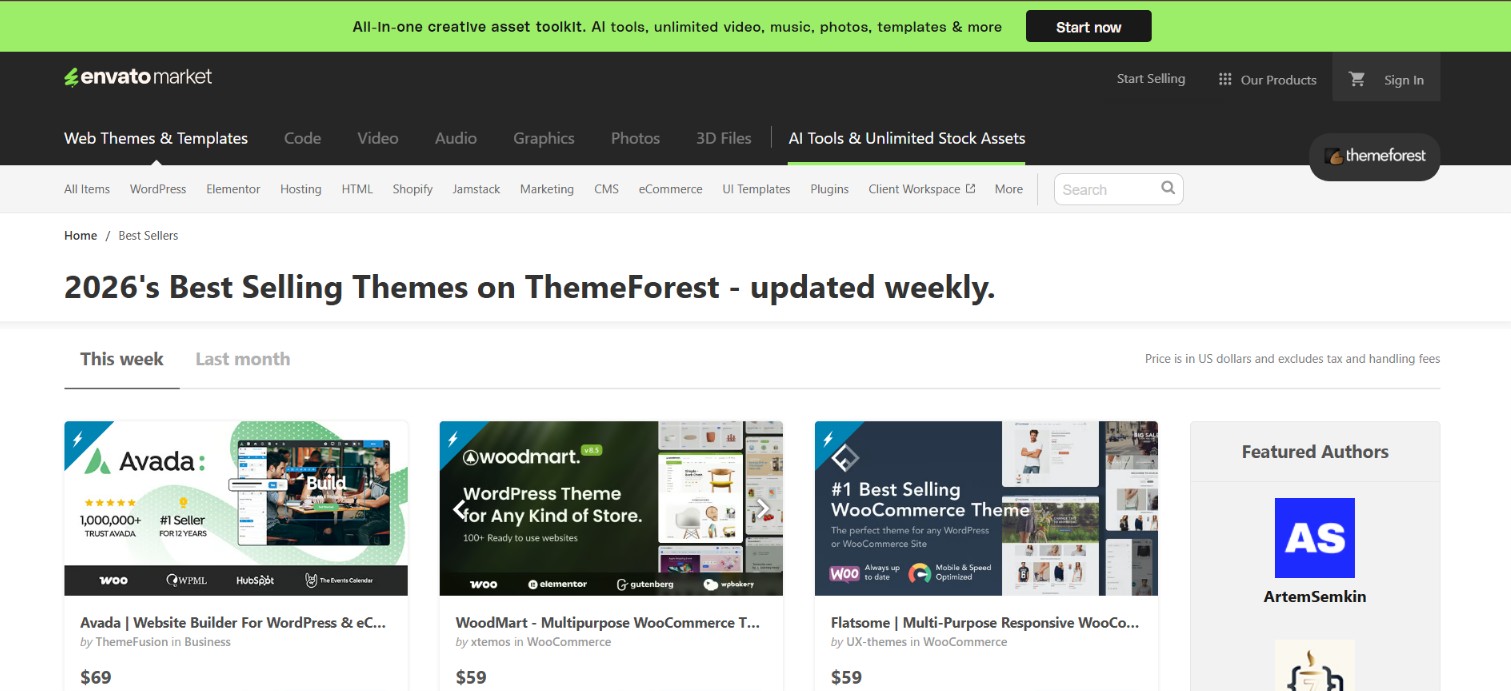
ThemeForest is where many of those purchases start, and it carries a Webflow category that reads like a shortcut into a Webflow project. Check what those listings actually ship before you buy one. Every item we opened in that category lists its included files as HTML, CSS, and JS, and no listing page mentions a clone link or a project transfer. What ThemeForest reliably gives a Webflow build is parts: graphics, icons, fonts, and script libraries that come in through the Assets panel and custom code, plus an API that feeds Envato purchase and sales data into Webflow collections.
Agencies and freelancers sourcing design assets for client work get the most out of that. So do Envato authors who run their own Webflow site and want purchase verification or live catalog data on it. Anyone after a template that opens as an editable Webflow project should start from Webflow's own templates instead.
How to integrate ThemeForest with Webflow
What is ThemeForest? ThemeForest is a template marketplace run by Envato, where independent authors sell website themes for plain HTML and for CMS platforms including WordPress, Joomla, Drupal, and Moodle. The catalog is organised by platform, and a Webflow category sits under CMS Themes. Purchases are one off and licensed per end product rather than per seat.
Teams reach for ThemeForest when they want finished visual work instead of starting from nothing. On a Webflow project that lands in one of two places: sourcing assets and code for a build you are doing yourself, or wiring Envato data into a site you already run. Which one fits depends on what you bought.
Three routes matter here. Reading the listing tells you whether an item can reach Webflow at all. Code Embed, custom code, and the Assets panel move individual scripts, styles, graphics, and fonts into a site. The Webflow and Envato Market APIs handle purchase verification and content sync, and that route needs a server. Most builds live on the middle route, with the API route reserved for authors who sell on Envato.
Read what a ThemeForest Webflow listing ships
Start on the listing page, because the Webflow category does not behave the way its name suggests. The category holds 21 Webflow items, the newest of them last updated in December 2024. On the ones we opened, the category best seller included, the Files Included attribute reads HTML Files, CSS Files, and JS Files, and none of them mention a clone link, a read only link, or a transfer into a Webflow account. Webflow cannot ingest those files, so on the evidence of the listings themselves, most of that category is an HTML theme with Webflow in its title.
Settle these questions with the author before you buy from that category:
- Delivery method: Ask outright whether the purchase includes a Webflow clone link, because the listing attributes never say that it does.
- Last update date: Check it against the Webflow you use today, since several items in the category have not been touched since 2016.
- Licence scope: One Regular Licence covers a single end product for you or one client, so two client sites mean two purchases.
- Rebuild cost: Price the hand rebuild in case the download turns out to be plain markup, because that work sits with you rather than with the template.
If an author does hand over a clone link, the cloned template arrives as its own Webflow project. Moving pieces of it into an existing site means copy and paste between sites, where pasted elements lose their component status, code components are dropped entirely, colours saved as variables come through as plain values, and a pasted Collection List arrives empty. Budget for that cleanup rather than treating it as a merge.
When the answer on delivery is no, a Webflow native template is the cheaper path: those are built in Webflow and applied to a site on your own account, and our premium templates page covers how that works. For everything else in ThemeForest's catalog, move the parts.
Add ThemeForest code and assets to a Webflow site
Most of ThemeForest's catalog is not Webflow specific, and its useful parts still travel. An HTML theme or UI kit download is a ZIP of markup, stylesheets, scripts, images, and fonts, and you can lift individual pieces of it into Webflow. Adding custom code needs a paid Workspace plan or an active Site plan.
Embed snippets with the Code Embed element
The Code Embed element puts HTML at a specific spot on a page, and it also accepts CSS in <style> tags and JavaScript in <script> tags. Each embed holds up to 50,000 characters. Server side languages do not run in Webflow, so PHP, Python, Ruby, and Perl are out.
To move a snippet across:
- Open the Add panel and drag a Code Embed element onto the canvas.
- Paste the snippet from your ThemeForest download, leaving out any
<html>,<head>, and<body>tags, which break the page layout. - Save the code editor, then publish the site.
Anything past that character ceiling has to be hosted elsewhere and referenced by URL, or minified and split across several embeds.
Load site wide scripts in site settings
A library that belongs on every page goes in the custom code fields rather than in an embed. Site settings gives you a Head code section and a Footer code section, Page settings gives the same pair for one page, and each section carries the same character ceiling as an embed.
To load a purchased library across the site:
- Open Site settings and go to the Custom code tab.
- Paste the
<script>or<link>tag from your ThemeForest package into the Head code or Footer code section. - Click Save changes, then publish.
Footer code is the safer default for scripts, since the page finishes loading its content before the JavaScript runs. Stylesheets and meta tags belong in the head.
Upload graphics and fonts through the Assets panel
Images, SVGs, and icons out of a ThemeForest UI kit go in through the Assets panel, which caps image uploads at 4MB each. JavaScript files and video files are not supported asset types, so those load through custom code or from an external host.
To bring the graphics in:
- Extract the image folder from your ThemeForest download.
- Drag the files onto the canvas, which files them in the Assets panel automatically and creates an image element for a single dropped file.
Fonts bundled with a package upload separately as custom fonts in WOFF2, WOFF, TTF, OTF, EOT, or SVG format, at up to 4MB per file, and that upload does not require a paid plan. Read the font licence in the package first, since Envato's licence covers the template rather than every font shipped inside it.
Build with the Webflow and Envato Market APIs
API work here covers two jobs: verifying buyer purchase codes, and pulling Envato item data into the Webflow CMS. Both need a server of your own, because Envato's authenticated endpoints cannot be called from browser code and no automation platform ships an Envato connector. Webflow Cloud, Cloudflare Workers, Netlify Functions, and Vercel Functions all serve as that layer. Webflow Cloud is included on every Webflow plan, though mounting an app to a custom domain needs a Premium Site plan or higher; on Starter and Basic, the app runs on a webflow.io subdomain.
You work against two APIs. The Envato Market API authenticates with a bearer token and covers purchase code lookups, item details, and author sales, and it publishes no webhooks at all, so syncs poll on a schedule instead of reacting to events. The Webflow Data API covers collections, assets, and publishing, and it does emit webhooks for events such as form_submission. Keep the Envato personal token server side, because it reads your author account's sales data.
Verify purchase codes through a Webflow form
Authors selling on ThemeForest can check a buyer's purchase code from a form on their own Webflow site. Nothing packaged does this, so the pattern is yours to write: a form submission fires a webhook, your middleware asks Envato about the code, and the answer lands in a collection.
To wire up verification:
- Add a purchase code field to a form on your site and register a form submission webhook pointing at your middleware endpoint.
- From the server, call
GET https://api.envato.com/v3/market/author/sale?code={purchase_code}with your author personal token, which returns the sale record for that code. - Write the outcome with
POST https://api.webflow.com/v2/collections/{collection_id}/items/live, which publishes the item straight away.
Gating content behind a verified purchase has to live in that middleware and in your own session handling. Webflow's User Accounts feature and its API endpoints were removed on January 29, 2026, so any tutorial that gates pages with Webflow Memberships describes a product that no longer exists. For a hosted membership layer instead, Memberstack and Outseta both cover logins and paid access on a Webflow site.
Sync Envato item data into the CMS
Authors can show live catalog details on a Webflow portfolio page by polling Envato, writing the results into a collection, and rendering them with a Collection List.
To sync item data:
- Fetch the details with
GET https://api.envato.com/v3/market/catalog/item?id={item_id}. - Create the records with
POST https://api.webflow.com/v2/collections/{collection_id}/items/bulk, which creates up to 100 items in one request. - Publish the staged items, then run the whole job on a cron schedule.
On later runs, patch the records you already created rather than posting fresh ones, or the collection fills up with duplicates of every item you sell.
What you can build with the ThemeForest Webflow integration
Pairing ThemeForest with Webflow is about sourcing parts and reporting on sales rather than installing a finished design. These five builds hold up:
- Asset driven custom builds: Pull icons, illustrations, and fonts out of a ThemeForest UI kit into the Assets panel and use them across a design you build yourself.
- Purchased script features: Drop a slider, chart, or animation library from a download into an embed or the footer code field and wire it to elements already on the page.
- Design references for a rebuild: Buy an HTML theme for its layout and type system, then rebuild it on the canvas, which is the only way its design reaches a Webflow site.
- Purchase verification portals: Give buyers a form for their Envato purchase code and log every verified purchase in a collection through your middleware.
- Author portfolios with live item data: Show your own ThemeForest catalog on a Webflow site, with prices and sales counts polled from the Envato catalog endpoint.
The last two come down to the same job of getting outside data into collections cleanly, and our Webflow CMS API guide walks the endpoint patterns end to end. If you are rebuilding a purchased design by hand, connect the Webflow MCP server to your AI client first so it can build pages, styles, and CMS structures alongside you.
Frequently asked questions
No. Webflow has no importer for theme packages, so an HTML, WordPress, or Shopify theme has to be rebuilt on the canvas. The one supported move is CSV import into the Webflow CMS, which brings structured content across but never design.
The listings never say so. Every item we checked in ThemeForest's Webflow category lists its included files as HTML, CSS, and JS, with no clone link mentioned anywhere on the page. Ask the author to confirm delivery before buying, and treat a Webflow native template as the safer route.
No. A marketplace search returns no ThemeForest or Envato app, so nothing installs into a site. Every path runs through custom code, asset uploads, or middleware you write yourself.
A paid Workspace plan or an active Site plan covers the Code Embed element and the custom code fields in Site and Page settings. Uploading images and custom fonts works without one, though documents and audio files in the Assets panel need a paid plan.
No. A Regular Licence covers one end product for you or for one client, and an Extended Licence covers one end product that you may then sell. Two client sites need two purchases.
Description
Most ThemeForest items ship as HTML, CSS, and JS files, which Webflow cannot import. Graphics and fonts still upload to the Assets panel, purchased scripts still run through custom code, and the Envato API feeds sales data into CMS collections.
This integration page is provided for informational and convenience purposes only.

Visual Sitemap
Add Visual Sitemap to Webflow to generate styled HTML sitemap pages directly on your canvas — no code required.

htflow
Connect htflow, an AI-powered website builder that generates HTML and CSS, with Webflow to import production-ready layouts via the app or Code Embed elements.

Relume

Haze
Connect Haze's customizable technology template with Webflow to rapidly build professional websites with pre-built components, responsive design, and full CMS capabilities.
ThemeForest
Connect ThemeForest, a web template marketplace by Envato, with Webflow to clone professionally designed templates directly into your dashboard as fully editable sites with pre-built layouts, CMS structures, and components.

Webflow Templates from Creative Market
Connect Webflow Templates from Creative Market with Webflow to turn a purchased template ZIP into a live, editable Webflow site.

Responsive Webflow CMS Templates
Explore HTML5 responsive templates powered by the Webflow CMS for your business, portfolio, or blog.
Responsive Ecommerce Website Templates
Get responsive ecommerce templates and customize them visually. Launch with Webflow Hosting.
Premium Webflow Templates
Buy premium HTML5 responsive website templates, then customize them in Webflow without code.
Related integrations
Get started for free
Try Webflow for as long as you like with our free Starter plan. Purchase a paid Site plan to publish, host, and unlock additional features.
