






The Facebook Pixel
Connect the Facebook Pixel, Meta's website tracking snippet, with Webflow to measure ad conversions, build retargeting audiences, and power Meta's ad delivery algorithm with site visitor data.

Webflow builds and hosts production-ready sites, but it does not report which visitors came from a Facebook or Instagram ad. Without conversion data flowing back to Meta's ad platform, campaigns cannot adjust delivery toward people likely to buy, sign up, or submit a form. Ad spend targets broad audiences instead of qualified prospects.
The Facebook Pixel connects your Webflow site to Meta's advertising infrastructure. Every page view, form submission, and purchase fires as a trackable event that feeds Meta's ad delivery algorithm. This data powers retargeting audiences, lookalike audience creation, and conversion measurement across your campaigns.
This integration serves e-commerce teams tracking purchases and cart abandonment, marketers running lead generation campaigns on Facebook and Instagram, and agencies managing ad accounts for multiple clients. SaaS marketing teams also benefit from behavioral retargeting based on feature page visits and signup events.
How to integrate the Facebook Pixel with Webflow
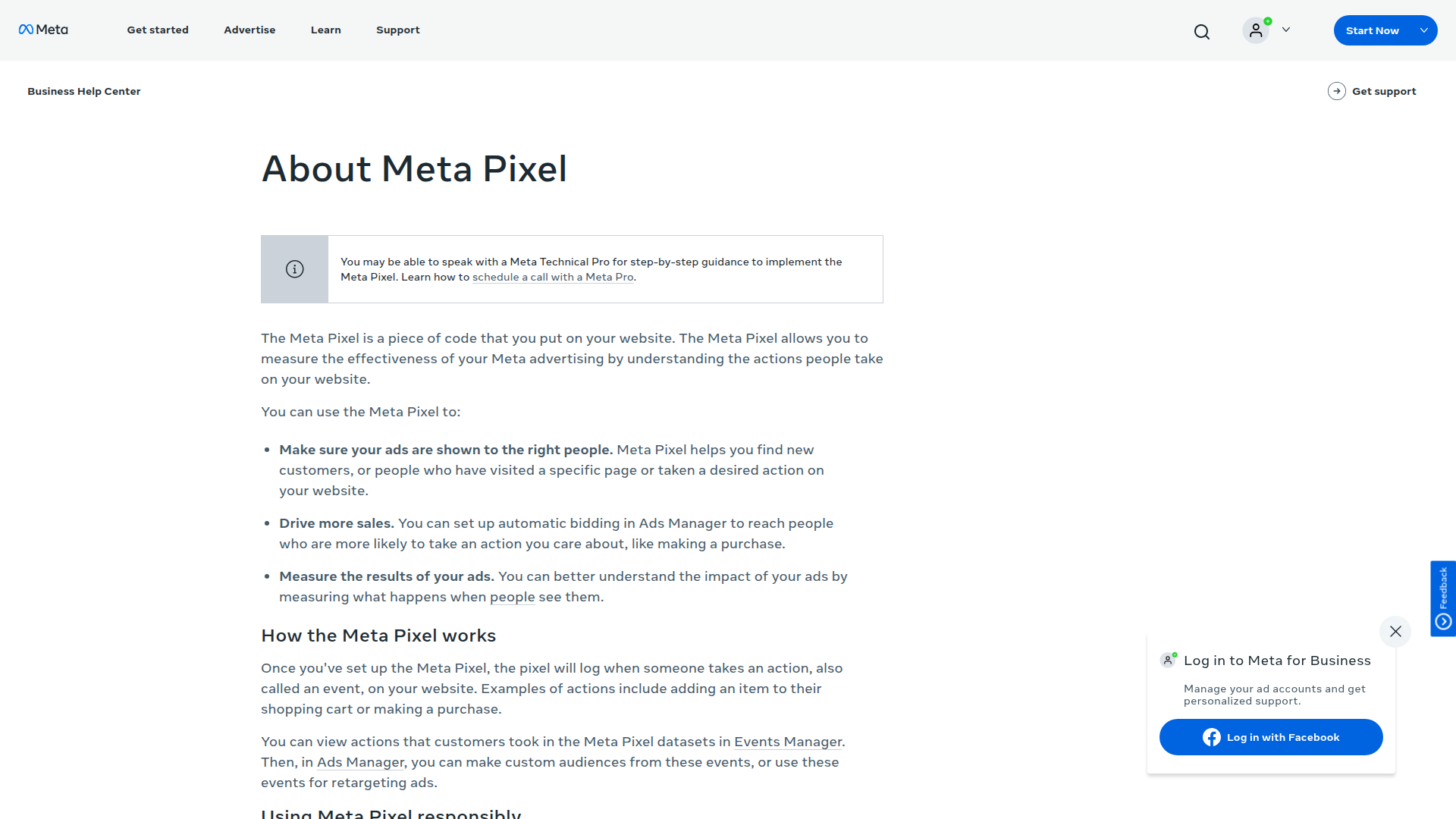
What is The Facebook Pixel? The Facebook Pixel (now officially called the Meta Pixel) is a JavaScript snippet placed on your website that tracks visitor actions and sends that data to Meta's advertising platform. It captures page views, button clicks, form submissions, and e-commerce events to measure ad performance and build targeted audiences. The pixel uses Facebook cookies to match site visitors to their Meta accounts for attribution and retargeting.
Teams add the Facebook Pixel to Webflow sites when they run paid campaigns on Facebook or Instagram and need to measure which ads drive actual conversions. The pixel data also builds custom audiences for retargeting past visitors and seeds lookalike audiences for prospecting. Without it, Meta's ad algorithm has no signal about what happens after someone clicks an ad.
The Facebook Pixel-Webflow integration supports 5 approaches:
- Webflow's native Meta Pixel setting adds your Pixel ID through site settings and automatically tracks page views and e-commerce events without code.
- The PixelFlow app adds server-side tracking through the Meta Conversions API alongside the browser pixel.
- Custom code injection gives you full control over the base code, event tracking, and advanced matching through site-level or page-level scripts.
- Zapier and Make forward Webflow form submissions and orders to the Meta Conversions API as server-side events.
- The Webflow and Meta Conversions APIs give you full control over event mapping, deduplication, and server-side tracking, but require middleware development.
Most implementations combine two or more of these methods depending on tracking requirements and privacy compliance needs.
Add the Meta Pixel in Webflow site settings
Webflow includes a built-in Meta Pixel integration that requires only your Pixel ID. No JavaScript, no marketplace app. Paste the ID into your site settings, and Webflow injects the pixel base code across your entire site. For e-commerce sites, this method automatically fires three standard conversion events with no additional setup. A "Delay for Cookie Consent" toggle pauses pixel firing until a visitor grants consent.
To set up the native integration:
- Open Site settings for your Webflow site.
- Click the Apps & Integrations tab.
- Scroll to the Meta Pixel section.
- Paste your numeric Pixel ID (not the full script).
- Save changes and republish your site.
For Webflow e-commerce sites, three events fire automatically:
- Viewed product (when a visitor loads a product page)
- Added product to cart (when a visitor adds an item)
- Purchased product (when a visitor completes checkout)
This method works for basic conversion tracking and retargeting. If you plan to pair the browser pixel with the Conversions API, verify whether your setup passes matching event_id values for deduplication. For advanced Meta ad use cases such as dynamic product ads, you may also need to confirm in Events Manager that your event payloads include the parameters you need. If you need custom events, advanced matching, or server-side tracking, use the custom code or API methods below.
Install PixelFlow for server-side tracking
PixelFlow is a third-party app on the Webflow Marketplace that adds Meta's Conversions API (CAPI) alongside the browser pixel. Browser-based tracking loses data from ad blockers, Safari's Intelligent Tracking Prevention, and iOS 14+ App Tracking Transparency restrictions. PixelFlow sends events server-side to close that gap. The app supports 18+ Meta standard events, URL-based event triggers, multi-pixel deployment, and built-in event deduplication.
To install PixelFlow:
- Open your site in Webflow and click the Apps icon in the left sidebar.
- Search for "PixelFlow" and click Add to Site.
- Follow the authorization prompts to connect your Meta Pixel ID and Conversions API access token.
- Configure which events fire on which pages using URL-based trigger rules.
The app handles both client-side and server-side event delivery from a single interface:
- Fires standard events like Purchase, Lead, AddToCart, and ViewContent
- Sends matching server-side events to the Conversions API with automatic deduplication
- Filters bot traffic and duplicate page refreshes
- Supports multiple pixels for agencies managing several ad accounts
PixelFlow is a third-party commercial product, not built or published by Meta. Evaluate its pricing and data handling terms independently before connecting it to your ad accounts.
Embed Meta Pixel code manually
For full control over the pixel base code, event parameters, and advanced matching, add the JavaScript directly through Webflow's custom code settings or Code Embed elements. This approach is the right choice when you need to modify the initialization call, pass user data for advanced matching, or fire custom events on specific interactions. A paid Webflow site plan is required for all custom code features.
If you already have a Pixel ID entered in the Apps & Integrations tab, remove it before adding manual code. Running both simultaneously causes tracking conflicts.
Add the base code site-wide
The pixel base code belongs in the <head> section of every page so it fires before visitors leave. Webflow's site-level head code field handles this placement automatically.
To add the base code:
- In Meta Events Manager, click Connect data > Web > Connect, enter a pixel name, create your pixel, then select Install code manually to copy the base code snippet.
- In Webflow, go to Site settings > Custom code tab.
- Paste the full pixel snippet into the Head code field.
- Click Save changes and republish your site.
The head code field injects your script before the closing </head> tag on every page. Custom code appears in Webflow's preview mode but does not execute until the site is published to a live domain.
Track events on specific pages
Conversion events like Lead or Purchase should fire only on the pages where those actions happen, such as a thank-you page or order confirmation page.
To add page-level event code:
- In Webflow, open the Pages panel and select the target page.
- Click the gear icon to open Page settings.
- Scroll to the Custom code section.
- Paste your event code (for example,
fbq('track', 'Lead', { value: 40.00, currency: 'USD' });) wrapped in<script>tags. - Save and republish.
For click-based tracking (like button clicks), assign a unique ID to the element in Webflow, then reference that ID in a JavaScript event listener on the same page. Webflow's native form handling redirects to a success page after submission. If the redirect happens faster than the pixel fires, the event may be lost. Adding a 300-500ms delay before the redirect prevents this timing issue.
Use Google Tag Manager as a container
Google Tag Manager (GTM) centralizes all tracking tags in one dashboard. After GTM is installed in Webflow, you can add, modify, and remove the Meta Pixel tag without opening Webflow again.
To set up GTM with Meta Pixel:
- Install GTM in Webflow by either adding the Google site tools app from the Apps panel, or by pasting the GTM container snippets into Site settings > Custom code.
- In GTM, create a new tag: Tags > New > Tag Configuration > Custom HTML.
- Paste your Meta Pixel base code into the HTML field.
- Set the trigger to All Pages (Page View).
- Click Submit to publish the container.
GTM is useful for teams managing multiple tracking scripts. It also supports consent-gated pixel loading through tools like Finsweet Cookie Consent, where the GTM container only loads after a visitor accepts cookies.
Implement GDPR cookie consent
For sites subject to GDPR or similar privacy regulations, the pixel must not fire until a visitor provides explicit consent. The approach uses fbq('consent', 'revoke') on page load to pause tracking, then fbq('consent', 'grant') when the visitor accepts.
To implement consent-gated tracking:
- Design a cookie consent banner in Webflow.
- In Site settings > Custom code > Footer code, add a script that calls
fbq('consent', 'revoke')on initialization andfbq('consent', 'grant')when the user clicks "Accept." - Store the consent decision in
localStorageso the pixel loads correctly on subsequent page views.
The native "Delay for Cookie Consent" toggle in the Apps & Integrations tab is binary. It does not distinguish between analytics consent and marketing consent categories. For category-level consent management, use a dedicated consent management platform paired with the manual code method.
Connect with Zapier or Make
Zapier supports Webflow-named Facebook Conversions automations. Make also includes a Webflow-named scenario for Facebook Conversions API. These automation platforms forward server-side events to Meta without custom code, covering the two highest-value webhook events Webflow provides: form submissions and e-commerce orders. Mid-funnel browser events like AddToCart and InitiateCheckout are not available through these platforms, because Webflow does not fire server-side webhooks for those actions.
Platform-confirmed pre-built automations include:
- Zapier: Trigger Facebook Conversions events for new Webflow form submissions
- Zapier: Track updated Webflow orders by sending purchase events to Facebook Conversions
- Zapier: Send purchase events in Facebook Conversions for new Webflow orders
- Make: Send new Webflow form submissions to Facebook Conversions API
To set up a Zapier integration:
- Create a new Zap with Webflow as the trigger app and Form Submission as the trigger event.
- Select Facebook Conversions as the action app and Send Event as the action.
- Map Webflow form fields (email, name, phone) to the corresponding Meta CAPI user data parameters.
- Turn on the Zap and test with a real form submission.
Automation platforms handle PII hashing and event formatting automatically. They work best alongside the browser pixel for a hybrid tracking setup, where the pixel captures page views and mid-funnel events while the automation platform sends server-side form and purchase data.
Build with the Webflow and Meta Conversions APIs
For full control over event mapping, data transformation, and deduplication logic, connect the Webflow Data API and Meta Conversions API through a custom middleware server. This approach requires server-side development but handles every conversion event Webflow can produce. Webflow cannot run server-side code natively, so a middleware layer (serverless function, edge worker, or backend server) sits between the two APIs.
The relevant APIs include:
- Meta Conversions API accepts server-side events at
POST https://graph.facebook.com/v25.0/{PIXEL_ID}/events - Webflow's Data API manages CMS collections and site data
- Webflow webhooks push real-time events (form submissions, order changes) to your server endpoint
A Meta Business Manager account is required to generate a Conversions API access token.
Forward form submissions as Lead events
Webflow fires a form_submission webhook whenever a visitor submits a form. Your middleware receives this payload, hashes the PII fields with SHA-256, and posts the event to Meta's Conversions API.
To implement form-to-Lead forwarding:
- Register a webhook by sending a
POSTrequest tohttps://api.webflow.com/v2/sites/{site_id}/webhookswithtriggerTypeset toform_submissionandurlset to your middleware endpoint. - In your middleware, extract user data from
payload.data(email, first name, last name, phone). Convert each value to lowercase and hash with SHA-256. - Post the event to
https://graph.facebook.com/v25.0/{PIXEL_ID}/eventswithevent_name: "Lead", the hashed user data,action_source: "website", and a uniqueevent_idfor deduplication.
Match the event_id value to the browser pixel's eventID parameter on the same page. For deduplication to work reliably, the browser event should fire before the server event. Events must arrive within 48 hours of each other.
Forward e-commerce orders as Purchase events
Webflow fires an ecomm_order_changed webhook on every order status transition (pending, unfulfilled, fulfilled, disputed, refunded). Filter for payload.status === "unfulfilled" to fire the Purchase event only once per completed order.
To implement order-to-Purchase forwarding:
- Register a webhook with
triggerTypeset toecomm_order_changed. - In your middleware, check
payload.statusand process only orders where the value equalsunfulfilled. - Map
payload.customerPaid.value(divide by 100, since Webflow stores values in cents) tocustom_data.value, andpayload.customerPaid.unittocustom_data.currency. - Collect
payload.purchasedItems[].productIdinto thecustom_data.content_idsarray. - Hash
payload.customerInfo.emailwith SHA-256 and include it inuser_data.em. - Use
payload.orderIdas theevent_idfor deduplication with the browser pixel.
The order ID is available in both the browser confirmation page DOM and the server webhook payload. This makes it a reliable deduplication key across the 48-hour deduplication window.
What can you build with the Facebook Pixel Webflow integration?
Integrating the Facebook Pixel with Webflow lets you measure ad performance and retarget site visitors without building a custom analytics backend.
- Cart abandonment retargeting: Track AddToCart and InitiateCheckout events on your Webflow e-commerce site, then serve dynamic product ads showing the exact items visitors left behind. Segment audiences by recency (7-day vs. 30-day windows) to adjust messaging and offer urgency.
- Lead quality optimization: Fire Lead events on Webflow form submissions and pass them server-side through the Conversions API. Capture Meta's
fbclidparameter from ad click URLs and upload offline conversions later, training Meta's algorithm to find prospects who match your best leads rather than just anyone who clicks. - Behavioral retargeting for SaaS: Use custom events to track scroll depth, time on pricing pages, and CTA clicks across your Webflow marketing site. Build retargeting audiences from visitors who spent 30+ seconds on feature pages but did not sign up, producing higher-quality segments than page-view-only targeting.
- Lookalike audience expansion: Accumulate purchase and engagement data from Webflow site visitors through the pixel, then use that data as seed input for Meta's Lookalike Audiences. The algorithm finds new users who share behavioral and demographic characteristics with your existing converters.
If you need more control over event deduplication, multi-pixel setups, or real-time order data transformation, the API integration path covers those cases with full flexibility.
Frequently asked questions
You can verify it by using the Meta Pixel Helper Chrome extension on your published site. The extension shows which events fire on each page and flags errors. You can also check the Test Events tool in Meta Events Manager, where events appear within 1-2 seconds of firing. Always test on your published production domain, not the
.webflow.iostaging URL. Custom code does not execute in Webflow's preview mode.This typically happens when the "Delay for Cookie Consent" toggle is enabled in Site settings > Apps & Integrations > Meta Pixel, but no consent banner calls
fbq('consent', 'grant')after the visitor accepts cookies. The pixel loads but never fires because it is waiting for a consent signal that never arrives. Either implement a consent banner that triggers the grant call, or disable the toggle if your site does not require cookie consent. Webflow's Meta Pixel setup documentation covers the consent implementation pattern in detail.No. Running both causes tracking conflicts and duplicate event firing. If you add your Pixel ID in Site settings > Apps & Integrations, remove any Meta Pixel code from the Custom code tab and any Code Embed elements. Choose one method: either the native integration for simple setups, or manual code for custom events and advanced matching.
The browser pixel alone loses tracking data from ad blockers, Safari's Intelligent Tracking Prevention, and iOS 14+ App Tracking Transparency prompts. The Meta Conversions API sends events server-side, bypassing these browser restrictions. For Webflow sites, CAPI always requires an external middleware because Webflow cannot execute server-side code. Options include the PixelFlow app, Zapier's pre-built templates, Make scenarios, or custom serverless functions receiving Webflow webhooks.
Adding custom code to the head or body of your site requires a paid site plan (Basic, CMS, or Business) or a Core, Growth, Agency, or Freelancer Workspace plan. Code Embed elements follow the same plan requirement. Free Starter plan users cannot add site-wide custom code or Code Embed elements. See Webflow's custom code documentation for details on plan requirements and the 50,000-character limit for custom code fields.
Description
The Facebook Pixel connects to Webflow through a native Pixel ID field in site settings, which auto-tracks page views and e-commerce events.
This integration page is provided for informational and convenience purposes only.

Cometly
Connect Cometly, a marketing attribution platform, with Webflow to track which ads drive form submissions and send conversion data back to ad platforms.
Website Speedy
Connect Website Speedy, a site speed optimization tool, with Webflow to improve Core Web Vitals scores and page load times through automated speed optimizations.

Optibase
Connect Optibase with Webflow to run A/B tests, personalize pages, and track conversions without leaving your site.
Optily
Connect Optily with Webflow to automatically compress CMS images and convert them to WebP format for faster page loads.
BulkSEO
Connect BulkSEO with Webflow to manage SEO metadata across hundreds of pages through CSV-based bulk editing.
NoBreakWeb
Connect NoBreakWeb, an automated Lighthouse auditing tool, with Webflow to run daily performance, SEO, and accessibility scans on your published site without manual testing.

Microsoft Clarity
Connect Microsoft Clarity, a free user behavior analytics tool, with Webflow to capture session recordings, heatmaps, and frustration signals like rage clicks and dead clicks across your site.

Humblytics
Connect Humblytics with Webflow for cookie-free visitor tracking and revenue attribution, with A/B testing included.
AssetBoost
Connect AssetBoost with Webflow to generate AI-powered alt text for site images in bulk, directly inside the Webflow interface.
Related integrations
Get started for free
Try Webflow for as long as you like with our free Starter plan. Purchase a paid Site plan to publish, host, and unlock additional features.
