






Superflow
Connect Superflow, a website QA and visual feedback platform, with Webflow to collect pinned client feedback and run AI QA on staging and published pages.

Before launch, a staged Webflow site needs a QA pass alongside client feedback. Client feedback arrives in screenshots and email threads or through Slack messages that can point at the wrong element, and after each publish, no one re-runs your QA checklist across every page on desktop and mobile.
Superflow adds that review layer on top of the site itself. Connecting Superflow to Webflow places a review snippet on your staging and published pages. Reviewers open the site with a review parameter, click an element, and leave a comment pinned to it with an automatic screenshot. AI agents run your existing checklist on every site change and pin their findings the same way.
Web and marketing agencies shipping client sites on Webflow get the most out of this setup. Project managers use it to collect sign-off without asking clients to create accounts on Scale or Enterprise; on other plans, free guests must sign in. Designers and front-end developers use it for bug reports tied to exact elements. In-house content teams use it to request copy edits directly on live pages.
How to integrate Superflow with Webflow
What is Superflow? Superflow is a website QA and visual feedback platform for agencies and marketing teams. Reviewers pin comments to elements, text selections, or drawn regions on live websites, PDFs, videos, images, and Lottie files. Its AI review agents, currently in Beta, turn a pasted QA checklist into automated checks for broken links, brand colors and fonts, spelling, and placeholder text.
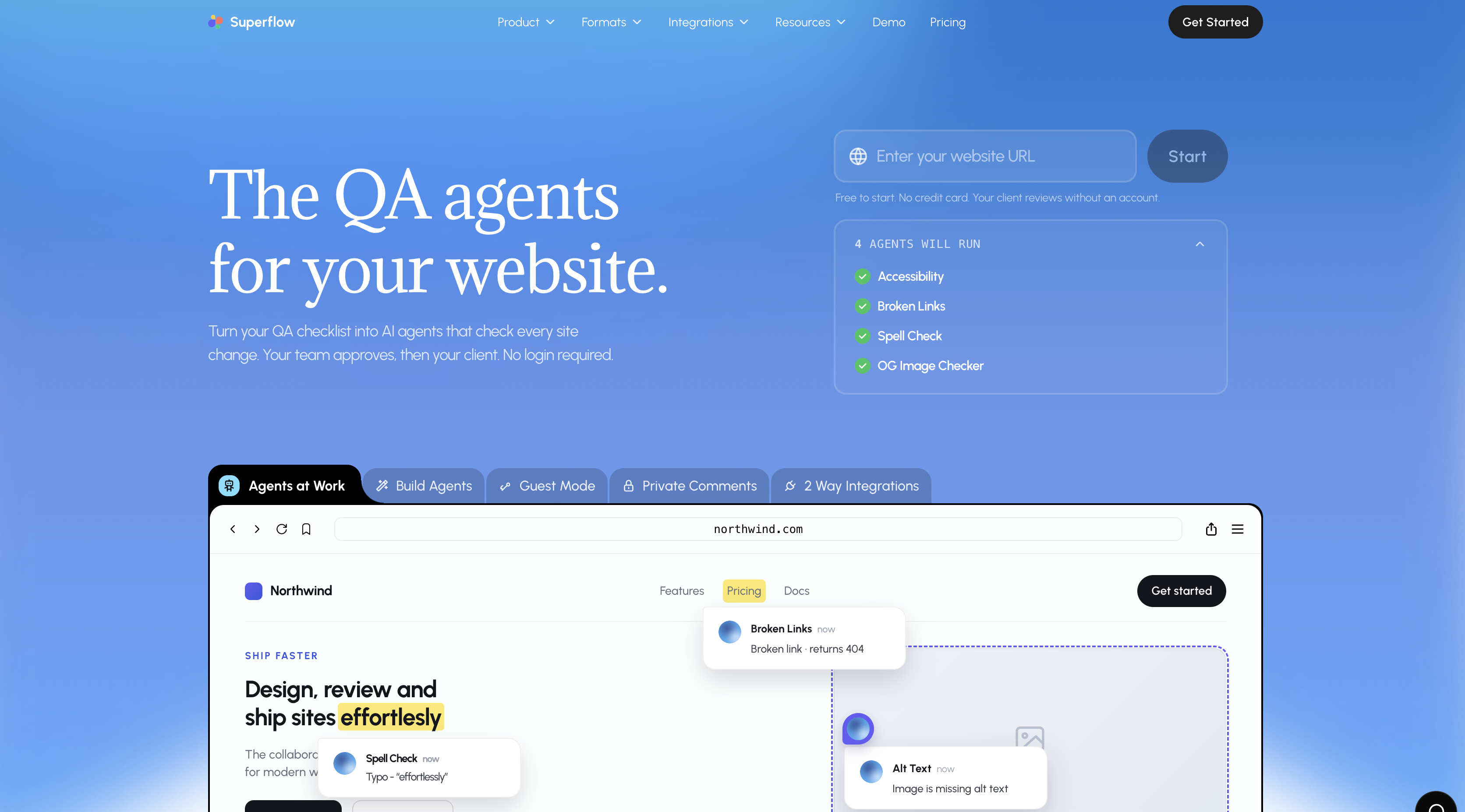
Teams reach for this pairing when a Webflow build hits staging and needs sign-off from people outside the workspace. Superflow's own Wonderist case study describes an agency that runs every client site through Superflow before launch to cut manual first-pass QA. The site stays in Webflow, and review, QA, and approval happen on top of the published pages.
Choose an integration approach based on how you manage the site:
- The Superflow app installs the review snippet from the Webflow Marketplace and keeps it updated without writing code.
- Site-wide custom code lets you paste the Superflow snippet into the site-wide custom code in head and body tags of any site you manage.
- The Webflow Data API manages snippet rollout across many sites, Superflow webhooks route outbound review events on Scale and above, and Superflow's Enterprise REST API creates projects. This path requires server-side development.
The Superflow app is the recommended path. The manual snippet and API paths cover setups the app does not.
Install the Superflow app
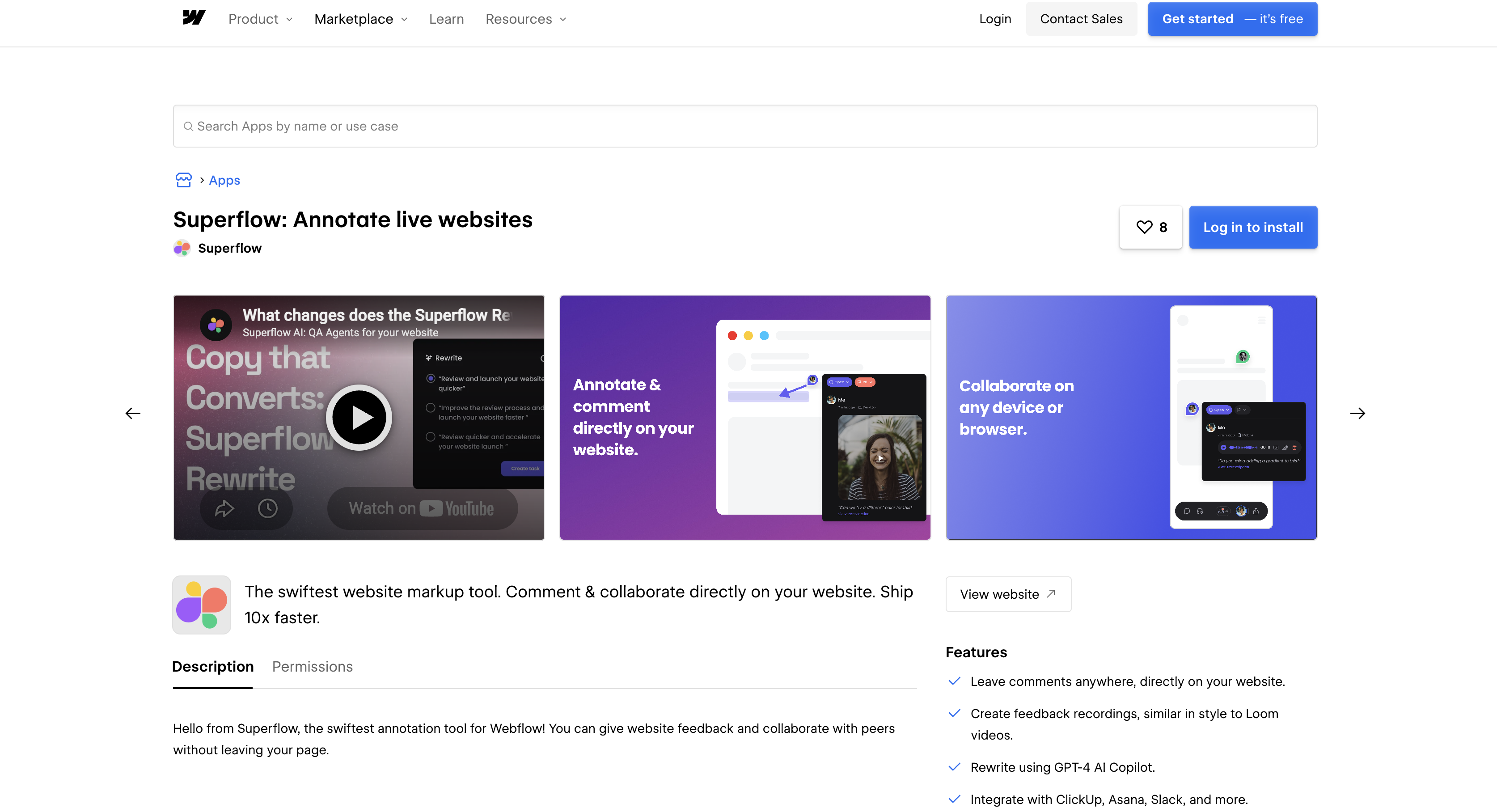
The Superflow app on the Webflow Marketplace adds the Superflow snippet through the site's custom code with no copy-paste. It works on yoursite.webflow.io staging and on published custom-domain sites. Superflow's review agents run on every plan, including the free tier, with each scan drawing on your workspace credit balance. Use it when you want the fastest install and automatic script updates.
To set up the integration:
- Open the Superflow app on the Webflow Marketplace and click Add to site.
- Select the sites you want Superflow on, then click Authorize app.
- Create a Superflow account with your email or Google login, or log in to an existing one.
- Publish your site.
- Click Verify Install in Superflow, which opens your published site and confirms the script is live.
- Open that URL with
?review=trueappended to bring up the review toolbar. - Open the Apps panel in Webflow, hover over Superflow, and click Launch to manage comments.
Once installed, the app gives you:
- Comments pinned to elements that stay anchored through page changes and redeploys, each with an automatic screenshot
- AI agents that check broken links, brand colors and fonts, spelling, and placeholder text on desktop and mobile
- Client review from a shareable link, including on pages behind passwords, Okta, and SSO
- A Kanban board where every finding becomes a task; sync to Asana, Monday.com, and ClickUp on Scale and above
- Slack notifications from Growth
The app keeps the script current when Superflow updates it, and uninstalling removes it. If the connection between Superflow and Webflow drops, the site keeps its script and reviews keep working. Superflow does not document a Webflow plan requirement for the app path. If you would rather manage the snippet yourself, the custom code path below does the same job.
Add the Superflow snippet with site-wide custom code
Pasting the Superflow snippet into site-wide footer code puts the same on-site review layer on your pages. You do not need a Marketplace connection. Use this path when you want to see and manage the snippet alongside other footer scripts. The snippet is unique to each project, so you copy it from Superflow's onboarding flow. Superflow's own Webflow setup guide places it in Site settings, not in a Code Embed element on a page. You need a paid Site plan or a Core, Growth, Agency, or Freelancer Workspace, and custom code runs only on published sites.
To install the snippet by hand:
- In Superflow, enter the URL of the site you want to install on and select Webflow from the list of platforms.
- Copy your unique Superflow code.
- In Webflow, open the dropdown menu in the top left and go to Site settings > Custom code.
- Scroll to the Footer code section, paste the code, and click Save changes.
- Click Publish in the top right and choose the domains to publish to.
- Return to Superflow and click Verify in the onboarding flow.
- Open your published site with
?review=trueappended to the URL.
Keep these Webflow constraints in mind:
- Footer code accepts up to 50,000 characters of HTML, CSS, and JavaScript; server-side languages do not run.
- Only Site managers and Designers can edit custom code.
- Custom code takes effect only after you publish.
- On Ecommerce sites, scripts you add fall outside PCI compliance validation. You are responsible for any compliance obligations they create.
If verification fails, the most common cause is publishing to staging while testing the production URL.
Either path puts the same third-party script on every published page, so be clear about what leaves a visitor's browser. Superflow is built on Velt and Google Firebase. Its own CSP whitelist names *.velt.dev, *.api.velt.dev, *.firebaseio.com and *.googleapis.com, with comment attachments and screenshots served from Firebase storage. We read the shipped toolbar bundle for this page. It carries no third-party analytics, advertising or session-replay SDK, and product events reach Superflow's own backend only after someone signs in. The bundle does wrap console, fetch and XMLHttpRequest when it loads, so it can attach recent errors and failed requests to a bug report, and it runs a redaction pass over tokens, API keys, authorization headers and email addresses before storing any of it. Screen capture goes through the browser's own permission prompt rather than firing quietly. Nothing in the bundle waits on a consent banner, so add Superflow to yours if you run one.
Review on the staging subdomain before publishing to a custom domain
Superflow runs on yoursite.webflow.io, so you can collect feedback before the site reaches a custom domain. The publish modal lets you check the staging subdomain and uncheck the custom domain, so a review round never touches production. On Enterprise plans and partner Workspaces, custom roles carry "Publish site to staging" and "Publish site to production" as separate permissions, so a junior designer can push review builds without being able to publish live.
To run a staging-only review:
- Click Publish from Site actions or from Site settings.
- Check only the
webflow.iodomain and click Publish to selected domains. - Send reviewers the staging URL with
?review=true; delivery can use email, SMS, or WhatsApp.
After approval, publish to the custom domain.
Build with the Webflow and Superflow APIs
Server-side development lets an agency deploy the Superflow snippet across many client sites. Your code can also react to publish events without opening each site by hand. Webflow's Data API manages snippet rollout. Superflow's own API surface is narrow. Its REST API documents a single endpoint for creating projects, on the Enterprise plan only. Its documented integrations include outbound webhooks on Scale and above for review-event routing. Most of the work happens against the Data API v2 at https://api.webflow.com/v2/. Authenticate with a bearer token in the Authorization header.
The pieces available are:
- Superflow's Create Project endpoint creates a review project for a site URL
- Superflow webhooks push every review event to a URL you choose
- The Data API handles custom code, CMS collections, and form submissions
- Webflow webhooks fire on events such as
site_publishandcomment_created
Custom code endpoints require an OAuth Data Client App; a Site Token explicitly does not grant access to them.
Register the Superflow snippet with the Data API
This path fits an agency that installs Superflow on dozens of client sites and wants one script to do it. You need a Data Client App with the custom_code:write scope. Each client site authorizes your app once through the OAuth Code Grant Flow. Your app places the snippet through the same custom-code surface the Superflow app uses.
To install the snippet programmatically:
- Complete the OAuth Code Grant Flow for the target site and store the bearer token.
- Register the snippet with
POST /v2/sites/{site_id}/registered_scripts/hosted, or use/registered_scripts/inlinefor inline code. - Apply it site-wide with
PUT /v2/sites/{site_id}/custom_code, or to a single page withPUT /v2/pages/{page_id}/custom_code. - Publish the site so the script goes live, then click Verify in Superflow.
Superflow's documented install uses site-wide footer code, so the site-level endpoint matches it. GET /v2/sites/{site_id}/registered_scripts lists what is already registered.
Create a Superflow project when a Webflow site publishes
On the Enterprise plan, you can wire a Webflow site_publish webhook to Superflow's Create Project endpoint yourself. Neither side documents the pairing, so the glue code is yours. Generate a Superflow auth token at https://app.usesuperflow.com/dashboard/integrations/rest in the Superflow Admin Dashboard. The Webflow payload includes siteId, publishedOn, domains, publishedBy, publishScope, and pageId. The publishScope field reads site for a full publish and page for a single page.
To wire the two events together:
- Use a Data Client App bearer token to create the webhook with
POST /v2/sites/{site_id}/webhooksandtriggerType: "site_publish". - Verify each delivery by concatenating
timestamp + ":" + stringified request body. Compute an HMAC SHA-256 with your client secret and compare it to thex-webflow-signatureheader. Reject requests whosex-webflow-timestampis more than 5 minutes old. - When
publishScopeissite, callPOST https://createproject.api.velt.dev/with your API key and auth token in the headers and this body:
{"data":{"projectUrl": "https://yourprojecturl.com", "projectName": "Your Project Name"}}
Agent runs start from the Superflow dashboard or the Superflow MCP server; no REST endpoint triggers them. Superflow publishes no event catalog or payload schema for its outbound webhooks. Enable them from Project dashboard > Integrations > Webhooks. You can check the webhook log in settings.
What you can build with the Superflow Webflow integration
Integrating Superflow with Webflow lets you run QA and client review on the published site itself without screenshot-and-email feedback rounds.
- Client review portal on staging: Share
yoursite.webflow.iowith?review=true, and on Scale or Enterprise the client pins comments to specific elements from a phone with no account. On other plans, free guests must sign in. A dental marketing agency can send a practice owner the staging link. The team collects edits on the services page and records a timestamped approval under the client's name. - AI QA gate before launch: Paste your launch checklist into Superflow, and named agents sweep every page on desktop and mobile after each publish. Findings for a broken footer link or leftover Lorem Ipsum land as pinned comments. A person on your team signs off before anything ships.
- On-page copy editing for content teams: Writers highlight text on a live Webflow page and leave the edit as a comment. The AI Copilot can turn a suggestion into a rewrite task. A content team highlights a headline on a live pricing page and files the rewrite as a tracked task.
- Feedback-to-task pipeline: Every comment becomes a Kanban card that syncs to Asana, Monday.com, or ClickUp on Scale and above. Slack notifications start from Growth. Team Harvey connected Superflow to Slack on its Compass Studio Webflow build. That replaced email chains and screenshots with one review space.
Use the API integration path to manage snippet rollout across a portfolio of client sites.
Frequently asked questions
You need custom code access. That means a Core, Growth, Agency, or Freelancer Workspace, or an active Site plan. You also need the Site manager or Designer role to edit custom code in head and body tags. Both install paths place a script in the site's custom code, and that code runs only on published sites. Superflow does not document a separate Webflow plan requirement for its Marketplace app.
Yes. Superflow runs on both
yoursite.webflow.ioand published custom-domain sites, so you can collect feedback before a site reaches production. Publishing to the staging subdomain pushes custom code without touching a custom domain. If Superflow's verifier fails, check whether you published to staging while opening the production URL. Superflow's install quickstart calls out that troubleshooting case.Yes, with a plan distinction. Guests who sign in to comment are free and unlimited on every plan, and they do not count toward seats. Anonymous guest commenting means a client comments without signing in at all. Superflow's pricing page lists it on the Scale and Enterprise plans only. Either way, clients open the review link on any device. Review works behind passwords, Okta, and SSO, per Superflow's Webflow integration page.
The Superflow listing on the Webflow Marketplace requests fifteen OAuth scopes, read and write across eight resource groups. They cover assets, authorized user information, CMS data, and forms and submissions. The rest cover page data, site data and publishing, user accounts and access groups, and custom code. That is broad access for a review widget, so read the full list on the authorization screen before you approve it, and grant it to one site first. Superflow states that it places the snippet through the custom code surface. One connection covers only the sites you pick. Uninstalling the app removes the script from the site, and connection health is visible in Superflow's settings. Start with the listing, click Add to site, and pick a single staging site for the first install.
Description
Install the Superflow app or paste its snippet into your site-wide footer code to collect pinned client comments and run AI QA checks on staging and published Webflow pages.
This integration page is provided for informational and convenience purposes only.

Vault Vision User Authentication
Connect Vault Vision with Webflow to add passwordless login, social sign-in, and per-page access control to any Webflow site without backend code.
Integrately
Connect Integrately with Webflow to automate form submissions, CMS updates, and e-commerce orders across 1,500+ apps without writing code.

ScheduleFlow
Connect ScheduleFlow with Webflow to publish sites and CMS collections at a set date and time. Install the OAuth app, choose your sites, and set a schedule.
Auth0
Connect Auth0, an identity and access management platform, with Webflow to add login, signup, and content gating to static sites through the SPA SDK, Lock widget, automation platforms, or direct API integration.
Neon
Connect Neon, a serverless Postgres database, with Webflow to store, query, and sync relational data that exceeds what the Webflow CMS supports natively.

Relay.app
Connect Relay.app with Webflow to automate form routing, CMS publishing, and order fulfillment with human-in-the-loop approval steps.
Sass
Write and compile Sass directly in Webflow with live preview, code autocompletion, and minified CSS output using the free Sass app.

Publish Pilot
Connect Publish Pilot with Webflow to automate [CMS item publishing](https://help.webflow.com/hc/en-us/articles/33961307099027-Intro-to-the-Webflow-CMS), draft or archive actions, timed element changes, and full-site publishes.
Pipedream
Connect Pipedream, a developer-facing workflow automation platform, with Webflow to automate CMS updates and route e-commerce orders through event-driven workflows, with Node.js or Python available in any step when the pre-built actions run out.
Related integrations
Get started for free
Try Webflow for as long as you like with our free Starter plan. Purchase a paid Site plan to publish, host, and unlock additional features.
