






Slater
Connect Slater with Webflow to write, test, and deploy custom JavaScript and CSS through a dedicated editor with staging environments, version history, and AI code generation.

Slater gives you a dedicated editor for custom JavaScript and CSS on your Webflow site, with AI code generation, version history, staging and production environments, and team collaboration built in. You add one script tag to your footer code, then manage everything from Slater instead of juggling Code Embed elements and custom code fields that require a full site publish for every change.
Webflow developers building interaction-heavy client sites benefit most, but designers who want custom functionality without a local dev environment and agency teams collaborating on scripts will also get the most out of connecting these two tools.
How to integrate Slater with Webflow
What is Slater? Slater is a custom code editor with AI code generation, built specifically for Webflow projects. It supports JavaScript and CSS, hosts your code on its own CDN, and deploys it to your Webflow site through a single script tag. Edgar Allan, a web development agency that builds on Webflow, created Slater.
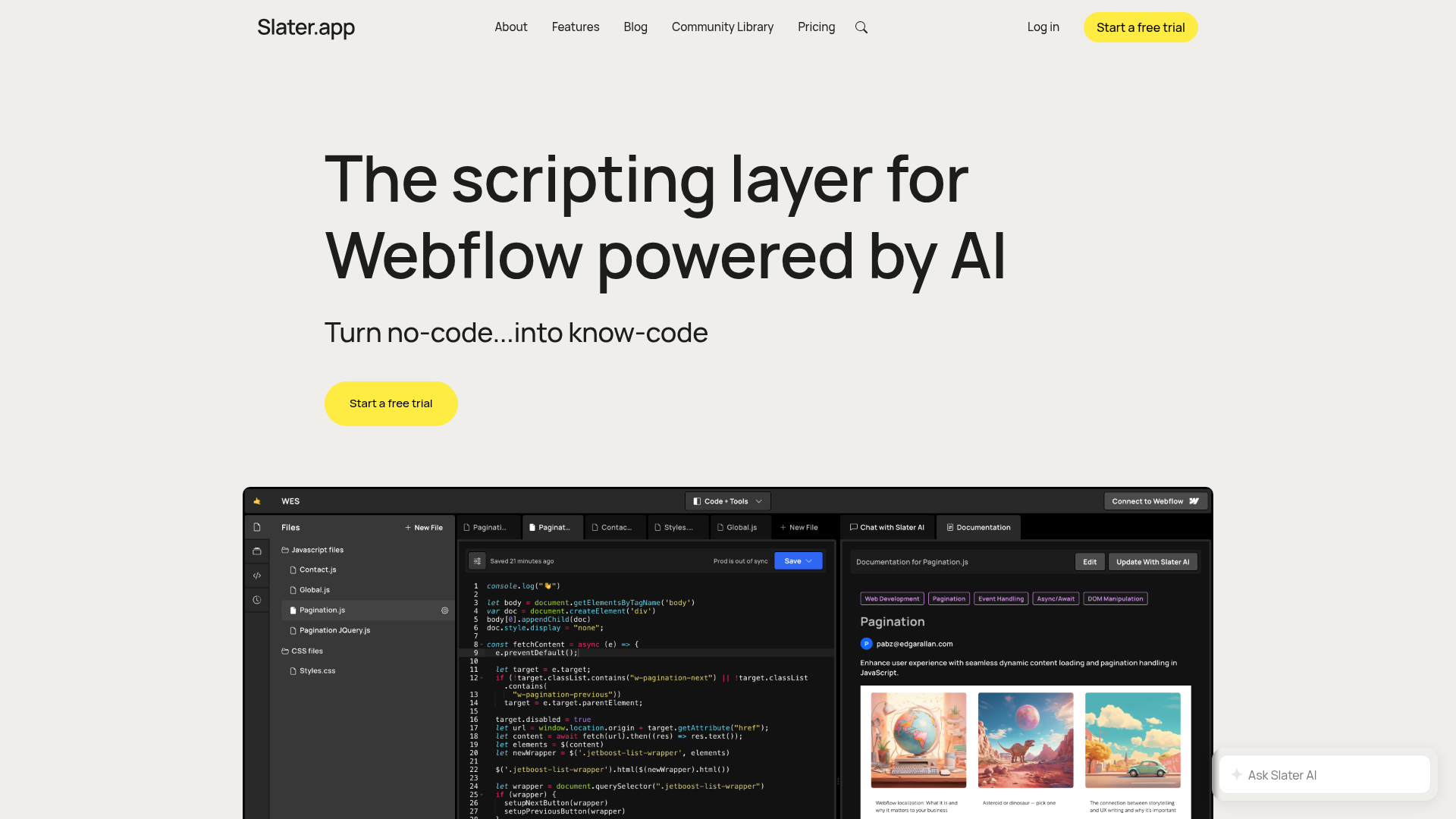
Teams use Slater alongside Webflow when they need custom JavaScript that goes beyond native interactions. Common examples include GSAP scroll animations, third-party API calls, or stateful UI components like multi-step forms. The dedicated editor removes the need to republish your site for every code change, and the staging/production split lets you test safely before going live.
The Slater-Webflow integration supports 3 approaches:
- Slater app handles the connection through the Webflow Marketplace. It provides guided setup and access to Slater's editor.
- Manual script installation lets you paste a single script tag into your site's footer code. You manage everything from Slater's standalone editor.
- Webflow Data API registration lets you programmatically add Slater's script to multiple sites using the Custom Code API. Agencies managing many client projects may prefer this approach.
Most setups use the Marketplace app for initial installation. Day-to-day development then happens entirely within Slater's editor.
Install the Slater app
The Slater app on the Webflow Marketplace connects both tools. It generates the required script snippet and walks you through placing it in your site's footer code. The app has 5,000+ installs, and Slater offers a free plan. You need a paid site plan to use custom code, regardless of how you install Slater.
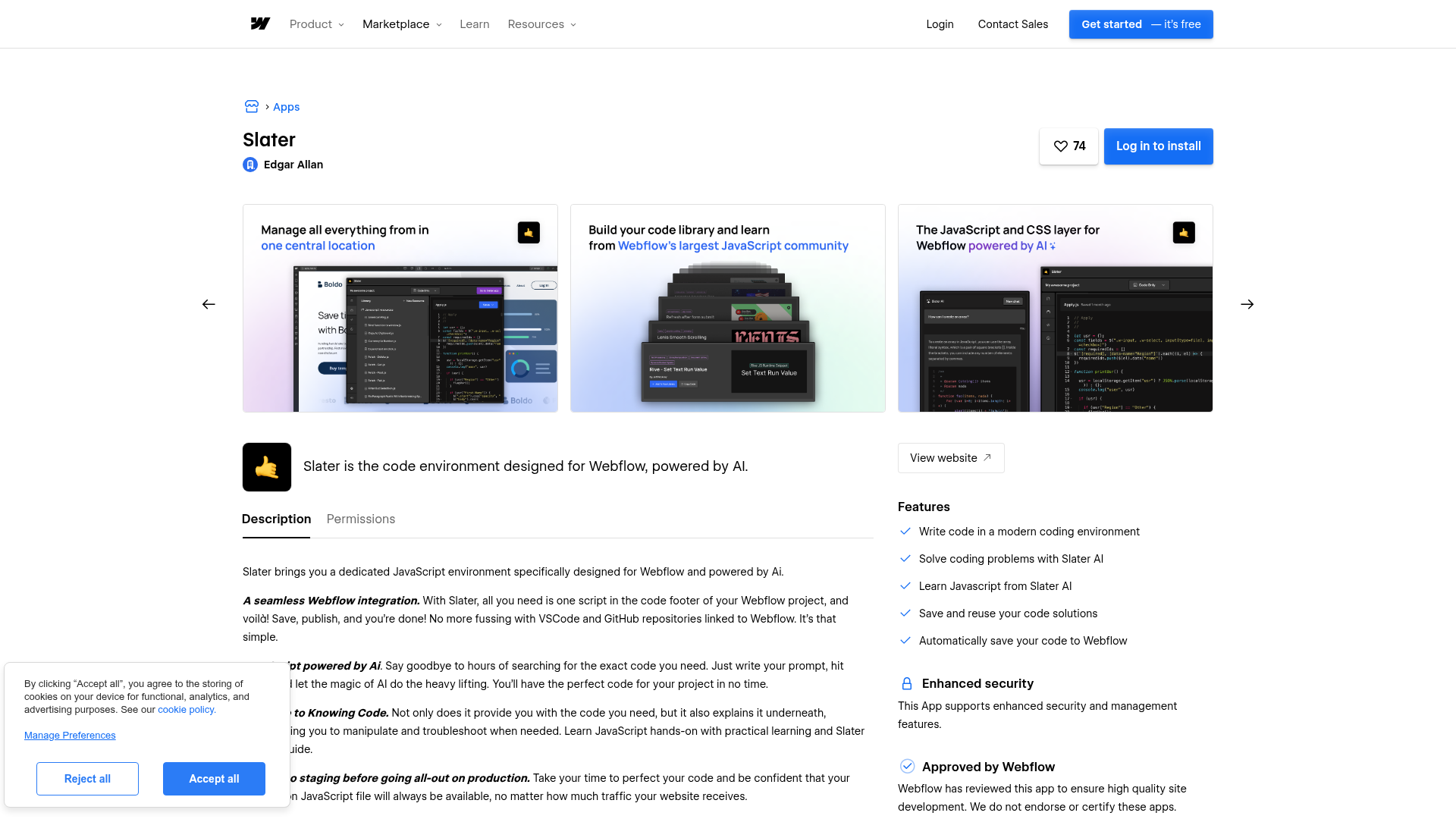
To set up the integration:
- Go to the Slater app listing and click Log in to install.
- Follow the authorization prompts to connect Slater to your Webflow project.
- Copy the generated script snippet from Slater.
- In Webflow, open Site Settings > Custom Code > Footer Code and paste the snippet before
</body>. - Click Save Changes, then publish your site to activate the script.
After setup, you write and manage all custom code in Slater's editor. It includes:
- AI code generation from plain-English prompts, with code explainers beneath each block
- Separate staging (
.webflow.io) and production (custom domain) publish targets - Smart Script that automatically serves the correct code version based on domain context
- Version history with rollback to any previous state
- Team collaboration with simultaneous editing on the same project
- A Code Library for saving and reusing snippets, plus a Community Library of practitioner-contributed code
- Multi-file organization across globals, utils, components, and page-scoped files
- One-way GitHub sync (Slater to GitHub) for version control workflows
- Per-page code scoping so scripts only load where you need them
These features make the Marketplace app the easiest starting point for most Webflow teams.
The Marketplace app and manual installation use the same underlying mechanism. A single externally hosted <script> tag tells your site to load JavaScript from Slater's CDN, so your code runs from that CDN instead of from native embed blocks.
Add the Slater script manually
Some workspace permissions block Marketplace app installs. In that case, create an account at hi.slater.app and paste the script tag yourself. This path gives you the same capabilities as the Marketplace install. Solo developers who prefer direct setup without the Marketplace authorization flow can also use this approach.
To connect Slater manually:
- Sign up at slater.app/users/sign_up.
- Create a new project in Slater. Copy the script snippet from your project settings.
- In Webflow, open Site Settings > Custom Code > Footer Code.
- Paste the Slater snippet before
</body>and click Save Changes. - Publish your site once to activate the script.
To verify the connection, create a file in Slater's editor. Add console.log("👋") and publish to staging. Open your .webflow.io site and check DevTools > Console for the output.
Publish to staging and production
Slater separates your code into two environments. Staging code loads on your .webflow.io subdomain, and production code loads on your custom domain. The Smart Script feature detects which domain the visitor is on and serves the correct version automatically.
To deploy code changes:
- Write or update code in Slater's editor.
- Publish to staging. Verify on your
.webflow.iosite using DevTools > Network and Console tabs. - Test key user flows on staging.
- Publish to production in Slater.
- Republish your site to push production changes to your custom domain.
- Re-test on the production domain.
After the initial setup, most code iterations happen entirely within Slater. You only need to republish your site when pushing production changes or modifying the script snippet itself.
Organize code across multiple files
Slater supports multi-file project structures. You can split code into four file types and move shared logic between files using Slater's import system.
To structure a project:
- Create
globalsfiles for site-wide behaviors like navigation helpers or focus rings. - Create
utilsfiles for pure helper functions you want to reuse across other files. - Create
componentsfiles for element-scoped features like accordions, modals, or sliders. - Create
pagesfiles for code that targets specific pages or templates. - Import shared code between files using the
slater_importsyntax:slater_import('/project/111/page/111.js').
To use the import feature, type a helper file's name in the editor and select the import option from the autocomplete dropdown. The organization guide explains file structure patterns in detail.
Migrate existing custom code into Slater
Existing Webflow projects often have JavaScript spread across multiple embed elements and site-level custom code fields. Slater's migration guide walks through moving all of that scattered code into a single, centralized editor. Consolidating prevents double execution and gives you version history across every script.
To migrate existing code:
- Inventory all custom code from your site-level Custom Code fields and page-level embed elements.
- Add the Slater script to your site's footer code (one-time setup).
- Recreate your file structure in Slater to match your original organization. Leave external library CDN tags in Custom Code settings.
- Test everything on your
.webflow.iostaging domain. - Remove the original embeds so scripts don't execute twice.
- Publish to production in Slater and republish your site.
Keep vendor libraries (like GSAP or Memberstack) in site-level Custom Code rather than inside Slater files. This avoids duplication and keeps load order predictable. Pin version numbers in CDN URLs to prevent unexpected breaking changes.
Build with the Webflow Data API
Slater does not have a public API. Code deployed through Slater runs in the browser, not on a server, so server-side API calls must route through external services. The Webflow Data API works well alongside Slater when you want to programmatically register scripts, manage CMS content, or trigger site publishes.
Available API resources for Slater-adjacent workflows:
- The Custom Code API registers hosted or inline scripts on sites and individual pages (requires OAuth tokens, not site tokens)
- The CMS Collections API handles collection items, with both staged and live endpoints for content management
- The Sites API triggers site publishes programmatically
- Webflow webhooks can be created, listed, and removed programmatically via the API to trigger external workflows on events
Any workflow that requires server-side logic needs to run through external serverless functions (AWS Lambda, Vercel, Cloudflare Workers) rather than Slater itself. That includes authenticated API calls and data processing.
Register Slater's script via the Custom Code API
For teams managing multiple sites, the Custom Code API can programmatically add Slater's script tag, replacing manual pasting in each site's settings.
To register the script:
- Create a Webflow App with OAuth. Request the
custom_code:readandcustom_code:writescopes. Only OAuth tokens can access Custom Code endpoints. - Register Slater's hosted script URL using
POST /v2/sites/:site_id/registered_scripts/hosted. - Apply the registered script to the site using
PUT /v2/sites/:site_id/custom_code. - Publish the site using
POST /v2/sites/:site_id/publishto activate the script.
This approach is most practical for agencies deploying Slater across many client sites. The Custom Code API documentation covers request schemas, required scopes, and response formats.
What can you build with the Slater Webflow integration?
Integrating Slater with Webflow lets you add custom JavaScript and CSS to any site without managing code across scattered embed blocks or republishing for every change.
- Scroll-driven GSAP animations: Build complex scroll-triggered animation sequences using GSAP and ScrollTrigger. Slater's Community Library includes ready-to-use snippets for ScrollTrigger setups, staggered card animations, and word-reveal-on-scroll effects. Drag these into any project.
- Live data from external APIs: Fetch and display real-time data from third-party REST endpoints. Examples include weather feeds, financial data, or job listings. Slater's AI generates the fetch call syntax from a plain-English description, and the staging environment lets you test API responses before they reach your production site.
- Custom UI components with state management: Create interactive elements like date range pickers, multi-step forms, or client-side CMS filtering. These need JavaScript state management beyond native interactions. Slater's multi-file organization lets you structure component logic separately from page-specific code.
- Rive and canvas-based interactive experiences: Connect Rive interactive animations to your pages and control boolean and number inputs to trigger state machine transitions. The Community Library includes Rive input snippets and canvas animation examples you can adapt for your own projects.
If you need more control over programmatic script registration or CMS content syncing, the API integration path covers those cases.
Frequently asked questions
Yes. Slater's integration relies on adding a script tag to your site's custom code settings. Custom code requires a paid site plan. Slater does not impose this requirement. Free sites do not support custom code.
Once the Slater script tag is in place, most code iterations happen entirely within Slater. You publish to staging or production from Slater's editor. You only need to republish your site when pushing production code to your custom domain. You also need to republish when modifying the script snippet itself. The Slater publishing guide walks through the full staging-to-production workflow.
Yes. When you create a file in Slater, you can select which pages it should load on. You can change page scope later through Edit File Settings on the file settings tab. The script tag in your footer code stays the same for both site-wide and page-scoped files.
Slater uses Terser to minify production files by default. Terser strips
console.loganddebuggerstatements during minification. To keep them visible for debugging, go to your project's Project Settings in Slater. Uncheck Minify production files, save, and redeploy.No. Slater supports JavaScript and CSS only. TypeScript is explicitly not supported. If your workflow requires TypeScript, you would need to compile it to JavaScript externally. Then paste the output into Slater, or use a separate build tool and deploy through another method.
Description
Add custom JavaScript and CSS to Webflow sites and iterate on code without republishing, using Slater's staging and production environments with AI-assisted code generation via a single script tag.
This integration page is provided for informational and convenience purposes only.

Drupal
Connect Drupal with Webflow to deliver managed content through a visual frontend using API sync, automation tools, or client-side embeds.

Finsweet Components
Connect Finsweet Components, a native Webflow app, to add JavaScript-powered sliders, marquees, social feeds, favorites, and auto tabs directly inside the Webflow Designer without custom code.

EX.CO
Connect EX.CO with Webflow to add interactive video players and monetize content through custom embed codes.
Finsweet Class Adder
Add and remove CSS classes on Webflow elements on click, hover, scroll, or page load using a script generated by Finsweet's Visual Builder.

Pixie
Connect Pixie with Webflow to automate CMS image optimization, reduce file sizes, and speed up page load times.
One2 Menu
Add a One2 Menu restaurant menu to a Webflow page with a code snippet, for QR menus and price edits that go live without a republish.
PowerImporter
PowerImporter automtes content updates that can create bottlenecks when marketing teams manage information in Airtable or spreadsheets but developers must manually transfer data to Webflow CMS.

Flowstar Tabs
Connect Flowstar Tabs, a no-code tab builder, with Webflow to organize product details, including specs, into customizable tabbed info sections.

xAttribute
Related integrations
Get started for free
Try Webflow for as long as you like with our free Starter plan. Purchase a paid Site plan to publish, host, and unlock additional features.
