






Finsweet Components
Connect Finsweet Components, a native Webflow app, to add JavaScript-powered sliders, marquees, social feeds, favorites, and auto tabs directly inside the Webflow Designer without custom code.

Webflow's native design tools handle layout and CMS structure well, but advanced front-end behaviors like sliders, marquees, social feeds, auto-rotating tabs, favorites, tables, and animated number counts require extra tooling. While Webflow's native CMS structures dynamic content, it doesn't natively generate JavaScript-powered components like CMS-connected sliders, marquees, or social feeds.
Finsweet fills these gaps with Finsweet Components, a native Webflow App for adding JavaScript-powered components visually inside the Designer—no custom scripts or separate frontend frameworks required. It's built for Webflow designers, freelance developers, and agency teams working on content-heavy sites such as marketing pages, directories, blogs, e-commerce catalogs, job boards, and portfolios.
How to integrate Finsweet Components with Webflow
What is Finsweet Components? Finsweet is a Webflow-ecosystem company. Finsweet Components is a native Webflow App for adding JavaScript-powered components like sliders, marquees, social feeds, favorites, tables, and number counts inside the Webflow Designer.
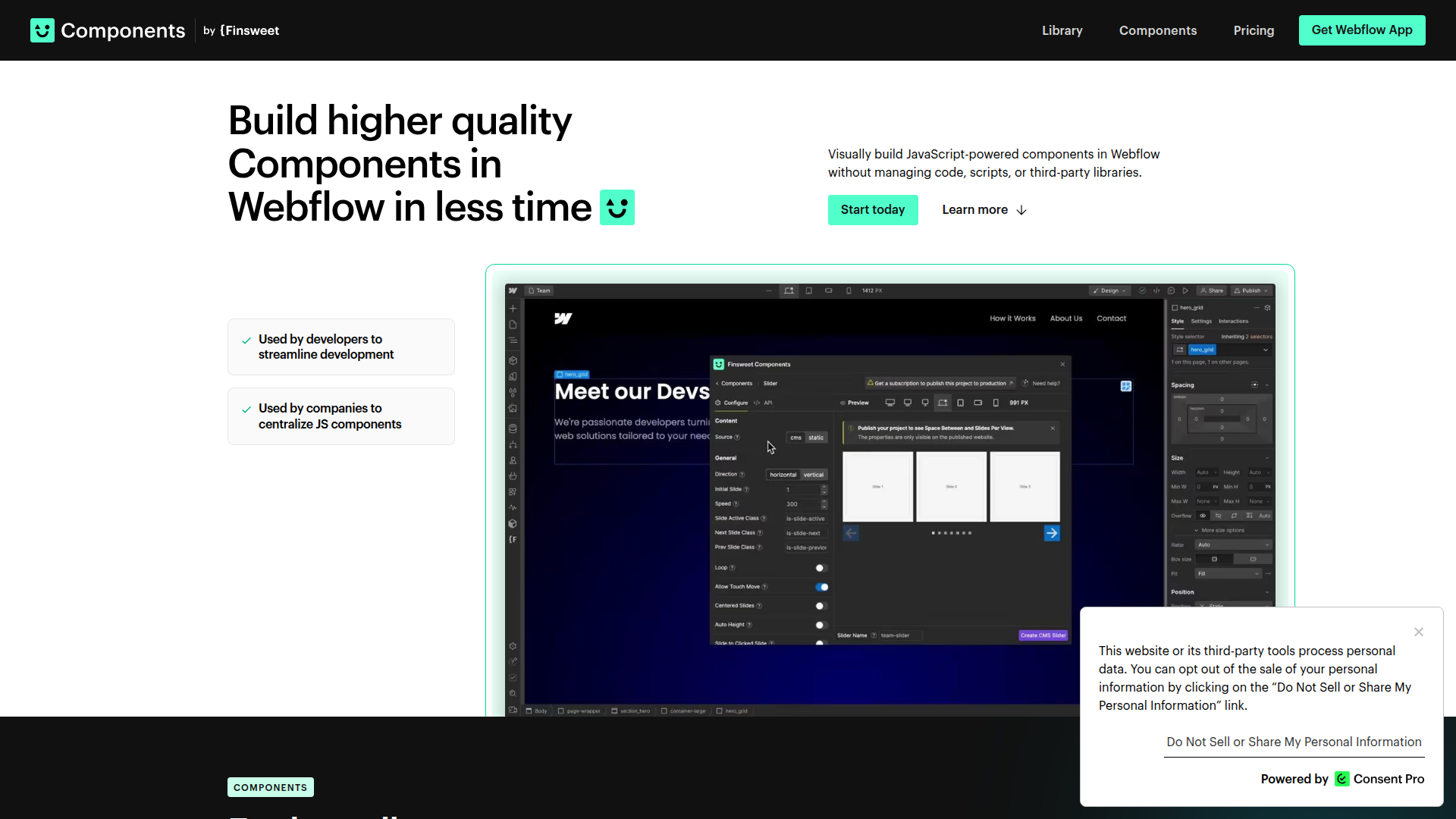
Finsweet Components is designed for visual implementation inside Webflow. Instead of adding script tags manually or using a Code Embed, teams install the app, open it from the Apps panel, choose a component, and configure it inside the Designer.
The Finsweet-Webflow integration supports a straightforward visual workflow:
- Install the Finsweet Components app from the Webflow Apps directory.
- Open it inside your Webflow project from the Apps panel.
- Choose a component such as Slider, Marquee, Auto Tabs, YouTube Feed, Instagram Feed, Favorite, Table, or Number Count.
- Configure the component visually, publish the site, and test it on the live URL.
Most implementations use this path because it keeps setup inside Webflow and avoids writing custom JavaScript for common interactive UI patterns.
Install the Finsweet Components app
The Finsweet Components app adds JavaScript-powered components directly into Webflow. No script tags or code embeds are required. It is available in the Webflow Apps directory with 5,000+ installs. All components work for free on .webflow.io staging domains. A paid subscription is required for custom domains in production. The app currently includes Slider, Marquee, Auto Tabs, YouTube Feed, Instagram Feed, Favorite, Table (free), and Number Count (free).
To install and use Finsweet Components:
- Go to the Finsweet Components listing in the Webflow Apps directory and click Install.
- Open your Webflow project and access Components from the Apps panel in the left sidebar.
- Select a component type (for example, Slider or Marquee) and configure it visually inside Webflow.
- Publish the site and test on the live URL. Components do not render in design, edit, or preview mode.
The app currently includes these components:
- Slider, for CMS-connected carousels with full visual control
- Marquee, for infinite scrolling text and element animations
- Auto Tabs, for timed tab switching
- YouTube Feed and Instagram Feed, for embedding social content
- Favorite, for creating custom favorites lists
- Table and Number Count, which are both free on all domains
These components cover the main visual use cases handled inside the Webflow Designer.
How setup works inside Webflow
Finsweet Components is built as a native Webflow App, so setup happens in the Designer rather than through site-wide custom code. After installation, the app becomes part of your Webflow workspace and can be opened from the Apps panel whenever you need to add or edit a component.
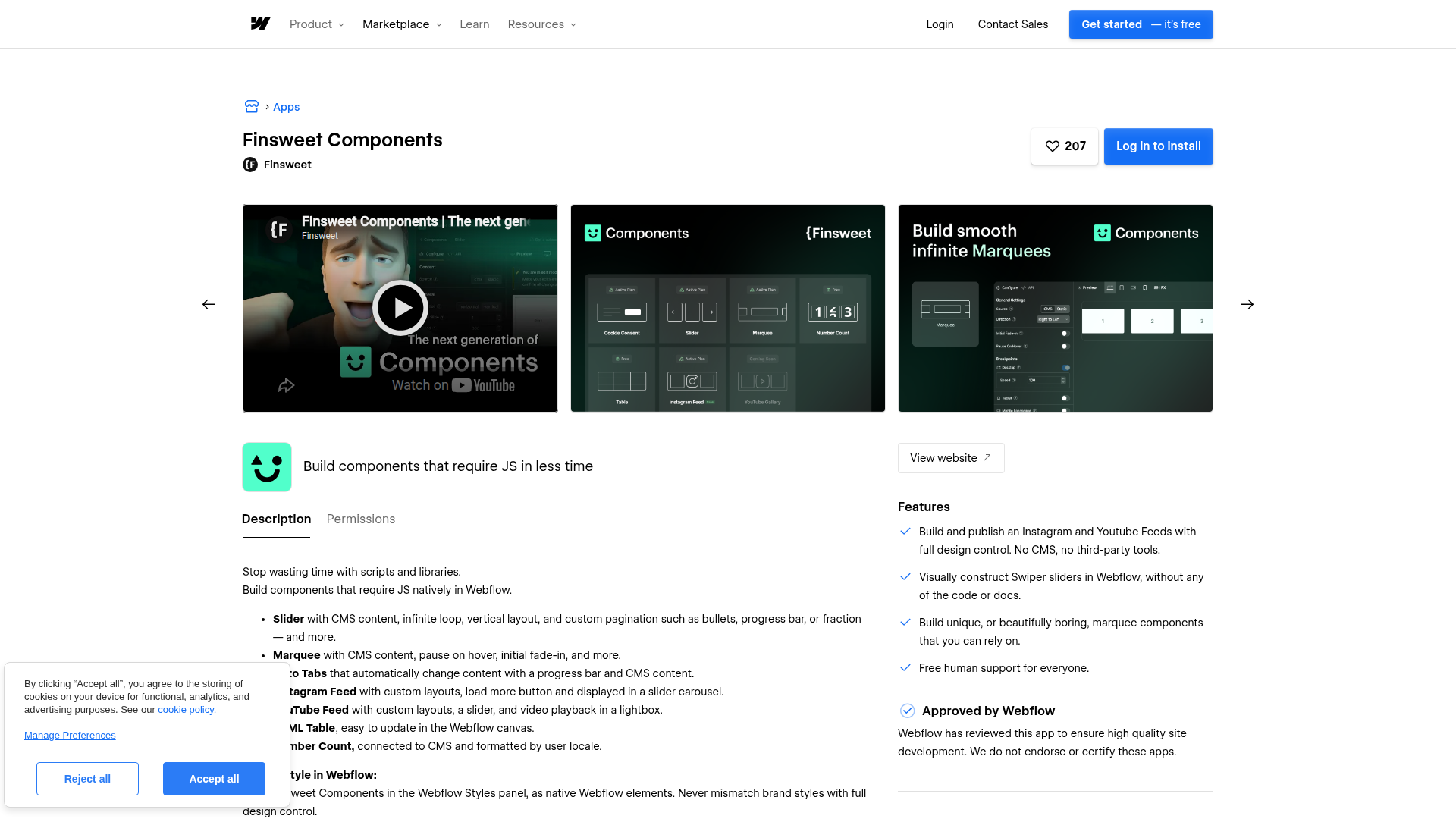
A typical implementation follows this flow:
- Install the app in the target Webflow project.
- Open the app from the Apps panel.
- Pick the component you want to add.
- Configure the component visually.
- Connect it to the relevant Webflow content structure when needed.
- Publish and test on the live site.
Because the product is app-based, there is no separate script deployment process described here. The main implementation task is choosing the right component and styling it to fit the site design.
Publish and test the integration
Like many JavaScript-powered Webflow extensions, Finsweet Components must be tested on a published URL. Components do not render in Webflow's design, edit, or preview mode, so a component that looks correctly configured in the Designer still needs a live publish to verify behavior.
A simple testing checklist is:
- Publish to a
.webflow.iostaging domain during setup. - Confirm the component renders correctly on the published page.
- Test interactions such as slide movement, marquee motion, tab switching, or social feed output.
- Confirm responsive behavior across breakpoints.
- Move to a paid plan only when you are ready to run Components on a custom production domain.
This staging-first workflow is especially useful because all components work for free on .webflow.io domains.
Hosting and export limitations
Finsweet Components does not work on exported Webflow sites and requires Webflow hosting.
That makes Finsweet Components best suited to teams that are already committed to hosting their project on Webflow. If your delivery process depends on exporting code and hosting elsewhere, this integration will not preserve component functionality after export.
Available Finsweet Components
Finsweet Components currently includes the following app-based components:
- Favorite for custom favorite lists
- Auto Tabs for automatically rotating tab interfaces
- YouTube Feed for embedded YouTube content
- Instagram Feed for embedded Instagram content
- Slider for visually controlled sliders in Webflow
- Marquee for smooth infinite scrolling effects
- Table for native HTML tables in Webflow
- Number Count for CMS-powered number animations
Of these, Table and Number Count are free. The other components are available for free on .webflow.io staging domains and require a paid subscription for custom domains in production.
This mix makes the app practical for both evaluation and production work. Teams can test the full workflow on staging before deciding whether a paid production rollout is justified.
What can you build with the Finsweet Components Webflow integration?
Integrating Finsweet Components with Webflow lets you add interactive, visually managed features without writing custom JavaScript or switching to a different frontend framework.
- CMS-powered sliders and testimonial carousels: Add a testimonials carousel managed through Webflow using Slider. This works well for homepages, case study sections, and product highlight modules where content changes over time.
- Scrolling marquees for logos, updates, or announcements: Use Marquee for continuous movement of brand logos, text callouts, or featured messages. This fits marketing pages, launch pages, and event sites that need motion without building a custom animation system.
- Social feed sections: Add YouTube Feed or Instagram Feed to bring social content into a Webflow page layout. This can support creator pages, brand sites, campaign landing pages, and content hubs.
- Timed content rotation with Auto Tabs: Build sections that automatically cycle through tabbed content for feature walkthroughs, product highlights, or onboarding-style storytelling.
- Saved-item experiences with Favorite: Create custom favorites lists so visitors can save selected items for later review. This is useful for directory-style browsing, curated content, and comparison-friendly interfaces.
- Structured data displays with Table: Add native HTML tables directly in Webflow for pricing comparisons, specs, schedules, or documentation layouts.
- Animated metrics with Number Count: Show CMS-powered number animations for stats, milestones, totals, and performance callouts on landing pages and marketing sections.
These use cases make Finsweet Components especially helpful for sites that need richer front-end behavior but still want the implementation process to stay close to the Webflow Designer.
When Finsweet Components is a good fit
Finsweet Components is a strong fit when your team wants visual control over JavaScript-powered interface elements without maintaining custom front-end code. It is especially useful for:
- marketing teams that need reusable interactive sections
- agencies delivering polished Webflow builds quickly
- freelance Webflow developers who want to avoid one-off custom scripts
- content teams that update site content regularly after launch
The product is also a good fit for teams that want to prototype on a staging domain first, since the app works for free on .webflow.io sites.
Key limitations to know before implementation
A few constraints shape how this integration works in practice:
- Published-site testing is required: Components do not run in design, edit, or preview mode.
- Webflow hosting is required: Exported sites do not support Components.
- Custom domains require a paid plan: Staging on
.webflow.iois free, but production use on a custom domain is paid for most components. - Not every component is paid: Table and Number Count are free on all domains.
These limitations are manageable for most Webflow-first teams, but they are important to confirm before you make Components part of a client delivery standard.
Frequently asked questions
No. Components do not render in design, edit, or preview mode. You must publish to a
.webflow.iostaging domain or a live custom domain and test there after every change.No. Finsweet Components is a native Webflow App. The setup is handled through the app inside Webflow rather than through manual script tags or code embeds.
Table and Number Count are free on all domains. The other listed components work for free on
.webflow.iostaging domains and require a paid subscription for custom domains in production.No. Finsweet Components does not work on exported Webflow sites and requires Webflow hosting.
Install it from the Finsweet Components listing in the Webflow Apps directory. After installation, open it from the Apps panel inside your Webflow project.
Description
Finsweet Components adds interactive UI elements to Webflow through a native app — no script tags or Code Embed required. Configure sliders, marquees, social feeds, and more visually inside the Designer, then publish and test on a live URL.
This integration page is provided for informational and convenience purposes only.

FlowScript.dev

Cutcopy
Connect CutCopy with Webflow to transfer variable collections and element attributes between sites without rebuilding them manually.
Finsweet-table-of-contents
Connect Finsweet Table of Contents with Webflow to generate anchor link navigation automatically from the headings in your content.

MathJax
Connect MathJax, an open-source math display engine, with Webflow to render LaTeX equations as typeset formulas with built-in accessibility, screen reader support, and cross-browser consistency.

Awesome Table
Connect Awesome Table with Webflow to display filterable Google Sheets data on any page without building a custom backend.

Slater
Connect Slater with Webflow to write, test, and deploy custom JavaScript and CSS through a dedicated editor with staging environments, version history, and AI code generation.

Clean Styles
Clean Styles merges duplicate classes and bulk-renames styles inside Webflow, with no code and no external account.

Flowblock - Code AI
Connect Flowblock - Code AI, an AI-powered code editor, with Webflow to write and deploy custom JavaScript and CSS

Formly & Flowplay
Connect Formly and Flowplay with Webflow to enhance functionality without custom coding.
Related integrations
Get started for free
Try Webflow for as long as you like with our free Starter plan. Purchase a paid Site plan to publish, host, and unlock additional features.
