






Slack
Manage your Webflow site from Slack with Webflow's own app, and route form, CMS, and order events into your channels.

Most website requests start as a message rather than a task. Someone asks for a copy tweak in a channel, a teammate flags a page title that reads badly in a shared link, and the work waits until whoever has the site open catches up on the thread.
Webflow now works inside that conversation. Webflow for Slack is published by Webflow, free to use today, and answers questions about your sites or changes them in plain language while the thread is still live, so a content edit or an SEO fix happens where the request was made.
Site activity travels the other way as well. Form submissions, CMS publishes, and new orders can reach a Slack channel through automation platforms, Incoming Webhooks, or a direct API integration. This page covers both directions, starting with the app.
How to integrate Slack with Webflow
What is Slack? Slack is a channel-based messaging platform where work happens in channels, threads, and direct messages. It also hosts apps and bots that post messages, respond to mentions, and run workflows without anyone leaving the conversation.
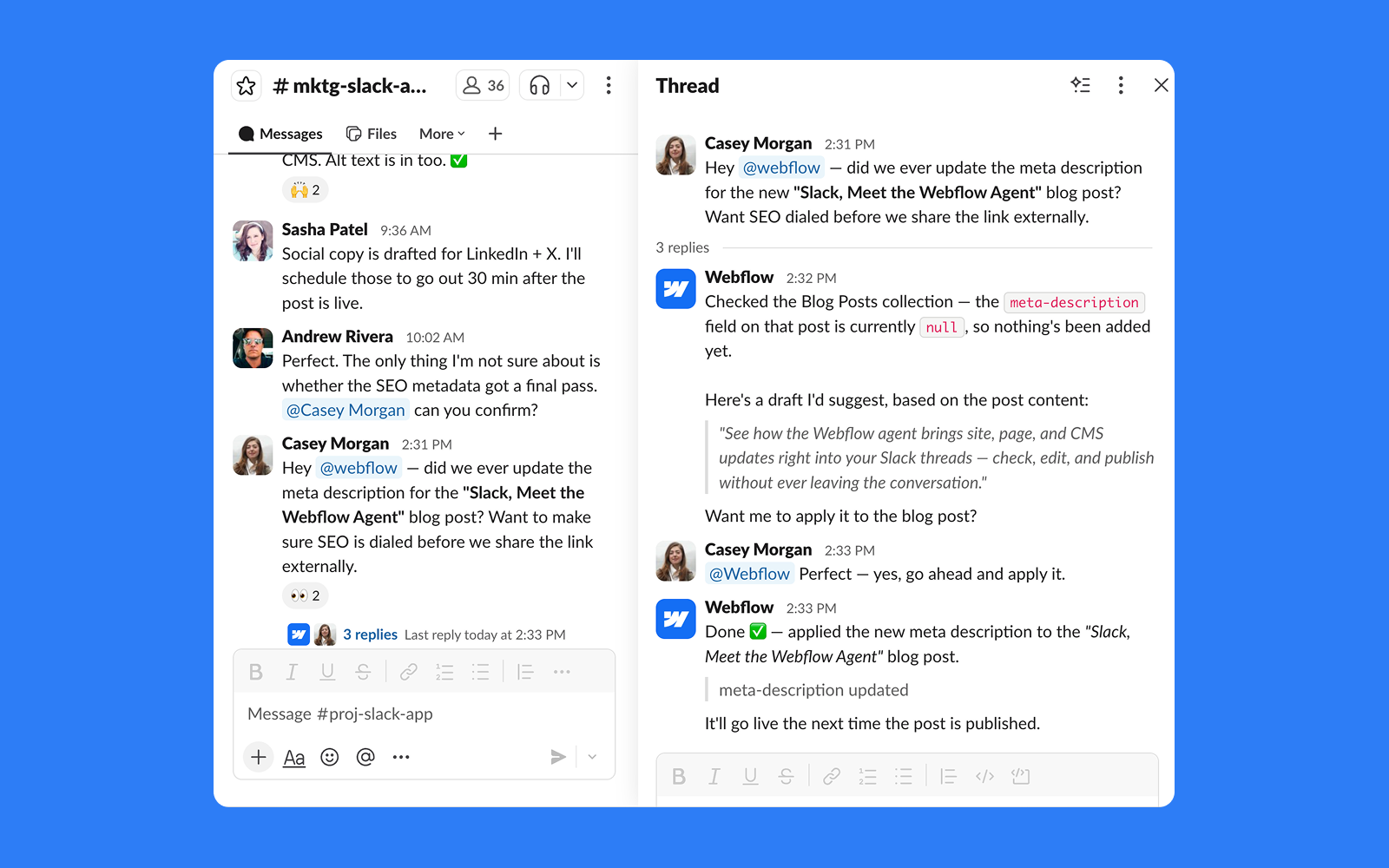
Teams pair the two products for two different jobs: doing site work from a conversation, and putting site activity in front of the people who respond to it. A demo request should reach the sales channel in seconds, and a request to shorten a meta description should not need a handoff to whoever has the site open.
The Slack and Webflow integration supports 4 approaches:
- The Webflow for Slack app, published by Webflow, answers questions about your sites and makes changes to them from a Slack message in natural language.
- Slack Incoming Webhooks with custom code POST Webflow form data straight to a channel using a JavaScript snippet on your site.
- Automation platforms such as Zapier, Make, and n8n wire named Webflow triggers to Slack actions without server-side code.
- The Webflow and Slack APIs give you full control over routing, formatting, and writes back into Webflow, at the cost of running your own endpoint.
Most teams run the app for site management and one notification method alongside it, because the two solve opposite problems.
1. Manage your Webflow site from Slack
Webflow publishes its own Slack app, which makes it the shortest path from a request in a thread to a change on the site. The Marketplace listing shows Webflow as the publisher with free pricing, and the app launched in July 2026.
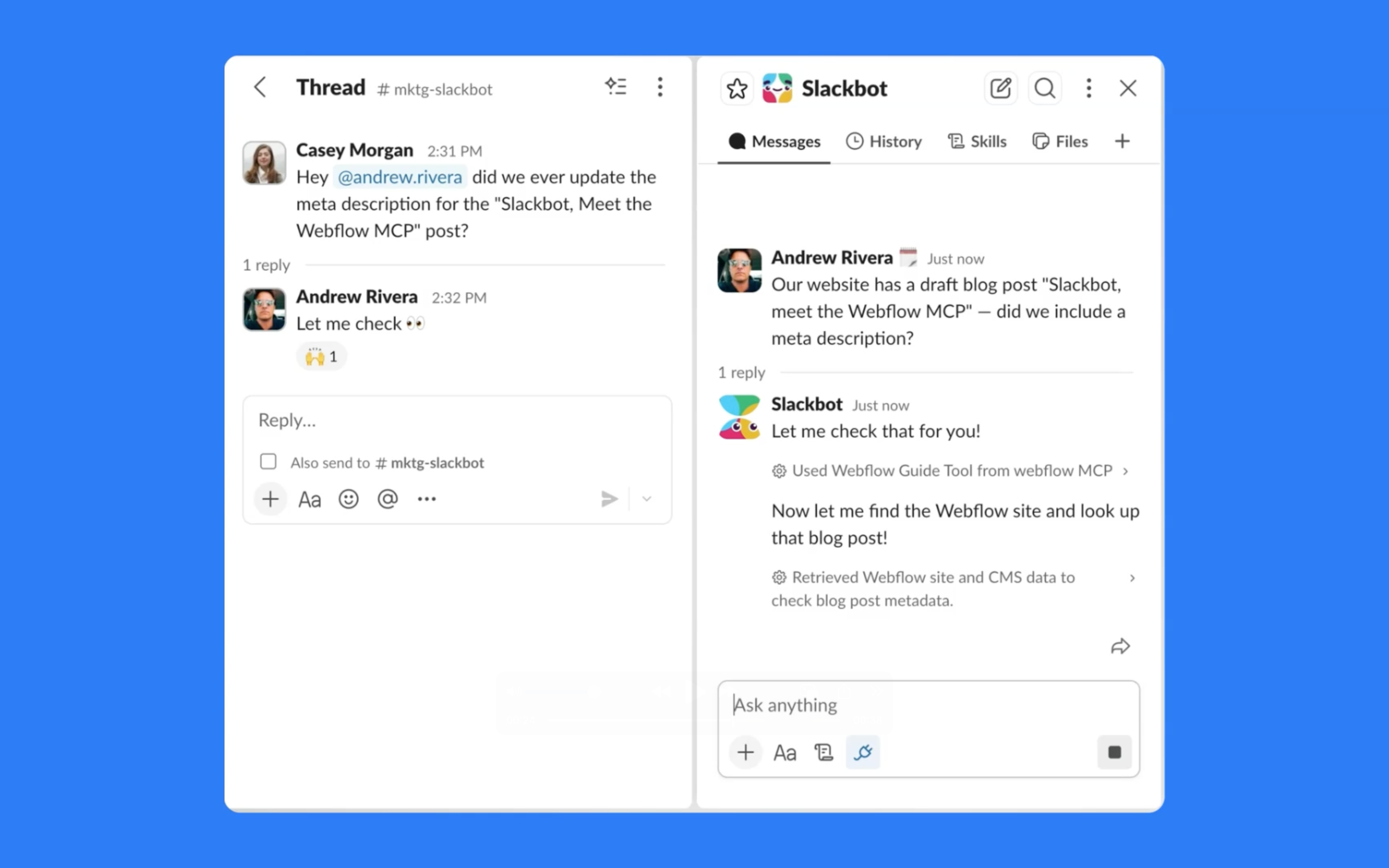
Inside Slack you can:
- Change content: Create, update, and publish CMS items from a Slack message, so a blog post that comes up mid-conversation can be live before the conversation moves on.
- Fix SEO: Audit a page's SEO and apply metadata improvements without opening the site in another tab.
- Ask about your sites: Ask what a site contains or how something in Webflow works, and get step-by-step guidance in the thread.
- Stay inside your permissions: Requests run against your existing Webflow permissions and governance controls, so working from Slack does not widen anyone's access.
Webflow describes the app as running on the Webflow MCP server, the layer that makes sites, content, and workflows available to an agent.
Access arrives in two stages, and the difference decides what you pay. Messaging Slackbot is generally available and free: DM Slackbot to ask about your sites or take action in natural language. The Webflow Slack Agent is in public beta under beta terms, covering direct messages with @Webflow, launching that conversation from Slack's Agents menu, and mentioning @Webflow in a public thread so the whole channel sees the result. The agent is free during the public beta, and AI credits will apply to the workflows outside Slackbot once it reaches general availability.
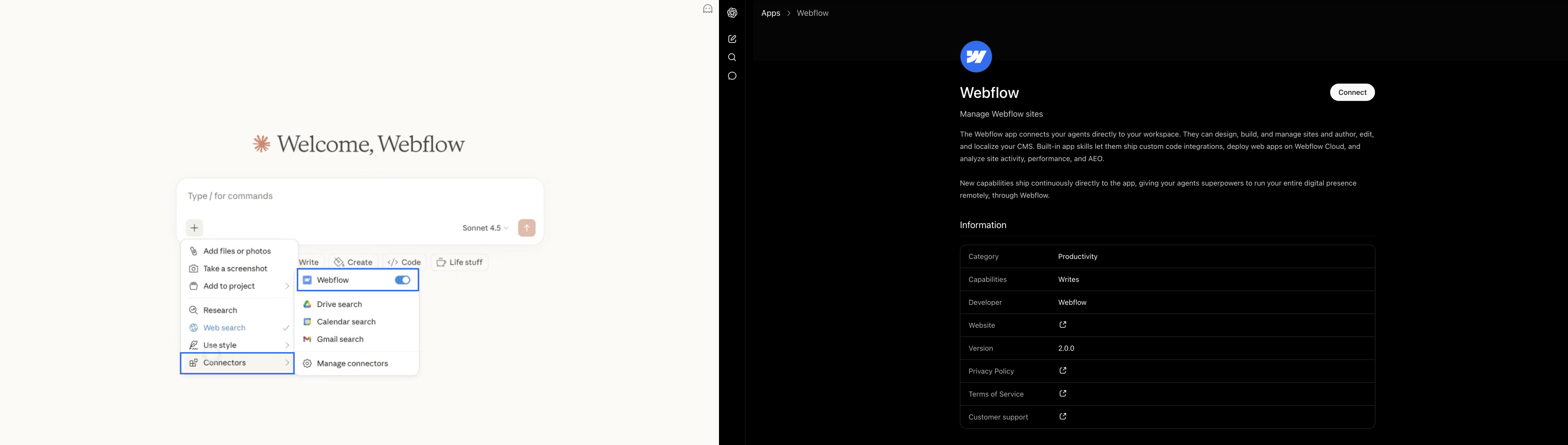
Keep two layers separate when you plan a rollout. The MCP server has documented install paths for coding clients such as Claude Code, Cursor, and Windsurf, and those installs are what put Webflow inside a developer's editor. Slack access does not come from configuring one of those clients, since installing the Slack app from the Marketplace listing is the whole setup.
Notifications cover the other half of the pairing, and the methods below run from no-code automation up to a full API integration.
2. Send Slack notifications with Incoming Webhooks
Slack's Incoming Webhooks send messages to a channel without a third-party automation tool. You create a webhook URL in Slack, then POST JSON to it from Webflow using a custom script.
This approach avoids monthly automation platform costs, but it needs either a Code Embed element or a JavaScript snippet in your Webflow site's custom code in the head and body tags.
Creating a Slack Incoming Webhook
Slack's Incoming Webhooks feature generates a unique URL that accepts JSON payloads and delivers them as messages to a specific channel.
To create the webhook:
- Go to api.slack.com/apps and create a new Slack app from scratch.
- In the app settings, click Incoming Webhooks and toggle the feature On.
- Click Add New Webhook to Workspace, select the target channel, then click Allow.
- Copy the generated webhook URL (formatted as
https://hooks.slack.com/services/T.../B.../...).
The webhook URL is the only credential needed. Any valid JSON POST to that URL delivers a message to the selected channel, so Webflow can send simple channel notifications without an automation platform.
Adding the webhook script to Webflow
With the webhook URL ready, add a JavaScript snippet to your Webflow page that intercepts form submissions and POSTs the data to Slack.
To add the script:
- Open your Webflow site, go to the page with the form, and open Page Settings.
- In the Custom Code section, paste your JavaScript in the Before </body> tag field. The script should listen for the form's submit event, collect field values, and POST a JSON payload to your Slack webhook URL.
- Publish the site to activate the script.
The minimum JSON payload Slack accepts is:
{
  "text": "New form submission from yoursite.com"
}
For richer formatting, Slack supports Block Kit layouts with sections, fields, and context blocks, which moves a plain text alert into a structured notification.
One security consideration applies here. Putting a Slack webhook URL in client-side JavaScript exposes it in the page source, so for production sites with real traffic, route the POST through a serverless function rather than calling the webhook URL from the browser. For low-traffic internal tools, the risk may be acceptable.
Setting up Open Graph tags for Slack link previews
When someone shares a Webflow page URL in Slack, Slack builds a rich link preview from the page's Open Graph meta tags. No app or custom code is involved.
To configure Open Graph tags:
- Open the page in Webflow and go to Page Settings.
- Navigate to the SEO tab.
- Fill in the Open Graph title, description, and image fields.
- Publish the site.
Shared links in Slack then display the title, description, and image you specified. This is not an integration in the technical sense, but it changes how every Webflow URL your team pastes into Slack reads.
3. Connect with Zapier, Make, or n8n
Automation platforms give you the fastest path from a Webflow trigger to a Slack action with no server-side code. Zapier, Make, and n8n all connect Webflow and Slack through named triggers and actions.
To set up Webflow-to-Slack notifications with Zapier:
- Sign in at zapier.com and create a new Zap.
- Select Webflow as the trigger app, then choose New Form Submission as the trigger event.
- Click Connect and authorize Zapier through Webflow's OAuth redirect. Select your site and form.
- Click Test Trigger to pull in a recent submission.
- Add an action step, select Slack, then choose Send Channel Message.
- Click Connect and authorize Zapier through Slack's OAuth redirect. Select the target channel.
- Use Zapier's variable picker to map form fields such as name, email, and message into the Slack notification text.
- Click Test Action to verify the message appears in Slack, then publish the Zap.
That sequence is the quickest no-code route to Webflow form alerts in Slack.
Zapier's Webflow triggers
Zapier exposes five Webflow triggers, and each one can start a Slack message:
- New Form Submission: Fires when a visitor submits a form on your site, which covers most lead and contact notifications.
- New Order: Fires when a Webflow Ecommerce order is placed, so fulfillment sees the sale without opening the dashboard.
- Updated Order: Fires when an existing order changes, useful for refund and fulfillment status updates.
- New Comment: Fires when someone leaves a comment on the site, which routes design feedback to a review channel.
- New Resolved Comment Thread: Fires when a comment thread is resolved, closing the loop on feedback that a channel was already tracking.
These triggers cover the Webflow events teams most often want in Slack. Pre-built templates also run the reverse direction, where a Slack message creates a Webflow CMS item or a Slack reaction updates an existing one.
Setting up with Make
To set up the same workflow with Make:
- Log in at make.com and create a new scenario.
- Add a Webflow module and select the Watch Events trigger, connect your Webflow account, then choose the site and the event you want to watch.
- Click + to add a Slack module, select Send a Message, and authorize your Slack workspace.
- Map the Webflow payload fields into the Slack message body.
- Click Run once to test, then switch the scenario on.
Make reaches the same outcome with more room for routing and formatting logic. Its scenarios are multi-step by design, so one Webflow event can create a CRM contact, log a row in a spreadsheet, and post a formatted Slack message in the same run.
Make also documents routing Webflow comments into Slack, with filters that send comments to different channels based on what they contain.
Using n8n
n8n offers a self-hosted option for teams that need data to stay on their own infrastructure. Its Webflow node creates, retrieves, updates, and deletes items, and its Slack node includes a Send and Wait for Response action, which suits editorial approval flows where a CMS item needs human sign-off before it publishes.
Between the three platforms, the no-code and low-code paths are covered. The remaining reason to write code is control over the message itself.
4. Build with the Webflow and Slack APIs
For full control over message formatting, conditional routing, two-way sync, and channel management, call the Webflow and Slack APIs directly. This route needs server-side development in Node.js, Python, or similar, plus a hosted endpoint that can receive webhook payloads.
Four pieces do the work:
- The Slack Web API posts messages with
chat.postMessage, manages channels withconversations.createandconversations.list, and resolves people withusers.lookupByEmail. - The Webflow API reads and writes CMS collection items, form submissions, and Ecommerce orders.
- Webflow webhooks fire on site events, including form submissions, CMS publishes, new orders, and site publishes.
- Your own endpoint translates between the two, which is where routing rules and message templates live.
Together these cover outbound notifications and Slack-driven writes back into Webflow.
Forwarding form submissions to Slack
Register a Webflow webhook for the form_submission trigger type, then turn the payload into a Slack message on your server.
To implement this:
- Register a webhook by sending a
POST https://api.webflow.com/v2/sites/{site_id}/webhookswithtriggerTypeset toform_submissionandurlpointing at your server endpoint. Add afilterobject with the form name to scope notifications to one form. - On your server, parse the incoming JSON. Field values live in
payload.dataand field definitions inpayload.schema, so iterating the schema renders every field without hardcoding names. - Build the Slack message with Block Kit and POST it to your Incoming Webhook URL, or call
chat.postMessagewith a bot token in anAuthorization: Bearer xoxb-...header. - Return HTTP
200before you wait on Slack's response. Anything else counts as a failure, and Webflow retries the delivery up to 3 more times at 10 minute intervals.
Using chat.postMessage rather than an Incoming Webhook also gives you scheduled messages through chat.scheduleMessage, edits through chat.update, and direct messages by pairing users.lookupByEmail with conversations.open. That is the better route once you need more than a plain channel alert.
One detail catches people out: webhooks created from the Webflow dashboard do not carry the request headers needed for signature validation, so create them through the API if you plan to verify signatures.
Sending CMS publish alerts to Slack
The collection_item_published webhook fires only when a CMS item goes live, not on draft saves, which makes it the right trigger for telling a team that content is ready.
To implement this:
- Register a webhook with
triggerTypeset tocollection_item_published. - On your server, read
payload.fieldData.nameandpayload.fieldData.slugfrom the webhook body. - Build the live URL from the slug and POST a Slack message with a clickable link in Slack's mrkdwn format:
<https://yoursite.com/blog/slug|Article Title>.
Related CMS trigger types include collection_item_created for editorial intake, collection_item_changed for update notices, collection_item_unpublished for content pulled from the site, and collection_item_deleted for audit logging. Each can route to a different channel, so one CMS workflow fans out to several teams.
Routing e-commerce orders to Slack
The ecomm_new_order webhook delivers order details, including customer information, shipping address, line items, and totals.
To implement this:
- Register a webhook with
triggerTypeset toecomm_new_order. - Parse the fields you need from the payload, such as
payload.orderId,payload.customerInfo.fullName,payload.totals.total, andpayload.purchasedItems. - Format an order summary with Block Kit sections and POST it to a
#salesor#orderschannel.
The related ecomm_order_changed and ecomm_inventory_changed triggers can feed #fulfillment and #inventory channels, which turns store activity into operations updates a team can act on.
Creating CMS items from Slack messages
The reverse direction, Slack into Webflow, runs on Slack's Events API. Your server subscribes to Slack events and writes to Webflow's CMS.
To implement this:
- Configure your Slack app to subscribe to the
message.channelsevent, which requires thechannels:historyscope. - When a message lands in a designated channel, parse
event.textfor the structured content you expect. - POST to
https://api.webflow.com/v2/collections/{collection_id}/itemswith the extracted values mapped to your collection'sfieldDataschema.
The same pattern supports approvals. Subscribe to the reaction_added event, and when a chosen emoji appears on a message, call the publish endpoint to move the matching CMS item from draft to live, which turns Slack into a light editorial control surface for Webflow.
Secure both ends before you ship. Webflow signs webhooks created through an OAuth app with an x-webflow-signature header, an HMAC SHA256 digest paired with an x-webflow-timestamp header, and Slack signs its requests with an X-Slack-Signature header you verify using the app's signing secret.
What you can build with the Slack Webflow integration
Pairing Slack with Webflow turns site activity into team communication, and turns team conversation into site changes, without anyone opening a dashboard to check:
- Site management from a thread: A teammate asks for a shorter meta description or a published draft, and Webflow makes the change in Slack under that person's existing permissions.
- Lead response pipeline: A demo request form posts the submitter's name, email, and company to a
#leadschannel so sales reps claim leads in real time. Companies like Ruddr run this pattern with Zapier, routing Webflow form data to a CRM and Slack at once. - Editorial publish notifications: When an editor publishes a blog post, a formatted message with the title and live URL lands in a marketing channel, so promotion starts within minutes instead of after an email round trip.
- Order alerts for fulfillment: New store orders post customer name, shipping address, and line items into a fulfillment channel, and the same scenario can log the order to a spreadsheet and email a confirmation.
- Slack-driven CMS creation: Messages in one channel create draft CMS items, and an emoji reaction on an approved pitch publishes it. Zapier has a prebuilt template for creating Webflow items from private channel messages.
Start with the notification workflow your team asks about most, then add the app so the follow-up happens in the same thread. If you also want your coding agent working on the site, connect it to the MCP server and let a Slack alert turn straight into a fix.
Frequently asked questions
Yes. Webflow for Slack is published by Webflow and free to use today. Messaging Slackbot is generally available: DM Slackbot to ask about your sites or make changes in natural language. The Webflow Slack Agent is in public beta, covering direct messages with @Webflow, Slack's Agents menu, and @Webflow mentions in public threads. AI credits will apply to the workflows outside Slackbot once the agent reaches general availability.
No. Webflow for Slack handles site management, not event routing. To push form, CMS, or order activity into a channel, use an automation platform, Slack Incoming Webhooks with custom code, or a direct API integration. The Form Connector app also lists Slack as a destination for Webflow form data.
Not directly. Webflow forms submit as
application/x-www-form-urlencoded, while Slack webhooks expectapplication/json. Something in the middle has to receive the submission, reshape it, and POST JSON to Slack. Automation platforms do that conversion for you, and a serverless function does it if you want to own the code.It depends on the method. Automation platforms connect through OAuth, so they work without custom code. The Incoming Webhook and API routes need a published site you can add custom code to, which means a paid Site plan rather than the free Starter plan. CMS-driven notifications need a plan that includes the CMS: after Webflow's May 2026 update, the former CMS and Business plans merged into Premium, which carries 20,000 CMS items.
Yes. In Zapier, build one Zap per form and channel pair, using the Webflow and Slack connection as the starting point. In Make, keep one scenario and add filters that read a field value, such as a Department dropdown, then send each branch to its own channel. With the API, register separate
form_submissionwebhooks with form name filters and pick the channel in your server logic.
Description
Run Webflow site changes from Slack in plain language, and push Webflow form, CMS, and e-commerce events into channels.
This integration page is provided for informational and convenience purposes only.

Vault Vision User Authentication
Connect Vault Vision with Webflow to add passwordless login, social sign-in, and per-page access control to any Webflow site without backend code.
Integrately
Connect Integrately with Webflow to automate form submissions, CMS updates, and e-commerce orders across 1,500+ apps without writing code.

ScheduleFlow
Connect ScheduleFlow with Webflow to publish sites and CMS collections at a set date and time. Install the OAuth app, choose your sites, and set a schedule.
Auth0
Connect Auth0, an identity and access management platform, with Webflow to add login, signup, and content gating to static sites through the SPA SDK, Lock widget, automation platforms, or direct API integration.
Neon
Connect Neon, a serverless Postgres database, with Webflow to store, query, and sync relational data that exceeds what the Webflow CMS supports natively.

Relay.app
Connect Relay.app with Webflow to automate form routing, CMS publishing, and order fulfillment with human-in-the-loop approval steps.
Sass
Write and compile Sass directly in Webflow with live preview, code autocompletion, and minified CSS output using the free Sass app.

Publish Pilot
Connect Publish Pilot with Webflow to automate [CMS item publishing](https://help.webflow.com/hc/en-us/articles/33961307099027-Intro-to-the-Webflow-CMS), draft or archive actions, timed element changes, and full-site publishes.
Pipedream
Connect Pipedream, a developer-facing workflow automation platform, with Webflow to automate CMS updates and route e-commerce orders through event-driven workflows, with Node.js or Python available in any step when the pre-built actions run out.
Related integrations
Get started for free
Try Webflow for as long as you like with our free Starter plan. Purchase a paid Site plan to publish, host, and unlock additional features.
