






Shoprocket
Connect Shoprocket with Webflow to add embeddable product widgets, a shopping cart, and checkout to any Webflow site without a Webflow Ecommerce plan.

Native selling features in Webflow require an Ecommerce plan, which may not fit teams adding commerce to an existing non-ecommerce site. If that's you, migrating platforms or rebuilding from scratch isn't the only option.
Shoprocket embeds a complete storefront, cart, and checkout into any Webflow page through a JavaScript snippet. Product management, payments, tax, and orders all run in Shoprocket's dashboard while your site keeps its original design.
Freelancers use it to add a merch store to client portfolios. Educators embed buy buttons for courses or downloads. SaaS teams and small retailers add purchases to a landing page without rebuilding elsewhere.
How to integrate Shoprocket with Webflow
What is Shoprocket? Shoprocket provides e-commerce back-end features without a fixed front end. It adds product listings, a shopping cart, and a checkout flow to existing websites through embeddable JavaScript widgets. It supports 45+ payment methods via gateways like Stripe, PayPal, and Authorize.net, and charges 0% transaction fees on all plans. Sellers connect their own payment gateway accounts, so funds go directly to the seller.
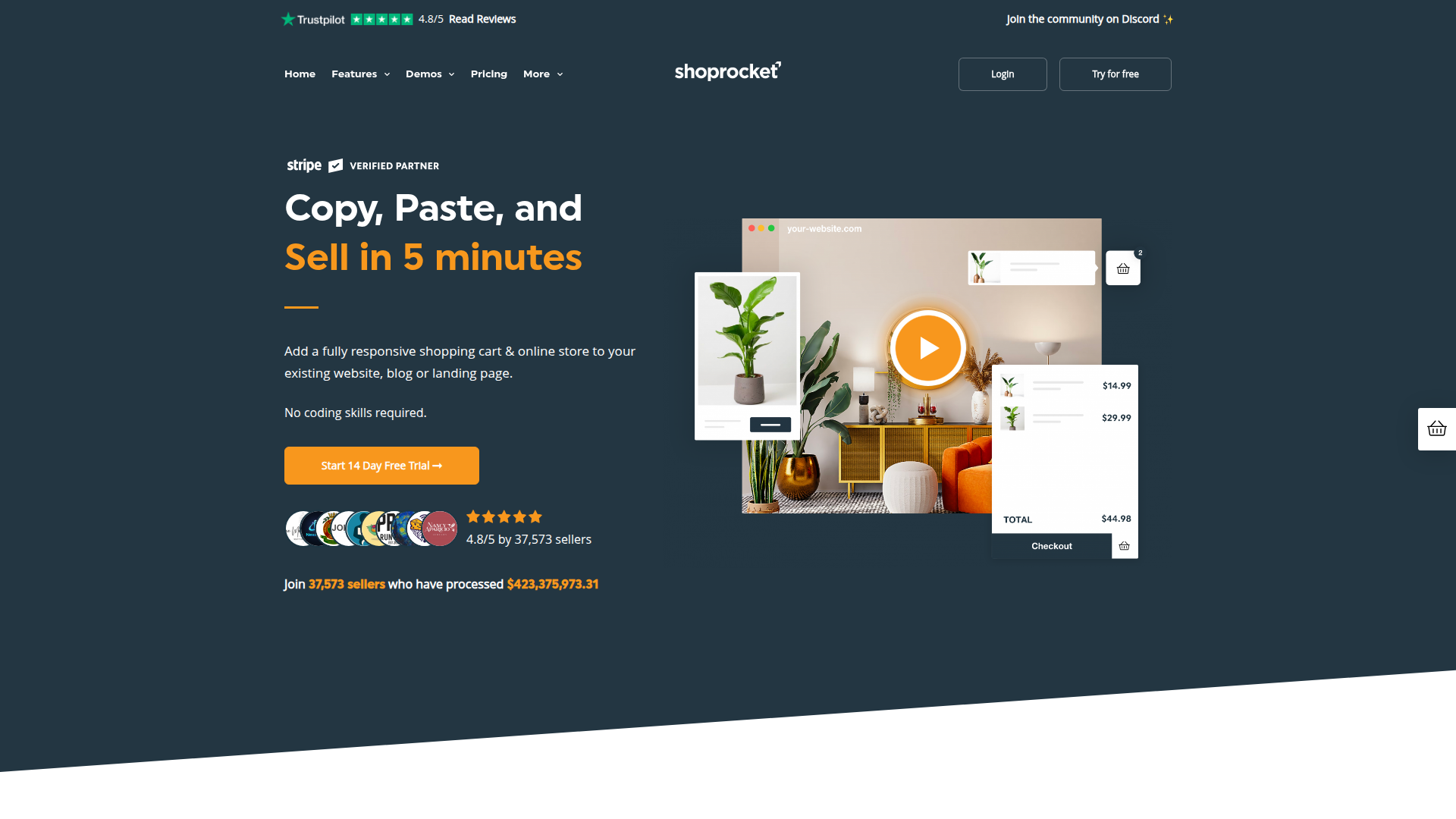
Use Shoprocket with Webflow when you need e-commerce functionality on a site not originally built for selling. Design agencies often run into this after building a portfolio site in Webflow and later needing a product store. Shoprocket handles the transactional layer (cart, checkout, payments, shipping, tax) while you keep using Webflow for the visual presentation and content.
You can integrate Shoprocket with Webflow in 2 ways:
- Drop Shoprocket embed codes into Code Embed elements to add product grids, single product widgets, and buy buttons to specific pages without writing application code.
- Use the Webflow and Shoprocket APIs for more control over product-to-Webflow CMS syncing, order tracking, and inventory updates. This path requires server-side development.
Most implementations start with embed codes and move to the API path only when the store needs custom syncing or operational workflows.
Add Shoprocket products with Code Embed elements
Generate an embed code in the Shoprocket dashboard, paste it into a Code Embed element in Webflow, and publish. The embed renders a fully responsive product display with add-to-cart buttons and a built-in checkout flow. You don't need a Webflow Ecommerce plan, but you do need a paid Webflow site plan (Basic or above) at minimum. The free Starter plan does not support custom code on published sites.
Shoprocket has four embed types, each configured in the Shoprocket dashboard under Sales Channels > Existing Website:
- Multiple Products displays a product grid or list from your full catalog or a specific category
- Single Product (full-page) shows a complete product detail view on any page
- Single Product (widget) renders a compact product card or buy button inline with other content
- Shopping cart adds a persistent cart icon so visitors can access their cart from any page
These four embed types cover most no-code Webflow implementations.
Embed a product display on a specific page
This approach places a product grid, product card, or buy button at a specific location within a page layout. Use it for dedicated shop pages, inline product features in blog posts, or single buy buttons on landing pages.
To add the product embed:
- Log in to the Shoprocket dashboard and go to Sales Channels > Existing Website.
- Select the embed type you need (multiple products, single product widget, or full-page product).
- Customize the display options: product size, image fit, button style, sorting order, and products per page.
- Scroll to the bottom of the configuration page and click Copy to clipboard.
- Open the page in Webflow where you want the products to appear.
- Press A to open the Add Elements panel and scroll to the Components section.
- Drag the Embed element onto the canvas at the desired position.
- Double-click the Embed element to open the code editor, paste the Shoprocket embed code, and click Save & Close.
- Click Publish in the top-right corner.
The embed does not render in the canvas preview. Visit the live published URL to confirm that products appear and the add-to-cart button works correctly.
Add the shopping cart to all pages
The cart appears automatically when a visitor interacts with a product embed. Shoprocket recommends also placing a separate cart widget in the site header or footer so visitors can access their cart from any page, including pages without product embeds.
To add the site-wide cart:
- In the Shoprocket dashboard, go to Sales Channels > Existing Website > Show shopping cart on all other pages.
- Copy the generated cart embed code.
- In Webflow, open Site Settings > Custom Code.
- Paste the cart embed code into the Footer code field.
- Click Save Changes, then Publish the site.
Placing JavaScript in the custom code in head and body tags footer field loads the script after page content, which reduces render-blocking behavior. If you only want the cart on specific pages, use the page-level custom code field instead (found in the page settings gear icon).
Handling embed updates and product changes
Product catalog changes (adding, editing, or deleting products in Shoprocket) update automatically on the live site without any changes on your end. Visual configuration changes in the Shoprocket dashboard, like switching button style or product size, generate a new embed code. You'll need to manually re-paste that new code into every Code Embed element where the old code was used. If you're managing multiple embed placements, centralize them into Webflow Components (formerly Symbols) to reduce the number of places you need to update.
Build with the Webflow and Shoprocket APIs
If you need automated product-to-CMS syncing, real-time inventory updates, or custom order processing workflows, both platforms offer REST APIs. This path requires server-side development. A serverless function on Cloudflare Workers or AWS Lambda typically receives webhook events and relays data between systems. API access on the Shoprocket side requires a Business plan or above.
The integration uses these APIs:
- The Shoprocket API documents public endpoints for product listing and cart operations (
pk_key) and private endpoints for order management, product data, and webhook registration (sk_key, server-side only). - The Webflow Data API handles CMS collection item creation, updates, and publishing.
- Webhooks fire real-time events when CMS items change, which can feed back into Shoprocket.
Used together, these APIs handle custom synchronization and operational workflows.
The Shoprocket API authenticates via Bearer token. Public API keys use a pk_ prefix and are safe for client-side requests. Private API keys use an sk_ prefix — never expose these in browser code.
Sync Shoprocket products to Webflow CMS items
Product data often needs to live in both systems. Shoprocket handles the transactional layer (cart, checkout, payment). The CMS stores the same product information as static, crawlable HTML for SEO and design control. Shoprocket product content is rendered via JavaScript, which search engine crawlers may not index. Keeping a matching set of CMS items solves this.
A typical setup looks like this:
- Register a webhook in Shoprocket for product events using the private webhook endpoint and your
sk_live_key. - Build a serverless function that receives the webhook
POST, verifies theX-Shoprocket-Signatureheader using HMAC-SHA256, and parses the event payload. - Map Shoprocket product fields (name, price, description, images) to your collection schema's
fieldDatastructure. At minimum, you need thenameandslugfields. - Call
POST /v2/collections/{collection_id}/items/liveto create and publish a new CMS item in a single request, orPATCH /v2/collections/{collection_id}/items/{item_id}/liveto update an existing one.
Maintain a persistent mapping of Shoprocket product IDs to CMS item IDs (using a key-value store like Cloudflare KV) to prevent duplicate items and enable accurate updates. The CMS plan supports up to 2,000 CMS items; the Business plan supports 10,000.
Process order events with webhooks
Shoprocket's documentation confirms live webhook support for order and customer events, and the developer portal documents a broader webhook specification that includes events such as order.paid, order.fulfilled, order.refunded, and order.cancelled.
To capture order data in Webflow:
- Register webhooks for the order events you need via the Shoprocket dashboard (Settings > Webhooks) or the private API endpoint.
- In your serverless function, verify the signature and parse the order payload (order number, customer email, line items, totals). Map those fields to a CMS "Orders" collection schema.
- Create the CMS item with
POST /v2/collections/{collection_id}/items/live.
This gives you a direct way to store order data alongside the rest of your site content.
The developer portal documents a webhook envelope with id, type, createdAt, storeId, and a data object containing the event-specific record. It also documents a retry schedule (1 minute, 5 minutes, 30 minutes, 2 hours, 6 hours, up to 24 hours) and a 2xx response target within 10 seconds.
What you can build with the Shoprocket Webflow integration
Integrating Shoprocket with Webflow lets you sell products directly from your existing site — no platform migration or Webflow Ecommerce plan needed.
- Full product store on a dedicated page: Embed a multi-product grid on a
/shoppage with category filtering, sorting, add-to-cart buttons, and a complete checkout flow. Your site keeps its original design while Shoprocket handles the entire purchase process. - Buy buttons and product cards in blog posts: Place a single product widget or buy button inside a blog post or landing page using a Code Embed element. An educator selling a downloadable course, for example, can embed a product widget directly below the course description.
- Digital product delivery with automated fulfillment: Sell PDFs, templates, license keys, or e-gift card codes with automatic delivery after purchase. Shoprocket handles file distribution and key assignment without additional plugins or manual steps.
- Multi-currency international storefront: Serve global visitors with local currency pricing and a checkout that supports 21 languages. If you target both UK and US customers, you can display prices in GBP and USD from a single Shoprocket catalog (Business plan required for multi-currency and multi-language).
If you need more control over product-to-CMS syncing or custom order processing workflows, take the API integration path to handle those custom workflows.
Frequently asked questions
No. Shoprocket replaces Webflow's native e-commerce functionality entirely. Any paid Webflow site plan that supports custom code (Basic at minimum) works. The free Starter plan does not support publishing custom code to a live site, so it cannot be used. See Webflow's custom code documentation for plan-specific details on Code Embed support.
No, product catalog changes (adding, editing, or deleting products) update live automatically. You only need to re-copy and re-paste the embed code if you change the visual configuration of the embed itself. Examples include switching the button style or product size.
Custom code, including Shoprocket's JavaScript embed, does not execute in the Webflow canvas. It only renders on the published live site. After placing the embed code and publishing, visit the live URL to verify the products display correctly. This is standard behavior for all Code Embed elements, as documented in Webflow's custom code embed reference.
Yes, but this requires a Shoprocket Business plan or above for API access and a server-side function to bridge the two APIs. Register Shoprocket webhooks for product events, then use a serverless function to create or update CMS items via Webflow's Data API v2. The Shoprocket developer portal documents endpoints and authentication requirements.
Safari's Intelligent Tracking Prevention (ITP) can restrict cookies set by third-party scripts. This may affect the embedded checkout flow. Shoprocket offers a hosted checkout page as a workaround: customers are redirected to Shoprocket's domain for payment, then returned to the Webflow site after completion.
Description
Add a shopping cart, product widgets, and checkout to any Webflow site using Shoprocket embed codes placed in Code Embed elements or site-level custom code.
This integration page is provided for informational and convenience purposes only.

SendOwl
Connect SendOwl with Webflow to sell downloads and recurring access directly from your site, with license-key delivery handled in SendOwl.

Monto Reviews
Connect Monto Reviews, a review collection and display app, with Webflow to add configurable review widgets, automated post-purchase review requests, and Google Rich Snippets to product and CMS template pages.
Printful
Connect Printful, a print-on-demand fulfillment service, with Webflow to sell custom-printed products with automatic order forwarding, variant syncing, and direct-to-customer shipping.

Pico MES
Show shop floor data on your Webflow site by connecting Pico MES with custom code embeds or the Webflow APIs.

Off Script
Off Script is a social commerce platform that enables influencers to set up their own e-commerce and start selling brands they love directly via their own shop.
Monto Multi-Currency
Connect Monto Multi-Currency with Webflow to display store and CMS prices in visitors' local currencies using real-time exchange rates.

Gumroad

Foxy
Connect Foxy, a hosted cart and checkout platform, with Webflow to sell physical goods, digital products, subscriptions, and donations through PCI-compliant checkout without a Webflow Ecommerce plan.

Flow Phantom Upsells
Related integrations
Get started for free
Try Webflow for as long as you like with our free Starter plan. Purchase a paid Site plan to publish, host, and unlock additional features.
