






Monto Multi-Currency
Connect Monto Multi-Currency with Webflow to display store and CMS prices in visitors' local currencies using real-time exchange rates.

Webflow Ecommerce is a single-currency platform, displaying every product, cart, and checkout charge in one base currency (typically USD). This forces international visitors to calculate conversions themselves, adding friction to every purchase. Monto Multi-Currency solves this by automatically converting displayed prices into the visitor's local currency, using geo-detection and live exchange rates across 170+ currencies on both Webflow Ecommerce and Webflow CMS sites.
It's built for Webflow store owners, SaaS founders with CMS-based pricing pages, and agencies delivering client sites that need multi-currency support without custom development.
How to integrate Monto Multi-Currency with Webflow
What is Monto Multi-Currency? Monto Multi-Currency is a client-side currency conversion app built exclusively for Webflow. It detects each visitor's location and converts displayed prices using live exchange rates across over 170 currencies. The app supports automatic conversion on Webflow Ecommerce pages and manual attribute-based conversion on CMS and non-ecommerce content.
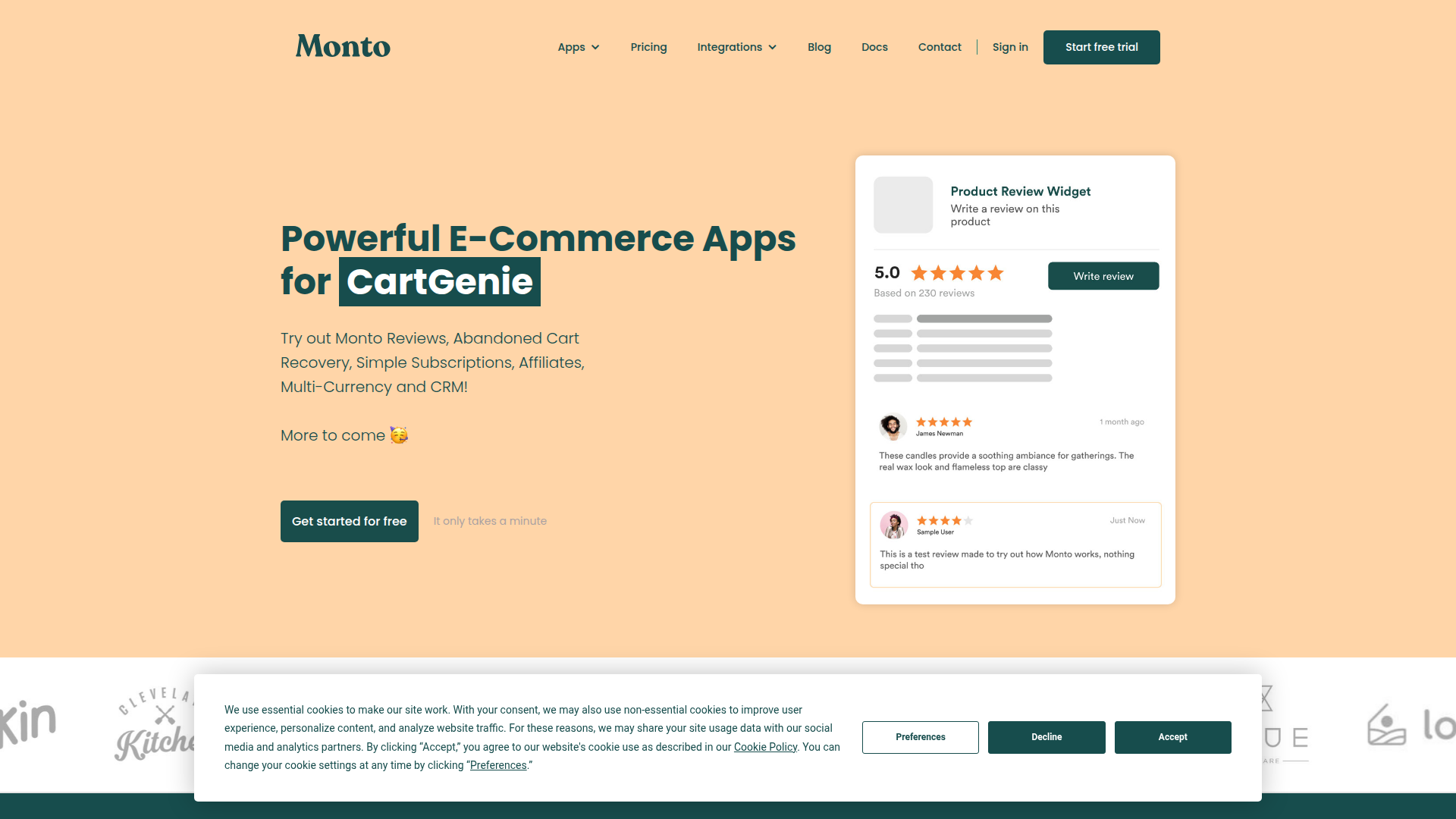
Teams use Monto when they need localized price displays on a Webflow site but do not want to build custom JavaScript or manage exchange rate data themselves. The setup involves pasting a single script into Webflow site settings, rather than adding it with a custom code embed, with optional attribute tagging for prices outside the standard Ecommerce product pages.
The Monto Multi-Currency Webflow integration supports 3 approaches:
- The Monto app handles installation, account linking, and automatic price conversion on Webflow Ecommerce pages without writing code.
- Custom attribute tagging lets you convert specific price elements on CMS pages, landing pages, and non-ecommerce content.
- The Webflow Data API and Monto API can support programmatic workflows for CMS content, product data, and order-related operations, but require server-side development.
Most implementations combine the app installation with attribute tagging depending on where prices appear across the site.
Install the Monto app
The Monto app on the Webflow Marketplace is the starting point for every integration. It connects a Monto account to a Webflow site and provides the global script that powers currency conversion. A 14-day free trial provides full access before selecting a paid plan, and a free tier is available for sites with low traffic. A paid Webflow plan with custom code in head and body tags access is required.
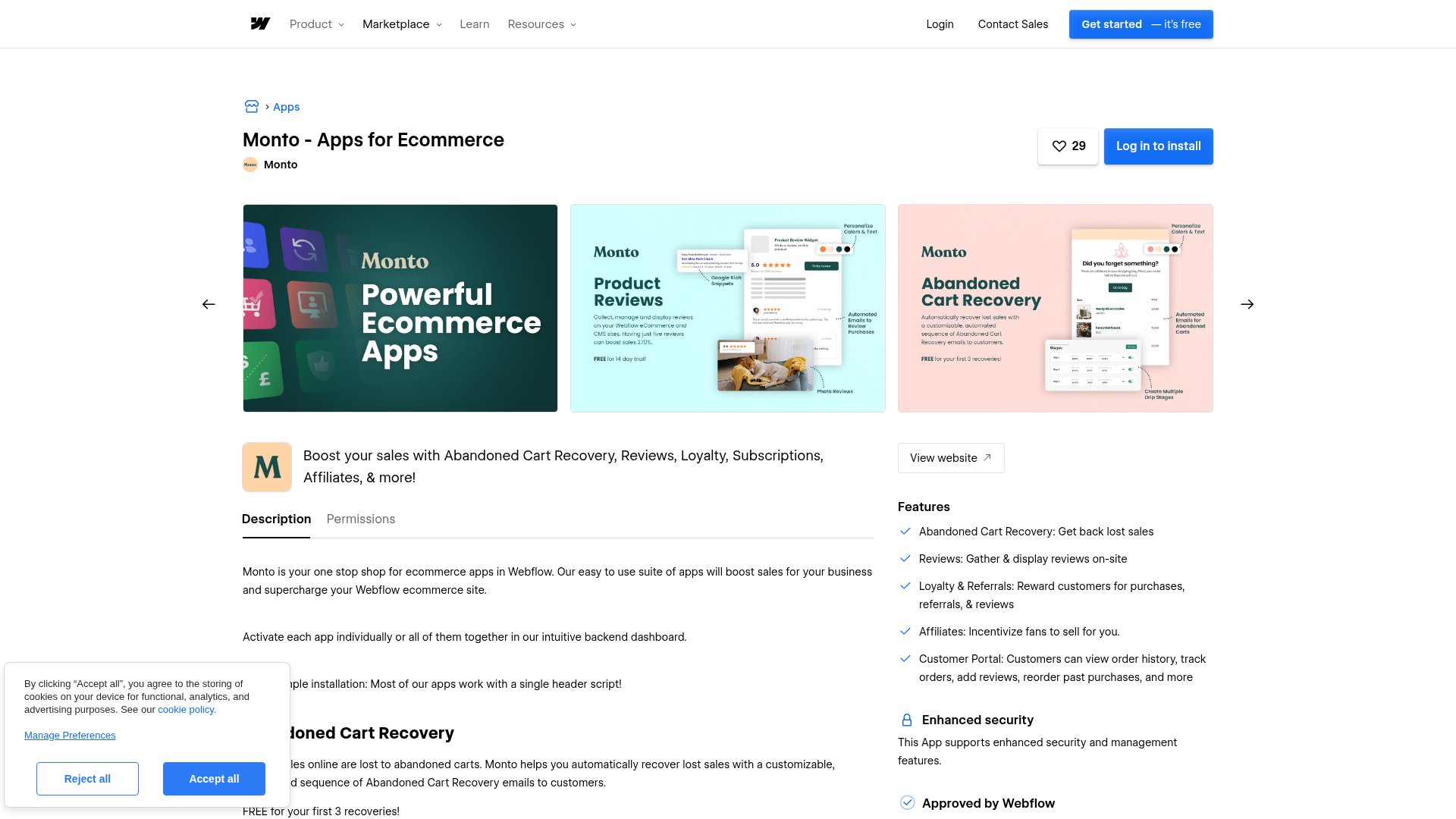
To set up the integration:
- Install the Monto app from the Webflow Marketplace listing and create a Monto account at monto.io.
- Select the Webflow site to connect during Monto's onboarding flow.
- Open the Currency Converter setup page at monto.io/setup/curconv and copy the unique global script from the Setup tab.
- In the Webflow dashboard, go to Site Settings > Custom Code > Head Code, paste the script, and click Save changes.
- Publish the Webflow site to activate the conversion.
After setup, Monto automatically converts prices across these Ecommerce page types:
- Product grid pages
- Product detail pages
- Shopping cart
- Checkout page
- Receipt page
Each Webflow site gets its own unique global script. Do not reuse scripts across different sites. On Webflow Ecommerce pages, no additional element tagging is needed. Prices outside of standard Ecommerce product elements, such as CMS-driven pricing tables or custom landing page prices, require the attribute tagging method described in the next section.
Tag CMS and non-ecommerce prices with custom attributes
For Webflow CMS sites, landing pages, or any price element that sits outside the standard Ecommerce product collection, Monto requires manual attribute tagging. This applies to SaaS pricing pages, service listings, blog posts with pricing, and sites using third-party carts like Foxy or Snipcart. The global script must already be installed via the steps above.
Format prices correctly
Price formatting is the most common source of conversion failures. Monto requires a specific format to parse prices correctly.
To format prices for CMS sites:
- Structure every price value as
symbol [space] number [space] currency-code, for example:$ 1200.00 USDor€ 1200,00 EUR. - Do not use period or space thousand separators. Commas or no thousand separator are the only compatible options.
- For Webflow Ecommerce sites, set the price format in Settings > Ecommerce > General to
[Symbol] [Amount] [Code]with a comma or no thousand separator.
Incorrect formatting, such as $1,200.00 without the required spaces and currency code, will prevent conversion from working.
Add the conversion attribute to price elements
Each price element that Monto should convert needs a custom attribute applied directly in Webflow.
To tag a price element for conversion:
- Select the text element containing only the price value in Webflow.
- Open Element Settings > Custom Attributes.
- Add a new attribute with the name
data-monto-convert-priceand the valuetrue. - Publish the site.
The resulting HTML looks like this:
<span data-monto-convert-price="true">$ 123.00 USD</span>
Apply the attribute to the element containing only the price text, not to a parent wrapper. For sites with many price elements, the Monto Designer Extension speeds up this process. It operates directly within the Webflow app panel and lets you toggle conversion on specific elements without manually entering attribute names. Before using the Designer Extension for the first time, you must reauthorize the site to use the latest Webflow API.
Add a manual currency selector
Visitors can also choose their own currency rather than relying on geo-detection alone.
To add an all-currencies popup selector:
- Select any button or link element in Webflow.
- Add a custom attribute with the name
data-monto-select-currencyand the valueTrue. - Set the element's cursor to Pointer to indicate it is clickable.
- Publish the site.
To add individual currency buttons that switch to a specific currency:
- Create a button or link element for each currency option.
- Add a custom attribute with the name
data-monto-set-currencyand the value set to the ISO 4217 code, such asEUR,GBP, orJPY. - Set each element's cursor to Pointer.
- Publish the site.
Both selector types work alongside automatic conversion. The manual currency selection setup guide covers additional configuration options.
Set a default currency for CMS sites
CMS-only Webflow sites can specify a default display currency in the Monto dashboard. Go to Multi-Currency > Configure at monto.io/curconv/configure and select the base currency. This tells Monto which currency the original prices are denominated in so it can calculate conversions accurately.
Build with the Webflow and Monto APIs
For teams that need programmatic control over product data, CMS content, or order workflows, Webflow and Monto expose APIs that can work alongside the client-side currency conversion layer. This path requires server-side development and is suited for custom dashboards, automated product catalog management, or order processing pipelines.
The available APIs cover different scopes:
- The Monto API supports order-management tasks and subscription lookups via
https://api.monto.io. It authenticates with an API key passed as a query parameter, retrieved from monto.io/shop/api. - The Webflow Data API handles CMS collections, product and SKU management, order fulfillment, and inventory updates.
- Webflow webhooks trigger real-time events for new orders, inventory changes, CMS item updates, and form submissions.
Monto does not expose a currency conversion API endpoint. Currency conversion is handled entirely client-side by the global script. The Monto API is scoped to order management only.
Manage products and orders via the Webflow API
The Webflow Ecommerce API provides read and write access to products, SKUs, and orders. Price values are stored as integers in cents with an ISO 4217 currency code.
To read product pricing data:
- Send a
GETrequest to/v2/sites/:site_id/productswith theecommerce:readscope. - Each SKU's
priceobject returns avalue(integer in cents),unit, andcurrencyfield. - Use the Ecommerce settings endpoint at
GET /v2/sites/:site_id/ecommerce/settingsto retrieve the site'sdefaultCurrencyvalue.
To process orders:
- Register a webhook for the
ecomm_new_ordertrigger type viaPOST /v2/sites/:site_id/webhooks. - The order payload includes
customerPaidwith the amount in the store's base currency. - Use the Monto API, authenticated with an
api_keyquery parameter, to create corresponding order records in the Monto dashboard.
Webflow's order monetary fields always reflect the store's base currency, not the converted display currency. Monto's display-layer conversion does not affect API-level pricing data, so any server-side reporting should reference the base currency values from the Webflow API.
What can you build with the Monto Multi-Currency Webflow integration?
Integrating Monto Multi-Currency with Webflow lets you display localized pricing to international visitors without building custom conversion logic or managing exchange rate feeds.
- International Ecommerce storefront: Convert every price across product grids, detail pages, cart, and checkout into the visitor's local currency automatically. A clothing brand selling in USD can show prices in EUR, GBP, or JPY based on where each visitor browses from.
- SaaS pricing page with localized plans: Display monthly and annual plan prices in visitor currencies on a CMS-built pricing table without a Webflow Ecommerce plan. A project management tool can show
$ 29.00 USDas€ 27 EURfor European prospects using attribute-tagged price elements. - Agency-delivered multi-currency client sites: Deploy currency conversion across client stores using the no-code setup and the Monto Designer Extension. An agency building Webflow stores for international retailers can add multi-currency support to each project without writing JavaScript.
- Service business with global rate cards: Show consulting fees, workshop pricing, or tour packages in visitor currencies on CMS-driven service pages. A travel operator listing excursion prices can tag each CMS price element for automatic conversion across 170+ currencies.
If you need more control over product catalog synchronization or order processing workflows, the API integration path covers those cases with full flexibility.
Frequently asked questions
No. Webflow Ecommerce stores a single currency per site and does not include built-in currency conversion or localized pricing. All multi-currency display requires a third-party integration.
No. Monto is a display-layer converter only. It changes the prices shown to visitors but does not affect payment processing. The payment gateway (such as Stripe or PayPal) continues to charge in the store's base currency. Monto's help article on payment currency explains this distinction in detail.
Not necessarily. Monto works on both Webflow Ecommerce sites and CMS-only sites. Ecommerce sites get automatic conversion across product pages. CMS sites require manual attribute tagging on each price element. Both approaches require a paid Webflow plan that includes custom code access. The CMS setup guide walks through the non-ecommerce configuration.
Use a VPN (Monto recommends Proton VPN) to change your browsing location to a different country. Load the store page, and prices should display in the local currency for that region. If prices do not update, try a hard refresh or clear cookies. The Monto verification guide covers testing steps and common troubleshooting scenarios.
The most common cause is incorrect price formatting or a missing custom attribute. CMS prices must follow the format
symbol [space] number [space] currency-code(for example,$ 99.00 USD). Each price element also needs thedata-monto-convert-price="true"attribute applied directly to the text element, not to a parent container. The troubleshooting guide lists formatting requirements and other common issues.
Description
Connects Monto's currency converter to Webflow Ecommerce and CMS sites, automatically displaying prices in over 170 local currencies via a single global script.
This integration page is provided for informational and convenience purposes only.

Storesynk (formerly Shopyflow)
Connect Storesynk (formerly Shopyflow) with Webflow to run a Shopify-backed storefront designed in Webflow, with payment completed on Shopify checkout.

Looop
Connect Looop with Webflow to sync Shopify products into Webflow CMS and build headless e-commerce storefronts with full checkout functionality
AstroIC
Connect AstroIC with Webflow Ecommerce via OAuth to generate invoices and manage product catalogs in bulk for your ecommerce store.

Smootify
Connect Smootify with Webflow to run a Shopify store on a custom Webflow front end, built by hand or, in the Smootify 2.0 public beta, by an AI agent.

ShipStation
Revidflow
Connect Revidflow to your Webflow e-commerce store to automate review collection and display customer feedback.

Brandzway - Reviews, Photos & More
Connect Brandzway with Webflow to collect customer reviews automatically after purchase and display them on your ecommerce store.

Shipping IO
Connect Shipping IO with Webflow to route new store orders into Shipping IO for label generation and write tracking numbers back to each order.

Penni Cart
Connect Penni Cart with Webflow to sell products from CMS collections with a cart and checkout you design.
Related integrations
Get started for free
Try Webflow for as long as you like with our free Starter plan. Purchase a paid Site plan to publish, host, and unlock additional features.
