






Sentry
Connect Sentry, an application monitoring and error tracking service, with Webflow to capture JavaScript exceptions, record session replays, and track Core Web Vitals on published pages.

Sentry catches JavaScript errors on your published Webflow site in real time with full stack traces with browser and OS context, session replays of what a visitor did before things broke, and Core Web Vitals (LCP, INP, CLS) from real sessions.
Errors land in the Sentry dashboard within seconds, with enough detail to debug without reproducing the issue.
This integration fits any Webflow site running custom code, plus agencies managing client properties, Webflow stores, and high-traffic campaign pages where silent JavaScript failures cost conversions.
How to integrate Sentry with Webflow
What is Sentry? Sentry is an application monitoring and error tracking service. It captures JavaScript exceptions with full stack traces, records user sessions as replayable videos, and tracks performance metrics across browser environments. The core codebase is open source, and the hosted service operates at sentry.io.
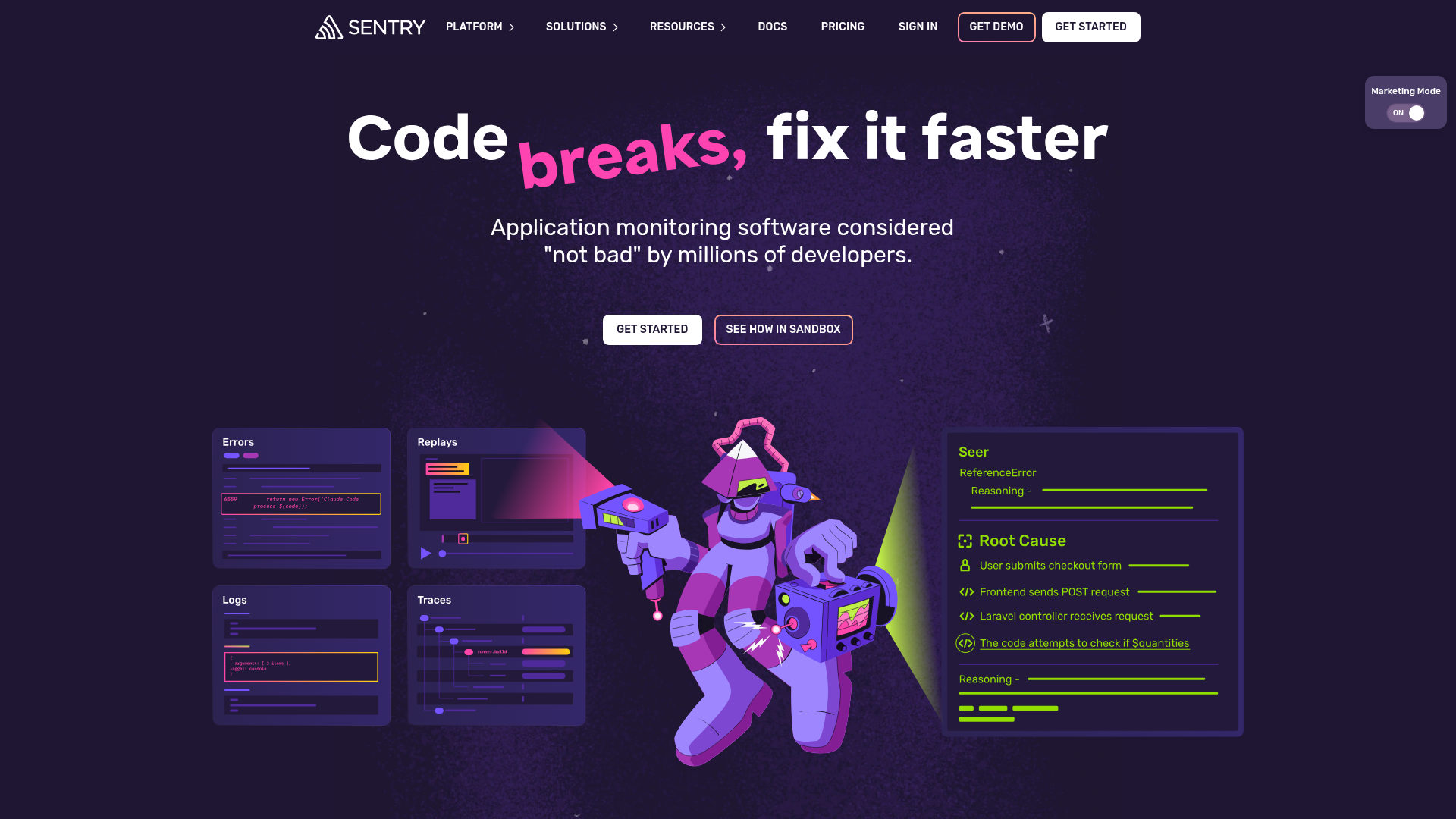
Add Sentry to your Webflow site when you need runtime error visibility that goes beyond browser console logs. A single script tag in your site's head code starts capturing errors, performance data, and optional session replays on every published page. In more complex setups, you can use automation tools and API integrations to sync Sentry issue data directly into Webflow CMS collections.
- Custom code injection adds the Sentry SDK to your site's head code so it can capture JavaScript errors, session replay, and performance data.
- The Webflow and Sentry APIs give you full control over CMS error logging, release tracking, and status page generation, but you need server-side development to use them.
Most implementations start with custom code injection and add API integrations as monitoring needs grow.
Add Sentry to Webflow with custom code
Adding the Sentry JavaScript SDK to your site's custom code in head and body tags is the primary integration method. The SDK loads in the browser alongside your published pages and captures JavaScript exceptions, performance traces, and session replays automatically. You don't need a build pipeline or npm installation. Paste a script tag into your site's head code, publish, and Sentry starts collecting data.
You need a paid site plan to use custom code. Sentry cannot run on free Starter sites.
You can choose between two SDK delivery methods: the Loader Script (simpler, auto-updating) and the CDN bundle (pinned version, more configuration options). Both go in the same place.
Use the Sentry Loader Script
Use the Loader Script when you want the simplest setup. Sentry's documentation describes it as "the easiest way to initialize the Sentry SDK." The script tag auto-updates to the latest SDK version, and you can toggle Session Replay and Performance tracing on or off from the Sentry UI without changing any code in Webflow.
To set up the Loader Script:
- Sign in to sentry.io and navigate to Projects in the left sidebar, then click Create Project
- Select Browser JavaScript as the platform, name the project, and click Create Project
- Go to Settings > Projects > your project > SDK Setup > Loader Script
- Toggle on Session Replay and Tracing if needed, then copy the generated
<script>tag - In Webflow, open Site settings > Custom code and paste the tag into the Head code field
- Click Save changes and publish your site
Once you publish, the Loader Script begins sending browser events to your Sentry project.
For custom sampling rates or privacy controls, add a window.sentryOnLoad block before the Loader Script tag:
<script>
  window.sentryOnLoad = function () {
    Sentry.init({
      tracesSampleRate: 0.2,
      replaysSessionSampleRate: 0.1,
      replaysOnErrorSampleRate: 1.0,
    });
  };
</script>
<script
  src="https://js.sentry-cdn.com/YOUR_PUBLIC_KEY.min.js"
  crossorigin="anonymous"
></script>
The Loader Script lazily loads the full SDK, so fetch calls that happen at page startup may not be traced. If you need complete fetch tracing from page load, use the CDN bundle method instead.
Use the Sentry CDN bundle
The CDN bundle pins to a specific SDK version and gives you full control over which features load and how you configure them. Use this method when you need synchronous SDK loading, specific version pinning, or direct access to all Sentry.init() options.
To set up the CDN bundle:
- Create a Sentry project following the same steps above (select Browser JavaScript as the platform)
- Copy your DSN from Settings > Projects > your project > Client Keys (DSN)
- Paste the following into Site settings > Custom code > Head code, replacing
YOUR_DSN_HEREwith your DSN - Click Save changes and publish your site
Once you publish, the CDN bundle starts capturing the features you enable in Sentry.init().
<script
  src="https://browser.sentry-cdn.com/10.56.0/bundle.tracing.replay.min.js"
  integrity="sha384-q82f0FoymU/MwEopdRqQM2BXf0qZFwM9+fhYkyXe3shDHC5ZRr2c2sQwfPRhjBce"
  crossorigin="anonymous"
></script>
<script>
  Sentry.init({
    dsn: "YOUR_DSN_HERE",
    environment: "production",
    release: "your-project@1.0.0",
    integrations: [
      Sentry.browserTracingIntegration(),
      Sentry.replayIntegration(),
    ],
    tracesSampleRate: 0.2,
    replaysSessionSampleRate: 0.1,
    replaysOnErrorSampleRate: 1.0,
  });
</script>
With CDN bundles, you have to register browserTracingIntegration() and replayIntegration() in the integrations array. The Loader Script auto-registers these, but CDN bundles don't.
Pick the bundle that matches the features you need:
bundle.min.jscaptures errors only (smallest file size)bundle.tracing.min.jsadds performance tracingbundle.tracing.replay.min.jsadds tracing and session replaybundle.tracing.replay.feedback.min.jsadds the User Feedback widget
Choose the smallest bundle that matches your monitoring needs.
Filter third-party script noise
Third-party widgets such as chat tools, analytics scripts, and marketing tags can generate JavaScript errors that eat into your Sentry quota. A recurring error from an external script on every page load can exhaust a monthly error quota within days. Add the allowUrls option to restrict which script origins Sentry captures:
Sentry.init({
  dsn: "YOUR_DSN_HERE",
  allowUrls: [/https?:\/\/((cdn|www)\.)?yoursite\.com/],
});
This tells Sentry to ignore errors that originate from scripts hosted on other domains.
Verify the integration
Custom code only runs on published pages, not in the Webflow canvas. To confirm Sentry is working:
- Open your live published site in a browser
- Open Developer Tools > Console
- Run
Sentry.captureException(new Error("Test error from Webflow")); - Go to Sentry Dashboard > Issues and confirm the test error appears
If the test error appears, the browser SDK is active on your published Webflow site.
You can safely include the DSN in client-side code. Per Sentry's DSN documentation, DSNs only allow submission of new events, not read access to any information. Sentry auth tokens used for the REST API are different — never put them in front-end code.
Build with the Webflow and Sentry APIs
For full control over how Sentry data flows into Webflow, use both APIs directly with a server-side intermediary. You'll need to deploy a serverless function (on Cloudflare Workers, Vercel, or Netlify) that receives Sentry webhook events, processes them, and writes to the Webflow CMS via API. This gives you the most control, but you'll need development resources.
The relevant APIs:
- The Sentry API (v0, base URL
https://sentry.io/api/0/) handles issues, events, releases, and projects - The Webflow Data API (v2, base URL
https://api.webflow.com/v2/) handles CMS collections, items, and site publishing - Sentry webhooks push real-time issue lifecycle events to your endpoint
These pieces support any direct API workflow.
Route all Sentry REST API calls through a server-side proxy. Never put auth tokens in Webflow front-end custom code.
Sync Sentry issues to a CMS error log
Sentry webhooks fire on issue lifecycle events: created, resolved, assigned, archived, and unresolved. Your serverless function receives these events and writes corresponding CMS items through the Webflow API.
To implement issue-to-CMS syncing:
- In Sentry, go to Settings > Developer Settings > Internal Integrations and create a new integration with webhook access
- Deploy a serverless function at a public HTTPS endpoint that receives POST requests
- Register the function URL as the webhook endpoint and subscribe to the
issueresource - In the function, verify the
Sentry-Hook-Signatureheader using HMAC-SHA256 against your client secret - On
issue.created, callPOST /v2/collections/{collection_id}/itemson the Webflow API to create a new CMS item with fields mapped from the Sentry payload (title, severity, status, Sentry URL, last seen date) - On
issue.resolvedorissue.assigned, callPATCH /v2/collections/{collection_id}/itemsto update items in the staged items endpoint, including the mapped Webflowitem_idin the request body for the existing CMS item
Your webhook handler must respond within 1 second. Run all downstream API calls (Webflow CMS writes) asynchronously after returning HTTP 200. Keep a mapping between Sentry issue.id and Webflow CMS item_id in a key-value store so you can look up existing items for status updates.
Track releases tied to site publishes
Correlate error spikes with specific deployments by creating a Sentry release each time you publish your site. This lets you compare error rates before and after each publish to identify which deployment caused a regression.
To set up release tracking:
- Call
POST /api/0/organizations/{org}/releases/with a version string (e.g.,webflow-site@2024-12-01T14:30:00) and your project slug - Call
POST /api/0/organizations/{org}/releases/{version}/deploys/with the environment set toproduction - Set the
releasefield in yourSentry.init()configuration to match the exact version string
Sentry.init({
  dsn: "YOUR_DSN_HERE",
  release: "webflow-site@2024-12-01T14:30:00",
});
The release value in Sentry.init() has to exactly match the version string you sent to the Releases API. Sentry uses this match to correlate client-side errors with specific releases. Automate this flow by triggering the release creation from a Webflow site_publish webhook or an API workflow.
What can you build with the Sentry Webflow integration?
Integrating Sentry with Webflow lets you monitor JavaScript runtime behavior on published sites without building custom logging infrastructure.
- E-commerce error detection: Capture JavaScript exceptions in checkout flows, cart interactions, and payment integrations on Webflow Commerce stores. Sentry surfaces the exact error, browser, and page URL so you can fix broken purchase flows before revenue impact spreads.
- Agency client error dashboards: Sync Sentry issues into a CMS collection and display them on a password-protected page. Your clients see real-time error status for their site without needing a Sentry account, and the dashboard updates automatically through API webhooks.
- Public status pages: Map Sentry metric alert states (
critical,warning,resolved) to CMS items with a Status field. Build a status page in Webflow that reflects live system health and updates automatically as Sentry alerts fire and resolve. - Campaign landing page monitoring: Track Core Web Vitals and JavaScript errors on marketing pages during active campaigns. Session Replay recordings show what a visitor experienced when a form failed to submit or a CTA stopped responding, giving you diagnostic context without reproducing the issue.
If you need more control over error data pipelines or custom dashboard widgets, the API integration path covers those cases.
Frequently asked questions
No. There is no installable Sentry app in the Webflow App Marketplace. The Webflow Sentry integration guide is an informational page describing how to connect the two through custom code injection, automation platforms, and API integrations. You add Sentry by pasting the SDK script tag into your site's head code.
No. Custom code injection requires a paid site plan. The free Starter plan does not support custom code, so Sentry cannot be installed. You need any paid site plan to add scripts to the head or body code sections.
Yes. Per Sentry's DSN documentation, DSNs only allow submission of new events and do not grant read access to any data. The practical risk is quota abuse: someone who finds your DSN could submit arbitrary events that count against your monthly error limit. You can rotate or revoke DSNs in Settings > Projects > Client Keys (DSN) if abuse occurs. Sentry auth tokens used for the REST API are a separate credential and must never appear in client-side code.
Webflow has no build pipeline, so the standard source map upload workflow (
sentry-cli sourcemaps upload) is not available natively. Without source maps, Sentry displays minified variable names and column numbers instead of readable code references. If you maintain custom JavaScript in a separate repository and deploy it to an external CDN, you can runsentry-cli sourcemaps uploadin that external pipeline. For many Webflow sites, knowing which page and error type occurred is more useful than exact line numbers. See the Sentry source maps documentation for available upload methods.Usually no for the main SDK install. The Code Embed element loads mid-page, so it is not the right place to initialize Sentry if you want the widest error coverage from page start. Use site-wide head code for the SDK, and reserve Code Embed for testing buttons or page-specific widgets.
Description
Sentry adds real-time JavaScript error tracking, session replay, and performance monitoring to Webflow through a single script tag in custom code settings.
This integration page is provided for informational and convenience purposes only.

Website Speedy
Connect Website Speedy, a site speed optimization tool, with Webflow to improve Core Web Vitals scores and page load times through automated speed optimizations.

Optibase
Connect Optibase with Webflow to run A/B tests, personalize pages, and track conversions without leaving your site.
Optily
Connect Optily with Webflow to automatically compress CMS images and convert them to WebP format for faster page loads.
BulkSEO
Connect BulkSEO with Webflow to manage SEO metadata across hundreds of pages through CSV-based bulk editing.
NoBreakWeb
Connect NoBreakWeb, an automated Lighthouse auditing tool, with Webflow to run daily performance, SEO, and accessibility scans on your published site without manual testing.

Microsoft Clarity
Connect Microsoft Clarity, a free user behavior analytics tool, with Webflow to capture session recordings, heatmaps, and frustration signals like rage clicks and dead clicks across your site.

Humblytics
Connect Humblytics with Webflow for cookie-free visitor tracking and revenue attribution, with A/B testing included.
AssetBoost
Connect AssetBoost with Webflow to generate AI-powered alt text for site images in bulk, directly inside the Webflow interface.
Adblock Detector
Connecting Adblock Detector with Webflow lets you identify visitors using ad blockers, measure adoption rates, and display alternative content.
Related integrations
Get started for free
Try Webflow for as long as you like with our free Starter plan. Purchase a paid Site plan to publish, host, and unlock additional features.
