






Pixelflow
Connect Pixelflow with Webflow to send server-side Meta conversion events that bypass ad blockers and iOS privacy restrictions.

Meta ad performance depends on complete conversion signals, but browser-only tracking often misses part of the picture. On Webflow sites, there is no built-in way to send those conversion events from the server. That leaves campaigns optimizing against incomplete data. Budget gets wasted on audiences that look wrong because the signal was never received.
Pixelflow addresses this by routing event data through a server before forwarding it to Meta's Conversions API (CAPI). Connected to a Webflow site, it tracks form submissions, button clicks, eCommerce transactions, and page visits. Each event fires server-side alongside the standard browser Pixel event. Both events share a single event ID so Meta deduplicates them automatically.
Performance marketers running Meta ad campaigns on Webflow sites benefit most. Webflow eCommerce store owners who need accurate purchase attribution also benefit. Agencies managing conversion tracking across multiple client sites and service businesses tracking form fills as lead events also fit. Setup takes less than 10 minutes, even for teams that have struggled with GTM and server-side hosting.
How to integrate Pixelflow with Webflow
What is Pixelflow? Pixelflow is a Meta Conversions API integration tool that replaces or supplements the client-side Facebook Pixel with server-side event forwarding. It tracks form submissions, click tracking, eCommerce events, page views, and booking attribution across platforms such as Webflow, WordPress, Framer, and Squarespace. Pixelflow also includes event deduplication, bot filtering, and more user data with hashed customer information like email, phone, and name.
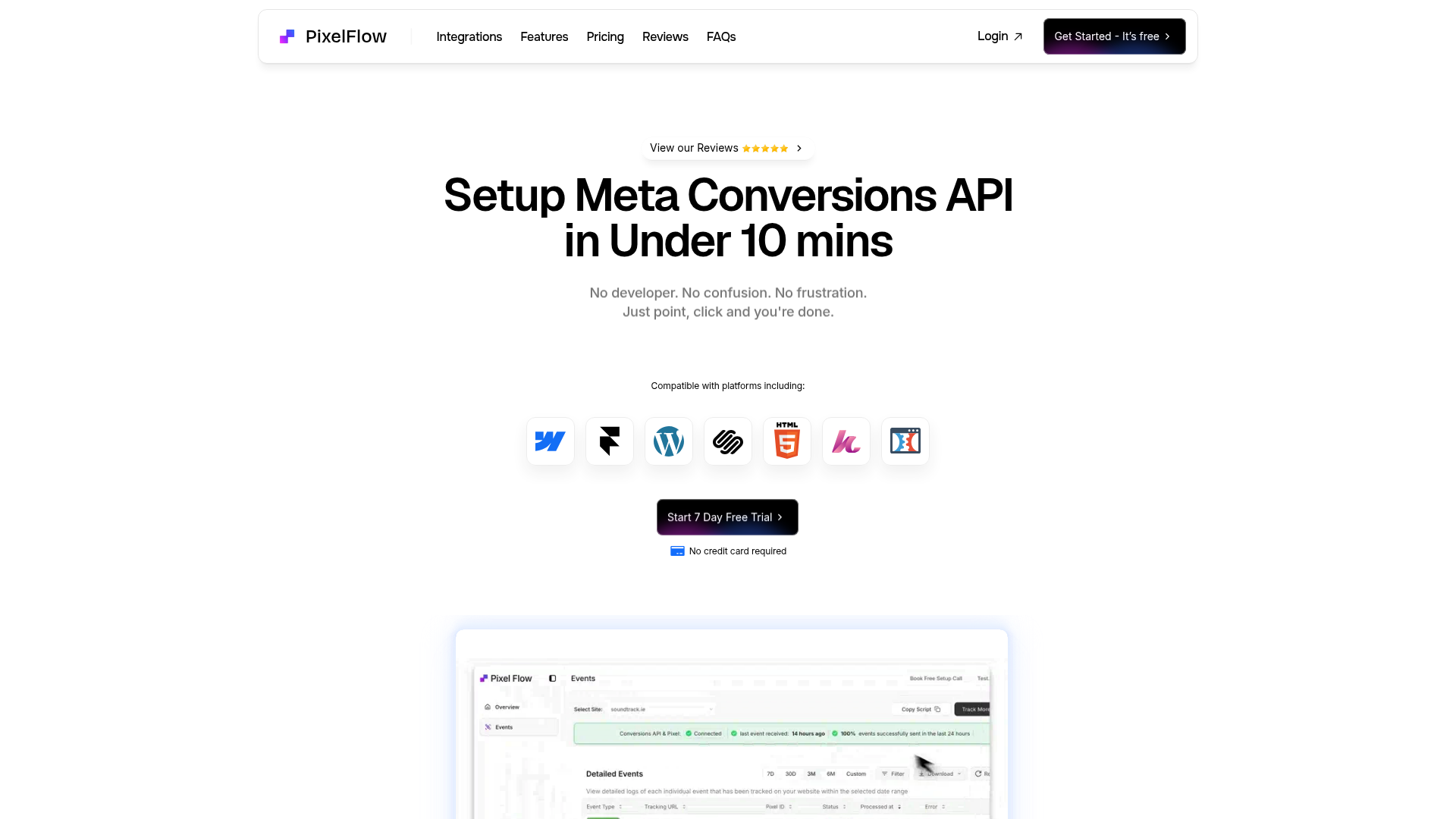
Teams running Meta ads on Webflow use Pixelflow to recover conversion signals that ad blockers and iOS privacy settings block. The typical setup takes less than 10 minutes and does not require a developer. For Webflow eCommerce stores, Pixelflow auto-tracks checkout and purchase events from standard Webflow checkout pages. Agencies managing multiple client sites use a single Pixelflow account to configure tracking across all of them.
Pixelflow-Webflow integration has 3 installation methods and 5 post-install tracking methods:
- Installation methods: OAuth connection, Webflow Marketplace app, or manual script install.
- Post-install tracking methods: Visual Tagger, CSS classes, URL triggers, native integrations, and the programmatic API.
Most implementations start with the app installation. Teams then add one or more event tracking methods depending on what needs to be tracked.
Install Pixelflow on your Webflow site
Pixelflow offers three ways to install its tracking script on a Webflow site. The OAuth connection is the recommended path because it injects the script automatically without any manual work in Webflow. The Marketplace app uses the same setup wizard. It requires you to paste the script into Site Settings → Custom Code → Head Code manually. A third option skips both the app and OAuth by copying the script directly into Site Settings → Custom Code → Head Code.
All three methods require a Pixelflow account, a Meta Pixel ID, and a Meta Pixel Access Token (Conversions API key). You also need a paid Webflow site plan, since custom code access is restricted on the free Starter plan.
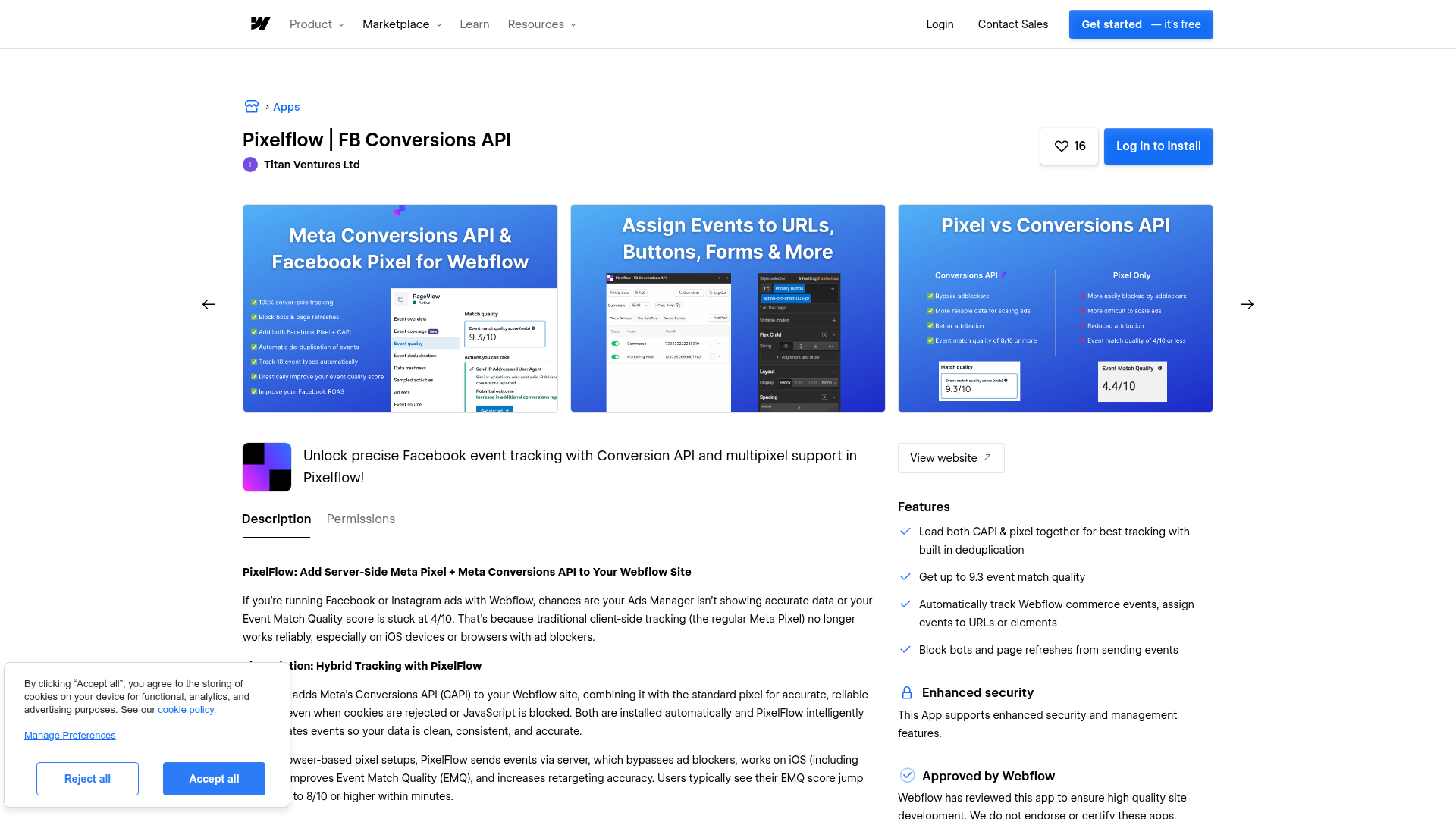
Remove any existing native Meta Pixel scripts from your Webflow site before installation. Running both Pixelflow and a standalone Meta Pixel creates duplicate events in Meta Events Manager.
Connect with OAuth (recommended)
Pixelflow's OAuth connection is the fastest installation path. It authorizes Pixelflow to inject the tracking script directly, with no manual pasting required.
To set up the OAuth connection:
- Log in at dashboard.pixelflow.so and start the setup wizard.
- Select Webflow as your platform.
- Click Connect Webflow and authorize access to your Webflow account.
- Select your Webflow site from the dropdown and click Next.
- Enter your Pixel Name, Pixel ID, and Meta Pixel Access Token.
- Confirm you have removed any existing native Meta Pixel from the site.
- Click Install Script to Webflow in the wizard.
- Wait a few minutes, then open your live site in an incognito browser window and visit several pages.
- Return to the Pixelflow wizard. A confirmation modal appears when the first PageView event is received.
Then confirm events appear in both Pixelflow and Meta before moving on.
You can verify events are flowing at dashboard.pixelflow.so/dashboard/events and in Meta Events Manager.
Use the Webflow Marketplace app
The Pixelflow Marketplace app provides the same setup wizard but requires you to paste the generated script manually. Pixelflow's own documentation notes the OAuth path is simpler. Use this method if you prefer the Marketplace app workflow.
To install via the Marketplace app:
- Install the app from the Webflow Apps Marketplace listing.
- In Webflow, go to Design Mode > Apps > PixelFlow and launch the app.
- Authenticate with your Pixelflow account and complete the setup wizard.
- Copy the generated tracking script.
- Go to Site Settings > Custom Code > Head Code and paste the script.
- Click Save Changes, then click Publish.
Once the site is republished, test the live site before configuring events.
Tracking does not activate until the site is republished. Test on the live published site in an incognito window, not in the Webflow preview.
Add the script manually via custom code
Use this method if you prefer not to grant Pixelflow OAuth access or install the Marketplace app.
To add the script manually:
- Log in to Pixelflow, start the setup wizard, and select Other as your platform.
- At the install step, click Copy Script.
- In Webflow, go to Site Settings → Custom Code → Head Code.
- Paste the Pixelflow script and remove any existing Facebook Pixel scripts from the same field.
- Click Save Changes, then click Publish.
After publishing, verify that PageView events are coming through on the live site.
This approach gives you the same tracking capability as the other methods. Script updates require manual action in site settings.
Configure event tracking with the Visual Tagger, CSS classes, and URL triggers
After Pixelflow's script is installed, configure which events to track and what data to send with each event. Pixelflow provides five post-installation tracking methods, each suited to different situations. For most users, the Visual Tagger is the simplest option. CSS class tagging gives you more control over which form fields get captured. URL triggers work for redirect-based confirmation flows. Native integrations with Stripe and Calendly handle payment and booking events with one-click setup. The programmatic API gives developers direct control over when and how events fire.
Use the Visual Tagger
Released March 2026, the Visual Tagger opens directly on your live published Webflow site. It lets you select any form, button, or element to assign a Meta event. No changes in Webflow are needed. No republishing is required after saving a configuration.
To track an event with the Visual Tagger:
- In the Pixelflow dashboard, click Track More Events (top-right).
- Select Via Visual Tagger and click Next. Your live Webflow site opens with the Visual Tagger widget.
- Click Track Something New in the widget.
- Click the element you want to track (a form, button, or link).
- Select When the Element is Clicked and click the form's submit button or the target element.
- Choose the Meta event type from the dropdown (Lead, Contact, Subscribe, etc.).
- The Visual Tagger automatically identifies form fields. Review the matches and click Track extra data if a field is missing (such as phone number).
- Review the setup on the confirmation screen and click Confirm.
After saving, test the tracked element on the live site to make sure the event fires as expected.
The Visual Tagger works well for standard forms on the page, popup or modal forms, and button click tracking. For forms that redirect to a unique thank-you page, URL triggers described below are a better fit.
Tag elements with Pixelflow CSS classes
CSS class tagging gives you direct control over which form fields get captured and which Meta event fires. Apply specific Pixelflow class names to elements in Webflow. The Pixelflow script reads those classes on the live site to trigger events and extract data.
To add Pixelflow CSS classes in Webflow:
- Open your site in Webflow and select the element you want to track.
- In the right sidebar, open the Style panel.
- Click into the Selector field at the top of the Style panel.
- Type the Pixelflow class name and press Enter.
- To apply multiple classes, type each class name and press Enter after each.
- Click Publish.
Several classes handle form tracking:
info-frm-cntr-pfgoes on the form container.action-btn-lead-011-pfgoes on the submit button for a Lead event.info-cust-em-pfgoes on the email input.info-cust-fn-pfgoes on the first name input.info-cust-ph-pfgoes on the phone input.
The full CSS class reference covers all supported event types and data fields.
Apply form data classes to the actual <input> elements, not to labels or wrapper divs. Put the info-frm-cntr-pf class on the form container or block element. Misplacing these classes is the most common reason form data fails to capture.
Set up URL-based triggers
URL triggers fire a Meta event when a visitor lands on a specific page. They work well for thank-you pages, booking confirmations, and any redirect-based flow where a unique URL signals a completed action.
To configure a URL trigger:
- In the Pixelflow dashboard, go to your site's tracking settings.
- Click + Add URL.
- Enter the page URL (for example,
/thank-youor/order-confirmation). - Select the Meta event to fire (Lead, Purchase, Contact, etc.).
- Toggle Block external tracking? on to prevent duplicate events from any other Meta Pixel implementation.
- Click Add URL.
After saving the rule, visit the matching page on the live site to verify the event appears.
URL matching checks for an exact match first, then falls back to a "starts with" strategy. A rule for /product also matches /product/item-1. Do not use URL triggers for forms that stay on the same page, open in a popup, or do not redirect to a unique success page.
Auto-track Webflow eCommerce events
Pixelflow automatically extracts transaction data from standard Webflow eCommerce checkout pages. Two checkout events are auto-tracked: InitiateCheckout fires when a visitor reaches /checkout, and Purchase fires on /order-confirmation. Each event includes currency, number of items, and total value.
No configuration is required beyond the initial script installation. This feature only works with the standard Webflow checkout flow, not with third-party or custom checkout replacements. Add to Cart and ViewContent are not part of this automatic checkout tracking, so use CSS class tagging (action-btn-cart-005-pf for Add to Cart, action-btn-vc-pf for ViewContent) as described in the eCommerce tracking guide.
To sync Webflow product IDs with a Facebook Product Catalog for dynamic product ads, apply the info-itm-id-pf CSS class to a Text Block bound to the SKU field on your Webflow CMS product template page. The catalog sync guide covers the full setup.
Fire events with the Pixelflow programmatic API
The Pixelflow programmatic API is a client-side JavaScript interface accessed through window.pixelFlow.trackEvent(). It lets you choose when events fire and what data gets sent. This is useful for custom business logic, conditional event firing, or situations where the Visual Tagger and CSS classes fall short. This method requires JavaScript and is best suited to developers or teams comfortable adding custom code in Webflow.
Here, the API refers to Pixelflow's JavaScript API, not the Webflow Data API. It is not a server-to-server REST API. It runs in the browser via a globally injected window.pixelFlow object. Only standard Meta event names are supported. Custom event names are not accepted.
Track events with window.pixelFlow.trackEvent()
The core method accepts an event name, custom data (value, currency, product details), and user data (email, phone, name). Pixelflow handles hashing automatically before transmitting to Meta.
To fire a Lead event on form validation:
- Add a Code Embed element or include the script in your page's custom code section.
- Call
trackEventwith the event name, custom data, and normalized user data:
async function onFormValidationSuccess(formData) {
  const userData = await window.pixelFlow.utils.normalizeCustomerData({
    em: formData.email,
    fn: formData.firstName,
    ln: formData.lastName,
    ph: formData.phone,
  });

  const customData = { value: 500, currency: "USD" };
  const success = await window.pixelFlow.trackEvent("Lead", customData, userData);
}
- Include an initialization guard to handle cases where the Pixelflow script has not yet loaded:
const trackPurchase = async () => {
  if (
    window.pixelFlow?.trackEvent &&
    window.pixelFlow?.utils?.normalizeCustomerData
  ) {
    try {
      const normalizedCustomerData =
        await window.pixelFlow.utils.normalizeCustomerData(customerData);
      window.pixelFlow.trackEvent("Purchase", payload, normalizedCustomerData);
    } catch (error) {
      console.error("PixelFlow: Error tracking Purchase event", error);
    }
  } else {
    console.warn("PixelFlow: API not ready, retrying...");
    setTimeout(trackPurchase, 1000);
  }
};
After implementing the call, test it on the published site and confirm the event is received.
The trackEvent method returns a Promise<boolean> that resolves true if the event was successfully queued and sent. Pass an empty object {} if no custom data is needed. Never pass null or undefined. Use the programmatic API for Stripe purchase tracking, multi-step form flows, or any scenario where event firing depends on application-level logic.
What can you build with the Pixelflow Webflow integration?
Integrating Pixelflow with Webflow lets you send accurate Meta conversion events with more user data from any Webflow page without Google Tag Manager containers or server-side GTM hosting.
- Lead generation with richer attribution: Track Webflow form submissions as server-side Lead events with hashed email, phone, and name data. A consulting firm's contact form fires a Lead event through both the browser Pixel and CAPI. Meta gets enough signal to build accurate lookalike audiences from form fills that actually convert.
- eCommerce purchase and checkout tracking: Auto-track InitiateCheckout and Purchase events from standard Webflow eCommerce checkout pages. Captured data includes currency, item count, and order value. A DTC store gets complete purchase attribution even when customers have iOS privacy restrictions or ad blockers installed.
- Booking and scheduling attribution: Fire a Schedule event when a prospect books a call through Calendly and is redirected to a Webflow confirmation page. A SaaS company running demo booking ads can attribute each booked call to the exact Meta campaign. Host the redirect on your own Webflow domain. Pixelflow's URL trigger then fires the event server-side.
- Multi-site agency tracking: Configure Meta Pixel and CAPI tracking across multiple client Webflow sites from a single Pixelflow account. An agency managing ten client sites sets up each with its own Pixel ID and event configuration.
If you need direct code for Stripe purchase confirmations or multi-step form logic, the API option covers those cases.
Frequently asked questions
Yes. Your Webflow eCommerce site may already include built-in Meta Pixel tracking. Installing Pixelflow without disabling it produces duplicate Purchase and InitiateCheckout events in Meta Events Manager. Remove any native Meta Pixel scripts from Site settings > Custom Code before starting the Pixelflow setup. After installation, enable the Block external tracking? toggle in Pixelflow's URL trigger settings for checkout pages. The Pixelflow setup guide asks you to confirm removal during the wizard.
Yes, with specific constraints. Pixelflow auto-tracks two events on standard Webflow checkout pages:
InitiateCheckoutat/checkoutandPurchaseat/order-confirmation. Data extracted includes currency, number of items, and total value. This works only with the standard Webflow checkout flow, not with third-party checkout replacements. For Add to Cart, ViewContent, and other eCommerce events, configure URL Triggers or CSS class tagging manually. The auto-track eCommerce guide covers the full setup and limitations.You need a paid Webflow site plan. A paid site plan is required because custom code access in site settings is restricted on the free Starter plan. That restriction prevents installing Pixelflow's tracking script. If you use the programmatic API method, you also need access to the Code Embed element, which requires a paid plan. If you are using Webflow eCommerce, you also need an eCommerce-enabled plan for checkout and purchase event auto-tracking.
Yes. Pixelflow is compatible with cookie consent plugins. It can be configured to fire only after a visitor gives consent. The Webflow cookie consent guide walks through the setup using TermsFeed. You add the Pixelflow script as a "targeting and advertising" snippet inside TermsFeed's configuration. The consent wrapper then controls when the script loads. Pixelflow is operated by Titan Ventures Ltd, registered in Ireland under EU GDPR jurisdiction. A Data Processing Agreement is available at pixelflow.so/data-processing-agreement.
This is expected behavior, not a Pixelflow issue. PageView events carry less user data because the visitor has not yet submitted any personal information. Typical PageView Event Match Quality scores fall in the 5 to 6 out of 10 range. Non-pageview events like Lead and Purchase achieve much higher scores (8.3 to 9.3 out of 10). Those higher scores depend on capturing form field data such as email, phone, and name alongside the event.
Description
Send server-side Meta conversion events from Webflow using a Marketplace app, Visual Tagger, CSS classes, or Pixelflow's JavaScript API.
This integration page is provided for informational and convenience purposes only.

AddThis
Turn your visitors into engaged customers.
Related integrations
Get started for free
Try Webflow for as long as you like with our free Starter plan. Purchase a paid Site plan to publish, host, and unlock additional features.
