






Google Analytics
Connect Google Analytics 4 with Webflow to track traffic, user behavior, and conversions — through a native integration, the official Google Site Tools app, or direct API access.
Shipping a Webflow site without analytics means optimizing in the dark. You can redesign pages, publish content, and run campaigns, but without behavioral data, you're guessing at what's actually working. Google Analytics 4 fills that gap: it tells you where traffic comes from, which pages convert, where users drop off, and how campaigns perform across sessions.
This guide covers how to connect GA4 to Webflow at whatever depth your site needs, from a five-minute native setup to server-side conversion tracking that survives ad blockers and browser restrictions.
How to integrate Google Analytics with Webflow
What is Google Analytics? Google Analytics is a digital analytics platform that collects data from websites and apps to generate reports on user behavior, traffic sources, site performance, and marketing effectiveness. GA4, its current version, supports real-time tracking, audience segmentation, conversion analysis, and event-based data modeling.
Google Analytics connects to Webflow through three main methods:
- The Google Site Tools marketplace app for a guided setup that brings GA4, Search Console, and Tag Manager into Webflow's interface
- The native integration and GTM embeds for direct tracking and custom event configuration
- The Google Analytics and Webflow API for programmatic data access, custom dashboards, and server-side tracking
The methods are independent, and most production sites combine them.
Install the Google Site Tools app
The Google Site Tools for Webflow app is the official integration built by Google and Webflow.
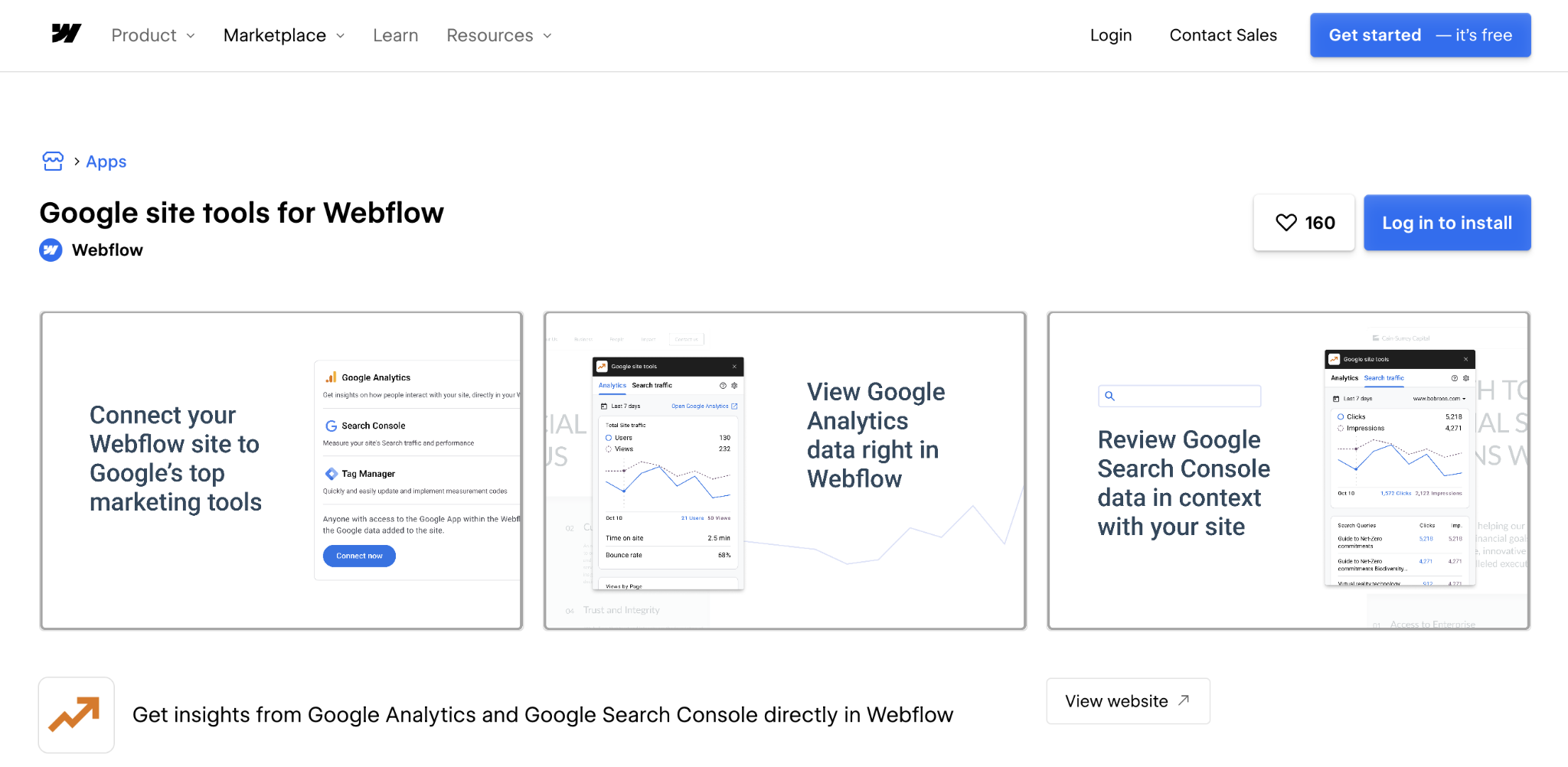
It connects GA4, Search Console, and Tag Manager to your site via a guided OAuth flow, automatically injects scripts, and surfaces key metrics directly in Webflow's Apps panel, without any manual code placement.
To set up the integration:
- Go to the Webflow Apps panel and install the app
- Authenticate with your Google account
- Select which services to connect: GA4, Tag Manager, and/or Search Console
- The app injects all required scripts and displays a pre-configured metrics view inside Webflow
Metrics visible inside Webflow include traffic volume, page views by URL, bounce rate, and top search queries from Search Console. Only users with designer access can view the metrics in the app.
However, if you previously connected Google Analytics through Webflow's native Site Settings integration, remove that integration before activating the Google Site Tools app. Running both simultaneously inflates site load times.
Add GA4 through native integration or Google Tag Manager
Webflow's built-in GA4 integration is the fastest way to set up baseline tracking. Go to Site Settings > Integrations > Google Analytics and enter your GA4 Measurement ID, which starts with G-. This automatically adds the tracking script to every page on the site.
For more control over what gets tracked and when, add Google Tag Manager instead. Paste the GTM container snippets into your site's custom code in head and body tags: the first snippet goes in the <head>, the second immediately after <body>.
From there, GTM gives you centralized control over all tracking tags:
- Configure multiple tracking pixels (Facebook, LinkedIn, Google Ads) from a single GTM container without touching Webflow again
- Create custom triggers for button clicks, scroll depth, and form submissions using GTM's built-in trigger types
- Filter out staging traffic by excluding webflow.io domains from your GA4 data stream, so pre-launch activity doesn't pollute production reports
For ecommerce tracking: if you're using Webflow Ecommerce and have the native GA4 integration active, Webflow automatically sends viewed_product, add_to_cart, and purchase events to GA4 — but you need to enable ecommerce tracking in your GA4 property settings for these events to appear in reports.
These two approaches cover the majority of analytics setups. Use the API-based methods below only if you need bidirectional data flow or want to display GA4 metrics dynamically on your Webflow site.
Build custom analytics workflows with Google Analytics and Webflow APIs
The Google Analytics Data API and Webflow's CMS API work together through middleware to sync data between platforms programmatically. This approach is suited to teams who want to display live analytics on their Webflow site, automate content performance workflows, or implement server-side conversion tracking.
This path requires developer resources. It is not a no-code setup.
Create a custom analytics dashboard
To create a custom analytics dashboard that displays GA4 data on your Webflow site:
- Configure OAuth 2.0 credentials in Google Cloud Console with analytics.readonly scope
- Query GA4 using the Data API runReport endpoint to retrieve sessions, conversions, user demographics, or page-level metrics
- Push the response data into Webflow CMS collection items via the CMS API to display live metrics on any Webflow page
This setup works well for marketing dashboards, content scoreboards, or any page where you want live site data visible without logging into GA4 directly.
Automate content performance tracking
To automate content performance tracking between platforms:
- Set up Webflow webhooks to fire on collection_item_published events when new content goes live
- Send custom events to GA4 via the Measurement Protocol endpoint to track content-specific interactions server-side
- Pull engagement metrics back into Webflow CMS to surface top-performing articles or flag underperforming pages in an editorial dashboard
The result is a feedback loop between your CMS and analytics — new content is automatically tracked, and performance data flows back into Webflow without manual reporting.
Track conversions server-side
To implement server-side conversion tracking for improved data accuracy:
- Configure Webflow's form webhook to forward submission data to your server rather than relying on client-side tag firing
- Send conversion events from your server to the GA4 Measurement Protocol endpoint with hashed user data for enhanced conversions
- Map attribution using UTM parameters and custom dimensions to track campaign-level performance granularly
API-based workflows are the right choice when client-side tracking gaps (ad blockers, browser restrictions, or AJAX-heavy interactions) are causing meaningful data loss, or when you need analytics data to drive visible content on the site itself.
What can you build with Google Analytics Webflow Integration?
Connecting Google Analytics with Webflow gives you the data layer to build sites that respond to real traffic patterns, not guesswork. From editorial dashboards that surface which content is actually converting, to server-side attribution systems that stay accurate as third-party cookies continue to disappear, the range of builds scales with the integration method you choose.
Here are some of the things you can build:
- Performance dashboards with live metrics: Display visitor counts, top pages by traffic, and conversion rates directly on your Webflow site by syncing GA4 data into CMS collections via the Data API — useful for marketing teams who need an internal reporting view inside the CMS.
- Content recommendation engines: Surface trending articles or resources by pulling GA4 engagement data into Webflow CMS collection items on a scheduled basis and displaying them through a dynamically sorted list, without manual editorial curation.
- Server-side attribution reports: Build custom landing pages with form flows that forward submission data server-side via Webflow webhooks and send conversion events to GA4 through the Measurement Protocol, capturing conversions that client-side tags miss.
- Consent-aware analytics setups: Implement a GDPR and CCPA-compliant analytics stack using DataGrail Consent with GTM to gate analytics loading until a visitor accepts tracking, keeping GA4 data collection tied to actual consent state.
These builds vary significantly in complexity. The first two work with the Data API and a scheduled sync script; the latter two require server infrastructure or CMP configuration. Start with the simplest setup that covers your reporting needs before adding API complexity.
Frequently asked questions
Navigate to Site Settings > Integrations > Google Analytics and enter your GA4 Measurement ID. For advanced tracking, install Google Tag Manager which provides detailed setup instructions for custom events, ecommerce tracking, and filtering staging traffic.
Yes, the Google Site Tools app displays analytics metrics directly in Webflow. For custom dashboards, use the Google Analytics Data API to pull data into Webflow CMS collections and create dynamic visualizations.
For basic tracking, Google Tag Manager can detect form submissions automatically. For server-side accuracy, configure Webflow webhooks to send form data to your server, then forward conversion events to Google Analytics using the Measurement Protocol.
Create a filter in Google Analytics to exclude traffic from webflow.io domains. The GTM integration guide provides step-by-step instructions for configuring filters and ensuring only production traffic appears in reports.
GA4 includes built-in privacy features like IP anonymization. For full compliance, implement consent management using DataGrail integration or delay analytics loading until users accept cookies through Webflow's consent settings.
Description
Google Analytics is a comprehensive digital analytics platform that collects data from websites and mobile apps to generate detailed reports about user behavior, site performance, and marketing effectiveness. The platform offers real-time tracking, audience segmentation, conversion analysis, and predictive insights powered by machine learning.
This integration page is provided for informational and convenience purposes only.

Google site tools for Webflow
Google site tools for Webflow is Webflow's own app for reading GA4 and Search Console data inside Webflow and adding your Google Tag Manager script without code.

Data Goat (by Flow Ninja)
Data Goat shut down in November 2024. Replace its tracking with Webflow Analyze or a marketplace analytics app, GA4 scripts you install through Code Embed, and the Webflow Data API v2 for form data server-side.

Countdown Bar Timer
Connect Countdown Bar - Timer with Webflow to add urgency-driven countdown timers to landing pages, product pages, and sitewide promotions.
Smartarget Reviews
Connect Smartarget Reviews with Webflow to display curated customer testimonials and star ratings on your site without building a review system from scratch.
TripleChecker
Connect TripleChecker, an automated proofreading tool, with Webflow to scan your published site for spelling errors, grammar mistakes, and broken links on a recurring schedule.
Cookie Consent
Connect Cookie Consent, a GDPR and CCPA compliance app, with Webflow to add configurable cookie banners that block third-party scripts until visitors make a consent choice.
Gemini
Connect Google Gemini to Webflow to add AI text generation, image analysis, and automated content pipelines to your site.
Datadog
Connect Datadog with Webflow to monitor real user performance, track frontend errors, and run synthetic uptime checks on your published site.
Braintrust
Connect Braintrust with Webflow to monitor AI-powered features on your site and sync evaluation data into your CMS.
Related integrations
Get started for free
Try Webflow for as long as you like with our free Starter plan. Purchase a paid Site plan to publish, host, and unlock additional features.
