






One2 Menu
Paste a One2 Menu snippet into Webflow and your restaurant menu stays current from the One2 dashboard.

A restaurant site built in Webflow needs a menu that changes weekly or even daily. When the menu is a static page, every price change requires a site edit and a republish. PDF menus are hard to read on phones and tablets, and individual dishes are far less likely to surface in search results than they would on a crawlable web page.
One2 Menu hosts the menu outside the site and displays it in Webflow through a code snippet. Restaurant staff edit items in the One2 dashboard. Every publish updates Google Maps, Google Search and the embedded menu. The Webflow site stays untouched.
The integration fits restaurant groups, hotels, ghost kitchens, franchises, and food trucks that run their sites on Webflow. It also fits agencies and freelancers who build those sites and want clients to update menus without a developer. Multi-location operators can manage all menus from a single One2 account while keeping each Webflow page up to date.
How to integrate One2 Menu with Webflow
What is One2 Menu? One2 Menu publishes restaurant menus to Google and optimizes them for search. It syncs those menus to Google Maps and Google Search via your Google Business Profile, updating them whenever you publish. It also adds multi-location management and QR code menus with AI image A/B testing.
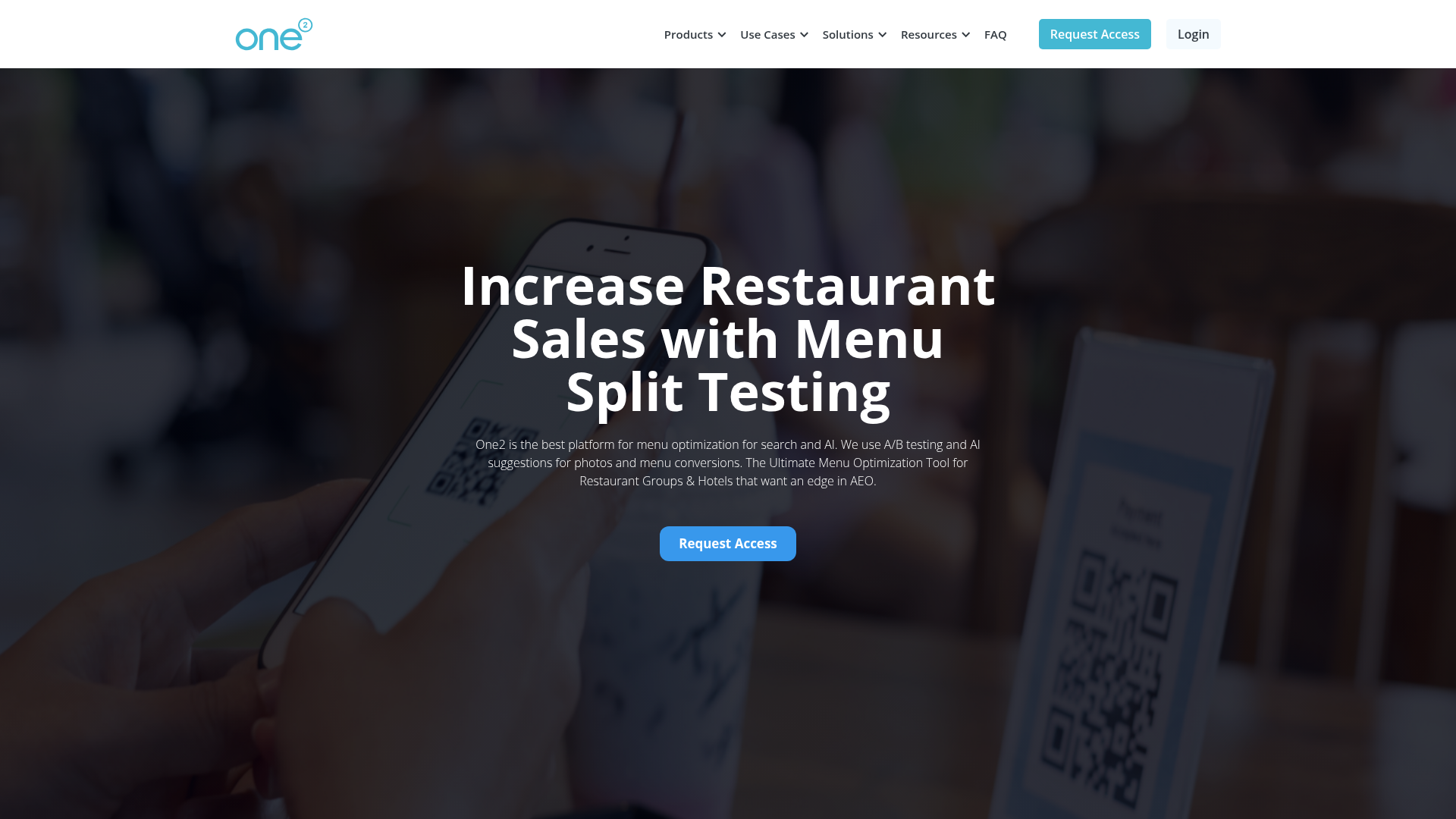
Teams pair the two when a Webflow site needs a menu that kitchen or front-of-house staff can change on their own. One2 documents this path for site builders so clients can update menu items without touching the Webflow site. The integration uses an HTML snippet generated in the One2 dashboard. Webflow Marketplace has no One2 Menu app.
The One2 Menu-Webflow integration supports these approaches:
- The Code Embed element places the One2 snippet at a specific spot on a page, with no site-wide changes (Code Embed).
- Site and page custom code loads the snippet site-wide or on one page. Add it through Custom code in head and body tags.
- Webflow-side automation through the Webflow Data API deploys and manages the snippet programmatically. This path is developer-only and needs server-side work.
Most implementations use the Code Embed element alone, and combine it with site-level code or the API as the setup gets more complex.
Embed your menu with a Code Embed element
This is the method One2 Menu documents in its Webflow tutorial. You generate an HTML snippet in the One2 dashboard and paste it into a Code Embed element wherever the menu should appear. You need a Core, Growth, Agency, or Freelancer Workspace plan, or an active paid Site plan. Free Starter sites can't use custom code at all, a common blocker for new setups.
To set up the integration:
- n One2, open Settings > Integrations > Website and copy the embed code..
- In Webflow, open the Add panel and add a Code Embed element to the canvas.
- Paste the snippet into the code editor.
- Click Save & Close, then publish the site.
After you publish, you get:
- Menu updates on every One2 publish, with no site edit
- Mobile-responsive menu layouts
- Unlimited QR code menus, with detailed reporting on menu interactions
- Multi-location support from a single account
Each Code Embed element holds up to 50,000 characters. It supports HTML, with CSS placed in <style> tags and JavaScript in <script> tags. The embed renders as a widget and doesn't populate Webflow CMS Collections. Because the menu never lands in a CMS Collection, you can't bind it to Webflow CMS fields.
Add the snippet through site or page custom code
If the menu snippet should load on every page, add it to the site's head and body tags instead. The same applies if you'd rather manage the snippet from settings than on the canvas. The same paid-plan requirement applies.
Add the snippet site-wide
Site-level custom code loads on every page of the site, which suits a hotel or restaurant group with menus on multiple pages.
To add the snippet site-wide:
- Go to Site settings > Custom code.
- Paste the One2 snippet into Head code or Footer code.
- Click Save changes and publish the site.
Custom code isn't live until you publish, so check the live domain rather than the canvas.
Add the snippet to a single page
Page-level custom code keeps the snippet scoped to one URL, such as a dedicated /menu page.
To add the snippet to one page:
- In Webflow, open Page settings for the target page.
- Under Custom code, paste the snippet into Inside
<head>tag or Before</body>tag. - Click Save your changes and publish.
Page-level custom code loads the One2 script only on the page where you added it.
Deploy the One2 Menu snippet with the Webflow Data API
The Data API deploys the One2 snippet. Menu data remains in One2. The dashboard snippet is One2 Menu's only interface. One2 Menu publishes no public API or developer documentation. It also offers no webhooks. This path suits agencies deploying the same One2 snippet across many client sites from a server-side script. You build it as a Data Client app with OAuth.
- Custom code endpoints in the Data API register and apply scripts on sites and pages. The same endpoints can remove scripts.
- Webflow webhooks send events like
site_publishandform_submissionto your server.
Only Data Client apps can request the custom_code:read and custom_code:write scopes. Site tokens can't, so you authorize through the OAuth Code Grant Flow.
Push the snippet to many client sites
An agency managing several restaurant clients can push the One2 snippet to every site from one script instead of pasting it into each one.
To implement this:
- Create a Data Client app and authorize it with the
custom_code:writescope via OAuth. - Register the snippet with
POST /v2/sites/{site_id}/registered_scripts/inline, or use the hosted variant for externally hosted scripts. The inline endpoint reference caps inline scripts at 2,000 characters, so host longer snippets externally. - Apply the registered script with
PUT /v2/sites/{site_id}/custom_codefor the whole site, orPUT /v2/pages/{page_id}/custom_codefor a single page. - Publish the site with
POST /v2/sites/{site_id}/publish.
Once the registered script is applied and published, menu content still flows through One2's own publish mechanism. The API only manages where the snippet lives.
What can you build with the One2 Menu Webflow integration?
Integrating One2 Menu with Webflow lets you run a live, Google-indexed menu without rebuilding pages or republishing for every price change.
- QR code dine-in menus: Print One2's QR codes for tables so guests open your One2-managed menu. One2 includes unlimited QR code menus and detailed reporting on how guests interact with them.
- Search-indexed menu pages: Publish one
/menupage as a crawlable HTML menu instead of a downloadable PDF, and let One2 push the same items to Google Maps and Search through Google Business Profile. - Multi-location restaurant sites: Build one Webflow page per location and manage every menu from a single One2 account. Each location page embeds its own One2 menu, and you edit all of them from one dashboard.
- Client-editable agency builds: Hand off a restaurant or hotel site where the client updates prices from the One2 dashboard. The Webflow site never needs a developer touch for menu changes.
Use the API integration path to deploy and manage the embed across many client sites.
Frequently asked questions
Yes. You need a paid Workspace or Site plan to add custom code, including the Code Embed element. That means a Core, Growth, Agency, or Freelancer Workspace plan, or any active paid Site plan. Sites on the free Starter plan can't run the One2 snippet. Upgrade the site before handing it off to a restaurant client.
Any embed containing a
<script>tag shows a placeholder in the canvas. Some embeds can only be viewed on the live website. Publish the site and check the live URL to see the menu render.The Webflow site requires one initial publish to make the embed live. One2 handles later menu updates on its side. Its Webflow tutorial states "Menu updates are automatically pushed to Google Maps, Search, and your website." The only republish you need is the first one, since custom code doesn't go live until the site is published.
One2's official integration uses a code snippet generated in its dashboard. Webflow Marketplace has no One2 Menu app. The informational page at webflow.com/integrations/one2menu is separate from the Marketplace and carries no certification. One2's tutorial also links to a help-center article, Add One2 Menu to Webflow. Start in the One2 dashboard, copy your snippet, and paste it into a Code Embed element.
Description
Embed One2 Menu's live restaurant menus in Webflow with a code snippet placed in a [Code Embed](https://help.webflow.com/hc/en-us/articles/33961332238611-Custom-code-embed) element or through [Custom code in head and body tags](https://help.webflow.com/hc/en-us/articles/33961357265299-Custom-code-in-head-and-body-tags). Menu changes push live after every One2 publish.
This integration page is provided for informational and convenience purposes only.

xAttribute

Typed.js
Connect Typed.js, a JavaScript typing animation library, with Webflow to add animated rotating headlines using Code Embed elements and CMS-driven strings.

Typed.js
Connect Typed.js, a typewriter animation JavaScript library, with Webflow to animate text that types, backspaces, and cycles through multiple strings on any page.

Sweet Text by Finsweet

Scrollbar Styler by Finsweet
Style Webflow scrollbars visually with Finsweet's free CSS generator, paste the code into your site, and add the standard properties for full browser support.

React

POWR
Add POWR forms, popups, countdown timers and live chat to a Webflow site with a Code Embed or footer code, and send form responses to the CMS through Zapier.

MathJax
Connect MathJax, an open-source math display engine, with Webflow to render LaTeX equations as typeset formulas with built-in accessibility, screen reader support, and cross-browser consistency.

Listen Notes
Connect Listen Notes, a podcast search engine and API, with Webflow to embed episode players, add podcast search, and populate CMS collections with episode metadata from 3.7 million+ podcasts.
Related integrations
Get started for free
Try Webflow for as long as you like with our free Starter plan. Purchase a paid Site plan to publish, host, and unlock additional features.
