






Nativator
Connect Nativator, a web-to-native-app conversion service, with Webflow to wrap your published site into iOS and Android apps with push notifications, GPS, camera access, and QR scanning.
Nativator wraps your published site in a native app shell for iOS and Android, unlocking push notifications, geolocation, QR scanning, and microphone access that browsers can't reliably deliver. Submit your live URL and get app store-ready builds for Apple and Google.
Content updates you publish appear in the app automatically, with no resubmission required. It's a fit for MVP launches, mobile learning apps, and agency client work that needs native distribution without hiring mobile developers.
How to integrate Nativator with Webflow
What is Nativator? Nativator is a no-code web-to-native-mobile-app conversion service. It takes a published, responsive website URL and generates native Android (APK/AAB) and iOS builds for app store distribution. The service adds device-level features, including push notifications via OneSignal, native GPS and map rendering, camera and microphone access, and QR code scanning, all without requiring you to write code.
Reach for Nativator when you need your site available as a standalone app in the App Store or Google Play. Your site already handles content management, responsive design, and hosting. Nativator adds the native distribution layer and device access that browsers cannot provide consistently.
You can use Nativator with Webflow in 2 ways:
- Nativator's conversion service wraps your published site into native iOS and Android apps without code.
- The Data API gives you programmatic control over site publishing, CMS content, and custom code registration, but requires server-side development.
Most implementations rely on the conversion service alone. If you have complex content pipelines or automated publishing workflows, you can add the Data API to manage the Webflow side programmatically.
Submit your Webflow site to Nativator
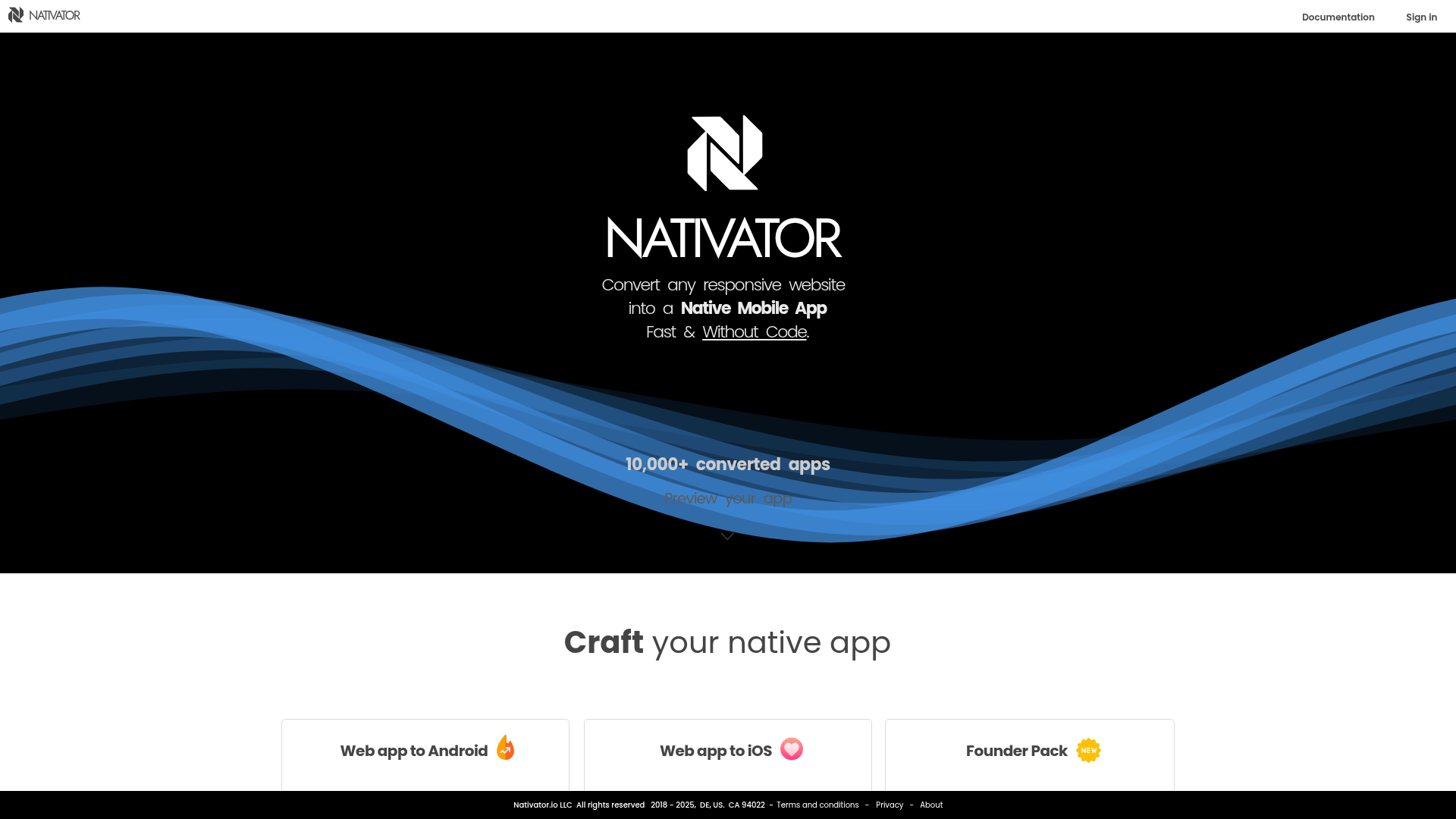
Nativator's core workflow is a URL-based conversion. You provide your published site URL through the Nativator conversion form, and the service generates native app builds for Android, iOS, or both. This is the primary integration method and requires no coding.
The conversion produces white-labeled apps with access to native device features:
- Push notifications delivered through OneSignal
- Camera access for QR code scanning and video recording
- Native GPS and map rendering
- Microphone and audio recording
- File uploads from the device gallery
- Android back button support
Before you start, confirm that your site is responsive and published at a reachable URL. A free Webflow subdomain (yoursite.webflow.io) works for the core conversion, though you need a custom domain for some features according to the Webflow Integrations listing for Nativator.
To submit your site for conversion:
- Create an account at nativator.io and select your plan: Android, iOS, or the Founder Pack for both platforms.
- Fill out the conversion form with your published site URL, app icon (PNG with transparent background), app name, description, and Bundle ID.
- If you want push notifications, create a OneSignal account, generate your APP IDs, and include them in the form. Nativator does not set up OneSignal on your behalf.
- Submit the form and track progress by navigating to Tracker in the header after logging in.
Once you submit, Nativator handles the build process from your live URL.
Android builds (APK and AAB files) arrive within 1 to 2 working days. Combined Android and iOS builds complete within 3 working days, per the Nativator documentation. For iOS, Nativator uploads the build directly to App Store Connect. You do not receive a raw IPA file.
After conversion, any content changes you publish appear in the native app without resubmitting to app stores. The app loads your live site, so republishing is all it takes. Users do need to refresh the app to see updated content, and CDN propagation adds a short delay after each publish.
You can test before committing by downloading the Nativator Preview app from the Play Store or App Store. Enter your site URL and test responsiveness, maps, audio, microphone, and video inside a native container.
Add companion scripts with custom code
Nativator itself does not require any code added to your site. The conversion works entirely from your published URL. But if you want to add analytics tracking, OneSignal web SDK scripts, or other third-party functionality alongside the native app, you can inject custom code into your site using several methods. Site-wide and page-level custom code require a paid site plan.
Site-wide custom code in head or body
For scripts that need to run on every page, add them through custom code in head and body tags in site settings.
To add site-wide scripts:
- Go to Site Settings and click the Custom Code tab.
- Paste your script in the Head code section (loads before content) or Footer code section (loads after content, recommended for performance).
- Click Save Changes and publish your site.
Each section supports up to 50,000 characters. Server-side languages like PHP or Python aren't supported.
Page-specific custom code
For scripts that should run on a single page only, use page-level custom code.
To add page-specific scripts:
- Open the page and click the Page Settings icon (gear icon next to the page name in the Pages panel).
- Scroll to Custom Code and paste your script in the head or before-body field.
- Save and publish.
This follows the same 50,000-character limit per section.
Inline code with Code Embed elements
To place a script or HTML block at a specific location in your page layout, use a Code Embed element.
To add an inline embed:
- Open the Add panel and drag a Code Embed element onto the canvas.
- Double-click the element to open the code editor.
- Paste your code, then click Save and close.
- Publish your site.
Code Embed elements also work inside Rich Text fields in the CMS, which is helpful when you need unique code per CMS collection item. Place your cursor inside a Rich Text element, click the plus icon, select the custom code option, and paste your snippet.
Keep in mind that custom JavaScript relying on browser-specific APIs may not work correctly inside Nativator's native app wrapper. The Webflow Integrations listing flags this as a known limitation. Test any custom scripts using the Nativator Preview app before you order a full conversion.
Build with the Webflow Data API
Nativator has no public API. There are no endpoints, no SDK, and no webhook system on the Nativator side. The Data API v2 is the only programmable part of this integration. Use it to control site publishing, CMS content, and custom code registration. This path requires server-side development.
The Data API matters here because Nativator renders whatever is live on your published site. Programmatic control over publishing and content updates lets you automate the Webflow side of the content pipeline that feeds the native app.
Available API resources:
- The Sites API covers site identification, domain verification, and publishing (capped at 1 publish per minute)
- The CMS Collections API covers collection items and content updates
- Webhooks send real-time notifications when events like
site_publish,form_submission, orcollection_item_changedoccur
Use these services to automate the publishing side of the workflow.
All requests require a Bearer token. Site tokens work for single-site integrations. You need OAuth tokens for Custom Code endpoints.
Automate publishing after CMS updates
If your native app serves CMS-driven content such as blog posts, course lessons, or product listings, set up a webhook listener that detects CMS changes and triggers a publish call.
To implement automated publishing:
- Create a
collection_item_changedwebhook by sending aPOSTrequest tohttps://api.webflow.com/v2/sites/{site_id}/webhookswith your Bearer token and the trigger type. - Point the webhook URL to your server endpoint. When a CMS item changes, the webhook fires a
POSTrequest with the item ID, collection ID, and timestamp. - On receiving the webhook, call
POST /v2/sites/{site_id}/publishto push the updated content live. The native app will reflect the change on the next user refresh.
This keeps your published site in sync with CMS changes.
Verify webhook authenticity using the x-webflow-signature header. The webhook security documentation covers signature verification in detail.
Audit custom code before conversion
Before you submit your site to Nativator, review which custom scripts are registered. Browser-specific JavaScript can cause issues inside a native WebView container.
To audit registered scripts:
- Generate an OAuth token with the
custom_code:readscope (site tokens cannot access Custom Code endpoints). - Call
GET /v2/sites/{site_id}/registered_scriptsto list all scripts registered to your site. - Review each script for browser-specific API dependencies (like
window.openornavigator.clipboard) that may not behave as expected in a native wrapper.
This step is optional but useful when you're debugging issues after conversion. The Custom Code API reference documents all available endpoints.
What you can build with the Nativator Webflow integration
Pairing Nativator with your site lets you distribute as a native mobile app with device-level features without building in Swift, Kotlin, or React Native.
- Startup MVP app: Launch an early product on both app stores using your site as the foundation. Validate your idea with real users on iOS and Android while keeping content management in the CMS. The Founder Pack covers both platforms at a single monthly cost.
- Mobile learning platform: Deliver a course app with gated content (using tools like Memberstack on your site), push notification alerts for new lessons via OneSignal, and camera or microphone access for student submissions. Content updates publish from your site and appear in the app without app store resubmission.
- QR-powered event or retail app: Build product or event detail pages in the CMS and let app users scan QR codes with Nativator's native scanner to open in-app content directly. A retail operator could link each product's QR code to its CMS-driven detail page.
- Location-based service directory: Create a listing site with Collection Lists and store location data in CMS items, then wrap it in a native app with GPS access and map rendering. Real estate agents, delivery services, or travel guides get reliable OS-level geolocation instead of inconsistent browser permissions.
If you need more control over automated content pipelines or publish triggers, the Data API integration path gives you that control.
Frequently asked questions
The core conversion works with a free Webflow subdomain (
yoursite.webflow.io). However, the Webflow Integrations listing for Nativator states that a custom domain and active hosting are required for full setup. File uploads specifically require a Business site plan or above.Yes, but they may not perform identically. The Webflow Integrations listing notes that animations and complex user interactions can experience performance differences compared to the browser version. Payment processing, live chat systems, and custom JavaScript relying on browser-specific APIs may also not convert correctly. Test your site in the Nativator Preview app before ordering.
Push notifications run through OneSignal inside the native app wrapper. You create a OneSignal account, generate your APP IDs, and provide them during the Nativator conversion form. Nativator handles the native integration. OneSignal has stopped supporting web push on Webflow-hosted sites, but this restriction does not apply here because Nativator delivers push within the native container, not via the browser.
No. Nativator does not have a listing on the Webflow Apps Marketplace.
Description
Nativator converts a published Webflow site into native iOS and Android apps for app store distribution. Content updates publish automatically with no resubmission, and device features like push notifications and GPS are included.
This integration page is provided for informational and convenience purposes only.

Udesly BigCommerce to Webflow
Udesly has retired its BigCommerce to Webflow converter, and every URL that used to host it now returns a 404. Webflow Ecommerce reads a BigCommerce product CSV export on its own, so plan the migration around that import instead of hunting for the old tool.

WordPress
Connect WordPress with Webflow to migrate blog posts, images, tags, and categories into Webflow CMS without manual CSV mapping or WordPress plugin installs.

Udesly — WooCommerce to Webflow Converter
Export your WooCommerce products in 1 click and get them ready to use with the Webflow Ecommerce.

Udesly — Shopify to Webflow Converter
Use Udesly to carry Webflow designs and CMS elements into a Shopify storefront while Shopify handles commerce operations.
Udesly — From Wix to Webflow, in a few simple steps
Convert your Wix products in 1 click and get them ready to use with Webflow Ecommerce
Udesly — Convert Squarespace products to Webflow
Convert your Squarespace products in 1 click and get them ready to use with Webflow Ecommerce
Udesly CSV Converters
Move to Webflow Ecommerce in 1-click. Convert your existing Ecommerce to Webflow.
Related integrations
Get started for free
Try Webflow for as long as you like with our free Starter plan. Purchase a paid Site plan to publish, host, and unlock additional features.
