






Brandzway - Reviews, Photos & More
Connect Brandzway with Webflow to collect customer reviews automatically after purchase and display them on your ecommerce store.

Ecommerce in Webflow provides product management with a cart and checkout. Requesting reviews after an order and moderating what customers write sit outside those features. The same applies to showing star ratings on product pages. Adding them means building the flow yourself or connecting an app that already runs it.
Connecting Brandzway with Webflow adds an automated review pipeline to your store. Review request emails go out after each order on a schedule you set. Customers submit written and photo reviews, and you moderate them in the Brandzway dashboard. Approved reviews appear in widgets embedded on your pages.
Brandzway is aimed at Webflow ecommerce stores that want customer reviews on product pages. Freelancers and agencies implementing or maintaining reviews for Webflow ecommerce clients can use it, as can marketing teams keeping testimonial sections up to date.
How to integrate Brandzway - Reviews, Photos & More with Webflow
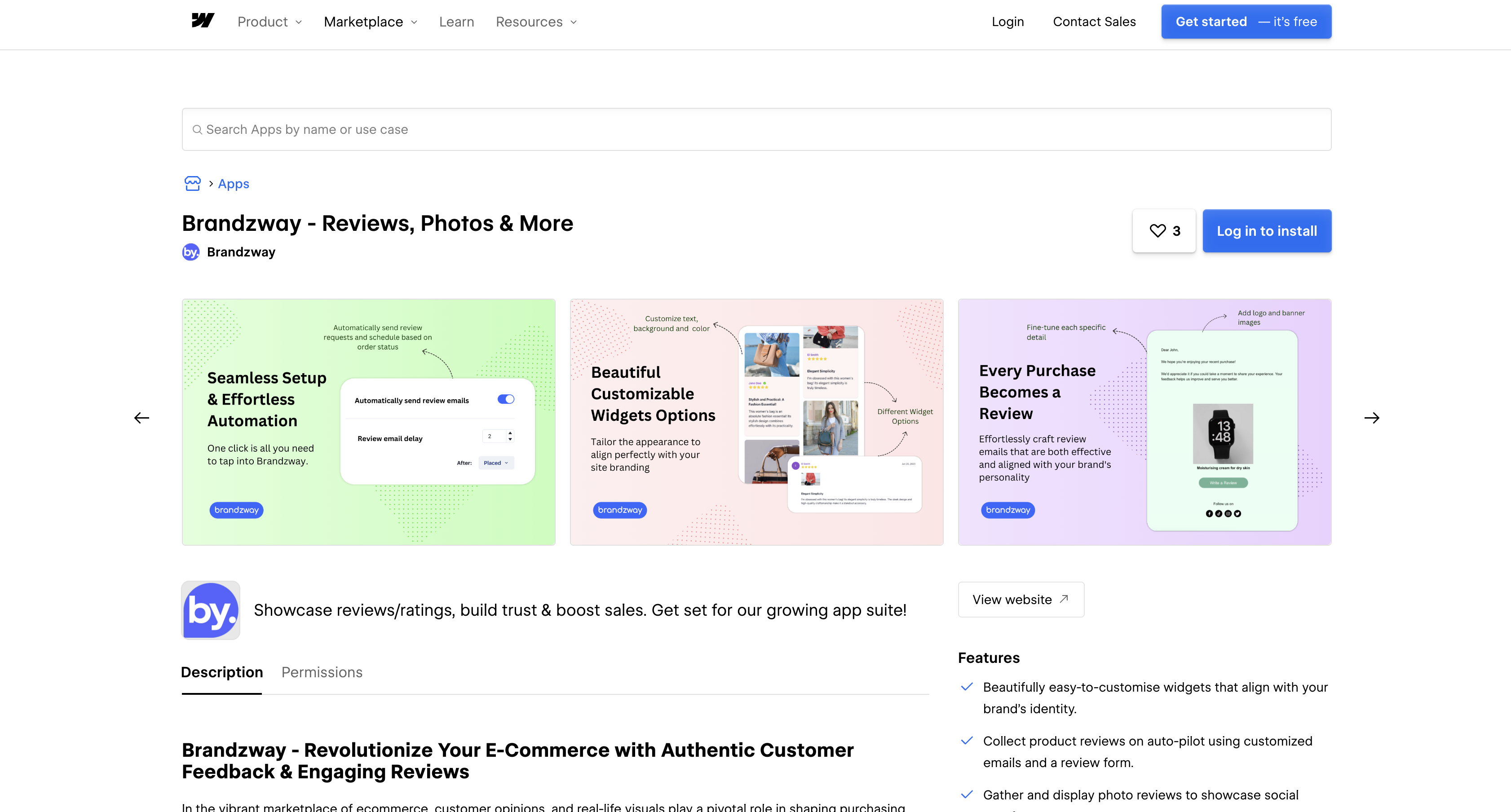
What is Brandzway - Reviews, Photos & More? Brandzway is a customer review app built exclusively for Webflow ecommerce stores and available in the Webflow App Marketplace. It automates post-purchase review requests and turns collected written and photo reviews into customizable widgets. Its moderation tools support public and private replies, while analytics track collection rates and average star ratings.

Teams pair Brandzway with Webflow to collect reviews right after orders and show them where customers decide to buy. All configuration happens in the Brandzway dashboard. Display happens through embed code placed on your Webflow pages.
The Brandzway-Webflow integration supports two approaches:
- The Brandzway app handles review collection, moderation, email customization, and analytics without writing code.
- Code Embed elements place review widgets on static pages and on a Collection template page.
Most implementations use both. You install the app to run collection and moderation, then place widgets with Code Embed. Brandzway publishes no public API, webhooks, or developer portal, so these two approaches cover the whole integration.
Install the Brandzway app
The Brandzway app in the Webflow Marketplace is the starting point for every setup. Installing it authorizes Brandzway to work with your store. You then configure emails and moderation in the Brandzway dashboard. Widget configuration happens there as well. During authorization, Brandzway requests read and write access to ecommerce store data, Webflow CMS data, custom code, page data, site data and publishing, authorized-user information, and assets. Marketplace review checks site development quality, so treat it as a quality bar rather than an endorsement or certification.
To set up the integration:
- Open the Brandzway listing in the Webflow Marketplace.
- Click Add to site.
- Select the Workspace or sites where you want the app installed.
- Click Authorize app.
- Click Go to Brandzway - Reviews, Photos & More in the pop-up and follow the setup instructions in the Brandzway dashboard.
Once installed, you manage everything from the Brandzway dashboard:
- Automated review request emails, with timing set by days after order placement or fulfillment
- Manual review requests when you want to contact specific customers
- Moderation controls, plus public or private replies to reviewers
- Widget customization across Grid View, List View, and Star Ratings layouts
- Review email branding with your logo and banner. You can also add a social media footer.
- Analytics for review collection rates and average star ratings. The dashboard also shows revenue trends.
Photo reviews, the grid widget layout, email branding, and Brandzway branding removal require the Growth or Pro plan. The Free plan covers automated emails, list and star rating widgets, moderation, and analytics. The app manages collection and moderation; putting reviews on your pages happens in the next step.
Add Brandzway widgets with Code Embed elements
Brandzway widgets reach your site through embed code, not through a native element. You copy the widget code from the Brandzway dashboard and place it with a Code Embed element in Webflow. You need a Core, Growth, Agency, or Freelancer Workspace, or an active paid Site plan to use Code Embed. Each element holds up to 50,000 characters.
Place a widget on a static page
Static placements work for homepages and landing pages; testimonial sections can also use them. You choose the widget layout in the Brandzway dashboard, which provides the embed code. Use the CMS-field path instead when each product needs its own reviews.
To place the widget:
- Get the widget embed code from your Brandzway dashboard.
- In Webflow, add a Code Embed element from the Components panel where you want reviews to appear.
- Paste the Brandzway widget code into the custom code field.
Custom code renders in preview and comment modes, but it only goes live once you publish the site. See Custom code in head and body tags for how publishing affects custom code.
Show per-product reviews on Collection template pages
Stores that keep products in Collections in Webflow can show a different review widget on each product's Collection template page. The widget code lives in a CMS field, so one Code Embed element in the template serves every product.
To set up per-product widgets:
- Add a Plain Text or Multi-line Text field to your Collection.
- Paste the review widget code into that field for each Collection item.
- Connect a Code Embed element in the Collection template page to display the field content.
Each product page then loads that product's reviews from the field you connected. Brandzway does not document a widget refresh interval or publish detailed setup docs, so test the widget on a published site before launch and contact Brandzway support for configuration questions beyond the dashboard.
What can you build with the Brandzway Webflow integration?
Integrating Brandzway with Webflow lets you collect and display customer reviews across your store without building a review system from scratch.
- Post-purchase review collection: Send a branded review request email a set number of days after order placement or fulfillment, with the timing set in the Brandzway dashboard.
- Photo review galleries: Publish customer-submitted photos in a product page gallery as visual social proof.
- Product-specific review sections: Show each product's own reviews and star rating on its Collection template page, driven by the widget code stored in a CMS field.
- Homepage social proof: Place a Star Ratings or List View widget in a homepage social-proof section, styled to match your site's fonts and colors.
Brandzway has no public API. Organizations may contact support@brandzway.com to ask whether private API access is available under a partnership agreement; availability and capabilities are not publicly documented.
Frequently asked questions
Code Embed requires either a Core, Growth, Agency, or Freelancer Workspace or an active paid Site plan. If neither condition applies, a Starter setup cannot display Brandzway widgets through Code Embed. Check both your Workspace and Site plan. The Brandzway app itself has a Free plan.
Custom code only goes live after you publish the site. Changes render in preview and comment modes, per Custom code in head and body tags. App-delivered code has one more requirement. Its resources must be reachable from the preview domain before they render in preview or comment modes, per the custom code preview mode guide.
No. Brandzway's publicly documented integration is a no-code, widget-based app in the App Marketplace. It has no public API documentation, developer portal, or webhook functionality, per the Brandzway integration details. There is no public Brandzway API or webhook to sync reviews into your Collections in Webflow. For programmatic access inquiries, contact support@brandzway.com to ask whether private API access is available under a partnership agreement.
Install the app from the Brandzway Marketplace listing, then follow the setup instructions in the Brandzway dashboard. The install flow matches the standard process in the Webflow Apps overview. After that, copy your widget code from the dashboard. Place it with a Code Embed element on the pages where reviews should appear.
Description
Add customer reviews, photo reviews, and star ratings to a Webflow ecommerce store. Install the Brandzway Marketplace app to collect and moderate reviews, then place widgets anywhere with [Code Embed](https://help.webflow.com/hc/en-us/articles/33961332238611-Custom-code-embed) elements.
This integration page is provided for informational and convenience purposes only.

Storesynk (formerly Shopyflow)
Connect Storesynk (formerly Shopyflow) with Webflow to run a Shopify-backed storefront designed in Webflow, with payment completed on Shopify checkout.

Looop
Connect Looop with Webflow to sync Shopify products into Webflow CMS and build headless e-commerce storefronts with full checkout functionality
AstroIC
Connect AstroIC with Webflow Ecommerce via OAuth to generate invoices and manage product catalogs in bulk for your ecommerce store.

Smootify
Connect Smootify with Webflow to run a Shopify store on a custom Webflow front end, built by hand or, in the Smootify 2.0 public beta, by an AI agent.

ShipStation
Revidflow
Connect Revidflow to your Webflow e-commerce store to automate review collection and display customer feedback.

Shipping IO
Connect Shipping IO with Webflow to route new store orders into Shipping IO for label generation and write tracking numbers back to each order.

Penni Cart
Connect Penni Cart with Webflow to sell products from CMS collections with a cart and checkout you design.

Flowstar Combo Bundle Builder
Connect Flowstar Combo Bundle Builder with Webflow to sell product bundles that customers add to cart in a single click.
Related integrations
Get started for free
Try Webflow for as long as you like with our free Starter plan. Purchase a paid Site plan to publish, host, and unlock additional features.
