






MixItUp
Connect MixItUp with Webflow to add animated filtering, sorting, and layout transitions to static and CMS-powered content.

MixItUp turns flat grids and CMS collections into interactive, filterable layouts with animated DOM filtering, sorting, and smooth CSS transitions. Items fade, scale, and reposition the moment visitors click a filter or sort control, working with both static content and Webflow CMS collections.
Native collection filtering covers basic category selection on collections under 100 items, but it doesn't handle animated transitions or multi-criteria sorting on a single page. Reach for MixItUp on portfolio sites, product grids, resource libraries, and team directories when you want animated category transitions or multi-dimensional filtering, and you're comfortable with JavaScript.
How to integrate MixItUp with Webflow
What is MixItUp? MixItUp is a dependency-free JavaScript library for animated DOM filtering, sorting, and layout manipulation. It runs entirely in the browser, using CSS class selectors and custom data attributes to show, hide, and reorder elements with configurable animation effects. MixItUp and its extensions (MultiFilter, Pagination) are fully open source under the Apache 2.0 license.
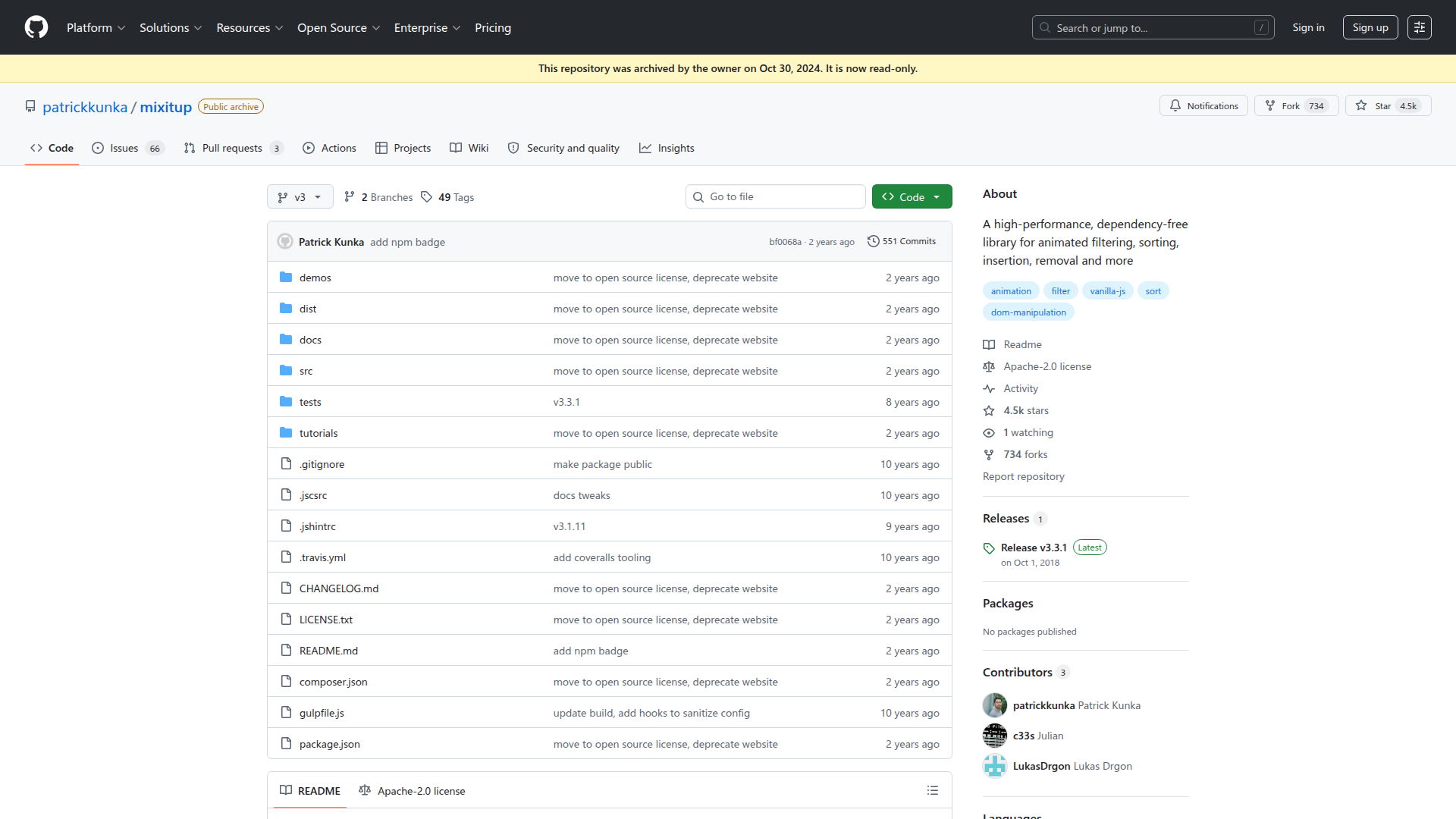
Pair MixItUp with Webflow when you need animated state changes on content grids, combined filter criteria across taxonomies, or custom sort orders that go beyond native collection filtering. The library is stable and widely deployed, though the repository was archived in October 2024, so don't expect future updates or bug fixes.
You'll typically choose between two implementation patterns:
- Custom code embedding lets you add MixItUp to any page for static or CMS-powered filtering and sorting without a marketplace app.
- The Webflow Data API paired with MixItUp's Dataset API is a custom architecture for collections exceeding 100 items, but it requires server-side development.
Start with custom code and move to the API path only when collection size or architecture requires it.
Most implementations use the custom code approach. Reach for the API path only when your collection exceeds the 100-item render limit on Collection Lists.
Add MixItUp with custom code
To integrate MixItUp, embed the CDN script and initialization code in your page's custom code fields. This approach works for both static content, where you manually assign category classes, and CMS-powered collections, where JavaScript generates filter classes at runtime. You need a paid site plan to publish custom code. MixItUp effects don't appear in the canvas preview, so publish or stage the site to test.
Load the library and create the required HTML structure first.
Set up filtering on static content
Assign category classes directly to elements, add filter buttons with custom attributes, and initialize MixItUp with a short script.
To set up static filtering:
- Open Page Settings for the target page, scroll to Custom Code, and paste the MixItUp CDN script in the Before
</body>tag field:
<script src="https://cdn.jsdelivr.net/npm/mixitup@3/dist/mixitup.min.js"></script>
- Create a container div and assign it a class (for example,
container). Inside that div, add your content items and give each one the classmixplus one or more category classes likepeopleorplaces. Items belonging to multiple categories get multiple classes (for example,mix people places). - Add filter buttons outside the container. Select each button, open Element Settings, and add a custom attribute with the name
data-filter. Set the value toallfor the "show all" button, or to a dot-prefixed class selector like.peoplefor category buttons. The dot prefix is required for class-based selectors. - For sort buttons, add a custom attribute named
data-sortwith values likeorder:asc,order:desc,random, ordefault. Add matchingdata-orderattributes to each.mixitem through Element Settings with numeric values. - Below the CDN script tag in the same Before
</body>tag field, add the initialization code:
<script>
  var containerEl = document.querySelector('.container');
  var mixer = mixitup(containerEl);
</script>
- Publish the site and test on the live URL.
You now have a basic filter and sort setup that you can style and expand.
MixItUp automatically adds the class mixitup-control-active to whichever filter button is currently selected. Add this as a combo class to style the active state with a different background color or text treatment.
Set up filtering on CMS content
CMS items don't automatically receive category-based CSS classes, so add a JavaScript function that reads hidden CMS field values from each collection item and converts them into valid class names at runtime.
To set up CMS filtering:
- In your CMS collection, add a Reference field or Option field for categories. Don't use a Multireference field, since it's incompatible with this approach.
- Add a Collection List to your page. Assign a class to the Collection List element (for example,
posts-collection-list), then assign the classmixto each Collection Item. - Inside each Collection Item, add a text element and bind it to the category CMS field. Give this text element a class like
filtering-categories. Set it todisplay: noneso it's hidden from visitors. - For sorting, add another hidden text element bound to the sort field (such as a date or numeric field) with a class like
sorting-categories. - Add filter buttons with
data-filtercustom attributes, just as in the static setup. Thedata-filtervalues must match the CSS class names that the conversion script will generate. For a CMS category named "Web Design," the generated class isweb-design, so the button needsdata-filter=".web-design". - In Page Settings, under Custom Code, paste the full initialization script in the Before
</body>tag field:
<script src="https://cdn.jsdelivr.net/npm/mixitup@3/dist/mixitup.min.js"></script>
<script>
  // Convert CMS text to valid CSS class names
  var conv = function (str) {
    if (!str) { str = 'empty'; }
    return str.replace(/[!\"#$%&'\(\)\\+,\.\/\:;<=>?\@[\]\^`\{\|\}~]/g, '')
      .replace(/ /g, "-")
      .toLowerCase()
      .trim();
  };

  // Add filter classes from CMS category fields
  var catArray = document.querySelectorAll('.filtering-categories');
  catArray.forEach(function(elem) {
    var text = elem.innerText || elem.innerContent;
    var className = conv(text);
    elem.parentElement.parentElement.classList.add(className);
  });

  // Add sort attributes from CMS fields
  var sortArray = document.querySelectorAll('.sorting-categories');
  sortArray.forEach(function(sortElem) {
    var sortText = sortElem.innerText || sortElem.innerContent;
    sortElem.parentElement.parentElement.setAttribute('data-order', sortText);
  });

  // Initialize MixItUp
  var containerEl = document.querySelector('.posts-collection-list');
  mixitup(containerEl);
</script>
The script converts CMS values to class names and initializes filtering in one pass.
The conv() function strips special characters, replaces spaces with hyphens, and lowercases the string. You need this conversion step because CMS field values often contain spaces and characters that are invalid in CSS selectors.
The .parentElement.parentElement chain walks from the hidden text element up to the .mix Collection Item. If your element structure nests the text element at a different depth, adjust the number of .parentElement calls to match. A mismatched traversal depth is one of the most common causes of silent filtering failures.
Add extensions for multi-dimensional filtering and pagination
MixItUp's MultiFilter extension adds simultaneous filtering across independent filter groups (for example, filtering by both color and size at once). The Pagination extension adds client-side page navigation within a filtered set.
To use extensions:
- Load each extension script after the MixItUp core script and before initialization:
<script src="https://cdn.jsdelivr.net/npm/mixitup@3/dist/mixitup.min.js"></script>
<script src="path-to-mixitup-multifilter.min.js"></script>
<script src="path-to-mixitup-pagination.min.js"></script>
- Register extensions and pass configuration options during initialization:
mixitup.use(mixitupMultifilter);
mixitup.use(mixitupPagination);

var mixer = mixitup(containerEl, {
    multifilter: { enable: true },
    pagination: { limit: 12 },
    animation: {
        effects: 'fade scale(0.5)',
        duration: 300
    }
});
Load extensions after the MixItUp core script. Loading them first produces the error [MixItUp Pagination] MixItUp core not found. Pagination only works on items already rendered in the DOM, so it remains bounded by the Collection List's 100-item render limit. Disable native pagination on any Collection List where MixItUp pagination is active.
Use a Code Embed for inline scripts
You can also place MixItUp initialization code directly within your page layout using a Code Embed element. Open the Add panel, scroll to the Advanced section, and drag a Code Embed element into your page. Use this approach when you want the script to sit at a specific position in the DOM or when you need to bind CMS field values directly into embedded code using the purple field-binding dot in the embed editor.
Each Code Embed element has a 50,000-character limit. If your script exceeds this, host it externally and reference it via a <script src=""> tag, or split it across multiple Code Embed elements.
Build with the Webflow Data API and MixItUp Dataset API
For collections exceeding 100 items, the standard Collection List approach stops working because a Collection List renders a maximum of 100 items. Pairing the Webflow Data API with MixItUp's Dataset API gives you a custom architecture around this limit. This isn't a built-in or no-code integration mode — it requires server-side development, including OAuth implementation and middleware for data fetching.
- The Webflow Data API fetches CMS collection items via
GET /v2/sites/{site_id}/collections/{collection_id}/items, returning structured JSON with pagination metadata - Webhooks fire events like
collection_item_createdandcollection_item_changedto keep your data synchronized - MixItUp's Dataset API accepts a data model array and renders/filters items without relying on pre-existing DOM elements
Together, these APIs support a server-to-client filtering pipeline for large collections.
Fetch and render CMS items with the Dataset API
Your server handles authentication and API pagination, then passes the full dataset to the browser for MixItUp to manage.
To implement this:
- Set up a server-side endpoint that authenticates with a Bearer token (scope:
cms:read) and fetches items fromGET /v2/sites/{site_id}/collections/{collection_id}/items. Handle API pagination to retrieve all items beyond the first page of results. - Transform the API response into a flat array of objects. Each object needs a unique
idproperty and whatever category or sort fields your filters require. - On the client side, pass the array to MixItUp's Dataset API during initialization:
var mixer = mixitup(containerEl, {
    data: { uidKey: 'id' },
    load: { dataset: fetchedItems }
});
- Call
mixer.filter('.category-name')ormixer.dataset(updatedItems)to update the display as needed.
This approach removes the 100-item ceiling entirely but adds complexity in OAuth token management, server hosting, and data synchronization. Subscribe to the collection_item_changed and collection_item_created webhook events to keep the dataset current without manual refreshes.
What can you build with the MixItUp Webflow integration?
Pairing MixItUp with Webflow lets you turn static grids and CMS collections into interactive, filterable layouts without rebuilding pages for each content category.
- Animated portfolio grid: Build a design agency portfolio where visitors filter projects by category, such as branding, web, or print, with smooth fade and scale transitions between states. Each project card uses combo classes that MixItUp reads for instant, animated filtering on a single page.
- CMS blog archive with category and date sorting: Create a blog listing page where readers filter posts by topic and sort by publish date, all from one Collection List. The
conv()function generates filter classes from CMS category fields, anddata-sortattributes handle chronological ordering. - Multi-dimensional product catalog: Set up an e-commerce product grid where shoppers filter by multiple criteria at once, such as color, size, and price range, using the MultiFilter extension. Each filter group operates independently, narrowing results without page reloads.
- Paginated resource library: Build a knowledge base or document library with the Pagination extension, displaying 12 items per page while still supporting category filtering and sort controls. The extension handles page navigation within the filtered set of rendered items.
If you need more control over collections exceeding 100 items or require server-side data fetching, the API integration path covers those cases with full flexibility.
Frequently asked questions
No. MixItUp and all its extensions are free under the Apache 2.0 license. Any tutorial or article stating that a commercial license is required predates this change and is outdated. You can use MixItUp on client projects without purchasing anything.
Custom code does not execute in the Webflow canvas. You must publish your site to a staging or production URL to see MixItUp's filtering and sorting effects. This is expected behavior for any JavaScript library loaded via custom code fields.
Not with a standard Collection List setup. Webflow renders a maximum of 100 items per Collection List, and MixItUp can only operate on elements present in the DOM. Two workarounds exist: use multiple Collection Lists merged via JavaScript
.append()calls before initialization, or use the Webflow Data API with MixItUp's Dataset API for a fully server-driven approach. The CMS plan supports up to 2,000 items and the Business plan supports up to 10,000, but retrieving them all requires API calls rather than Collection List rendering.Use flexbox or inline-block on MixItUp container elements. CSS Grid is incompatible with MixItUp's position calculations and causes items to overlap after filtering. The library animates absolute positions during transitions, which conflicts with CSS Grid's layout model. Set your Collection List or container div to flexbox with wrap, and items will reflow correctly after each filter operation.
The MixItUp repository was archived on October 30, 2024 and is permanently read-only. No bug fixes or new features will be released. The library remains stable and functional across tens of thousands of sites, but all known open issues are permanent.
For projects that require active maintenance or no-code setup, Finsweet Attributes (free, attribute-based) and Jetboost (paid, guided setup) are actively developed alternatives. MixItUp remains a strong option when you specifically need animated layout transitions and have developer resources available.
Description
Add animated filtering, sorting, and pagination to Webflow pages and CMS collections by embedding MixItUp via custom code and the Webflow Data API.
This integration page is provided for informational and convenience purposes only.

Finsweet-List-Sort
Connect Finsweet List Sort with Webflow so visitors can re-order Collection List items by text, date, or number in the browser.

Haze - Fast Webflow Search
Fast Ecommerce Search

CMS Library: Sort
Sort Items in a Collection List based on text content inside the Item, with Finsweet's CMS Library!
CMS Library: Filter
Filter Items in a Collection List based on text content inside the Item, with Finsweet's CMS Library!
Related integrations
Get started for free
Try Webflow for as long as you like with our free Starter plan. Purchase a paid Site plan to publish, host, and unlock additional features.
