






Lemon Squeezy
Connect Lemon Squeezy, a merchant-of-record commerce platform, with Webflow to sell digital products, SaaS subscriptions, and software licenses with checkout overlays and automatic tax handling.

Selling digital products from Webflow usually requires pairing your site with a separate checkout and fulfillment system, since Webflow doesn't include built-in support for digital product delivery, SaaS subscription billing, license key generation, or merchant-of-record tax handling.
Lemon Squeezy fills that gap by handling checkout, payment processing, tax collection, file delivery, and subscription management. Customers can complete checkout in an overlay on your Webflow page, and tax compliance across 135+ countries is handled automatically by Lemon Squeezy as the merchant of record.
This integration is most useful for indie SaaS founders needing subscription billing, course creators selling digital content, Webflow designers selling templates, and agencies building client sites that require digital product sales.
How to integrate Lemon Squeezy with Webflow
What is Lemon Squeezy? Lemon Squeezy is a payment and commerce platform for selling digital products, SaaS subscriptions, and software licenses. It operates as the merchant of record, meaning it handles payment processing, sales tax collection, refunds, and chargebacks on your behalf. Lemon Squeezy also provides checkout overlays, a customer portal, affiliate tracking, and a REST API for custom integrations.
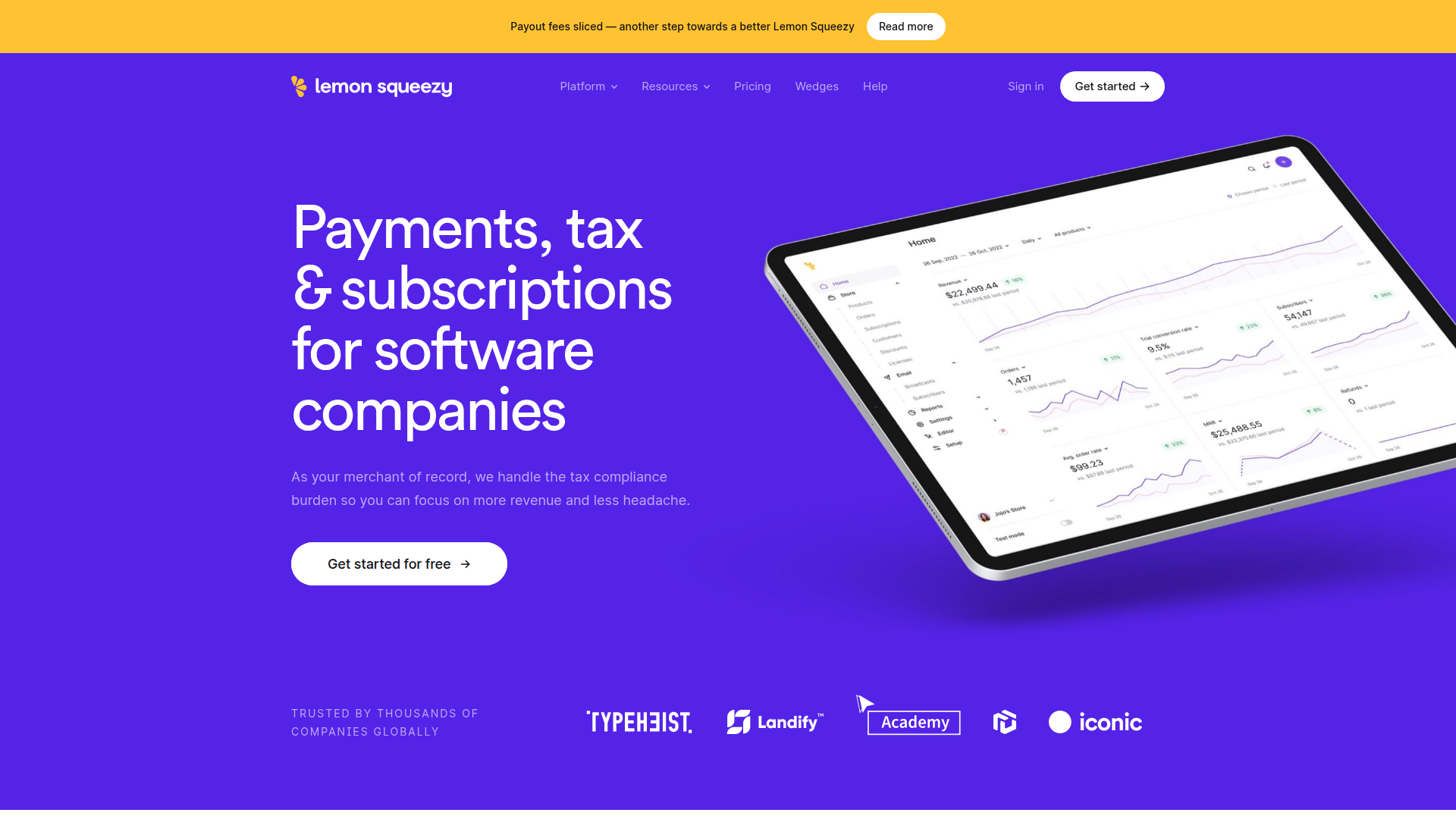
Teams pair Lemon Squeezy with Webflow when they need to sell digital goods from a visually designed site without building a custom backend. A Webflow marketing site can host product pages with Lemon Squeezy handling checkout, payment, and fulfillment. This combination works well for single-product launches, multi-product storefronts backed by Webflow CMS and displayed with a Collection List, and subscription-based businesses that need recurring billing.
The Lemon Squeezy-Webflow integration supports 2 approaches:
- Lemon Squeezy checkout embeds let you add hosted checkout links or overlay modals to any Webflow page using buttons, link elements, or Code Embed elements.
- The Webflow and Lemon Squeezy APIs give you full control over product catalog syncing, order tracking, subscription gating, and license key management, but require server-side development.
Most implementations combine two or more of these methods depending on the complexity of the setup.
Add Lemon Squeezy checkout to Webflow pages
Lemon Squeezy provides two checkout formats that work directly on Webflow sites: hosted checkout links and checkout overlays. Hosted checkout links redirect customers to a full-page checkout on Lemon Squeezy's domain. Checkout overlays open the checkout as a modal on top of your Webflow page, keeping customers on your site. According to the Webflow Lemon Squeezy integration page, checkout supports cards, PayPal, Apple Pay, and Google Pay. The overlay approach requires loading a small JavaScript library called Lemon.js, while hosted links work on any Webflow plan with zero code.
Use hosted checkout links
Hosted checkout links are the simplest way to connect a Lemon Squeezy product to a Webflow page. Each product in your Lemon Squeezy dashboard has a shareable checkout URL. Paste it into any Webflow button or link element, and customers go to a full-page checkout when they click. This method works on every Webflow plan, including the free Starter plan, because it requires no custom code or script tags.
To add a hosted checkout link:
- Log into your Lemon Squeezy dashboard and open the product you want to sell.
- Copy the checkout URL from the product's sharing settings. The URL follows this format:
https://[YOUR-STORE].lemonsqueezy.com/checkout/buy/[VARIANT_ID]. - In Webflow, select a Button or Link Block element on your page.
- Paste the checkout URL into the element's URL field.
- Publish the site and test the link.
You can pre-fill customer data by appending URL parameters to the checkout link. For example, adding ?checkout[email]=user@example.com pre-fills the email field, and ?checkout[discount_code]=10PERCENTOFF auto-applies a discount. The full list of supported parameters is documented in the pre-filling checkout fields guide.
Hosted links are a good fit when you sell a single product or when redirecting customers off-site is acceptable. For a checkout that stays on your Webflow domain, use the overlay method below.
Add a checkout overlay with Lemon.js
The checkout overlay opens the Lemon Squeezy checkout as a modal popup on your Webflow page. Customers complete their purchase without leaving your site. This method requires loading the Lemon.js script (2.3 kB from Lemon Squeezy's CDN) and adding the required lemonsqueezy-button class to the rendered buy link. A paid Webflow plan that supports custom code in head and body tags is required (CMS or Business site plan, or a Core or Growth workspace plan).
To set up the checkout overlay:
- In your Lemon Squeezy dashboard, go to the product's sharing settings and select the "Checkout Overlay" option. Copy the code snippet, which includes the Lemon.js script tag and a pre-filled anchor element.
- In Webflow, go to Site settings > Custom Code. Paste the Lemon.js script tag into the Head code field:
<script src="https://app.lemonsqueezy.com/js/lemon.js" defer></script>. Do not self-host this file. - Add the buy button to your page. You have two options. Option A: drag a Code Embed element onto the canvas, double-click to open the code editor, and paste the anchor tag with the
lemonsqueezy-buttonclass. Option B: add a Button or Link Block element, set its URL to the checkout link, then add a custom attribute so the rendered link includesclass="lemonsqueezy-button". - Publish the site and test the overlay on the live URL. Webflow does not execute external JavaScript in the canvas preview. You can enable script execution in preview by turning on the "Run custom code in Preview" option under Site settings > Custom code, as described in the supporting external resources guide.
The lemonsqueezy-button CSS class is what triggers the overlay behavior. Without it, the link opens the hosted checkout in a new tab instead.
If you need to open the overlay programmatically (for example, from a custom JavaScript event rather than a button click), call LemonSqueezy.Url.Open(checkoutUrl) directly in your code. The full list of available methods, including LemonSqueezy.Refresh() for re-initializing button listeners after dynamic content loads, is in the Lemon.js methods reference.
For sites using Webflow CMS, you can add buy buttons to individual CMS items by embedding the anchor tag in a Rich Text field. Open the CMS item, create a new line in the Rich Text field, click the plus (+) icon, and select the HTML embed option. The Lemon.js script must still be loaded separately via site settings or page settings, as documented in the custom code in the CMS guide.
One important consideration: if lemon.js fails to load due to an ad blocker or network issue, the buy button will appear non-functional. Adding the hosted checkout URL as the href attribute on overlay buttons gives customers a fallback path that requires no JavaScript.
Build with the Webflow and Lemon Squeezy APIs
For full control over product catalog syncing, order record management, subscription-based access gating, and license key delivery, use the Lemon Squeezy API and Webflow Data API together. This approach requires a server-side middleware layer (such as Vercel, Netlify Functions, or Cloudflare Workers) because Webflow's Code Embed elements only support client-side HTML, CSS, and JavaScript. Server-side languages like PHP, Python, or Ruby cannot run inside Webflow.
The relevant APIs for this integration:
- The Lemon Squeezy REST API handles products, variants, checkouts, orders, subscriptions, license keys, and customers. It follows the JSON:API specification and authenticates with Bearer tokens.
- The Lemon Squeezy License API is a separate API for activating, validating, and deactivating license keys. It uses form-encoded requests instead of JSON:API and does not require a Bearer token.
- Webflow's Data API v2 handles CMS collection items, form submissions, and site publishing. It supports bulk operations for creating or updating up to 100 items per request.
- Webflow webhooks trigger real-time notifications when CMS items or form submissions change on the Webflow side.
- Lemon Squeezy webhooks notify your middleware of payment events like
order_created,subscription_cancelled, orlicense_key_created.
Your middleware sits between the two systems, receiving webhook events from Lemon Squeezy and writing data to Webflow's CMS via the Data API (or the reverse).
Sync orders to Webflow CMS
When a customer completes a purchase, Lemon Squeezy fires an order_created webhook. Your middleware can receive this event, extract order details, and create a corresponding CMS item in Webflow. This is useful for building order dashboards, purchase confirmation pages, or customer account sections within your Webflow site.
To implement order syncing:
- Create a CMS collection in Webflow with fields for order data: customer email, customer name, order number, total, order status, and a receipt URL field.
- Register a webhook in your Lemon Squeezy dashboard (or via
POST /v1/webhooks) pointing to your middleware endpoint. Subscribe to theorder_createdandorder_refundedevents. Include a signing secret for HMAC-SHA256 signature verification. - In your middleware, validate the
X-Signatureheader using the raw request body. Extract fields from the webhook payload, includingattributes.user_email,attributes.order_number,attributes.total_formatted,attributes.status, andattributes.urls.receipt. - Call
POST /v2/collections/{collection_id}/items/liveon the Webflow Data API to create and immediately publish a new CMS item with the mapped field data. - For refund handling, listen for the
order_refundedevent and callPATCH /v2/collections/{collection_id}/items/{item_id}/liveto update the order status field to "refunded."
Pass custom data through the checkout by including key-value pairs in checkout_data.custom when creating a checkout via the API. These values appear in all downstream webhooks as meta.custom_data, which is useful for linking a Webflow user identity to the purchase.
Gate content based on subscription status
Lemon Squeezy fires webhook events for subscription lifecycle changes, including subscription_created, subscription_updated, subscription_cancelled, subscription_paused, subscription_unpaused, and subscription_expired. Your middleware can listen for these events and update a "Members" CMS collection in Webflow to reflect each subscriber's current access level.
To implement subscription gating:
- Create a Webflow CMS collection for subscribers with fields for email, subscription status, plan name, and an access-expiry date.
- Register a webhook in Lemon Squeezy for all
subscription_*events. - When
subscription_createdfires, create a CMS item via the Webflow Data API withstatusset to "active." Whensubscription_cancelledfires, update the item's status to "cancelled" and store theends_atdate from the payload. Whensubscription_expiredfires, update the status to "expired." - On the Webflow frontend, use custom JavaScript to check the current user's subscription status (fetched from your middleware) and conditionally show or hide page content.
Lemon Squeezy provides pre-signed portal URLs on subscription objects (urls.customer_portal, urls.update_payment_method) that let subscribers manage billing directly. These URLs expire every 24 hours, so they must be fetched fresh from the API per session. Do not store them as static values in CMS fields.
Sync the product catalog to Webflow CMS
You can populate a Webflow CMS "Products" collection with data from your Lemon Squeezy store by calling GET /v1/products and writing the results to Webflow via the Data API's bulk endpoints. Each product object includes name, slug, description, price_formatted, buy_now_url, thumb_url, and large_thumb_url.
To implement catalog syncing:
- Set up a scheduled job (for example, a cron function running hourly) that calls
GET /v1/products?filter[store_id]={id}on the Lemon Squeezy API. - Map product fields to your Webflow CMS collection schema.
- Use
POST /v2/collections/{collection_id}/items/bulkto create up to 100 items per request, then callPOST /v2/collections/{collection_id}/items/publishto make them live.
Lemon Squeezy does not publish a product_updated webhook event, so polling the products endpoint on a schedule is the practical approach for keeping catalog data current. The CMS plan supports up to 2,000 CMS items, and the Business plan supports up to 10,000, which determines how large your synced catalog can be.
What can you build with the Lemon Squeezy Webflow integration?
This setup gives you a flexible way to sell digital products and run subscriptions from a visually designed site without building a custom ecommerce backend.
- Digital download storefront: Build a Webflow product catalog page backed by CMS data, with each item linking to a Lemon Squeezy checkout overlay. After purchase, Lemon Squeezy handles secure file delivery and download link generation automatically. A template designer could sell a library of Webflow templates directly from their portfolio site this way.
- SaaS marketing site with subscription billing: Design a pricing page in Webflow with plan comparison sections and buy buttons that open Lemon Squeezy checkout overlays for each tier. Webhook-driven middleware syncs subscription status back to Webflow CMS, and the customer portal URL lets subscribers manage their own billing without you building account management UI.
- Software license key delivery: Sell desktop apps or plugins from a Webflow product page. When a customer purchases, Lemon Squeezy generates a license key and fires a
license_key_createdwebhook. Your middleware writes the key to a Webflow CMS collection for display in a customer dashboard, and your application validates keys at runtime using the License API. - Online course sales page: Create a conversion-focused landing page in Webflow for a course or educational product. The Lemon Squeezy checkout overlay handles one-time or recurring payment collection on the page. Lemon Squeezy manages access to course files, and its merchant-of-record model takes care of sales tax across 135+ countries without any tax configuration on your end.
If you need more control over subscription access gating or real-time order data pipelines, the API integration path covers those cases with full flexibility.
Frequently asked questions
No. Lemon Squeezy operates independently of Webflow's native ecommerce system. The checkout overlay requires a Webflow plan that supports custom code (CMS or Business site plan, or a Core or Growth workspace plan). Hosted checkout links work on any plan, including the free Starter plan. Adding a Webflow Ecommerce plan on top would create unnecessary overlap, since Webflow Ecommerce is a separate checkout system with its own transaction fees. More details on what each Webflow plan includes are on the Webflow pricing page.
No. Currently, all integration methods require manual setup: pasting checkout links, adding Lemon.js via custom code, or building a middleware layer with the APIs. BuildShip, a separate workflow automation app listed in the Webflow Marketplace, does support Lemon Squeezy as one of its connected services.
By default, no. Webflow does not execute external JavaScript in the canvas preview. The checkout overlay will only work on the published live site. You can enable script execution during preview by going to Site settings > Custom code and turning on "Run custom code in Preview," as described in the external resources in preview documentation.
Webflow's Code Embed elements support only client-side HTML, CSS, and JavaScript. Server-side webhook processing (including HMAC-SHA256 signature verification) must run on an external server or serverless function, such as Vercel, Netlify Functions, or Cloudflare Workers. Your middleware receives the Lemon Squeezy webhook, validates the
X-Signatureheader against the raw request body, and then calls the Webflow Data API to create or update CMS items. The full list of available webhook events and payload formats is in the Lemon Squeezy webhook event types documentation.If
lemon.jsis blocked by an ad blocker, a network error, or a script failure, buttons with thelemonsqueezy-buttonclass will not open the overlay. The button will appear clickable but do nothing. To prevent this, always set thehrefattribute on overlay buttons to the full hosted checkout URL. If the overlay script fails, the link falls back to opening the hosted checkout page in a new tab instead.
Description
Lemon Squeezy adds digital product checkout to Webflow through hosted links or overlay modals powered by Lemon.js.
This integration page is provided for informational and convenience purposes only.

SendOwl
Connect SendOwl with Webflow to sell downloads and recurring access directly from your site, with license-key delivery handled in SendOwl.

Monto Reviews
Connect Monto Reviews, a review collection and display app, with Webflow to add configurable review widgets, automated post-purchase review requests, and Google Rich Snippets to product and CMS template pages.

Printful
Connect Printful, a print-on-demand fulfillment service, with Webflow to sell custom-printed products with automatic order forwarding, variant syncing, and direct-to-customer shipping.

Pico MES
Show shop floor data on your Webflow site by connecting Pico MES with custom code embeds or the Webflow APIs.

Off Script
Off Script is a social commerce platform that enables influencers to set up their own e-commerce and start selling brands they love directly via their own shop.
Monto Multi-Currency
Connect Monto Multi-Currency with Webflow to display store and CMS prices in visitors' local currencies using real-time exchange rates.

Gumroad

Foxy
Connect Foxy, a hosted cart and checkout platform, with Webflow to sell physical goods, digital products, subscriptions, and donations through PCI-compliant checkout without a Webflow Ecommerce plan.

Flow Phantom Upsells
Related integrations
Get started for free
Try Webflow for as long as you like with our free Starter plan. Purchase a paid Site plan to publish, host, and unlock additional features.
