






Google site tools for Webflow
Google site tools for Webflow is Webflow's own app for reading GA4 and Search Console data inside Webflow and adding your Google Tag Manager script without code.

A published Webflow site reports on nothing by itself. The numbers that tell you whether a page is working, impressions and clicks from search, sessions and time on page, sit inside Google's products behind separate logins, and getting them onto your site has always meant copying an ID or a tag into Webflow and publishing again.
Google site tools for Webflow closes that gap, and it is worth being precise about who makes it. Webflow publishes this app, not Google. The Marketplace listing names Webflow as the developer, and the app's privacy policy, terms, and support link all point back at webflow.com. Google's part is the data and the APIs. One Google sign-in connects Google Analytics, Google Search Console, and Google Tag Manager, and the metrics come back into the Apps panel next to the pages you edit.
Before you install it, know what Webflow already does without it, because that is what decides whether the app earns its place. The Measurement ID field in Site settings accepts IDs beginning G-, GT-, AW-, or GTM- on any plan, free ones included. Search Console verification has its own field. Sitemaps and robots.txt are settings, not code. So the app's real job is not getting tags onto the page: it is bringing Google's own numbers inside Webflow, which no native field does.
How to integrate Google site tools for Webflow with Webflow
What is Google site tools for Webflow? It is an app on the Webflow App Marketplace, published by Webflow and built on Google Marketing Platform APIs, that connects Google Analytics 4, Search Console, and Tag Manager to a Webflow site through a single Google sign-in. It shows GA4 metrics such as total traffic, time on site, and bounce rate, plus Search Console impressions, clicks, and queries, inside the Apps panel. It also puts the Google Tag Manager container script on your site.
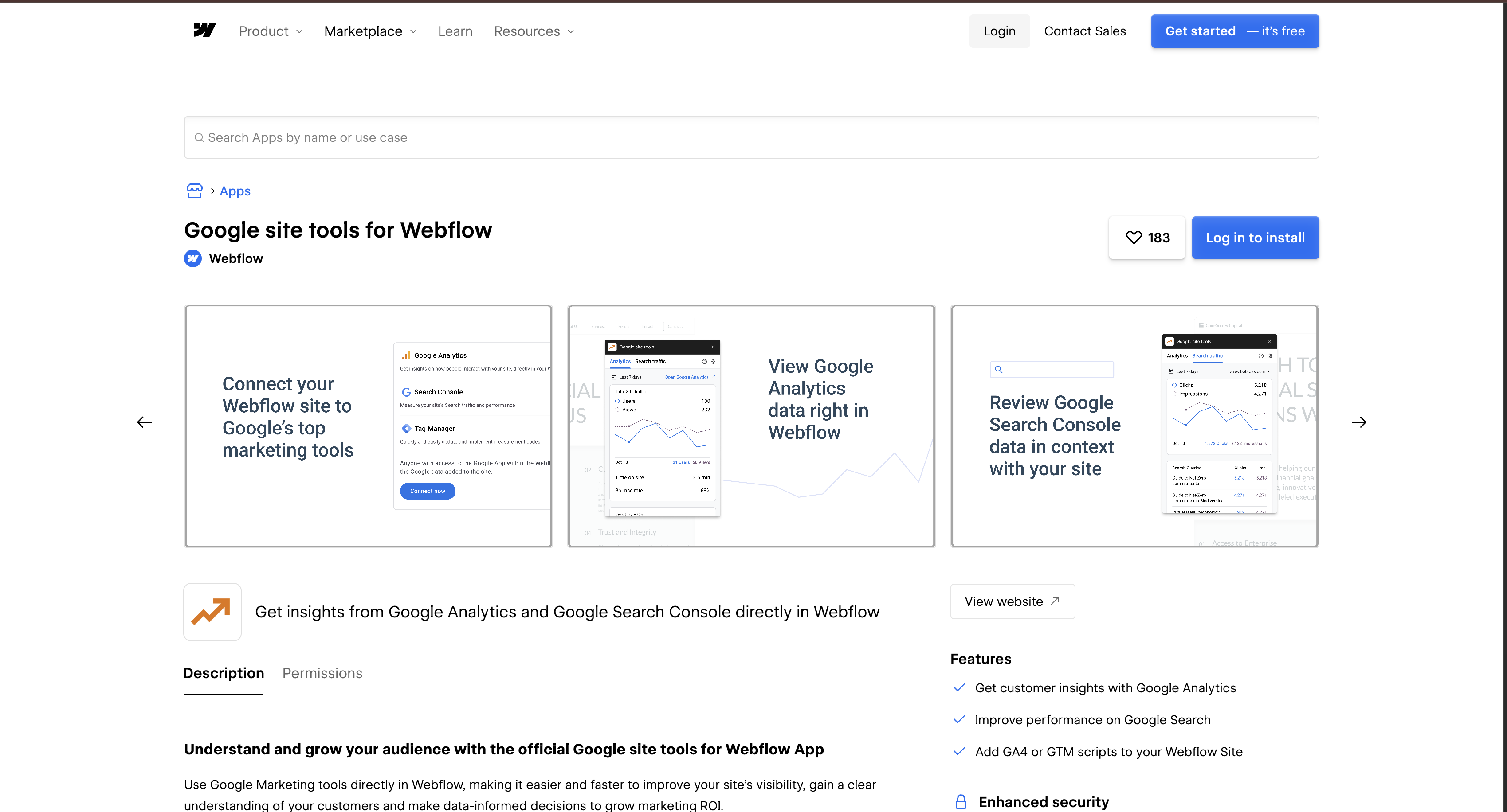
Teams reach for it when reporting lives in Google's dashboards while the site work happens in Webflow. Our launch post quotes Hal Zeitlin of Webflow Enterprise Partner Candid Leap saying that clients "can see their site performance without needing to leave Webflow." Do not confuse it with Google Ads for Webflow, which is a separate integration for a different Google product.
Three paths reach the same result. The Google site tools for Webflow app connects GA4, Search Console, and Tag Manager in one Google sign-in with no code. Native Site settings fields and custom code in head and body tags handle each Google service on its own, including the Measurement ID field that works on any plan. The Webflow MCP server and the Webflow Data API alongside Google's own APIs hand script deployment and reporting to an agent or a backend. Most setups end up using two of them.
Install the Google site tools for Webflow app
One Google sign-in covers all three services, which is what makes this the fastest route. Only Designer and Marketer roles can install the app and view its metrics, per the setup guide linked at the top of this page. You do not need the Google accounts in place first: Search Console, a Tag Manager account, and a GA4 property can all be created during installation, and you can skip any service you do not want. Installing from inside Webflow works too, by opening the Apps panel, searching for the app, and clicking Install on site.
To set up the integration:
- Go to the app's Marketplace page and click Add to site
- Choose the site or sites you want to add it to
- Sign into your Google account to authenticate, then click Start
- Confirm your domains for Search Console, then click Next
- Choose your Tag Manager Account and Container, then click Next
- Choose your Google Analytics Account and Property
- Click Add to site, then Back to Webflow
- Publish your site to finish setup
Once it is connected, here is what the app actually puts in front of you:
- GA4 traffic metrics: Total traffic, time on site, and bounce rate, each viewable by page, by country, and by device.
- Search Console performance: Impressions and clicks from search, the queries behind them, and top pages flagged with room to improve.
- Tag Manager deployment: The container script lands on the site without you pasting a snippet, which also means it does not depend on the paid custom code field.
- A route back to Google: Clicking Open Google Analytics in the app opens the full report for anything the in-Webflow view will not answer.
That list is the whole surface area. The app is a reader and a tag deployer, not a reporting tool in its own right, so anything you would build in Looker Studio still gets built in Looker Studio.
Two things are worth checking before you click install. The listing's Permissions tab asks for read access to information about authorized users, read and write on site forms and submissions, read and write on custom code, and read and write on site data and publishing. Forms read and write is wider than an analytics app strictly needs, and the grant lasts as long as the authorization does. The second is what happens on the way out: apps can place custom elements, which Webflow's own documentation describes as elements supported in HTML but not available as native Webflow elements, and those stay behind after an app is removed. This app's footprint is custom code rather than elements, so its Tag Manager script is stripped at your next publish instead, and tracking stops one publish after you revoke it rather than the moment you do.
If you had already connected Google Analytics in Site settings, remove the old Measurement ID after installing the app. The setup guide is explicit that leaving both in place inflates site load times. Go to Site settings > Apps & Integrations > Google Analytics, delete the ID, click Save, then Publish.
Connect Google services with native fields and custom code
Every Google service here also connects through a field Webflow already ships, and for two of the three you never touch code at all. Take this path when you need one service rather than three, or when you want a tag in a specific place rather than wherever an app decides to put it. Pasting Tag Manager snippets by hand is the one exception: that runs through the custom code fields, which need a Core, Growth, Agency, or Freelancer Workspace plan, or a site with an active Site plan.
The rest of the search surface is native too, which is worth knowing before you go shopping for an app to cover it. Webflow regenerates sitemap.xml on every publish, stamps each URL with a <lastmod> timestamp, and adds the sitemap address to your robots.txt for you. robots.txt rules are edited under Site settings > SEO > Indexing. Per-page SEO title and description and Open Graph tags are page settings, with Webflow AI able to draft both. An app that only writes metadata or pastes a tag is competing with a field that ships in the product.
Add your GA4 Measurement ID in Site settings
This is the simplest single-service path and it works without a paid plan. Webflow accepts Google Analytics 4 measurement IDs only, not Universal Analytics, and the ID should start with G-, GT-, AW-, or GTM- and is case sensitive, per the Google Analytics connection guide. That same guide notes the integration runs through Google Tag Gateway to reduce what ad blockers cost you, which is something a hand-pasted gtag snippet does not do for you.
To connect GA4:
- Go to Site settings > Integrations > Google Analytics
- Paste your Measurement ID into the Measurement ID field
- Click Save changes, then publish your site
Add the GA4 tag in one location only. Putting it in this field and in the site head code doubles the tracking.
Verify your site for Google Search Console
Verification proves you own the site, which is what makes Google hand over its search data. The most direct route for a Webflow site is a URL prefix property with HTML tag verification, per the Google site verification guide, and it needs a Verification ID rather than any pasted code.
To verify your site:
- In Search Console, enter your domain with
https://under the URL prefix property type - Choose HTML tag under Other verification methods and copy the Verification ID
- In Webflow, go to Site settings > SEO > Google site verification and paste the ID
- Click Save changes, publish your site, then return to Search Console and click Verify
One field holds one token, so on a shared site any user can overwrite another user's verification. Agree who owns it before someone quietly loses access. Google also starts collecting data for a property the moment anyone adds it, even before verification finishes, per Search Console's property documentation.
Add Google Tag Manager with custom code
Embedding GTM by hand buys you control the app does not offer, which matters for page-specific containers or separate staging and production setups. It is also the path that requires a paid plan. The custom code fields take HTML, CSS, and JavaScript up to 50,000 characters each, and server-side languages like PHP or Python do not run there, per the Code Embed documentation.
To add GTM manually:
- In Tag Manager, copy both container snippets from Google's install instructions
- Go to Site settings > Custom code and paste the first snippet into the head code section
- Paste the
<noscript>snippet into the body code, then click Save changes and publish
Google wants the <noscript> portion immediately after the opening <body> tag, and if it sits anywhere else verification through GTM fails. Use the SEO tab method above when placement fights you. For a snippet that belongs on one page only, drop a Code Embed element onto the canvas, which holds the same 50,000 characters.
Build with the MCP server and the Google APIs
The Webflow MCP server is the shortest route to programmatic control now, because it hands Webflow's APIs to an agent instead of making you write the calls. It reads and writes site-level and page-level custom code, manages registered scripts, updates meta titles, descriptions, and Open Graph tags across pages, and controls sitemap inclusion for pages and CMS items. Every agent works inside your existing Webflow roles and permissions, and what it changes lands in the site activity log.
One limit matters here more than the rest. The MCP server's Analyze tools read Webflow Analyze, Webflow's own site analytics and a paid add-on, not GA4 and not Search Console. So an agent can tell you your top pages by sessions, but it cannot tell you which search query brought them. For Google's numbers you are back to the app or to Google's APIs, which is also why this app still exists alongside MCP rather than being replaced by it.
Going direct means the Webflow Data API v2 and Google's service APIs, since Google site tools for Webflow publishes no API or webhooks of its own. This suits agencies pushing tags across many sites and teams building scheduled reporting, and all of it needs server-side code, OAuth credential handling, and somewhere to store tokens.
- The Google Analytics Data API returns GA4 report data through
runReportandrunRealtimeReport. - The Google Search Console API covers search analytics queries, site listings, and sitemap submission.
- The Google Tag Manager API manages accounts, containers, workspaces, tags, triggers, and variables.
- Webflow's custom code endpoints register scripts and apply them site-wide or to a single page.
- Webflow webhooks fire on events such as
site_publishandpage_metadata_updatedwhen you need to react rather than poll.
The custom code endpoints carry one gate that catches people out: they are callable only by OAuth Data Client Apps, because site tokens cannot hold the custom_code:read and custom_code:write scopes.
Deploy analytics scripts across sites programmatically
An agency running dozens of client sites can push GA4 or GTM scripts to all of them from one service rather than installing an app on each site by hand. Register your app under Workspace Settings > Apps & Integrations > App Development, choose the Data Client building block, and implement the OAuth flow.
To deploy a script:
- Register it with
POST /v2/sites/{site_id}/registered_scripts/hosted - Apply it site-wide with
PUT /v2/sites/{site_id}/custom_code, or per page withPUT /v2/pages/{page_id}/custom_code - Push it live with
POST /v2/sites/{site_id}/publish
Code added this way behaves like any other script on the site, so the duplicate-tracking warning applies exactly as it does to the app and the native field.
Pull search and analytics reports on your own schedule
The app shows metrics inside Webflow, but scheduled exports, cross-site rollups, and custom dashboards need direct API access. Both Google APIs return JSON your backend can store or forward.
To build a reporting pipeline:
- Query Search Console with
POST https://www.googleapis.com/webmasters/v3/sites/{siteUrl}/searchAnalytics/query, filtering by query, page, country, device, or date range, using thehttps://www.googleapis.com/auth/webmasters.readonlyscope - Pull GA4 data with
POST https://analyticsdata.googleapis.com/v1beta/{property=properties/*}:runReport - Submit sitemaps with
PUT https://www.googleapis.com/webmasters/v3/sites/{siteUrl}/sitemaps/{feedpath}, remembering that Webflow rebuildssitemap.xmlon every publish
To close the loop on what you learn, PUT /v2/pages/{page_id} writes seo.title and seo.description, and the page_metadata_updated webhook fires once that metadata is published.
What you can build with the Google site tools for Webflow Webflow integration
Connecting Google site tools for Webflow to Webflow puts traffic and search data beside the pages that produce it, so the decision and the edit happen in the same place instead of three tabs apart.
- In-context performance review: A marketer opens the Apps panel before reworking a landing page and reads its traffic, time on site, and bounce rate by device.
- Search opportunity tracking: A content team reads Search Console impressions, clicks, and top queries inside Webflow, then rewrites the titles and meta descriptions in the same sitting.
- Code-free conversion tracking: An ecommerce manager ships a GTM container through the app, then adds conversion and remarketing tags from Tag Manager with no code release.
- Agency client handoff: An agency installs the app on each client site so analytics arrive already configured, and the client reads their own numbers without opening Google Analytics themselves.
Each of those stops at what the Apps panel will show you. Once you need tags on specific pages, reports on a schedule, or the same change across a portfolio, the API path is where it goes. Start with custom code via API, then hand the same job to an agent through the MCP server.
Frequently asked questions
Not for Google Analytics. Webflow's Google Analytics connection guide states that you do not need a paid site or Workspace plan to add the integration, so the Measurement ID field works on the free Starter tier. Custom code is the gated part: adding GTM snippets by hand needs a Core, Growth, Agency, or Freelancer Workspace plan, or a site with an active Site plan. Current plans and prices are on Webflow's pricing page, which also lists the MCP server on every Site plan including free Starter. The app itself deploys the Tag Manager script for you, so it does not route you through the custom code field.
Only Designer and Marketer roles can install the app and view its metrics, per its setup guide. At site level, installing and uninstalling apps is limited to the Site manager and Designer roles, per Webflow's site roles and permissions reference. Content editors and reviewers cannot open it, which bites on larger teams where the people writing the pages are exactly the people who want the numbers.
No, remove it once the app is installed. The setup guide says you will "need to remove the integration after connecting the Google site tools for Webflow App to avoid inflating site load times." Go to Site settings > Apps & Integrations > Google Analytics, delete the Measurement ID, click Save, then Publish. Until you publish, both tags keep firing.
No. The app publishes no API or webhooks of its own, so there is nothing for an automation platform to connect to. Those platforms do connect to Webflow itself, which is usually what people are actually after: Zapier's Webflow connectors include a New Webflow Form Submission trigger and a Create Item action, and generic Google Analytics connectors exist alongside them. Both sides talk to Webflow and Google directly rather than to this app. Our pages for Zapier, Make, n8n, and IFTTT cover those setups.
Elements an app added stay on your site, and custom code it added is removed the next time you publish, per the Webflow Apps overview. For this app that means the Tag Manager script keeps firing until your next publish and then stops, so the site can change behaviour a publish after you thought you had removed it. To uninstall, go to Site settings > Apps & Integrations > Connected Apps, find the app, click View details, then Uninstall App. Viewing and revoking sit on different tabs: authorized apps are listed under Site settings > Integrations > Authorized apps, while revoking happens on the Site settings > Apps & integrations tab. To drop a single Google service instead, open the app in the Apps panel, click the cog icon, and click Disconnect next to that service.
Description
A Webflow-published app that brings Google Analytics 4 and Search Console metrics into the Apps panel and adds the Google Tag Manager script site-wide, through one Google sign-in.
This integration page is provided for informational and convenience purposes only.

Graphite

Enzuzo Data Privacy
Connect Enzuzo Data Privacy with Webflow to manage cookie consent, generate legal policies, and handle data access requests across your site.

SchemaRabbit
Connect SchemaRabbit with Webflow to automatically generate, deploy, and maintain JSON-LD schema markup across your site.
Linknavigator
Connect Linknavigator with Webflow to automate internal linking, monitor link health, and improve SEO across content-heavy sites.

Pixelflow
Connect Pixelflow with Webflow to send server-side Meta conversion events that bypass ad blockers and iOS privacy restrictions.

PromoteKit
Connect PromoteKit with Webflow to track affiliate referrals from your pages through to Stripe purchases.
Semflow
Connect Semflow with Webflow to run AI-assisted SEO audits, keyword research, rank tracking, schema markup, and metadata generation directly inside the Webflow Designer.

Cometly
Connect Cometly, a multi-touch attribution platform, with Webflow to tie ad spend to real revenue from form submissions and pipeline events.
Cometly
Connect Cometly, a marketing attribution platform, with Webflow to track which ads drive form submissions and send conversion data back to ad platforms.
Related integrations
Get started for free
Try Webflow for as long as you like with our free Starter plan. Purchase a paid Site plan to publish, host, and unlock additional features.
