






Gift Up!
Connect Gift Up!, a gift card and gift certificate platform, with Webflow to sell branded gift cards, process payments through Stripe or Square, and deliver cards via email or digital wallet.

Gift Up! lets customers buy, personalize, and send branded gift cards without leaving your site, with payments through Stripe or Square and delivery via email or Apple/Google Wallet. A mobile app handles in-person staff redemptions, while Zapier and a REST API sync gift card data with the Webflow CMS.
This fills a gap, since selling gift cards or store credit isn't built into your site natively. It works best for spas, salons, restaurants, fitness studios, and other service businesses that sell online but redeem in person. Note that using gift card codes as discount codes inside the native ecommerce checkout is not currently supported.
How to integrate Gift Up! with Webflow
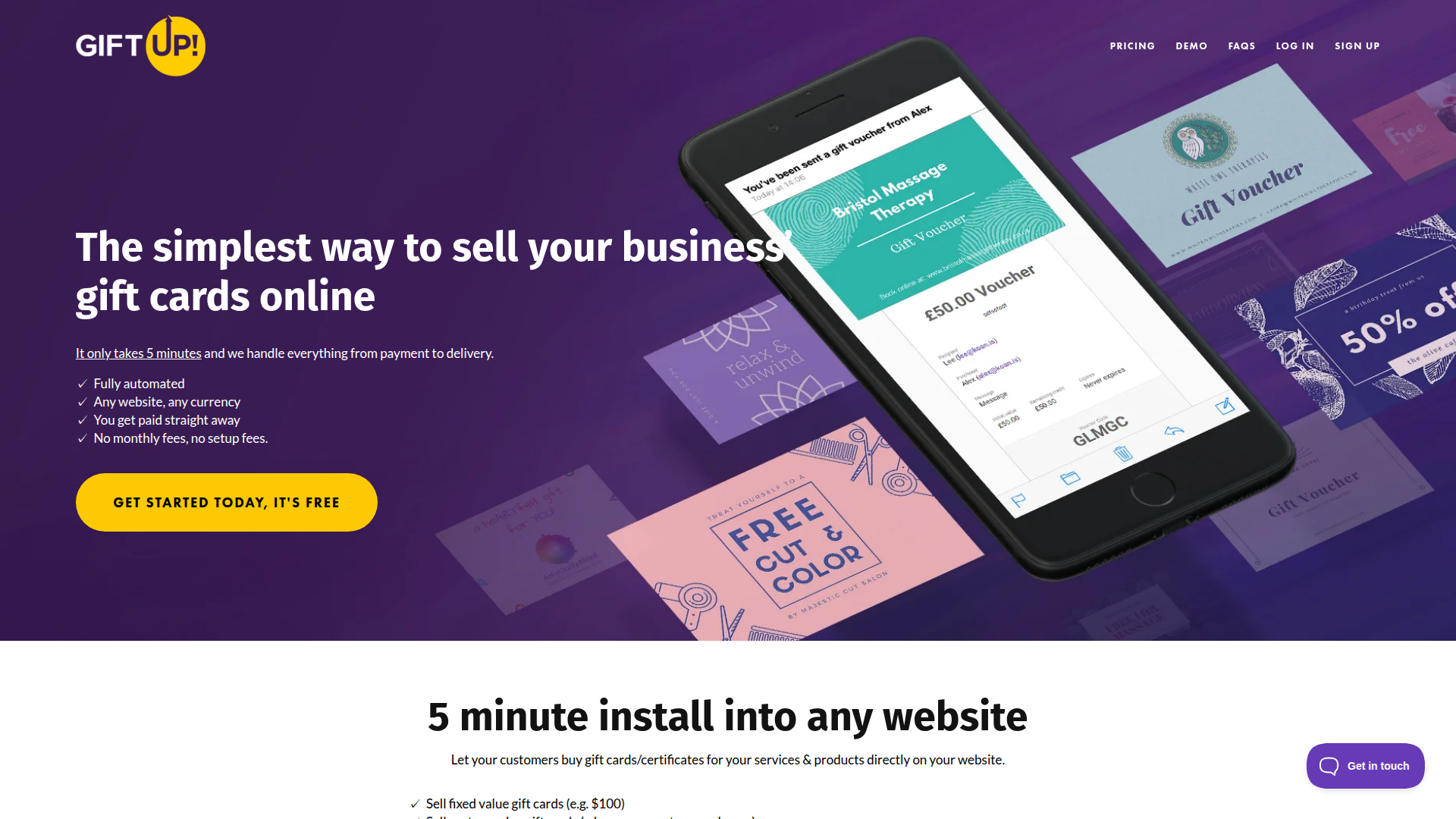
What is Gift Up!? Gift Up! is a gift card and gift certificate selling platform. It has fixed-value, custom-value, and named-service gift cards with automated email delivery, scheduled future delivery, and optional physical card fulfillment. Staff redeem cards via a free mobile app (iOS and Android) or web dashboard, with partial redemption and multi-location support included.
If you run a service business on Webflow, you typically need a way to sell branded gift experiences online while keeping the redemption process easy for front-desk staff. Gift Up! handles the selling and fulfillment side, while your site handles the infrastructure and content management layer. You can use these tools together to create dedicated gift card pages, sync purchase records to the CMS for reporting, and automate follow-up workflows.
The Gift Up!-Webflow integration has 3 approaches:
- Code Embed widgets let you place the Gift Up! checkout directly on any page, with options for inline display, modal overlay, iframe, or hosted link.
- Zapier connects Gift Up! triggers like new orders and redemptions to CMS actions like creating or updating collection items, without writing code.
- The Webflow Data API and Gift Up! API together support gift card validation, redemption, CMS syncing, and webhook-driven workflows, but require server-side development.
Most implementations combine two or more of these methods depending on the complexity of the setup.
Add the Gift Up! checkout with code embed elements
The Gift Up! checkout widget renders the complete gift card purchase flow directly on your page. Customers browse gift card options, enter recipient details, and complete payment without leaving the site. You need a paid site plan for this method, since the Code Embed element is locked on free plans. You can choose from four embed formats depending on your layout and design needs.
Drop-in checkout widget
This is Gift Up!'s recommended embed method. The widget loads asynchronously on the page and displays your configured gift card items with a full checkout flow. Retrieve your embed code from the Installation section of your Gift Up! dashboard, where your site ID will be pre-filled.
To add the drop-in widget:
- Go to Site Settings > Custom Code and paste
<script src="https://giftup.app/dist/gift-up.js"></script>into the Footer Code section. See Custom code in head and body tags for details on this area. - Open the page where the checkout should appear, then drag a Code Embed element onto the canvas at the desired position.
- Paste
<div data-site-id="{YOUR_GIFT_UP_ID}"></div>into the Code Embed editor, replacing{YOUR_GIFT_UP_ID}with the ID from your Gift Up! dashboard. - Publish the site. The widget only renders on published sites, not in preview mode.
The drop-in widget has several HTML data attributes for customizing the checkout experience. You can pre-fill the purchaser name (data-purchaser-name), purchaser email (data-purchaser-email), or auto-apply a promo code (data-promo-code). For the full list of configurable attributes, see Gift Up!'s checkout customization guide.
If the gift card checkout only exists on one page (such as /gift-cards), place the script tag in Page Settings > Custom Code > Before </body> tag instead of the site-wide footer. This avoids loading the library on every page.
Button-triggered modal checkout
Any HTML button can open the gift card checkout as a modal overlay when it includes the giftup-button class and a data-site-id attribute. This works well for placing gift card purchase buttons in hero sections, product descriptions, or navigation areas without dedicating a full page section to the widget.
To add a modal trigger:
- Confirm the Gift Up! JavaScript library is loaded in your site's footer code (same script tag as the drop-in method).
- Add a Code Embed element where you want the button to appear.
- Paste this markup into the embed editor, replacing the site ID with yours:
<button class="giftup-button"
  data-site-id="YOUR_GIFT_UP_ID"
  data-language="en-US">
  Buy Gift Card
</button>
- Publish the site to test the modal.
The button triggers a JavaScript-based modal, so it functions correctly as long as the click event comes from direct user interaction. Published sites use HTTPS by default, though you'll need to configure SSL for custom domains. You need HTTPS because modal-triggering scripts using Content Security Policy headers won't load on non-HTTPS pages.
Iframe-based checkout
An iframe embed isolates the Gift Up! checkout in its own frame, preventing any CSS conflicts with your site's styles. You don't need a JavaScript library in the footer code for this option.
To embed the iframe:
- Add a Code Embed element to your page.
- Paste the following markup, replacing the site ID:
<iframe src="https://checkout.giftup.app/checkout/YOUR_SITE_ID?justshowcheckout=true"
  width="100%"
  height="800"
  frameborder="0">
</iframe>
- Adjust the
heightvalue based on how many gift card items you offer. Publish and test on the live site.
The justshowcheckout=true parameter removes Gift Up!'s header branding for a cleaner look. The tradeoff: you can't modify the DOM structure or apply deep CSS customization inside the iframe. Choose the iframe when Gift Up!'s default design already matches your site, or when you hit CSS conflicts with the drop-in widget.
Hosted checkout link
If you need a zero-code option, or if your site is on a free plan that doesn't support Code Embed elements, Gift Up! hosts a standalone checkout page at a unique URL. Grab this link from your Gift Up! dashboard at giftup.app/installation/hosted and add it as a standard hyperlink or button URL on your page. Customers leave your site to complete the purchase on Gift Up!'s domain, then return after checkout.
This approach needs no custom code and works on any plan, but it breaks the on-site experience.
Connect Gift Up! and Webflow with Zapier
Zapier lets you sync gift card events to the Webflow CMS without writing code. This is useful for building reporting dashboards, customer directories, or staff-facing registries.
Gift Up! has four Zapier triggers, paired with CMS actions for creating and updating items. Practical workflows for this integration pair include:
- Gift Up! New Order trigger > Webflow Create Item action, which logs each gift card sale as a CMS collection item with purchaser name, email, value, and purchase date.
- Gift Up! Gift Card Redeemed trigger > Webflow Update Item action, which updates an existing CMS record with the new remaining balance and redemption timestamp.
- Webflow New Form Submission trigger > Gift Up! Create Order action, which lets a form submission trigger a gift card order in Gift Up! for use cases like loyalty rewards or promotional giveaways.
These workflows cover the most common no-code reporting and fulfillment scenarios.
Set up a CMS collection with fields that match the data you want to capture, such as gift card code, title, initial value, remaining balance, purchaser email, and status. Then build a Zap that maps Gift Up! trigger fields to those CMS collection fields. Plan your collection structure based on expected gift card volume, keeping in mind the API rate limits that apply to your plan.
Build with the Webflow and Gift Up! APIs
For full control over gift card validation, redemption, and real-time data syncing, both platforms have REST APIs you can connect through server-side middleware. You'll need development resources for this path—typically a serverless function (AWS Lambda, Cloudflare Workers, or similar) that sits between the two APIs and handles authentication, webhook processing, and data transformation.
- Use the Gift Up! API for gift card lookups, redemptions, order creation, item management, and webhook subscriptions at
https://api.giftup.app. - Use the Webflow Data API for CMS collections, ecommerce orders, and site publishing at
https://api.webflow.com/v2/. - Use webhooks to trigger real-time events for order creation, item publishing, and form submissions.
Both APIs use Bearer token authentication. Generate Gift Up! API keys at giftup.app/integrations/api-keys. Include the x-giftup-testmode: true header during development to avoid charges on test orders.
Validate and redeem gift cards
A common API use case is validating a gift card code entered by a customer and redeeming its balance as part of a custom checkout flow. Per Gift Up!'s custom integration guide, the prescribed three-step pattern is:
- Call
GET https://api.giftup.app/gift-cards/{code}to check whether the card exists and retrieve itscanBeRedeemedstatus andremainingValue. - Process the order in your system, discounting by up to the gift card's remaining balance.
- Call
POST https://api.giftup.app/gift-cards/{code}/redeemwith the amount to deduct. Includemetadata: {"ExternalOrderId": "your_webflow_order_id"}to correlate the redemption with a specific order for later refund processing.
Don't expose API keys in client-side JavaScript. Route all API calls through a server-side proxy or serverless function to keep credentials secure.
Sync gift card sales to the Webflow CMS
Gift Up! webhooks can push new sale data to a CMS collection automatically. Register a webhook subscription for the order-created event via POST https://api.giftup.app/webhooks, pointing to your middleware endpoint. When a gift card is purchased, Gift Up! sends an OrderPlaced payload containing the order ID, purchaser details, currency, and order income via the orderDetails object.
To write that data to the CMS:
- Receive the webhook payload at your middleware endpoint and verify the
X-Request-Signature-Sha-256header using HMAC-SHA256 with your webhook secret. - Map the payload fields to your CMS collection schema, such as gift card code, title, initial value, purchaser name, and purchase date.
- Call
POST https://api.webflow.com/v2/collections/{collection_id}/items/liveto create a published CMS item in a single operation. This avoids the separate publish step required by the staged items endpoint.
This gives you a direct way to keep a reporting or registry collection current.
Register webhooks for gift-card-redeemed and gift-card-updated events to keep CMS records current. Use the giftCard.id field as a stable identifier for matching incoming events to existing CMS items. The PATCH .../items/{item_id}/live endpoint updates and publishes in one call, which is appropriate for real-time balance changes.
Reverse redemptions on order refunds
When an ecommerce order is refunded, you can reverse the corresponding Gift Up! redemption to restore the gift card balance. Register a webhook for the order-refunded event. Your middleware then calls GET https://api.giftup.app/gift-cards/{code} to look up the original redemption using the ExternalOrderId stored in metadata during the initial redemption step. Call POST https://api.giftup.app/gift-cards/{code}/undo-redemption to restore the balance.
After a successful reversal, Gift Up! fires a gift-card-updated webhook, which your CMS sync handler can consume to update the balance record automatically.
What you can build with the Gift Up! Webflow integration
Integrating Gift Up! with your site gives you an on-site way to sell branded gift cards while keeping payment and fulfillment inside Gift Up!'s checkout flow.
- Dedicated gift card storefront: Create a page at
/gift-cardswith the drop-in checkout widget, offering fixed-value denominations, custom amounts, and named service experiences. Customers select a card, personalize a message, choose instant or scheduled delivery, and complete payment, all without leaving the site. - Staff-facing gift card registry: Use Zapier or the API integration to sync every gift card sale into a CMS collection. Display the synced records with a Collection List on a password-protected page that front-desk or service staff can reference during in-person redemptions.
- Seasonal promotion landing pages: Build a campaign page for holiday or event-specific gift cards, embedding a modal checkout button in a hero section. Set the gift card item to "private" visibility in the Gift Up! dashboard and use an embed configured to show only that item, creating an exclusive purchasing experience for visitors who reach the page.
- Multi-location gift card program: If you have several locations, use Gift Up!'s multi-location and multi-staff redemption features alongside a CMS collection that tracks which location redeemed each card. Webhook-driven CMS updates can log the
eventOccuredAtLocationIdfrom each redemption event, giving you a location-level view of gift card activity.
If you need more control over redemption flows or real-time balance validation at checkout, the API integration path covers those cases.
Frequently asked questions
No. Webflow's ecommerce API does not support syncing Gift Up! gift cards into the native checkout as discount codes. Gift cards sell through Gift Up!'s embedded widget and operate as standalone checkout experiences. For workarounds, Gift Up! documents three options in their unsupported systems guide: manual redemption by staff, pre-provisioned discount codes uploaded to Gift Up!, or custom API-driven redemption through middleware. These are the main alternatives if you need redemption behavior outside Gift Up!'s own checkout flow.
Preview mode does not execute embedded third-party scripts. The Gift Up! widget only renders on published sites. You must publish the site and test on the live URL to see and interact with the checkout. This also means mobile responsiveness testing needs to happen on the published URL at each breakpoint, not in the Webflow canvas.
The Code Embed element requires a paid site plan (Basic or above) or a Core, Growth, Agency, or Freelancer Workspace. Free Starter plans cannot use Code Embed elements, per the Code Embed documentation. If you are on a free plan, the hosted checkout link is the only option. It works as a standard hyperlink that sends customers to Gift Up!'s external checkout page.
Partially. Fonts, button colors, and input border colors are adjustable through Settings > Checkout in the Gift Up! dashboard. Custom CSS applied directly to the widget is not supported. You can target Gift Up!'s predefined
.giftup-containerclasses with!importantdeclarations in site-level head code, but this is limited to overriding existing styles. For the gift card layout itself, Gift Up!'s custom layout documentation covers template variables includingRecipientName,Title,Description,Message,ArtworkUrl, andBalance.Gift Up! conversion tracking through GTM works for the drop-in checkout widget only, not the hosted link or iframe methods. Create a Custom Event Trigger in GTM, modify the Gift Up! installation code to fire that event on purchase, and set up Data Layer Variables for properties like
GiftUpRevenueandGiftUpCodes. The full setup process is documented in Gift Up!'s GTM conversion tracking guide. GTM must already be installed on the Webflow site before configuring this.
Description
Gift Up! adds branded gift card sales with email and wallet delivery to Webflow through embeddable checkout widgets via Code Embed elements.
This integration page is provided for informational and convenience purposes only.

Storesynk (formerly Shopyflow)
Connect Storesynk (formerly Shopyflow) with Webflow to run a Shopify-backed storefront designed in Webflow, with payment completed on Shopify checkout.

Looop
Connect Looop with Webflow to sync Shopify products into Webflow CMS and build headless e-commerce storefronts with full checkout functionality
AstroIC
Connect AstroIC with Webflow Ecommerce via OAuth to generate invoices and manage product catalogs in bulk for your ecommerce store.

Smootify
Connect Smootify with Webflow to run a Shopify store on a custom Webflow front end, built by hand or, in the Smootify 2.0 public beta, by an AI agent.

ShipStation
Revidflow
Connect Revidflow to your Webflow e-commerce store to automate review collection and display customer feedback.

Brandzway - Reviews, Photos & More
Connect Brandzway with Webflow to collect customer reviews automatically after purchase and display them on your ecommerce store.

Shipping IO
Connect Shipping IO with Webflow to route new store orders into Shipping IO for label generation and write tracking numbers back to each order.

Penni Cart
Connect Penni Cart with Webflow to sell products from CMS collections with a cart and checkout you design.
Related integrations
Get started for free
Try Webflow for as long as you like with our free Starter plan. Purchase a paid Site plan to publish, host, and unlock additional features.
