






Cutcopy
Connect CutCopy with Webflow to transfer variable collections and element attributes between sites without rebuilding them manually.

Copy-paste between Webflow sites breaks variable bindings. Styled elements arrive in the destination project, but the variables behind them do not follow. Teams that run several sites from one design foundation end up rebuilding variable collections by hand.
CutCopy makes variable collections portable. You export a master collection from one site and import it into another without leaving Webflow. You can preview incoming changes before applying them, or move only the specific variables you need. The Attribute Clipboard extends the same idea to element attributes.
This integration fits designers and developers who work across multiple Webflow projects, such as an agency running five client sites from one shared variable collection. Freelancers who keep starter templates and design system owners who want a backup before a major change get the same benefit.
How to integrate CutCopy with Webflow
What is CutCopy? CutCopy is a Webflow Designer Extension built by Flowcraft. It moves variables between Webflow sites and copies attributes between elements, storing backups in a CutCopy account. It runs inside Webflow through the Designer Extension, without a Code Embed element or external scripts.
Teams reach for this combination when one variable set has to serve many sites. An agency defines a master collection once, including typography tokens as well as color and spacing tokens. It then imports that collection into each new client site, and backs up the current collection before an overhaul.
The CutCopy-Webflow integration supports one approach, the Marketplace app, which bundles two tools:
- The Variable Tool exports, imports, cherry-picks, and backs up variable collections between sites.
- The Attribute Clipboard copies attributes and saved attribute templates between elements.
Every workflow runs inside Webflow through the Marketplace app; CutCopy has no documented embed, automation connector, or API path.
Install the CutCopy app
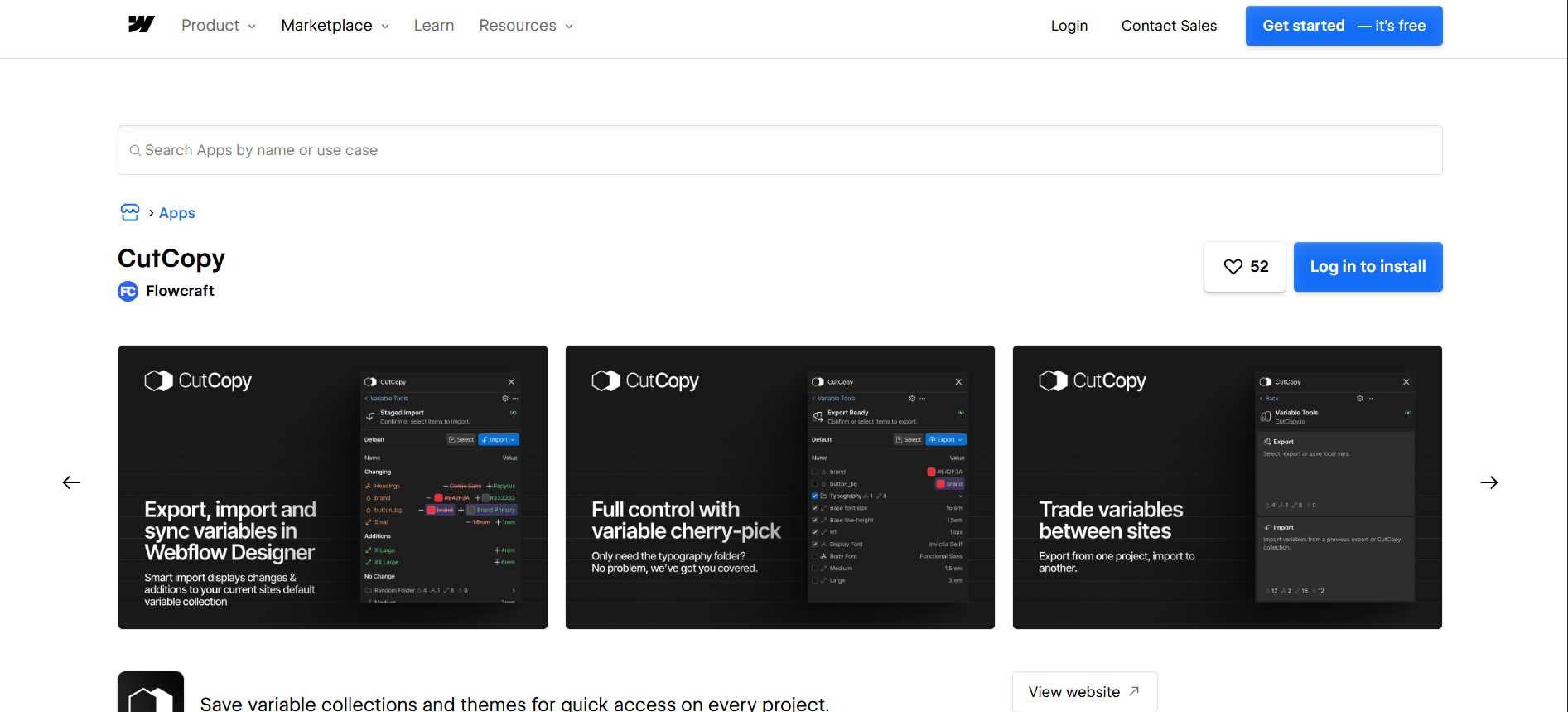
The CutCopy app installs from the Webflow Marketplace. Setup uses the Apps panel instead of a Code Embed element or custom code in head and body tags. Saved collections and backup features for themes or variables need a CutCopy account. You create that account during setup.
To set up the integration:
- Open the CutCopy page on the Webflow Marketplace.
- Click Log in to install or Add to site.
- Select the Workspaces and sites where you want the app.
- Click Authorize application.
- Create a CutCopy account if you plan to use backup features.
You can also install from inside Webflow. Open the Apps panel, search for CutCopy, and click Install on site. To open it later, hover over the app in the Apps panel and click Launch, as described in the Webflow Apps overview.
Once installed, the app covers:
- Variable export and import between Webflow sites
- Smart Import, which highlights changes and additions to the active variable collection before you apply them
- Cherry-picking specific variables or folders instead of importing a full collection
- Backup of all or part of a variable collection, including its themes, to a CutCopy account
- Attribute copy and paste between elements, with saved attribute templates for reuse
Authorizing at the Workspace level applies the app to all current and future sites in that Workspace.
Transfer variables between sites
The Variable Tool moves variable collections from one Webflow site to another. Export from the source site, then import into the destination, where Smart Import flags what will change before you commit. You can also save variable collections and themes to your CutCopy account and reuse them on any project.
To move a variable collection:
- Open CutCopy from the Apps panel in the source site.
- Select the collection, folder, or individual variables and export them from the source site.
- Open CutCopy in the destination site and use Smart Import.
- Review the flagged changes and additions, then apply them.
The app's in-app instructions are the reference for where each control sits; CutCopy publishes no step-by-step guides.
Two limitations apply to cross-site transfer:
- Color variables become static colors on import. You have to re-add them as variables in the destination site.
- Bindings to the Webflow CMS do not transfer between sites. A Collection List arrives as an empty element that needs manual rebinding.
The CutCopy integration page documents both, and attributes the CMS binding behavior to Webflow rather than the app.
Copy attributes with the Attribute Clipboard
The Attribute Clipboard copies individual attributes or attribute sets from one element to another within Webflow. Attribute Template Management saves configurations you use often. CutCopy is framework-agnostic and works with any Webflow project.
To reuse an attribute set:
- Launch CutCopy in the site you are working in.
- Select the source element and copy its attributes.
- Select the destination element and paste them.
- Save the configuration as an attribute template if you will reuse it.
For prototyping, copying an attribute set replaces configuring each property by hand.
What can you build with the CutCopy Webflow integration?
Integrating CutCopy with Webflow lets you reuse one design foundation across many sites without rebuilding variables and attributes by hand.
- Multi-site design system management: Export a master variable collection and import it into each new site. An agency running several client sites from one system keeps every build on the same tokens.
- Project templating: Create a starter project with a complete variable theme, then transfer that foundation into each new build. Saved collections and themes speed up setup on any new project, whatever framework it runs on.
- Variable backup and recovery: Save entire collections, themes, or subsets to a CutCopy account before a redesign, then restore them in any project if a change goes wrong.
- Selective variable sync: Import only a typography folder or a handful of spacing tokens instead of overwriting the whole collection.
If you need programmatic access to supported platform data, the Webflow Data API covers those cases, while the Designer API variables reference documents in-Designer variable tooling.
Frequently asked questions
Installing a Marketplace app has no documented Webflow plan requirement. See Do I need a Workspace plan or a Site plan. Saved variable collections and backup features require a CutCopy account.
CMS data bindings do not transfer between projects, so you rebind the fields manually in the destination site. The CutCopy integration page documents this as platform behavior rather than an app bug. In native cross-site copy and paste, native components lose component status and code components are removed. Base HTML-tag styles do not copy, per the copy and paste between sites guide.
Color variables lose their variable status when moved between Webflow sites and become static colors. Re-add them as variables in the destination site. The integration page lists this alongside the CMS binding limitation.
CutCopy's transfer, backup, and attribute features work only from inside Webflow. CutCopy has no public API or webhooks. Neither cutcopy.io nor the CutCopy Marketplace listing documents an API or webhook surface.
Workspace Owners, Admins, Site managers, Designers, and Guests can install apps. See the Workspace roles documentation. At the site level, only Site managers and Designers can install apps, per the site roles documentation. If you have one of those roles, install directly from the CutCopy listing and authorize it for your sites.
Description
Install the CutCopy app from the Webflow Marketplace to transfer variable collections between sites, back up variable themes to a CutCopy account, and copy attributes between elements.
This integration page is provided for informational and convenience purposes only.

Drupal
Connect Drupal with Webflow to deliver managed content through a visual frontend using API sync, automation tools, or client-side embeds.

Finsweet Components
Connect Finsweet Components, a native Webflow app, to add JavaScript-powered sliders, marquees, social feeds, favorites, and auto tabs directly inside the Webflow Designer without custom code.

EX.CO
Connect EX.CO with Webflow to add interactive video players and monetize content through custom embed codes.
Finsweet Class Adder
Add and remove CSS classes on Webflow elements on click, hover, scroll, or page load using a script generated by Finsweet's Visual Builder.

Pixie
Connect Pixie with Webflow to automate CMS image optimization, reduce file sizes, and speed up page load times.
One2 Menu
Add a One2 Menu restaurant menu to a Webflow page with a code snippet, for QR menus and price edits that go live without a republish.
PowerImporter
PowerImporter automtes content updates that can create bottlenecks when marketing teams manage information in Airtable or spreadsheets but developers must manually transfer data to Webflow CMS.

Flowstar Tabs
Connect Flowstar Tabs, a no-code tab builder, with Webflow to organize product details, including specs, into customizable tabbed info sections.

xAttribute
Related integrations
Get started for free
Try Webflow for as long as you like with our free Starter plan. Purchase a paid Site plan to publish, host, and unlock additional features.
