






CozyCal
Connect CozyCal, a web-based appointment scheduling tool, with Webflow to embed booking calendars, intake forms, and Stripe payments directly on any page as inline widgets or modal overlays.

CozyCal embeds appointment scheduling, intake forms, and Stripe payments directly into your pages. Visitors pick a time, fill out a form, and pay without ever leaving your domain. The widget renders inline or as a modal overlay, matching the on-site experience you control in the Designer.
That makes it a fit for freelancers, B2B demo flows, fitness studios, healthcare practitioners, and agencies running multi-host scheduling. It's useful for anyone who'd rather convert visitors on-site than redirect them to an external booking page.
How to integrate CozyCal with Webflow
What is CozyCal? CozyCal is a web-based appointment scheduling tool that books team members and resources together. It offers one-on-one, group, and round-robin scheduling. Two-way calendar sync covers Google Calendar, Outlook, and iCal. Stripe integration handles payments, coupons, and multi-session package sales at the point of booking.
Teams pair CozyCal with Webflow when they want the entire booking flow to happen on their own site. A consulting firm might embed a "Schedule a Call" widget on a services page. A yoga studio might add an inline class calendar with Stripe checkout. In each case, the goal is the same: convert site visitors into confirmed appointments without redirecting them off-domain.
You can integrate CozyCal with Webflow in three ways:
- The CozyCal app handles widget installation inside the Designer without copy-pasting embed codes.
- Code Embed elements and site-level custom code let you place floating buttons, modal triggers, and inline booking calendars on specific pages or site-wide.
- Zapier confirms these CozyCal-to-Webflow pairings: Guest Created in CozyCal > Create Item in Webflow, and Guest Cancelled in CozyCal > Create Item in Webflow.
Most implementations combine two of these methods, depending on the complexity of the setup.
Install the CozyCal app
The CozyCal app in the Marketplace adds scheduling to your site without copy-pasting embed codes. It connects your CozyCal account directly inside the Designer, so you can configure and install booking widgets without switching between platforms. The app is officially approved and lives in the Scheduling category of the Apps directory. To use it, you need an active CozyCal account (start with a 10-day free trial) and a paid site plan.
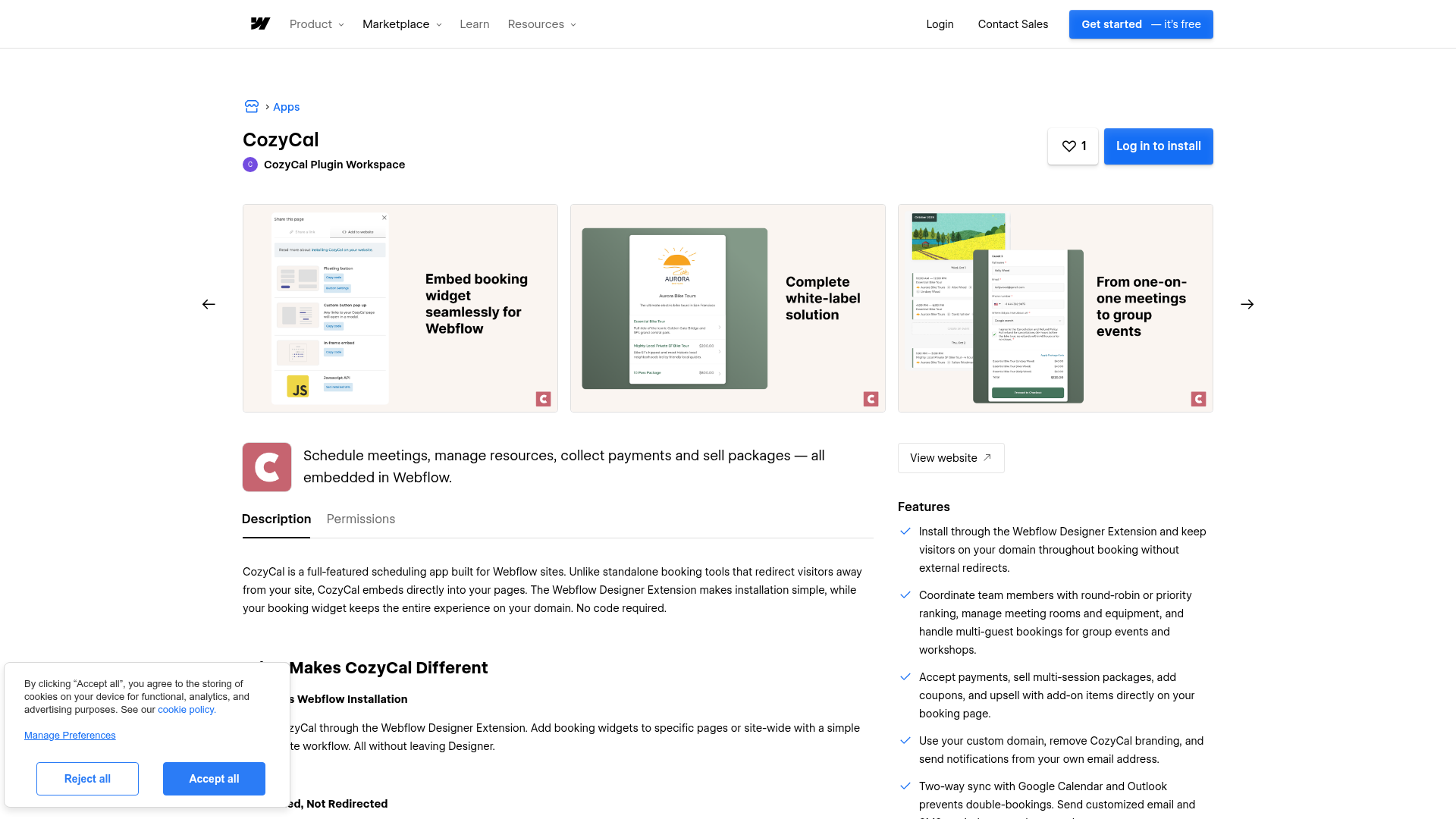
To set up the integration:
- Go to webflow.com/apps/detail/cozycal and click Log in to install.
- Select the site where you want to add scheduling.
- Open your site in the Designer. CozyCal appears in the Apps panel.
- Connect your CozyCal account, copy your embed code, and install on specific pages or site-wide — all from the Apps panel.
- Publish your site.
With the app, you can:
- Install booking widgets on individual pages or across the entire site from a single panel
- Track which pages have CozyCal widgets installed
- Copy embed code and configure widget settings without leaving the Designer
It works well for standard installations.
If you need more control over widget placement, display behavior, or event-specific embed URLs, the manual embed methods below give you additional options.
Add CozyCal booking widgets with embed code
CozyCal offers three embed formats you can add manually: a floating button, a custom button that opens a modal, and an inline (in-frame) calendar. All three keep visitors on your domain throughout the booking process. Reach for manual embedding when you want precise control over where and how the widget appears, or when you need different booking pages on different site sections.
Every embed method starts with the same prerequisite: installing CozyCal's JavaScript snippet in your site's footer code.
Install the CozyCal JavaScript site-wide
This script powers all three embed formats. You need it on every page where you want booking functionality.
To install the script:
- In CozyCal, go to Settings & Team > Website Setup > Install CozyCal.
- Click I will install it myself > Javascript > Copy Code.
- In the Designer, go to Site settings > Custom code. Paste the copied code into the Footer Code field and click Save changes. (See Custom code in head and body tags for details on site-level script placement.)
- Return to CozyCal and click Next: Verify Install > Verify Install to confirm the script is detected.
Publish your site before you run the verification step. Custom code only takes effect on the live published site, not in the canvas preview. Make sure you paste your own unique CozyCal account code, not the sample shown in tutorial screenshots.
Add a floating button
The floating button is a persistent CTA that hovers at the bottom of the page as visitors scroll. Clicking it opens the booking calendar as a popup. Once you install the site-wide JavaScript above, the floating button appears automatically on all pages.
To customize the floating button:
- In CozyCal, go to Settings > Website Setup > Edit Floating Button.
- Adjust the button color, image, text, and screen position.
- Publish your site to see the changes.
You can restrict the floating button to specific pages using CozyCal's page display rules, documented in the floating button specific pages guide. If you'd rather use a custom-designed button, disable the default — uncheck Show floating button on my website in the floating button settings, then follow the modal method below.
Add a custom button that opens a modal
This method lets you assign a CozyCal booking URL to any element you design. When a visitor clicks it, the booking page opens as a modal overlay. The CozyCal JavaScript you installed site-wide automatically detects links pointing to CozyCal URLs and intercepts them.
To set up a custom modal trigger:
- In CozyCal, go to your booking page and click Share > Copy Link.
- In the Designer, select a button, image, or text link element on your page.
- Set the link destination to the CozyCal booking URL you copied.
- Publish your site.
You can link to a specific event type URL to open that event directly in the modal, which skips the full booking page listing. Keep in mind that CozyCal intercepts any <a> tag pointing to a CozyCal URL on your site. If CozyCal URLs appear in navigation menus, footer links, or CMS-generated content, they'll also trigger the modal behavior.
Add an inline booking calendar
The in-frame embed renders the full booking calendar directly within your page layout, with automatic height adjustment and no nested scroll bars. It works well for dedicated booking pages, service pages, or landing pages where you want the calendar visible without requiring a click.
To add an inline embed:
- In CozyCal, go to your booking page and click Share > Add to website.
- Under In-frame embed, click Copy code.
- In the Designer, open the page where you want the calendar. Open the Add panel and drag a Code Embed element onto the canvas.
- Paste the CozyCal HTML code into the code editor and click Save and close.
- Publish your site.
That completes the inline embed setup on the published page.
You need a paid site plan to use the Code Embed element. Script-based elements display a placeholder on the canvas but render fully when you preview or publish. Test the published page on mobile devices — JavaScript-based embeds can occasionally affect layout at smaller breakpoints.
Connect CozyCal and Webflow through Zapier
Zapier is the only automation platform with a confirmed, live integration for both CozyCal and Webflow. The CozyCal + Webflow pairing on Zapier confirms these concrete pairings:
- Guest Created in CozyCal > Create Item in Webflow
- Guest Cancelled in CozyCal > Create Item in Webflow
Both triggers accept three required configuration parameters: Booking Page, Event Type, and Event Host. You can scope each trigger to a specific event type or team member, or listen across all bookings on a page.
To run these automations, you'll need a Zapier account and a CMS collection rendered with a Collection List. Set up the collection with fields that match the CozyCal booking data you want to capture. If you need the programmatic reference for CMS item creation, see the Data API. CMS items created through Zapier land as drafts, so you'll need to publish them — either manually or through an additional Zapier action. CozyCal's Zapier integration doesn't currently include a "rescheduled" trigger.
What can you build with the CozyCal Webflow integration?
Pairing CozyCal with Webflow lets you convert website visitors into booked, paid appointments without redirecting them away from your site.
- Paid consultation pages: A law firm's "Schedule a Consultation" page can embed a CozyCal widget that checks attorney availability, books a conference room, collects an intake questionnaire, and charges a consultation fee through Stripe — all inline on the page.
- Round-robin demo booking: A B2B SaaS landing page with a "Book a Demo" CTA can distribute inbound leads across sales reps automatically. CozyCal's round-robin scheduling with priority ranking handles the assignment, and each booking then syncs to a CMS collection via Zapier for internal tracking.
- Group class and workshop registration: A fitness studio's class schedule page can accept up to 500 registrations per time slot, sell multi-session packages at discounted rates, and apply coupon codes. This replaces a separate event registration platform with a single inline embed.
- Lead-qualified appointment funnels: A consulting agency's "Work With Us" page can use CozyCal's event request feature to collect intake form responses before confirming any booking. Hosts review and approve or decline each request, turning the page into a gated intake funnel where only qualified prospects reach the calendar.
If you need booking-event automation, this guide covers the confirmed CozyCal-to-Webflow workflow through Zapier.
Frequently asked questions
It depends on the embed method. On a free plan, you can link a button or text element directly to your CozyCal booking page URL, which redirects visitors off your site. Four of the five setup methods require a paid Webflow Site plan. See the Code Embed documentation for plan requirements.
Yes, but only on CozyCal's Plaid plan. The Pro plan displays CozyCal branding on the widget and references CozyCal's domain in the booking page URL. The Plaid plan also adds custom domain support (e.g.,
book.yourbusiness.com) and white-label email notifications sent from your own address. Full plan details are available at cozycal.com/pricing.CozyCal automatically detects the visitor's timezone and adjusts the displayed availability accordingly. Visitors can manually override their detected timezone. For in-person services where only the local time matters, you can lock the guest timezone. Clients then see slots only in the host's timezone. Team members can each set their own timezone. Availability adjusts accordingly on shared booking pages. Details are in the auto timezone detection documentation.
Yes. Using the custom button modal method, you can assign specific event type URLs to different buttons across your site. Each CozyCal event type has its own shareable URL, accessible from the booking page's Share menu. For inline embeds, you can choose between embedding a specific event type or the full booking page listing all services. CozyCal's website plugin documentation covers the options for controlling which events appear where.
The site often is not published after the custom code is added. Custom code only runs on the live published site, not on the Webflow canvas. Confirm the CozyCal JavaScript is pasted in Site Settings > Custom Code > Footer Code (not the head code field). Verify you are using your own unique CozyCal snippet, not the sample shown in tutorial images. Check that the floating button is not manually disabled under Settings > Website Setup > Edit Floating Button. After confirming, use CozyCal's Verify Install tool at Settings & Team > Website Setup > Install CozyCal > Next: Verify Install > Verify Install. The CozyCal Webflow setup tutorial walks through each step with screenshots.
Description
Embed CozyCal booking widgets on your Webflow site through the CozyCal app or Code Embed elements, keeping visitors on your domain throughout the scheduling flow.
This integration page is provided for informational and convenience purposes only.

ZealSchedule
Embed ZealSchedule in Webflow to let visitors book and pay for appointments without leaving your site.

Timekit
Connect Timekit with Webflow to take real-time appointment bookings directly on your pages.

Taskeo Appointment Scheduling
Connect Taskeo Appointment Scheduling, a booking and CRM platform, with Webflow to let visitors self-book appointments directly on your pages with automatic CRM contact import.

GoSchedule
With GoSchedule, allow visitors to schedule video meetings, collect payments, and send notifications in one place.

Event Calendar App

Calendly
Connect Calendly with Webflow to embed appointment scheduling directly on your site and sync booking data to your CMS.

AddEvent
Connect AddEvent, a calendar marketing and event management platform, with Webflow to embed event calendars, add-to-calendar buttons, RSVP forms, and subscription calendars on any page.
Related integrations
Get started for free
Try Webflow for as long as you like with our free Starter plan. Purchase a paid Site plan to publish, host, and unlock additional features.
