






Copilot
Connect Microsoft Copilot Studio, a platform for building and deploying custom AI agents, with Webflow to add conversational chat interfaces for support, lead qualification, and FAQ automation.

Sites that need conversational support, lead qualification, or FAQ automation use an external tool to handle real-time user conversations. Without one, visitors rely on static pages and forms to find answers or request help.
Microsoft Copilot is a consumer-facing AI assistant. For website deployments, Microsoft uses Copilot Studio. Copilot Studio lets you build custom AI agents grounded in your own knowledge sources, then embed those agents directly on your pages. Use it to bring Microsoft Copilot-style conversational experiences onto your site. You get a live chat interface that answers visitor questions, qualifies leads, or routes support requests with the simplest setup and no backend infrastructure.
If you run a marketing team handling lead generation, an e-commerce site fielding high volumes of routine support questions, a SaaS product deflecting Tier-1 tickets, or an agency building client sites, this setup fits. If you want more control over the chat experience or CMS automation, take the API path instead.
How to integrate Copilot Studio with Webflow
Microsoft Copilot is a consumer AI assistant accessible via web browser that handles text generation, image creation, web search, and conversational Q&A. For website integrations, Microsoft offers Copilot Studio, a separate platform for building and deploying custom AI agents that you can embed on external sites. Copilot Studio agents use generative AI grounded in your own content, documentation, or knowledge bases.
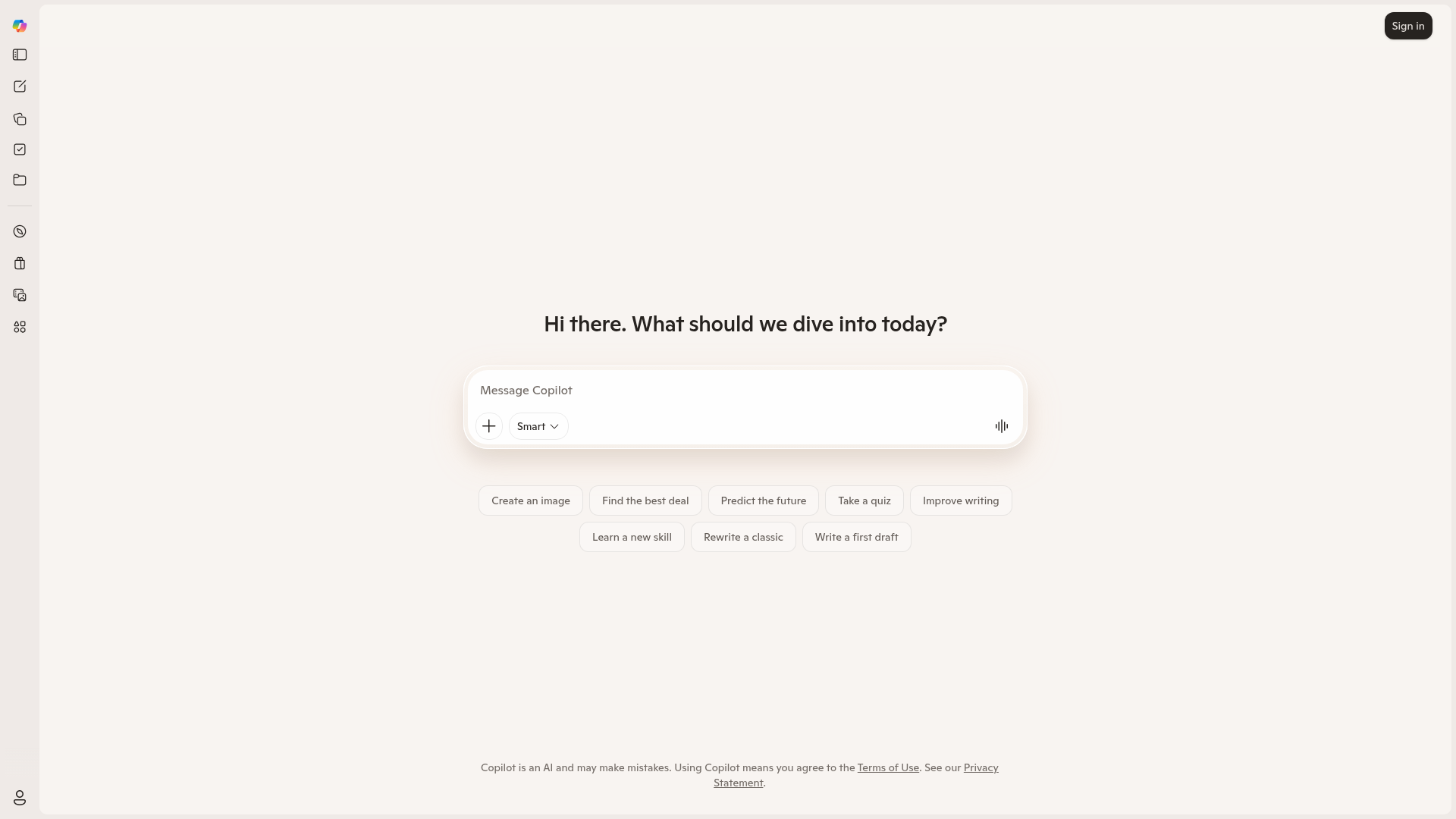
Pair Copilot Studio with your site when you need a conversational AI layer on top of a visually designed page. A common scenario: your marketing or support team wants visitors to interact with an AI agent trained on company-specific content rather than a generic chatbot. Copilot Studio handles the agent logic and AI responses, while your site handles design, content management, and hosting.
You can integrate Copilot Studio in 3 ways:
- The iframe embed via Code Embed element places a Copilot Studio chat panel on any page without writing code.
- WebChat.js via custom code adds a floating chat button to one page or every page, with more control over placement and styling.
- The Data API and Direct Line API give you full control over CMS automation, custom chat interfaces, and server-side workflows, but require backend development.
You'll often combine two or more of these methods depending on the complexity of the setup.
Embed a Copilot Studio agent with a Code Embed element
Use the iframe code that Copilot Studio generates for each agent. Paste it into a Code Embed element, and the chat panel renders inline on your page. No JavaScript, no backend, no API keys. Use this method when you want a visible chat panel in a specific section of a page.
You need a paid site plan to use custom code — the free Starter plan blocks all custom code. Set the agent in Copilot Studio to "No authentication." Navigate to Settings > Security > Authentication, select No authentication, and save. The embed code only appears when this setting is active.
[image placeholder]
To set up the iframe embed:
- Open your agent at copilotstudio.microsoft.com and navigate to Channels > Web.
- Copy the iframe embed code. It follows this pattern:
<iframe
  src="https://copilotstudio.microsoft.com/environments/[env-id]/bots/[bot-id]/webchat?__version__=2"
  frameborder="0"
  style="width: 100%; height: 100%;">
</iframe>
- Open the Add panel (the "+" icon in the left sidebar).
- Drag a Code Embed element onto your canvas.
- Paste the iframe code into the code editor modal and click Save and close.
- Resize the element on the canvas to set the chat panel dimensions.
- Click Publish to make the agent live.
Keep these constraints in mind:
- The iframe loads Microsoft's default chat UI, and you cannot modify the chat interface itself
- You can style the container element, but not the chat interface
- The Code Embed element supports up to 50,000 characters per element
The iframe approach works in production. The University of North Carolina deployed a Copilot Studio agent using this exact iframe pattern on their Undergraduate Testing Center site, built on WordPress, grounded in their website content as a knowledge source. The same technique transfers directly here. If you need more control over the chat widget's behavior or appearance, use the WebChat.js method below.
Add a floating chat widget with custom code
WebChat.js adds a floating chat button instead of an inline panel and gives you styling options and page context passing. The code is client-side JavaScript that connects to Copilot Studio via the Direct Line protocol. You get a chat bubble that visitors click to open a conversation window, similar to a live chat widget.
For this method, paste an HTML and JavaScript block into the custom code in head and body tags fields. The setup varies slightly depending on whether you want the widget on a single page or across your entire site.
Add the widget to a single page
For a single-page deployment, paste the code into the page-level custom code field.
To add the widget:
- Get the token endpoint URL from the Web channel publishing pane in Copilot Studio.
- Open the Pages panel in the left sidebar.
- Hover over the target page and click the gear icon to open Page Settings.
- Scroll to Custom Code > Before
</body>tag. - Paste the HTML button markup and the WebChat.js initialization script:
<div id="webchat" role="main"></div>
<button id="open-chat" onclick="showChat()" aria-label="Open Chat Assistant">
  <svg viewBox="0 0 24 24" fill="none" stroke="currentColor" stroke-width="2"
       stroke-linecap="round" stroke-linejoin="round" aria-hidden="true">
    <path d="M21 15a2 2 0 0 1-2 2H7l-4 4V5a2 2 0 0 1 2-2h14a2 2 0 0 1 2 2z"></path>
  </svg>
</button>
- Add the JavaScript that fetches a conversation token and initializes the WebChat control:
const conversationResponse = await fetch(tokenEndpoint);
const conversationInfo = await conversationResponse.json();

if (!conversationInfo.token) {
  throw new Error("Failed to get conversation token");
}

const directLine = window.WebChat.createDirectLine({
  domain: `${directLineUrl}v3/directline`,
  token: conversationInfo.token,
});

webChatInstance = window.WebChat.renderWebChat(
  { directLine, styleOptions, store: createCustomStore() },
  document.getElementById("webchat")
);
- Click Save, then Publish the site.
The createCustomStore() function fires a startConversation event when the Direct Line connection completes. This tells the agent a new visitor has opened the chat. You can find the complete code for this function in the Copilot Studio web channel documentation.
Add the widget to every page
For a site-wide deployment, use the same code but paste it in a different location.
To add the widget globally:
- Go to Site settings (gear icon in the top-left).
- Click the Custom Code tab.
- Paste the HTML and JavaScript into the Footer code section.
- Click Save changes.
- Publish the site.
The code is identical to the single-page method. The only difference is where you paste it.
Pass page context to the agent
You can send page-specific data — current URL, language, user attributes — to the agent by including context variables in the WebChat.js initialization. Add values like { Language: siteLanguage, currentURL: window.location.href, OrderId: '12345' } to the initialization payload.
To configure the agent to receive these variables:
- In the Conversation Start system topic in Copilot Studio, add a Question node.
- Leave the question blank. For Identify, select User's entire response.
- Replace the default variable name with a descriptive name.
- Select Global (any topic can access).
- Select External sources can set values.
Microsoft documents the full setup in the pass context variables guide. If the default chat UI does not fit your brand requirements, Copilot Studio also has a custom canvas approach that gives developers full control over the chat interface, though Microsoft notes this path is intended for experienced developers.
Build with the Webflow and Copilot Studio APIs
Take the API path for cases the embed methods do not cover, such as writing AI-generated content to CMS collections, processing form submissions through an AI agent, or building a fully custom chat interface with server-side token management. You'll need backend development (Azure Functions, Node.js, or similar) because hosted pages don't execute server-side code.
Three APIs are relevant to this integration:
- The Bot Framework Direct Line API 3.0 manages conversations, message exchange, and token generation for Copilot Studio agents
- The Data API v2 manages CMS collection items, form data, and site publishing
- Webhooks trigger real-time events (form submissions, CMS changes) that you can route to your backend
All three APIs use Bearer token authentication. Direct Line tokens expire after 30 minutes, so refresh them before expiry. Data API tokens are scoped per site or workspace, with OAuth available for apps that need broader access.
Create a secure custom chat interface
The Direct Line API lets you build a chat UI that exchanges the Direct Line secret for a short-lived token server-side, keeping secrets out of client-side code.
To implement the secure token flow:
- Enable web channel security in Copilot Studio: Settings > Security > Web channel security > turn on Require secured access. Copy Secret 1 or Secret 2.
- On your server, exchange the secret for a token:
POST https://directline.botframework.com/v3/directline/tokens/generate
Authorization: Bearer <YOUR_SECRET>
- Pass only the token to the browser. Add the Bot Framework Web Chat control to your page via custom code:
<script src="https://cdn.botframework.com/botframework-webchat/latest/webchat.js"></script>
<div id="webchat" role="main"></div>
<script>
  window.WebChat.renderWebChat({
    directLine: window.WebChat.createDirectLine({ token: '<TOKEN_FROM_YOUR_SERVER>' })
  }, document.getElementById('webchat'));
</script>
Never expose the Direct Line secret in client-side code. The Copilot Studio web security documentation covers the full security configuration, and the Web Chat overview documents styling and customization options for the React-based control.
Write AI-generated content to the CMS
Use a Copilot Studio agent to generate content, then write it to CMS collections via the Data API.
To create and publish a CMS item:
- Generate content through your AI pipeline.
- Create a staged CMS item with the Data API:
curl -X POST "https://api.webflow.com/v2/collections/{collection_id}/items" \
  -H "Authorization: Bearer <token>" \
  -H "Content-Type: application/json" \
  -d '{
    "fieldData": {
      "name": "Article Title",
      "slug": "article-title"
    },
    "isArchived": false,
    "isDraft": false
  }'
- Publish the item:
curl -X POST "https://api.webflow.com/v2/collections/{collection_id}/items/publish" \
  -H "Authorization: Bearer <token>" \
  -H "Content-Type: application/json" \
  -d '{"itemIds": ["643fd856d66b6528195ee2ca"]}'
The CMS plan supports up to 2,000 items, and the Business plan supports 10,000. For high-volume content generation, check your plan tier against anticipated output.
Route form submissions to a Copilot Studio agent
Use webhooks to send form data to a middleware endpoint that triggers a Copilot Studio agent via Power Automate.
To set up this flow:
- Register a
form_submissionwebhook:
curl -X POST "https://api.webflow.com/v2/sites/{site_id}/webhooks" \
  -H "Authorization: Bearer YOUR_ACCESS_TOKEN" \
  -H "Content-Type: application/json" \
  -d '{
    "triggerType": "form_submission",
    "url": "https://your-middleware-endpoint.com/webhook"
  }'
- Point the webhook URL to a Power Automate HTTP trigger endpoint.
- In Copilot Studio, navigate to the Overview page, locate the trigger, and click Edit in Power Automate.
- Configure the Power Automate flow to parse the incoming form payload and pass it to the agent.
The webhook payload includes the submitted field key-value pairs in payload.data, the form name in payload.name, and a timestamp in payload.submittedAt. Add a filter parameter when registering the webhook to target a specific form by name. See the webhook events reference for full payload schemas.
What can you build with the Copilot Studio Webflow integration?
Integrating Copilot Studio lets you add conversational AI to any page on your site without rebuilding your frontend or managing chat infrastructure.
- Customer support chatbot: Embed a Copilot Studio agent on an e-commerce site to handle order tracking, return requests, and product questions. The agent answers common queries using your documentation as a knowledge source and escalates to a human when needed. Microsoft's deployment guide documents this pattern for handling tasks like credit applications and product purchases.
- Lead qualification on landing pages: Place an agent on a landing page that asks qualifying questions, collects contact details, and routes qualified leads to your sales team. Form submissions trigger the agent via webhooks, and the agent writes enriched lead data back to a CMS collection for the sales team to review.
- FAQ automation grounded in your content: Train a Copilot Studio agent on your existing documentation, help articles, or CMS content. Visitors ask questions in natural language and get answers sourced from your actual content, available 24/7. The University of Hong Kong deployed this pattern to handle high volumes of student onboarding inquiries.
- AI-generated CMS content: Connect a Copilot Studio workflow to the Data API to generate blog posts, product descriptions, or FAQ entries and publish them directly to CMS collections. A form submission triggers content generation, and the result writes back as a live CMS item, ready to display on your site.
If you need more control over authentication flows, multi-agent orchestration, or custom chat interfaces, take the API integration path.
Frequently asked questions
Custom code embedding is unavailable on Webflow's free Starter plan. Every embed method for Copilot Studio (iframe, WebChat.js, or API-based) requires adding custom code to your site. You need a paid Webflow site plan (or a Core, Growth, Agency, or Freelancer Workspace plan) to use any of these methods. The Webflow Code Embed documentation confirms this requirement.
The standard web channel allows embedding when the agent's authentication is set to "No authentication." The iframe embed code only appears in Copilot Studio when that setting is active. Selecting "Authenticate with Microsoft" removes the embed option, and no supported workaround exists for custom website embedding. Authenticated agents are currently limited to Teams and Power Apps channels. For public-facing Webflow sites, set the agent to "No authentication" and rely on the agent's knowledge scope to control what information it shares.
Yes, it can affect performance depending on implementation. Place chatbot scripts in the footer code (before
</body>) rather than the head code to avoid render-blocking that can affect Core Web Vitals scores. The Webflow custom code documentation recommends usingasyncordeferattributes on external script tags added to the<head>. Measure the actual impact with Google PageSpeed Insights before and after deployment, since Webflow support does not troubleshoot third-party integrations; performance issues must be directed to the chatbot provider.The Direct Line secret should never appear in client-side code on a public site. For testing, the secret can be used directly. For production, exchange the secret for a short-lived token on a server (Azure Functions or similar) and pass only the token to the browser. The token expires after 30 minutes and can be refreshed before expiry. The Copilot Studio web security guide covers this token exchange pattern in detail.
Yes. Copilot Studio is available in 30+ languages, including English, Spanish, French, German, Japanese, Chinese (Simplified and Traditional), Arabic, Portuguese, and more. You can configure a multilingual agent that detects and responds in the visitor's language. This is useful for Webflow sites serving international audiences, since the embedded agent handles language switching independently of Webflow's localization settings.
Description
Embed Microsoft Copilot Studio AI agents on Webflow sites using Code Embed elements, custom page or site code, and the Direct Line and Webflow Data APIs.
This integration page is provided for informational and convenience purposes only.

Social Chat Buttons
Add WhatsApp, Messenger, and Instagram chat buttons to your Webflow site with the Social Chat Buttons app, or place the widget script yourself.

Flowstar Customer Testimonials Slider
Connect Flowstar with Webflow to display customer testimonials in slider or grid layouts using the Flowstar app embed or the Webflow CMS API for programmatic control.

Supersparks
A Webflow site can publish blog posts and product pages, but visitors have no way to talk back, so readers reach for another tool to leave comments or start discussions. Embedded comment widgets patch that gap while ignoring your classes and layout, and that design tradeoff is what Supersparks removes.

Smartarget FAQ
Connect Smartarget FAQ with Webflow to show a floating FAQ widget that answers visitor questions on any page of your site.

Wiremo
Connect Wiremo, a review management platform, with Webflow to add star ratings, review widgets, photo reviews, and automated post-purchase email requests to product and service pages.
Corner Ribbon
Connect Corner Ribbon with Webflow to add customizable promotional ribbons that highlight sales, announcements, and offers on your site.
Urgency Deal
Connect Urgency Deal with Webflow to show countdown deal notifications that push visitors to act before a promotion ends.
Smartarget Stories
Connect Smartarget Stories with Webflow to show scheduled, Instagram-style image and video stories on your pages.

Flowstar Sales Notification
Connect Flowstar Sales Notification with Webflow to display real-time purchase alerts on your store through customizable popups.
Related integrations
Get started for free
Try Webflow for as long as you like with our free Starter plan. Purchase a paid Site plan to publish, host, and unlock additional features.
