






Wiremo
Connect Wiremo, a review management platform, with Webflow to add star ratings, review widgets, photo reviews, and automated post-purchase email requests to product and service pages.

Wiremo adds star ratings, review widgets, and automated post-purchase email requests to your site, with structured data markup that helps reviews surface in search results. Setup runs through a marketplace app or manual code embeds, and you moderate and customize everything from a single dashboard.
This integration fits eCommerce store owners who need social proof on product pages, agencies managing client sites, service businesses collecting company-level testimonials, and marketers showcasing top reviews on landing pages.
How to integrate Wiremo with Webflow
Wiremo is a review management platform that collects reviews automatically and displays review widgets on product and service pages. It injects JSON-LD structured data for search engine visibility and rich-result eligibility. It supports photo reviews, multilingual widgets, automated review request emails, and response triggers based on review sentiment.

eCommerce stores and service sites use Wiremo when they need a dedicated review system that runs automatically after setup. The combination handles the full review lifecycle. It requests feedback after a purchase, moderates submissions, displays ratings on product pages, and shows top reviews on landing pages or homepages. If you're migrating from Shopify or WooCommerce, you can import your existing review library into Wiremo.
You can integrate Wiremo with Webflow in 2 ways:
- The Wiremo app places review and rating widgets on eCommerce product pages without writing code.
- Manual code embeds let you add Wiremo widgets to many page types, including non-eCommerce pages, using Code Embed elements or custom code in head and body tags. On CMS-driven dynamic pages, you may need to manually bind identifiers and page or product data in the widget code.
Most eCommerce sites start with the Wiremo app for product pages, then add manual embeds for dedicated review pages or homepage carousels.
Install the Wiremo app
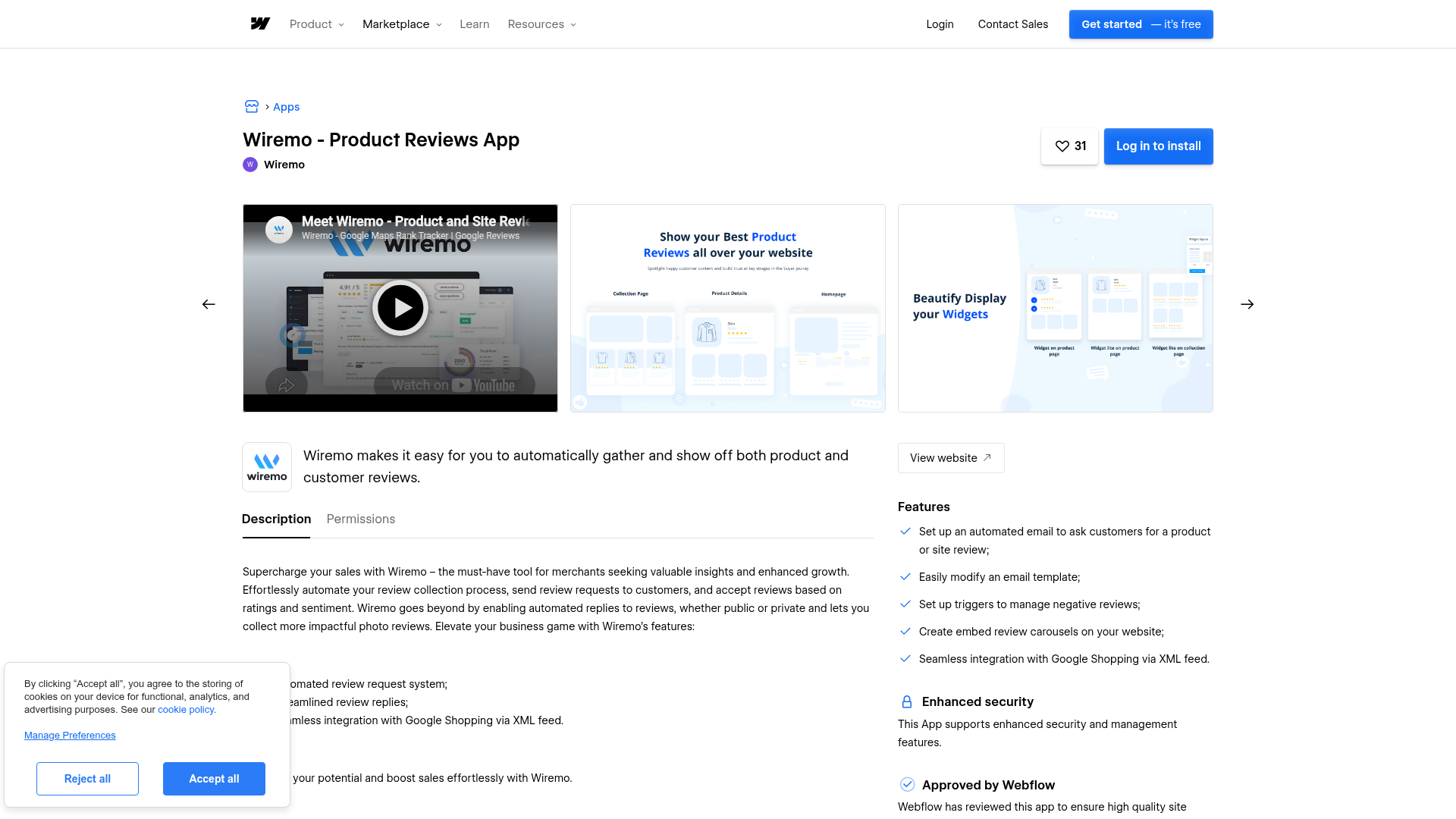
The Wiremo - Product Reviews App in the App Marketplace adds review widgets to eCommerce product pages without writing code. It places a star rating widget and a full review widget directly onto your Products Template. It's an officially approved app, available on a free Wiremo trial. Once you install it, all widget customization, review moderation, and email automation happen in the Wiremo dashboard.
To set up the integration:
- Go to your dashboard, open Apps & Integrations, find Wiremo, and click Install.
- Select your site or workspace, then click Authorize App.
- Click Proceed, then follow the Setup Tutorial link and click the Website Designer link to open your site.
- Click Home and select Products Template (or the product page you want to target).
- Click the Apps icon, locate Wiremo - Product Reviews, and press Launch.
- In the Wiremo app window, select an element on the page, choose Before or After, and click to place the Wiremo Rating Widget.
- Scroll down in the app window, select another element, and place the Wiremo Review Widget in the same way.
- Click Publish, then Publish to Selected Domains.
- Open a product page on the published site (outside edit mode) and confirm both widgets appear.
- Return to the Wiremo app window, click Go to Dashboard, and press Validate your Website to complete setup.
Once you publish, confirm both widgets appear on the live product page and complete validation in Wiremo.
The app handles the following out of the box:
- Star ratings and full review display on product pages
- Photo reviews with customer-uploaded images
- Automated post-purchase review request emails
- Review collection that accepts reviews based on ratings and sentiment
- Automated public or private replies to reviews
- JSON-LD structured data that can help pages qualify for Google rich snippets
These defaults cover the main review collection and display workflow for product pages.
The Wiremo widget won't render inside the Designer canvas because of content security policy restrictions. Publish to at least the .webflow.io staging domain to test widget rendering. All feature configuration, including review carousel setup, badge placement, trigger rules, and email template editing, happens in the Wiremo support hub. The app method only works on eCommerce product pages. For reviews on other page types, use the manual embed approach below.
Add Wiremo widgets with Code Embed elements and custom code
The manual embed approach works on many page types, not just eCommerce product pages. Use it to place company-level reviews on service pages, build a dedicated "All Reviews" page, or add a review carousel to your homepage. This method uses two pieces of code from the Wiremo dashboard. One is a JavaScript loader script. The other is an HTML div element that defines where the widget appears and what data it displays. On CMS-driven dynamic pages, you may need to manually bind the correct identifiers and page or product data in the widget div.
Place reviews with a Code Embed element
A Code Embed element lets you paste both the Wiremo script and widget div directly onto many pages in the Designer canvas. You don't need a paid site plan for this method.
To add the widget using a Code Embed element:
- Log in to the Wiremo dashboard, go to Install Wiremo, enter your domain URL, and press Next.
- Click Install manually with Universal code.
- Copy the Wiremo Script (listed under point "2" on the setup page) and the Wiremo Div code (under point "3").
- Before pasting the div code, replace the placeholder values with your actual page or product data. Set
data-review-typeto"product"for product reviews or"company"for sitewide company reviews. For a dedicated "All Reviews" page, setdata-review-type="company",data-review-source="*", and remove the product-specific parameters (data-identifier,data-product-title,data-product-image,data-product-sku). - Open the target page and drag a Code Embed element from the Add panel onto the canvas where you want reviews to appear.
- Double-click the Code Embed element to open the code editor, then paste both the Wiremo script and the edited div code.
- Click Save & Close, then publish the site.
- Return to the Wiremo dashboard and click Validate your Website.
Once you publish, refresh the live page and validate the installation from the Wiremo dashboard.
Don't include <html>, <head>, or <body> tags inside the Code Embed element. The Code Embed has a 50,000-character limit per element. For reference, the full Wiremo div code with all parameters looks like this:
<div id="wiremo-widget"
  data-review-type="product"
  data-identifier="your_product_id_or_url_path"
  data-review-source=""
  data-product-url="your_page_url_or_product_url"
  data-product-title="Page Title or product title"
  data-product-image="[url to product image]"
  data-product-sku="SKU/Product_ID">
</div>
See the Wiremo widget loading code guide for a full parameter reference.
Load the Wiremo script via site or page custom code
If you want the Wiremo script to load across every page (for example, when using carousels or badges sitewide), you can inject it through site settings instead of repeating it in individual Code Embed elements. You need a paid site plan for this.
To add the Wiremo script site-wide:
- From your dashboard, click the three dots on your site card and select Settings.
- In the left sidebar, click Custom Code.
- Paste the Wiremo script into the Footer Code field to avoid render-blocking.
- Click Save Changes, then publish.
Once you publish, the script loads site-wide, but you still need to place the widget div where the reviews should appear.
For page-specific script loading, open the target page, click the gear icon for page settings, scroll to Custom Code, and paste the Wiremo script in the Footer Code field.
With this method, the Wiremo div code still needs a location on the page. Place it in a Code Embed element on the canvas (containing only the div code, since the script now loads separately). This approach avoids repeating the script and lets you control widget placement on the page. The widget appears as an empty placeholder in the Designer and only renders on the published site.
What can you build with the Wiremo Webflow integration?
With Wiremo connected, you can add review collection and display to many pages without building custom review infrastructure or managing server-side code.
- Product review pages with star ratings: Display star ratings and written customer reviews on every eCommerce product page. The Wiremo app places both widgets on your Products Template. JSON-LD structured data helps search engines understand ratings and may make pages eligible for rich snippets.
- Dedicated "All Reviews" page: Create a standalone page that aggregates every review across your site. Set
data-review-type="company"anddata-review-source="*"in a Code Embed element to pull all submitted reviews into a single view for visitors who want to browse feedback before purchasing. - Homepage review carousel: Show your highest-rated reviews on your homepage or landing pages using the Wiremo Carousel widget. Place it anywhere on the page via a Code Embed element to show social proof outside of product pages.
- Automated post-purchase review collection: Set up review request emails in the Wiremo dashboard that send automatically after each eCommerce order. Pair these with Wiremo Triggers to auto-reply with thank-you messages, issue promo codes for positive reviews, or open conversations when negative reviews come in.
If you need more control over review display on non-eCommerce pages, use the manual embed approach with Wiremo's universal code.
Frequently asked questions
No. Third-party scripts are blocked in the Webflow canvas due to content security policy restrictions. The Wiremo widget renders only on the published site. Publish to at least the
.webflow.iostaging domain to confirm the widget appears correctly.Yes, but not through the marketplace app. The Wiremo app is scoped to eCommerce product pages. For service pages, homepages, or any non-product page, use the manual Code Embed method with
data-review-type="company"in the widget div code. On CMS-driven dynamic pages, you may need to manually bind the correct identifiers and page data.It depends on the installation method. The Wiremo marketplace app and the Code Embed element method both work on free Webflow site plans. Injecting the Wiremo script through site settings or page-level custom code fields requires a paid Webflow site plan (Basic or higher).
Yes. Wiremo injects JSON-LD structured data by default, which helps search engines understand review content and may make pages eligible for star ratings in search results. Because Wiremo renders via client-side JavaScript, Google processes the structured data through its deferred rendering queue, so there may be a delay between publishing and the markup appearing in search results. The Wiremo FAQ confirms that Google recognizes and reads their structured data format.
Yes. In the Wiremo dashboard, go to Reviews and press Import Reviews in the top-right corner. You can import manually or upload a CSV file. You can import existing reviews when migrating a store from Shopify or WooCommerce to Webflow, which preserves your review history. The Wiremo review import guide covers both import methods step by step.
Description
Wiremo adds review collection, star ratings, and JSON-LD structured data to Webflow through its Marketplace app for e-commerce product pages or manual Code Embed elements for service pages, homepages, and dedicated review pages.
This integration page is provided for informational and convenience purposes only.

Orimon
Connect Orimon with Webflow to answer visitor questions and capture leads through an AI chatbot trained on your published site.

Chaty
Add a floating Chaty chat widget to your Webflow site that routes visitors to WhatsApp, Messenger, phone, and other channels across 20+ supported platforms.

Social Intents live chat
Connect Social Intents live chat with Webflow to answer visitor questions in real time from Microsoft Teams or Slack, with Google Chat also supported.

Twise
Connect Twise, an AI chat assistant, with Webflow to answer visitor questions, capture leads, and respond in 92 languages using a chat widget that learns from your site content.
Flowstar: Banners
Connect Flowstar: Banners with Webflow to display promotional pop-ups and announcement banners without writing code
Flowstar Urgency Countdown Timer
Add deadline-driven countdown timer bars to any Webflow page using Flowstar's no-code app.

Click to Call
Connect Click to Call with Webflow to add a floating phone button that lets visitors call your business directly from any page.
Quiz Popup
Connect Quiz Popup with Webflow to embed branching quiz popups that collect visitor data, capture emails, and route product recommendations on your site.

Impulse
Connect Impulse with Webflow to add popups, bars, and widgets to your site without writing custom code.
Related integrations
Get started for free
Try Webflow for as long as you like with our free Starter plan. Purchase a paid Site plan to publish, host, and unlock additional features.
