






Chatbot
Connect Chatbot, an AI chatbot platform by Text, Inc., with Webflow to add a 24/7 chat widget for lead qualification, visitor support, and conversation-driven data collection.

Webflow sites do not include built-in live chat or AI chatbot functionality. Visitors who have questions outside business hours, need help choosing a product, or want to start a conversation before filling out a form have no native way to do so. Adding that capability requires a third-party tool and a reliable installation method.
Chatbot adds an AI-driven chat widget to your Webflow site through a JavaScript snippet pasted into your site's custom code settings. Once live, the widget handles visitor questions around the clock, qualifies leads through guided conversation flows, and routes collected data to external tools or directly into Webflow CMS collections via Zapier or API calls.
This integration works well for marketing teams running lead generation landing pages, agencies building client sites with chat-based support, ecommerce operators automating product recommendations, and membership site owners who want personalized chat experiences tied to user data.
How to integrate Chatbot with Webflow
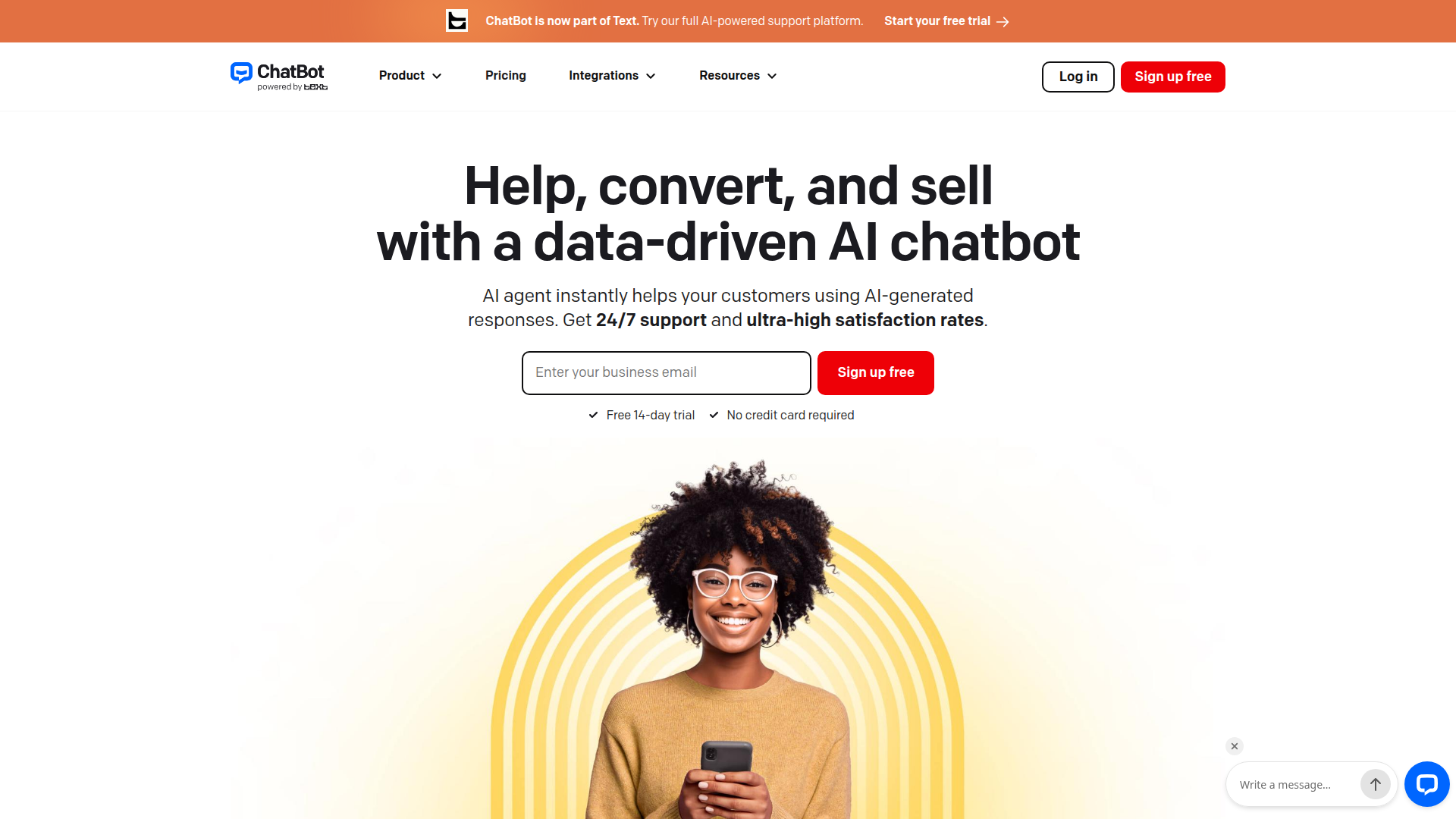
What is Chatbot? Chatbot is an AI chatbot platform developed by Text, Inc. (the parent company behind LiveChat and HelpDesk) that deploys a chat widget on websites to answer visitor questions, qualify leads, and guide users through conversation flows. It includes a visual bot builder for creating conversation "Stories," webhook blocks for triggering external API calls, and a Chat Widget JS API for programmatic control.
Teams typically add Chatbot to Webflow sites when they need 24/7 visitor support without staffing a live chat team, or when they want to capture and route lead information automatically. The widget loads on the published site and runs independently of Webflow's content management layer, while data collected during conversations can flow into CMS collections or external services.
The Chatbot-Webflow integration supports 3 approaches:
- Custom code embed handles widget deployment on your Webflow site without writing application code.
- Zapier lets you route chat conversation data into Webflow CMS collections automatically.
- The Webflow Data API and Chatbot APIs give you full control over data sync, user segmentation, and widget behavior, but require server-side development.
These three paths cover the main setup options for most teams. Most implementations start with the custom code embed for the widget itself, then add Zapier or API integration if chat data needs to reach Webflow CMS or other systems.
Add the Chatbot widget with custom code
Chatbot's Webflow integration uses a JavaScript snippet you copy from your Chatbot dashboard and paste into Webflow's custom code settings. This deploys a floating chat bubble on your published site. You can install the widget across every page at once through site settings, target specific pages through page settings, or place it at a specific position in your layout using a Code Embed element. All three paths require a paid Webflow site plan, since custom code is disabled on the free Starter plan.
The widget's appearance, position, greetings, and mobile behavior are all configured inside the Chatbot dashboard. Changes to those settings take effect immediately without republishing your Webflow site. You only need to republish if you change the embed snippet itself.
Deploy site-wide with custom code in site settings
This is the recommended method for most sites. It adds the chat widget to every page at once.
To set up site-wide deployment:
- Log in to Chatbot and open your bot.
- Click the Integrations icon in the sidebar.
- Click Connect next to Chat Widget.
- Go to the Publish section and click Copy code.
- In Webflow, select your site from the Dashboard.
- Click the W logo (top left) and select Site Settings.
- Click the Custom Code tab.
- Paste the Chatbot snippet into the Head Code field.
- Click Save Changes, then click Publish and select Publish to selected domains.
These steps install the widget across your full site in one pass. Chatbot's Webflow-specific guide specifies the Head Code section, while their general widget installation guide recommends placing the script before the closing </body> tag (Footer Code). Both locations work. Footer Code is the better choice for page load performance because it avoids render-blocking.
Target specific pages with Code Embed elements
Use this method when you want the widget on a single page, such as a pricing page or contact page, positioned at a specific spot in the layout.
To add Chatbot with a Code Embed element:
- Copy the widget code from your Chatbot dashboard (same steps as above).
- Open the target page in Webflow.
- In the left panel, click the Add Elements (+) icon.
- Drag the Embed element (displayed as
</>) onto your canvas. - Double-click the element to open the code editor.
- Paste the Chatbot widget code.
- Click Save & Close, then publish.
This method gives you page-level placement control without changing site-wide settings. Code Embed elements have a 50,000 character limit. Do not wrap the snippet in <html>, <head>, or <body> tags.
Target specific pages with page-level custom code
This method targets a single page without adding a canvas element. It works well when you want the floating bubble on one page but do not need precise layout placement.
To add Chatbot via page settings:
- Open the target page in Webflow.
- Open the Pages panel in the left sidebar.
- Hover over the page name and click the gear icon.
- Scroll to the Custom Code section.
- Paste the widget code into the Footer Code field.
- Click Save, then publish.
This setup keeps the implementation limited to that page alone. The widget will not appear in Webflow's preview mode regardless of which method you use. Always verify on your live published URL.
Connect Chatbot and Webflow with Zapier
Zapier provides a direct Chatbot + Webflow integration that routes conversation data from your chatbot into Webflow CMS collections. This does not deploy the widget itself. You still need the custom code embed (described above) to display the chat widget on your site. Zapier handles what happens with the data your bot collects.
The integration is one-way only, per Chatbot's Zapier documentation. Data flows from Chatbot to Webflow, but no message can be returned to the chat user through Zapier.
For this workflow, use the Chatbot New Message trigger with Webflow actions such as:
- Webflow Create Item: adds a new item to a given collection
- Webflow Create Live Item: adds a new item to a collection on your published site
- Webflow Update Item: updates an item
- Webflow Update Live Item: updates a live item
- Webflow Find Item: searches for an item in a collection
These Webflow actions cover the main CMS workflows most teams need for no-code routing.
To connect Chatbot and Webflow through Zapier:
- Go to zapier.com and log in or create an account.
- Click Create Zap.
- Set Chatbot.com as the trigger app and select New Message.
- Connect your Chatbot.com account.
- Set Webflow as the action app and select the Webflow action you need (for example, Create Live Item).
- Connect your Webflow account and map the Chatbot.com data fields to your CMS collection fields.
- Test the Zap and activate it.
These steps set up the automation after your widget is already live on the site. This setup works best when you want no-code routing of lead or support data into Webflow CMS without building a server-side workflow.
Build with the Webflow and Chatbot APIs
For full control over data sync between Chatbot conversations and your Webflow site, both platforms offer REST APIs. This path is for developers who need bidirectional data flow, custom user segmentation, conditional widget behavior, or real-time CMS updates based on chat interactions.
The available APIs:
- The Chatbot API (v2) handles Stories, User Entities, Webhooks, Users, and Segments at
https://api.chatbot.com/v2/ - Webflow's Data API handles CMS collections, items, forms, and site publishing at
https://api.webflow.com/v2/ - Webflow webhooks trigger real-time events like
form_submissionandcollection_item_created - The Chat Widget JS API controls the widget client-side (maximize, destroy, listen for events)
Together, these APIs provide the main building blocks for a custom integration. Both APIs use Bearer token authentication. Chatbot tokens are generated at https://app.chatbot.com/settings/developers. Webflow tokens come from site settings or OAuth for multi-site integrations.
Sync chat data to Webflow CMS with webhooks
Chatbot's webhook system fires when a user reaches a Webhook block placed at a specific point in a conversation flow. This is not an event-subscription model. You control exactly when the webhook fires by positioning the block in your Story design.
To set up a webhook-to-CMS pipeline:
- In Chatbot, go to Chatbots, select your bot, and click the Integrations icon.
- Select Webhook and click Create new webhook.
- Enter a name, your server's HTTPS endpoint URL, and a verification token.
- Click Add integration. Chatbot sends a GET request with your token and a
challengevalue. Your server must return thechallengeas the response body. - Open your Story in the bot builder and add a Webhook action block at the point where you want data sent.
- On your server, parse the incoming POST payload (which includes
userAttributesandattributescollected from Question blocks) and call the Webflow CMS Items API to create or update a collection item.
These steps define when data leaves the conversation and how it reaches your server. The webhook payload includes a chatId, userId, userAttributes (persistent data like name and email), and attributes (session-specific data collected upstream). Map these values to your Webflow CMS collection field slugs when calling the Create Live Item endpoint (POST /v2/collections/{collection_id}/items/live).
Chatbot webhooks have a strict 10-second timeout. Your server must complete all processing, including the Webflow API call, within that window. For two-way communication, return a JSON response with a responses array to send a message back to the chat user.
Control widget behavior with the Chat Widget JS API
After embedding the widget snippet, you can use JavaScript in Webflow's custom code sections to control the widget programmatically.
To add client-side widget controls:
- Add a Code Embed element or page-level custom code block to the target page.
- Use
OpenWidget.call()to trigger actions andOpenWidget.on()to listen for events.
These hooks let you change widget behavior without altering the core embed code.
For example, to auto-maximize the widget when it loads:
function onReady() {
  OpenWidget.call('maximize');
}
OpenWidget.on('ready', onReady);
You can also destroy the widget with OpenWidget.call('destroy') or respond to user events within the chat. The onReady callback fires when the widget is loaded and ready, or immediately if already loaded.
What can you build with the Chatbot Webflow integration?
Integrating Chatbot with Webflow lets you add AI-driven conversation experiences to any Webflow site without building custom chat infrastructure.
- Lead qualification landing pages: Build a Webflow landing page where the Chatbot widget asks visitors qualifying questions (budget, timeline, company size) and routes the collected data into a Webflow CMS collection via Zapier. Your sales team reviews leads directly in the CMS or a connected Collection List on an internal dashboard page.
- 24/7 product support sites: Deploy the widget across an ecommerce or SaaS marketing site to answer common product questions, guide visitors to relevant documentation, and collect support requests outside business hours. Conversation flows built in Chatbot's visual Story builder handle FAQs while webhook blocks send unresolved issues to your helpdesk.
- Event registration acceleration: Add a chatbot to an event marketing site built in Webflow that walks visitors through registration details, answers schedule questions, and captures attendee information. The bot collects name, email, and session preferences through conversation, then writes that data to a CMS collection for your event team.
- Membership portal chat support: On Webflow sites with third-party membership tools, configure the Chat Widget JS API to pass user attributes (such as membership tier or account ID) to the chatbot. The bot returns personalized responses based on those attributes using webhook-powered server logic.
If you need more control over conditional widget behavior or real-time CMS updates based on conversation data, the API integration path covers those cases with full flexibility.
Frequently asked questions
Yes. Chatbot's integration requires pasting a JavaScript snippet into Webflow's custom code settings. Custom code is only available on paid Webflow site plans (or Core, Growth, Agency, and Freelancer Workspace plans). The free Starter plan blocks all custom code. Chatbot itself offers a 14-day free trial with no credit card required, so you can test the widget if your Webflow plan supports custom code.
Footer Code (before
</body>) is the better choice. Chatbot's Webflow-specific guide specifies Head Code, while their general widget installation guide recommends the</body>position. Both work, but Footer Code loads after the main page content renders, avoiding render-blocking that can hurt Core Web Vitals scores.Custom code does not execute in Webflow's canvas or preview mode. This is a documented Webflow behavior, not a Chatbot issue. The widget only appears and functions on your live published URL. Publish your site first, then verify widget placement and behavior on the production domain.
No. Chatbot does not have a listing on the Webflow Apps Marketplace.
Yes, through two paths. The no-code option is Zapier's Chatbot + Webflow integration, which uses the Chatbot New Message trigger with Webflow actions that create or update CMS items automatically. This is one-way only. For bidirectional data flow (where your server can also return a message to the chat user), build a custom webhook handler that calls the Webflow CMS Items API to write data into collections programmatically.
Description
Chatbot adds an AI chat widget to Webflow through a JavaScript snippet in site or page custom code settings.
This integration page is provided for informational and convenience purposes only.

Social Chat Buttons
Add WhatsApp, Messenger, and Instagram chat buttons to your Webflow site with the Social Chat Buttons app, or place the widget script yourself.

Flowstar Customer Testimonials Slider
Connect Flowstar with Webflow to display customer testimonials in slider or grid layouts using the Flowstar app embed or the Webflow CMS API for programmatic control.

Supersparks
A Webflow site can publish blog posts and product pages, but visitors have no way to talk back, so readers reach for another tool to leave comments or start discussions. Embedded comment widgets patch that gap while ignoring your classes and layout, and that design tradeoff is what Supersparks removes.

Smartarget FAQ
Connect Smartarget FAQ with Webflow to show a floating FAQ widget that answers visitor questions on any page of your site.

Wiremo
Connect Wiremo, a review management platform, with Webflow to add star ratings, review widgets, photo reviews, and automated post-purchase email requests to product and service pages.
Corner Ribbon
Connect Corner Ribbon with Webflow to add customizable promotional ribbons that highlight sales, announcements, and offers on your site.
Urgency Deal
Connect Urgency Deal with Webflow to show countdown deal notifications that push visitors to act before a promotion ends.
Smartarget Stories
Connect Smartarget Stories with Webflow to show scheduled, Instagram-style image and video stories on your pages.

Flowstar Sales Notification
Connect Flowstar Sales Notification with Webflow to display real-time purchase alerts on your store through customizable popups.
Related integrations
Get started for free
Try Webflow for as long as you like with our free Starter plan. Purchase a paid Site plan to publish, host, and unlock additional features.
