






AddEvent
Connect AddEvent, a calendar marketing and event management platform, with Webflow to embed event calendars, add-to-calendar buttons, RSVP forms, and subscription calendars on any page.

AddEvent turns static event listings into live calendars, add-to-calendar buttons, and RSVP forms that sync straight to visitors' Google, Outlook, and Apple Calendar apps. Update an event once and the change flows to every subscriber and every embedded widget on your site automatically.
Pair it with Webflow if you're running webinar series, nonprofit fundraisers, fitness class schedules, or event-driven client sites. Marketers, community managers, and developers get visual site-building plus calendar functionality that neither tool delivers alone.
How to integrate AddEvent with Webflow
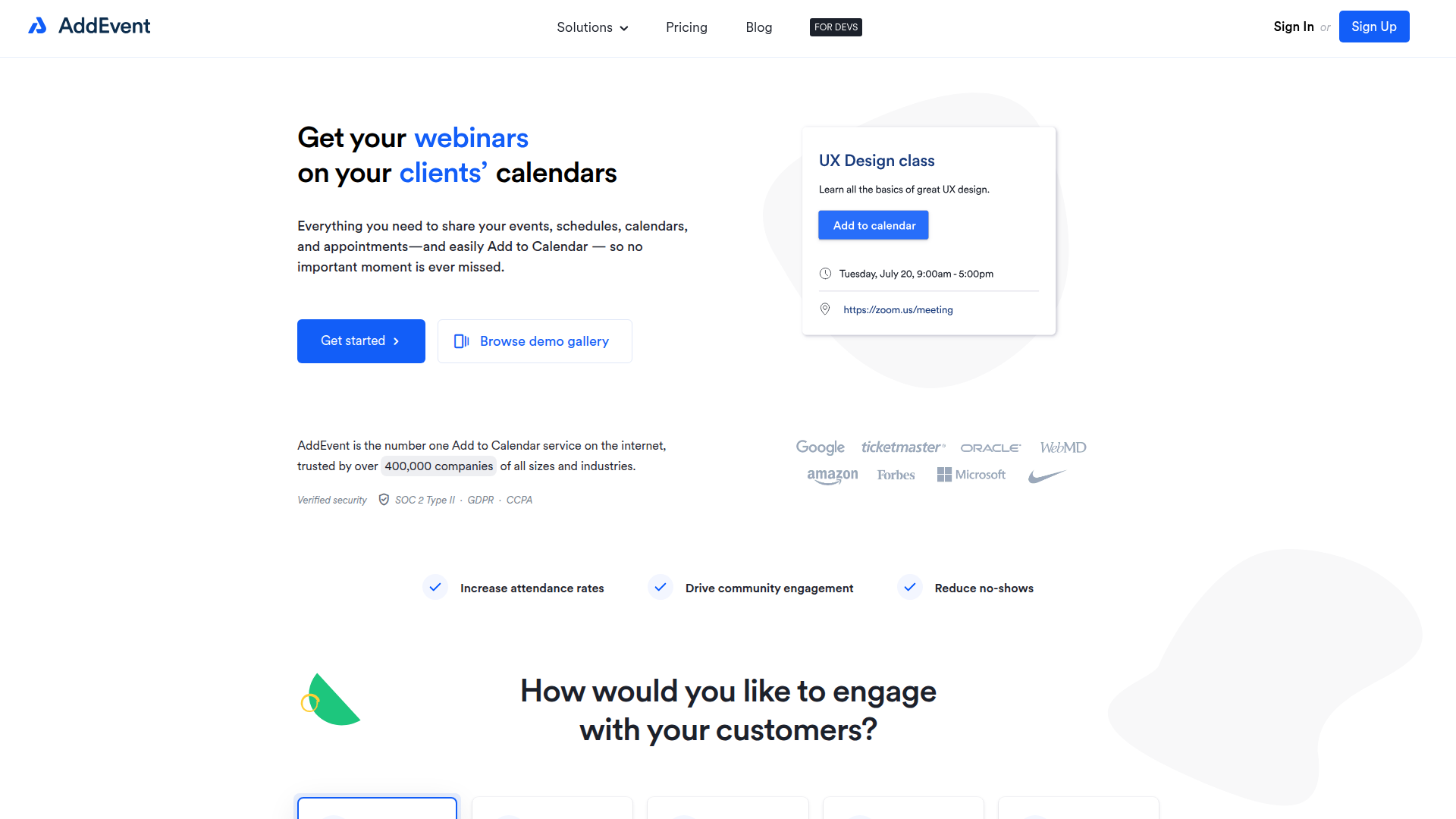
What is AddEvent? AddEvent is a calendar marketing and event management platform that helps you get events onto attendees' personal calendars. It has add-to-calendar buttons for Google Calendar, Microsoft Outlook, Apple Calendar, Office 365, and Yahoo Calendar, along with embeddable calendar widgets, subscription calendars, and RSVP forms. AddEvent is SOC 2 Type II, GDPR, and CCPA compliant.
Pair AddEvent with Webflow when you need visitors to interact with events directly from your site, whether that means saving a single event, subscribing to a full calendar, or registering with an RSVP form. You can connect AddEvent to Webflow in 3 ways:
- The AddEvent Event Calendar app adds a full calendar to any page without copying embed code.
- Code Embed elements and custom code in head and body tags let you place add-to-calendar buttons, RSVP forms, event widgets, and calendar embeds anywhere on a page.
- The Webflow and AddEvent APIs give you full control over syncing Webflow CMS events with AddEvent calendars, but require server-side development.
Most implementations combine two or more of these methods depending on the complexity of the setup.
Install the AddEvent Event Calendar app
The AddEvent Event Calendar app is the fastest way to add a full event calendar to your site. Install it directly from the Apps Marketplace and connect it to an AddEvent account through visual configuration — no embed code required. The app has monthly, weekly, and schedule layout views, real-time event sync, RSVP collection, and 25-language localization with right-to-left support. You need a paid AddEvent account (Small Business or above).
To set up the integration:
- Open the Apps Marketplace and install the AddEvent Embeddable Event Calendar App.
- Click the Apps icon on the left-hand menu, then click Launch on the AddEvent app.
- Follow the configuration steps to connect your AddEvent account.
- Add an Event Calendar Block to your page and enter your CalendarID in the block settings.
- Publish the site to see the calendar live.
The app handles these capabilities without custom code:
- Sync events from Google Calendar, Outlook, Eventbrite, Zoom, and iCalendar feeds
- Collect RSVPs and manage attendees from the AddEvent dashboard
- Display responsive calendar layouts across mobile, tablet, and desktop
- Accept guest event submissions
- Support recurring events
Visitors can click any event to see details, add individual events to their calendar, RSVP, or subscribe to the entire calendar for ongoing sync. For add-to-calendar buttons on individual pages or RSVP forms outside the calendar widget, use the Code Embed method below.
Add AddEvent components with Code Embed elements
When you need to place an add-to-calendar button on a specific event page, embed an RSVP form inside a custom layout, or display an events list in a sidebar, Code Embed elements give you precise placement control. This method works with any AddEvent embed type: single-event buttons, subscription calendar buttons, RSVP forms, event widgets, embeddable calendars, and events lists. Copy the snippet from the AddEvent dashboard and paste it into your page. You don't need to write code, but you need a paid Workspace plan (Core, Growth, Agency, or Freelancer) to use Code Embed elements.
AddEvent has five embed types you can use, each suited to different page layouts and use cases.
Embed an add-to-calendar button
Add-to-calendar buttons let visitors save a single event to their personal calendar app with one click. This embed needs two code pieces: a JavaScript library tag that loads in the page <head>, and a button HTML element that goes in the page body. The button works on the free AddEvent Hobby plan but caps at 100 clicks per month.
To add the button:
- In the AddEvent dashboard, open your event and go to the add-to-calendar button section. Select a style, then click the source code icon to copy both the
<script>library tag and the button HTML. - Open Page Settings for the target page, scroll to Custom Code, and paste the
<script>tag into the Head Code field. Click Save. - Back on the canvas, click the + icon in the left toolbar, search for Embed, and drag a Code Embed element onto the page where you want the button.
- Paste the button HTML into the code editor and click Save & Close.
- Publish the site and verify the button on the live URL.
The button displays a dropdown with calendar options (Google Calendar, Outlook, Apple Calendar, and others). Add data-styling="none" to the button div to disable default CSS and apply your own styles. AddEvent offers 18 pre-built themes as alternatives to custom styling.
Embed a calendar, RSVP form, or events list
AddEvent's embeddable calendar, RSVP form, and events list widgets are each a single HTML snippet that you paste into a Code Embed element. Calendar embeds need a paid AddEvent plan (Small Business or above), while the RSVP form works on the free Hobby plan with a 20-RSVP monthly limit.
To embed a calendar widget:
- In the AddEvent dashboard, click the calendar you want to embed and scroll to the Embeddable calendar section.
- Click Customize and Share, then click Show embed options.
- Click Copy next to the Embed code option.
- Drag an Embed element onto your page, paste the embed code, and click Save.
- Open the website in preview mode to verify the calendar renders.
The same pattern applies to RSVP forms (copy from the Embeddable RSVP Form section of your event) and events lists (copy from the Embeddable events list section of your calendar). Customize each widget inside the AddEvent dashboard for colors, fonts, language, date format, and which calendar services to display.
Code Embed elements show a placeholder on the canvas. Widgets only render in preview mode or on the published site. Wrap the Code Embed element in a div set to width: 100% with a max-width constraint to keep the widget responsive across all breakpoints.
Build with the Webflow and AddEvent APIs
If you need to sync Webflow CMS event collections with AddEvent calendars, pull RSVP data back into the CMS, or route events to category-specific calendars, the API path gives you full control. This approach requires server-side development. Neither API supports direct browser-side calls safely, so run all integration logic through a middleware layer such as a Vercel serverless function, AWS Lambda, or a Node.js server.
Use these APIs:
- The AddEvent API handles event creation, calendar management, and RSVP attendee operations
- The Webflow Data API handles CMS collections, item publishing, and form submission data
- Webhooks trigger real-time events when CMS items are published, deleted, or when forms are submitted
AddEvent doesn't support webhooks, so the AddEvent-to-Webflow direction needs scheduled polling against the AddEvent API. You can drive the Webflow-to-AddEvent direction with webhook triggers.
Sync Webflow CMS events to AddEvent
When a content editor publishes an event in the CMS, a webhook can trigger your middleware to create or update the corresponding AddEvent event automatically.
To implement this sync:
- Register a webhook with
triggerType: "collection_item_published"viaPOST /v2/sites/{site_id}/webhooks. Point it at your middleware endpoint. - In your middleware, validate the
x-webflow-signatureheader (HMAC-SHA256), then read the CMS item data from the webhook payload. - Check whether the CMS item already has an AddEvent event ID stored in a dedicated plain-text field. If yes, call
PATCH /events/{id}on the AddEvent API. If no, callPOST /eventsto create a new event. - Write the returned AddEvent
event_idback to the CMS item usingPATCH /v2/collections/{collection_id}/items/{item_id}.
Store the AddEvent event_id in a plain-text CMS field and use AddEvent's custom_data object to store the CMS item ID on the AddEvent side. This bidirectional reference lets you make reliable create-vs-update decisions on every sync. Note that AddEvent's datetime_start expects YYYY-MM-DD hh:mm:ss format, while the CMS stores dates in ISO 8601. Convert the format in your middleware.
Create AddEvent RSVPs from Webflow form submissions
Form submissions can create AddEvent RSVP records through AddEvent's own embeddable RSVP form widget or through serverless middleware. A webhook-based middleware bridges native forms to AddEvent's RSVP system.
To implement form-to-RSVP sync:
- Register a webhook with
triggerType: "form_submission"and afiltertargeting your registration form's name. - In your middleware, extract the form field data (name, email, event selection) from the webhook payload.
- Call
POST /events/{id}/rsvpson the AddEvent API withstatus: "active"to trigger confirmation and reminder emails to the attendee. - If the email already exists for that event, route to
PATCH /rsvps/{id}instead of creating a duplicate.
Include the AddEvent event_id as a hidden field in your form so the middleware knows which event to register the attendee for.
Pull RSVP data from AddEvent into Webflow CMS
Since AddEvent has no webhooks, syncing RSVP attendee data back to the CMS needs a scheduled polling job.
To implement this:
- Set up a cron job (every 15 minutes or hourly) that calls
GET /rsvpson the AddEvent API, filtering by event. - Compare each attendee record against existing items in a CMS "Attendees" collection using a stored
addevent_attendee_idfield. - Create new CMS items with
POST /v2/collections/{id}/items/bulkand update existing items withPATCH. Then publish all changes withPOST /v2/collections/{id}/items/publish.
This polling pattern keeps attendee data reasonably current without burning through API calls.
What can you build with the AddEvent Webflow integration?
Pair AddEvent with Webflow to add interactive event calendars and RSVP flows to pages without building your own scheduling system.
- Webinar registration hub: Build a landing page where visitors browse upcoming webinars in a monthly calendar view, RSVP directly on the page, and save each session to their personal calendar. The RSVP form collects attendee data in AddEvent while the add-to-calendar button reduces no-shows.
- Fitness studio class schedule: Display a weekly or monthly schedule of classes that syncs with instructor calendars in real time. Visitors subscribe once and receive every new class, schedule change, and cancellation automatically in their personal calendar app.
- Nonprofit event portal: Create a fundraiser and volunteer event page with categorized calendars, where each program area (advocacy, community service, fundraising) has its own subscription calendar. Supporters follow the calendars relevant to them and stay updated without relying on email blasts.
- Conference session directory: Use the CMS to manage speaker and session data, then sync published sessions to AddEvent calendars via the API. Attendees browse sessions on your site, add individual talks to their calendar, and subscribe to full-day tracks for ongoing updates.
If you need more control over event routing, RSVP data sync, or multi-calendar management, take the API integration path to handle those cases through custom syncing and calendar logic.
Frequently asked questions
It depends on the method. The free Hobby plan supports add-to-calendar buttons (limited to 100 clicks per month) and RSVP forms (limited to 20 RSVPs per month). Embeddable calendar widgets, the Webflow Event Calendar app, and API access all require a paid plan starting at Small Business. On the Hobby plan, functionality is completely disabled once monthly limits are reached, not just degraded. See the AddEvent plan limits documentation for full details on what stops working when limits are exceeded.
No. Code Embed elements show a placeholder on the canvas. AddEvent widgets only render in preview mode or on the published site. Scripts with security controls or origin validation may also fail in Webflow's preview and comment modes. Always test embedded AddEvent widgets on a published staging or production URL to verify functionality.
Webflow form submissions can create AddEvent RSVP records through AddEvent's own embeddable RSVP form widget or through serverless middleware that listens for Webflow form_submission webhooks and calls the AddEvent RSVP API.
No. AddEvent does not currently offer webhooks or any push-based notification system. RSVP and event data is accessible only through polling the AddEvent REST API on a schedule. Webflow does support outbound webhooks, so the Webflow-to-AddEvent direction (CMS item published, form submitted) can be event-driven. The AddEvent-to-Webflow direction requires a cron-based polling job.
AddEvent widgets inherit the width and layout constraints of their parent container in Webflow. If the parent div has a fixed pixel width, the widget will not reflow correctly on smaller screens. Wrap the Code Embed element in a div set to
width: 100%with amax-widthvalue, then test across all four Webflow responsive breakpoints after publishing. The AddEvent embeddable calendar setup guide covers available customization options for the widget itself.
Description
AddEvent adds embeddable event calendars, add-to-calendar buttons, and RSVP collection to Webflow through its Marketplace app for full calendar views or Code Embed elements for individual event components. Changes sync automatically to subscribers' personal calendars.
This integration page is provided for informational and convenience purposes only.

ZealSchedule
Embed ZealSchedule in Webflow to let visitors book and pay for appointments without leaving your site.

Timekit
Connect Timekit with Webflow to take real-time appointment bookings directly on your pages.

Taskeo Appointment Scheduling
Connect Taskeo Appointment Scheduling, a booking and CRM platform, with Webflow to let visitors self-book appointments directly on your pages with automatic CRM contact import.

GoSchedule
With GoSchedule, allow visitors to schedule video meetings, collect payments, and send notifications in one place.

Event Calendar App

CozyCal
Connect CozyCal, a web-based appointment scheduling tool, with Webflow to embed booking calendars, intake forms, and Stripe payments directly on any page as inline widgets or modal overlays.

Calendly
Connect Calendly with Webflow to embed appointment scheduling directly on your site and sync booking data to your CMS.
Related integrations
Get started for free
Try Webflow for as long as you like with our free Starter plan. Purchase a paid Site plan to publish, host, and unlock additional features.
