



Your team already writes in Notion; your audience reads on Webflow. A sync that holds up connects the two without asking anyone to change how they work.
Notion is where a lot of teams already write. It has the review workflow, the comments, and the properties that editors understand. What it does not have is your design system, your URL structure, or your page speed. Webflow has those.
So the job is not to move off Notion. It is to let people keep drafting where they already are and have the published result appear on a Webflow page without anyone copying and pasting.
That is a content pipeline, and the difference between one that runs for a year and one that quietly stops is almost entirely in how it handles the second run. This guide covers the sync end to end, including the Notion API change that breaks most older tutorials on this topic.
What do you need to sync Notion to the Webflow CMS?
A Notion integration with access to the database, a Webflow collection you control, a Data API token with CMS write access, and somewhere to run the sync. The integration permission is the one people miss.
The full list:
- A Notion workspace with an internal integration, and the database explicitly shared with it. An integration sees nothing until a human connects it to that specific page or database
- A Webflow site with a CMS collection whose fields you control
- A Webflow Data API token with CMS write access
- Somewhere to run the sync. A Webflow Cloud project keeps it beside the site, with Node.js 22.13.0 or higher locally, the floor set by Webflow CLI 2.x
Once these are in place, the sync hinges on two things: pinning the right API version, and giving the run a memory so the second one does not duplicate the first. Here's how.
Why older Notion to Webflow tutorials no longer work
Notion released API version 2025-09-03, which introduced multi-source databases, and it is not backwards compatible. Anything written before that change points at endpoints that now behave differently.
Query and schema endpoints moved to a /v1/data_sources namespace, and those calls now take a data source ID rather than a database ID. Database-level attributes such as title and icon stay on /v1/databases.
The consequence is specific and worth stating plainly: if your integration is pinned to an older version and somebody adds a second data source to that database, calls start failing. Not gradually, and not with a warning at build time.
Any guide that tells you to call /v1/databases/{database_id}/query was written before that change. The current call is query a data source, and the Notion-Version header is required on every request. Pin a version deliberately and check the reference for the current value before you ship, because that header is how Notion decides which contract you are on.
What a durable Notion to Webflow sync looks like
A sync that survives is a sync with a memory and a complaint channel. Everything else in the architecture is detail.
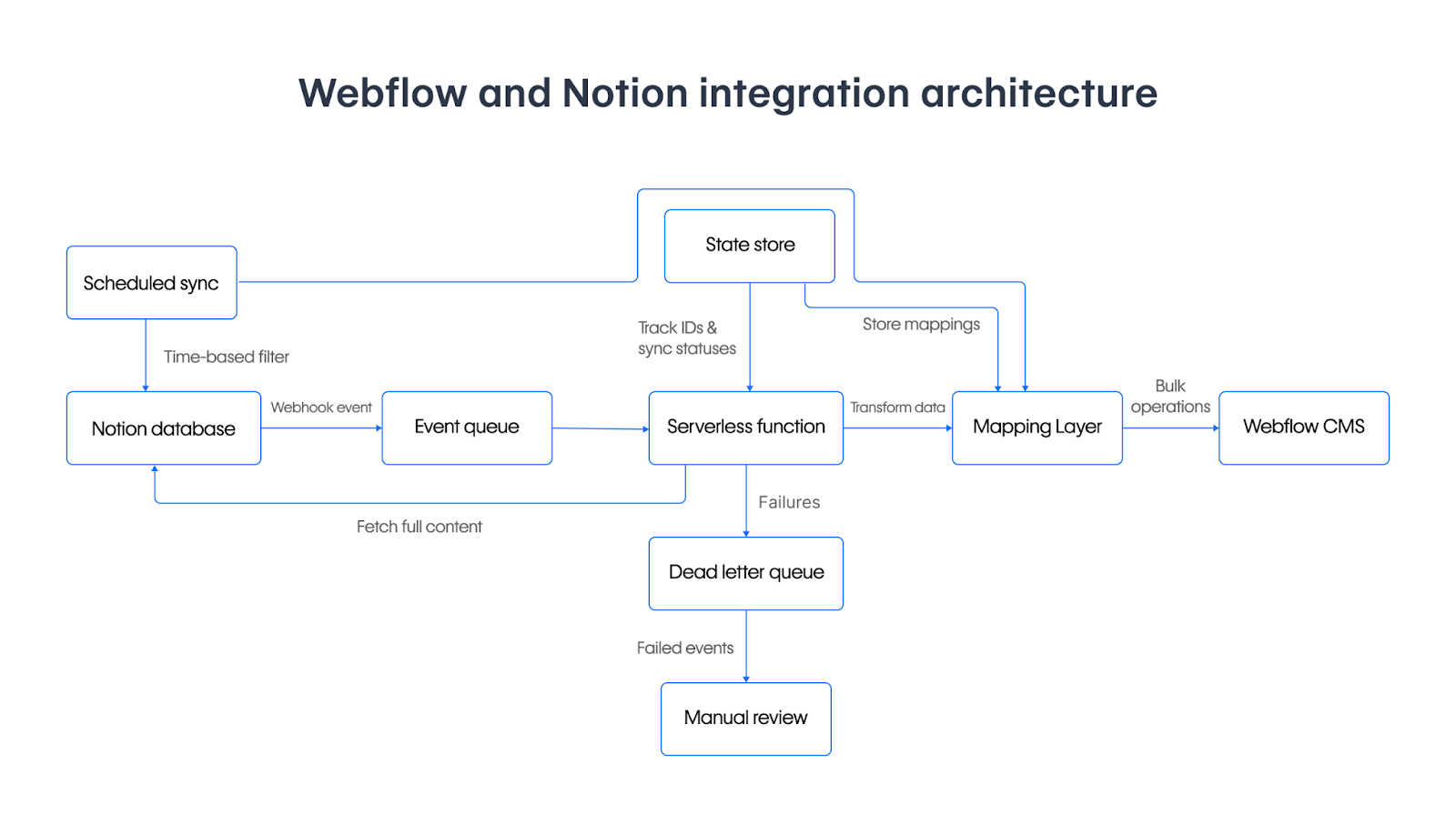
Two boxes in that diagram separate a pipeline from a script. The state store holds the mapping between a Notion page ID and the Webflow item ID it created. Without it, your second run has no way of knowing that a page already exists, so it creates a duplicate. A sync that duplicates on its second run is almost always missing this.
The dead letter queue catches items that failed so a person can look at them. The alternative is a sync that swallows a failure, reports success, and leaves one article missing from the site with nothing in the logs to say which one. You do not need queue infrastructure on day one, but you do need somewhere durable to record the ID mapping and somewhere visible for failures to land.
5 steps to sync a Notion database to the Webflow CMS
The build is a permission grant, a field mapping, a paginated query, a transformation, and an upsert. The transformation is where most of the real work sits.
1. Share the database and get the data source ID
Create an internal integration in Notion and copy its token. Then open the database and, from its menu, connect it to that integration. The token alone grants nothing, which is why a database you can see yourself can still return 404 to the API.
Next, retrieve the database through the API and read the data sources it lists, then pick the one you are syncing. Store that ID in configuration rather than looking it up on every run. You should end this step with a token and a data source ID, and a test request that returns rows rather than a permission error.
2. Map the properties before you write any code
Write the mapping down as a table first, because this is where the shape mismatch lives. Notion property types and Webflow field types do not correspond one to one, and two of these rows are where first syncs usually fail:
There is a naming trap here that costs an afternoon if you hit it cold. In the Webflow CMS API, fieldData keys are the field slugs, so a field labelled "Body Copy" is body-copy. That is the opposite of Webflow's form submission webhook, where the keys are the human-readable field names. Same platform, two conventions, so check which one you are holding before you write the mapping.
3. Query the data source with pagination
Filter in the query rather than in your own code. Pulling everything and discarding most of it wastes rate limit on both sides, and a status filter is what stops half-written drafts appearing on the site.
The query below does both:
// lib/notion.ts
const NOTION_VERSION = '2026-03-11'

type NotionPage = {
  id: string
  last_edited_time: string
  properties: Record<string, any>
}

export async function queryDataSource(cursor?: string) {
  const response = await fetch(
    `https://api.notion.com/v1/data_sources/${process.env.NOTION_DATA_SOURCE_ID}/query`,
    {
      method: 'POST',
      headers: {
        Authorization: `Bearer ${process.env.NOTION_TOKEN}`,
        'Notion-Version': NOTION_VERSION,
        'Content-Type': 'application/json',
      },
      body: JSON.stringify({
        page_size: 100,
        start_cursor: cursor,
        filter: {
          property: 'Status',
          status: { equals: 'Published' },
        },
      }),
    }
  )

  if (!response.ok) {
    throw new Error(`Notion query failed: ${response.status}`)
  }

  return (await response.json()) as {
    results: NotionPage[]
    next_cursor: string | null
    has_more: boolean
  }
}
Notion paginates. The response carries has_more and next_cursor, and a sync that reads only the first page looks perfect until the database passes one hundred rows, which is exactly the point where nobody is watching it any more. A correct run logs more than one page fetch on a database that has more than one page.
4. Transform the content into HTML
This is the mapping layer from the diagram, and it is most of the real work. Notion returns rich text as structured objects with annotations, while the Webflow rich text field expects an HTML string, so something has to walk the content and emit markup.
Keep the conversion in one module with its own tests. It is the part that changes whenever an editor uses a block type you did not anticipate, and you want that to surface as a clear error rather than a silently empty field. The step is done when a representative page round-trips into HTML you would be willing to publish.
5. Write to the CMS and make the write repeatable
The create items endpoint takes the collection ID in the path and your mapped values under fieldData:
// lib/webflow.ts
type Mapped = {
  name: string
  slug: string
  body: string
  notionId: string
}

export async function createItem(item: Mapped) {
  const response = await fetch(
    `https://api.webflow.com/v2/collections/${process.env.WEBFLOW_COLLECTION_ID}/items`,
    {
      method: 'POST',
      headers: {
        Authorization: `Bearer ${process.env.WEBFLOW_TOKEN}`,
        'Content-Type': 'application/json',
      },
      body: JSON.stringify({
        isArchived: false,
        isDraft: false,
        fieldData: {
          // Keys are the field SLUGS from your collection, not the labels.
          name: item.name,
          slug: item.slug,
          'rich-text': item.body,
          'notion-id': item.notionId,
        },
      }),
    }
  )

  if (response.status === 429) {
    // Back off and retry rather than dropping the item.
    throw new Error('RATE_LIMITED')
  }

  if (!response.ok) {
    const detail = await response.text()
    throw new Error(`Webflow create failed: ${response.status} ${detail}`)
  }

  return response.json()
}
Add a plain text field to the collection to hold the Notion page ID, as this code does with notion-id. That single field is the cheapest state store you can build: before creating anything, look for an item carrying that ID and update it instead. It turns the sync from create-only into an upsert, which is what makes the second run safe.
Handle 429 explicitly rather than treating it as a generic failure. The Webflow Data API enforces a per-minute request limit that varies by site plan, and a first import of a large database is precisely the workload that meets it. Back off and retry the item rather than dropping it.
The diagram shows bulk operations into the CMS, which is the scale-up path once an import is large enough that per-item calls become the bottleneck. Start with the single create call and move to batching when the volume asks for it. Items created this way are staged, so they exist in the CMS and are not on the live site until published, which gives you a review step before an automated pipeline changes a public page.
What causes a Notion to Webflow sync to fail? Tips to troubleshoot
Five failures cover almost everything, and four of them are silent: a permission gap, a missing ID mapping, expired image URLs, and a field slug that does not match.
Notion returns 404 for a database you can see
Cause: the integration has not been connected to it. Your own account access is irrelevant to the API, which sees only what the integration was granted.
Fix: open the database, then Connections, and add the integration. Re-run the query and the rows appear. Worth checking this first whenever a sync that worked stops returning results, because a database duplicated or moved in Notion does not carry the old connection with it.
Every second sync duplicates everything
Cause: no ID mapping. The sync has no memory of what it created, so it creates it again on the next run.
Fix: store the Notion page ID on the Webflow item and look it up before writing, so the sync updates rather than inserts. Clean up the duplicates once, then the upsert holds.
Images disappear about an hour after the sync
Cause: you stored a Notion file URL instead of the file. Those URLs are valid for one hour.
Fix: pass the URL to Webflow inside the same run, while it still resolves, and Webflow fetches and rehosts the image so the asset belongs to your site.
The build fails after adding the sync route
Cause: an export const runtime = 'edge' directive. Webflow Cloud deploys Next.js through the OpenNext Cloudflare adapter, which does not support the Next.js edge runtime.
Fix: delete the line and redeploy. Route Handlers already run on the Workers runtime without it. Be aware that Webflow's own bring-your-own-app page still tells Next.js users to add the directive, so the instruction you are following may be the source of the problem rather than your own code.
A field silently stays empty
Cause: the fieldData key does not match the field slug. An unrecognised key does not populate the field, and the response does not tell you which key was wrong.
Fix: check the slug in the collection settings rather than trusting the label, then re-run a single item to confirm the value lands.
What you can build next with Notion and Webflow Cloud
Once the sync runs on a schedule, the next addition is usually a trigger: a Notion webhook so a status change reaches the CMS within seconds instead of at the next interval. Store both credentials as environment variables, marked as secrets, since they are available to the build and to the deployed app at runtime.
Any pipeline that runs unattended also needs to tell you when it fails, and a notification into a channel is the lowest-effort option. Our Slack notification guide covers that pattern, including verifying that an incoming webhook is genuine. For the connection routes that need no code at all, see the Webflow and Notion integration.
For deeper customization beyond what those routes handle, Webflow's developer docs cover the CMS API, rate limits, and the rest of the Webflow Cloud runtime.

Explore the data behind how web teams are navigating AI, collaboration, and technology shifts
1,000 marketing and technology leaders reveal the biggest challenges — and most exciting opportunities — facing their websites.
Frequently asked questions
Why do older Notion tutorials no longer work?
Notion's 2025-09-03 API version introduced multi-source databases and moved the database query and schema endpoints to a data sources namespace. Calls now take a data source ID rather than a database ID. Anything written before that change points at endpoints that behave differently, and an integration pinned to an old version starts failing once a second data source is added to a database.
Can I sync without writing code?
Automation platforms can move rows into CMS items and are a reasonable start for a small, simple database. They become awkward at exactly the points this guide spends its time on: converting rich content to HTML, remembering what was already created, and retrying a rate-limited write. Those are the parts that decide whether the sync survives.
Should items publish automatically?
Prefer staged. Creating items as staged means content lands in the CMS and waits for a human to publish, which keeps an automated pipeline from changing a live page unattended. Publish automatically only once the mapping has proven itself over real content.
Does the sync need to run both ways?
Rarely, and two-way sync is far harder than it looks because you need a rule for what happens when both sides change the same field. Pick one system as the source of truth. If that is Notion, edits made in the Webflow Designer will be overwritten, and everyone touching the collection should know that.
How do I handle a Notion block type my converter does not know?
Fail loudly for it rather than skipping it. An unknown block that silently produces nothing gives you a published page with a hole in it, and nobody notices until a reader does. Raise it, route the item to manual review, and add the block type when you see it.