






Zoho Flow
Connect Zoho Flow, a workflow automation platform, with Webflow to route form submissions, sync CMS content, and automate e-commerce order workflows across 1,000+ apps.

Zoho Flow turns your Webflow site into a trigger for the rest of your stack. A form submission can create a CRM lead, generate an invoice, enroll a contact in an email campaign, or log a spreadsheet row — across 1,000+ connected apps.
Marketing teams route web leads into Zoho CRM or Zoho Campaigns. Ecommerce managers sync orders to inventory and billing tools. Content teams populate Webflow CMS collections from spreadsheets, and agencies bundle automated client workflows alongside site builds.
How to integrate Zoho Flow with Webflow
Zoho Flow is a cloud-based workflow automation platform (iPaaS) built by Zoho Corporation. It connects cloud and on-premises applications using a drag-and-drop flow builder. The builder includes conditional logic, time delays, and optional Deluge scripting (Zoho's built-in scripting language). The platform supports 1,000+ app integrations and 1,200+ prebuilt workflow templates.
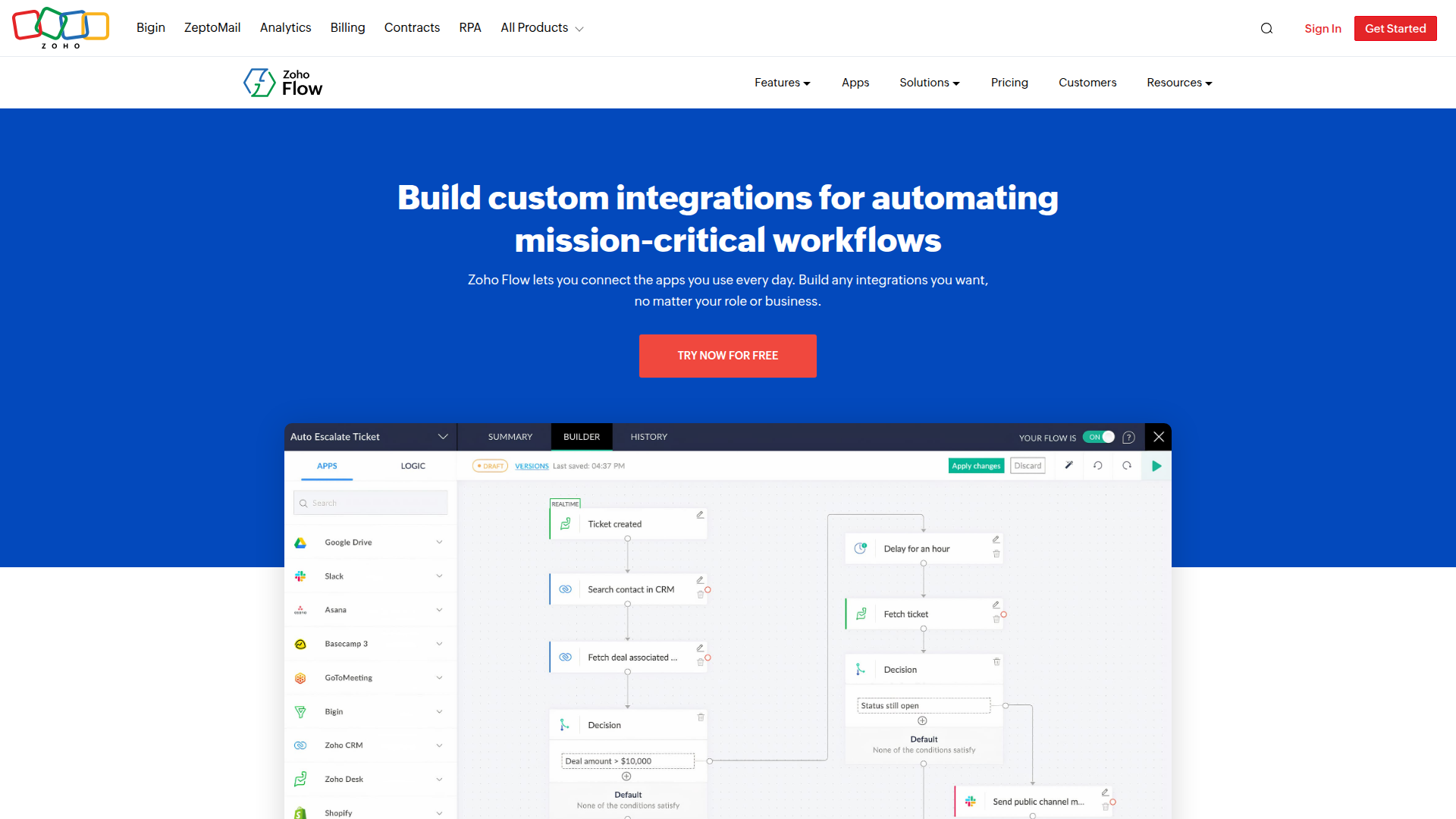
You'll want to connect Zoho Flow and Webflow when site events need to trigger business processes in other tools. A form submission that should create a CRM contact needs an automation layer. The same goes for ecommerce orders that should generate invoices in Zoho Books. Zoho Flow fills that role if you're working in the Zoho ecosystem. It also works when you need connections across Zoho and third-party tools.
You can connect Zoho Flow and Webflow in 3 ways:
- Install the Zoho Flow app from the Webflow Apps directory. It provides a Webflow connector with 4 triggers and 8 actions, configurable without code.
- Use webhook-based flows to send Webflow events to Zoho Flow for trigger types beyond the connector's scope.
- Wire the Webflow Data API and Zoho Flow webhook triggers together for full control over data payloads and field mapping. You'll need server-side development for this path.
Most implementations start with the app connector. Webhook or API methods cover use cases the connector doesn't handle.
Install the Zoho Flow app
The Zoho Flow app in the Webflow Apps directory connects your site to Zoho Flow through OAuth authorization. Once you install it, you can pick from 4 Webflow triggers and 8 actions inside Zoho Flow's visual builder. The app handles authorization without manual webhook URLs or API tokens. It's an approved Webflow app and supports extra security features.
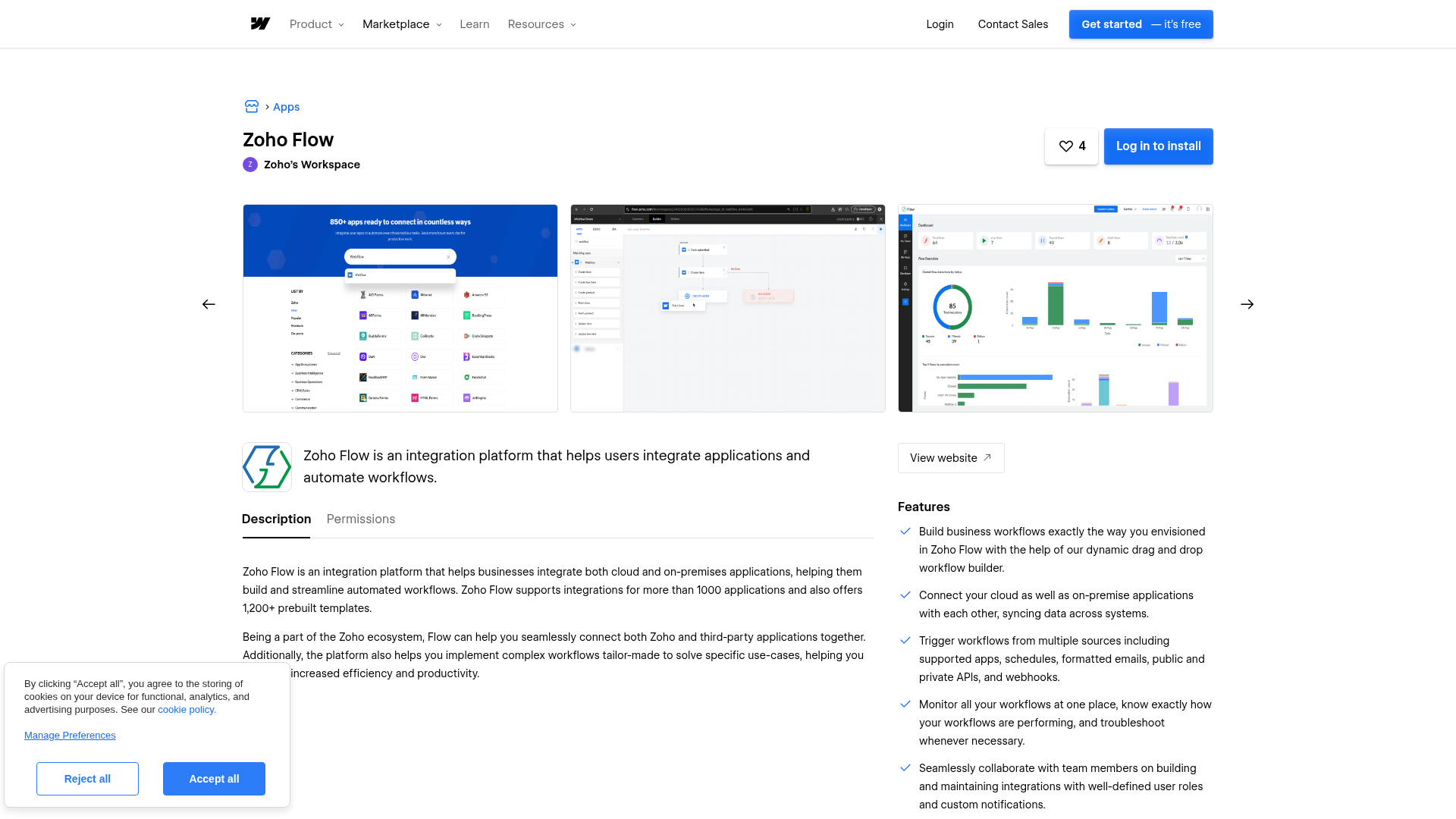
To set up the integration:
- Open the Zoho Flow listing in the Webflow Apps directory and click to install.
- In Zoho Flow, create a new flow and select a Webflow trigger. If no connection exists, click Connect. Otherwise, click +New.
- Enter a connection name, click Authorize, then click Accept to grant Zoho Flow access.
- Select your Webflow site and configure the trigger. For example, choose a specific form for "Form submitted."
- Add one or more actions from your destination app. Map the incoming Webflow fields and activate the flow.
The connector supports these Webflow triggers:
- Form submitted: fires when a new entry is submitted on a selected form
- Order created: fires when a new ecommerce order is placed
- Collection item created: fires when a new CMS item is added to a collection
- Collection item updated: fires when an existing CMS item is modified
Actions from Zoho Flow back into Webflow include creating and updating CMS items, both staged (draft) and live (published). You can also create and update products and fetch item or product details. Zoho Flow ships prebuilt templates for common workflows. Examples include routing new Webflow orders to task management apps (Asana, ClickUp, Todoist) or CRM tools (HubSpot, Pipedrive, ActiveCampaign). Browse the full Webflow template gallery and click Use this flow to activate one.
The connector covers the four most common Webflow event types. For triggers like inventory changes, order status updates, or page creation events, use the webhook method below.
Connect Webflow events with Zoho Flow webhooks
Webflow supports 12 webhook event types, but the Zoho Flow connector exposes only 4 as built-in triggers. For the remaining events (like ecomm_order_changed, ecomm_inventory_changed, site_publish, or page_created), configure a webhook-based flow manually. This approach also gives you finer control over payload handling. Route data through Zoho Flow's webhook trigger with advanced settings.
To set up a webhook-based flow:
- In Zoho Flow, click Create Flow, enter a name, and click Create.
- Click Configure in the Webhook trigger box. Copy the generated webhook URL.
- Select JSON as the payload format and click Next.
- In Webflow, go to Site Settings > Integrations > Webhooks.
- Paste the Zoho Flow webhook URL. Select the trigger event (for example,
ecomm_inventory_changed). - Save the webhook configuration.
- Return to Zoho Flow. Click Test to validate with sample data, then add your downstream actions and map fields.
Webhook-based flows accept JSON, form data, and plain text payloads. Zoho Flow gives you three advanced settings for webhook triggers. Per-element triggering fires the flow once per array element by default. Payload key extraction isolates a single key's value. Header extraction captures HTTP request headers as flow variables.
You need a paid Webflow site plan to use webhooks. After 3 failed delivery attempts (with 10 minutes between retries), the webhook deactivates and you get an email notification.
Route multiple forms through a single flow
All form submissions come through the same form_submission webhook event type. If your site has multiple forms, every submission lands in the same flow. Filter by form name inside Zoho Flow to route data to different destinations.
To filter by form name:
- In Zoho Flow, add a Decision box after the webhook trigger (Logic > Decision box).
- Set the condition to
Name equals <your form's name>(for example,Name equals Contact Us). - Add different action branches for each form name.
Form field values sit nested inside a data object in the webhook payload. Access specific fields using ${trigger.data.<field_name>} — for example, ${trigger.data.Email_address}. You'll find this syntax in Zoho Flow's Webflow app documentation. It's the most common source of mapping errors for new users.
Build with the Webflow and Zoho Flow APIs
For full control over data payloads, custom event handling, and complex multi-step workflows, connect Webflow's REST API directly to Zoho Flow's webhook triggers. You'll need server-side development and familiarity with HTTP requests and webhook payloads.
Relevant APIs and endpoints:
- The Webflow Data API v2 handles CMS collections, form submissions, ecommerce data, and site publishing. The base URL is
https://api.webflow.comwith a/v2/version prefix. - Webflow webhooks support 12 event types and deliver JSON payloads with HMAC signature verification.
- Zoho Flow's webhook trigger accepts inbound POST requests in JSON, form data, or plain text. Each flow gets a unique generated URL.
Zoho Flow doesn't expose a public REST API for external callers. All inbound data arrives through webhook triggers, URL triggers (polling), or the app connector.
Register Webflow webhooks programmatically
Instead of configuring webhooks through the site settings UI, register them through the API. This helps when you're managing webhooks across multiple sites.
To register a webhook:
- Generate a Webflow API token from Site Settings > Apps & Integrations > API Access. To create a webhook, include
sites:write. Add other scopes such asforms:readbased on the resources your workflow needs. - Send a POST request to create the webhook:
curl -X POST \
  -H "Authorization: Bearer <your_api_token>" \
  -H "Content-Type: application/json" \
  -d '{
    "triggerType": "form_submission",
    "url": "<your_zoho_flow_webhook_url>"
  }' \
  https://api.webflow.com/v2/sites/<site_id>/webhooks
- To target a specific form, add a
filterobject to the request body:"filter": { "name": "Contact Us" }. Thefilterparameter only works withform_submission. - Validate incoming webhooks using the
x-webflow-signatureandx-webflow-timestampheaders.
All payloads arrive as HTTP POST with Content-Type: application/json. That makes API-based webhook management useful when you need repeatable setup across sites.
Push external data into Webflow CMS
Zoho Flow can write data back to your site through its connector actions ("Create item," "Create live item," "Update item"). It can also make direct API calls via the invokeurl Deluge function. Common use cases include populating CMS collections from spreadsheet rows or syncing product catalogs from Zoho Inventory.
To create a published CMS item via the API:
- Send a POST request to
https://api.webflow.com/v2/collections/:collection_id/items/livewithcms:writescope. - Include field data matching your collection's schema in the
fieldDataobject. Includename,slug, and any custom fields. - For staged (draft) items, POST to
/v2/collections/:collection_id/itemsinstead. Publish them with a separate request to/v2/collections/:collection_id/items/publish.
Bulk creates accept multiple items per request within API limits. CMS item limits vary by plan: the CMS plan supports 2,000 items and the Business plan supports 10,000. Automations that create new CMS items return an API error once you hit the plan ceiling.
What can you build with the Zoho Flow Webflow integration?
Connecting Zoho Flow with Webflow lets you route form submissions, CMS updates, and ecommerce orders to other business tools without manual data transfer or custom middleware.
- Lead capture with CRM routing: A "Request a Demo" form on your site creates a lead in Zoho CRM. It enrolls the contact in a sales cadence and adds a Google Sheet row for weekly review. Decision boxes route submissions from different forms to different CRM pipelines.
- Ecommerce order processing: A new Webflow ecommerce order triggers an invoice in Zoho Books. It updates stock quantities in Zoho Inventory and creates a fulfillment task in ClickUp or Asana. Currency values arrive in cents, so divide by 100 before writing to the invoice.
- Content syndication to Webflow CMS: A new row in Zoho Sheet or a new YouTube video triggers a flow. The flow creates a live CMS item with the title, slug, and custom fields populated. Content teams manage their editorial calendar in a spreadsheet, and the site updates itself.
- Contract and document automation: A form submission for a service request triggers Zoho Sign, which sends a pre-populated contract for signature. The flow maps the form's name, email, and service selection fields into the document template.
If you need more control over payload transformation, multi-step conditional logic, or events beyond the four connector triggers, the API integration path covers those cases.
Frequently asked questions
Install the Zoho Flow app from the Webflow Apps directory. In Zoho Flow, select a Webflow trigger or action. Click Connect, enter a connection name, and click Authorize. Then click Accept. You can also create a connection from Settings > Connections > Create connection > Webflow. Full setup steps are in Zoho Flow's Webflow documentation.
Webhook-based triggers on the Webflow side require a paid Webflow site plan. The Zoho Flow app connector and webhook triggers each consume tasks based on the number of actions executed per flow run. Check each platform's current documentation for plan-specific limits before building production workflows.
Webflow form field data arrives nested inside a
dataobject in the webhook payload. Use the syntax${trigger.data.<field_name>}to access specific fields. For example,${trigger.data.Email_address}. Field names are case-sensitive and must match the exact names set in Webflow. Use Zoho Flow's test-and-debug feature to inspect the raw payload before configuring mappings. This workaround is documented in the Zoho Flow Webflow app article.The connector supports 4 triggers: form submitted, order created, collection item created, and collection item updated. Webflow's API supports 12 webhook event types total. These include
ecomm_order_changed,ecomm_inventory_changed,site_publish,page_created,page_deleted,page_metadata_updated,collection_item_deleted, andcollection_item_unpublished. Configure a manual webhook in Webflow's site settings and point it to a Zoho Flow webhook trigger URL to use these additional events.Yes. The connector includes 8 actions. These are: create item (staged), create live item (published), update item, update live item, create product, update product, fetch item, and fetch product. They map to Webflow's CMS and ecommerce API endpoints. You can populate CMS collections from external data sources or update product details. You can also publish staged items directly from a Zoho Flow workflow. These actions cover both CMS and ecommerce update scenarios.
Description
Zoho Flow connects Webflow to CRMs, invoicing, inventory, and 1,000+ other apps through its Webflow Marketplace app with four triggers and eight actions, or webhook-based flows for additional event types like inventory changes and order updates.
This integration page is provided for informational and convenience purposes only.

Google Docs
Connect Google Docs with Webflow to embed live documents, sync content to CMS Collections, or build custom API publishing pipelines.

Zapier
Connect Zapier with Webflow to automate form routing, CMS updates, and ecommerce order processing across 7,000+ apps.

Airtable
Connect Airtable with Webflow to publish base records as CMS items and route form submissions back into Airtable.

Pipe dream
Connect Pipedream with Webflow to turn form submissions and CMS changes into automated workflows across thousands of connected apps. Orders can trigger workflows too.

Smartarget Contact Us
Connect Smartarget Contact Us with Webflow to add a floating multi-channel contact widget that lets visitors reach you on WhatsApp, Telegram, email, and 12+ messaging platforms.
CMS Bridge
Connect CMS Bridge with Webflow to sync Airtable records to your CMS collections with record-level control over content states and publishing.
Osmo SVG Import
Connect Osmo SVG Import with Webflow to add fully editable SVG elements to your site without character limits or manual code editing.
Telegram Chat - Contact Us
Connect Telegram Chat - Contact Us to your Webflow site to add a floating Telegram chat widget that lets visitors message you directly from any page.
Form Fields Pro
Connect Form Fields Pro with Webflow to add advanced input types, including searchable selects, date pickers, number range pickers, and file uploaders, to native Webflow forms.
Related integrations
Get started for free
Try Webflow for as long as you like with our free Starter plan. Purchase a paid Site plan to publish, host, and unlock additional features.
